- Before You Start Checklist
- Step-by-Step Fixes for Firestick Audio Delay
- 1. Adjust Surround Sound Settings
- 2. Clear App Cache and Force Stop
- 3. Check TV Audio Delay Settings
- Common Mistakes to Avoid
- When to Contact Your Provider
- Frequently Asked Questions
- Does a simple reboot fix the sound lag?
- Why does the delay only happen on live sports?
- Will changing HDMI ports help?
Watching a live football match on your Amazon streaming device only to see the commentator’s mouth move seconds after the ball is kicked drives anyone mad. Dealing with annoying audio lag ruins the experience completely. If you are experiencing a frustrating Firestick audio delay while streaming authorised UK TV channels through your IPTV app, you don’t have to put up with it. Let’s fix that sound sync issue right now.

Quick answer: Most audio sync problems on Fire TV devices stem from mismatched audio output settings in the main menu or a temporary glitch within your streaming player. Toggling the Dolby Digital settings usually solves it in under a minute.
Before You Start Checklist
- Your Fire TV device runs the latest software update from Amazon.
- Your legal IPTV app is updated to its newest version.
- Your television or soundbar is powered on and connected properly.
- You have your standard Amazon remote ready.
Step-by-Step Fixes for Firestick Audio Delay
Let’s walk through the most reliable methods to get your sound and picture back in perfect alignment. Work through these steps one by one.
1. Adjust Surround Sound Settings
Amazon devices often try to force multi-channel audio through speakers that prefer stereo. This mismatch causes noticeable lag. Head to your main device settings to change it.
- Press the home button on your remote.
- Go to the settings gear icon on the right side.
- Select Display & Sounds, then click Audio.
- Choose Surround Sound and switch it from Always Dolby Digital to PCM or Best Available.
- Restart your device and check a live stream again.
2. Clear App Cache and Force Stop
Sometimes the specific player app you use gets bogged down with temporary data. If you noticed video stuttering alongside the sound lag, clearing the cache works wonders.
- Open Settings on your Fire TV home screen.
- Click Applications, then Manage Installed Applications.
- Find your licensed IPTV app in the list and click it.
- Select Force Stop, then Clear Cache. Do not select clear data unless you have your login details handy.
3. Check TV Audio Delay Settings
Modern televisions process high-definition video faster than they process audio, especially when passing sound through an external soundbar or AV receiver. Look inside your television’s audio menu for a setting called lip sync, audio delay, or digital output delay, and adjust the slider until voices match movements.
Common Mistakes to Avoid
Don’t rush out to buy a new HDMI cable just yet. Many users change random settings without restarting their hardware, which keeps temporary glitches active. Avoid altering router settings for an audio problem, because Wi-Fi speed rarely causes lip sync issues on its own; poor internet usually triggers buffering rather than a consistent sound delay.
When to Contact Your Provider
If you adjusted your device settings and restarted everything, but the audio remains out of sync on one specific channel, the issue might sit with the broadcaster’s feed itself. Reach out to your subscription provider’s support desk to ask if they are investigating a source-side encoding fault.
Frequently Asked Questions
Does a simple reboot fix the sound lag?
Unplugging your streaming stick for thirty seconds clears out temporary memory errors and often restores normal audio timing instantly.
Why does the delay only happen on live sports?
Live broadcasting relies on complex encoding methods that occasionally desynchronise audio and video packets during transmission.
Will changing HDMI ports help?
Moving your stick to a different HDMI port on your TV rarely fixes software-based audio delay, but it remains worth trying if your current port feels loose.
For more information, iptv.
Related reading
- Step-by-Step Guide to Testing Internet Speed for UK IPTV
- Best IPTV Devices UK: Choosing the Right Streaming Hardware for Legal Services
Update: Best IPTV Devices UK: Hardware Breakdown
Update: Choosing Between Direct-to-Consumer Apps and IPTV Services in the UK
- Before You Start Checklist
- Step-by-Step Firestick IPTV Connection Troubleshooting
- Common Mistakes to Avoid
- When to Contact Your Provider
- Safety and Legal Notes
- Frequently Asked Questions
- Why does my Firestick IPTV connection fail only during peak evening hours?
- Do I need a wired ethernet adapter for my Firestick?
- How often should I clear my device cache?
When your Firestick IPTV connection drops out right before kick-off, the frustration hits instantly. You want live television to load smoothly without endless spinning wheels. Most network errors on Amazon streaming devices come down to simple Wi-Fi interference, local bandwidth caps, or temporary app glitches. You can fix these issues at home without calling an engineer.

Before You Start Checklist
Gather a few basic details before you begin tinkering with your network settings. Knowing your current setup saves valuable time.
- Check your broadband provider name (such as BT, Sky, or Virgin Media).
- Locate your Wi-Fi router password.
- Confirm whether other devices in your house load video normally.
- Check if your Firestick remote has working batteries.
Step-by-Step Firestick IPTV Connection Troubleshooting
Work through these numbered steps in order. Each action targets a common culprit behind streaming failures on UK broadband networks.
- Test your internet speed. Open a browser or speed test app on your Firestick. You need at least 15 Mbps for stable high-definition live streams.
- Restart your router and Firestick. Unplug the power cables from both units. Wait sixty seconds. Plug them back in to clear temporary IP conflicts.
- Switch Wi-Fi frequency bands. Most modern routers broadcast on 2.4 GHz and 5 GHz bands. Move your Firestick to the 5 GHz band for faster speeds and less interference from household appliances.
- Clear application cache. Go to your Firestick settings, select applications, manage installed applications, choose your legal streaming app, and clear cache. You can also read our guide on updating your software to ensure you run the latest version.
- Forget and reconnect to Wi-Fi. Sometimes your router assigns a faulty IP address. Forget your home network in the Firestick network menu and enter your password again.
Common Mistakes to Avoid
Many viewers make simple errors that make streaming worse. Do not place your router inside a closed TV cabinet because physical blockages weaken wireless signals drastically. Avoid running heavy downloads or large console updates on other devices while watching live sports. Do not ignore app updates either, because outdated software often fails to communicate properly with modern broadcaster servers.
When to Contact Your Provider
Sometimes the fault lies outside your living room. Contact your broadband internet service provider if your speed tests show heavy throttling or if your router drops connection entirely every few hours. Reach out to your official streaming service helpdesk if error codes persist even after you switch networks and reinstall the app.
Safety and Legal Notes
This guide applies strictly to authorised, licensed streaming applications and legal broadcast subscriptions available in the United Kingdom. We do not support or discuss pirate playlists, modified APK files, or geo-unblocking workarounds. Always use official apps downloaded directly from the Amazon Appstore.
Frequently Asked Questions
Why does my Firestick IPTV connection fail only during peak evening hours?
Local neighborhood network congestion often slows down broadband speeds between 7 PM and 10 PM. Switching to a 5 GHz Wi-Fi channel can help bypass local interference.
Do I need a wired ethernet adapter for my Firestick?
An ethernet adapter provides a wired connection that eliminates Wi-Fi dropouts entirely. You will need an official Amazon Ethernet Adapter or a compatible USB-to-Ethernet dongle.
How often should I clear my device cache?
Clear your app cache once a week if you stream live television daily. This prevents stored temporary files from slowing down your interface.
For more information, iptv.
Related reading
- Choosing Between Dedicated Streaming Apps and IPTV Services for Live Football in the UK
- Amazon Fire TV Stick vs Apple TV 4K: Choosing Your UK IPTV Device
Update: Best IPTV Devices UK: Choosing the Right Streaming Hardware for Legal Services
Update: Step-by-Step Guide to Testing Internet Speed for UK IPTV
- Before You Start Checklist
- Step-by-Step IPTV Buffering Troubleshooting Guide
- 1. Check Your Home Broadband Speed
- 2. Switch From Wi-Fi to Ethernet
- 3. Clear App Cache and Storage
- 4. Change Your DNS Settings
- Common Mistakes to Avoid
- When to Contact Your Provider
- Frequently Asked Questions
- Why does my stream only buffer during weekend football matches?
- Does clearing the app cache delete my playlist?
When live football or your favourite drama constantly stutters, watching live television becomes intensely frustrating. If your screen keeps freezing mid-stream, you need to troubleshoot your setup before the next big match kicks off. IPTV buffering UK issues usually stem from local network congestion, outdated app software, or temporary server strain from your provider. Let us look at how you can diagnose and fix these playback problems on your living room television.

Before you start tinkering with settings, a quick reality check helps. Sometimes the issue lies entirely with the broadcaster or content delivery network, meaning no amount of button-mashing on your remote will help. But if it happens every evening during peak hours, your home setup is usually the prime suspect.
Before You Start Checklist
- Note down the exact time the freezing happens to spot patterns.
- Check if the problem affects all channels or just one specific feed.
- Locate your home router and TV remote control.
- Ensure your TV is close enough to your Wi-Fi router for a strong signal.
Step-by-Step IPTV Buffering Troubleshooting Guide
Work through these concrete steps in order to clear up video stuttering on your Samsung, LG, or Android television.
1. Check Your Home Broadband Speed
Live high-definition streaming demands a stable internet connection. Run a quick speed test on another device connected to the same network. If your download speed drops below 25 megabits per second, high-definition streams will struggle. You can check your home broadband speed before streaming Premier League live streams to see if your internet service provider is throttling your connection during busy evenings.
2. Switch From Wi-Fi to Ethernet
Wireless interference ruins many a viewing session. Thick walls, microwave ovens, and neighbouring routers all disrupt Wi-Fi signals. Plug an Ethernet cable straight from your router into the back of your Smart TV if your model has a port. A wired connection almost always eliminates random dropouts and lowers ping times significantly.
3. Clear App Cache and Storage
Smart TVs often run low on internal memory, which causes apps to stutter and crash. Go into your television settings menu, find your installed media player application, and clear its temporary cache files. Do not worry; this will not delete your active subscription details, but it will give the software a fresh start.
4. Change Your DNS Settings
Internet Service Providers sometimes route video traffic inefficiently. Log into your router settings or adjust the network configuration directly on your TV to use a public DNS service like Cloudflare or Google. This simple tweak often improves route stability when connecting to remote media servers.
Common Mistakes to Avoid
Many viewers make the mistake of constantly reinstalling their entire application without checking their internet connection first. Others keep their TV connected to a congested 2.4GHz Wi-Fi band when a 5GHz band is available. Avoid overloading your local network with heavy downloads while trying to watch live television.
When to Contact Your Provider
If you have tested a wired connection, cleared your app cache, and verified your broadband speed is fast, the bottleneck is likely outside your house. Contact your subscription provider if specific streams or entire channel groups refuse to play smoothly. Ask them if they are experiencing server maintenance or capacity limits in your region.
Frequently Asked Questions
Why does my stream only buffer during weekend football matches?
Massive viewer numbers put heavy strain on content delivery servers worldwide. When thousands of people tune into the same live event simultaneously, even robust networks experience temporary slowdowns.
Does clearing the app cache delete my playlist?
Clearing the cache only removes temporary files. However, clearing the app data entirely will wipe your settings, so keep your login credentials handy just in case.
For more information, iptv.
Related reading
Update: Amazon Fire TV Stick vs Apple TV 4K: Choosing Your UK IPTV Device
Update: Choosing Between Dedicated Streaming Apps and IPTV Services for Live Football in the UK
- The Short Answer
- Before You Start Checklist
- Why Do I Need to Update IPTV Apps Regularly?
- How Do I Update IPTV Apps on an Amazon Fire Stick?
- How Do I Update IPTV Apps on a Samsung Smart TV?
- How Do I Update IPTV Apps on an LG Smart TV?
- How Do I Update IPTV Apps on Android TV Devices?
- Common Mistakes People Make When Updating Apps
- When to Contact Your Provider
- Frequently Asked Questions
- Do I lose my playlist settings when I update my IPTV app?
- Why does my TV say there is no storage space for updates?
- Can I set my IPTV apps to update automatically?
- What happens if an app update makes my player crash?
- Safety and Legal Notes
Outdated software causes most streaming headaches in British living rooms. When your interface lags or channels fail to load, the fix is often simpler than you think. You just need to update IPTV apps to the latest version released by the developer.

Television manufacturers and streaming stick makers push background updates constantly. Sometimes, however, your third-party media players require manual intervention. Old code clashes with new operating system patches. That causes crashes, audio sync bugs, and blank screens.
Below, we walk through the exact steps required to refresh your software across different hardware brands popular in UK households. Let us get your setup running properly.
The Short Answer
To fix software bugs and improve performance, you must update IPTV apps directly through your device’s built-in app store or settings menu. Amazon Firesticks require navigating to your profile manage settings, while Samsung and LG televisions use their respective app management panels. Always check your connection stability before downloading new files, as interrupted downloads corrupt application data.
Before You Start Checklist
Do not rush into changing settings until you tick off these basic items:
- Check that your broadband connection is active and stable. (You can review baseline internet speed requirements to ensure your network isn’t the bottleneck.)
- Note your current app login details or playlist URLs, just in case a reinstall wipes saved data.
- Ensure your television or streaming stick has at least 500MB of free internal storage space.
- Verify your device’s main operating system is up to date.
Why Do I Need to Update IPTV Apps Regularly?
Software rots quietly. Developers push patches every month to fix security vulnerabilities and memory leaks. If you skip updates, your player gets slower. Modern web streams rely on updated video codecs. Old app versions lack these codecs. That means your screen stays black when a broadcaster switches encoding formats.
Security matters too. Outdated applications leave open ports on your local network. Hackers exploit these flaws. Updating closes those gaps. It also gives you access to fresh user interfaces and better subtitle management tools.
How Do I Update IPTV Apps on an Amazon Fire Stick?
Amazon devices handle software updates differently than standard Android boxes. Fire OS uses a customized interface that hides manual application controls deep inside the menu tree. Follow these exact steps to check for pending updates on your Fire TV Stick, Fire TV Cube, or Fire TV Pendant.
- Turn on your television and switch to the correct HDMI input.
- From the main Fire TV home screen, click the gear icon on the far right of the menu bar to open Settings.
- Scroll down and select Applications.
- Click on Appstore.
- Turn on Automatic Updates if it is disabled. This tells the device to pull patches in the background.
- To force an immediate check, hold down the Home button on your remote for three seconds until the quick menu pops up.
- Select Apps from that menu, highlight your IPTV player, press the menu button (three horizontal lines) on your remote, and select More Info or check for updates if available.
If the store does not show an update button, your current version is the latest one released by the developer. If your Firestick storage is full, the download will fail silently. Clear out unused apps before trying again.
How Do I Update IPTV Apps on a Samsung Smart TV?
Samsung uses the Tizen operating system for its Smart TVs manufactured after 2015. Tizen handles applications through the native Samsung Apps portal. You rarely need external files here because the system manages everything natively.
- Press the Home button on your Samsung remote control.
- Navigate left along the bottom menu bar and select Apps.
- Click the gear icon (Settings) located in the top-right corner of the Apps screen.
- Look for your installed IPTV player in the list.
- If an update is waiting, a notification badge appears next to the title, or you can highlight the app and select Update App from the sub-menu.
- Make sure the Auto Update toggle at the top of the screen is switched to ON. This saves you from doing manual checks every week.
Samsung TVs have limited storage. If you own an older model from 2018 or 2019, you might need to delete old streaming apps to make room for newer, larger codebases.
How Do I Update IPTV Apps on an LG Smart TV?
LG televisions run webOS. The interface looks sleek, but finding hidden app update buttons frustrates many users. webOS relies heavily on automatic background checks, but manual overrides exist.
- Press the Home button on your Magic Remote.
- Open the LG Content Store application.
- Click on your profile icon or name in the top right corner.
- Select My Apps or Purchased Apps.
- Find your media player in the grid.
- If a newer version exists, an Update button sits right beside the title. Click it to begin the download.
- Scroll down your home screen and open the Apps tab.
- Select the Google Play Store icon.
- Click on your profile picture or initial in the top right corner.
- Select Manage apps & games.
- Click on Updates to view a list of all pending software patches for your installed tools.
- Select Update all or choose your IPTV application individually.
- Your subscription login credentials suddenly stop working across multiple devices.
- Specific channel categories vanish from your electronic programme guide.
- Server error codes appear repeatedly despite a working internet connection.
- What should a legitimate IPTV subscription include?
- Best IPTV device for older televisions in the UK
- Before You Start Checklist
- Step-by-Step Troubleshooting for IPTV App Freezing
- 1. Restart Your Streaming Hardware
- 2. Clear App Cache and Storage
- 3. Test Your Broadband Speed
- 4. Switch from Wi-Fi to Ethernet
- Common Mistakes UK Households Make
- When to Contact Your Provider
- Safety and Legal Notes
- Frequently Asked Questions
- Why does my stream freeze only during peak evening hours?
- Does a VPN fix IPTV app freezing?
- Should I reinstall my app completely?
- Check if other apps on your device load normally.
- Verify your broadband connection is active and stable.
- Locate your router and television to ensure a clear line of sight.
- Have your subscription login details ready just in case you need to reinstall the application.
- How to choose the best IPTV subscription in the UK
- Best low-cost streaming device for IPTV in the UK
- Before You Start: Your Quick Checklist
- Step-by-Step Guide to Fixing IPTV Audio Delay
- Common Mistakes People Make
- Device-Specific Fixes for Smart TVs and Firesticks
- When to Contact Your Provider
- Safety and Legal Notes
- Frequently Asked Questions
- Why does the sound go out of sync only on live channels?
- Will clearing the app cache delete my saved channels?
- Can a bad Wi-Fi signal cause audio delay?
- Check if the sound problem happens on every channel or just one specific feed.
- Test a different streaming app, like BBC iPlayer or ITVX, to see if your TV speakers are the root cause.
- Ensure your streaming device or Smart TV runs the latest software update.
- Change the audio decoder settings. Open your player app menu. Head to settings, look for the playback or decoder section, and switch from hardware decoding to software decoding. This forces your processor to handle the audio stream differently and often snaps the lips and sound back together.
- Adjust the audio offset manually. Many popular players feature a built-in sync tool. Tap your remote during playback, find the audio delay slider, and add or subtract milliseconds until the speech matches the mouth movements.
- Restart your Firestick or Smart TV. Unplug the power cable from the wall socket. Wait thirty seconds, then plug it back in. This clears out temporary memory glitches causing processing lag.
- Check your broadband connection speed. A slow connection causes packet loss, which frequently desyncs video and audio feeds. You can read more about broadband requirements in our guide on what internet speed is suitable for IPTV in the UK.
- Update your IPTV player app. Outdated software often contains bugs that ruin media playback. Visit your device app store and install any pending updates.
- Quick Answer: Why Is Your Stream Stuttering?
- Before You Start Checklist
- Step-by-Step Troubleshooting Guide
- 1. Test Your Internet Connection Speed
- 2. Power Cycle Your Wi-Fi Router and Firestick
- 3. Move Your Wi-Fi Router or Switch to 5GHz Bands
- 4. Clear the App Cache and Temporary Data
- 5. Adjust Internal Player Buffer Settings
- Common Mistakes to Avoid
- When to Contact Your Provider
- Frequently Asked Questions
- Does using a VPN cause buffering on my streaming stick?
- Why does my stream only buffer during evening peak hours?
- How often should I restart my Amazon streaming device?
- Check your current broadband download speed using a device browser.
- Verify your subscription status directly with your official provider.
- Ensure your Firestick operating system is fully up to date.
- Locate your physical Wi-Fi router to assess distance and obstacles.
- Before you start checklist
- Step-by-step troubleshooting guide
- Device-specific instructions for UK users
- Firestick and Android TV devices
- Samsung and LG Smart TVs
- Common mistakes to avoid
- When to contact your provider
- Safety and legal notes
- Frequently asked questions
- Why do subtitles appear out of sync?
- Can I download custom subtitle files?
- Check player subtitle settings: Open your media player’s internal settings menu during playback. Look for the subtitle track selector and ensure it is switched from ‘off’ to your preferred language.
- Verify stream compatibility: Some live channels simply do not broadcast embedded text streams. Test a standard video-on-demand title to see if captions appear there instead.
- Update your application: Outdated software often contains bugs affecting text rendering. Head to your device app store and install the newest version available.
- Clear app cache: Corrupted temporary files can break overlay features. Go to your device settings, locate your streaming app storage, and clear the cache.
- Adjust encoding formats: If captions appear as strange symbols or blank boxes, change your character encoding setting to UTF-8.
- Before You Start Checklist
- The Quick Answer
- Why Your Wireless Connection Struggles
- Step-by-Step Guide to Fix Buffering
- Common Mistakes to Avoid
- When to Contact Your Provider
- Safety and Legal Notes
- Frequently Asked Questions
- Will a Wi-Fi extender help my IPTV setup?
- Why does my stream freeze only during peak evening hours?
- Does my TV operating system affect Wi-Fi performance?
- Your broadband subscription meets minimum speeds (at least 25 Mbps for HD).
- The streaming device sits within line of sight of your wireless router.
- Other household members aren’t downloading heavy files or backing up massive cloud drives simultaneously.
- Your app and device firmware are fully updated.
- Restart your router: Unplug the power cable for 30 seconds, then plug it back in. This clears temporary memory leaks and lets the router pick a less crowded wireless channel.
- Separate your Wi-Fi bands: Log into your broadband hub admin page (BT, Sky, Virgin Media, or TalkTalk) and give your 2.4 GHz and 5 GHz networks different names. Manually connect your Firestick or Smart TV to the 5 GHz option.
- Clear device cache: Head into your streaming device settings, locate your primary player app, and clear its cached data. Bloated caches cause stuttering video frames.
- Check your DNS settings: Switch from your Internet Service Provider’s default DNS to a faster public alternative like Cloudflare or Google within your network settings.
- Test your actual speed: Run a speed test directly on your television browser or streaming stick to confirm you’re getting the throughput you pay for.
- How Broadcasters Deliver Premier League Live Streams to UK Living Rooms
- Understanding IPTV UK: A Complete Guide to Internet Television Technology
If you cannot find the app store, press the Settings button twice, go to General, and check for software updates on the television itself. Sometimes an outdated webOS version blocks app store access completely.
How Do I Update IPTV Apps on Android TV Devices?
Sony, Philips, TCL, and Nvidia Shield devices run standard Android TV or Google TV. These platforms make updating straightforward because they tie directly into the Google Play Store.
Keep your Google account logged in. Without an active login, the Play Store blocks software refreshes entirely.
Common Mistakes People Make When Updating Apps
People often panic when an update freezes. They pull the power plug immediately. That corrupts the file system. Always wait five minutes before interrupting a frozen download screen.
Another frequent error is ignoring device storage limits. Firesticks and smart TVs have tiny hard drives. When storage drops below 200MB, update scripts crash. Clear your cache files before starting any major software overhaul.
Some users try downloading random installation files from unofficial forums onto their smart TVs. That introduces malware. Stick exclusively to official app stores provided by your hardware manufacturer.
When to Contact Your Provider
Hardware updates won’t fix everything. If you updated your application, cleared your cache, and checked your broadband speed, but your channels still refuse to load, the issue sits elsewhere. Contact your service provider when:
Providers manage the backend streams. If their servers go down, no amount of client-side software updating will restore your broadcast.
Frequently Asked Questions
Do I lose my playlist settings when I update my IPTV app?
Usually, no. Most modern media players preserve your login tokens and custom playlist links during an over-the-air update. However, major version jumps can occasionally reset local storage. Always keep a backup copy of your configuration details stored safely offline.
Why does my TV say there is no storage space for updates?
Smart TVs and streaming sticks come with very small internal memory chips. Installed games, cached video data, and unused streaming apps consume that space quickly. Uninstall two or three apps you never use, restart your device, and try downloading the update again.
Can I set my IPTV apps to update automatically?
Yes. Every major platform—including Fire OS, Android TV, webOS, and Tizen—offers an automatic update toggle inside the app store settings. Turning this feature on ensures your software stays current without manual intervention.
What happens if an app update makes my player crash?
If a fresh patch introduces bugs, you can clear the app cache through your device’s settings menu. In rare cases where a developer pushes a broken build, you may need to wait for a hotfix or temporarily revert to a stable backup version if your hardware permits it.
Safety and Legal Notes
This guide is provided for educational and troubleshooting purposes only to help users manage their legally purchased hardware and software. Always respect intellectual property laws and copyright regulations in the United Kingdom. Ensure any media services you use comply fully with UK broadcasting standards and local legislation enforced by regulatory bodies like Ofcom.
For more information, iptv.
Related reading
Disclaimer: This article offers general technical troubleshooting steps for educational purposes only and does not constitute professional IT advice. Mentioned brand names, such as Samsung, LG, and Amazon, belong to their respective owners, and no corporate endorsement is implied. Factual details regarding software menus were accurate at the time of publication but are subject to change as manufacturers update their user interfaces.Update: Smart TV app vs streaming stick for IPTV
Update: Best IPTV subscription alternative to Sky TV
ContentsWhen your screen suddenly locks up during a live broadcast, dealing with IPTV app freezing can ruin your evening. You just want to watch your programme without constant buffering wheels. Most playback stalls stem from local network bottlenecks, overloaded device memory, or temporary server hiccups.

Before You Start Checklist
Run through these quick checks before changing advanced settings on your television or streaming stick.
Step-by-Step Troubleshooting for IPTV App Freezing
Work through these solutions in order to find the root cause of your playback issues.
1. Restart Your Streaming Hardware
Unplug your Firestick, Android TV box, or smart television from the wall socket. Wait roughly thirty seconds before plugging it back in. This clears temporary RAM and stops background processes that might interfere with your stream.
2. Clear App Cache and Storage
Corrupted temporary files often trigger sudden crashes. Head to your device settings menu, find your installed media player, and clear its cache. If your storage is critically low, check out this guide on how to free up storage on Smart TVs for IPTV apps to restore smooth performance.
3. Test Your Broadband Speed
Live high-definition broadcasts demand consistent download speeds. Run a speed test through a browser app on your TV. If your speed drops below twenty megabits per second, high-res streams will struggle.
4. Switch from Wi-Fi to Ethernet
Wireless interference from thick walls or neighboring routers causes massive packet loss. Connect an Ethernet cable directly from your router to your streaming device if your hardware supports it. Wired connections eliminate wireless drops completely.
Common Mistakes UK Households Make
Many viewers accidentally make troubleshooting harder by skipping basics. Do not leave twenty background apps open while trying to stream live TV. Avoid using unverified modified player versions downloaded from random websites. Stick to official app stores like Amazon Appstore or Google Play for stability.
When to Contact Your Provider
Sometimes the issue sits entirely outside your living room. If your internet speed tests high, your device is freshly restarted, and IPTV app freezing still happens on every single channel, your provider might be experiencing server capacity issues. Reach out to their support team to ask if they are performing maintenance or facing network outages.
Safety and Legal Notes
Always use licensed, authorized streaming applications available through official manufacturer stores in the United Kingdom. This guide assumes you are using legitimate services that comply with UK broadcasting laws and Ofcom regulations. Never attempt to bypass geo-restrictions or use unauthorized third-party playlist editors.
Frequently Asked Questions
Why does my stream freeze only during peak evening hours?
Local neighborhood broadband congestion peaks between seven and ten in the evening. Too many people streaming at once slows down overall ISP throughput.
Does a VPN fix IPTV app freezing?
Usually no. Running a virtual private network adds extra routing hops, which can actually increase latency and worsen buffering on live feeds.
Should I reinstall my app completely?
Yes, if clearing the cache fails. A fresh installation removes corrupted configuration files and applies the newest software updates.
For more information, iptv.
Related reading
Disclaimer: This article is for general informational purposes only and does not constitute technical or legal advice. Mentioned hardware brands and software platforms belong to their respective owners with no formal endorsement implied. Streaming performance varies based on independent home network conditions and Internet Service Provider limits.Update: Firestick IPTV buffering: device and network fixes
Update: How to check if an IPTV subscription is legal
ContentsThat moment when a football pundit speaks on screen, but the sound arrives a second later. It drives you nuts. If you are experiencing an IPTV audio delay while watching your favourite channels in the UK, your evening entertainment quickly turns into a frustrating experience.

Here is the short answer. You can usually fix sound sync issues by adjusting the audio offset settings inside your player app, clearing the device cache, or restarting your broadband router. Most of the time, the fix takes less than two minutes.
Before You Start: Your Quick Checklist
Don’t jump straight into advanced settings just yet. Run through this quick checklist first:
Step-by-Step Guide to Fixing IPTV Audio Delay
Follow these numbered steps to get your sound back in line with the picture.
Common Mistakes People Make
Many viewers assume the broadcaster is always at fault when sound goes out of sync. They sit through hours of poor audio without changing any settings. Another common trap is buying a brand new HDMI cable straight away. Cheaper cables rarely cause sync errors; software settings and app caches are the usual culprits.
Device-Specific Fixes for Smart TVs and Firesticks
Different operating systems handle audio settings in unique ways.
If you use an Amazon Firestick, go to your main device settings, select Display & Sounds, and change the audio output from Dolby Digital Plus to PCM. This stops the Firestick from trying to process complex surround sound formats that your television speakers might struggle to decode in real time.
For Samsung Tizen and LG webOS smart TVs, press the home button, open settings, and look for Sound Output. If you use a soundbar connected via Bluetooth or an optical cable, audio lag is a very common side effect. Switch the TV sound output back to internal speakers temporarily to see if the external audio hardware is causing the delay.
When to Contact Your Provider
Sometimes the issue sits entirely on the broadcaster end. If you notice an IPTV audio delay on specific live sports feeds across multiple devices in your household, your provider is likely broadcasting a flawed stream. Reach out to their support team and let them know the exact channel name and time stamp.
Safety and Legal Notes
Always use official, licensed streaming applications and verified subscriptions distributed through legal channels in the UK. Modifying system files or attempting to bypass digital rights management protocols is strictly prohibited and can compromise your home network security.
Frequently Asked Questions
Why does the sound go out of sync only on live channels?
Live streams require constant real-time encoding and transmission. If your device struggles to keep up with the incoming data packets, the audio stream often drifts away from the video track.
Will clearing the app cache delete my saved channels?
No. Clearing the cache simply removes temporary junk files. Your playlists and login details remain intact.
Can a bad Wi-Fi signal cause audio delay?
Yes. Weak wireless signals cause data stutter. When video frames drop or pause momentarily while audio continues streaming, sync issues immediately follow.
For more information, iptv.
Related reading
Disclaimer: This guide is for informational purposes only and does not constitute technical or professional advice. All brand names and trademarks mentioned belong to their respective owners, and no formal endorsement is implied. Troubleshooting outcomes depend heavily on individual hardware configurations and home network conditions.Update: IPTV subscription comparison for UK households
ContentsWhen your screen suddenly freezes during a crucial match or your favourite drama, dealing with IPTV buffering on Firestick is intensely frustrating. You just want your legal live television service to run smoothly without those annoying spinning circles. Thankfully, most stuttering issues stem from simple home network bottlenecks or app cache problems rather than permanent hardware failures. This guide walks you through practical, safe troubleshooting steps to get your Amazon streaming stick back up to speed.

Quick Answer: Why Is Your Stream Stuttering?
Most freezing happens because of temporary Wi-Fi congestion, insufficient broadband download speeds, or an overwhelmed device cache. Restarting your router and clearing your player app memory usually fixes the problem in under five minutes.
Before You Start Checklist
Step-by-Step Troubleshooting Guide
Work through these ordered steps to isolate and resolve your playback delays.
1. Test Your Internet Connection Speed
Live high-definition streaming demands stable bandwidth. If you share your home connection with multiple devices downloading large files, your streaming stick will struggle. Run a speed test through a browser app on your TV. If your numbers fall below standard broadband recommendations, pause other heavy internet tasks in your household. For more details on necessary performance levels, check what internet speed is suitable for IPTV in the UK before making adjustments.
2. Power Cycle Your Wi-Fi Router and Firestick
Routers hold temporary data packets that cause local network lag over time. Unplug your broadband router from the wall socket for thirty seconds. Do the exact same thing with your Amazon streaming stick power cable. Plug the router back in first. Wait for the internet connection light to turn solid. Plug your streaming stick back in last. This simple hard reset clears minor temporary memory bugs.
3. Move Your Wi-Fi Router or Switch to 5GHz Bands
Physical walls and electronic interference wreck wireless signals. Place your router out in the open if possible. Avoid hiding it behind heavy furniture or inside TV cabinets. Most modern routers broadcast two different wireless frequencies. Switch your Firestick connection from the crowded 2.4GHz band to the faster 5GHz band. You will see much better data throughput for live feeds.
4. Clear the App Cache and Temporary Data
Streaming apps accumulate junk files over weeks of daily use. Go to your Firestick settings menu. Select applications, then manage installed applications. Find your official legal television app in the list. Click on clear cache. Never touch clear data unless you want to log in again from scratch. Restart the application immediately after wiping the cache.
5. Adjust Internal Player Buffer Settings
Many reliable media players let you manually change how much video data loads in advance. If you use advanced playback software like TiviMate, you can fine-tune these parameters. Read our guide on how to adjust TiviMate buffer settings for smooth Premier League matches to stop sudden frame drops during peak viewing hours.
Common Mistakes to Avoid
Do not install unofficial third-party cleaning tools or memory-booster apps from unknown sources. These often run background processes that make performance worse. Avoid using cheap HDMI extension adapters that might degrade signal quality. Never disable your device security settings or try to sideload modified application files to bypass network limits.
When to Contact Your Provider
If your broadband speed tests high and your local network runs perfectly fine on other streaming apps, the issue might sit with your service provider. Contact your official customer support team if specific channels refuse to load or if entire broadcast feeds go offline during major scheduled events. Ask them if they are experiencing temporary server availability issues in your region.
Frequently Asked Questions
Does using a VPN cause buffering on my streaming stick?
Yes, routing your traffic through an external server adds extra hops and slows down data transfer speeds. Turn off your virtual private network if you notice severe playback stuttering.
Why does my stream only buffer during evening peak hours?
Local internet service providers often experience heavy neighborhood congestion between 7 PM and 10 PM. This massive drop in available bandwidth affects live video delivery across your entire street.
How often should I restart my Amazon streaming device?
A simple weekly restart clears temporary system memory and keeps your menu navigation feeling snappy and responsive.
For more information, iptv.
Related reading
Disclaimer: This article is provided for general informational and educational purposes only and does not constitute professional technical advice. All product names, trademarks, and registered brands mentioned remain the property of their respective owners, and no official affiliation is implied. Streaming performance can vary based on external factors beyond our control, and facts stated were accurate at the time of publication.Update: Best IPTV device for sports streaming in the UK
Update: Best cheap legal IPTV subscription in the UK
ContentsYou settle down for a weekend movie on your legal streaming app, only to find the dialogue is impossible to understand and IPTV subtitles not working ruins the experience. Missing text on screen can be genuinely frustrating, especially when you are trying to follow fast-paced British drama or foreign language cinema. Fortunately, you can usually resolve these text display problems with a few simple adjustments on your streaming device.
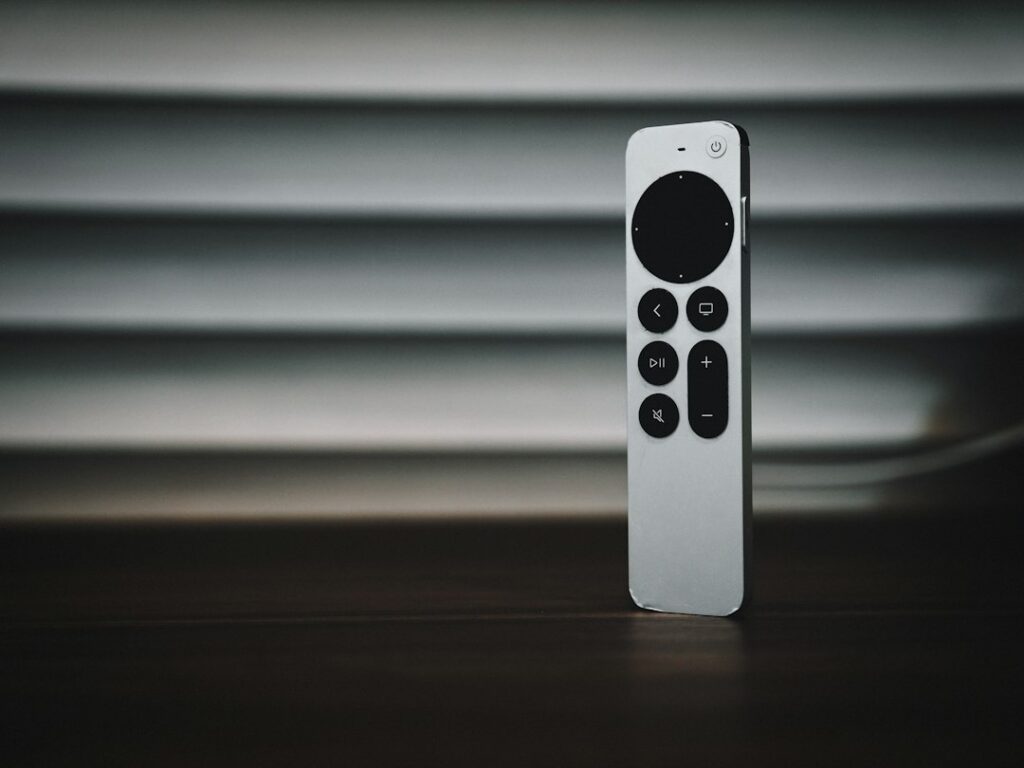
Before you start checklist
Before you dive into complex settings menus, run through a quick mental check of your current setup. Confirm your subscription is fully active through your provider’s official portal. Make sure your internet connection is stable enough to load metadata alongside your video feed. Restarting your streaming player often clears out temporary glitches that cause text overlays to vanish.
Step-by-step troubleshooting guide
Follow these numbered steps in sequence to get your text display back on screen.
Device-specific instructions for UK users
Different hardware handles text rendering in unique ways. Here is how to check your settings across popular platforms found in British living rooms.
Firestick and Android TV devices
Press the down button on your remote while playing content to bring up the player overlay. Select the speech bubble icon to verify your track selection. If you want a more robust media experience, you might want to review TiviMate vs IPTV Smarters Pro: Which Player Wins for UK Matchdays? to see how different apps manage auxiliary feeds.
Samsung and LG Smart TVs
Navigate to your television’s main accessibility menu via the remote control. Turn on primary accessibility features and confirm that subtitle preferences match your app settings. Built-in manufacturer software can sometimes override third-party application overlays.
Common mistakes to avoid
Many users assume their IPTV subtitles not working issue stems from a broken hardware box, but the culprit is usually a simple toggle switch. Do not perform a complete factory reset on your television until you have tested the captions on a secondary device like a smartphone or tablet.
When to contact your provider
If you have exhausted all local settings and tested multiple applications without success, the issue might sit with the source. Reach out to your official streaming provider’s support team to confirm whether they are broadcasting the necessary metadata streams for your chosen channel.
Safety and legal notes
Always ensure your streaming setup complies with UK broadcasting regulations. Only use authorised applications obtained directly from official app stores like Amazon or Google Play.
Frequently asked questions
Why do subtitles appear out of sync?
Timing delays usually happen when the text track does not match the specific video cut you are watching. Use your player’s subtitle delay adjustment tool to sync the text manually.
Can I download custom subtitle files?
Advanced media players allow you to load external files. Check your specific application manual for instructions on importing separate text documents.
For more information, iptv.
Related reading
Disclaimer: This guide provides general troubleshooting information for legal streaming services used on UK smart devices. We do not guarantee that every configuration step will resolve individual playback errors, as subtitle availability ultimately depends on the content source and app design. All referenced trademarks belong to their respective owners with no endorsement implied.Update: Roku vs Firestick for IPTV users in the UK
Update: Best IPTV subscription for movies and entertainment
ContentsWhen your live football match starts buffering during a penalty shootout, the culprit is rarely your provider alone. Wi-Fi interference ruins countless UK living room viewing sessions every evening. If you want to improve IPTV streaming without drilling holes in your walls for Ethernet cables, you need a targeted fix.

Before You Start Checklist
Take two minutes to check the absolute basics before changing router settings or buying new gear. These simple items save you hours of wasted effort.
The Quick Answer
Switch your wireless band from 2.4 GHz to 5 GHz. The older 2.4 GHz frequency suffers immense congestion from household microwaves, baby monitors, and your neighbour’s router. Moving your streaming stick or Smart TV to the 5 GHz channel gives you the raw speed needed for uninterrupted playback.
Why Your Wireless Connection Struggles
Brick walls, thick glass, and central heating pipes block wireless waves easily. UK Victorian terrace houses prove particularly brutal for signal propagation. Furthermore, background apps running on Android TV or Fire OS silently chew up your bandwidth. Your streaming player constantly fights for airtime against phones, tablets, and smart bulbs.
Step-by-Step Guide to Fix Buffering
Follow these numbered steps in order to diagnose and resolve your wireless bottlenecks.
Common Mistakes to Avoid
Don’t hide your router inside a closed television cabinet or behind a stack of books. Cabinets trap heat and block radio waves. Never assume that a high monthly broadband bill guarantees a strong wireless signal in every corner of your lounge. Placement matters just as much as raw speed.
When to Contact Your Provider
If speed tests show fine results on your phone while your television keeps freezing, the issue lies with your device hardware or local app installation. However, if your broadband drops entirely during peak evening hours across all devices, your internet service provider needs to investigate line congestion in your street cabinet.
Safety and Legal Notes
Always use legal, authorized streaming services and official applications downloaded from verified app stores. This guide assumes you are configuring a legitimate subscription service on your own home network. We do not support modifying hardware or bypassing network restrictions.
Frequently Asked Questions
Will a Wi-Fi extender help my IPTV setup?
Basic wireless extenders often cut your available bandwidth in half because they repeat signals on the same frequency. Mesh Wi-Fi systems work much better for large UK homes.
Why does my stream freeze only during peak evening hours?
Local neighborhood network congestion slows down wireless channels and provider backhauls between 7 PM and 10 PM.
Does my TV operating system affect Wi-Fi performance?
Yes. Some older smart television chipsets have weak internal wireless cards. Using an external streaming stick often provides a stronger connection.
For more information, iptv.
Related reading
Disclaimer: This article offers general technical advice for improving home wireless network performance and is not professional networking guidance. Mention of specific broadband providers or brands is for context only and implies no formal endorsement. Streaming performance depends on numerous external factors beyond local home configuration.Update: Best IPTV alternatives to TNT Sports in the UK
Update: Best Android TV box for legal IPTV in the UK
ContentsYou pop fresh alkaline cells into your Amazon streaming controller, and they die within a fortnight. That rapid Firestick remote battery drain frustrates many UK viewers who just want to watch an evening movie without fuss. Why do those small AAA batteries vanish so fast? Sometimes it’s hardware age, but often software glitches cause the excessive power draw.

Faulty Bluetooth Pairing Loops
Your clicker talks to the television stick using Bluetooth technology. When that connection drops and reconnects constantly, the internal chip works overtime. That constant searching drains power in hours. Unplug your main streaming stick from the wall socket for thirty seconds to clear the cache. Then, re-pair the accessory by holding down the home button for ten seconds until the orange light flashes.
Stuck Buttons and Physical Damage
A jammed directional pad keeps the transmitter awake indefinitely. You might not notice a slightly depressed button beneath a silicone case. Press every single key firmly several times to dislodge trapped crumbs or dust. If you spilled tea or coffee on the controller last week, sticky residue might bridge internal electrical contacts. Clean the circuit board carefully with isopropyl alcohol if you feel confident taking the plastic shell apart.
Motion Sensors and Backlighting
Premium models feature built-in microphones for voice search and glowing keys for dark rooms. Those extra perks demand serious electrical current. If you own a backlit edition, turn off the ambient light sensor in the main settings menu. Voice assistant features also listen passively for wake words. Disable hands-free listening if you rarely use voice commands.
Alternative Power Solutions
Cheap zinc-carbon cells struggle with high-drain electronics. Swap them for quality lithium or rechargeable NiMH alternatives. Rechargeables hold voltage longer under load. If your current controller hardware remains terminally broken despite fresh cells, consider grabbing a replacement unit or using the official mobile app as a backup control method.
For more information, iptv.
Related reading
Disclaimer: This article is provided for general informational purposes only and does not constitute professional technical advice. All product names, logos, and brands mentioned belong to their respective owners, and no official affiliation or endorsement is implied. Facts and troubleshooting steps were accurate at the time of writing based on standard device behavior.Update: Decoding Bitrates: What Your IPTV UK Setup Really Needs for Live Sports