- The Short Answer
- Before You Start Checklist
- Why Do I Need to Update IPTV Apps Regularly?
- How Do I Update IPTV Apps on an Amazon Fire Stick?
- How Do I Update IPTV Apps on a Samsung Smart TV?
- How Do I Update IPTV Apps on an LG Smart TV?
- How Do I Update IPTV Apps on Android TV Devices?
- Common Mistakes People Make When Updating Apps
- When to Contact Your Provider
- Frequently Asked Questions
- Do I lose my playlist settings when I update my IPTV app?
- Why does my TV say there is no storage space for updates?
- Can I set my IPTV apps to update automatically?
- What happens if an app update makes my player crash?
- Safety and Legal Notes
Outdated software causes most streaming headaches in British living rooms. When your interface lags or channels fail to load, the fix is often simpler than you think. You just need to update IPTV apps to the latest version released by the developer.

Television manufacturers and streaming stick makers push background updates constantly. Sometimes, however, your third-party media players require manual intervention. Old code clashes with new operating system patches. That causes crashes, audio sync bugs, and blank screens.
Below, we walk through the exact steps required to refresh your software across different hardware brands popular in UK households. Let us get your setup running properly.
The Short Answer
To fix software bugs and improve performance, you must update IPTV apps directly through your device’s built-in app store or settings menu. Amazon Firesticks require navigating to your profile manage settings, while Samsung and LG televisions use their respective app management panels. Always check your connection stability before downloading new files, as interrupted downloads corrupt application data.
Before You Start Checklist
Do not rush into changing settings until you tick off these basic items:
- Check that your broadband connection is active and stable. (You can review baseline internet speed requirements to ensure your network isn’t the bottleneck.)
- Note your current app login details or playlist URLs, just in case a reinstall wipes saved data.
- Ensure your television or streaming stick has at least 500MB of free internal storage space.
- Verify your device’s main operating system is up to date.
Why Do I Need to Update IPTV Apps Regularly?
Software rots quietly. Developers push patches every month to fix security vulnerabilities and memory leaks. If you skip updates, your player gets slower. Modern web streams rely on updated video codecs. Old app versions lack these codecs. That means your screen stays black when a broadcaster switches encoding formats.
Security matters too. Outdated applications leave open ports on your local network. Hackers exploit these flaws. Updating closes those gaps. It also gives you access to fresh user interfaces and better subtitle management tools.
How Do I Update IPTV Apps on an Amazon Fire Stick?
Amazon devices handle software updates differently than standard Android boxes. Fire OS uses a customized interface that hides manual application controls deep inside the menu tree. Follow these exact steps to check for pending updates on your Fire TV Stick, Fire TV Cube, or Fire TV Pendant.
- Turn on your television and switch to the correct HDMI input.
- From the main Fire TV home screen, click the gear icon on the far right of the menu bar to open Settings.
- Scroll down and select Applications.
- Click on Appstore.
- Turn on Automatic Updates if it is disabled. This tells the device to pull patches in the background.
- To force an immediate check, hold down the Home button on your remote for three seconds until the quick menu pops up.
- Select Apps from that menu, highlight your IPTV player, press the menu button (three horizontal lines) on your remote, and select More Info or check for updates if available.
If the store does not show an update button, your current version is the latest one released by the developer. If your Firestick storage is full, the download will fail silently. Clear out unused apps before trying again.
How Do I Update IPTV Apps on a Samsung Smart TV?
Samsung uses the Tizen operating system for its Smart TVs manufactured after 2015. Tizen handles applications through the native Samsung Apps portal. You rarely need external files here because the system manages everything natively.
- Press the Home button on your Samsung remote control.
- Navigate left along the bottom menu bar and select Apps.
- Click the gear icon (Settings) located in the top-right corner of the Apps screen.
- Look for your installed IPTV player in the list.
- If an update is waiting, a notification badge appears next to the title, or you can highlight the app and select Update App from the sub-menu.
- Make sure the Auto Update toggle at the top of the screen is switched to ON. This saves you from doing manual checks every week.
Samsung TVs have limited storage. If you own an older model from 2018 or 2019, you might need to delete old streaming apps to make room for newer, larger codebases.
How Do I Update IPTV Apps on an LG Smart TV?
LG televisions run webOS. The interface looks sleek, but finding hidden app update buttons frustrates many users. webOS relies heavily on automatic background checks, but manual overrides exist.
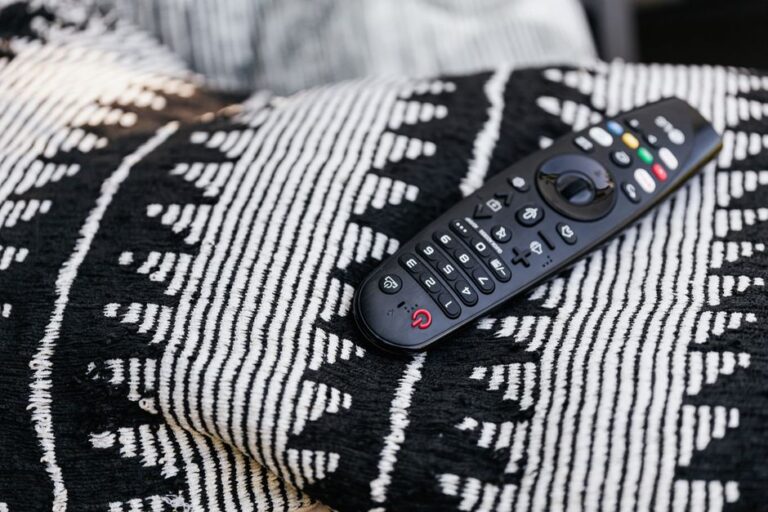
- Press the Home button on your Magic Remote.
- Open the LG Content Store application.
- Click on your profile icon or name in the top right corner.
- Select My Apps or Purchased Apps.
- Find your media player in the grid.
- If a newer version exists, an Update button sits right beside the title. Click it to begin the download.
- Scroll down your home screen and open the Apps tab.
- Select the Google Play Store icon.
- Click on your profile picture or initial in the top right corner.
- Select Manage apps & games.
- Click on Updates to view a list of all pending software patches for your installed tools.
- Select Update all or choose your IPTV application individually.
- Your subscription login credentials suddenly stop working across multiple devices.
- Specific channel categories vanish from your electronic programme guide.
- Server error codes appear repeatedly despite a working internet connection.
- What should a legitimate IPTV subscription include?
- Best IPTV device for older televisions in the UK
If you cannot find the app store, press the Settings button twice, go to General, and check for software updates on the television itself. Sometimes an outdated webOS version blocks app store access completely.
How Do I Update IPTV Apps on Android TV Devices?
Sony, Philips, TCL, and Nvidia Shield devices run standard Android TV or Google TV. These platforms make updating straightforward because they tie directly into the Google Play Store.
Keep your Google account logged in. Without an active login, the Play Store blocks software refreshes entirely.
Common Mistakes People Make When Updating Apps
People often panic when an update freezes. They pull the power plug immediately. That corrupts the file system. Always wait five minutes before interrupting a frozen download screen.
Another frequent error is ignoring device storage limits. Firesticks and smart TVs have tiny hard drives. When storage drops below 200MB, update scripts crash. Clear your cache files before starting any major software overhaul.
Some users try downloading random installation files from unofficial forums onto their smart TVs. That introduces malware. Stick exclusively to official app stores provided by your hardware manufacturer.
When to Contact Your Provider
Hardware updates won’t fix everything. If you updated your application, cleared your cache, and checked your broadband speed, but your channels still refuse to load, the issue sits elsewhere. Contact your service provider when:
Providers manage the backend streams. If their servers go down, no amount of client-side software updating will restore your broadcast.
Frequently Asked Questions
Do I lose my playlist settings when I update my IPTV app?
Usually, no. Most modern media players preserve your login tokens and custom playlist links during an over-the-air update. However, major version jumps can occasionally reset local storage. Always keep a backup copy of your configuration details stored safely offline.
Why does my TV say there is no storage space for updates?
Smart TVs and streaming sticks come with very small internal memory chips. Installed games, cached video data, and unused streaming apps consume that space quickly. Uninstall two or three apps you never use, restart your device, and try downloading the update again.
Can I set my IPTV apps to update automatically?
Yes. Every major platform—including Fire OS, Android TV, webOS, and Tizen—offers an automatic update toggle inside the app store settings. Turning this feature on ensures your software stays current without manual intervention.
What happens if an app update makes my player crash?
If a fresh patch introduces bugs, you can clear the app cache through your device’s settings menu. In rare cases where a developer pushes a broken build, you may need to wait for a hotfix or temporarily revert to a stable backup version if your hardware permits it.
Safety and Legal Notes
This guide is provided for educational and troubleshooting purposes only to help users manage their legally purchased hardware and software. Always respect intellectual property laws and copyright regulations in the United Kingdom. Ensure any media services you use comply fully with UK broadcasting standards and local legislation enforced by regulatory bodies like Ofcom.
For more information, iptv.
Related reading
Disclaimer: This article offers general technical troubleshooting steps for educational purposes only and does not constitute professional IT advice. Mentioned brand names, such as Samsung, LG, and Amazon, belong to their respective owners, and no corporate endorsement is implied. Factual details regarding software menus were accurate at the time of publication but are subject to change as manufacturers update their user interfaces.