- Myth vs Fact: Clearing Up Confusion Around IPTV UK
- Myth 1: IPTV Is Always Illegal
- Myth 2: You Need a Brand New Smart TV to Stream
- Myth 3: Buffering Is Always Caused by Your Provider
- Myth 4: A Free Trial Guarantees a Stable Service
- Myth 5: More Channels Always Mean Better Quality
- The Reality of Setting Up UK IPTV Services
Myth vs Fact: Clearing Up Confusion Around IPTV UK
Choosing an IPTV UK service can feel confusing when so much conflicting information floats around online forums and social media. Let us separate the myths from reality so you understand how television over internet protocol actually works across British households.

Myth 1: IPTV Is Always Illegal
Many people assume that any internet protocol television feed falls outside the law. That is completely false. Major mainstream broadcasters like the BBC and ITV use internet streaming technology every day to deliver live content to millions of viewers through official applications like BBC iPlayer and ITVX. The technology itself is simply a method of data delivery, much like traditional cable or satellite. Legal considerations only arise depending on who holds the distribution rights for specific content. You can learn more about how official networks handle broadcasting rights by checking official guidelines from organisations such as Ofcom, which regulates UK communications.
To expand on this further, the legal distinction usually boils down to authorisation and licensing. When a broadcaster secures the copyright and distribution permissions to transmit a programme over the internet, it is completely legal. Conversely, unauthorized third-party services that redistribute copyrighted material—such as pay-per-view sports events or premium movie channels—without proper licensing agreements operate outside the law. UK authorities, alongside groups like FACT (Federation Against Copyright Theft), actively monitor and take action against illicit streaming networks. Therefore, distinguishing between official over-the-top (OTT) media services and unauthorized re-streamers is crucial for any consumer navigating the digital television landscape.
Myth 2: You Need a Brand New Smart TV to Stream
Some buyers think older television sets cannot handle digital streams. In practice, affordable media players plug directly into HDMI ports to bring modern streaming capabilities to almost any display. If you plan to use compact hardware, our guide on what to check before buying an IPTV device covers essential hardware features to keep in mind.
Many households across the UK still rely on older flat-screen televisions that lack modern operating systems like Tizen (Samsung) or webOS (LG). Rather than investing hundreds of pounds in a brand-new television, devices such as Amazon Fire TV Sticks, Google Chromecast with Google TV, Roku boxes, or Apple TV can transform an older “dumb” TV into a fully functional smart entertainment hub. These compact dongles and set-top boxes handle modern video codecs like H.264 and HEVC (H.265) effortlessly, ensuring that hardware limitations do not stand in the way of high-definition viewing. As long as your television features an available HDMI port and a standard resolution capability, you can easily integrate digital streaming into your living room setup.
Myth 3: Buffering Is Always Caused by Your Provider
When a stream stutters, viewers usually blame their subscription provider immediately. Local network congestion, Wi-Fi interference, or background downloads on other household devices often cause freezing issues instead. Checking your broadband speed or moving closer to your wireless router frequently resolves performance hiccups without needing any changes to your subscription package.
In a typical British household, multiple devices—smartphones, tablets, gaming consoles, laptops, and smart home appliances—compete for bandwidth simultaneously. If someone in the house is downloading a large video game update or streaming 4K content in another room, your live television stream can suffer from packet loss and increased latency. Furthermore, physical obstructions like thick walls, household appliances, and interference from neighboring Wi-Fi networks on the 2.4GHz band can severely degrade wireless signal quality. Upgrading to a 5GHz Wi-Fi connection, utilizing a wired Ethernet cable directly from your router to your streaming device, or performing a simple router reboot can dramatically improve stream stability and eliminate frustrating stuttering.
Myth 4: A Free Trial Guarantees a Stable Service
Short trial periods help you test video quality and user interfaces before committing to longer plans. However, trial streams can sometimes run on different servers or face heavier traffic loads than paid tiers. Testing a service during peak evening hours gives a much more accurate picture of daily performance than checking it on a quiet Tuesday afternoon.
Many providers allocate separate, high-capacity demonstration servers for free trials, meaning the seamless experience you encounter during a quick test might not reflect the actual production servers used by paying customers. Additionally, server loads fluctuate drastically throughout the day. A service that performs flawlessly at 10:00 AM on a Tuesday may struggle significantly during a high-profile Premier League football match or a major Saturday night entertainment broadcast when thousands of users log on concurrently. Evaluating a service under peak-load conditions is the only reliable way to measure its true capacity and network resilience.
Myth 5: More Channels Always Mean Better Quality
A common marketing tactic in the digital television market is advertising thousands of live channels and video-on-demand titles. However, sheer quantity rarely equates to quality. Having access to ten thousand poorly maintained, low-bitrate feeds provides a far worse user experience than having a curated selection of reliable, high-definition channels.
When evaluating a setup, pay closer attention to frame rates (such as stable 50fps or 60fps for sports) and overall bitrate rather than raw channel counts. High-bitrate streams require robust server infrastructure and dedicated bandwidth. Services that overcrowd their servers often experience frequent dropouts, audio-video desynchronisation, and compressed, pixelated imagery during fast-moving scenes. Prioritising stability and visual clarity over an overwhelming number of redundant international channels ensures a much more enjoyable daily viewing experience.
The Reality of Setting Up UK IPTV Services
Getting started requires a reliable broadband connection and compatible hardware. Most modern internet service providers in the UK easily handle high-definition video streams without breaking a sweat. If you run into any initial playlist loading hurdles on your television app, helpful troubleshooting steps are outlined in our Smart TV IPTV playlist loading fixes.
Beyond basic hardware and connectivity, setting up a smooth viewing experience involves configuring your software correctly. Modern media players and applications rely on Electronic Program Guides (EPG) to display up-to-date schedules, channel logos, and programme descriptions. Ensuring your EPG updates automatically and managing your playlist cache properly will prevent common loading errors and keep your interface responsive. Furthermore, understanding how different media players handle URL formats, M3U playlists, and Xtream Codes API logins can save you considerable time during initial configuration.
Ultimately, understanding the underlying technology helps you make informed choices without falling for common online misconceptions. Keep your setup simple, check your equipment specifications, and always rely on official broadcasters for legitimate viewing options.
For more information, iptv.
Learn more on Wikipedia: ITV (TV network).
Related reading
- Legal IPTV Devices UK: Official Hardware Buying Guide
- Which Official Broadcasters Hold UK Sports Streaming Rights?
Update: Choosing Legal IPTV for UK Football Fans: What to Look For
Update: UK IPTV Hardware Guide: Choosing the Right Device for Legal Streaming
- Choosing Legal IPTV Hardware in the UK
- Comparing Popular Streaming Hardware
- Pros and Cons of Dedicated Media Players
- Setting Up Your Official Streaming Box
- Optimizing Your Home Network for High-Definition Streams
- Compatibility and Safety Notes
- Frequently Asked Questions
- Do I need a TV licence to watch legal IPTV apps in the UK?
- Can I use an Ethernet cable with every streaming stick?
- Are smart TV apps better than streaming sticks?
- Why do official streams buffer sometimes?
- Will my device support 4K sports broadcasts?
- How do I set up parental controls?
- Do Apple TV boxes work with UK catch-up apps?
Choosing Legal IPTV Hardware in the UK
Finding the right legal IPTV devices UK viewers need starts with understanding how television streams over broadband. IPTV is simply a technology used to deliver television over the internet rather than traditional aerials or cables. Modern streaming relies heavily on Content Delivery Networks (CDNs) and adaptive bitrate streaming, which automatically adjusts video quality based on your current internet bandwidth. However, the legality depends entirely on the service provider’s rights to distribute the content. Official broadcasters like the BBC, ITV, and Sky run their own apps on certified hardware. You don’t need dodgy setups to watch live television. You just need the right box plugged into your telly.

Hardware choice dictates everything from picture quality to menu speed. A cheap stick might choke on high-bitrate live feeds, while a high-end box flies through menus. Modern streaming devices utilize multi-core processors, dedicated graphics chips, and varying amounts of RAM (typically ranging from 1GB in budget sticks to 4GB or more in premium media hubs) to decode complex video codecs like HEVC and AV1 efficiently. Let’s look at how the main contenders stack up for running official UK streaming apps.
Comparing Popular Streaming Hardware
Different operating systems handle apps differently. Amazon Fire TV devices run Fire OS, while Google TV powers Chromecast and various Sony sets. Apple TV uses tvOS, and Samsung or LG run their own proprietary systems. App availability shifts constantly. Always check the provider’s official app store before buying hardware, as regional licensing agreements can occasionally restrict certain catch-up services to specific platforms or require unique software versions.
| Device | OS | 4K / HDR | Ethernet Option |
|---|---|---|---|
| Amazon Fire TV Stick 4K | Fire OS | Yes (Dolby Vision) | Adapter required |
| Google TV Streamer | Android TV | Yes (HDR10+) | Built-in port |
| Apple TV 4K | tvOS | Yes (Dolby Vision) | Model dependent |
Pros and Cons of Dedicated Media Players
Dedicated streamers offer huge advantages for regular viewers. They boot fast and receive updates for years. Still, they take up an HDMI port and need their own power sockets. Smart TV apps avoid extra boxes entirely, but their processors often lag behind dedicated hardware, leading to sluggish interface navigation and slower app launch times over the lifespan of the television set.
- Pros: Fast processors, regular security patches, wide official app stores.
- Cons: Extra remote controls to juggle, potential cable clutter behind the unit.
Setting Up Your Official Streaming Box
Plug your chosen device into an available HDMI port on your television. Connect the power cable to a wall socket. Follow the on-screen prompts to hook up your home Wi-Fi network. Log into your manufacturer account, such as an Amazon or Google profile. Head straight to the app store and download official broadcaster apps like BBC iPlayer, ITVX, or Channel 4. Remember that network congestion can ruin a live match, so check your broadband stability if streams stutter during peak hours.
Optimizing Your Home Network for High-Definition Streams
Even the most advanced streaming hardware will struggle if your local home network is bottlenecked. When streaming live sports or high-definition events through official UK platforms, network congestion and Wi-Fi interference are the primary culprits behind unexpected stuttering. Switching from a crowded 2.4 GHz Wi-Fi band to a dedicated 5 GHz or 6 GHz channel can dramatically improve connection stability. Alternatively, utilizing a wired Ethernet connection—either directly to your router or via powerline adapters—eliminates wireless dropouts entirely, ensuring a seamless viewing experience during high-traffic broadcast windows. Furthermore, configuring Quality of Service (QoS) settings on your home router can prioritize your streaming device’s data packets over background downloads, ensuring that heavy internet usage by other household members will not degrade your live television experience or cause unexpected frame drops during crucial sporting moments.
Compatibility and Safety Notes
Never assume a device runs every single application. Manufacturers drop support for older models without warning. Stick to official app marketplaces built directly into the operating system. Avoid sideloading unknown files or using modified applications that promise free access to paid subscription channels. Those shortcuts often breach copyright laws and compromise your personal data, exposing your home network to potential security vulnerabilities and malware risks.
Frequently Asked Questions
Do I need a TV licence to watch legal IPTV apps in the UK?
Yes. If you watch live television broadcasts through services like BBC iPlayer on any device, UK law requires a valid TV licence.
Can I use an Ethernet cable with every streaming stick?
Most basic sticks rely entirely on Wi-Fi. You usually need to buy a separate USB Ethernet adapter for wired networking unless you purchase a larger set-top box.
Are smart TV apps better than streaming sticks?
Built-in apps save HDMI ports, but standalone sticks generally feature faster processors and receive software updates for a longer period.
Why do official streams buffer sometimes?
Local Wi-Fi interference or heavy broadband traffic in your neighbourhood usually causes stuttering rather than the streaming hardware itself.
Will my device support 4K sports broadcasts?
Only if you own a 4K-compatible streaming device, a high-speed broadband connection, and a television that supports ultra-high-definition resolution.
How do I set up parental controls?
Most legal IPTV devices let you lock app downloads and restrict viewing ratings via a PIN code in the main settings menu.
Do Apple TV boxes work with UK catch-up apps?
Yes, tvOS hosts nearly all major UK terrestrial and subscription broadcaster applications.
For more information, iptv.
Related reading
- Which Official Broadcasters Hold UK Sports Streaming Rights?
- How to Fix Firestick Buffering During Live UK IPTV Streams
Update: Firestick vs Smart TV: Which is Better for Streaming in the UK?
Update: Choosing Legal IPTV for UK Football Fans: What to Look For
- Navigating UK Sports Streaming Rights for Football Fans
- How Broadcasters Divide Football and Sports Coverage
- Key UK Broadcasters and Their Packages
- Comparing Official App Options for Weekend Matches
- Pros and Cons of Official UK Sports Packages
- The Impact of Broadband Infrastructure on Streaming Quality
- Legal and Licensing Reality
- Your Buying Checklist
- Frequently Asked Questions
- Can I get all Premier League matches on one app?
- What internet speed do I need for HD football streams?
- Do I need a TV licence for streaming sports live?
- Why do streaming apps have a delay during live goals?
- Are sports packages cheaper through broadband providers?
- Can I watch UK sports channels abroad?
- What is the best device for sports streaming apps?
Navigating UK Sports Streaming Rights for Football Fans
Watching your favourite team shouldn’t feel like cracking a safe. Right now, UK sports streaming rights are split across several major subscription packages. You need to know who broadcasts what before spending your cash.

Sky Sports, TNT Sports, and Amazon Prime Video share the Premier League cake. Meanwhile, the BBC holds key free-to-air highlights packages. Understanding this split helps you pick the right legal sports IPTV UK setup without paying for channels you don’t watch.
As broadcasting rights continue to evolve with new multi-year cycle agreements, the financial burden on the average consumer has grown significantly. Fans can no longer rely on a single television provider to catch every single kick of their team’s domestic and European campaigns. Navigating this fragmented ecosystem requires strategic planning, a clear understanding of your own viewing habits, and a willingness to rotate or bundle subscriptions depending on which months matter most to your sporting calendar.
How Broadcasters Divide Football and Sports Coverage
The landscape shifts constantly. Sky remains the heavyweight for weekend fixtures and Friday night games. TNT Sports handles the lucrative Tuesday and Wednesday European nights.
Streaming apps have changed how fans watch live sports TV UK. You aren’t tied to a bulky satellite dish anymore. Instead, broadband delivery brings HD feeds straight to your living room.
Furthermore, the competition for broadcasting rights has introduced specialized scheduling quirks. For instance, Saturday 3 PM blackout rules mean that traditional domestic afternoon matches are never broadcast live on UK television, protecting lower-league attendances. Fans must rely on evening highlights programmes, radio commentaries, or international feeds if they are based abroad. Recognizing these structural rules prevents frustration when searching for games that simply aren’t legally permitted to be aired live within the United Kingdom.
Key UK Broadcasters and Their Packages
- Sky Sports: Covers the bulk of Premier League matches, EFL, and Formula 1.
- TNT Sports: Holds rights for the Champions League, Premiership Rugby, and UFC.
- Amazon Prime Video: Broadcasts selected rounds of Premier League matches during December and bank holidays.
- BBC Sport: Offers limited live games, plus the iconic Match of the Day highlights show.
Comparing Official App Options for Weekend Matches
When weekend fixtures roll around, you want a reliable stream. Comparing your viewing options makes a huge difference to your matchday experience. You can read more about official broadcasters vs IPTV apps for Premier League matchdays to see how app-based viewing compares to traditional television packages.
Evaluating these applications goes beyond simple channel listings; users must consider user interface responsiveness, multi-device login allowances, and the quality of customer support. While traditional set-top boxes offer zero-latency channel switching, modern app suites like NOW or Discovery+ provide flexibility, allowing supporters to stream games on tablets, smartphones, and laptops while traveling or away from the main home television setup.
| Broadcaster | Primary Sports | Streaming App |
|---|---|---|
| Sky Sports | Football, F1, Cricket | Sky Go / NOW |
| TNT Sports | European Football, Rugby | Discovery+ |
| Amazon | Premier League | Prime Video |
Pros and Cons of Official UK Sports Packages
Official subscriptions offer peace of mind, but they come with drawbacks. Let’s look at the trade-offs.
Pros:
- Crystal clear HD and 4K picture quality.
- Reliable uptime during high-traffic matches.
- Legal compliance with UK broadcasting laws.
- Access to catch-up TV and match replays.
Cons:
- High cumulative monthly costs if you want every channel.
- Long-term contracts on traditional bundles.
- Fragmented apps require switching between different logins.
When weighing these options, budget-conscious consumers often find themselves performing complex mental calculations. Subscribing to every major platform simultaneously can easily exceed one hundred pounds per month, prompting many households to cancel subscriptions during the off-season or selectively activate month-to-month streaming memberships only when their specific club enters crucial tournament phases.
The Impact of Broadband Infrastructure on Streaming Quality
Delivering high-definition and ultra-high-definition sports content places a heavy strain on domestic internet infrastructure. Modern streaming apps utilize adaptive bitrate streaming, which automatically scales video resolution downward if your home Wi-Fi network experiences sudden congestion or bandwidth drops during peak evening hours.
To avoid frustrating pixelation or buffering icons right as a penalty kick is taken, tech-savvy fans often invest in wired Ethernet connections rather than relying purely on wireless mesh networks. Upgrading router hardware and ensuring your Internet Service Provider (ISP) delivers consistent speeds without throttling during major sporting events are crucial steps for any modern football enthusiast.
Legal and Licensing Reality
Ofcom and UK authorities clamp down hard on pirated streams. Using licensed UK sports streaming rights ensures your data stays safe and your hardware remains uncompromised by malware.
Beyond malware risks, unauthorized streaming networks frequently experience sudden domain seizures, unexpected downtime, and poor video synchronization. Supporting official channels not only guarantees high-tier transmission reliability but also directly contributes revenue back into the sports ecosystem, funding grassroots initiatives, youth academies, and lower-division clubs across the country.
Your Buying Checklist
Before purchasing any sports package, run through this quick checklist:
- Check your broadband speed meets the 25 Mbps requirement for 4K.
- Verify device compatibility with your chosen streaming app.
- Review contract lengths to avoid unwanted cancellation fees.
- Confirm simultaneous stream limits if you share a household.
Frequently Asked Questions
Can I get all Premier League matches on one app?
No. UK broadcasting rights are split between Sky, TNT, and Amazon to ensure market competition.
What internet speed do I need for HD football streams?
You need at least 15 Mbps for stable high-definition viewing, and 25 Mbps for ultra HD.
Do I need a TV licence for streaming sports live?
Yes, watching live broadcasts on any online platform in the UK requires a valid TV licence.
Why do streaming apps have a delay during live goals?
Broadband encoding takes time, meaning internet streams usually lag behind traditional radio or satellite feeds.
Are sports packages cheaper through broadband providers?
Sometimes. Companies like BT, EE, and Sky bundle broadband with TV deals to lower the overall monthly price.
Can I watch UK sports channels abroad?
Official UK apps typically block playback outside the UK due to strict geo-licensing rules.
What is the best device for sports streaming apps?
Dedicated media players like the Amazon Fire TV Stick or Apple TV 4K handle heavy sports apps smoothly.
For more information, iptv.
Related reading
- How to Fix Firestick Buffering During Live UK IPTV Streams
- Understanding How UK IPTV Broadcasters Deliver High-Definition Streams
Update: Myths and Facts About IPTV UK: What You Need to Know
Update: Firestick vs Smart TV: Which is Better for Streaming in the UK?
- The Quick Fix Checklist Before You Start
- Clearing Cache and Managing Device Storage
- Wi-Fi Signal Strength and Router Placement
- Understanding IPTV Protocols and Buffer Settings
- Common Mistakes That Make Firestick Buffering Worse
- Step-by-Step Troubleshooting for Persistent Freezing
- When to Contact Your Provider
- Frequently Asked Questions
- Why does my Firestick only buffer during evening peak hours?
- Does a VPN cause Firestick buffering?
- How much free storage does a Firestick need for good performance?
When your screen suddenly freezes right before a penalty kick, the frustration is real. Firestick buffering ruins live UK IPTV streams more than almost any other technical glitch. You don’t have to live with a stuttering picture every weekend. Let’s fix the root causes so you can watch your favourite programmes without constant interruptions.

The Quick Fix Checklist Before You Start
Before you dive into deep troubleshooting, try these quick steps. They solve about half of all streaming headaches in under two minutes.
- Restart your Amazon Fire TV Stick by pulling the power plug for ten seconds.
- Reboot your home broadband router to clear out stale local network data.
- Check your current internet speed for IPTV to make sure your connection meets minimum requirements.
- Ensure your official TV app is updated to the latest available version from the Amazon Appstore.
Clearing Cache and Managing Device Storage
Your streaming device stores temporary data to speed things up, but too much clutter actually slows everything down. A full storage drive forces the processor to work harder than necessary, leaving fewer system resources available to decode heavy video streams in real time. Over months of regular use, apps accumulate gigabytes of junk data that quietly drain your device’s processing capacity.
To clear cache on your Firestick, head to Settings on your home screen. Select Applications, then choose Managed Installed Applications. Find your streaming app in the list and click Clear Cache. Do not touch Clear Data unless you want to log back in completely. For more detailed storage tricks, read our guide on Firestick storage management for IPTV users.
It is also worth checking your device’s overall storage health regularly. If you notice that your Firestick only has a few hundred megabytes remaining, it is time to perform a thorough clean-up. Uninstalling games, unused utility applications, and old sideloaded APKs will instantly restore smooth navigation and reduce unexpected app crashes during high-definition broadcasts.
Wi-Fi Signal Strength and Router Placement
Wireless interference is the silent enemy of high-definition broadcasting. Thick walls, household appliances like microwaves, and competing smart home gadgets easily weaken your Wi-Fi signal. If your Firestick sits behind a large TV screen or inside a media cabinet, it struggles to maintain a stable connection, leading to frequent resolution drops and annoying loading circles.
Move your Wi-Fi router into the same room if possible to ensure an unobstructed line of sight. Alternatively, connect your Firestick to an Ethernet adapter using a wired cable for ultimate stability. Wired connections eliminate wireless dropouts entirely and protect your stream from local electromagnetic interference. If running a physical cable across your living room is impossible, consider investing in a high-quality mesh Wi-Fi system to blanket your home in seamless, high-speed wireless coverage.
Understanding IPTV Protocols and Buffer Settings
Behind the scenes, your media player application relies on specific streaming protocols to fetch video packets from remote servers. Understanding how these protocols handle data transmission can help you fine-tune your app settings for better playback consistency.
Most IPTV apps let you choose between HLS (HTTP Live Streaming) and MPEG-TS formats. HLS is generally more resilient against fluctuating internet speeds because it breaks video down into small file chunks, whereas MPEG-TS offers lower latency for live events. Furthermore, adjusting your player’s internal cache size—often found within advanced settings—can make a massive difference. Setting the cache to “Extra Large” allows your Firestick to pre-load more video data ahead of time, effectively ironing out brief internet speed dips before they translate into visible freezes on your screen.
Common Mistakes That Make Firestick Buffering Worse
People often make simple errors that actually make streaming performance worse. Avoid these common pitfalls:
- Leaving heavy background apps open while trying to watch live TV, which consumes vital RAM.
- Using cheap HDMI extension cables or unpowered USB ports that fail to supply steady power to the Firestick.
- Ignoring router firmware updates provided by your broadband supplier like BT, Sky, or Virgin Media, which often contain critical performance patches.
- Running resource-heavy automated cloud backups or system scans on other connected devices while attempting to stream live sports in 1080p or 4K.
Step-by-Step Troubleshooting for Persistent Freezing
If simple restarts don’t work, follow this numbered sequence to diagnose the issue properly.
- Test your broadband speed using an on-screen browser to confirm you have at least 15 Mbps for HD streams.
- Switch your Wi-Fi band from the crowded 2.4 GHz frequency to the faster 5 GHz channel on your router for reduced latency.
- Uninstall unused apps to free up internal flash memory and give your operating system room to breathe.
- Check if the issue happens on multiple channels or just one specific feed to isolate whether it is a local device problem or a source issue.
When to Contact Your Provider
Sometimes the problem has nothing to do with your living room setup. If your internet speed is fast, your device is completely clear of cache, and you are connected via a stable 5 GHz or wired network, the issue might be on the broadcaster’s end. Server congestion during popular live sporting events often causes widespread slowdowns across entire user bases. Contact your official service provider support team if specific channel streams fail consistently while your connection remains strong and other applications work without any hitch.
Frequently Asked Questions
Why does my Firestick only buffer during evening peak hours?
Local neighborhood internet traffic surges between 7 PM and 11 PM as everyone streams video and browses online. Your broadband provider might experience temporary bandwidth throttling or local infrastructure congestion during these busy windows.
Does a VPN cause Firestick buffering?
Yes, routing your traffic through distant virtual servers adds latency, increases packet travel distance, and introduces encryption overhead. This extra step frequently leads to stuttering video playback unless you choose a nearby, high-speed server.
How much free storage does a Firestick need for good performance?
Keep at least 1 GB of internal storage completely free so the operating system has room to write temporary cache files, download background updates, and process video streams smoothly without choking.
For more information, iptv.
Related reading
- Understanding How UK IPTV Broadcasters Deliver High-Definition Streams
- Legal IPTV UK Device Comparison: Streaming Hardware Features
Update: Legal IPTV Devices UK: Official Hardware Buying Guide
Update: Myths and Facts About IPTV UK: What You Need to Know
Understanding How UK IPTV Broadcasters Deliver High-Definition Streams
Switching from traditional aerials to an IPTV UK setup changes how moving images travel into your living room. Instead of radio waves hitting a rooftop antenna, packets of data flow right through your broadband router. This shift relies on complex server architecture and efficient data compression.

The transition from analog and standard digital terrestrial broadcasting to internet protocol television represents one of the most significant engineering overhauls in modern telecommunications. Households across the United Kingdom are increasingly turning away from legacy coaxial cables and satellite dishes, opting instead for flexible, internet-delivered entertainment. This evolution does not merely change the physical cable plugged into the back of a television set; it fundamentally alters the entire pipeline of media distribution, shifting the burden of delivery from dedicated broadcast towers to vast, interconnected global data networks and local Internet Service Provider (ISP) infrastructure.
The Journey of a Live Television Packet
Broadcasters capture live events using professional cameras. They convert those physical signals into digital bits instantly. Next, encoder hardware shrinks the file size down significantly. Without compression, a single uncompressed high-definition feed would choke most residential home connections.
Once encoded, the stream heads to an origin server. From there, content delivery networks distribute copies across multiple regional nodes. When you press play on your remote, your device requests the nearest data fragment. That fragment travels across fibre optic cables straight to your internet service provider.
To visualize this journey, consider a Premier League football match broadcast live from a London stadium. The raw video feed captured by sideline cameras generates data at rates exceeding gigabits per second. Specialized hardware encoders ingest this massive data stream and apply advanced compression algorithms in real-time. This compressed file is then fragmented into tiny, manageable chunks—typically lasting between two to six seconds each. These chunks are packaged using streaming protocols such as HTTP Live Streaming (HLS) or Dynamic Adaptive Streaming over HTTP (DASH). The origin server receives these chunks and instantly replicates them across Content Delivery Network (CDN) edge servers strategically positioned in data centers across Manchester, London, Edinburgh, and other key peering locations. When a viewer in Birmingham clicks to watch the match, their set-top box or smart TV initiates an HTTP request to the nearest CDN node, pulling the data packets across high-capacity fibre backbones directly into the local neighborhood exchange and finally through the residential copper or fibre drop.
Codecs and Bitrates Explained
Codecs do the heavy lifting behind the scenes. They pack data tight for travel and unpack it rapidly on your display. H.264 remains widely used, but newer formats like HEVC handle 4K content far better. Higher bitrates mean sharper details during fast sports matches. Lower bitrates save bandwidth when your connection slows down.
- Standard definition requires minimal bandwidth.
- High definition demands stable medium-speed broadband.
- Ultra-high definition pushes hardware limits further.
Ofcom monitors broadband performance standards across the country, ensuring networks maintain the capacity needed for modern digital media consumption.
Delving deeper into compression technology, codecs (coder-decoders) are mathematical formulas that determine how video data is squeezed and restored. Older codecs like MPEG-2 required massive bandwidth, which is why early digital television was restricted in channel counts. H.264 (AVC) revolutionized the industry by analyzing motion between consecutive video frames, transmitting only the pixels that actually changed rather than refreshing an entire image sixty times a second. Today, HEVC (H.265) and emerging codecs like AV1 push efficiency even further, allowing 4K ultra-high-definition streams to travel across connections that previously could barely support stable 1080p feeds. Bitrate dictates how much data is dedicated to every single second of video. A high-action broadcast featuring rapidly moving confetti, fast-paced ball movement, or complex lighting requires a high bitrate—often 8 to 15 megabits per second for 1080p—to prevent unsightly blocky artifacts, known as macroblocking, from ruining the visual experience.
Handling Latency and Network Jitter
Live viewing introduces unique challenges. Traditional terrestrial broadcasts have a minor delay, but internet delivery adds packet jitter and buffering variables. If network congestion spikes, your player drops frames to catch up. Wired Ethernet connections usually bypass local wireless interference, keeping streams steady during peak evening viewing hours.
Network jitter—the variability in packet arrival times—poses a constant threat to smooth video playback. While a web browser can happily wait an extra second to load a webpage, a live video player must maintain a strict timeline to keep audio and video synchronized. When thousands of households in the same neighborhood log on to watch a major televised event at 8:00 PM, local node congestion can cause packet delays. To combat this, modern IPTV players utilize playback buffers, holding a few seconds of video in local memory to smooth out minor network hiccups. However, if jitter becomes too severe, the buffer empties, forcing the stream to stutter or pause entirely while it downloads more data. Users can significantly mitigate these issues by replacing crowded Wi-Fi connections with physical Category 5e or Category 6 Ethernet cables, thereby avoiding the packet loss caused by household obstacles, microwave ovens, and overlapping wireless channels.
The Crucial Role of Content Delivery Networks (CDNs)
Without Content Delivery Networks, the modern internet television ecosystem would collapse under its own weight. If every single person streaming a popular television show attempted to download the data directly from the broadcaster’s central server in London, that server would instantly crash due to overwhelming traffic requests.
CDNs solve this problem through geographic distribution. By maintaining cache servers distributed globally and locally within UK internet exchange points (such as LINX in London), CDNs ensure that data travels the shortest possible physical distance to reach the end consumer. When a broadcaster updates a live stream or pushes on-demand assets, the files are replicated across this vast web of edge servers ahead of peak viewing times. This decentralized architecture not only reduces latency and eliminates single points of failure but also drastically decreases transit costs for broadcasters, making high-definition streaming economically viable on a mass scale.
Future Trends in Domestic Television
As fibre networks expand deeper into neighbourhoods, data bottlenecks shrink. Broadcasters keep experimenting with adaptive bitrates that shift quality dynamically. Understanding these underlying mechanics helps viewers troubleshoot everyday playback quirks without frustration.
Looking ahead, the convergence of 5G fixed wireless access, multi-access edge computing, and artificial intelligence-driven video processing promises to make IPTV delivery even more resilient. Broadcasters are increasingly adopting AI-powered upscaling and perceptual encoding techniques that optimize compression based on what the human eye actually perceives, saving bandwidth without sacrificing perceived visual fidelity. As full-fibre (FTTP) infrastructure continues to replace ageing copper lines across the United Kingdom, buffering could soon become a relic of the past, paving the way for ubiquitous 8K broadcasting, interactive multi-camera angles, and ultra-low-latency streaming that rivals or even surpasses traditional broadcast standards.
For more information, iptv.
Learn more on Wikipedia: ITV (TV network).
Related reading
- Legal IPTV UK Device Comparison: Streaming Hardware Features
- How to Stream Live UK Football Legally Using Official Apps and Services
Update: Which Official Broadcasters Hold UK Sports Streaming Rights?
Update: Legal IPTV Devices UK: Official Hardware Buying Guide
- What is a Legal IPTV UK Device?
- Direct Answer: Which Hardware Wins the Legal IPTV UK Device Race?
- Comparing Popular Streaming Hardware Features
- Operating Systems and App Availability
- 4K, HDR, and Audio Support
- Connectivity: Wi-Fi and Ethernet
- Hardware Comparison Table
- Pros and Cons of Using a Dedicated Legal IPTV UK Device
- Pros
- Cons
- Setup Guidance and Compatibility Notes
- Frequently Asked Questions
- Can I use a legal IPTV UK device with my older non-smart television?
- Do I need a TV licence to watch live streaming services in the UK?
- Will these devices work with any internet provider?
- Is a wired Ethernet connection necessary for streaming?
- Can I control my streaming stick using my voice?
- How do parental controls work on these media players?
- Do manufacturers offer a warranty in the UK?
What is a Legal IPTV UK Device?
Internet Protocol Television delivers broadcast signals through your broadband connection rather than a traditional satellite dish or aerial. When you pick a legal IPTV UK device, you’re choosing hardware capable of running official apps from broadcasters like the BBC, ITV, and Sky. The technology itself is completely normal, but whether your setup is legal depends entirely on the service provider you use. If they hold the proper broadcasting rights, everything is above board.

Many popular streaming gadgets plug straight into your television’s HDMI port. You’ll find options running Fire OS, Android TV, tvOS, or Roku OS. Each platform handles apps a bit differently. We regularly look at choosing the right streaming hardware for legal IPTV in the UK to help readers navigate these choices without getting overwhelmed by tech jargon.
Direct Answer: Which Hardware Wins the Legal IPTV UK Device Race?
No single piece of hardware suits every single household. Amazon’s Fire TV Stick 4K Max and Google TV Streamer currently offer the most reliable balance of app availability, processor speed, and smooth 4K playback for UK streaming apps. Apple TV 4K provides a slicker user experience and better privacy controls, but it costs significantly more than standard media sticks.
Comparing Popular Streaming Hardware Features
Different operating systems change how you interact with your live TV apps. Let’s break down how the major platforms stack up across essential performance metrics.
Operating Systems and App Availability
Android TV and Google TV give you access to the Google Play Store. Fire TV devices use the Amazon Appstore. Both ecosystems cover all major UK catch-up and subscription services. Apple TV relies on tvOS, which supports every major official UK broadcaster app. Roku devices run Roku OS, offering great free ad-supported streaming TV channels alongside standard terrestrial apps, though their advanced media player support differs from Android alternatives.
4K, HDR, and Audio Support
Most modern streaming boxes handle 4K Ultra HD, Dolby Vision, and HDR10+. If you own a high-end soundbar, check whether your chosen hardware passes through Dolby Atmos audio correctly. Apple TV 4K excels here, matching frame rates dynamically to prevent stutter during fast-moving sports broadcasts.
Connectivity: Wi-Fi and Ethernet
Streaming live television demands a stable broadband connection. While Wi-Fi 6 works brilliantly if your router sits close to the television, wired Ethernet offers unbeatable reliability for 4K sports feeds. Devices like the Apple TV 4K and Google TV Streamer include built-in Ethernet ports on their high-end models. Budget Fire sticks require an extra adapter cable for wired networking.
Hardware Comparison Table
| Device | Operating System | 4K / HDR | Ethernet Option | Approx. UK Price (2024) |
|---|---|---|---|---|
| Amazon Fire TV Stick 4K Max | Fire OS | Yes / Dolby Vision | Adapter required | £60 |
| Apple TV 4K | tvOS | Yes / Dolby Vision | Built-in (Top model) | £149 |
| Google TV Streamer | Google TV | Yes / Dolby Vision | Built-in | £99 |
| Roku Streaming Stick 4K | Roku OS | Yes / Dolby Vision | No | £50 |
Pros and Cons of Using a Dedicated Legal IPTV UK Device
Upgrading your television setup with an external media player changes your viewing habits. Here are the main advantages and drawbacks to keep in mind.
Pros
- Faster menu navigation than built-in smart TV software.
- Regular security updates directly from manufacturers.
- Access to official app stores without sideloading risks.
- Easy portability if you travel within the UK.
Cons
- Adds another remote control to your coffee table.
- High-end models carry a steep initial price tag.
- Some free streaming apps feature heavy advertising.
Setup Guidance and Compatibility Notes
Setting up your new player takes just a few minutes. Plug the device into an available HDMI port on your television. Connect the power cable to a wall socket rather than a USB port on the back of the telly, because wall power delivers stable voltage. Follow the on-screen prompts to connect your home Wi-Fi network and sign in with your account details.
Always download official applications directly from the device’s built-in app store. Never assume every single app works identically across different brands. App developers update their software constantly, so check current compatibility notes on the official provider website before purchasing a subscription.
Frequently Asked Questions
Can I use a legal IPTV UK device with my older non-smart television?
Yes, as long as your television features an active HDMI port. The streaming stick processes the digital signal and converts it into picture and sound your screen understands.
Do I need a TV licence to watch live streaming services in the UK?
You need a valid UK TV Licence if you watch or record live television broadcasts on any channel or service, or if you use BBC iPlayer, regardless of the device you use.
Will these devices work with any internet provider?
They work with any UK broadband provider, including BT, Sky, Virgin Media, TalkTalk, and smaller fibre networks like CityFibre partners.
Is a wired Ethernet connection necessary for streaming?
Wi-Fi 5 or Wi-Fi 6 handles standard streaming easily, but a wired Ethernet cable prevents sudden drops in resolution during peak evening hours.
Can I control my streaming stick using my voice?
Most modern remotes include built-in microphones compatible with Alexa, Google Assistant, or Siri, letting you launch apps and search for shows hands-free.
How do parental controls work on these media players?
Each operating system includes native parental controls that let you lock app downloads behind a PIN and restrict mature content ratings.
Do manufacturers offer a warranty in the UK?
Major brands like Amazon, Apple, and Google provide a standard one-year hardware warranty covering manufacturing defects for UK purchases.
For more information, iptv.
Related reading
- How to Stream Live UK Football Legally Using Official Apps and Services
- Comparing Firestick and Smart TV Apps for Legal IPTV Setup and Troubleshooting
Update: How to Fix Firestick Buffering During Live UK IPTV Streams
Update: Which Official Broadcasters Hold UK Sports Streaming Rights?
- Can You Watch Every Premier League Match Live in the UK?
- What Makes Up a Good Legal Sports IPTV UK Package?
- How Can You Compare Legal Sports IPTV UK Providers?
- What Are the Pros and Cons of Official Streaming Apps?
- What Should Your Buying Checklist Include?
- Legal and Licensing Note
- Frequently Asked Questions
- Can I watch football in 4K HDR in the UK?
- Why does my live stream lag behind live radio?
- Can I use one subscription across multiple rooms?
- What internet speed do I need for smooth sports streaming?
- Do I need a TV licence to watch live sports apps?
- How do I stop my stream from buffering on match day?
- Are monthly rolling contracts better than annual plans?
Finding the right way to watch weekend fixtures can feel confusing. You want crystal clear pictures, reliable streams, and zero risk of sudden blackouts. Navigating official broadcasting rights requires a bit of patience because matches are split across multiple networks. Choosing a proper legal sports IPTV UK setup keeps your viewing stable and fully licensed.

Can You Watch Every Premier League Match Live in the UK?
The short answer is no. Domestic broadcasting rules protect stadium attendances through the Saturday afternoon blackout. No broadcaster shows 3 PM kick-offs live inside the UK. Any service promising every single match is likely operating outside official regulations. Official rights holders like Sky Sports, TNT Sports, and Amazon Prime Video split the available televised games between them.
You need multiple subscriptions if you want to catch every televised fixture. That setup gets expensive quickly. Many fans pick the specific channel package covering their favourite team. Knowing who holds the rights for your club helps you save money.
What Makes Up a Good Legal Sports IPTV UK Package?
A solid package offers high-definition streams, reliable uptime during derby days, and proper app support for your smart TV or streaming stick. You should look for services providing stable bitrates rather than empty promises of 4K quality that buffer constantly.
Sound quality matters just as much as picture sharpness. Crowd noise and commentary need to sync properly with the action on screen. If you experience audio drift, you can check guides on how to fix Firestick audio delay on UK IPTV channels to clear up the problem quickly.
Simultaneous streams are another vital factor. Families often want different matches playing in different rooms. Check the device limit before buying a subscription so you don’t run into annoying lockout messages when kick-off arrives.
How Can You Compare Legal Sports IPTV UK Providers?
Comparing providers means looking past flashy marketing slogans. Check the official channel lists carefully. Make sure the provider holds direct distribution partnerships with major broadcasters.
| Provider Type | Typical Cost (PCM) | Key Sports Content | Device Support |
|---|---|---|---|
| Direct Broadcaster App (e.g., Sky Sports) | £20 – £35 | Premier League, EFL, Formula 1 | Smart TVs, Firestick, Mobile |
| Telecom Bundled TV (e.g., EE TV, Virgin) | £40 – £80+ | All major sports channels included | Dedicated set-top box |
| Independent Aggregator App | Varies | Mixed channel offerings | App stores |
What Are the Pros and Cons of Official Streaming Apps?
Weighing up your options helps you avoid buyer’s remorse. Let’s look at the advantages and drawbacks.
Pros
- Guaranteed legal compliance and secure payments.
- Consistent stream stability during high-traffic matches.
- Access to catch-up highlights and full match replays.
- Official customer support channels if things break.
Cons
- High cumulative cost if you buy multiple channel packs.
- Regional blackout restrictions still apply.
- Occasional device compatibility quirks on older hardware.
What Should Your Buying Checklist Include?
Run through this quick checklist before handing over your credit card details:
- Verify the provider is an authorized reseller or direct broadcaster.
- Check your broadband download speed meets minimum HD requirements (around 15 Mbps to 25 Mbps).
- Confirm your streaming hardware runs the official app natively.
- Read the cancellation terms and contract length carefully.
- Test the support response time with a simple pre-sale query.
Legal and Licensing Note
Streaming football in the United Kingdom requires strict adherence to copyright law. Unauthorized services redistribute copyrighted broadcasts illegally. Using official providers protects you from security risks, malware, and sudden service shutdowns. Always verify that your chosen platform pays proper licensing fees to rights holders like the Premier League, EFL, and UEFA.
Frequently Asked Questions
Can I watch football in 4K HDR in the UK?
Yes, selected matches broadcast in Ultra HD on supported devices. You need a 4K television, a compatible streaming box, and a high-tier broadband connection to handle the extra data.
Why does my live stream lag behind live radio?
Digital video encoding takes time. IPTV streams usually sit around 30 to 50 seconds behind traditional terrestrial broadcasts or live stadium sound.
Can I use one subscription across multiple rooms?
It depends on the plan. Standard tiers usually permit one active stream. Premium tiers allow multi-room viewing on separate devices simultaneously.
What internet speed do I need for smooth sports streaming?
A stable connection of 25 Mbps handles standard HD streams comfortably. If you watch 4K content regularly, aim for 50 Mbps or higher.
Do I need a TV licence to watch live sports apps?
Yes. Any live television broadcast viewed online or via an app in the UK requires a valid TV licence.
How do I stop my stream from buffering on match day?
Restart your router, switch from Wi-Fi to an Ethernet cable if possible, and close background apps running on your streaming stick.
Are monthly rolling contracts better than annual plans?
Monthly plans offer flexibility if your team gets relegated or you want to cancel during the summer off-season. Annual plans usually save you money long term.
For more information, iptv.
Related reading
- Comparing Firestick and Smart TV Apps for Legal IPTV Setup and Troubleshooting
- How to Check Your Connection Speed for Smooth UK IPTV Streaming
Update: Understanding How UK IPTV Broadcasters Deliver High-Definition Streams
Update: How to Fix Firestick Buffering During Live UK IPTV Streams
- Before You Start Checklist
- Firestick Versus Smart TV Native Apps
- Step-by-Step Legal IPTV Troubleshooting UK Guide
- Common Mistakes to Avoid
- When to Contact Your Provider
- Safety and Legal Notes
- Frequently Asked Questions
- Why does my live stream keep freezing?
- Can I use the same subscription on multiple TVs?
When you sit down to watch live television in the UK, your streaming app should just work. Setting up a licensed broadcast service on modern hardware isn’t always straightforward though. You might face sudden freezing, audio delays, or stubborn login failures on your living room display.

This guide compares Amazon Firestick devices against built-in Smart TV operating systems. We will weigh up performance, storage limitations, and app compatibility to help you choose the best route for legal IPTV troubleshooting UK scenarios.
Quick answer: Firesticks generally offer a smoother setup and faster app updates than most built-in Samsung or LG television software. Dedicated streaming sticks handle memory management much better when running heavy media players.
Before You Start Checklist
Check these basics before you touch any advanced settings:
- Your broadband router is plugged in and working properly.
- You know your exact account login details.
- The official streaming app is downloaded from the official app store.
- Your television or streaming stick has enough free storage space.
Firestick Versus Smart TV Native Apps
Amazon hardware runs on Fire OS, which is a customized version of Android. This means app developers update their software frequently. You get regular security patches and fast menu navigation.
Smart TVs from brands like Samsung or LG use proprietary systems like Tizen or webOS. These platforms work well for mainstream catch-up services. They often struggle with third-party media players or custom playlists because manufacturers drop software updates after a few years.
If you experience remote control unresponsiveness on your streaming stick, check out these Firestick remote lag fixes to keep your interface snappy.
Step-by-Step Legal IPTV Troubleshooting UK Guide
Fixing playback issues requires a logical approach. Work through these numbered steps carefully.
- Test your connection speed. Open a browser or speed test app on your device to ensure you meet the minimum broadband requirements for high-definition streaming.
- Check Wi-Fi signal strength. Move your router closer to the television if you notice constant buffering. Thick walls block wireless signals easily.
- Power cycle your router. Unplug the power cable from your broadband router for thirty seconds, then plug it back in. This clears temporary memory leaks.
- Update your streaming application. Go to the device app store and install any pending updates for your media player.
- Clear device storage. Delete unused apps and clear cached data to free up RAM on your streaming hardware.
- Check DNS settings. Switch your network settings to use public DNS servers if domain resolution fails.
- Verify account status. Log into your provider dashboard via a phone or laptop to confirm your subscription remains active.
- Test server availability. Try streaming a different channel or on-demand title to see if the problem affects the entire network.
- Fix audio sync issues. Adjust the audio delay setting in your media player menu if dialogue doesn’t match the picture.
- Resolve login errors. Double-check your username and password, ensuring no accidental spaces are added at the end.
Common Mistakes to Avoid
Many viewers make simple errors when fixing streaming glitches. Do not factory reset your television before trying a simple reboot. Avoid downloading unknown APK files from sketchy websites. Stick strictly to official app stores like Amazon Appstore, Google Play, or the Samsung Smart Hub to protect your data.
When to Contact Your Provider
Some problems sit outside your control. Contact your broadcaster support team if specific channels refuse to load while your internet speed is completely fine. They can check server outages on their end.
Safety and Legal Notes
Always use licensed, authorized broadcasting services. This article focuses on legitimate streaming setups and does not support copyright infringement or unauthorized content access. British broadcasting laws apply to all digital media consumption.
Frequently Asked Questions
Why does my live stream keep freezing?
Freezing usually happens due to wireless interference or slow broadband speeds. Try connecting your device via an Ethernet cable for a stable connection.
Can I use the same subscription on multiple TVs?
This depends entirely on your provider’s terms and conditions. Most licensed services limit simultaneous streams per account.
For more information, iptv.
Related reading
- How to Check Your Connection Speed for Smooth UK IPTV Streaming
- Legal IPTV UK Device Comparison Guide
Update: Legal IPTV UK Device Comparison: Streaming Hardware Features
Update: Understanding How UK IPTV Broadcasters Deliver High-Definition Streams
How to Check Your Connection Speed for Smooth UK IPTV Streaming
Nobody likes a frozen screen during a crucial moment in the match. If you rely on IPTV UK services for your daily viewing, your broadband speed determines whether you get crystal-clear HD or endless buffering wheels.

Most households across the UK assume fibre broadband automatically guarantees flawless performance. That’s not always true. Wi-Fi interference, peak evening congestion, and background downloads all take their toll. Let’s look at how to test your setup properly.
1. Run a Real-World Speed Test
Don’t just trust your provider’s headline figures. Open a browser or a diagnostic app on the exact device you use for streaming. Run a connection test while sitting in your living room. You want to see consistent download rates, low latency, and minimal jitter. If your ping spikes above 30 milliseconds, live streams might stutter.
2. Match Your Speed to Your Resolution
Different video formats demand different bandwidth allocations. Standard definition uses very little data. High definition requires a stable connection of around 10 megabits per second. If you stream in ultra-high definition, you’ll want at least 25 to 30 megabits per second spare capacity. Keep in mind that sharing your Wi-Fi with other household members splits that total bandwidth instantly.
For further advice on hardware performance, have a look at this guide on resolving IPTV buffering on smart televisions to see how device processing power affects playback quality alongside raw internet speed.
3. Test During Peak Evening Hours
Broadband speeds often dip between 7 PM and 10 PM. This happens because local street cabinets handle heavy demand from your neighbours. Test your connection during this window rather than mid-morning. If your speed drops by half during the evening, your provider’s local network might be oversubscribed.
4. Switch to Wired Ethernet Where Possible
Wi-Fi convenience comes with a cost. Walls, furniture, and interference from neighbouring routers disrupt wireless signals. Plugging an Ethernet cable directly from your router into your streaming box delivers a rock-solid data flow. This simple fix solves most sudden dropouts for anyone using an IPTV service UK package on a daily basis.
Troubleshooting Common Speed Bottlenecks
- Restart both your router and your streaming box to clear temporary memory leaks.
- Disconnect idle phones and tablets that consume background data updates.
- Check with Ofcom guidelines if your broadband falls far below the minimum guaranteed speed stated in your contract.
For more information, iptv.
Learn more on Wikipedia: ITV (TV network).
Related reading
Update: How to Stream Live UK Football Legally Using Official Apps and Services
Update: Legal IPTV UK Device Comparison: Streaming Hardware Features
- Choosing Hardware for Legal IPTV in the United Kingdom
- Amazon Fire TV Stick and Fire TV Cube
- Apple TV 4K
- Google TV Streamer and Chromecast Devices
- Roku Streaming Players
- Smart TVs: Samsung and LG
- Smartphones, Tablets, and Mobile Casting
- Hardware Feature Comparison
- Pros and Cons of Dedicated Streaming Hardware
- Step-by-Step Setup Guide
Choosing Hardware for Legal IPTV in the United Kingdom
Getting your television setup right for legal IPTV UK viewing takes a bit of planning. You aren’t just buying a box. You are picking a platform that handles apps, video decoding, and network traffic. IPTV delivers television over the internet instead of traditional aerials or cables. However, the legality of any service depends entirely on whether the provider holds the correct broadcasting rights for the UK market. Different gadgets handle official apps in different ways. Some run Android TV, others use proprietary systems, and a few rely on mobile operating systems mirrored to a big screen.
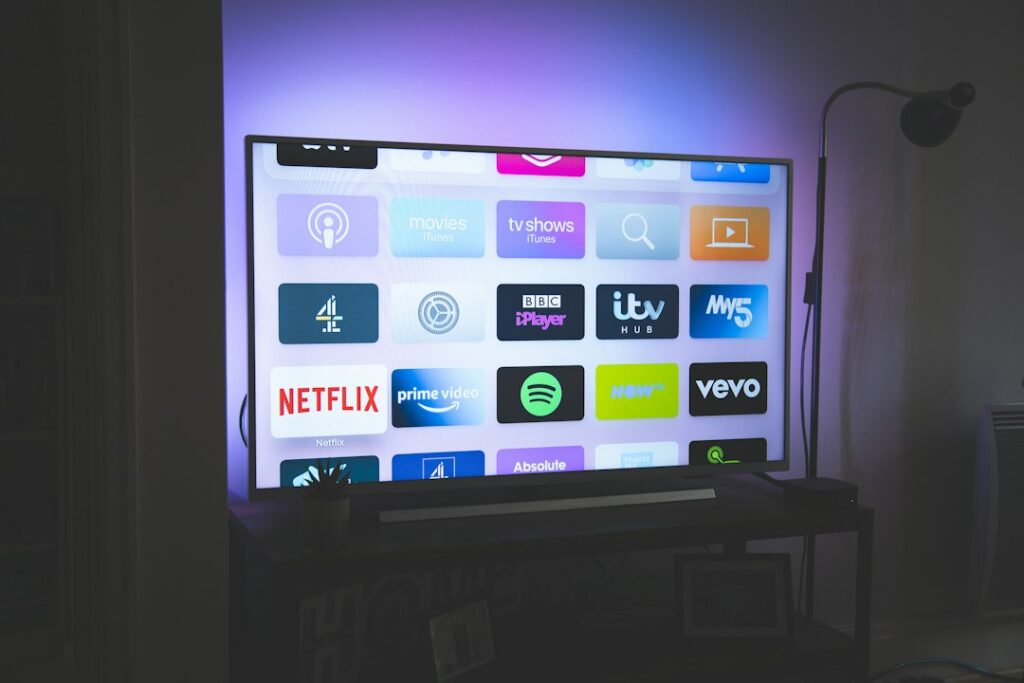
Hardware choices range from small HDMI sticks tucked behind the television to powerful set-top boxes with dedicated Ethernet ports. You need to weigh up app availability, processor speed, and video formats. Let’s look at how the main streaming devices stack up against each other.
Amazon Fire TV Stick and Fire TV Cube
Amazon’s hardware range dominates living rooms across the UK. The Fire TV Stick 4K and the more powerful Fire TV Cube run Fire OS, which is built on top of Android. This means they support most official streaming apps directly from the Amazon Appstore. You get robust 4K and HDR support, including Dolby Vision on higher-end models.
Performance is snappy on current-generation devices. Menus load quickly, and switching between live feeds and on-demand content rarely stutters. Wi-Fi performance is generally solid, though the Fire TV Cube includes a physical Ethernet port out of the box. Fire sticks require an adapter for wired internet. Remote controls feature integrated Alexa voice buttons, making searches simple. Parental controls are comprehensive, allowing you to lock app purchases and restrict content ratings easily.
Apple TV 4K
If you live inside the Apple ecosystem, the Apple TV 4K offers arguably the smoothest user experience available. It runs tvOS, giving you access to the App Store where many official broadcasting apps live. The hardware inside uses mobile-grade chips that tear through video decoding without breaking a sweat.
Picture quality and HDR handling are top-tier. You get both gigabit Ethernet and fast Wi-Fi on every modern unit. The Siri Remote is responsive, though some users find its touch surface overly sensitive. Privacy features on tvOS outpace most competitors. Storage is generous, starting at 64GB, which leaves plenty of room for caching live streams. Setup is effortless if you own an iPhone. You just hold it near the box to transfer your Wi-Fi credentials and Apple ID.
Google TV Streamer and Chromecast Devices
Google TV has largely replaced older Chromecast hardware, offering a proper interface with a remote control. It runs official Android TV, meaning compatibility with official legal IPTV UK apps is very high. You can download major broadcaster apps straight from the Google Play Store.
Performance varies depending on the specific model tier. The newest Google TV Streamer handles heavy multitasking smoothly. Storage and memory are adequate for most users. You get robust voice control via Google Assistant built into the remote. Ethernet ports are included on dedicated set-top boxes, while cheaper dongles rely entirely on Wi-Fi. Parental controls use Google Family Link, giving you remote management capabilities from your phone.
Roku Streaming Players
Roku devices run the Roku OS platform. They are famous for a neutral, ad-supported interface that doesn’t push one streaming service over another. App availability through the Roku Channel Store is massive for standard catch-up services, but specialized or niche streaming applications might have limited support compared to Android-based competitors.
Performance on Roku sticks is dependable for standard HD and 4K streaming. However, advanced video codecs or complex app layouts can occasionally stretch the lower-end processors. Remotes are simple and uncluttered. Most models rely on Wi-Fi connectivity, with wired connections restricted to higher-end ultra units. Setup takes minutes, and parental control PINs protect mature content across all installed channels.
Smart TVs: Samsung and LG
Built-in smart TV platforms mean you don’t need a separate streaming box. Samsung uses Tizen OS, while LG relies on webOS. Both operating systems host official apps from major UK broadcasters. The main advantage is simplicity. You use a single remote and eliminate extra clutter.
Performance depends on the processor inside your specific television model. High-end panels feature powerful chips that navigate menus instantly, while budget models can feel sluggish. Wi-Fi modules are built in, and both brands include physical Ethernet ports. Voice control works via Bixby or Alexa on Samsung, and ThinQ AI on LG. Setup happens during your initial television configuration. Parental controls let you restrict specific apps or broadcast channels with a PIN code.
Smartphones, Tablets, and Mobile Casting
Phones and tablets running iOS or Android act as portable screens for your entertainment. You can install official broadcaster apps directly from the Apple App Store or Google Play. Many users cast these streams to larger televisions using AirPlay or Google Cast.
Processing power on modern phones is exceptional, outperforming many dedicated streaming boxes. App availability is unmatched. However, mobile devices lack Ethernet ports and rely completely on Wi-Fi or mobile data. Remote control doesn’t apply here, as you use touchscreen gestures. Privacy settings on mobile operating systems give you granular control over app permissions. Setup involves logging into your app store account and downloading the software you need.
Hardware Feature Comparison
| Device Family | Operating System | Ethernet Support | 4K/HDR Support | Setup Ease |
|---|---|---|---|---|
| Amazon Fire TV | Fire OS (Android) | Adapter required (Cube has built-in) | Yes (Most models) | Very Easy |
| Apple TV 4K | tvOS | Built-in (Gigabit) | Yes (Dolby Vision/HDR10+) | Effortless (with iPhone) |
| Google TV | Android TV | Model dependent | Yes | Very Easy |
| Roku Players | Roku OS | Model dependent (Ultra only) | Yes | Simple |
| Samsung / LG TVs | Tizen / webOS | Built-in | Yes (On supported panels) | Integrated |
| Phones & Tablets | iOS / Android | No (Wireless only) | Yes (Screen dependent) | Straightforward |
Pros and Cons of Dedicated Streaming Hardware
Using a dedicated box like an Apple TV or Fire Cube isolates your streaming apps from your television’s native operating system. This often results in faster updates and longer software support lifecycles. Smart TV interfaces can slow down after a few years as manufacturers drop support for older chips. Dedicated boxes are also easy to replace if processing standards change.
On the downside, external hardware requires an extra HDMI port, a separate power socket, and another remote control to manage. If you want to keep your living room wire-free, a smart TV running native apps is cleaner. If you want maximum performance and guaranteed app compatibility for legal IPTV UK services, a dedicated media player usually wins.
Step-by-Step Setup Guide
Getting your chosen device running takes just a few moments if you follow a logical sequence. How to set up legal IPTV on Firestick in the UK covers foundational platform configuration if you chose Amazon hardware. For general setups, use these steps:
- Plug your streaming device into a spare HDMI port on your television or AV receiver.
- Connect the power cable to a wall socket using the supplied mains adapter.
- Switch your television input source to match the correct HDMI port.
- Follow the on-screen prompts to connect your device to your home Wi-Fi network or plug in an Ethernet cable.
- Sign in to your device account, such as your Amazon, Google, or Apple ID.
- Open the built-in app store, search for your provider’s official streaming application, and download it.
- Log in using your official subscriber credentials provided by your licensed service operator.
Always verify app compatibility before purchasing hardware. Subscription services update their software requirements regularly, and older boxes occasionally lose support for new security protocols.
For more information, iptv.
Related reading
- Spotting IPTV Scams: How to Buy Legal Sports IPTV UK Safely
- How to Fix UK IPTV Audio Delay on Firestick and Smart TVs
Update: Comparing Firestick and Smart TV Apps for Legal IPTV Setup and Troubleshooting
Update: How to Stream Live UK Football Legally Using Official Apps and Services