- Before You Start Checklist
- The Quick Answer
- Step 1: Check Your Internet Speed and Wi-Fi Signal
- Step 2: Clear Device Storage and App Cache
- Step 3: Update Apps and Device Firmware
- Step 4: Troubleshoot Specific Devices
- Understanding Stream Protocols and Buffer Settings
- Common Mistakes to Avoid
- When to Contact Your Provider
- Frequently Asked Questions
- Why does my broadcast stutter only during evening peak hours?
- Does a VPN help stop stuttering?
- Should I reinstall my media player?
When your screen freezes right in the middle of a live match or film, it ruins your evening. Dealing with IPTV buffering UK issues is frustrating, but most glitches come down to a few standard culprits. You don’t need a degree in network engineering to fix them. Let’s walk through the exact steps to get your stream running smoothly again.

Before You Start Checklist
Before you start digging into router settings or reinstalling apps, run through this quick checklist:
- Check if other streaming services like BBC iPlayer or Netflix work without freezing.
- Note whether the stuttering happens on live broadcasts, catch-up TV, or VOD content.
- Verify your subscription status is fully paid and active with your official provider.
- Locate your broadband router and streaming device remote.
The Quick Answer
Most stuttering on legal streaming setups stems from local network congestion, weak Wi-Fi signals, or outdated app caches. Restarting your router, clearing temporary app data, or switching your Firestick to a 5GHz Wi-Fi band usually solves the problem instantly.
Step 1: Check Your Internet Speed and Wi-Fi Signal
Your broadband connection dictates your picture quality. High-definition streams need a stable connection of at least 15 to 25 megabits per second. Ultra HD needs even more headroom. Run a speed test on a phone or laptop connected to the same wireless network.
If your speeds look fine on paper, your Wi-Fi signal might still suffer from interference. Thick walls, microwave ovens, and baby monitors disrupt wireless frequencies. Move your router into the same room as your television if possible. Alternatively, wire your streaming box directly using an Ethernet cable for maximum stability.
It is also worth noting that wireless congestion in densely populated apartment buildings can severely impact your local channel availability. If your neighbors are all operating their Wi-Fi routers on the exact same wireless channel, packet loss increases dramatically. Modern routers often have an auto-channel selection feature, but manually logging into your router admin panel to select a less congested 5GHz channel can yield an immediate improvement in stream consistency.
Step 2: Clear Device Storage and App Cache
Smart TVs and streaming sticks have limited internal memory. When cache files pile up, apps slow down and stutter. If you use an Amazon streaming stick, you might need to clean Firestick cache data to free up vital system resources. Head to your device settings, find your installed applications, and clear the cache for your official player app. Do not clear the data unless you want to log in again from scratch.
Step 3: Update Apps and Device Firmware
Outdated software creates compatibility bugs. Software developers constantly push patches to improve performance. Check the app store on your specific device to see if an update waits for your player application. Samsung Tizen and LG webOS systems also need operating system updates to keep networking protocols running efficiently.
Step 4: Troubleshoot Specific Devices
Different operating systems handle memory and networking in unique ways. Apply the right fix for your hardware:
- Firestick: Unplug the power cable for one full minute to drain residual power, then plug it back in.
- Samsung TV: Perform a cold boot by holding down the power button on your remote until the Samsung logo appears.
- LG TV: Check your pointer settings and disable Quick Start+ if your apps keep freezing upon startup.
- Android TV: Force stop background applications running behind your main interface.
Understanding Stream Protocols and Buffer Settings
Many advanced media player applications allow you to manually adjust internal player settings, which can dramatically impact your viewing experience. Most players rely on either HLS (HTTP Live Streaming) or MPEG-TS protocols to fetch video chunks from remote distribution servers.
If your player configuration includes a buffer size adjustment option, changing it from “Low” or “None” to “Large” or “Extra Large” gives your device a bigger safety net. A larger buffer downloads several seconds of video ahead of time, meaning minor micro-stutters or split-second internet fluctuations will pass unnoticed without triggering a full loading wheel on your display. Furthermore, understanding the distinction between hardware decoding and software decoding within your player settings can help you achieve smoother playback, as offloading video processing directly to your device’s dedicated graphics chip rather than the central processor often eliminates dropped frames entirely during high-motion sports broadcasts.
Common Mistakes to Avoid
People often make a few classic errors when troubleshooting connectivity issues. Avoid these traps:
- Changing router DNS settings without noting down the original configuration numbers.
- Uninstalling your main media player app before backing up your playlist URLs or portal details.
- Blaming your broadband provider before testing your local hardware with a simple restart.
When to Contact Your Provider
Sometimes the issue sits completely outside your living room. If your internet speed tests show blazing fast numbers, your local hardware is updated, and other devices work fine, the problem might originate on the server side. Reach out to your subscription customer support team if downtime persists for more than thirty minutes, or check their official status page for known network outages.
Frequently Asked Questions
Why does my broadcast stutter only during evening peak hours?
Local broadband traffic surges between 7 PM and 11 PM across the UK. Your Internet Service Provider might throttle traffic during these busy windows, or your local cabinet might be overloaded.
Does a VPN help stop stuttering?
Usually no. Running a virtual private network adds extra routing hops, which often increases latency and worsens buffering rather than helping it.
Should I reinstall my media player?
Only use this as a last resort if clearing the cache fails to resolve persistent stuttering.
For more information, iptv.
Related reading
- Myth vs. Fact: What Actually Happens When You Switch to IPTV UK
- UK Legal IPTV Streaming Hardware Comparison Guide
Update: UK Legal IPTV Device Setup and Comparison Guide
Update: How to Test an IPTV Service Before Committing Long Term in the UK
- Choosing the Right Hardware for Legal IPTV Streaming
- Amazon Fire TV Stick and Fire TV Cube
- Apple TV 4K
- Android TV and Google TV Players
- Smart TV Built-in Platforms: Samsung and LG
- Evaluating Your Home Network Capabilities
- Hardware Comparison Breakdown
- Parental Controls, Security, and Privacy
- Frequently Asked Questions
- Do I need a TV licence for IPTV in the UK?
- Can I use any IPTV app on a Fire TV Stick?
- Why does my stream lag during peak match times?
- Are Android TV boxes legal to buy?
- Does Apple TV support 4K streaming?
- How do I update my streaming apps?
- Is an ethernet connection better than Wi-Fi?
Choosing the Right Hardware for Legal IPTV Streaming
Finding reliable legal IPTV devices UK shoppers can trust starts with looking beyond flashy marketing. IPTV delivers television signals over broadband internet rather than traditional satellite dishes or aerials. Ofcom notes that internet-based viewing continues to grow across British households. However, the hardware you pick dictates your daily streaming experience.

You need a box or stick that handles official apps smoothly. Not all hardware supports every service. Let’s break down the main contenders on the market right now.
Amazon Fire TV Stick and Fire TV Cube
Amazon’s hardware dominates living rooms across the UK. The Fire TV Stick 4K and Fire TV Cube run on Fire OS, an offshoot of Android. You’ll find most major UK catch-up apps alongside official provider software in the Amazon Appstore. They support Dolby Vision and Dolby Atmos where available.
Storage is tight on the cheaper sticks. You might run out of space if you install too many large apps. Ethernet adapters are sold separately for basic models, but the Cube includes an ethernet port out of the box. Alexa integration works well for hands-free voice commands.
Apple TV 4K
If you live inside the Apple ecosystem, the Apple TV 4K offers unmatched processing muscle. tvOS lacks the clutter found on other platforms. Official apps launch instantly because of the A15 Bionic chip inside. It handles high bitrate streams without breaking a sweat.
You get both Wi-Fi 6 and a gigabit ethernet port on the higher-end version. The Siri Remote feels premium, though its touch surface frustratingly divides some users. Price remains the main hurdle. Apple hardware costs significantly more than a standard streaming stick, making it an investment reserved for enthusiasts who prioritize seamless performance and zero interface lag above all else.
Android TV and Google TV Players
Devices powered by Google TV, including Chromecast and various set-top boxes, offer massive app flexibility. The Google Play Store hosts a wide variety of official media players. You won’t struggle to find compatible software for legitimate subscription services.
Performance varies wildly depending on what you buy. Cheap generic boxes often cut corners on processors and Wi-Fi chips. Stick to established brands like Google or Nvidia for reliable updates and security patches.
Smart TV Built-in Platforms: Samsung and LG
Many viewers skip external hardware entirely. Samsung uses Tizen OS, while LG relies on webOS. Both operating systems feature built-in app stores loaded with mainstream UK broadcasting apps. Setup involves plugging in your aerial and connecting to your router.
Remote controls are functional, though pointer remotes on LG sets divide opinion. Processor speeds inside televisions rarely match dedicated media players. Older smart TVs often stop receiving app updates after a few years.
Evaluating Your Home Network Capabilities
Even the most powerful streaming hardware will struggle if your home network cannot sustain consistent data delivery. When streaming live high-definition or 4K content, packet loss and jitter can introduce stuttering or sudden drops in resolution. British broadband providers offer various fiber packages, but actual throughput often depends on peak evening usage in your neighborhood. To ensure an optimal viewing environment, run speed tests directly from your streaming device’s diagnostic menu. If your router sits far from your television, investing in a mesh Wi-Fi system or running a physical Cat6 ethernet cable can dramatically improve stream stability. Addressing these foundational network variables prevents frustrating buffering screens right in the middle of crucial live broadcasts.
Hardware Comparison Breakdown
Comparing legal IPTV devices UK buyers look at reveals distinct trade-offs. Here is how the major categories stack up based on hardware specifications and everyday performance.
- Amazon Fire TV: Affordable, great voice control, but limited internal storage on entry-level models.
- Apple TV 4K: Premium build, exceptionally fast, but carries a high retail price tag.
- Google TV / Android TV: Huge app selection, flexible interface, variable quality on budget hardware.
- Smart TV Apps: No extra box needed, clutter-free setup, but prone to slower software lifespans.
When you’re setting up your chosen hardware, make sure your broadband connection meets high-definition demands. Match your device capabilities with our guide on how to set up IPTV on your smart tv in the uk for step-by-step instructions. Check the provider’s official compatibility page before committing your cash.
Parental Controls, Security, and Privacy
Official hardware includes robust parental control settings. You can lock mature content behind a PIN code. Regular security updates protect your home network from vulnerabilities. Avoid unverified devices that lack proper certification from major tech firms.
Frequently Asked Questions
Do I need a TV licence for IPTV in the UK?
Yes. If you watch live television broadcasts or use BBC iPlayer on any device, UK law requires a valid TV licence.
Can I use any IPTV app on a Fire TV Stick?
No. You must download applications officially supported by your provider and available through certified app stores.
Why does my stream lag during peak match times?
Network congestion often causes drops. Using an ethernet cable instead of Wi-Fi usually fixes local connection bottlenecks.
Are Android TV boxes legal to buy?
Yes. Hardware like the Google Chromecast or Nvidia Shield is entirely legal. Legality depends strictly on the content service you access.
Does Apple TV support 4K streaming?
Yes. The Apple TV 4K model supports ultra-high-definition playback alongside HDR10+ and Dolby Vision formats.
How do I update my streaming apps?
Most devices update applications automatically in the background. You can also trigger manual updates through the device app store.
Is an ethernet connection better than Wi-Fi?
Ethernet provides a stable wired connection that eliminates wireless interference during high-bandwidth live broadcasts.
For more information, iptv.
Related reading
- How to Check Legal Sports IPTV UK Packages Before Buying
- Smart TV IPTV Playlist Loading Issues and How: A Practical UK Fix Guide
Update: IPTV Buffering Fixes UK: Step-by-Step Troubleshooting for Smart TVs and Firestick
Update: Comparing Official UK Sports Streaming Apps and Licensed IPTV Providers
- Common Causes for Playlist Loading Failures
- Before You Start Checklist
- Step-by-Step Troubleshooting for Smart TVs
- 1. Restart Your Network Hardware
- 2. Clear App Cache
- 3. Re-add Your Playlist Manually
- Advanced Diagnostics: Network Stability and Packet Loss
- Common Mistakes to Avoid
- When to Contact Your Provider
- Safety and Legal Notes
- Frequently Asked Questions
- Why does my playlist load on my phone but not my TV?
- How often should I update my IPTV app?
When your official streaming app throws up an error instead of your channel list, it ruins a quiet evening instantly. Smart TV IPTV playlist loading issues happen more often than you might think across UK living rooms. You press play, grab a cup of tea, and stare at a spinning circle. Don’t panic yet. Most of these glitches come down to simple network drops, outdated app caches, or temporary server hiccups from your official provider.
Before you start pulling cables out of the wall, let’s look at a quick baseline checklist. Your broadband router needs a stable connection. Your TV app requires the latest software version. You must also have your official login credentials handy. Understanding how these systems interact can save you hours of frustration and prevent unnecessary calls to your internet service provider.
Common Causes for Playlist Loading Failures
Internet service providers in the UK sometimes apply traffic management during peak evening hours, roughly between 7 PM and 11 PM. That can choke your connection bandwidth just enough to block a large playlist file from downloading completely, resulting in a timeout error. Another frequent culprit is device storage. Modern Samsung and LG sets have limited internal memory. If cached data fills that space completely, apps fail to sync new data from your provider. Furthermore, changes in security protocols or SSL certificates on the provider’s end can cause older TV applications to reject the connection entirely.
Before You Start Checklist
Check these basics first:
- Your broadband connection is active and other websites load normally.
- You are using the official app downloaded from your TV’s approved store.
- Your subscription status is active and paid up.
- You have your exact M3U link or portal URL written down correctly.
Step-by-Step Troubleshooting for Smart TVs
Let’s fix those playlist loading issues using a methodical approach. Follow these steps carefully based on your specific television brand.
1. Restart Your Network Hardware
Unplug both your broadband router and your smart TV from the wall socket. Wait sixty seconds. Plug the router back in first, wait for the connection lights to turn solid green, and then power on your television. This clears out temporary IP conflicts and forces your ISP to assign a fresh lease to your home network.
2. Clear App Cache
On a Samsung TV running Tizen, hold the power button on your remote until the set reboots completely—simply putting it in standby mode won’t clear the cache. On webOS LG televisions, go to settings, select application manager, find your streaming app, and clear its cache. If you are using an Android TV box or Sony set, head to apps, choose the specific player, and clear both cache and data to wipe away corrupted configuration files.
3. Re-add Your Playlist Manually
Sometimes the local database gets corrupted. Delete the existing playlist entry inside your app settings completely. Type your credentials back in very carefully. Even a single misplaced character in a web address stops the playlist loading process immediately. If possible, use a companion mobile app or web interface provided by your streaming app to paste the long M3U URL rather than typing it out with a TV remote.
Advanced Diagnostics: Network Stability and Packet Loss
If basic restarts and cache clearings do not resolve the playlist loading failure, the issue may stem from deeper network instability. Many UK broadband connections suffer from micro-dropouts—fractions of a second where data transmission halts. While this might not interrupt casual web browsing or standard definition video streaming, it will instantly corrupt the download of a massive IPTV playlist text file or EPG (Electronic Program Guide) XML file. Try connecting your smart TV directly to your router using a wired Ethernet cable instead of relying on Wi-Fi, which is susceptible to interference from household appliances, thick walls, and neighbouring wireless networks.
Common Mistakes to Avoid
Do not keep hammering the refresh button every two seconds. That floods the provider’s server with repeated requests and makes them block your IP address temporarily for suspected DDoS behavior. Avoid using public free Wi-Fi hotspots for streaming because their packet loss rates destroy large data transfers like IPTV playlists. Additionally, resist the temptation to download unverified third-party playlist editors or converters from dubious websites, as these often contain malware or adware designed to compromise your personal data.
When to Contact Your Provider
If you have restarted your router, cleared your app data, and checked your internet speeds using a tool like Evaluating Internet Speeds for Legal Sports IPTV UK, but the channel list still refuses to appear, the fault likely lies on their end. Reach out to their customer support team to check if their portal servers are undergoing maintenance, experiencing an unexpected hardware outage, or if your specific account has been flagged for a security check.
Safety and Legal Notes
Always stick to official applications available directly on the official app marketplaces for your hardware, such as the LG Content Store or Samsung Galaxy Apps. Never download random software files or sideload unknown APKs from unverified forums. Keep your home network secure with strong Wi-Fi passwords and modern WPA3 encryption to protect your connected devices from unauthorised access and potential snooping.
Frequently Asked Questions
Why does my playlist load on my phone but not my TV?
Television apps often have stricter security certificates, outdated WebView components, and lower memory limits than modern smartphones. Your phone might handle corrupted playlist formatting or self-signed SSL certificates much better than a smart TV’s native media player.
How often should I update my IPTV app?
Check for updates at least once a month through your TV’s app store. Developers frequently patch bugs, improve stream buffering algorithms, and update security protocols that interfere with modern playlist parsing engines.
For more information, iptv.
Related reading
- How to Test an IPTV Trial in the UK Safely and Effectively
- Choosing Legal IPTV Hardware: A Comprehensive UK Streaming Device Comparison
Update: UK Legal IPTV Streaming Hardware Comparison Guide
Update: Myth vs. Fact: What Actually Happens When You Switch to IPTV UK
- Choosing Legal IPTV Devices UK Buyers Actually Need
- Amazon Fire TV Stick 4K Max and Fire TV Cube
- Apple TV 4K
- Google TV Streamer and Chromecast
- Roku Streaming Stick 4K
- Smart TV Platforms: Samsung Tizen and LG webOS
- Device Comparison Table
- Pros and Cons of Dedicated Streaming Hardware
- Setup Guidance and Compatibility Notes
Choosing Legal IPTV Devices UK Buyers Actually Need
Streaming television over the internet has changed how we watch live channels across the country. But finding the right hardware for legal IPTV devices UK households can rely on isn’t always straightforward. You need a streaming box or stick that handles official applications smoothly, connects to your home broadband without dropping packets, and outputs crisp 4K pictures to your television. Legality depends entirely on the service provider holding proper broadcast rights, while the hardware itself is just a tool to run licensed apps.

We will break down the top streaming hardware available in the UK right now. We will look at operating systems, app availability, and everyday performance so you can make an informed choice.
Amazon Fire TV Stick 4K Max and Fire TV Cube
Amazon’s Fire TV lineup dominates living rooms across the UK. The Fire TV Stick 4K Max runs Fire OS, which is built on Android. App availability is massive, covering every major UK broadcaster and licensed streaming service. Performance is snappy, and Wi-Fi 6E support keeps live streams stable if your router is in another room. If you want a more robust setup, the Fire TV Cube adds an Ethernet port directly into the box, skipping Wi-Fi dropouts entirely.
Remote control quality is solid, featuring dedicated buttons for popular apps and reliable Alexa voice control. Storage is modest at 16GB on newer models, but it’s plenty for official apps. If an app freezes, you can easily clear your app cache on Android TV or Fire OS devices to get things running smoothly again.
Apple TV 4K
If you live inside the Apple ecosystem, the Apple TV 4K is hard to beat. tvOS offers a clean, ad-free interface that puts your content front and centre. It supports Dolby Vision, HDR10+, and Dolby Atmos audio. Performance is powered by high-end mobile silicon, meaning apps open instantly and live feeds never stutter.
The Siri Remote is a premium aluminium design with a touch-enabled clickpad. You get a choice of 64GB or 128GB of storage. The top-tier model also includes a Gigabit Ethernet port alongside Wi-Fi 6. Setup is wonderfully simple if you own an iPhone, as your Wi-Fi credentials transfer over automatically. Parental controls are robust, and privacy standards are among the strictest in the industry.
Google TV Streamer and Chromecast
Google TV replaced traditional Chromecast dongles with a dedicated set-top box approach. The interface aggregates content from multiple licensed apps neatly on your home screen. Android TV forms the backbone here, meaning you have access to the Google Play Store for all official streaming applications.
Voice control via Google Assistant works well through the included remote. The box includes an Ethernet port, which helps avoid local network congestion during peak viewing hours. 4K HDR support is standard, and setup takes just a few minutes using the Google Home app on your phone. For more details on how network speed impacts your viewing, check out our guide on evaluating internet speeds for legal sports IPTV UK.
Roku Streaming Stick 4K
Roku remains a favourite for simplicity. Roku OS avoids pushing any specific ecosystem, giving you a neutral grid of tiles for your apps. The remote is lightweight and straightforward, though it lacks advanced backlighting. App availability for UK catch-up services and licensed IPTV apps is comprehensive.
Wi-Fi performance is reliable thanks to a long-range receiver built into the power cable. However, Roku devices do not offer a built-in Ethernet port, so you rely entirely on your wireless network. Storage management happens automatically in the background, requiring zero user intervention. Parental controls let you lock content by ratings easily.
Smart TV Platforms: Samsung Tizen and LG webOS
Buying a standalone box isn’t always necessary if your television runs a modern smart platform. Samsung uses Tizen, while LG relies on webOS. Both operating systems feature built-in app stores loaded with official UK TV apps and licensed streaming services.
Performance varies based on your TV’s internal processor. Budget models can feel sluggish when switching between heavy live streams, while flagship OLEDs handle everything effortlessly. Wi-Fi and Ethernet options depend on the specific television model. If your smart TV starts lagging during live playback, you might need a UK smart TV IPTV app freezing troubleshooting guide to clear out temporary bugs.
Device Comparison Table
| Device | OS | 4K Support | Ethernet | Approx. Price (UK) |
|---|---|---|---|---|
| Amazon Fire TV Stick 4K Max | Fire OS | Yes (Dolby Vision) | No (Adapter required) | £70 |
| Apple TV 4K (Wi-Fi + Ethernet) | tvOS | Yes (Dolby Vision) | Yes (Gigabit) | £149 |
| Google TV Streamer | Android TV | Yes (HDR10+) | Yes | £99 |
| Roku Streaming Stick 4K | Roku OS | Yes (Dolby Vision) | No | £50 |
Pros and Cons of Dedicated Streaming Hardware
Dedicated media players like the Apple TV or Fire Cube generally outperform built-in smart TV software. They receive software updates for longer periods, and replacing a £70 streaming stick is much cheaper than buying a brand-new television when apps stop updating.
On the downside, adding another box to your TV cabinet means extra power cables and remote clutter. Smart TVs keep things tidy, but their operating systems often slow down after a few years of heavy updates.
Setup Guidance and Compatibility Notes
Getting started usually involves plugging the device into an HDMI port, connecting power, and following the on-screen prompts. Never assume that every streaming app works on every piece of hardware. Always check the provider’s official website and your device’s app store to confirm compatibility before purchasing a subscription.
Additionally, ensure your television’s HDMI ports support HDCP 2.2 encryption standards, which are mandatory for streaming protected 4K Ultra HD live broadcasts and premium on-demand content smoothly without triggering unexpected resolution downgrades.
For more information, iptv.
Related reading
- 5 Key Things to Consider When Buying Legal Sports IPTV UK Packages
- Fixing IPTV Freezing and Buffering on Firestick and Smart TVs
Update: How to Choose Legal Sports IPTV UK Packages for Saturday Kickoffs
Update: Choosing Legal IPTV Hardware: A Comprehensive UK Streaming Device Comparison
- 1. Check Your Broadband Speed and Network Stability
- 2. Choose Compatible Hardware for Your Living Room
- 3. Install a Reputable Player Application
- 4. Enter Your Playlist Details and Configure Settings
- 5. Test Playback and Troubleshoot Common Issues
- 6. Maximising EPG Functionality and Catch-Up Features
A Step-by-Step Guide to Setting Up and Upgrading an IPTV Service in the UK
Getting your home entertainment system ready for an IPTV UK setup can feel confusing if you are new to internet-based television delivery. Unlike traditional aerials or satellite dishes, these systems beam television signals directly through your broadband connection. Millions of households across the country now use this technology to watch live channels and on-demand media. If you want to get your hardware configured properly without spending hours troubleshooting, follow this practical sequence.

1. Check Your Broadband Speed and Network Stability
Before you touch any app settings, look closely at your internet connection. Streaming live high-definition video requires consistent bandwidth. Most standard broadband packages handle single streams easily, but busy households might struggle if multiple devices share the Wi-Fi. Run a quick speed test on your television or streaming box. You generally want a steady connection of at least 15 to 25 megabits per second for standard high-definition feeds, while ultra-high-definition streams demand considerably more capacity. If your router sits far away from your screen, consider plugging an Ethernet cable directly into your device to avoid dropouts.
Beyond raw download speeds, pay close attention to your network’s latency and packet loss. Fibre-optic connections (FTTP) offered by modern UK providers like Openreach networks, Virgin Media, or CityFibre typically provide the low ping necessary for seamless stream switching. If you must use Wi-Fi, ensure your streaming device connects to the 5GHz frequency band rather than the overcrowded 2.4GHz band, which is far more susceptible to interference from household appliances, Bluetooth gadgets, and neighbouring wireless networks.
2. Choose Compatible Hardware for Your Living Room
Your hardware choice dictates how smooth your viewing experience will be. Many modern smart televisions feature built-in app stores, but older models often require external streaming hardware to run modern applications efficiently. If you are setting up a Samsung or LG screen, check out our guide on the best IPTV device for Samsung and LG TV owners to see which models handle app navigation best. Alternatively, devices like Amazon Fire sticks or dedicated media boxes plug straight into an HDMI port and provide a reliable operating system.
When selecting a dedicated box, consider processing power and internal storage. Budget devices with minimal RAM can struggle when rendering massive Electronic Programme Guides loaded with thousands of channels and detailed metadata. High-performance streaming hubs—such as the Nvidia Shield TV, Apple TV 4K, or the latest Google TV streaming devices—offer robust processors that ensure snappy menu scrolling, rapid channel loading, and flawless decoding of high-bitrate HEVC/H.265 video streams.
3. Install a Reputable Player Application
Once your hardware is online, visit your device’s official app store. Search for a trusted media player application designed to organise television streams. Popular options include Tivimate, XCIPTV, or IPTV Smarters Pro. Download the software directly from the official store rather than sideloading unknown files from the internet. Taking shortcuts here can expose your hardware to security risks. Official app stores vet software for basic safety standards, giving you peace of mind before you input any configuration details.
Once installed, take time to explore the application’s interface layout options. Most top-tier players allow you to customise how channels are displayed, switch between grid and list views, and hide channel categories that you never watch—such as international sports leagues or foreign language packages you have no interest in. Customising these preferences early on makes daily navigation much more intuitive for every member of your household.
4. Enter Your Playlist Details and Configure Settings
Open your newly installed player app. You will see prompts asking for connection details, which usually include an M3U playlist URL or Xtream Codes API credentials provided by your chosen IPTV service UK provider. Type these details in carefully using your remote control. A single typo will prevent the app from connecting to the server. After entering the login information, give the app a few moments to download the channel guide, logos, and category lists. Once loaded, dive into the application settings to adjust your electronic programme guide update frequency and video decoder preferences to match your hardware’s capabilities.
It is also wise to configure your audio passthrough settings within the player app if you use an external soundbar or a surround-sound home theatre amplifier. Ensuring that Dolby Digital or DTS audio tracks pass through uncompressed will dramatically improve your acoustic experience during movie nights or live sports broadcasts.
5. Test Playback and Troubleshoot Common Issues
Select a live channel to verify that both video and audio stream smoothly. If you notice stuttering or error messages, don’t panic. Check your app cache or restart your streaming device to clear temporary glitches. For more stubborn playback hiccups, you can read our detailed advice on how to fix UK IPTV buffering and freezing on Firestick to restore normal performance quickly. Keeping your app updated to the latest version also prevents compatibility conflicts down the line.
If buffering persists during peak evening hours, your Internet Service Provider (ISP) might be applying traffic management or throttling to streaming protocols. In these instances, configuring a secure Virtual Private Network (VPN) on your router or directly inside your streaming device can encrypt your traffic and bypass artificial speed restrictions imposed by your provider.
6. Maximising EPG Functionality and Catch-Up Features
To truly replicate or exceed the experience of traditional cable and satellite television, make the most of your player’s Electronic Programme Guide (EPG) features. A well-configured EPG allows you to look backward and forward through a seven-day schedule. Many advanced UK IPTV setups also support catch-up and cloud recording features, allowing you to watch broadcasts that aired earlier in the day without needing a physical DVR box plugged into your wall.
Setting up your UK IPTV configuration properly the first time saves you from endless frustration later. Take it step by step, verify your network speeds, and stick to official applications available on recognised app stores to ensure long-term stability and security for your home entertainment setup.
For more information, iptv.
Learn more on Wikipedia: ITV (TV network).
Related reading
- UK Streaming Device Comparison for Legal IPTV Apps
- Buying Legal Sports IPTV UK Packages: A Fan’s Checklist
Update: 5 Key Things to Consider When Buying Legal Sports IPTV UK Packages
Update: UK Legal IPTV Device Guide: Hardware Comparison for Official Apps
- Choosing Hardware for Legal IPTV in the United Kingdom
- Amazon Fire TV Stick and Fire TV Cube
- Apple TV 4K
- Google TV Streamer and Chromecast Devices
- Roku Streaming Players
- Smart TVs: Samsung and LG
- Smartphones, Tablets, and Mobile Casting
- Hardware Feature Comparison
- Pros and Cons of Dedicated Streaming Hardware
- Step-by-Step Setup Guide
Choosing Hardware for Legal IPTV in the United Kingdom
Getting your television setup right for legal IPTV UK viewing takes a bit of planning. You aren’t just buying a box. You are picking a platform that handles apps, video decoding, and network traffic. IPTV delivers television over the internet instead of traditional aerials or cables. However, the legality of any service depends entirely on whether the provider holds the correct broadcasting rights for the UK market. Different gadgets handle official apps in different ways. Some run Android TV, others use proprietary systems, and a few rely on mobile operating systems mirrored to a big screen.
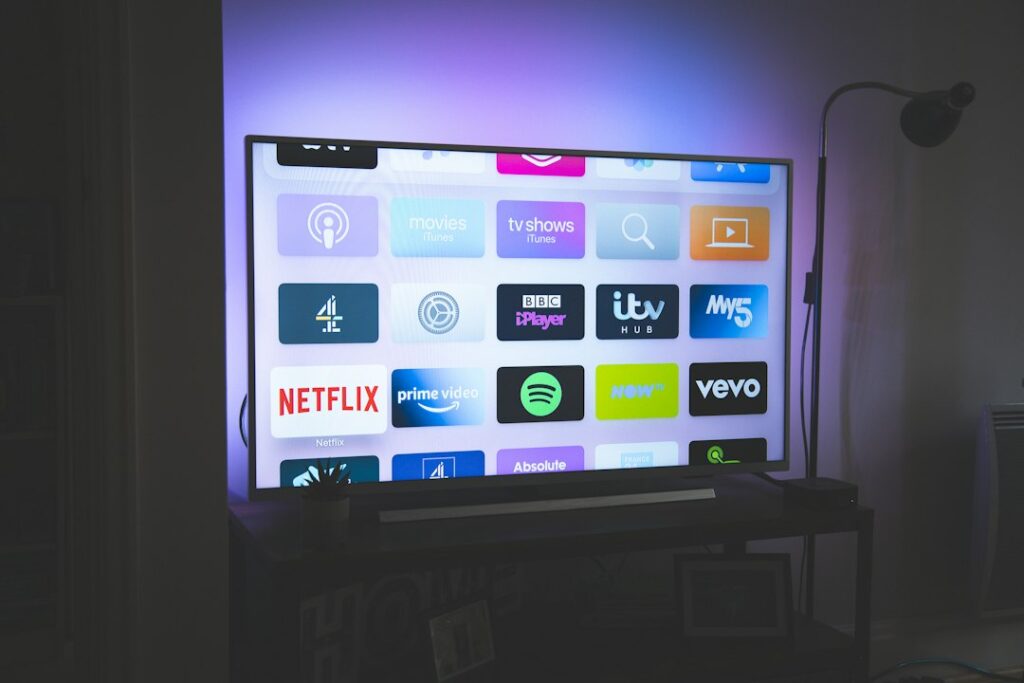
Hardware choices range from small HDMI sticks tucked behind the television to powerful set-top boxes with dedicated Ethernet ports. You need to weigh up app availability, processor speed, and video formats. Let’s look at how the main streaming devices stack up against each other.
Amazon Fire TV Stick and Fire TV Cube
Amazon’s hardware range dominates living rooms across the UK. The Fire TV Stick 4K and the more powerful Fire TV Cube run Fire OS, which is built on top of Android. This means they support most official streaming apps directly from the Amazon Appstore. You get robust 4K and HDR support, including Dolby Vision on higher-end models.
Performance is snappy on current-generation devices. Menus load quickly, and switching between live feeds and on-demand content rarely stutters. Wi-Fi performance is generally solid, though the Fire TV Cube includes a physical Ethernet port out of the box. Fire sticks require an adapter for wired internet. Remote controls feature integrated Alexa voice buttons, making searches simple. Parental controls are comprehensive, allowing you to lock app purchases and restrict content ratings easily.
Apple TV 4K
If you live inside the Apple ecosystem, the Apple TV 4K offers arguably the smoothest user experience available. It runs tvOS, giving you access to the App Store where many official broadcasting apps live. The hardware inside uses mobile-grade chips that tear through video decoding without breaking a sweat.
Picture quality and HDR handling are top-tier. You get both gigabit Ethernet and fast Wi-Fi on every modern unit. The Siri Remote is responsive, though some users find its touch surface overly sensitive. Privacy features on tvOS outpace most competitors. Storage is generous, starting at 64GB, which leaves plenty of room for caching live streams. Setup is effortless if you own an iPhone. You just hold it near the box to transfer your Wi-Fi credentials and Apple ID.
Google TV Streamer and Chromecast Devices
Google TV has largely replaced older Chromecast hardware, offering a proper interface with a remote control. It runs official Android TV, meaning compatibility with official legal IPTV UK apps is very high. You can download major broadcaster apps straight from the Google Play Store.
Performance varies depending on the specific model tier. The newest Google TV Streamer handles heavy multitasking smoothly. Storage and memory are adequate for most users. You get robust voice control via Google Assistant built into the remote. Ethernet ports are included on dedicated set-top boxes, while cheaper dongles rely entirely on Wi-Fi. Parental controls use Google Family Link, giving you remote management capabilities from your phone.
Roku Streaming Players
Roku devices run the Roku OS platform. They are famous for a neutral, ad-supported interface that doesn’t push one streaming service over another. App availability through the Roku Channel Store is massive for standard catch-up services, but specialized or niche streaming applications might have limited support compared to Android-based competitors.
Performance on Roku sticks is dependable for standard HD and 4K streaming. However, advanced video codecs or complex app layouts can occasionally stretch the lower-end processors. Remotes are simple and uncluttered. Most models rely on Wi-Fi connectivity, with wired connections restricted to higher-end ultra units. Setup takes minutes, and parental control PINs protect mature content across all installed channels.
Smart TVs: Samsung and LG
Built-in smart TV platforms mean you don’t need a separate streaming box. Samsung uses Tizen OS, while LG relies on webOS. Both operating systems host official apps from major UK broadcasters. The main advantage is simplicity. You use a single remote and eliminate extra clutter.
Performance depends on the processor inside your specific television model. High-end panels feature powerful chips that navigate menus instantly, while budget models can feel sluggish. Wi-Fi modules are built in, and both brands include physical Ethernet ports. Voice control works via Bixby or Alexa on Samsung, and ThinQ AI on LG. Setup happens during your initial television configuration. Parental controls let you restrict specific apps or broadcast channels with a PIN code.
Smartphones, Tablets, and Mobile Casting
Phones and tablets running iOS or Android act as portable screens for your entertainment. You can install official broadcaster apps directly from the Apple App Store or Google Play. Many users cast these streams to larger televisions using AirPlay or Google Cast.
Processing power on modern phones is exceptional, outperforming many dedicated streaming boxes. App availability is unmatched. However, mobile devices lack Ethernet ports and rely completely on Wi-Fi or mobile data. Remote control doesn’t apply here, as you use touchscreen gestures. Privacy settings on mobile operating systems give you granular control over app permissions. Setup involves logging into your app store account and downloading the software you need.
Hardware Feature Comparison
| Device Family | Operating System | Ethernet Support | 4K/HDR Support | Setup Ease |
|---|---|---|---|---|
| Amazon Fire TV | Fire OS (Android) | Adapter required (Cube has built-in) | Yes (Most models) | Very Easy |
| Apple TV 4K | tvOS | Built-in (Gigabit) | Yes (Dolby Vision/HDR10+) | Effortless (with iPhone) |
| Google TV | Android TV | Model dependent | Yes | Very Easy |
| Roku Players | Roku OS | Model dependent (Ultra only) | Yes | Simple |
| Samsung / LG TVs | Tizen / webOS | Built-in | Yes (On supported panels) | Integrated |
| Phones & Tablets | iOS / Android | No (Wireless only) | Yes (Screen dependent) | Straightforward |
Pros and Cons of Dedicated Streaming Hardware
Using a dedicated box like an Apple TV or Fire Cube isolates your streaming apps from your television’s native operating system. This often results in faster updates and longer software support lifecycles. Smart TV interfaces can slow down after a few years as manufacturers drop support for older chips. Dedicated boxes are also easy to replace if processing standards change.
On the downside, external hardware requires an extra HDMI port, a separate power socket, and another remote control to manage. If you want to keep your living room wire-free, a smart TV running native apps is cleaner. If you want maximum performance and guaranteed app compatibility for legal IPTV UK services, a dedicated media player usually wins.
Step-by-Step Setup Guide
Getting your chosen device running takes just a few moments if you follow a logical sequence. How to set up legal IPTV on Firestick in the UK covers foundational platform configuration if you chose Amazon hardware. For general setups, use these steps:
- Plug your streaming device into a spare HDMI port on your television or AV receiver.
- Connect the power cable to a wall socket using the supplied mains adapter.
- Switch your television input source to match the correct HDMI port.
- Follow the on-screen prompts to connect your device to your home Wi-Fi network or plug in an Ethernet cable.
- Sign in to your device account, such as your Amazon, Google, or Apple ID.
- Open the built-in app store, search for your provider’s official streaming application, and download it.
- Log in using your official subscriber credentials provided by your licensed service operator.
Always verify app compatibility before purchasing hardware. Subscription services update their software requirements regularly, and older boxes occasionally lose support for new security protocols.
For more information, iptv.
Related reading
- Spotting IPTV Scams: How to Buy Legal Sports IPTV UK Safely
- How to Fix UK IPTV Audio Delay on Firestick and Smart TVs
Update: Comparing Firestick and Smart TV Apps for Legal IPTV Setup and Troubleshooting
Update: How to Stream Live UK Football Legally Using Official Apps and Services
- Short Direct Answer
- How Internet Television Works on Modern UK Hardware
- Comparing Popular Streaming Hardware Options
- Performance Factors: Processing Power and Storage
- Connectivity: Wi-Fi Standards and Wired Ethernet
- Remote Controls, Voice Assistants, and Usability
- Setup, Security, and Parental Controls
- Pros and Cons of Certified Streaming Hardware
- Setup Guidance and Compatibility Notes
- Frequently Asked Questions
- Can I use my old television with these devices?
- Do I need a TV licence to watch live streaming apps in the UK?
- Why does my live stream buffer during peak evening hours?
- Are generic Android boxes legal to use?
- How do I update my streaming device software?
- Can I travel with my streaming stick within the UK?
- What internet speed do I need for smooth streaming?
Finding reliable legal IPTV devices UK households can depend on starts with understanding how modern television delivery works. Television signals travel straight through your broadband connection rather than traditional aerials or satellite dishes. This technology powers everything from BBC iPlayer to specialized sports streaming apps. You need the right box or stick plugged into your television to run these applications smoothly.

Hardware choices matter immensely. A sluggish processor leads to frustrating freezes during live broadcasts. Poor Wi-Fi chips cause endless buffering wheels. Buying dedicated streaming equipment ensures your television responds instantly and displays high-definition feeds without hiccups.
Short Direct Answer
Legal IPTV devices in the UK are certified streaming hardware—such as Amazon Fire TV Sticks, Google TV streamers, and Apple TVs—that run officially licensed broadcasting apps from the official app stores to deliver television over the internet securely and reliably.
How Internet Television Works on Modern UK Hardware
Broadband networks handle data packets constantly. When you open a licensed streaming application, it requests live video streams from official servers. Your hardware decodes these packets into moving pictures and sound on your screen.
IPTV is simply the delivery method. Legality depends entirely on who owns the broadcast rights. Licensed providers pay millions for official distribution permissions. Using authorized hardware guarantees access to legitimate services regulated by Ofcom standards.
Many viewers transition away from traditional cable because internet-based delivery offers flexibility. You can move compact streaming sticks between rooms or take them on holiday. Still, your home internet speed dictates your overall experience. Most UK providers recommend at least 15 Mbps for stable high-definition feeds and 30 Mbps for 4K broadcasts.
Comparing Popular Streaming Hardware Options
Different operating systems change how you interact with your television. Amazon Fire TV runs on a customized Android base. Google TV offers a clean interface focused on content recommendations. Apple TV relies on tvOS, providing a private environment for iOS users.
App availability varies significantly between platforms. Mainstream broadcasters support almost every major ecosystem. However, niche official providers might build apps for Android TV before developing versions for smaller platforms. Always check official app stores before making a purchase.
Let’s look at how the top hardware choices stack up across key performance indicators.
| Device | Operating System | 4K / HDR Support | Ethernet Option | Typical UK Price |
|---|---|---|---|---|
| Amazon Fire TV Stick 4K | Fire OS (Android) | Yes (Dolby Vision, HDR10+) | Requires adapter | £60 |
| Google TV Streamer | Google TV | Yes (Dolby Vision, HDR10) | Built-in port | £99 |
| Apple TV 4K | tvOS | Yes (Dolby Vision, HDR10+) | Built-in port (top tier) | £149 |
| Roku Streaming Stick 4K | Roku OS | Yes (Dolby Vision, HDR10+) | Not available | £50 |
If you want to explore more economical hardware choices, you can read our guide on budget streaming hardware options for everyday viewing.
Performance Factors: Processing Power and Storage
Cheap hardware often frustrates users within months. Low random access memory causes apps to crash when switching channels rapidly. Storage space dictates how many applications you can install simultaneously.
High-end boxes like the Apple TV 4K pack powerful processors. Menus glide past instantly. Live sports feeds load in seconds. Cheaper sticks handle basic streaming fine, but they struggle if you hoard dozens of apps.
Storage capacity ranges from 8GB on budget sticks up to 128GB on premium Apple models. If you only watch live television, 8GB is plenty. Gamers or heavy app users should invest in expanded local storage.
Connectivity: Wi-Fi Standards and Wired Ethernet
Wireless signals degrade through thick walls. Modern Wi-Fi 6 routers improve wireless streaming dramatically. Yet, nothing beats a physical copper cable for live sports broadcasts.
Some devices include built-in Ethernet ports. Others require separate network adapters. If your router sits far away from your television, a robust Wi-Fi mesh network keeps your legal IPTV devices UK setup running without sudden drops in resolution.
Remote Controls, Voice Assistants, and Usability
You use the remote control daily. Button layout matters. Backlit remotes help during dark movie nights.
Voice control integration lets you search across apps effortlessly. Amazon uses Alexa. Google relies on its own Assistant. Apple integrates Siri. Pressing a button and speaking a channel name saves endless typing on onscreen keyboards.
Setup, Security, and Parental Controls
Unboxing modern streaming gear takes minutes. Plug the hardware into an HDMI port. Connect power. Follow the onscreen prompts to log into your Wi-Fi and user accounts.
Parental controls protect younger family members from adult content. Official platforms let you lock applications behind PIN codes easily. Security updates arrive automatically on certified hardware, keeping your home network safe from vulnerabilities.
Pros and Cons of Certified Streaming Hardware
Every platform compromises somewhere. Weighing these points helps you pick wisely.
- Pros: Full access to official app stores, regular security patches, high-res 4K HDR playback, reliable customer support, and standard UK warranties.
- Cons: Higher upfront cost than unverified generic boxes, occasional interface ads on budget sticks, and restrictive ecosystems on proprietary hardware.
Setup Guidance and Compatibility Notes
Always download applications directly from official stores. Do not sideload unknown software files found on forums. Ensure your television’s HDMI port supports HDCP 2.2 if you want to watch 4K content.
Remember that no single box runs every proprietary app universally. Check provider compatibility lists before committing your money.
Frequently Asked Questions
Can I use my old television with these devices?
Yes. Most modern streaming sticks plug into standard HDMI ports. If your television lacks HDMI, you’ll need an active HDMI-to-AV converter box.
Do I need a TV licence to watch live streaming apps in the UK?
Yes. Any live television broadcast viewed online via services like BBC iPlayer requires a valid UK TV licence.
Why does my live stream buffer during peak evening hours?
Local internet congestion causes slowdowns. Upgrading your broadband package or switching to a wired Ethernet connection usually fixes this issue.
Are generic Android boxes legal to use?
The hardware itself is legal. However, unbranded boxes preloaded with modified software often violate copyright laws. Stick to certified brands.
How do I update my streaming device software?
Go to your device settings menu, locate the system update tab, and check for available downloads manually. Most devices update automatically overnight.
Can I travel with my streaming stick within the UK?
Yes. You can plug your portable streaming stick into any hotel or holiday home television with Wi-Fi access.
What internet speed do I need for smooth streaming?
Aim for at least 15 Mbps for HD streams and 30 Mbps for 4K sports broadcasts to avoid stuttering.
For more information, iptv.
Related reading
- Understanding How IPTV UK Services Handle Live Broadcasting Rights
- How to Check Legal Sports IPTV UK Packages Before Buying
Update: Spotting IPTV Scams: How to Buy Legal Sports IPTV UK Safely
Update: Legal IPTV UK Device Comparison Guide
What to Check During an IPTV Trial UK
Testing a new streaming setup before you spend your hard-earned cash just makes sense. If you are exploring an IPTV trial UK, you want to know what actually matters during those initial 24 or 48 hours. Many providers offer short test periods. Most people just click around aimlessly. That wastes valuable testing time. You need a proper checklist to see if the service actually fits your broadband speed and daily viewing habits.

Before jumping straight into a long-term commitment, take a step back. Understand the underlying technology first by reading our guide on Understanding IPTV UK: A Complete Guide to Internet Television Technology. Once you grasp the basics, you can put any provider through their paces properly.
1. Evaluate Peak Time Stream Stability
Friday night football arrives. Everyone logs on at once. Your stream starts buffering. That is the exact nightmare scenario you want to avoid. A short test window lets you check performance when neighbourhood networks face heavy traffic.
Log in between 7 PM and 10 PM. Watch a live broadcast or a popular programme. Does the picture stutter? Does the audio fall out of sync? If a provider drops frames during peak hours on a free test, paid packages rarely perform any better. Internet speeds fluctuate across different ISPs like BT, Virgin Media, or Sky. Local network congestion plays a massive role here. For a deeper look at how your home broadband impacts playback quality, check out our advice on Broadband Connections and IPTV UK: 6 Factors Affecting Your Home Setup.
2. Check App Compatibility and EPG Speed
Software makes or breaks your viewing setup. Some providers force you into proprietary apps. Others let you use third-party media players. Firesticks, Smart TVs, and Android boxes handle video decoding differently.
During your IPTV trial UK period, test the Electronic Programme Guide (EPG). Does it load instantly? Do channel logos appear right away? Scroll up and down rapidly through the listings. Sluggish menu navigation drives you mad after a few days of normal use. If you prefer using advanced media players on your Amazon device, you might want to compare popular options using our review on TiviMate vs IBO Player: Choosing the Best IPTV App for Your UK Firestick. A responsive interface saves you time every single evening.
3. Verify Channel Lineups and Catch-Up Reliability
Marketing pages often promise thousands of channels. Reality frequently tells a different story. Many listed feeds might stay offline permanently. Links break. Streams go dead without warning.
Open the live TV categories during your test. Click through standard entertainment channels, news broadcasts, and regional UK feeds. Do they actually load? Check if catch-up features work properly. Some services promise a multi-day playback buffer for missed shows. Test that feature immediately. If the replay fails to load, or audio tracks are missing, flag that issue before parting with your money.
Remember that broadcasting standards and licensing regulations apply differently across various platforms. You can check official broadcasting rules and consumer rights through organisations like Ofcom to understand how media delivery standards operate in the UK.
4. Assess Customer Support Responsiveness
Things break. Servers go down. When an unexpected error occurs, you need help fast. Most people forget to test customer service until a problem ruins their evening viewing.
Send a test message through the provider’s support portal or Telegram channel during your trial. Ask a basic technical question. See how long they take to reply. Automated bot replies offer zero comfort when your screen goes black five minutes before kick-off. Real humans who respond within a reasonable window indicate a well-run operation.
5. Scrutinise Billing Terms and Renewal Policies
A trial should never trap you. Shadier operators sneak auto-renewal terms into checkout forms. Always read the small print before entering payment details for an IPTV trial UK.
Look for transparent pricing structures. Do they accept secure payment methods? Avoid services demanding cryptocurrency or obscure payment vouchers for standard subscriptions. Reputable companies offer clear cancellation pathways. If a provider makes it impossible to find their terms of service, walk away immediately. Consumer protection guidance from bodies like the Competition and Markets Authority highlights why transparent contract terms matter for digital subscriptions.
Take your time during the evaluation phase. Rushing into a yearly subscription usually leads to frustration. Use every hour of your test window wisely. Check the peak speeds, test the app interface, and verify that the channels you actually watch work without a hitch.
For more information, iptv.
Related reading
- Choosing Official IPTV Hardware in the UK
- Evaluating Legal Sports IPTV UK Packages for Live Football
Update: How to Check Legal Sports IPTV UK Packages Before Buying
Update: Understanding How IPTV UK Services Handle Live Broadcasting Rights
- Common Myths About IPTV Login Errors
- Before You Start Checklist
- Step-by-Step Troubleshooting for IPTV Login Errors
- 1. Double-Check Your Credentials
- 2. Clear the App Cache on Firestick
- 3. Verify Portal URLs on Samsung and LG TVs
- 4. Power Cycle Your Home Router
- Common Mistakes to Avoid
- When to Contact Your Provider
- Safety and Legal Notes
- Frequently Asked Questions
- Why does my app say authorization failed after working fine yesterday?
- Can my broadband provider block my login attempts?
- How often should I update my streaming apps?
Staring at a blank screen or a sudden authentication failure message when you just want to watch live television is intensely frustrating. If you are dealing with persistent IPTV login errors on your UK home setup, you don’t need to panic or reset your entire streaming device right away. Most connection rejections trace back to simple typos in your login credentials, expired portal URLs, or temporary app glitches on popular hardware like Samsung TVs, LG webOS displays, or Amazon Firesticks.

Quick answer: Fixing authentication failures usually takes less than five minutes. Check your username, password, and portal address carefully, clear your app cache, or restart your broadband router to clear local network blocks.
Common Myths About IPTV Login Errors
Many users assume that a sudden sign-in failure means their television has broken or their internet speed is too slow. That is rarely true. Let’s look at what is actually happening behind the scenes.
Myth one: Your TV brand blocks streaming apps automatically. Fact: Major manufacturers like Samsung and LG allow authorized media players in their official app stores. If an app refuses your credentials, the issue lies with the specific data packet being sent to the remote server, not your television hardware.
Myth two: Changing your Wi-Fi password fixes authorization problems. Fact: If your device connects to the internet and loads web pages, your Wi-Fi is fine. Authentication failures happen at the application layer, long after your local network connection succeeds.
Myth three: Reinstalling the app fixes every bug. Fact: While a fresh install clears corrupt cache files, it won’t correct a mistyped server URL or an expired subscription status. You must verify your account details first.
Before You Start Checklist
Before you start poking around your settings menu, grab your subscription confirmation email or details sheet. You need exact information to match what is typed on your screen. Check these items off your list:
- Your exact username, keeping letter case in mind.
- Your current password without accidental trailing spaces.
- The correct portal URL or Xtream Codes API server address.
- A stable broadband connection confirmed by browsing a web page.
Step-by-Step Troubleshooting for IPTV Login Errors
Different devices handle apps in unique ways. Follow the specific steps below based on what hardware sits in your living room.
1. Double-Check Your Credentials
Typos cause most Smart TV IPTV playlist loading issues and direct sign-in failures. Grab your TV remote and retype your username and password slowly. On-screen keyboards make mistakes easy to miss. Look closely at capital letters and numbers like zero versus the letter O.
2. Clear the App Cache on Firestick
Amazon Fire TV devices hold onto old temporary data that can block new sessions. Go to your Firestick settings menu. Select applications, then manage installed applications. Find your chosen media player app, click clear cache, and try signing in again. Do not clear data unless you have your setup details saved elsewhere, because that wipes your configuration entirely.
3. Verify Portal URLs on Samsung and LG TVs
Smart TVs running Tizen or webOS require exact server addresses. A missing forward slash or an outdated domain extension breaks the handshake instantly. Open your app settings, check the portal link structure, and update any HTTP links to HTTPS if your provider requires secure connections.
4. Power Cycle Your Home Router
Sometimes your internet service provider assigns an IP address that triggers temporary security blocks on streaming servers. Unplug your broadband router from the wall socket. Wait thirty seconds. Plug it back in and let the connection re-establish completely before launching your TV app.
Common Mistakes to Avoid
People often make simple errors when trying to fix authentication issues in a hurry. Avoid these common traps:
- Copying and pasting long portal links using a phone app without checking for trailing spaces.
- Ignoring app update notifications until the old software version loses connection compatibility.
- Assuming a blank screen means a login failure when the server is simply busy or undergoing routine maintenance.
- Attempting multiple rapid login tries, which can trigger automated security lockouts on the host server.
When to Contact Your Provider
If you have verified every character of your password, cleared your app cache, and restarted your router, the problem might be outside your control. Sometimes server availability drops due to high traffic loads or backend updates.
Contact your provider support team if:
- Your service expiration date has passed and needs renewal.
- The server address changed and you didn’t receive the new URL.
- Your account is locked due to too many failed login attempts.
Be specific when you message support. Tell them your device model, the exact error code on your screen, and the troubleshooting steps you already tried. This saves valuable time.
Safety and Legal Notes
Always use official apps downloaded directly from approved device stores like the Amazon Appstore, Samsung Apps, or LG Content Store. Never download unknown installation files from random websites or use modified software versions. Keeping your streaming setup legal and secure protects your personal data from malicious actors.
Frequently Asked Questions
Why does my app say authorization failed after working fine yesterday?
This usually happens because the subscription expired, the server address updated, or a temporary network glitch interrupted the server handshake.
Can my broadband provider block my login attempts?
UK internet service providers sometimes restrict specific external traffic ports. If your connection fails across multiple devices, your network setup might need a quick review.
How often should I update my streaming apps?
Check for updates once a month. Developers release patches regularly to fix bugs and improve login stability.
For more information, iptv.
Related reading
- Choosing Between Direct-to-Consumer Apps and IPTV Services in the UK
- Best IPTV Devices UK: Hardware Breakdown
Update: Choosing Official IPTV Hardware in the UK
Update: What to Check During an IPTV Trial UK
- Before You Start Checklist
- Step-by-Step Firestick IPTV Connection Troubleshooting
- Common Mistakes to Avoid
- When to Contact Your Provider
- Safety and Legal Notes
- Frequently Asked Questions
- Why does my Firestick IPTV connection fail only during peak evening hours?
- Do I need a wired ethernet adapter for my Firestick?
- How often should I clear my device cache?
When your Firestick IPTV connection drops out right before kick-off, the frustration hits instantly. You want live television to load smoothly without endless spinning wheels. Most network errors on Amazon streaming devices come down to simple Wi-Fi interference, local bandwidth caps, or temporary app glitches. You can fix these issues at home without calling an engineer.

Before You Start Checklist
Gather a few basic details before you begin tinkering with your network settings. Knowing your current setup saves valuable time.
- Check your broadband provider name (such as BT, Sky, or Virgin Media).
- Locate your Wi-Fi router password.
- Confirm whether other devices in your house load video normally.
- Check if your Firestick remote has working batteries.
Step-by-Step Firestick IPTV Connection Troubleshooting
Work through these numbered steps in order. Each action targets a common culprit behind streaming failures on UK broadband networks.
- Test your internet speed. Open a browser or speed test app on your Firestick. You need at least 15 Mbps for stable high-definition live streams.
- Restart your router and Firestick. Unplug the power cables from both units. Wait sixty seconds. Plug them back in to clear temporary IP conflicts.
- Switch Wi-Fi frequency bands. Most modern routers broadcast on 2.4 GHz and 5 GHz bands. Move your Firestick to the 5 GHz band for faster speeds and less interference from household appliances.
- Clear application cache. Go to your Firestick settings, select applications, manage installed applications, choose your legal streaming app, and clear cache. You can also read our guide on updating your software to ensure you run the latest version.
- Forget and reconnect to Wi-Fi. Sometimes your router assigns a faulty IP address. Forget your home network in the Firestick network menu and enter your password again.
Common Mistakes to Avoid
Many viewers make simple errors that make streaming worse. Do not place your router inside a closed TV cabinet because physical blockages weaken wireless signals drastically. Avoid running heavy downloads or large console updates on other devices while watching live sports. Do not ignore app updates either, because outdated software often fails to communicate properly with modern broadcaster servers.
When to Contact Your Provider
Sometimes the fault lies outside your living room. Contact your broadband internet service provider if your speed tests show heavy throttling or if your router drops connection entirely every few hours. Reach out to your official streaming service helpdesk if error codes persist even after you switch networks and reinstall the app.
Safety and Legal Notes
This guide applies strictly to authorised, licensed streaming applications and legal broadcast subscriptions available in the United Kingdom. We do not support or discuss pirate playlists, modified APK files, or geo-unblocking workarounds. Always use official apps downloaded directly from the Amazon Appstore.
Frequently Asked Questions
Why does my Firestick IPTV connection fail only during peak evening hours?
Local neighborhood network congestion often slows down broadband speeds between 7 PM and 10 PM. Switching to a 5 GHz Wi-Fi channel can help bypass local interference.
Do I need a wired ethernet adapter for my Firestick?
An ethernet adapter provides a wired connection that eliminates Wi-Fi dropouts entirely. You will need an official Amazon Ethernet Adapter or a compatible USB-to-Ethernet dongle.
How often should I clear my device cache?
Clear your app cache once a week if you stream live television daily. This prevents stored temporary files from slowing down your interface.
For more information, iptv.
Related reading
- Choosing Between Dedicated Streaming Apps and IPTV Services for Live Football in the UK
- Amazon Fire TV Stick vs Apple TV 4K: Choosing Your UK IPTV Device
Update: Best IPTV Devices UK: Choosing the Right Streaming Hardware for Legal Services
Update: Step-by-Step Guide to Testing Internet Speed for UK IPTV