- Before You Start Checklist
- Step-by-Step IPTV Audio Delay Troubleshooting
- 1. Adjust Audio Delay Settings Inside Your App
- 2. Change the Audio Decoder Type
- 3. Check Sound Bar and Bluetooth Latency
- 4. Clear App Cache and Storage
- Common Mistakes to Avoid
- When to Contact Your Provider
- Frequently Asked Questions
- Why does the sound drift only on live sports?
- Does Wi-Fi band make a difference?
- Can a software update fix it?
When your lip sync is off by half a second, watching live broadcasting on your UK IPTV app turns frustrating fast. You see the football boot hit the ball, but the thud echoes a moment later. It ruins the immersion of any match or drama.
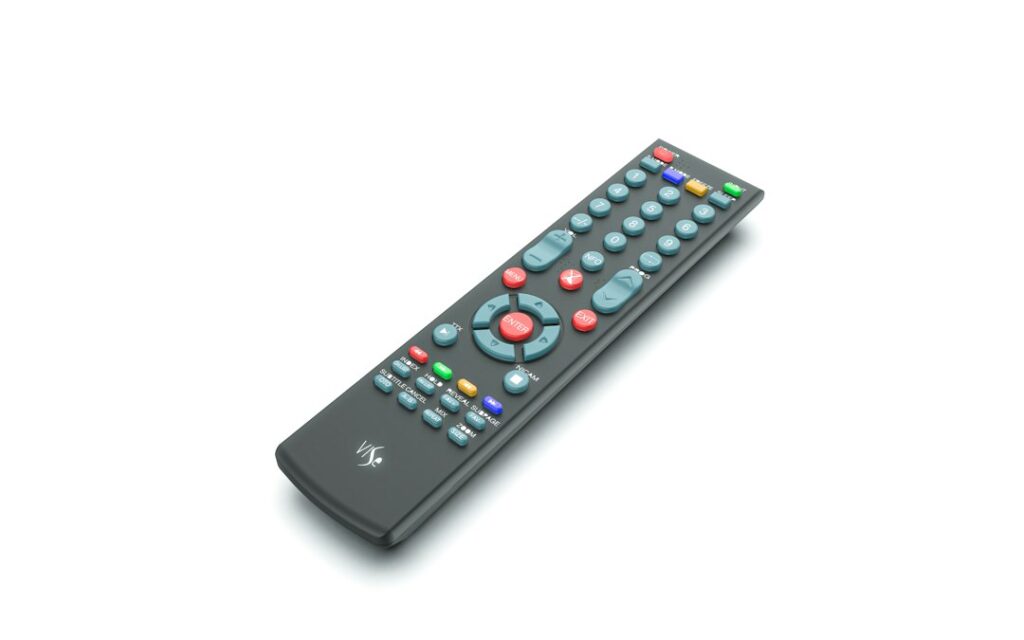
Audio sync issues usually stem from app decoding mismatches, heavy Wi-Fi interference, or hardware buffer strain on streaming devices like Amazon Fire TV sticks or modern Smart TVs. Fortunately, you can fix most sync glitches yourself without calling out an engineer.
Before You Start Checklist
Run through these quick baseline checks before diving into advanced settings:
- Restart your Firestick or Smart TV completely by unplugging it for 30 seconds.
- Check that your broadband speed comfortably handles live high-definition feeds.
- Make sure your official IPTV player app is running the newest available version.
Step-by-Step IPTV Audio Delay Troubleshooting
Work through these structured steps to line up your sound and picture.
1. Adjust Audio Delay Settings Inside Your App
Most professional IPTV applications include built-in audio offset controls. Open your player’s settings menu while a stream plays. Look for audio delay or lip sync adjustment. Nudge the milliseconds up or down until the speech matches the actors’ mouths.
2. Change the Audio Decoder Type
Hardware decoding sometimes clashes with specific broadcast codecs. Switch your app setting from hardware decoding to software decoding. This forces your Firestick processor to handle the audio stream differently, which often clears up stuttering and delay.
3. Check Sound Bar and Bluetooth Latency
External wireless speakers introduce natural audio lag. Connect your Firestick or TV straight to a wired sound system if possible. If you must use Bluetooth headphones, look for low-latency modes in your TV settings.
4. Clear App Cache and Storage
Stuffed device memory slows down media processing. If you are using a Firestick, go to your device settings, select applications, and clear the cache for your IPTV app. For a deeper clean, read our guide on Firestick storage management for IPTV users to free up vital system resources.
Common Mistakes to Avoid
Don’t jump straight to factory resetting your entire television. Many users waste hours reinstalling apps when a simple hardware restart or audio offset tweak would fix the problem in seconds. Also, avoid changing random router settings unless your entire home network is dropping packets.
When to Contact Your Provider
If you have tested multiple channels and every single feed suffers from the exact same audio drift, the issue likely sits with the provider’s source stream encoding. Reach out to your service desk if local fixes fail across all devices.
Frequently Asked Questions
Why does the sound drift only on live sports?
Live feeds require real-time transcoding. Heavy network traffic can cause audio packets to lag behind video frames during peak viewing hours.
Does Wi-Fi band make a difference?
Yes. Switch your streaming hardware to a 5GHz Wi-Fi band or use an Ethernet adapter to cut down packet delay.
Can a software update fix it?
App developers regularly patch sync bugs. Always keep your software updated to the latest release.
For more information, iptv.
Related reading
- Choosing the Right Streaming Hardware for Legal IPTV in the UK: A Practical Buyer’s Guide
- Understanding How IPTV UK Services Handle Live Broadcasting Rights
Update: Legal IPTV UK Device Comparison Guide
Update: How to Check Your Connection Speed for Smooth UK IPTV Streaming
- Before You Start Checklist
- Step 1: Check Your Internet Speed and Wi-Fi Signal
- Switching Your Wi-Fi Band
- Step 2: Clear App Cache and Free Up Storage
- Step 3: Restart Your Router and Fire Stick
- Common Mistakes to Avoid
- When to Contact Your Provider
- Safety and Legal Notes
- Frequently Asked Questions
- Why does my stream only buffer during peak evening hours?
- Does a VPN help stop playback stutter?
- How often should I restart my streaming device?
When your live football match freezes right before a penalty, it’s intensely frustrating. Dealing with UK IPTV buffering ruins your evening and makes reliable streaming feel impossible. Fortunately, you can fix most playback stalls at home without calling an engineer. Here is your quick answer: clear your app cache, restart your router, and check your Wi-Fi band.

Before you dive into troubleshooting, let’s look at what you need.
Before You Start Checklist
- Your Amazon Fire TV Stick remote control
- Access to your broadband router power socket
- A smartphone to test your internet speed
- Five minutes of uninterrupted time
Step 1: Check Your Internet Speed and Wi-Fi Signal
Slow broadband is the number one cause of playback stutter. You need at least 15 Mbps for standard high-definition streams and 30 Mbps for live 4K channels. Run a speed test on a phone sitting right next to your television. If the numbers look low, your Wi-Fi signal might be weak. Thick brick walls in older British homes often block wireless signals entirely.
Switching Your Wi-Fi Band
Most modern routers broadcast two different frequencies. The 2.4 GHz band covers a wide area, but it gets crowded with interference from neighbors. The 5 GHz band offers much faster speeds over shorter distances. Move your Firestick to the 5 GHz network if your router sits in the same room. This simple switch solves half of all network-related playback drops immediately.
Step 2: Clear App Cache and Free Up Storage
Streaming apps collect temporary files every single day. When these files pile up, your device slows to a crawl. If you’ve ever dealt with Firestick IPTV Cache Clearance issues, you know how crucial regular maintenance is. Go to your Firestick settings, select applications, manage installed applications, and find your media player. Tap clear cache, but avoid clearing data unless you want to log in all over again.
Step 3: Restart Your Router and Fire Stick
Electronic devices get overwhelmed when they run continuously for weeks. Unplug your broadband router from the wall outlet. Wait thirty full seconds before plugging it back in. Do the exact same thing with your Firestick by pulling its power cable from the back of the television. This clears the temporary memory and forces both devices to find a fresh, clean connection to your internet provider.
Common Mistakes to Avoid
Don’t jump straight to buying a brand-new router when a simple restart fixes the problem. Avoid hiding your Firestick behind a large metal television screen because metal blocks wireless waves completely. Never ignore app updates either, because outdated software often contains memory leaks that worsen playback performance.
When to Contact Your Provider
Sometimes the issue has nothing to do with your home setup. If you’ve restarted your router, cleared your app cache, and tested your speed, but every single channel still drops out, the problem lies elsewhere. Contact your official streaming provider to ask if they are experiencing server downtime or network maintenance in your region.
Safety and Legal Notes
Always use official, licensed streaming applications and authorized hardware sold through mainstream UK retailers like Argos or Amazon UK. Never attempt to bypass geo-restrictions or access unofficial third-party playlists that infringe on copyright laws. Keep your device firmware updated to maintain proper cybersecurity standards.
Frequently Asked Questions
Why does my stream only buffer during peak evening hours?
Local neighborhood broadband traffic peaks between 7 PM and 10 PM. If your internet provider uses an oversubscribed cabinet, your speeds will drop when everyone else streams movies at the same time.
Does a VPN help stop playback stutter?
Using a virtual private network usually adds extra routing steps that slow down your connection further. It rarely fixes stuttering unless your internet provider actively throttles streaming traffic.
How often should I restart my streaming device?
Restarting your Firestick once a week keeps the operating system snappy and prevents background memory bugs from ruining your viewing experience.
For more information, iptv.
Related reading
Update: Choosing the Right Streaming Hardware for Legal IPTV in the UK: A Practical Buyer's Guide
What to Check During an IPTV Trial UK
Testing a new streaming setup before you spend your hard-earned cash just makes sense. If you are exploring an IPTV trial UK, you want to know what actually matters during those initial 24 or 48 hours. Many providers offer short test periods. Most people just click around aimlessly. That wastes valuable testing time. You need a proper checklist to see if the service actually fits your broadband speed and daily viewing habits.

Before jumping straight into a long-term commitment, take a step back. Understand the underlying technology first by reading our guide on Understanding IPTV UK: A Complete Guide to Internet Television Technology. Once you grasp the basics, you can put any provider through their paces properly.
1. Evaluate Peak Time Stream Stability
Friday night football arrives. Everyone logs on at once. Your stream starts buffering. That is the exact nightmare scenario you want to avoid. A short test window lets you check performance when neighbourhood networks face heavy traffic.
Log in between 7 PM and 10 PM. Watch a live broadcast or a popular programme. Does the picture stutter? Does the audio fall out of sync? If a provider drops frames during peak hours on a free test, paid packages rarely perform any better. Internet speeds fluctuate across different ISPs like BT, Virgin Media, or Sky. Local network congestion plays a massive role here. For a deeper look at how your home broadband impacts playback quality, check out our advice on Broadband Connections and IPTV UK: 6 Factors Affecting Your Home Setup.
2. Check App Compatibility and EPG Speed
Software makes or breaks your viewing setup. Some providers force you into proprietary apps. Others let you use third-party media players. Firesticks, Smart TVs, and Android boxes handle video decoding differently.
During your IPTV trial UK period, test the Electronic Programme Guide (EPG). Does it load instantly? Do channel logos appear right away? Scroll up and down rapidly through the listings. Sluggish menu navigation drives you mad after a few days of normal use. If you prefer using advanced media players on your Amazon device, you might want to compare popular options using our review on TiviMate vs IBO Player: Choosing the Best IPTV App for Your UK Firestick. A responsive interface saves you time every single evening.
3. Verify Channel Lineups and Catch-Up Reliability
Marketing pages often promise thousands of channels. Reality frequently tells a different story. Many listed feeds might stay offline permanently. Links break. Streams go dead without warning.
Open the live TV categories during your test. Click through standard entertainment channels, news broadcasts, and regional UK feeds. Do they actually load? Check if catch-up features work properly. Some services promise a multi-day playback buffer for missed shows. Test that feature immediately. If the replay fails to load, or audio tracks are missing, flag that issue before parting with your money.
Remember that broadcasting standards and licensing regulations apply differently across various platforms. You can check official broadcasting rules and consumer rights through organisations like Ofcom to understand how media delivery standards operate in the UK.
4. Assess Customer Support Responsiveness
Things break. Servers go down. When an unexpected error occurs, you need help fast. Most people forget to test customer service until a problem ruins their evening viewing.
Send a test message through the provider’s support portal or Telegram channel during your trial. Ask a basic technical question. See how long they take to reply. Automated bot replies offer zero comfort when your screen goes black five minutes before kick-off. Real humans who respond within a reasonable window indicate a well-run operation.
5. Scrutinise Billing Terms and Renewal Policies
A trial should never trap you. Shadier operators sneak auto-renewal terms into checkout forms. Always read the small print before entering payment details for an IPTV trial UK.
Look for transparent pricing structures. Do they accept secure payment methods? Avoid services demanding cryptocurrency or obscure payment vouchers for standard subscriptions. Reputable companies offer clear cancellation pathways. If a provider makes it impossible to find their terms of service, walk away immediately. Consumer protection guidance from bodies like the Competition and Markets Authority highlights why transparent contract terms matter for digital subscriptions.
Take your time during the evaluation phase. Rushing into a yearly subscription usually leads to frustration. Use every hour of your test window wisely. Check the peak speeds, test the app interface, and verify that the channels you actually watch work without a hitch.
For more information, iptv.
Related reading
- Choosing Official IPTV Hardware in the UK
- Evaluating Legal Sports IPTV UK Packages for Live Football
Update: How to Check Legal Sports IPTV UK Packages Before Buying
Update: Understanding How IPTV UK Services Handle Live Broadcasting Rights
- Common Myths About IPTV Login Errors
- Before You Start Checklist
- Step-by-Step Troubleshooting for IPTV Login Errors
- 1. Double-Check Your Credentials
- 2. Clear the App Cache on Firestick
- 3. Verify Portal URLs on Samsung and LG TVs
- 4. Power Cycle Your Home Router
- Common Mistakes to Avoid
- When to Contact Your Provider
- Safety and Legal Notes
- Frequently Asked Questions
- Why does my app say authorization failed after working fine yesterday?
- Can my broadband provider block my login attempts?
- How often should I update my streaming apps?
Staring at a blank screen or a sudden authentication failure message when you just want to watch live television is intensely frustrating. If you are dealing with persistent IPTV login errors on your UK home setup, you don’t need to panic or reset your entire streaming device right away. Most connection rejections trace back to simple typos in your login credentials, expired portal URLs, or temporary app glitches on popular hardware like Samsung TVs, LG webOS displays, or Amazon Firesticks.

Quick answer: Fixing authentication failures usually takes less than five minutes. Check your username, password, and portal address carefully, clear your app cache, or restart your broadband router to clear local network blocks.
Common Myths About IPTV Login Errors
Many users assume that a sudden sign-in failure means their television has broken or their internet speed is too slow. That is rarely true. Let’s look at what is actually happening behind the scenes.
Myth one: Your TV brand blocks streaming apps automatically. Fact: Major manufacturers like Samsung and LG allow authorized media players in their official app stores. If an app refuses your credentials, the issue lies with the specific data packet being sent to the remote server, not your television hardware.
Myth two: Changing your Wi-Fi password fixes authorization problems. Fact: If your device connects to the internet and loads web pages, your Wi-Fi is fine. Authentication failures happen at the application layer, long after your local network connection succeeds.
Myth three: Reinstalling the app fixes every bug. Fact: While a fresh install clears corrupt cache files, it won’t correct a mistyped server URL or an expired subscription status. You must verify your account details first.
Before You Start Checklist
Before you start poking around your settings menu, grab your subscription confirmation email or details sheet. You need exact information to match what is typed on your screen. Check these items off your list:
- Your exact username, keeping letter case in mind.
- Your current password without accidental trailing spaces.
- The correct portal URL or Xtream Codes API server address.
- A stable broadband connection confirmed by browsing a web page.
Step-by-Step Troubleshooting for IPTV Login Errors
Different devices handle apps in unique ways. Follow the specific steps below based on what hardware sits in your living room.
1. Double-Check Your Credentials
Typos cause most Smart TV IPTV playlist loading issues and direct sign-in failures. Grab your TV remote and retype your username and password slowly. On-screen keyboards make mistakes easy to miss. Look closely at capital letters and numbers like zero versus the letter O.
2. Clear the App Cache on Firestick
Amazon Fire TV devices hold onto old temporary data that can block new sessions. Go to your Firestick settings menu. Select applications, then manage installed applications. Find your chosen media player app, click clear cache, and try signing in again. Do not clear data unless you have your setup details saved elsewhere, because that wipes your configuration entirely.
3. Verify Portal URLs on Samsung and LG TVs
Smart TVs running Tizen or webOS require exact server addresses. A missing forward slash or an outdated domain extension breaks the handshake instantly. Open your app settings, check the portal link structure, and update any HTTP links to HTTPS if your provider requires secure connections.
4. Power Cycle Your Home Router
Sometimes your internet service provider assigns an IP address that triggers temporary security blocks on streaming servers. Unplug your broadband router from the wall socket. Wait thirty seconds. Plug it back in and let the connection re-establish completely before launching your TV app.
Common Mistakes to Avoid
People often make simple errors when trying to fix authentication issues in a hurry. Avoid these common traps:
- Copying and pasting long portal links using a phone app without checking for trailing spaces.
- Ignoring app update notifications until the old software version loses connection compatibility.
- Assuming a blank screen means a login failure when the server is simply busy or undergoing routine maintenance.
- Attempting multiple rapid login tries, which can trigger automated security lockouts on the host server.
When to Contact Your Provider
If you have verified every character of your password, cleared your app cache, and restarted your router, the problem might be outside your control. Sometimes server availability drops due to high traffic loads or backend updates.
Contact your provider support team if:
- Your service expiration date has passed and needs renewal.
- The server address changed and you didn’t receive the new URL.
- Your account is locked due to too many failed login attempts.
Be specific when you message support. Tell them your device model, the exact error code on your screen, and the troubleshooting steps you already tried. This saves valuable time.
Safety and Legal Notes
Always use official apps downloaded directly from approved device stores like the Amazon Appstore, Samsung Apps, or LG Content Store. Never download unknown installation files from random websites or use modified software versions. Keeping your streaming setup legal and secure protects your personal data from malicious actors.
Frequently Asked Questions
Why does my app say authorization failed after working fine yesterday?
This usually happens because the subscription expired, the server address updated, or a temporary network glitch interrupted the server handshake.
Can my broadband provider block my login attempts?
UK internet service providers sometimes restrict specific external traffic ports. If your connection fails across multiple devices, your network setup might need a quick review.
How often should I update my streaming apps?
Check for updates once a month. Developers release patches regularly to fix bugs and improve login stability.
For more information, iptv.
Related reading
- Choosing Between Direct-to-Consumer Apps and IPTV Services in the UK
- Best IPTV Devices UK: Hardware Breakdown
Update: Choosing Official IPTV Hardware in the UK
Update: What to Check During an IPTV Trial UK
- Before You Start Checklist
- Step-by-Step Fixes for Firestick Audio Delay
- 1. Adjust Surround Sound Settings
- 2. Clear App Cache and Force Stop
- 3. Check TV Audio Delay Settings
- Common Mistakes to Avoid
- When to Contact Your Provider
- Frequently Asked Questions
- Does a simple reboot fix the sound lag?
- Why does the delay only happen on live sports?
- Will changing HDMI ports help?
Watching a live football match on your Amazon streaming device only to see the commentator’s mouth move seconds after the ball is kicked drives anyone mad. Dealing with annoying audio lag ruins the experience completely. If you are experiencing a frustrating Firestick audio delay while streaming authorised UK TV channels through your IPTV app, you don’t have to put up with it. Let’s fix that sound sync issue right now.

Quick answer: Most audio sync problems on Fire TV devices stem from mismatched audio output settings in the main menu or a temporary glitch within your streaming player. Toggling the Dolby Digital settings usually solves it in under a minute.
Before You Start Checklist
- Your Fire TV device runs the latest software update from Amazon.
- Your legal IPTV app is updated to its newest version.
- Your television or soundbar is powered on and connected properly.
- You have your standard Amazon remote ready.
Step-by-Step Fixes for Firestick Audio Delay
Let’s walk through the most reliable methods to get your sound and picture back in perfect alignment. Work through these steps one by one.
1. Adjust Surround Sound Settings
Amazon devices often try to force multi-channel audio through speakers that prefer stereo. This mismatch causes noticeable lag. Head to your main device settings to change it.
- Press the home button on your remote.
- Go to the settings gear icon on the right side.
- Select Display & Sounds, then click Audio.
- Choose Surround Sound and switch it from Always Dolby Digital to PCM or Best Available.
- Restart your device and check a live stream again.
2. Clear App Cache and Force Stop
Sometimes the specific player app you use gets bogged down with temporary data. If you noticed video stuttering alongside the sound lag, clearing the cache works wonders.
- Open Settings on your Fire TV home screen.
- Click Applications, then Manage Installed Applications.
- Find your licensed IPTV app in the list and click it.
- Select Force Stop, then Clear Cache. Do not select clear data unless you have your login details handy.
3. Check TV Audio Delay Settings
Modern televisions process high-definition video faster than they process audio, especially when passing sound through an external soundbar or AV receiver. Look inside your television’s audio menu for a setting called lip sync, audio delay, or digital output delay, and adjust the slider until voices match movements.
Common Mistakes to Avoid
Don’t rush out to buy a new HDMI cable just yet. Many users change random settings without restarting their hardware, which keeps temporary glitches active. Avoid altering router settings for an audio problem, because Wi-Fi speed rarely causes lip sync issues on its own; poor internet usually triggers buffering rather than a consistent sound delay.
When to Contact Your Provider
If you adjusted your device settings and restarted everything, but the audio remains out of sync on one specific channel, the issue might sit with the broadcaster’s feed itself. Reach out to your subscription provider’s support desk to ask if they are investigating a source-side encoding fault.
Frequently Asked Questions
Does a simple reboot fix the sound lag?
Unplugging your streaming stick for thirty seconds clears out temporary memory errors and often restores normal audio timing instantly.
Why does the delay only happen on live sports?
Live broadcasting relies on complex encoding methods that occasionally desynchronise audio and video packets during transmission.
Will changing HDMI ports help?
Moving your stick to a different HDMI port on your TV rarely fixes software-based audio delay, but it remains worth trying if your current port feels loose.
For more information, iptv.
Related reading
- Step-by-Step Guide to Testing Internet Speed for UK IPTV
- Best IPTV Devices UK: Choosing the Right Streaming Hardware for Legal Services
Update: Best IPTV Devices UK: Hardware Breakdown
Update: Choosing Between Direct-to-Consumer Apps and IPTV Services in the UK
- Before You Start Checklist
- Step-by-Step Firestick IPTV Connection Troubleshooting
- Common Mistakes to Avoid
- When to Contact Your Provider
- Safety and Legal Notes
- Frequently Asked Questions
- Why does my Firestick IPTV connection fail only during peak evening hours?
- Do I need a wired ethernet adapter for my Firestick?
- How often should I clear my device cache?
When your Firestick IPTV connection drops out right before kick-off, the frustration hits instantly. You want live television to load smoothly without endless spinning wheels. Most network errors on Amazon streaming devices come down to simple Wi-Fi interference, local bandwidth caps, or temporary app glitches. You can fix these issues at home without calling an engineer.

Before You Start Checklist
Gather a few basic details before you begin tinkering with your network settings. Knowing your current setup saves valuable time.
- Check your broadband provider name (such as BT, Sky, or Virgin Media).
- Locate your Wi-Fi router password.
- Confirm whether other devices in your house load video normally.
- Check if your Firestick remote has working batteries.
Step-by-Step Firestick IPTV Connection Troubleshooting
Work through these numbered steps in order. Each action targets a common culprit behind streaming failures on UK broadband networks.
- Test your internet speed. Open a browser or speed test app on your Firestick. You need at least 15 Mbps for stable high-definition live streams.
- Restart your router and Firestick. Unplug the power cables from both units. Wait sixty seconds. Plug them back in to clear temporary IP conflicts.
- Switch Wi-Fi frequency bands. Most modern routers broadcast on 2.4 GHz and 5 GHz bands. Move your Firestick to the 5 GHz band for faster speeds and less interference from household appliances.
- Clear application cache. Go to your Firestick settings, select applications, manage installed applications, choose your legal streaming app, and clear cache. You can also read our guide on updating your software to ensure you run the latest version.
- Forget and reconnect to Wi-Fi. Sometimes your router assigns a faulty IP address. Forget your home network in the Firestick network menu and enter your password again.
Common Mistakes to Avoid
Many viewers make simple errors that make streaming worse. Do not place your router inside a closed TV cabinet because physical blockages weaken wireless signals drastically. Avoid running heavy downloads or large console updates on other devices while watching live sports. Do not ignore app updates either, because outdated software often fails to communicate properly with modern broadcaster servers.
When to Contact Your Provider
Sometimes the fault lies outside your living room. Contact your broadband internet service provider if your speed tests show heavy throttling or if your router drops connection entirely every few hours. Reach out to your official streaming service helpdesk if error codes persist even after you switch networks and reinstall the app.
Safety and Legal Notes
This guide applies strictly to authorised, licensed streaming applications and legal broadcast subscriptions available in the United Kingdom. We do not support or discuss pirate playlists, modified APK files, or geo-unblocking workarounds. Always use official apps downloaded directly from the Amazon Appstore.
Frequently Asked Questions
Why does my Firestick IPTV connection fail only during peak evening hours?
Local neighborhood network congestion often slows down broadband speeds between 7 PM and 10 PM. Switching to a 5 GHz Wi-Fi channel can help bypass local interference.
Do I need a wired ethernet adapter for my Firestick?
An ethernet adapter provides a wired connection that eliminates Wi-Fi dropouts entirely. You will need an official Amazon Ethernet Adapter or a compatible USB-to-Ethernet dongle.
How often should I clear my device cache?
Clear your app cache once a week if you stream live television daily. This prevents stored temporary files from slowing down your interface.
For more information, iptv.
Related reading
- Choosing Between Dedicated Streaming Apps and IPTV Services for Live Football in the UK
- Amazon Fire TV Stick vs Apple TV 4K: Choosing Your UK IPTV Device
Update: Best IPTV Devices UK: Choosing the Right Streaming Hardware for Legal Services
Update: Step-by-Step Guide to Testing Internet Speed for UK IPTV
- Before You Start Checklist
- Common Mistakes That Worsen Audio Delays
- Step-by-Step Troubleshooting Guide
- Device-Specific Instructions
- When to Contact Your Provider
- Safety and Legal Notes
- Frequently Asked Questions
- Why does audio drift out of sync only during live sports?
- Can a slow internet speed cause audio delay?
- Do soundbars make audio delay worse?
Nothing ruins a live football match faster than the commentary arriving five seconds after the ball hits the back of the net. If you are experiencing IPTV audio out of sync issues on your UK television setup, the delay between what you see and what you hear can turn a relaxing evening into an intensely frustrating experience. This problem usually happens when the video stream and the audio track lose their alignment during transmission, processing, or playback on your device.

The quick answer is that you can often fix this issue by restarting your streaming app, toggling hardware decoding settings, or clearing cached data on your device. Sometimes the stream itself suffers from a mismatch originating at the broadcaster end, meaning your local adjustments are the only way to manually pull the sound back into line with the picture.
Before You Start Checklist
- Note whether the delay happens on every channel or just a specific live stream.
- Check if your television is connected to a soundbar or AV receiver via Bluetooth or HDMI ARC.
- Ensure your streaming application is running the latest available version from the official app store.
- Have your device remote ready to access audio and playback settings.
Common Mistakes That Worsen Audio Delays
Many viewers immediately factory reset their televisions or purchase a new router when sound problems strike. This rarely helps. Another common mistake involves ignoring external audio hardware. If you route sound through a wireless Bluetooth speaker, audio latency is almost guaranteed due to processing overhead. Always test built-in TV speakers first to isolate the root cause.
Step-by-Step Troubleshooting Guide
- Restart your streaming app completely: Force close the app running on your Firestick or Smart TV, clear its cache in the settings menu, and relaunch it.
- Adjust audio delay settings in your IPTV player: Apps like TiviMate or IBO Player include built-in audio offset tools. Go to playback settings and manually add or subtract milliseconds of delay until the lip movements match the speech.
- Toggle hardware decoding: Navigate to your player settings, find the video decoder options, and switch between software and hardware decoding modes. This forces the processor to handle audio-video synchronization differently.
- Check your audio output format: Change your TV or Firestick audio settings from Dolby Digital Plus or Surround Sound to simple Stereo (PCM). Complex multi-channel audio formats often struggle to sync properly over standard streaming apps.
- Power cycle your entire setup: Unplug your television, Firestick, and broadband router from the wall socket for 60 seconds. Plug the router back in first, wait for the internet connection to stabilize, and then power up your display devices.
Device-Specific Instructions
Different hardware handles media streams in distinct ways. If you use a Firestick, go to Settings, Display & Sounds, and change Audio output to PCM. If you stream directly via a Samsung or LG Smart TV using an authorised app from the official store, check the TV’s internal sound settings for an audio delay or lip sync slider, which lets you manually delay the picture to match sluggish audio.
When to Contact Your Provider
If you have tried adjusting app offsets, rebooted your hardware, and tested multiple channels without success, the problem might lie with the source stream itself. Contact your official IPTV service provider to ask if they are experiencing server-side encoding issues with specific feeds. Legitimate providers will readily confirm if an upstream broadcast feed is temporarily out of alignment.
Safety and Legal Notes
Always use official, licensed streaming applications downloaded directly from recognised app stores such as Amazon Appstore, Google Play Store, or Samsung Smart Hub. Never download modified APK files from unknown web sources, as these often contain malicious software or security vulnerabilities that compromise your home network.
Frequently Asked Questions
Why does audio drift out of sync only during live sports?
Live broadcasting requires heavy encoding and packet transmission. When network congestion occurs, video packets might drop or buffer while audio packets continue, causing a growing time gap between the two tracks.
Can a slow internet speed cause audio delay?
Yes. If your broadband connection struggles to maintain a stable bitrate, your device drops video frames to keep up, which desynchronizes the audio track from the moving picture.
Do soundbars make audio delay worse?
Wireless soundbars and Bluetooth connections introduce natural processing delays. Connecting your audio equipment via a wired HDMI cable usually eliminates this lag entirely.
For more information, iptv.
Related reading
Update: What to check before buying an IPTV device
Update: Questions to ask before buying an IPTV subscription
- The Short Answer
- Before You Start Checklist
- Why Do I Need to Update IPTV Apps Regularly?
- How Do I Update IPTV Apps on an Amazon Fire Stick?
- How Do I Update IPTV Apps on a Samsung Smart TV?
- How Do I Update IPTV Apps on an LG Smart TV?
- How Do I Update IPTV Apps on Android TV Devices?
- Common Mistakes People Make When Updating Apps
- When to Contact Your Provider
- Frequently Asked Questions
- Do I lose my playlist settings when I update my IPTV app?
- Why does my TV say there is no storage space for updates?
- Can I set my IPTV apps to update automatically?
- What happens if an app update makes my player crash?
- Safety and Legal Notes
Outdated software causes most streaming headaches in British living rooms. When your interface lags or channels fail to load, the fix is often simpler than you think. You just need to update IPTV apps to the latest version released by the developer.

Television manufacturers and streaming stick makers push background updates constantly. Sometimes, however, your third-party media players require manual intervention. Old code clashes with new operating system patches. That causes crashes, audio sync bugs, and blank screens.
Below, we walk through the exact steps required to refresh your software across different hardware brands popular in UK households. Let us get your setup running properly.
The Short Answer
To fix software bugs and improve performance, you must update IPTV apps directly through your device’s built-in app store or settings menu. Amazon Firesticks require navigating to your profile manage settings, while Samsung and LG televisions use their respective app management panels. Always check your connection stability before downloading new files, as interrupted downloads corrupt application data.
Before You Start Checklist
Do not rush into changing settings until you tick off these basic items:
- Check that your broadband connection is active and stable. (You can review baseline internet speed requirements to ensure your network isn’t the bottleneck.)
- Note your current app login details or playlist URLs, just in case a reinstall wipes saved data.
- Ensure your television or streaming stick has at least 500MB of free internal storage space.
- Verify your device’s main operating system is up to date.
Why Do I Need to Update IPTV Apps Regularly?
Software rots quietly. Developers push patches every month to fix security vulnerabilities and memory leaks. If you skip updates, your player gets slower. Modern web streams rely on updated video codecs. Old app versions lack these codecs. That means your screen stays black when a broadcaster switches encoding formats.
Security matters too. Outdated applications leave open ports on your local network. Hackers exploit these flaws. Updating closes those gaps. It also gives you access to fresh user interfaces and better subtitle management tools.
How Do I Update IPTV Apps on an Amazon Fire Stick?
Amazon devices handle software updates differently than standard Android boxes. Fire OS uses a customized interface that hides manual application controls deep inside the menu tree. Follow these exact steps to check for pending updates on your Fire TV Stick, Fire TV Cube, or Fire TV Pendant.
- Turn on your television and switch to the correct HDMI input.
- From the main Fire TV home screen, click the gear icon on the far right of the menu bar to open Settings.
- Scroll down and select Applications.
- Click on Appstore.
- Turn on Automatic Updates if it is disabled. This tells the device to pull patches in the background.
- To force an immediate check, hold down the Home button on your remote for three seconds until the quick menu pops up.
- Select Apps from that menu, highlight your IPTV player, press the menu button (three horizontal lines) on your remote, and select More Info or check for updates if available.
If the store does not show an update button, your current version is the latest one released by the developer. If your Firestick storage is full, the download will fail silently. Clear out unused apps before trying again.
How Do I Update IPTV Apps on a Samsung Smart TV?
Samsung uses the Tizen operating system for its Smart TVs manufactured after 2015. Tizen handles applications through the native Samsung Apps portal. You rarely need external files here because the system manages everything natively.
- Press the Home button on your Samsung remote control.
- Navigate left along the bottom menu bar and select Apps.
- Click the gear icon (Settings) located in the top-right corner of the Apps screen.
- Look for your installed IPTV player in the list.
- If an update is waiting, a notification badge appears next to the title, or you can highlight the app and select Update App from the sub-menu.
- Make sure the Auto Update toggle at the top of the screen is switched to ON. This saves you from doing manual checks every week.
Samsung TVs have limited storage. If you own an older model from 2018 or 2019, you might need to delete old streaming apps to make room for newer, larger codebases.
How Do I Update IPTV Apps on an LG Smart TV?
LG televisions run webOS. The interface looks sleek, but finding hidden app update buttons frustrates many users. webOS relies heavily on automatic background checks, but manual overrides exist.
- Press the Home button on your Magic Remote.
- Open the LG Content Store application.
- Click on your profile icon or name in the top right corner.
- Select My Apps or Purchased Apps.
- Find your media player in the grid.
- If a newer version exists, an Update button sits right beside the title. Click it to begin the download.
- Scroll down your home screen and open the Apps tab.
- Select the Google Play Store icon.
- Click on your profile picture or initial in the top right corner.
- Select Manage apps & games.
- Click on Updates to view a list of all pending software patches for your installed tools.
- Select Update all or choose your IPTV application individually.
- Your subscription login credentials suddenly stop working across multiple devices.
- Specific channel categories vanish from your electronic programme guide.
- Server error codes appear repeatedly despite a working internet connection.
- What should a legitimate IPTV subscription include?
- Best IPTV device for older televisions in the UK
- Before You Start Checklist
- Comparing TiviMate vs IBO Player Features
- Step-by-Step Setup and Troubleshooting
- Common Mistakes to Avoid
- When to Contact Your Provider
- Safety and Legal Notes
- Frequently Asked Questions
- Can I use both apps on one Firestick?
- Why does my live stream buffer during peak evening hours?
- Which app is better for older relatives?
- Check your Firestick model. 4K Max sticks handle heavy playlist guides much better than older Lite versions.
- Test your broadband speed. You need a stable connection of at least 25Mbps for crisp live sports.
- Keep your legal service login details handy. You will need your Xtream Codes API URL, username, and password.
- Make sure your Fire OS is fully updated via the device settings menu.
- Restart your Firestick completely. Unplug the power cable from the wall socket for thirty seconds, then plug it back in.
- Clear the app cache. Go to Firestick Settings, open Applications, find your chosen player, and select Clear Cache.
- Check your Wi-Fi frequency. Switch your router from the congested 2.4GHz band to the faster 5GHz band if your router sits close to the TV.
- Verify your playlist details. Logouts happen when providers update their server ports. Re-enter your login credentials carefully.
- Test your internet speed inside the app or via a browser tool to rule out local broadband throttling by your UK Internet Service Provider.
- Evaluating Internet Speeds for Legal Sports IPTV UK
- UK Smart TV IPTV App Freezing: Step-by-Step Troubleshooting Guide
If you cannot find the app store, press the Settings button twice, go to General, and check for software updates on the television itself. Sometimes an outdated webOS version blocks app store access completely.
How Do I Update IPTV Apps on Android TV Devices?
Sony, Philips, TCL, and Nvidia Shield devices run standard Android TV or Google TV. These platforms make updating straightforward because they tie directly into the Google Play Store.
Keep your Google account logged in. Without an active login, the Play Store blocks software refreshes entirely.
Common Mistakes People Make When Updating Apps
People often panic when an update freezes. They pull the power plug immediately. That corrupts the file system. Always wait five minutes before interrupting a frozen download screen.
Another frequent error is ignoring device storage limits. Firesticks and smart TVs have tiny hard drives. When storage drops below 200MB, update scripts crash. Clear your cache files before starting any major software overhaul.
Some users try downloading random installation files from unofficial forums onto their smart TVs. That introduces malware. Stick exclusively to official app stores provided by your hardware manufacturer.
When to Contact Your Provider
Hardware updates won’t fix everything. If you updated your application, cleared your cache, and checked your broadband speed, but your channels still refuse to load, the issue sits elsewhere. Contact your service provider when:
Providers manage the backend streams. If their servers go down, no amount of client-side software updating will restore your broadcast.
Frequently Asked Questions
Do I lose my playlist settings when I update my IPTV app?
Usually, no. Most modern media players preserve your login tokens and custom playlist links during an over-the-air update. However, major version jumps can occasionally reset local storage. Always keep a backup copy of your configuration details stored safely offline.
Why does my TV say there is no storage space for updates?
Smart TVs and streaming sticks come with very small internal memory chips. Installed games, cached video data, and unused streaming apps consume that space quickly. Uninstall two or three apps you never use, restart your device, and try downloading the update again.
Can I set my IPTV apps to update automatically?
Yes. Every major platform—including Fire OS, Android TV, webOS, and Tizen—offers an automatic update toggle inside the app store settings. Turning this feature on ensures your software stays current without manual intervention.
What happens if an app update makes my player crash?
If a fresh patch introduces bugs, you can clear the app cache through your device’s settings menu. In rare cases where a developer pushes a broken build, you may need to wait for a hotfix or temporarily revert to a stable backup version if your hardware permits it.
Safety and Legal Notes
This guide is provided for educational and troubleshooting purposes only to help users manage their legally purchased hardware and software. Always respect intellectual property laws and copyright regulations in the United Kingdom. Ensure any media services you use comply fully with UK broadcasting standards and local legislation enforced by regulatory bodies like Ofcom.
For more information, iptv.
Related reading
Disclaimer: This article offers general technical troubleshooting steps for educational purposes only and does not constitute professional IT advice. Mentioned brand names, such as Samsung, LG, and Amazon, belong to their respective owners, and no corporate endorsement is implied. Factual details regarding software menus were accurate at the time of publication but are subject to change as manufacturers update their user interfaces.Update: Smart TV app vs streaming stick for IPTV
Update: Best IPTV subscription alternative to Sky TV
ContentsSetting up a legal broadcast stream on an Amazon Firestick in the UK often comes down to one big choice. Picking the right media player changes everything about how your TV responds. When looking at TiviMate vs IBO Player, you are weighing a feature-packed electronic interface against a lightweight, code-based setup.

Before You Start Checklist
Take a few minutes to prepare your hardware before installing any software. Rushing through this stage usually leads to frustrating playback errors later.
Comparing TiviMate vs IBO Player Features
Both applications sit comfortably on the Amazon Appstore or load via official download methods, but they serve different types of viewers. TiviMate feels like a traditional Sky Q or Virgin Media box. It brings a polished Electronic Programme Guide, custom groups, and multi-view options for watching two matches at once. You can catch up on missed broadcasts easily if your provider supports archive features.
IBO Player takes a different route. It relies on a web-activation model where you type a MAC address into a browser portal to sync your playlist. It runs exceptionally well on budget hardware because it consumes very little RAM. If you want a straightforward, no-fuss layout that just plays your channels without deep customisation, IBO Player wins on simplicity.
Step-by-Step Setup and Troubleshooting
Even the best apps run into snags. If your screen freezes or your remote stops responding, work through these numbered steps to fix the issue.
Common Mistakes to Avoid
Many users overload their apps with massive external EPG sources. This causes severe stuttering and crashes the Firestick due to low storage space. Another frequent error is ignoring app updates. Developers push patches regularly to fix audio sync issues and minor bugs.
When to Contact Your Provider
Some problems live outside your living room. If error messages persist after a full router reboot and app reinstallation, the issue is likely server-side. Reach out to your broadcasting provider if specific channel groups disappear entirely or if your account status shows as expired despite active billing.
Safety and Legal Notes
Always use official, licensed streaming applications downloaded directly from verified app stores. Ensure your internet connection complies with UK broadcasting regulations. This guide is strictly informational and does not endorse unauthorized streaming platforms.
Frequently Asked Questions
Can I use both apps on one Firestick?
Yes, you can install multiple apps on Amazon devices, provided you have enough free storage. For help managing your device capacity, see our guide on Firestick storage management for IPTV users.
Why does my live stream buffer during peak evening hours?
Local network congestion often causes evening slowdowns. Connecting via an Ethernet adapter instead of Wi-Fi usually solves this.
Which app is better for older relatives?
IBO Player is often easier for beginners because the interface requires minimal configuration once activated on a web browser.
For more information, iptv.
Related reading
Disclaimer: This article is provided for general informational purposes only and does not constitute technical or legal advice. All product names, logos, and brands mentioned belong to their respective owners and are used purely for identification. We do not endorse any specific third-party applications or guarantee uninterrupted service performance.Update: Best IPTV device for older televisions in the UK
Update: What should a legitimate IPTV subscription include?
ContentsTackling Firestick IPTV Buffering Head-On
Watching your favourite live broadcast freeze right before a crucial moment causes instant frustration. When Firestick IPTV buffering ruins your evening, the culprit usually hides inside your home network or the device itself. You don’t need a degree in network engineering to fix these annoying stutters. Let’s walk through some straightforward adjustments that actually make a difference.
Check Your Wi-Fi Band and Router Distance
Most modern UK broadband routers broadcast on two distinct frequencies. Your Firestick probably connects to the crowded 2.4GHz band by default. That frequency picks up interference from microwave ovens, baby monitors, and neighbouring Wi-Fi networks.
Jump into your Firestick network settings and switch over to the 5GHz band instead. It handles heavy data loads much better, provided your router sits in the same room. If walls block the signal, speeds drop dramatically. A simple Ethernet adapter for your Fire TV stick often solves stubborn wireless drops completely.
Clear App Cache and Free Up Storage Space
Amazon packs its basic streaming sticks with limited internal storage. Once that space fills up, the operating system struggles to process live video feeds smoothly. Outdated temporary files clog up your chosen player app too.
Open your Firestick settings, navigate to applications, and manage installed apps. Find your IPTV application and clear its cache right away. Don’t touch the data button unless you want to log back in completely. Deleting unused apps frees up valuable breathing room for the processor.
Manage Your Broadband Connection
Internet service providers across the UK handle peak evening traffic differently. Sometimes your ISP throttles high-bandwidth connections during busy hours. Read more about broadband connections and IPTV UK to understand how local line speeds impact your daily viewing experience. Restarting your broadband router once a week clears out temporary memory leaks and refreshes your external IP address.
Check App Compatibility and Updates
Running an outdated version of a streaming player causes constant decoding errors. Head to the official Amazon Appstore and install every pending system or application update immediately. If your feed keeps stuttering, verify your setup against the smart TV IPTV playlist loading issues and how to resolve them guide for broader troubleshooting steps that apply across living room hardware.
For more information, iptv.
Related reading
Disclaimer: This guide covers general troubleshooting for Amazon Firestick hardware and network configurations for informational purposes only. Brand names and trademarks belong to their respective corporate owners, and no commercial endorsement is implied. Streaming performance depends heavily on external factors beyond local device control, and users must ensure all services they access operate in full compliance with UK broadcasting regulations.Update: TiviMate vs IBO Player: Choosing the Best IPTV App for Your UK Firestick
Update: How to Choose a Legal Sports IPTV UK Provider for Weekend Football