- Quick Answer: Fixing Firestick IPTV Network Errors
- Before You Start Checklist
- Step-by-Step Firestick IPTV Network Troubleshooting
- 1. Restart Your Firestick Properly
- 2. Check Your Wi-Fi Frequency Band
- 3. Clear App Cache and Data
- 4. Update Your Fire OS Software
- Understanding Local Network Congestion and Bandwidth Management
- Common Mistakes to Avoid
- When to Contact Your Provider
- Safety and Legal Notes
- Frequently Asked Questions
- Why does my Firestick keep dropping my Wi-Fi connection?
- Will a VPN fix my network errors?
- How do I know if my internet speed is fast enough?
Quick Answer: Fixing Firestick IPTV Network Errors
Network errors on your Amazon streaming stick usually happen because of a temporary drop in your Wi-Fi signal, an overloaded router, or a temporary server glitch from your legal broadcast provider. Restarting both your Firestick and your broadband router solves most connection issues within a couple of minutes.
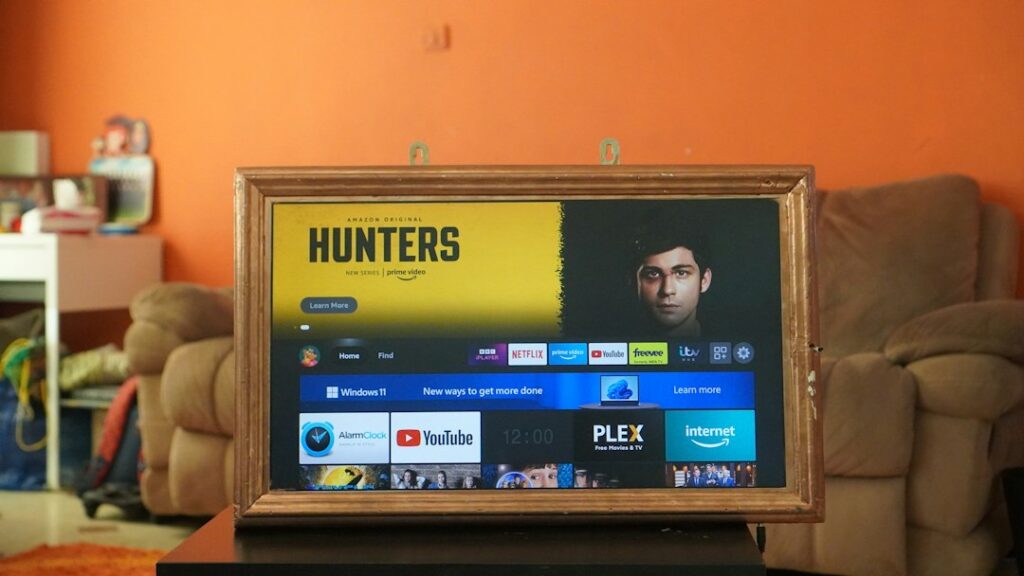
When these frustrating interruptions occur right in the middle of a live broadcast or your favorite television program, it can completely ruin your viewing experience. Understanding the root causes—ranging from local wireless congestion to temporary bottlenecks in your internet service provider’s routing—allows you to apply targeted fixes rather than guessing blindly. By systematically evaluating your hardware, local network environment, and application settings, you can restore a stable, buffer-free connection and ensure your legal streaming setup performs at its absolute best.
Before You Start Checklist
Before you dive into complex troubleshooting, check these basics first:
- Your Amazon Firestick is plugged directly into a wall socket rather than a USB port on the back of your television.
- Other devices in your house load websites quickly over the same Wi-Fi network.
- Your subscription is active and you aren’t missing any official account renewals.
- You are using an approved, legal IPTV app downloaded directly from the official Amazon Appstore.
Taking a moment to verify these foundational elements saves considerable time and prevents unnecessary frustration. For instance, many users overlook their power supply; powering a Firestick via a television USB port often delivers insufficient electrical current, leading to unstable Wi-Fi chips, sudden reboots, and persistent network drops. Ensuring a stable wall power connection eliminates this hidden hardware bottleneck instantly.
Step-by-Step Firestick IPTV Network Troubleshooting
Work through these numbered steps in order when your device refuses to load your legal channels.
1. Restart Your Firestick Properly
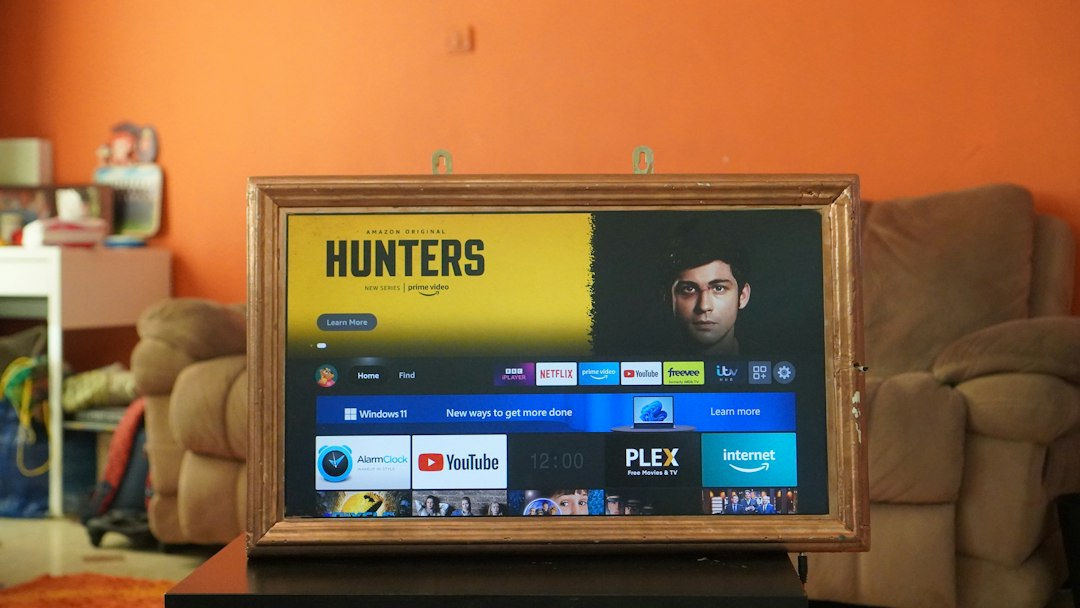
Don’t just turn your TV off. Go to your Firestick Settings, select My Fire TV, and choose Restart. This clears temporary memory glitches that block your streaming apps from reaching the internet.
Furthermore, taking your broadband router offline for roughly sixty seconds alongside your Firestick can clear corrupted local IP address leases and force a fresh handshake with your Internet Service Provider. This simple hardware power cycle resolves a vast majority of stubborn connection loops without requiring any advanced technical configuration.
2. Check Your Wi-Fi Frequency Band
Most modern UK routers broadcast on both 2.4GHz and 5GHz bands. If your Firestick sits on the crowded 2.4GHz band, thick walls or household appliances can ruin your connection. Switch your Firestick to the 5GHz Wi-Fi network for faster speeds and less interference.
The 2.4GHz frequency band is notoriously crowded, sharing airspace with Bluetooth devices, microwave ovens, baby monitors, and neighboring wireless networks. The 5GHz band, while offering a shorter physical range and less penetration through solid masonry, provides significantly higher data throughput and experiences vastly less interference, making it the superior choice for high-definition and live media streaming.
3. Clear App Cache and Data
Go to Settings, then Applications, and Manage Installed Applications. Find your official streaming app and clear its cache. If errors persist, clear the app data, but remember you’ll need to log back in with your official account details.
Over time, accumulated temporary files, broken stream manifests, and fragmented data packets can clog an application’s internal storage directory. Routine maintenance, such as purging unnecessary cache files, keeps the app running lean and responsive, directly reducing the likelihood of unexpected network timeouts or freezing during playback.
4. Update Your Fire OS Software
Outdated system software causes endless connection loops. Go to Settings > My Fire TV > About > Check for Updates. Install any pending updates and let your device reboot.
Amazon frequently rolls out critical security patches, network stack optimizations, and driver updates for the internal Wi-Fi components of its streaming hardware. Running an outdated operating system version can lead to compatibility issues with modern content delivery networks and official streaming application protocols.
Understanding Local Network Congestion and Bandwidth Management
Even if your broadband package boasts impressive headline speeds, heavy concurrent usage by other devices in your household can starve your Firestick of the consistent bandwidth required for smooth live streaming. If someone else in the house is downloading large video game files, backing up massive photo libraries to cloud storage, or streaming 4K video on another screen, your streaming application may experience sudden packet loss and trigger network error messages.
To mitigate this, consider connecting your router closer to your television setup, or if your specific Firestick model permits, invest in an official Amazon Ethernet adapter to establish a rock-solid wired connection. A physical Ethernet cable entirely bypasses wireless interference, walls, and local radio frequency congestion, delivering maximum possible stability for uninterrupted live television viewing.
Common Mistakes to Avoid
Don’t factory reset your entire Firestick straight away. That wipes all your downloaded apps and wastes unnecessary time. Avoid using unofficial side-loaded apps or modified APK files that break every time Amazon updates its operating system. Stick to official software available in the UK app store. For more tips on managing your apps, take a look at our guide on how to clean firestick cache for better IPTV streaming.
Another frequent error is ignoring router firmware updates. Just as your Firestick requires operating system patches, your home broadband router benefits immensely from periodic software maintenance managed through its administrative web portal. Keeping your entire local digital ecosystem updated ensures seamless communication between your streaming stick, home network hardware, and external broadcast servers.
When to Contact Your Provider
If your broadband speed test shows over 30 Mbps, your Wi-Fi signal is strong, and other apps like BBC iPlayer work fine, but your legal IPTV app still throws connection errors, the issue is likely on the broadcaster’s end. Reach out to your provider’s customer support team to check if they are experiencing server downtime or scheduled maintenance.
Sometimes, unexpected routing issues or upstream transit failures between your internet service provider and the official broadcast content delivery network can prevent data packets from reaching your device efficiently. Customer support agents can verify whether their streaming nodes are fully operational or if an alternative server address should be utilized.
Safety and Legal Notes
Always use official, licensed streaming applications and legal broadcast subscriptions in the UK. This guide does not support bypassing geoblocks, using unauthorized streaming links, or accessing pirated content. Respect copyright laws and enjoy your television legally.
Maintaining compliance with UK broadcasting standards ensures that you receive high-quality, reliable streams without the legal and security risks associated with shady, unofficial third-party services. Official platforms invest heavily in robust server infrastructure, guaranteeing optimal uptime and professional customer support when technical hitches arise.
Frequently Asked Questions
Why does my Firestick keep dropping my Wi-Fi connection?
Interference from nearby routers, thick Victorian walls, or a weak power supply often causes sudden drops. Move your router closer or use an Ethernet adapter.
Will a VPN fix my network errors?
Legal streaming services in the UK generally do not require a VPN to function correctly on home broadband connections. Network errors usually point to local Wi-Fi or app issues rather than geographic restrictions.
How do I know if my internet speed is fast enough?
Open a web browser or download a speed test app on your Firestick. You need a stable connection of at least 15 to 25 Mbps for reliable high-definition streaming.
For more information, iptv.
Related reading
- Clearing Up Common Misconceptions About Setting Up and Using IPTV UK Services
- Legal IPTV Devices UK: Hardware Comparison and Official Apps
Update: Legal IPTV Devices UK Compared: Fire Stick, Apple TV and Android TV
Update: Understanding How IPTV UK Services Deliver Television Over Broadband