Firestick IPTV Audio Delay Fixes: Syncing Sound on Live Streams
Sound trailing behind lip movements ruins a matchday broadcast faster than a blurry picture. When you notice a Firestick IPTV audio delay while watching live football, your streaming device’s processing power usually struggles to keep the video and audio packets aligned. Most people panic and reinstall everything. You don’t need to do that.

A few targeted tweaks inside your media player app fix this annoying lag permanently. Let’s look at the best ways to get your sound back on track.
Adjust Audio Offset in TiviMate
TiviMate gives you precise control over stream timing. Open your settings menu while watching a live channel and find the audio/video synchronization option. You can nudge the audio forward or backward by milliseconds until it matches the picture.
If you use this player regularly, you’ll love how simple it is. Save the setting globally for all channels if your specific provider always delivers slightly out-of-sync feeds. For more player comparisons, check out TiviMate vs IPTV Smarters Pro on Firestick: Which Player Wins? to see how other apps handle these tweaks.
Change Hardware Decoding Settings
Amazon’s hardware struggles with certain video codecs during peak hours. Head into your player’s advanced settings and locate hardware decoding. Switch it from software to hardware, or vice versa, depending on your current setup.
This single toggle forces your Fire TV Stick to process media streams differently. Sound sync often snaps right into place once the processor handles decoding more efficiently.
Clear App Cache and Force Stop
Streaming apps hoard temporary data over weeks of heavy use. Go to your Firestick settings, find applications, and choose your preferred media player. Clear the cache and force stop the app before relaunching.
Lingering cache files slow down system memory. A clean slate lets the software process audio feeds without stuttering.
Check HDMI Pass-Through on Your Soundbar
External audio setups introduce their own lag. If you route sound through a soundbar or AV receiver, check your television audio output settings. Change the digital audio format from Dolby Digital to PCM.
PCM reduces processing overhead on your sound system. Sound arrives at your ears instantly alongside the picture on screen.
For more information, iptv.
Related reading
- Firestick Remote Battery Drain During IPTV Sessions: How to Fix It
- Premier League Matchday Data Usage: How Much Broadband Do Live Streams Actually Eat?
Why Your Streaming Stick Controller Dies So Fast
You settle down for an evening of live television, but twenty minutes in, a low power warning flashes on screen. That tiny plastic clicker has chewed through another pair of AAA cells. IPTV apps demand constant input from users. You scroll through massive channel lists, jump across genres, and open program guides every few minutes. That relentless button bashing keeps the Bluetooth radio awake constantly. Instead of sleeping between commands, the remote stays paired and active throughout your viewing session. Standard alkaline cells simply cannot cope with this heavy load.

Switching to Better Power Sources
Stop buying cheap multi-pack batteries from discount shops. They leak acid inside the casing and die quickly under heavy wireless loads. Invest in quality low-discharge rechargeable cells instead. Panasonic Eneloop or IKEA LADDA batteries hold their charge much better over time. They output a steady 1.2 volts reliably. Standard alkalines start at 1.5 volts but drop fast. That voltage drop confuses the internal power management chip inside the controller. The device thinks the power is gone when there is still plenty of life left in a rechargeable cell.
You also need to check the battery contacts inside the compartment. A thin layer of white crust can build up over time. Grab a cotton bud dipped in a tiny drop of isopropyl alcohol and scrub those metal springs gently. Dirt creates resistance. Resistance wastes electrical current as heat. Clean terminals ensure every last milligram of juice flows into the circuit board where it belongs.
Minimising Bluetooth Interference and Wake Lockups
Wireless congestion causes your controller to work harder than necessary. Wi-Fi routers sitting right next to the television interfere with the 2.4GHz Bluetooth band. When packet loss happens, the controller resends signals repeatedly. That background retry loop drains the cells in hours. Move your router slightly further away if possible. Unplugging other nearby wireless gadgets helps too.
Sometimes a button gets physically stuck under the rubber membrane. If a directional pad gets wedged at an angle, the remote transmits a continuous stream of hold commands. The host device stays awake, and the batteries cook. Take the back cover off and press every button firmly to free any jammed components. You can read more about keeping your system running smoothly by checking this guide on Firestick storage management for IPTV users.
Adjusting Your Viewing Habits
Stop leaving your media player running overnight. Even when the screen goes black, background apps keep pulling data and holding active connections. Turn the device off completely using the power menu when you finish watching. If you want a temporary fix while waiting for new cells to arrive, pull the batteries out completely during long movie marathons. You can use your smartphone app as a temporary backup controller via Wi-Fi. That gives your physical clicker a rest and saves power for when you actually need it.
For more information, iptv.
Related reading
- Premier League Matchday Data Usage: How Much Broadband Do Live Streams Actually Eat?
- Understanding IPTV UK: Frequently Asked Questions Answered
Premier League Live Stream Data Demands on UK Broadband
Watching a Premier League live stream on a Saturday afternoon eats through data faster than most people realise. If you stream a full ninety minutes in high definition, your router shifts a massive chunk of bandwidth before the final whistle blows. Most UK households run on unlimited fibre packages nowadays. Still, hitting data caps remains a real headache for rural users on older copper lines or mobile broadband routers.

Standard Definition Versus HD and 4K Bitrates
Resolution dictates how many gigabytes vanish from your allowance during a match. Standard definition feeds hover around one gigabyte per hour. Bump that up to standard HD at 1080p, and you will chew through roughly three gigabytes over the course of a normal matchday. Ultra HD broadcasts take things to a whole different level. They demand stable download speeds above 25 megabits per second and can consume upwards of seven gigabytes every single hour. Do the maths across a packed weekend fixture list, and your monthly household usage spikes dramatically.
Why Peak Saturday Kickoffs Slow Down Your Connection
Three o’clock on Saturday afternoon creates a massive bottleneck across British telecommunications networks. Millions of fans fire up their televisions, tablets, and phones simultaneously. Internet service providers face a colossal surge in local traffic. Even if your home line handles 100 megabits with ease, contention ratios kick in. Your actual throughput drops because the local cabinet works overtime. This congestion triggers annoying buffering mid-match, even when your speed test looked fine an hour earlier.
Practical Steps to Monitor Your Matchday Consumption
Keeping an eye on your router admin page helps prevent unpleasant surprise warnings from your provider. Modern smart TVs and streaming sticks also display network statistics if you dig into the settings menu. If you share a house with heavy gamers or remote workers, running multiple streams at once can choke your entire home network. For a deeper dive into home network preparation, check out our guide on how to check your home broadband speed before streaming Premier League live streams before kickoff arrives.
For more information, iptv.
Related reading
- Understanding IPTV UK: Frequently Asked Questions Answered
- How to Customise Your IPTV Electronic Programme Guide on a Smart TV
Update: Firestick IPTV Audio Delay Fixes: Syncing Sound on Live Streams
Understanding IPTV UK: Frequently Asked Questions Answered
Switching from traditional aerials or satellite dishes to internet-delivered television has changed how millions watch their favourite programmes. If you are exploring IPTV UK options, you probably have a few practical questions about how these systems function, what hardware you need, and how they fit into the current broadcasting landscape regulated by Ofcom.

What is IPTV UK and how does it work?
Internet Protocol Television delivers television content through your broadband connection rather than traditional terrestrial radio waves, cable, or satellite signals. Instead of broadcasting all channels continuously, the system sends programmes only when your device requests them. When you select a channel or video-on-demand title, data packets stream straight to your smart TV, streaming stick, or set-top box. You can read more about the basics in our What Is IPTV UK? A Complete Beginner’s Guide overview.
Do I need a special broadband speed for IPTV streaming UK?
You don’t need an enterprise-grade connection, but a stable broadband line is essential for uninterrupted viewing. Standard definition streams require very little bandwidth, usually around three to five megabits per second. High definition and 4000p ultra-high definition feeds demand significantly more capacity, often twenty-five megabits per second or higher per active stream. If multiple people in your household share the same Wi-Fi network for gaming or video calls, network congestion can cause stuttering.
Which devices work best for IPTV for Smart TV UK setups?
Most modern smart televisions run operating systems like Android TV, Tizen, or webOS, which support dedicated media player applications. Samsung and LG sets use their native app stores to download compatible players. Alternatively, external hardware like Amazon Fire sticks, Apple TV units, or dedicated Android boxes often provide faster processing speeds and smoother interface navigation than built-in television software.
Is an IPTV subscription UK legal?
The underlying technology of internet protocol television is entirely legal and used by major networks like the BBC and ITV for their catch-up services. However, legality depends entirely on the content source and whether the distributor holds the proper licensing rights from copyright holders. Unauthorised services that redistribute pay-television channels or premium sports without permission operate outside the law.
Can I test an IPTV provider UK before paying?
Many independent services offer short testing periods to let users check stream stability and compatibility with their home setup. These trials usually last twenty-four to forty-eight hours. Always check terms carefully before handing over payment details to any unfamiliar platform.
For more information, iptv.
Learn more on Wikipedia: ITV (TV network).
Related reading
- How to Customise Your IPTV Electronic Programme Guide on a Smart TV
- How to Back Up Your IPTV Playlist Settings on a Firestick
Update: Firestick IPTV Audio Delay Fixes: Syncing Sound on Live Streams
Staring at a wall of disorganised channel numbers on a Sunday night gets old fast. You flick through hundreds of global feeds just to find BBC One or ITV. That chaos disappears the moment you configure a proper electronic programme guide. Setting up a reliable Smart TV IPTV guide turns a chaotic playlist into something resembling a normal television experience. It takes a bit of patience, but the payoff is worth every minute.

Sourcing and Linking Your XMLTV Data
Your streaming app needs XMLTV data to populate the grid. Without this file, you just see raw stream titles instead of show names and broadcast times. Most providers supply an XML link alongside your m3u playlist URL. You’ll need to paste this long address into the EPG settings area of your chosen application. Some apps fetch this data automatically upon launch. Others demand a manual refresh every few days. Make sure you copy the entire address without trailing spaces. A single typo breaks the feed instantly.
Updating frequencies matter here. If your provider updates schedules weekly, set your app to check for updates at least once a day. Do not set it to pull data every hour. Constant refreshing wastes bandwidth and slows down your television’s memory. Find a sensible middle ground that keeps your listings fresh without taxing your home network.
Fixing UK Timezone and Clock Discrepancies
Nothing ruins a movie night quite like a schedule that thinks Eastenders starts at midnight. UK viewers frequently run into timezone issues because many overseas servers operate on UTC or Eastern European Time. You have to manually adjust the time offset inside your app settings. For mainland Britain, GMT requires a zero offset during winter, while British Summer Time demands a plus-one hour adjustment.
Check a live news channel to confirm your clock syncs properly. If the on-screen news ticker matches your wall clock, your offset is correct. If it’s out by an hour, tweak the numerical offset until the numbers align. You can read more about foundational software setup in our smart television installation guide if you hit snags with basic app permissions.
Tidying Up and Grouping Your Channel Lists
A massive EPG contains thousands of entries you will never watch. Sports channels from South America, news outlets in languages you don’t speak, and duplicate regional feeds clog up the interface. Spend twenty minutes hiding categories you don’t care about. Most quality applications let you build a custom favourites folder. Put your main terrestrial networks, entertainment channels, and documentary stations right at the top.
Grouping channels logically cuts down your browsing time. Keep news separate from sports. Move your local UK broadcasts to positions one through ten. Remapping channel numbers inside the app makes scrolling much faster. You won’t need to swipe through ten pages of international content just to check the evening weather forecast.
Managing Cache and Maintaining Performance
Smart TVs have limited internal storage. When your EPG downloads massive XML files daily, the application cache swells up quickly. Sluggish menu navigation and missing channel logos usually point to a bloated cache. Clear the app data through your television settings menu once a month. Re-enter your playlist details if the app wipes clean, and your guide will run smoothly again.
For more information, iptv.
Related reading
- How to Back Up Your IPTV Playlist Settings on a Firestick
- Smart TV IPTV Playlist Loading Issues and How to Resolve Them
Setting up your television channels on a Fire TV Stick takes time. You arrange your favourites, sort sports channels into order, and fix the electronic programme guide. Then disaster strikes. Your app clears its cache or resets unexpectedly. Suddenly, all your hard work vanishes. Running a regular IPTV playlist backup saves you from starting over completely.

Most streaming apps store configuration files directly in device memory. When storage fills up or apps update, these local files sometimes corrupt. That is why smart viewers export their settings to cloud storage or local folders. You don’t need advanced technical skills to protect your custom channel arrangements.
Why You Need an IPTV Playlist Backup
Losing hours of customisation frustrates anyone who just wants to sit down and watch television. Channel lists from providers often contain thousands of entries. Finding your preferred sports feeds or news stations takes real effort the first time. If you use external players like TiviMate or IPTV Smarters, they usually offer export features hidden away in the settings menu.
Device failures happen without warning. Fire sticks occasionally run out of internal storage space. When this occurs, the operating system might purge app data automatically. Having a saved file stored safely on an external drive or cloud storage platform means you can restore your setup in under two minutes.
Steps to Create Your Firestick Configuration Export
Let us walk through saving your configuration file properly. Grab your remote and turn on your television. Open your preferred media player application.
First, navigate to the main settings panel of your app. Look for an option labelled ‘Backup’, ‘Export’, or ‘Data Management’. Do not touch your login credentials yet. The export tool packages your login details alongside your custom channel ordering, favourites, and parental control pins.
Second, select the destination folder for your export file. Many apps let you save directly to internal storage. A better choice involves pointing the app to a connected USB drive if you use an OTG cable, or sending the file to a personal cloud storage account via a companion file manager app.
Third, confirm the export. The app will generate a small file containing your encrypted configuration data. Make sure you note down the date in the file name if the app lets you rename it. This helps you identify the newest version later.
Restoring Your Channels After a Reset
Rebuilding your setup takes seconds once your file exists. Reinstall your app after a factory reset or app crash. Instead of entering your portal URL and MAC address manually, look for the restore option.
Point the application toward your saved file. The software reads the data structure instantly. Your channel groups reappear in their correct order. Favourites populate back onto your home screen. You avoid scrolling through thousands of unwanted international feeds just to find a single match.
If you watch live sports frequently, you might want to review how to fix Firestick buffering to ensure your playback remains smooth after restoring your settings. Network stability matters just as much as a clean app configuration.
Automating Your Maintenance Routine
Manual exports are easy to forget. Try setting a reminder on your phone every month. Exporting your configuration takes less than a minute. Treat it like backing up photos on your smartphone.
Keep multiple versions if you change your channel sorting often. Sometimes an update breaks a specific app version, forcing you to downgrade. Having an older configuration file ensures compatibility until developers patch known bugs.
Store your exported files securely. While playlist URLs themselves aren’t deeply sensitive personal data, keeping your media setups organised prevents digital clutter. A clean digital workspace keeps your streaming hardware running at peak performance.
For more information, iptv.
Related reading
- Smart TV IPTV Playlist Loading Issues and How to Resolve Them
- How to Pick a Legal UK IPTV Provider for Saturday 3PM Football
- Why Does IPTV Playlist Loading Fail on Smart TVs?
- How Do I Fix IPTV Playlist Loading Errors on Samsung and LG Models?
- Fixing IPTV Playlist Loading Errors on Samsung and LG Models
- Does My Broadband Speed Cause Playlist Stalling?
- How Often Should I Refresh My Channel Lists?
- Are ISP Blocks Affecting My Connection?
Why Does IPTV Playlist Loading Fail on Smart TVs?
You boot up your living room screen, open your preferred streaming app, and nothing happens. The loading circle spins endlessly. IPTV playlist loading issues frustrate many UK viewers trying to watch live television feeds through modern displays. Most problems stem from simple network hiccups or expired server addresses. Sometimes, the issue sits with your chosen app failing to fetch data packets from the remote source.

Smart TVs run operating systems like Tizen on Samsung units or webOS on LG displays. These platforms handle memory differently than dedicated streaming boxes. If your television lacks sufficient RAM, fetching large M3U links or Xtream Codes API details takes longer. The app might time out before the full channel list downloads. You need to identify where the bottleneck occurs.
How Do I Fix IPTV Playlist Loading Errors on Samsung and LG Models?
Start by checking your M3U URL for typos. A single misplaced character stops the parser dead in its tracks. Copy the link from your provider’s portal again. Paste it carefully into the app settings. Avoid typing long strings manually using a standard TV remote because mistakes happen easily.
Next, clear the application cache. Navigate to your TV settings, find the installed apps menu, and locate your streaming software. Clear the cached data files. This forces the application to fetch a fresh copy of your channel lineup directly from the server rather than reading corrupted local files. Restart the television completely after clearing this data.
Fixing IPTV Playlist Loading Errors on Samsung and LG Models
If clearing cache fails, delete the playlist entirely from the app interface. Re-add the portal URL from scratch. Many applications struggle to update existing playlists when providers change their backend server domains. A clean re-installation of the app itself works wonders when software glitches prevent proper data retrieval.
Does My Broadband Speed Cause Playlist Stalling?
People often blame their internet service provider when channels refuse to populate. Poor Wi-Fi signals drop packet counts during transmission. Your TV needs a stable connection to download hefty Electronic Programme Guide data alongside your channel lists. If your broadband dips below standard speeds, playlist requests time out.
Try connecting an ethernet cable directly to the back of your television. Wireless interference from neighbouring routers causes massive packet loss in busy urban areas across London and Manchester. A wired link guarantees steady data flow. Check your home broadband speed before running large playlist updates to rule out local network throttling.
How Often Should I Refresh My Channel Lists?
Providers update their stream links frequently. Old URLs expire without warning. If your IPTV playlist loading halts every few days, manual updates fix the problem. Set your app to refresh channel lists upon startup. This ensures you always grab active streams instead of dead links.
Don’t set automatic background updates too frequently if your TV has limited processing power. Background tasks drain system resources. Manual refreshing keeps your television running smoothly without hogging memory while you watch live programmes.
Are ISP Blocks Affecting My Connection?
Major UK internet providers like BT, Sky, and Virgin Media routinely block domains associated with unofficial streaming portals. If your app connects on a mobile hotspot but fails on home Wi-Fi, your ISP is likely interfering with the traffic. Check your network configuration or speak with your provider if you suspect interference with legal streaming traffic.
Some users turn to virtual private networks to bypass local network restrictions. Install a compatible VPN app directly onto your Smart TV if your operating system supports it. This encrypts your data packets and stops local network blocks from breaking your connection routines.
For more information, iptv.
Related reading
Saturday afternoon matches rarely air on British television. The traditional three o’clock blackout protects matchday attendances across the football pyramid. Finding a legal UK IPTV broadcast for these games requires careful navigation of official rights holders like Sky Sports, TNT Sports, and Amazon Prime Video. Many fans hunt for alternate feeds without realising the legal pitfalls.

Official Broadcasters and Your Living Room Setup
Domestic rights are split across several major networks. You need a legitimate subscription with authorised providers to watch legally. Sky Sports holds the lion’s share of fixtures. TNT Sports broadcasts Tuesday and weekend lunchtime games. Amazon shows specific round-robin blocks in December and spring.
Streaming these legally means using official apps on your smart TV, games console, or streaming stick. Hardware matters because processing power affects your frame rate during fast-moving counter-attacks. If you want to test an IPTV provider safely in the UK, always verify they hold proper commercial or domestic broadcasting licences rather than reselling unauthorised streams.
Why Saturday Three O’Clock Games Are Missing
Uefa Article 48 blocks live broadcasts of 3pm Saturday fixtures in the UK. Broadcasters cannot show them domestically. Any service claiming to offer every single match live from every stadium is operating outside broadcasting regulations. Legitimate services will only show televised selections chosen for broadcast.
Match schedulers pick games weeks in advance. Broadcasters test studio feeds and check audio channels before kickoff. Unauthorised vendors bypass these checks entirely. They pull signals from foreign channels that do not respect local broadcasting agreements.
Checking Provider Credentials Before Paying
Scam services pop up regularly on social media during peak matchdays. They promise thousands of channels for a tiny monthly fee. Real providers charge standard market rates reflecting the massive cost of sports rights. Check company registration numbers on the official government registry. Look for proper customer support channels with actual UK telephone numbers or email addresses.
Avoid lifetime subscriptions completely. Businesses operating legally rarely offer lifetime deals for perishable live sports content. If a company folds tomorrow, your money disappears with them. Monthly rolling contracts give you control and protect your bank account from sudden disappearances.
Hardware Compatibility and App Stability
Running a legal app requires decent hardware. Older streaming sticks choke on high bitrate 1080p feeds. Check your device storage and clear temporary files regularly. A smooth matchday experience relies on solid Wi-Fi or, better yet, a direct Ethernet cable plugged straight into your router.
For more information, iptv.
Related reading
Smart TV IPTV App Setup
Getting live streams running directly on your living room display requires the right application and a clear configuration process. Many modern screens running webOS or Tizen offer built-in app stores where you can download media portals without needing an external box.
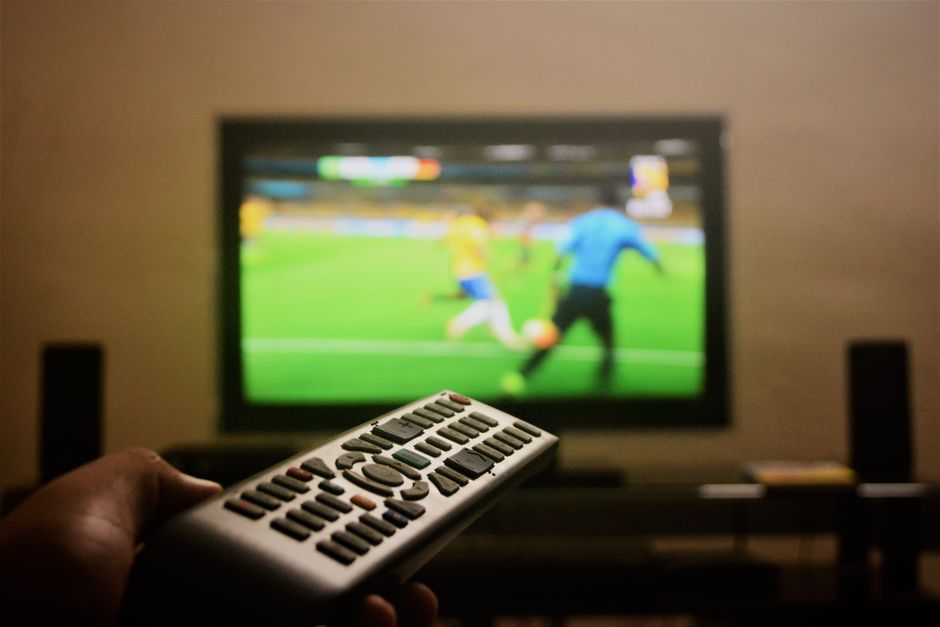
Choosing Your Player for Smart TV IPTV App Setup
Finding a reliable media player shapes your entire viewing experience. Brands like Samsung and LG feature proprietary stores holding apps capable of parsing remote m3u playlists. You want software that loads guide data quickly and handles high-bitrate video feeds smoothly.
Some applications use a MAC address activation method, requiring you to register your television’s hardware ID on a developer portal. Others accept direct playlist URLs or login credentials supplied by your provider. Pick the method that matches your technical comfort level.
Downloading and Installing the Software
Open your television’s app marketplace using your remote. Type your chosen media player name into the search bar. Hit the download button and wait for the installation banner to pop up on your screen.
Launch the app immediately after installation finishes. Take note of any unique device identifiers displayed on the splash screen. You will likely need these numbers if your provider asks for device registration before syncing your channel lineup.
Configuring Playlists and Channels
Inputting your stream details forms the core of any Smart TV IPTV app setup. Grab your remote and type the playlist URL carefully. A single typo causes connection failures.
Once the system accepts your URL, the software starts downloading channel groups and category folders. This process takes anywhere from a few seconds to a couple of minutes depending on playlist size. Do not turn off the television while channels sync.
Setting Up the Electronic Programme Guide
An empty channel list frustrates any viewer. Link your XMLTV guide URL in the settings menu to populate schedules. Correct time zone adjustments ensure matches and shows display at actual broadcast times across UK regions.
Optimising Playback Performance
Wi-Fi interference ruins high-definition sports streams. Connect your display using an Ethernet cable if your router sits nearby. If you must use wireless, switch your router to the 5GHz band to dodge congestion from household devices.
Clear the application cache every few weeks if menus feel sluggish. This simple habit keeps video loading fast and stops random freezing during peak evening hours.
For more information, iptv.
Related reading
- How to Fix Firestick Buffering When Watching Live TV Streams
- How to Organise Your IPTV Channels on a Smart TV
Why Does Your Firestick Start Buffering During Live Events?
Few things ruin a Saturday afternoon football match quite like the picture freezing on a spinning wheel. Firestick buffering usually happens when your internet connection drops below the speed required for high-definition video, or when your device lacks enough free memory to process the live feed smoothly.

Most UK broadband providers throttle peak-time traffic slightly if your household has multiple devices running at once. Your Firestick sits at the end of that chain. If someone else streams 4K video upstairs, your live stream downstairs suffers. Before changing any app settings, run a quick speed check using your remote browser to see what you are actually pulling from the router.
How to Clear Cache and Free Up RAM
Apps hold onto temporary files that clog up memory over time. When your player runs low on working space, playback stutters. Go to your Fire TV settings, select applications, and manage installed applications. Find your preferred streaming app and clear its cache.
Do not clear data unless you have your login details handy, because that option wipes your saved playlists completely. Many users find that a simple restart clears out stubborn background processes. Unplug your streaming stick from the wall socket for ten seconds, then plug it back in. This forces the hardware to dump its temporary memory.
If you run low on storage overall, check out Firestick Storage Management for IPTV Users: How to Free Up Space to remove unwanted apps and free up vital system resources.
Wi-Fi Frequency Bands and Router Placement
Your router transmits on two different frequencies. The 2.4GHz band travels further through walls, but it picks up interference from household appliances and neighbours’ networks easily. The 5GHz band offers much faster speeds, but its range is shorter.
Move your Wi-Fi router into the same room as your television if possible. If a wall blocks the signal, switch your Fire TV connection from the congested 2.4GHz channel to the 5GHz frequency in your network settings. You will notice an immediate drop in packet loss during peak evening hours.
Adjusting Video Decoder Settings in Your Player App
Most dedicated streaming players let you change how video data gets processed. Hardware decoding shifts the heavy lifting to your Firestick’s built-in graphics chip. Software decoding forces the main processor to handle the load instead.
If you experience constant stuttering, open your player settings and toggle the hardware acceleration option. Sometimes switching from an older protocol to a modern stream handler fixes sync issues between audio and video tracks. Test these tweaks during a quiet morning broadcast rather than right before kickoff.
For more information, iptv.
Related reading
- How to Organise Your IPTV Channels on a Smart TV
- How to Clean Firestick Cache for Better IPTV Streaming