Official Broadcasters vs. Independent IPTV Services: A UK Comparison
Setting up your living room entertainment involves a choice. You can stick with traditional broadcasters or explore independent alternatives for your IPTV UK setup. Both routes offer distinct ways to watch your favourite television, but they differ widely in cost, hardware requirements, and channel selection. Let us break down how these two approaches compare so you can decide which fits your household.

Official Broadcaster Apps and Platforms
Major networks like the BBC, ITV, and Sky have shifted heavily towards internet-delivered streaming. When you use official apps, you get stable feeds backed by major corporate infrastructure. According to Ofcom broadcasting reports, audiences increasingly turn to on-demand and streaming apps over traditional aerials. These official platforms usually work right out of the box on almost any modern TV.
You won’t have to worry about complicated technical setup or troubleshooting dodgy video streams. Official apps also guarantee full compliance with UK broadcasting standards and licensing rules. That peace of mind matters if you want a zero-fuss viewing experience. Still, combining multiple official subscriptions—such as adding sports packages to your existing setup—can get expensive very quickly. If you want to check how sports rights are split, our guide on Sky Sports vs TNT Sports: Premier League TV Packages Compared offers a closer look at official sports costs.
Furthermore, official platforms have dramatically improved their user interfaces over recent years. Services like BBC iPlayer, ITVX, and Channel 4 now offer personalised recommendations, seamless profile switching, and high-definition streaming as standard. They also integrate closely with smart TV operating systems like webOS, Tizen, and Android TV, allowing voice search functionality via remote controls. However, these platforms remain strictly walled gardens. You cannot pull content from competing networks into a single official app, meaning you must constantly jump between different applications just to browse what is on television tonight.
Independent IPTV Services
Independent services operate differently. They often aggregate hundreds of local and international feeds into a single playlist file. Many users enjoy these options because they bundle entertainment, news, and sports into one subscription. Yet, navigating this market requires care. You need to check whether a given service holds the correct distribution rights for the content it streams.
Hardware flexibility is a major selling point here. You can load these services onto a wide range of devices, from dedicated set-top boxes to media sticks. If you are comparing hardware, take a look at IPTV Apps vs Dedicated Set-Top Boxes: A UK Comparison to see which setup style suits your living room. Independent apps also tend to offer advanced player features, custom electronic programme guides, and multi-screen layouts that official apps rarely match.
Another significant aspect of independent setups is the sheer breadth of international content available. While official UK broadcasters focus primarily on domestic programming and select international imports, independent services frequently provide access to overseas channels from North America, Europe, Asia, and beyond. This makes them particularly popular among expatriates living in the UK who want to keep up with news, sports, and entertainment from their home countries without paying exorbitant satellite installation fees.
Cost and Channel Flexibility Compared
Let us look at the numbers. Official packages from traditional pay-TV providers often lock you into long-term contracts running for 12 to 24 months. Monthly bills can easily exceed fifty pounds once you factor in HD or 4K add-ons. Independent subscriptions often run on monthly rolling agreements, giving you the freedom to cancel whenever you want.
However, cheaper does not always mean better. Official broadcasters deliver reliable picture quality with dedicated server networks spread across the country. Independent providers might struggle with buffering during high-demand live events, especially if your broadband connection dips. Choosing the right UK IPTV provider means balancing your desire for lower monthly costs against the reliability of official streams.
Consider also the hidden costs associated with both choices. Official platforms may require you to purchase specific hardware upgrades, such as a 4K-capable streaming stick or a newer smart TV, to access their highest-tier broadcasts. On the other hand, independent services might require you to invest time into configuring third-party media player applications, managing custom M3U playlists, or troubleshooting audio-sync issues that occasionally arise from compressed third-party video feeds.
Technical Requirements and Broadband Impact
When streaming television over the internet in the UK, your broadband speed dictates your overall viewing experience. Official broadcaster apps employ advanced adaptive bitrate streaming. If your internet connection stutters during peak evening hours, platforms like Netflix or BBC iPlayer will automatically drop your video resolution from 4K down to 1080p or 720p to prevent buffering. This keeps the stream smooth, even if the picture temporarily loses some of its crisp detail.
Independent IPTV services handle bandwidth differently depending on the specific provider’s server capacity. Many rely on standard fixed-bitrate streams. If your broadband speed drops below the required threshold for a high-definition or 60fps sports feed, the stream may freeze completely rather than downgrading gracefully. Ensuring you have a stable fibre-optic broadband connection with robust download speeds is therefore crucial if you plan to rely heavily on independent streaming solutions.
Making Your Final Choice
If you value absolute reliability, legal clarity, and simple app interfaces, stick with official broadcaster platforms. They work seamlessly and spare you any technical headaches. If you prefer a single dashboard for global channels and flexible billing, independent options might catch your eye. Just make sure you verify what you are buying before handing over any payment details.
For more information, iptv.
Learn more on Wikipedia: ITV (TV network).
Related reading
- Choosing Legal IPTV Streaming Devices in the UK: Hardware Compared
- Understanding UK Legal IPTV Service Costs and Contract Options for Sports Fans
Update: EE TV vs Sky Stream: Choosing Legal Sports IPTV UK Packages
Update: A Practical Step-by-Step Guide to Setting Up Legal IPTV Services on Your UK Television
- Navigating Legal IPTV Streaming Hardware
- Hardware Comparison: Operating Systems and App Stores
- Performance, Resolution, and Connectivity
- Direct Device Comparison Table
- Pros and Cons of Popular UK Streaming Hardware
- Setup, Voice Control, and Parental Controls
- UK Availability and Warranty Support
- Optimizing Home Network Infrastructure for IPTV
Navigating Legal IPTV Streaming Hardware
Choosing legal IPTV devices UK households can rely on isn’t just about picking the cheapest stick on Amazon. Internet protocol television delivers broadcasts through your broadband connection rather than an aerial or dish. Legality depends entirely on the broadcaster and app you use, not the box sitting under your telly. Official services like BBC iPlayer, ITVX, and Sky Go run smoothly on specific hardware, but performance varies wildly across platforms. You need a setup that handles official streaming apps without crashing.

In the modern British living room, the shift away from traditional linear television toward app-based streaming is virtually complete. Households increasingly rely on fibre broadband connections to stream live news, Premier League football, and on-demand box sets. However, the hardware you plug into your HDMI port acts as the critical bridge between your router and your television screen. A substandard processor or insufficient memory can turn a relaxing evening of entertainment into a frustrating cycle of buffering wheels, audio sync errors, and frozen menus. Investing in capable, certified hardware ensures that licensed content is delivered at its highest possible bitrate, preserving the visual fidelity and audio immersion intended by the broadcasters.
Hardware Comparison: Operating Systems and App Stores
Your streaming experience hinges on the underlying software. Amazon Fire TV devices use Fire OS, a fork of Android. They offer deep integration with Prime Video and host most legal broadcaster apps. Google TV and Android TV boxes provide a cleaner interface with the full Google Play Store. Apple TV relies on tvOS, delivering a snappy, ad-free environment that syncs nicely with iPhones. Smart TV platforms from Samsung and LG run Tizen and webOS respectively. They save you from needing a separate box, but their app stores lack the flexibility of dedicated media players.
App availability is a major stumbling block. Never assume every device supports every service. Always check the provider’s official app requirements before buying hardware. You can learn more about official app ecosystems by comparing official UK sports streaming apps and licensed IPTV providers to see how platforms differ in daily use.
Furthermore, the philosophy behind each operating system dictates how you interact with your media daily. Android-based systems prioritize versatility, allowing side-loading of specialized tools and a high degree of home screen customization. Apple’s tvOS focuses heavily on a curated, streamlined user journey, completely omitting the sponsored banner ads that plague cheaper alternatives. Understanding these software ecosystems helps you avoid frustration, ensuring that your preferred catch-up services, subscription video-on-demand platforms, and niche streaming apps are natively supported without requiring messy workaround solutions like casting from a smartphone or tablet.
Performance, Resolution, and Connectivity
Streaming live 50fps sports or crisp 4K films demands proper horsepower. Apple TV 4K and Nvidia Shield TV lead the pack for sheer speed, loading menus instantly and handling heavy streams effortlessly. Cheaper sticks like the standard Fire TV Stick or Roku Express get the job done for basic HD viewing, but they stutter when pushed hard.
Wi-Fi congestion ruins live broadcasts. Look for devices featuring Ethernet ports or strong Wi-Fi 6 compatibility. If your router sits far from your living room, a wired connection keeps streams stable. HDR10+ and Dolby Vision support also matter if you own a modern telly, making colours pop during evening dramas.
When dealing with high-frame-rate content—crucial for fast-moving sports like football, rugby, and Formula 1—hardware decoding capabilities become paramount. A device must possess a robust graphics processing unit (GPU) capable of rendering 50 frames per second smoothly without introducing motion judder or frame drops. Additionally, audio pass-through support for formats like Dolby Atmos ensures that if you have a connected soundbar or multi-channel surround sound system, you get theater-quality spatial audio accompanying your high-definition broadcasts.
Direct Device Comparison Table
| Device | Operating System | 4K / HDR | Ethernet Option |
|---|---|---|---|
| Amazon Fire TV Cube | Fire OS | Yes (Dolby Vision) | Built-in port |
| Apple TV 4K | tvOS | Yes (Dolby Vision) | Top tier model only |
| Google TV Streamer | Android TV | Yes (HDR10+) | Built-in port |
| Roku Streaming Stick 4K | Roku OS | Yes (HDR10+) | No (Wi-Fi only) |
Pros and Cons of Popular UK Streaming Hardware
Every option comes with trade-offs. Amazon devices are cheap and widely available on the British high street, but their interfaces are packed with sponsored adverts. Apple hardware runs brilliantly and respects user privacy, but the initial purchase price stings. Android TV boxes give you endless customisation, yet menus occasionally feel cluttered.
Smart TVs are convenient because you only need one remote. Their processors often degrade over time, leading to sluggish menus after a couple of years of software updates. Dedicated boxes are easier to replace when technology moves on.
Evaluating the long-term value of these platforms also requires looking at manufacturer update lifecycles. Premium streaming boxes tend to receive critical security patches and operating system upgrades for many years, preserving app compatibility long after purchase. Budget dongles, conversely, may be abandoned by manufacturers much sooner, eventually rendering them incapable of running updated versions of essential UK catch-up apps due to underlying web-engine or security certificate requirements.
Setup, Voice Control, and Parental Controls
Getting started usually takes five minutes. Plug the device into an HDMI port, connect to your home Wi-Fi, and sign into your accounts. Alexa, Google Assistant, and Siri handle voice searches across different platforms, letting you jump straight into live channels without typing. Parental controls let you lock adult content behind a PIN, keeping younger viewers safe.
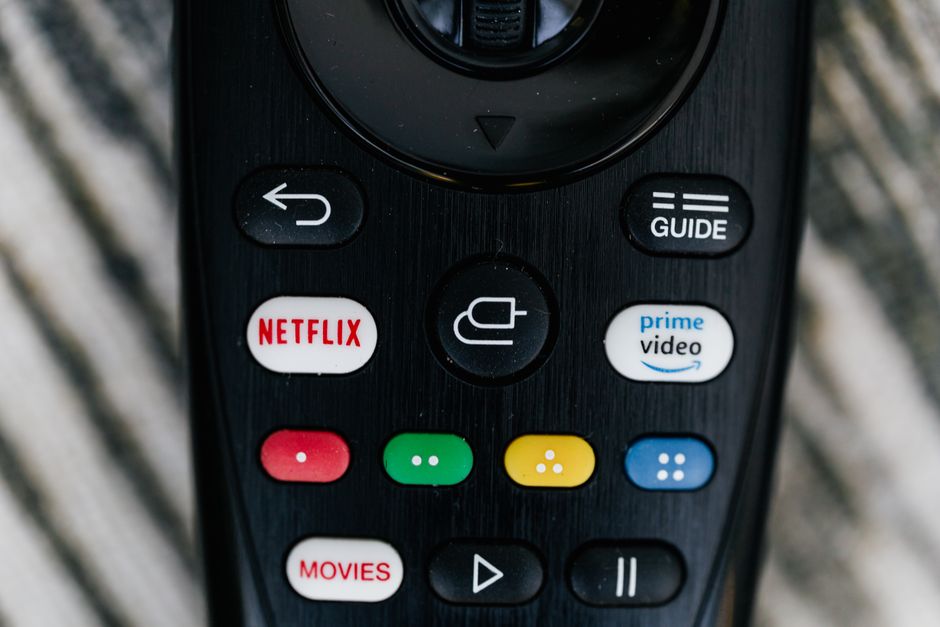
Modern remote controls have evolved significantly beyond simple infrared clickers, often featuring dedicated shortcut buttons for popular British services like Netflix, Prime Video, or Disney+. Voice integration has also transformed accessibility; instead of navigating complex on-screen keyboards with directional pads, users can simply speak a show title or channel name to initiate immediate playback. Furthermore, robust household management tools ensure that content ratings can be locked down globally across all installed applications, giving parents absolute peace of mind regarding what content is accessible in shared family spaces.
UK Availability and Warranty Support
Buying from established UK retailers guarantees proper consumer rights under the Consumer Rights Act. Currys, Argos, and John Lewis stock certified hardware with standard one-year or two-year warranties. Avoid grey imports from overseas auction sites that lack UK power plugs or local support channels.
Purchasing through authorized domestic distribution channels ensures complete compliance with UK safety standards, including proper CE or UKCA marking on power supplies and plugs. Furthermore, dealing with local customer service desks simplifies returns, repairs, or replacements should a hardware fault develop during the warranty period. Localized plug configurations eliminate the safety hazards and inconvenience associated with travel adapters or unverified third-party power bricks often bundled with grey-market imports sourced from international third-party marketplace sellers.
Optimizing Home Network Infrastructure for IPTV
Even the most advanced streaming hardware will falter if your home network infrastructure cannot sustain consistent data throughput. Live IPTV streams require an uninterrupted, steady stream of packets; unlike downloading a file where temporary speed drops go unnoticed, a momentary dip in your broadband speed during a live broadcast results in annoying buffering spinners or automatic resolution downscaling. Ensuring your broadband package comfortably exceeds the minimum recommendations—typically 25 Mbps for stable 4K streaming—is only the first step. Positioning your Wi-Fi router in an open, central location away from thick interior brick walls, large metallic appliances, and competing wireless networks heavily mitigates packet loss. For ultimate reliability, investing in a mesh Wi-Fi system or running a physical Ethernet cable directly from your router to your streaming box eliminates wireless interference entirely, guaranteeing zero-latency live television delivery throughout your home.
For more information, iptv.
Related reading
- Understanding UK Legal IPTV Service Costs and Contract Options for Sports Fans
- Firestick IPTV Connection Guide: Troubleshooting Network Errors in the UK
Update: Fixing UK Smart TV IPTV App Freezing and Buffering Issues
Update: EE TV vs Sky Stream: Choosing Legal Sports IPTV UK Packages
- How Much Does a Legal Sports IPTV UK Package Actually Cost?
- Are Rolling Monthly Contracts Better Than Annual Plans?
- What Extra Costs Hide Behind Standard Sports Streaming Prices?
- Comparison: Official Sports Streaming Options
- Pros and Cons of Licensed Sports Streaming
- Legal and Licensing Note
- Buying Checklist for Sports Streamers
- Frequently Asked Questions
- Can I share my sports streaming login with family members living elsewhere?
- Why do some Premier League matches not appear on my sports app?
- Do I need a TV licence to watch live sports streams in the UK?
- Are 4K sports streams worth the extra money?
- How can I check if an IPTV provider operates legally?
- Can I pause my subscription during the summer football break?
- What internet speed do I need for smooth sports streaming?
- Are there free legal options for watching live sports highlights?
Watching live football and rugby across British broadcasters can get expensive very quickly. You might already juggle multiple subscriptions just to catch your team play every weekend. That is where legal sports IPTV UK services step in to bundle channels through your broadband router. Prices swing wildly depending on whether you choose a rolling monthly pass or tie yourself into a multi-year deal.
How Much Does a Legal Sports IPTV UK Package Actually Cost?
Monthly pricing ranges from around £15 to over £70. It all depends on your provider. Sky Sports through NOW charges around £34.99 a month for contract-free access. BT Sport, now branded as TNT Sports, usually sits near £30 monthly depending on your broadband bundle. EE and Virgin Media roll sports channels into hefty multi-play packages costing well over £80 combined. You need to look past the initial teaser rate. Introductory offers often expire after six months. Your bill jumps sharply right when you least expect it.
Broadband speeds dictate what you actually pay for your hardware setup. If your current home internet crawls below 30Mbps, you will struggle with HD feeds. Upgrading your broadband adds another £25 to £40 monthly onto your household bills. Factor that into your total entertainment budget.
Are Rolling Monthly Contracts Better Than Annual Plans?
Flexibility costs money. Rolling monthly options let you cancel during the summer off-season. You save cash when matches stop in June and July. Annual contracts lock you in for twelve months. Providers reward that loyalty with lower monthly fees. Sky and TNT both offer cheaper rates if you sign an 18-month agreement.
Think about your viewing habits before signing anything. Do you watch football year-round, or just during the Premier League season? Paying £30 a month for twelve months totals £360. A seasonal pass might save you £120 if you pause it during the summer break. Always check the cancellation fees. Breaking a contract early triggers massive penalty charges.
What Extra Costs Hide Behind Standard Sports Streaming Prices?
Headline prices rarely tell the full story. Multi-screen add-ons cost extra. Want to watch a 4K football match in your living room while someone else streams on a tablet? You will pay a multi-room fee. Sky charges extra for Ultra HD and Dolby Atmos sound.
Hardware upgrades drain your wallet too. Smart TV apps work fine for casual viewing. Dedicated streaming boxes like an Apple TV 4K or Fire TV Cube cost between £50 and £150 upfront. If you want to dive deeper into how these platforms operate, understanding how IPTV UK services handle live broadcasting rights explains why certain matches vanish from specific apps due to blackout rules.
Comparison: Official Sports Streaming Options
- NOW Sports Membership: £34.99/mo (No contract) – Great for flexibility
- TNT Sports via Discovery+: £29.99/mo (Monthly rolling) – Good for European football
- Amazon Prime Video: £8.99/mo (Annual or monthly) – Covers select Premier League rounds
- Virgin Media VIP Bundle: £85+/mo (18-month contract) – Comprehensive TV and broadband
Pros and Cons of Licensed Sports Streaming
Pros:
- Rock-solid reliability during high-traffic matches
- Legal peace of mind without sudden stream shutdowns
- Crisp HD and 4K picture quality with minimal lag
- Official catch-up TV and highlights on demand
Cons:
- High cumulative monthly costs across multiple networks
- Strict device limits on simultaneous streams
- Annoying regional blackout rules for 3 PM Saturday kickoffs
- Lengthy lock-in contracts with steep exit fees
Legal and Licensing Note
This guide discusses fully licensed, authorized broadcasting platforms operating within UK regulations. We do not support or reference unofficial pirate streams, hacked applications, or illegal M3U playlists. Always verify your provider holds proper retransmission rights from copyright holders like the Premier League and EFL.
Buying Checklist for Sports Streamers
- Check your broadband download speed exceeds 25Mbps for HD and 50Mbps for 4K.
- Confirm the provider supports your specific streaming hardware model.
- Read the small print regarding price rises mid-contract.
- Verify how many simultaneous streams come with your base subscription.
- Calculate the total annual cost including activation and multi-room fees.
Frequently Asked Questions
Can I share my sports streaming login with family members living elsewhere?
Most official platforms restrict simultaneous streams to the same household network. Sharing login details with friends outside your home usually violates terms of service and can get your account suspended.
Why do some Premier League matches not appear on my sports app?
UK broadcasting laws block the live telecast of Saturday 3 PM matches. Official apps respect this blackout rule, so those games never air domestically.
Do I need a TV licence to watch live sports streams in the UK?
Yes. If you watch live television broadcasts on any online platform or app, current UK law requires you to hold a valid TV licence.
Are 4K sports streams worth the extra money?
Only if you own a large television and have a fast broadband connection. On smaller screens, standard 1080p HD looks sharp enough.
How can I check if an IPTV provider operates legally?
Look for official corporate backing, registered UK company details, transparent billing, and partnerships with major telecoms or broadcasters.
Can I pause my subscription during the summer football break?
Rolling monthly passes let you cancel and restart easily. Annual contracts require you to keep paying even when no matches play.
What internet speed do I need for smooth sports streaming?
Aim for at least 30Mbps. Fast fiber broadband prevents pixelation during high-speed football tracking shots.
Are there free legal options for watching live sports highlights?
BBC Sport and ITVX offer free highlights shows like Match of the Day, but live games require paid subscriptions.
For more information, iptv.
Related reading
- Firestick IPTV Connection Guide: Troubleshooting Network Errors in the UK
- 7 Things to Check Before Choosing an IPTV UK Subscription
Update: Official Broadcasters vs. Independent IPTV Services: A UK Comparison
Update: Fixing UK Smart TV IPTV App Freezing and Buffering Issues
- Before You Start Checklist
- Step-by-Step Firestick IPTV Connection Troubleshooting
- 1. Test Your Internet Speed
- 2. Restart Your Router and Firestick
- 3. Switch Your Wi-Fi Frequency Band
- 4. Clear App Cache and Check Storage
- 5. Update Your DNS Settings
- Advanced Network Optimisation for Seamless Streaming
- Common Mistakes to Avoid
- When to Contact Your Provider
- Frequently Asked Questions
- Why does my Firestick keep dropping the Wi-Fi connection?
- How do I know if my internet speed is the real problem?
- Does clearing the app cache delete my subscription login?
- Safety and Legal Notes
You sit down to watch a Saturday afternoon match, but your Firestick throws a frustrating network error on the screen. Dealing with a dropped stream ruins your viewing experience instantly. Let’s fix those annoying connection glitches properly.

Internet speed drops, faulty Wi-Fi signals, and temporary router issues usually cause these streaming failures. Your device hardware or app software might also need a quick reset. We will walk through the exact steps to diagnose and solve these common problems on your Amazon streaming stick.
Before You Start Checklist
Always verify a few basics before diving into complex network settings. Quick checks often save you twenty minutes of pointless menu clicking.
- Confirm your broadband connection works on another device like a phone or laptop.
- Check if your legal provider has reported any scheduled server maintenance.
- Ensure your Amazon Firestick is plugged directly into a reliable wall socket rather than a weak USB port on your television.
- Make sure your Fire OS software is fully up to date.
Step-by-Step Firestick IPTV Connection Troubleshooting
Work through these troubleshooting stages in order. Each step addresses a common root cause for UK streaming hiccups.
1. Test Your Internet Speed
A sluggish connection starves your media player of essential bandwidth. Run a proper diagnostic check to see your actual download rates. For a detailed walkthrough on checking your home speeds, read this step-by-step guide to testing internet speed for UK IPTV. You need a stable connection of at least 15 to 25 Mbps for smooth high-definition streams.
2. Restart Your Router and Firestick
Clear out temporary network cache by giving your hardware a fresh boot. Unplug your BT, Sky, or Virgin Media router from the wall outlet. Wait thirty seconds before plugging it back in. Next, unplug your Firestick power cable, wait ten seconds, and reconnect it. This simple power cycle fixes most stubborn IP address conflicts.
3. Switch Your Wi-Fi Frequency Band
Most modern UK routers broadcast on both 2.4 GHz and 5 GHz frequencies. The 2.4 GHz band covers greater distances but suffers from heavy interference from microwaves and neighbour networks. Move your Firestick connection to the 5 GHz band if your router sits close to the television. If your router sits in another room, stick to 2.4 GHz for a more stable signal path.
4. Clear App Cache and Check Storage
Low device storage makes streaming apps freeze or crash unexpectedly. Go to your Firestick Settings, select Applications, and find Installed Applications. Choose your streaming app and click Clear Cache. Never clear app data unless you have your login details written down, as data deletion removes your saved playlists.
5. Update Your DNS Settings
Internet Service Providers sometimes route traffic inefficiently. You can manually adjust your network settings on the Firestick to use alternative public DNS servers. Go to My Fire TV, select About, and check your network status to see your current IP allocation. Reconfigure your Wi-Fi settings to input custom DNS values if your provider permits it.
Advanced Network Optimisation for Seamless Streaming
If basic troubleshooting resolves your immediate problem but you still experience occasional buffering during peak evening hours, your home network may require deeper optimisation. Network congestion frequently occurs between 7 PM and 10 PM when households across your neighbourhood stream high-definition content simultaneously. To combat this, consider implementing Quality of Service (QoS) settings within your home router’s admin panel. QoS allows you to prioritise media streaming traffic from your Amazon Firestick over background activities like large file downloads or cloud backups on other household computers. Furthermore, if your television sits far from your wireless access point and you continuously experience packet loss, utilizing an official Ethernet adapter for your Firestick can provide a rock-solid, interference-free wired connection that completely eliminates wireless dropouts. Taking these extra structural steps guarantees a much more reliable day-to-day media consumption experience without unexpected interruptions during crucial moments of your live broadcasts.
Common Mistakes to Avoid
Many users worsen their technical issues by rushing through fixes. Avoid these common pitfalls:
- Ignoring background downloads that hog your home bandwidth.
- Using unverified third-party VPN apps that bottleneck your legal streaming speeds.
- Failing to restart devices after changing network settings.
- Blaming your broadband provider before testing the physical ethernet or Wi-Fi link.
When to Contact Your Provider
Sometimes the issue sits entirely outside your living room. Reach out to your subscription support team if every other device in your house browses the web normally while your Firestick still fails to load playlists. If you experience persistent error codes despite passing speed tests, your provider’s streaming servers might be experiencing an outage.
Frequently Asked Questions
Why does my Firestick keep dropping the Wi-Fi connection?
Interference from thick walls or competing household devices often causes dropped signals. Moving your router closer or switching bands usually solves this.
How do I know if my internet speed is the real problem?
Run an on-screen speed test app directly through your Firestick app store to measure your real-time download performance.
Does clearing the app cache delete my subscription login?
No, clearing the cache only removes temporary junk files. Clearing app data will wipe your login credentials.
Safety and Legal Notes
This technical guide is for informational purposes only and is designed for legal, authorised streaming services used in the United Kingdom. We do not endorse bypassing geographic blocks or accessing pirated content. All trademarks and brand names mentioned belong to their respective owners.
For more information, iptv.
Related reading
- 7 Things to Check Before Choosing an IPTV UK Subscription
- UK IPTV Hardware Guide: Choosing the Right Streaming Device
Update: Choosing Legal IPTV Streaming Devices in the UK: Hardware Compared
Update: Official Broadcasters vs. Independent IPTV Services: A UK Comparison
- 7 Things to Check Before Choosing an IPTV UK Subscription
- 1. Peak-Time Server Stability
- 2. Electronic Programme Guide Reliability
- 3. True Bitrate and Resolution Standards
- 4. Connection Limits and Multi-Device Support
- 5. Catch-Up TV and Time-Shifting Features
- 6. Provider Transparency and Regulatory Compliance
- 7. Trial Periods and Refund Policies
- 8. Customer Support Infrastructure and Responsiveness
7 Things to Check Before Choosing an IPTV UK Subscription
Your broadband router blinks green in the hallway while your living room screen shows a frozen loading wheel during a crucial match. Choosing a reliable UK IPTV provider involves looking past flashy banner ads and checking technical realities like server load, bitrate limits, and app compatibility.
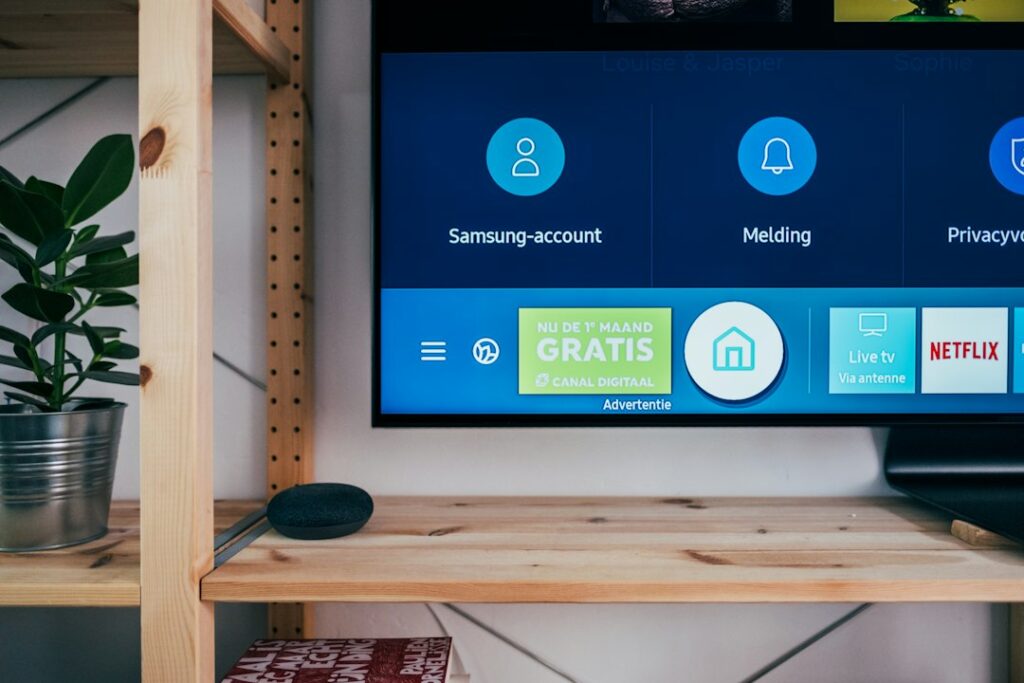
Many households rush into a cheap service without checking how it handles peak evening traffic. That mistake leads straight to stuttering streams and frustrating weekend dropouts. Let’s look at seven specific factors that actually dictate whether your streaming experience runs smoothly or falls apart.
1. Peak-Time Server Stability
Internet traffic across the UK surges between seven and ten o’clock every evening. During these peak hours, weak servers buckle under the strain. A trustworthy service invests in robust content delivery networks to prevent buffering when millions of people log on simultaneously. Ask providers how they manage bandwidth during major live events. If they use overcrowded servers, your picture quality will drop drastically right when you want it crisp.
Consider what happens during a high-stakes Premier League derby or a major international tournament final. Millions of UK viewers tune in at the exact same minute. Inferior IPTV providers lease cheap, shared server space that simply collapses under this sudden surge in concurrent requests. Premium providers, by contrast, utilize load balancing and redundant server clusters distributed across multiple geographical nodes. This infrastructure ensures that even if one node experiences heavy traffic, your stream is seamlessly re-routed to an alternate server without dropping a single frame.
2. Electronic Programme Guide Reliability
A messy channel list makes live television unwatchable. You need a clean Electronic Programme Guide that updates automatically without lagging behind real-world broadcast times. Proper metadata ensures you can jump straight from news broadcasts to entertainment channels without guessing what’s playing. If you want to get your guide sorted properly on your preferred streaming stick, follow this guide on setting up your EPG guide to avoid missing your favourite programmes.
A well-maintained EPG does more than just show titles; it dictates how pleasant your overall navigation experience will be. Poorly synchronized XMLTV links often result in programmes showing incorrect time offsets, leading to missed recordings or tuning into shows halfway through. Look for services that update their guide data multiple times a day, incorporate clear plot summaries, and support icons or channel logos that match standard television layouts.
3. True Bitrate and Resolution Standards
Labels like Full HD or 4K mean very little without adequate data rates behind them. A compressed 1080p stream often looks worse than a properly encoded 720p broadcast. Real UK IPTV services deliver stable bitrates that prevent pixelation during fast motion shots, such as football matches or racing events. Check if your provider offers adaptive bitrate streaming. This feature adjusts picture quality automatically when your home Wi-Fi stumbles.
Data compression is a balancing act. Unscrupulous resellers cram hundreds of channels into limited bandwidth pipes by over-compressing the video stream, resulting in artifacting, ghosting, and muddy color gradients, particularly in dark scenes. A genuine high-definition feed usually requires a consistent bitrate between 5 Mbps and 10 Mbps for 1080p, while true 4K feeds demand significantly more headroom. Always check if your broadband package can comfortably sustain these speeds before committing.
4. Connection Limits and Multi-Device Support
Most modern homes run streaming apps across multiple screens at the same time. One person watches a documentary in the bedroom while another catches up on drama in the living room. Single-connection packages force you to log out constantly. Look for options permitting at least two or three simultaneous streams on different hardware. Keep in mind that running multiple streams demands higher broadband speeds from your internet service provider.
Ofcom research regularly highlights how household data demands keep climbing year on year. Make sure your home connection handles multiple HD or 4K feeds before paying for multi-device tiers.
Furthermore, consider the hardware ecosystem within your household. A provider might support multi-device streaming, but if their service relies on proprietary apps that only work on Android TV, you will face hurdles trying to install it on an Apple TV, an Amazon Fire Stick, or a Samsung Tizen smart television. Flexibility in device provisioning, including support for standard M3U playlists and Xtream Codes API integrations, ensures you can use your preferred media player apps like TiviMate or IPTV Smarters across all household screens.
5. Catch-Up TV and Time-Shifting Features
Live television doesn’t always fit around busy work schedules. Solid catch-up integration lets you replay broadcasts from earlier in the week without manual recording. Check how many days of archive storage the service provides. Some platforms offer seven days of catch-up across major channels, while others drop support after twenty-four hours. This feature turns live broadcasts into an on-demand library tailored to your routine.
Time-shifting capabilities also include pause, rewind, and restart functions for live broadcasts. If you walk into the room ten minutes after a film or match has started, the ability to restart the broadcast from the beginning transforms the user experience. Verify whether these features are baked natively into the provider’s server infrastructure or if they require you to manage external cloud recording storage, which can quickly clutter your device memory or fail due to server-side sync errors.
6. Provider Transparency and Regulatory Compliance
The marketplace holds countless anonymous sellers offering impossible channel counts for pennies. Real businesses provide clear contact channels, transparent billing terms, and clear documentation. Copyright rules matter immensely in the UK. The UK Intellectual Property Office outlines clear boundaries regarding broadcast rights and distribution permissions. Legitimate providers operate within these legal frameworks, ensuring you don’t face sudden service shutdowns or billing scams.
When evaluating transparency, look closely at how a provider communicates updates, scheduled maintenance, or channel list modifications. Fly-by-night operations often disappear overnight, taking your subscription fee with them without leaving a trace or a customer support email address. Established services maintain active support ticketing systems, detailed knowledge bases, and clear terms of service that protect both parties.
7. Trial Periods and Refund Policies
Never pay for an annual subscription upfront without testing the service first. Reputable platforms let users test stability during peak hours using short-term passes or sample playlists. Use this window to check if your favourite channels load quickly, the sound stays synced with the video, and the app interface feels intuitive. If a provider refuses any form of trial or short-term option, treat that reluctance as a major warning sign.
A 24-hour or 48-hour trial period gives you a risk-free window to stress-test the connection during Friday night football or Sunday evening movie slots. If the service stutters, disconnects, or fails to deliver the promised channel lineup during these high-demand hours, you can walk away without losing a substantial investment. Always exercise caution with vendors demanding long-term commitments upfront while refusing any form of introductory evaluation period.
8. Customer Support Infrastructure and Responsiveness
Technical glitches can occur at any time, whether it is a sudden server outage, an authentication error after an app update, or a missing channel category. The quality of a provider’s customer support infrastructure often separates amateur resellers from professional streaming operations.
Investigate how support is delivered. Do they rely on a sluggish email-only ticketing system that takes days to respond, or do they offer active Telegram communities, live chat features, or comprehensive troubleshooting guides? Quick, responsive assistance ensures that minor configuration errors do not ruin your evening entertainment, giving you greater peace of mind with your chosen subscription.
For more information, iptv.
Learn more on Wikipedia: ITV (TV network).
Related reading
- UK IPTV Hardware Guide: Choosing the Right Streaming Device
- What UK Football Fans Need to Know About Legal Sports IPTV UK Packages
Update: Understanding UK Legal IPTV Service Costs and Contract Options for Sports Fans
Update: Choosing Legal IPTV Streaming Devices in the UK: Hardware Compared
- Choosing Your UK IPTV Hardware
- Amazon Fire TV Stick and Fire TV Cube
- Pros and Cons of Amazon Fire TV
- Apple TV 4K
- Pros and Cons of Apple TV
- Google TV and Android TV Boxes
- Pros and Cons of Google TV
- Device Comparison Matrix
- Smart TV Platforms: Samsung and LG
- Audio and Visual Standards: Dolby Vision and Atmos
- Setup and Network Considerations
- Frequently Asked Questions
- Do I need a special subscription for UK IPTV hardware?
- Can I watch live BBC channels through these devices?
- Will a cheap Android box work just as well as an Apple TV?
- Do these devices come with built-in VPN support?
- How do I update my streaming apps?
- Are IPTV services legal in the UK?
- Can I use my mobile phone as a remote control?
Choosing Your UK IPTV Hardware
Getting your living room ready for internet television means picking the right box or stick. You don’t just plug anything into a modern UK broadband router and expect flawless playback. Performance hinges on the processor, the operating system, and how well the hardware handles official apps from broadcasters like BBC iPlayer, ITVX, and Channel 4. Furthermore, factors like RAM allocation, video decoding codecs (such as AV1 and HEVC), and thermal throttling play massive roles in determining whether your Friday night movie marathon streams smoothly in 4K HDR or stutters constantly during high-motion sports broadcasts like the Premier League.
We tested various boxes across standard UK fibre connections—ranging from BT and Virgin Media to smaller alt-net providers like CityFibre partners—to see what holds up under peak evening traffic. Let’s look at what works.
Amazon Fire TV Stick and Fire TV Cube
Amazon devices dominate UK living rooms due to low pricing and frequent sales like Prime Day. The Fire TV Stick 4K sits comfortably behind most wall-mounted tellies without drawing attention. Fire OS runs smoothly for most official streaming apps. Side-loading unknown APK files brings security risks and potential software crashes, so stick to the official Amazon Appstore. Under the hood, the newer iterations pack upgraded quad-core processors and Wi-Fi 6 support, which significantly cuts down buffering times when pulling heavy data streams across a busy household network.
Pros and Cons of Amazon Fire TV
- Pros: Affordable entry price, excellent Alexa voice integration, regular software updates, and wide accessory support.
- Cons: The user interface pushes Amazon Prime content heavily, limited internal storage on base models requiring careful app management.
Apple TV 4K
If you live inside the Apple ecosystem, the Apple TV 4K is hard to beat for raw performance. tvOS is entirely ad-free, which makes finding your installed apps a breeze without wading through sponsored banner recommendations. Ethernet ports come on the higher-tier storage model, giving you rock-solid stability for live streams. It also packs the A15 Bionic chip—the same silicon found in iPhones—ensuring that navigating menus, switching between heavy apps, and processing Dolby Vision content happens instantaneously without a hint of lag.
Pros and Cons of Apple TV
- Pros: Incredibly fast processor, no forced banner ads on the home screen, great privacy controls, and seamless integration with AirPods and HomeKit.
- Cons: High upfront cost compared to basic streaming sticks, proprietary remote takes time to master and can be easily lost down the sofa cushions.
Google TV and Android TV Boxes
Chromecast with Google TV brings a clean interface that aggregates content across dozens of UK streaming platforms, saving you from jumping between individual apps. Android TV gives you granular control over app permissions, sideloading trusted utilities, and connecting local network storage via VLC or Kodi. Compatibility depends heavily on the specific manufacturer, as boxes from Google, Nvidia, and various TV brands handle system updates differently, with premium devices seeing much longer support lifecycles.
Pros and Cons of Google TV
- Pros: Huge selection of legal applications in the Play Store, excellent voice search via Google Assistant, and highly customizable home screens.
- Cons: Budget Android boxes can suffer from sluggish menus, poor thermal management, and a lack of official Widevine L1 DRM certifications required for HD/4K playback on major services.
Device Comparison Matrix
| Device | OS | 4K / HDR | Ethernet Option |
|---|---|---|---|
| Amazon Fire TV 4K | Fire OS | Yes | Via Adapter |
| Apple TV 4K | tvOS | Yes | Yes (128GB model) |
| Google TV Streamer | Android TV | Yes | Built-in |
Smart TV Platforms: Samsung and LG
Built-in smart platforms mean one less remote on your coffee table. Samsung uses Tizen, while LG relies on webOS. Both operating systems host all major UK catch-up and live streaming apps. However, processor speeds inside televisions rarely match a dedicated streaming box, so menu navigation can feel slightly less responsive after a few years of software updates and new app feature rollouts. Furthermore, smart TV manufacturers tend to drop support for older panel models much faster than dedicated hardware manufacturers update their standalone set-top boxes.
Audio and Visual Standards: Dolby Vision and Atmos
When evaluating hardware for a modern UK home entertainment setup, visual and audio codecs deserve careful scrutiny. High Dynamic Range (HDR) formats like HDR10+ and Dolby Vision drastically enhance contrast and color grading, making dark scenes in gritty British dramas far more legible. Similarly, spatial audio formats such as Dolby Atmos transform standard living room speaker bars into immersive soundscapes. Premium streaming boxes like the Apple TV 4K handle these passthrough signals effortlessly, whereas cheaper generic sticks often default to basic stereo output, limiting the cinematic potential of your sound system.
Setup and Network Considerations
A reliable Wi-Fi connection matters for high-definition video feeds, especially if other members of your household are simultaneously gaming or working from home. If your router sits far from your television, consider powerline adapters or running a direct Ethernet cable to bypass wireless interference caused by thick walls and competing neighborhood networks. Always check your chosen provider’s official compatibility pages before purchasing new UK IPTV hardware to ensure your specific setup is supported and that your broadband package offers sufficient download speeds—ideally 25 Mbps or higher for uninterrupted 4K streaming.
Frequently Asked Questions
Do I need a special subscription for UK IPTV hardware?
No. The hardware is just a computer that runs apps. You subscribe separately to legal streaming services or use free ad-supported broadcasters.
Can I watch live BBC channels through these devices?
Yes, official apps like BBC iPlayer let you stream live broadcasts, provided you hold a valid UK TV Licence.
Will a cheap Android box work just as well as an Apple TV?
Cheaper boxes often lack proper security certifications, which means popular apps might stream in standard definition rather than crisp 4K.
Do these devices come with built-in VPN support?
Some Android and Fire OS devices allow certified VPN applications from their respective app stores for privacy purposes.
How do I update my streaming apps?
Most devices update apps automatically in the background, but you can check manually through the device’s app store menu.
Are IPTV services legal in the UK?
Internet television technology itself is completely legal. Legality depends entirely on whether the service provider holds the proper broadcasting rights for the content they distribute.
Can I use my mobile phone as a remote control?
Most platforms offer companion mobile apps for iOS and Android that let you type and navigate using your smartphone.
For more information, iptv.
Related reading
- What UK Football Fans Need to Know About Legal Sports IPTV UK Packages
- Why Does My Smart TV IPTV App Keep Crashing? (And How to Fix It)
Update: Firestick IPTV Connection Guide: Troubleshooting Network Errors in the UK
Update: Understanding UK Legal IPTV Service Costs and Contract Options for Sports Fans
- Navigating Football Streaming UK Options
- Comparing Licensed Match Day Providers
- What to Check Before Buying Legal Sports IPTV UK Bundles
- Pros of Licensed Sports Streaming
- Cons of Licensed Sports Streaming
- Understanding Broadband Requirements for Live Football
- Legal and Licensing Note
- The Match Day Buying Checklist
- Frequently Asked Questions
- Can I watch 3 PM Saturday matches legally using IPTV in the UK?
- Do I need a TV licence for streaming live sports?
- Why does my legal sports stream buffer during big derbies?
- Are legal sports IPTV UK services cheaper than satellite?
- Can I share my streaming login with family members living elsewhere?
- What internet speed do I need for 4K football streaming?
Navigating Football Streaming UK Options
Watching every single Premier League fixture from your sofa sounds simple until you hit the wall of blackout rules and split broadcast rights. You need more than just one subscription these days. Sky Sports, TNT Sports, and Amazon Prime all hold pieces of the puzzle. That leaves many supporters searching for legal sports IPTV UK solutions that bundle channels together without breaking copyright laws.

Finding a legitimate package means looking past dodgy M3U playlists and focusing on licensed providers. Official broadcasting deals cost millions of pounds. Because of this, genuine services operate through authorized apps on smart TVs, mobile devices, and dedicated set-top boxes. If you want to get your setup right from the start, check out the UK IPTV hardware guide for legal streaming to see which physical devices handle official broadcast feeds best.
Furthermore, understanding how these rights are distributed across different media corporations helps prevent nasty financial surprises. For instance, the Premier League splits its matches into distinct packages auctioned off every few years. This commercial structure ensures competition, but for the average fan, it means keeping track of changing schedules and alternating app interfaces throughout the football calendar.
Comparing Licensed Match Day Providers
Choosing the right provider depends entirely on which team you follow. A supporter watching the Scottish Premiership faces a totally different broadcasting landscape than someone tracking EFL Championship matches.
| Provider Type | Main Competitions | Typical UK Pricing | Simultaneous Streams |
|---|---|---|---|
| Sky Sports via NOW | Premier League, EFL, Scottish Premiership | £26 – £35 per month | 1 (Boost adds more) |
| TNT Sports | Champions League, Europa League, Premier League | £18 – £30 per month | 2 devices |
| Viaplay / Premier Sports | Scottish Cup, La Liga, international fixtures | £10 – £15 per month | 1 device |
What to Check Before Buying Legal Sports IPTV UK Bundles
Never rush into a long contract without checking the fine print. Broadcasters change their app compatibility constantly. Your older Samsung smart TV might run last year’s app just fine, but miss out on critical security updates for live sports streams.
Broadcasting delay is another major headache for football fans. Nobody wants to hear their neighbor cheering a goal two minutes before it hits their own screen. Official app streams usually lag behind traditional satellite broadcasts by thirty to ninety seconds. Licensed internet-based feeds add extra encoding time. Keep this in mind if you like checking live scores or social media during a match.
Additionally, hardware decoding capabilities vary significantly between a budget streaming stick and a high-end dedicated media hub. Ensuring your chosen configuration supports modern video codecs like HEVC and high frame rates will dramatically improve how fast-moving football action looks on your display.
Pros of Licensed Sports Streaming
- Crystal clear HD and 4K picture quality without sudden drop-outs.
- Full legal compliance protecting you from unexpected service shutdowns.
- Reliable customer support channels when technical faults occur.
- Official catch-up features and full-match replays.
Cons of Licensed Sports Streaming
- High cumulative monthly costs if you subscribe to multiple networks.
- Frustrating blackout rules for Saturday 3 PM domestic kickoffs.
- Device limitations restricting how many screens you can use at once.
Understanding Broadband Requirements for Live Football
Streaming high-definition or 4K sports content places a heavy, sustained burden on your home internet connection. Unlike browsing the web or watching standard definition video on demand, live sports require constant high-bitrate data throughput without packet loss. If multiple people in your household are simultaneously gaming, working remotely, or streaming movies in other rooms, your live football feed can easily suffer from degradation or sudden drops to a lower resolution.
To mitigate these issues, wired Ethernet connections are almost always superior to Wi-Fi, especially if your living room router is located behind thick walls or far away from your smart television. Upgrading to a modern Wi-Fi 6 or Wi-Fi 7 router can also help if running physical cables is entirely impractical in your living space.
Legal and Licensing Note
Every broadcaster operating in the UK must hold proper rights granted by football authorities like the FA, EFL, and Premier League. Using unauthorized M3U links or hacked applications breaches UK copyright law and risks immediate prosecution by Trading Standards or internet service providers.
The Match Day Buying Checklist
Before entering your debit card details on any streaming portal, run through this quick mental checklist.
- Confirm the provider holds official broadcasting rights for your specific league.
- Check your home broadband speed meets the minimum requirement for 1080p or 4K streams (usually above 25 Mbps).
- Verify that your streaming device supports the official app natively.
- Read the cancellation policy so you aren’t trapped in a twelve-month rolling contract over the summer off-season.
Frequently Asked Questions
Can I watch 3 PM Saturday matches legally using IPTV in the UK?
No. The traditional Saturday afternoon blackout rule applies across all licensed broadcasters in the UK to protect attendances at lower-league grounds.
Do I need a TV licence for streaming live sports?
Yes. Watching live television broadcasts via any streaming app or online service in the UK requires a valid TV licence.
Why does my legal sports stream buffer during big derbies?
High traffic volumes during marquee fixtures strain content delivery networks. Upgrading your router or switching to an Ethernet cable usually solves the issue.
Are legal sports IPTV UK services cheaper than satellite?
Not always. While standalone apps like NOW offer flexible monthly rolling passes, combining multiple sports networks often matches traditional pay-TV bundle prices.
Can I share my streaming login with family members living elsewhere?
Most licensed platforms strictly enforce household viewing limits and track concurrent IP addresses to prevent password sharing.
What internet speed do I need for 4K football streaming?
You should aim for a stable download speed of at least 30 Mbps to prevent stuttering during high-motion sports action.
Sorting through official broadcasting options takes a bit of patience. Stick to authorized platforms, protect your setup from dodgy shortcuts, and enjoy the season.
For more information, iptv.
Related reading
- Why Does My Smart TV IPTV App Keep Crashing? (And How to Fix It)
- How to Test an IPTV Service Before Committing Long Term in the UK
Update: 7 Things to Check Before Choosing an IPTV UK Subscription
Update: Firestick IPTV Connection Guide: Troubleshooting Network Errors in the UK
- Why does my IPTV app suddenly close itself on my Samsung or LG TV?
- What should I check before messing with my TV settings?
- How do I clear cache and update my streaming app on Firestick, Android TV, and webOS?
- For Amazon Firestick and Fire TV Cube
- For Samsung Smart TVs
- For LG Smart TVs (webOS)
- What are the common mistakes people make when fixing app crashes?
- When is the app crash actually my provider's fault?
- Is updating and running official streaming apps safe and legal in the UK?
- Frequently Asked Questions
- Why does my app crash only on live channels and not on catch-up TV?
- Will factory resetting my smart TV stop app crashes permanently?
- How often should I clear my app cache?
Few things frustrate a viewer quite like a live football match cutting to a black screen just as a penalty is taken. If you are dealing with smart tv iptv app crashing issues right in the middle of your favourite programme, you are definitely not alone. Apps close unexpectedly for a few very specific reasons, ranging from cluttered memory to outdated software.
Here is the short answer. Most sudden app closures happen because your streaming device runs out of temporary memory, or the application version installed on your television is outdated. Clearing your cache, restarting your device, and checking for app updates usually fixes the problem in under five minutes.
Why does my IPTV app suddenly close itself on my Samsung or LG TV?
Modern televisions are basically computers with big screens. They run complex operating systems like Samsung’s Tizen or LG’s webOS. These platforms manage dozens of background processes at once. When you open a heavy media player, the TV’s processor has to juggle live video decoding, electronic program guides, and system updates.
If your television’s internal storage gets too full, background tasks fight for RAM. Your TV will often force-close the heaviest app to save itself from freezing entirely. Older television models feel this strain even faster because manufacturers pack newer software updates onto older hardware components. Your internet connection rarely causes a sudden app crash on its own. A bad internet connection usually causes buffering, whereas a complete crash points straight to device memory or software bugs.
What should I check before messing with my TV settings?
Before you start digging through advanced menu options, run through a quick physical and digital checklist. Rushing into factory resets wastes time and rarely fixes simple app glitches.
- Check your device storage. Most smart TVs only have a few gigabytes of total storage space. If you have less than 15% free space, apps will struggle to run.
- Verify your internet stability. A quick restart of your home broadband router clears out routing errors that might corrupt data packets during live streams.
- Look at your subscription status. Sometimes an expired account or authentication failure causes the application to drop out unexpectedly.
- Ensure your physical connections are secure. Loose HDMI cables can sometimes trigger HDCP handshaking errors that force apps to close.
How do I clear cache and update my streaming app on Firestick, Android TV, and webOS?
Different devices handle software management in entirely different ways. Follow the steps below tailored specifically to the hardware sitting in your living room.
For Amazon Firestick and Fire TV Cube
- From your main Fire TV home screen, click the gear icon to open Settings.
- Select Applications, then choose Manage Installed Applications.
- Find your preferred legal streaming or playlist application in the list and click it.
- Select Clear Cache first. Do not click clear data unless you have your login details backed up.
- Return to the main menu and check the Amazon Appstore for any pending software updates.
For Samsung Smart TVs
- Press the Home button on your remote control.
- Navigate to Apps, then select the Settings gear icon in the top right corner.
- Highlight the crashing app and press down on your remote touchpad or directional pad.
- Select Reinstall or Check for Updates from the sub-menu.
- Unplug your Samsung television from the wall socket for 60 seconds to completely flush the RAM, then plug it back in.
For LG Smart TVs (webOS)
- Press the Home button to bring up the launcher bar.
- Open the LG Content Store or your installed apps list.
- If the app behaves poorly, delete it completely by holding down the select button and choosing delete.
- Re-download the application from the official store to ensure you have the cleanest possible installation.
What are the common mistakes people make when fixing app crashes?
Panic leads to poor troubleshooting choices. Many users immediately uninstall their entire playlist configuration without backing up their details, which locks them out of their service until technical support replies.
Another frequent mistake involves ignoring device firmware updates while constantly reinstalling the media player. Your TV’s core operating system must remain fully updated to communicate properly with modern streaming protocols. Neglecting updates creates software conflicts that guarantee your smart tv iptv app crashing cycle will just repeat tomorrow.
People also tend to download unofficial utility apps promising to speed up their hardware. These tools often run heavy background monitoring tasks that consume even more memory, making crashes worse instead of better.
When is the app crash actually my provider’s fault?
Hardware troubleshooting has limits. If your app shuts down at the exact same minute every single evening, your device is probably not the culprit.
Server overload happens when thousands of households tune into a major live sporting event at once. If the broadcasting servers cannot handle the incoming traffic requests, client applications will frequently time out and crash. If you have already cleared your cache, updated your software, and restarted your router, the issue almost certainly sits with the service provider’s infrastructure. Read our guide on Smart TV IPTV EPG Setup: Getting UK TV Guides Working Properly to see if schedule data sync failures are dragging down your system performance.
Is updating and running official streaming apps safe and legal in the UK?
Using legitimate media players downloaded straight from official marketplaces like the Google Play Store, Amazon Appstore, or Samsung Apps is entirely safe and lawful. The software itself is just a digital container, much like a web browser designed to display video content.
You must always ensure you use authorized services that comply with UK broadcasting regulations. Downloading modified application files from unverified third-party websites exposes your home network to security risks and malware.
Frequently Asked Questions
Why does my app crash only on live channels and not on catch-up TV?
Live streams require continuous data decoding and real-time buffer management. If your Wi-Fi signal drops for even a fraction of a second during a live broadcast, the app may crash due to a stream decoding failure. Catch-up files download sequentially, making them much more forgiving.
Will factory resetting my smart TV stop app crashes permanently?
A factory reset wipes out corrupt system files and frees up maximum storage space. It provides a clean slate, but it will not stop apps from crashing if your broadband connection struggles or if the app itself has a persistent software bug.
How often should I clear my app cache?
You only need to clear your cache when you notice sluggish performance or sudden closures. Doing it once a month is plenty for most streaming setups.
For more information, iptv.
Related reading
- How to Test an IPTV Service Before Committing Long Term in the UK
- UK Legal IPTV Device Setup and Comparison Guide
Update: UK IPTV Hardware Guide: Choosing the Right Streaming Device
Update: 7 Things to Check Before Choosing an IPTV UK Subscription
How to Test an IPTV Service Before Committing Long Term in the UK
Jumping straight into a 12-month subscription for an IPTV UK provider is a rookie error. You might find out too late that your broadband struggles during peak evening kick-offs or that your favourite channels buffer constantly. Taking a methodical approach to evaluating a new service saves you money and frustration.

Why Testing Matters for UK Viewers
Internet speeds fluctuate across the UK depending on your provider, your neighbourhood cabinet, and whether you use fibre or older copper lines. A provider that works brilliantly for someone in central Manchester on a gigabit connection might stutter for someone in rural Cornwall on standard fibre. Before you hand over any cash, you need to see how the stream handles your specific home setup.
Official bodies like Ofcom regularly publish reports on average broadband speeds, reminding us that peak evening congestion between 7 PM and 10 PM often impacts heavy streaming. Testing during these exact peak hours is the only way to know if a service holds up under pressure.
Furthermore, the UK digital landscape features diverse regional broadband infrastructures. Urban areas benefit from widespread Full Fibre (FTTP) rollouts by providers like Openreach, Virgin Media, and various independent alt-nets. Conversely, rural subscribers often rely on Fibre to the Cabinet (FTTC) architectures where copper telephone lines introduce attenuation, reducing actual throughput over distance. Because IPTV relies heavily on consistent, uninterrupted packet delivery via protocols like HLS or MPEG-TS, even minor packet loss or jitter on a local line can trigger noticeable frame drops. Understanding your local connection profile before evaluating a streaming service prevents you from misattributing network congestion to a completely capable provider, or conversely, signing up for a service that lacks adequate content delivery network (CDN) routing for your specific geographic region.
Finding and Using an IPTV Trial Safely
Most reputable providers offer short introductory access periods. When you look for an IPTV trial UK option, keep your guard up and protect your personal information. Never share your primary email address or banking details for a trial; a burner email address keeps your inbox clean from spam.
- Check if the provider requires specific player apps or works with standard tools like TiviMate or IPTV Smarters.
- Observe the channel guide loading times and electronic programme guide updates.
- Test live sports feeds during high-demand weekend fixtures.
Securing your trial phase also involves practicing good digital hygiene. Many fly-by-night services demand payment through unverified cryptocurrency wallets or direct bank transfers without offering secure escrow or consumer protection. Stick to providers that accept mainstream, traceable payment processors if you decide to upgrade later, ensuring you retain chargeback rights under UK consumer protection laws if the service fails to deliver as advertised.
If you need help setting up your media player during the test phase, refer to this detailed Firestick playlist backup guide to save your configuration settings before experimenting further.
Evaluating Stream Stability and Quality
Once you load the playlist onto your hardware, push it hard. Don’t just watch a quiet documentary on a Tuesday morning. Tune into live football or a busy entertainment channel on Saturday afternoon when millions of other people are online.
Watch out for audio sync issues, frequent freezing, or sudden resolution drops. If the picture quality bounces between HD and blurry standard definition every few minutes, your connection or the provider’s servers are struggling. For weekend football fans, reviewing a structured Premier League live match schedule helps you pick the exact matches to monitor during your evaluation window.
In addition to checking raw resolution, pay close attention to frame rates. Live sports broadcast natively at 50fps or 60fps in Europe and the UK to ensure smooth motion during fast camera pans across a football pitch or racing circuit. Many inferior services rebroadcast feeds transcoded down to 25fps or 30fps, introducing noticeable judder and blurring that ruins the viewing experience. Checking whether the provider offers dedicated high-framerate streams for major sports channels is a crucial diagnostic step during any evaluation period.
Assessing Hardware Compatibility Across Household Devices
Modern households rarely rely on a single screen. A comprehensive test of any streaming service should include evaluating how the playlist performs across multiple device ecosystems. While an M3U link or Xtream Codes API might load instantly on an Amazon Fire TV Stick 4K Max, the exact same playlist could behave completely differently on an Apple TV running an app like iPlayTV, a Samsung smart TV using a native Tizen application, or an Android tablet.
Hardware decoding capabilities vary wildly between devices. Budget streaming sticks often lack the processing power or RAM required to decode high-bitrate HEVC/H.265 streams smoothly, leading to thermal throttling and app crashes during extended viewing sessions. Testing the service on your primary television, secondary bedroom displays, and mobile devices ensures that whichever room you are in, your entertainment remains reliable and responsive throughout your subscription cycle.
Inspecting Customer Support and Community Responsiveness
An often overlooked aspect of testing an IPTV service is evaluating how the provider handles technical support and communication when things go awry. During your trial period, it is wise to intentionally check their support channels—whether via Telegram groups, ticket systems, or web chat—to gauge their response time and helpfulness. Reliable providers maintain transparent communication channels, proactively notifying subscribers about scheduled maintenance, server migrations, or emergency stream link updates during major sporting events. If a provider goes completely dark or offers automated, unhelpful responses during a minor glitch in your trial, it serves as a glaring red flag for how they will handle major outages once you have paid for a long-term plan.
Weighing Up Short-Term vs Long-Term Subscriptions
After your trial ends, resist the urge to buy a multi-year deal just because the monthly cost looks cheaper on paper. The digital streaming market shifts fast, and providers can change their channel lineups or server performance overnight. Many savvy consumers prefer sticking to monthly or quarterly billing cycles. Read more about flexible options in our guide on the best no-contract IPTV subscription UK choices available right now.
For more information, iptv.
Learn more on Wikipedia: ITV (TV network).
Related reading
- UK Legal IPTV Device Setup and Comparison Guide
- Comparing Official UK Sports Streaming Apps and Licensed IPTV Providers
Update: What UK Football Fans Need to Know About Legal Sports IPTV UK Packages
Update: UK IPTV Hardware Guide: Choosing the Right Streaming Device
- Choosing Legal IPTV Hardware in the UK
- Official Device Comparison
- Hardware Breakdown and Operating Systems
- Step-by-Step Setup Guide
- Pros and Cons of Popular Streaming Platforms
- Compatibility and Legal Realities
- Frequently Asked Questions
- Do I need a TV licence to watch live IPTV in the UK?
- Can I use any IPTV app on an Amazon Fire Stick?
- Does 4K streaming require a fast internet connection?
- Are smart TV built-in apps better than a streaming box?
- How do parental controls work on these devices?
- Can I connect an Ethernet cable to a Roku stick?
- Why is my streaming device running out of storage?
Choosing Legal IPTV Hardware in the UK
Internet Protocol Television delivers live broadcasts and on-demand video straight through your broadband router. When you buy legal IPTV devices UK hardware, you are investing in certified streaming boxes or sticks that run legitimate, licensed apps from broadcasters like BBC iPlayer, ITVX, and Sky’s NOW service. Performance depends heavily on the operating system, the processor speed, and your home Wi-Fi setup.
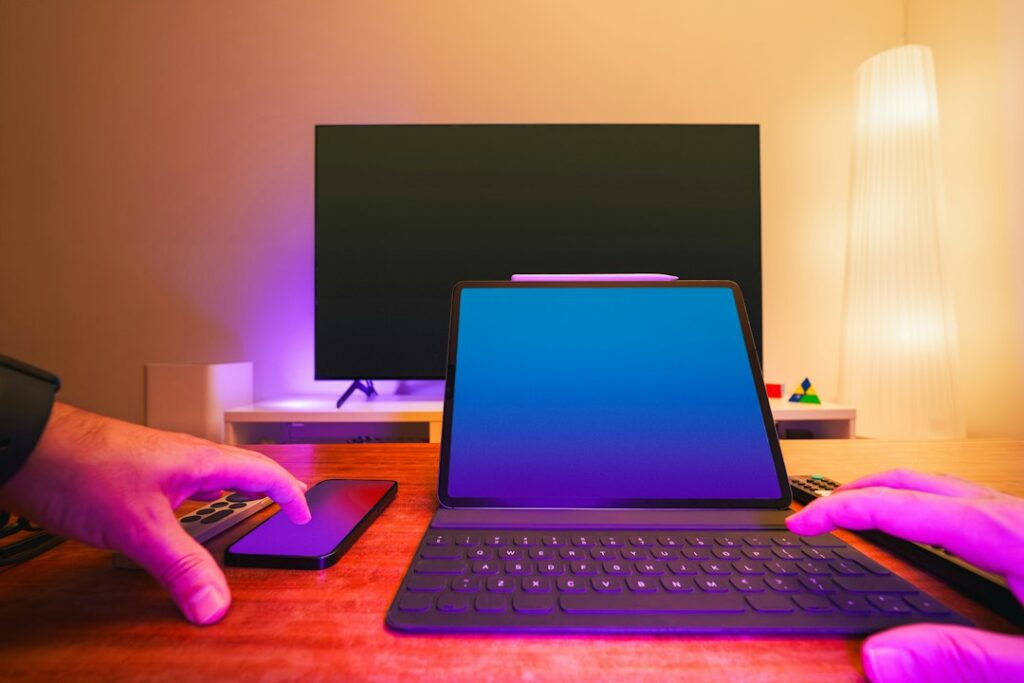
Many people struggle to pick the right gadget because specifications vary wildly across brands. You need a device that handles 4K resolution smoothly, connects easily to your television via HDMI, and supports official application stores without needing risky modifications or unknown APK downloads.
Official Device Comparison
| Device | Operating System | 4K/HDR Support | Ethernet Option |
|---|---|---|---|
| Amazon Fire TV Cube | Fire OS | Yes (Dolby Vision) | Built-in port |
| Apple TV 4K | tvOS | Yes (HDR10+) | Gigabit port (top model) |
| Google TV Streamer | Android TV | Yes (Dolby Vision) | Built-in port |
| Roku Streaming Stick 4K | Roku OS | Yes (HDR10+) | Wi-Fi only |
| Samsung Smart TV | Tizen | Yes (Model dependent) | Built-in port |
Every listed brand provides reliable access to major British television networks through their respective app stores. Let’s look closer at how these platforms handle daily streaming demands, storage limits, and voice controls.
Hardware Breakdown and Operating Systems
The software running your chosen hardware dictates how easily you can install official television applications. Apple TV relies on tvOS, offering a clean, ad-free interface with robust privacy controls. Amazon Fire TV devices use Fire OS, an Android derivative heavily integrated with Prime Video recommendations. Google TV powers modern Chromecast replacements and Sony televisions, featuring a very flexible app store.
Storage capacity matters when you download multiple catch-up apps. Budget sticks often feature 8GB of internal storage, which fills up fast if you cache large video files. Premium boxes like the Apple TV 4K or Fire TV Cube usually offer 32GB to 64GB of space, leaving plenty of room for utilities and games. Wi-Fi performance also varies. If your router sits far from the living room, look for hardware that includes an Ethernet port or supports Wi-Fi 6 for stable high-definition streams.
Remote controls range from simple clickers with five buttons to backlit handsets with built-in microphones for Alexa or Google Assistant. If you frequently watch live sports, a responsive remote with dedicated channel guides or quick-launch buttons makes navigation much faster.
Step-by-Step Setup Guide
Getting your new streaming hardware up and running takes just a few minutes if you follow a clear sequence.
- Unbox your streaming device and plug the included HDMI cable directly into an available port on your television.
- Connect the power adapter to a wall socket and plug the power cable into the back of your streaming box or stick.
- Switch your television input to the correct HDMI channel using your TV remote.
- Follow the on-screen prompts to connect to your home Wi-Fi network or plug in an Ethernet cable for a wired connection.
- Sign in with your user account (such as an Apple ID or Amazon account) to access the official app store.
- Download the licensed streaming applications you need, such as BBC iPlayer, Channel 4, or ITVX, and log in with your valid subscription details.
Once configured, check your display settings to ensure the output matches your television’s maximum resolution. You can learn more about finding the right hardware features by reading our guide on legal IPTV devices UK official hardware buying guide for additional purchasing tips.
Pros and Cons of Popular Streaming Platforms
Every hardware ecosystem comes with distinct advantages and drawbacks. Apple TV delivers top-tier processing speeds and excellent privacy protection, but it carries a higher upfront cost than standard USB sticks. Amazon Fire devices offer frequent discounts and deep Alexa integration, though the user interface displays prominent sponsored advertisements.
Google TV provides incredible flexibility and a massive library of official apps, but cheaper budget dongles can sometimes feel sluggish when switching between heavy applications. Samsung and LG smart television platforms save you from buying an external box, but built-in operating systems rarely receive software updates for as many years as dedicated streaming hardware.
Compatibility and Legal Realities
Legitimate broadcasting technology relies on proper content distribution rights. When you use legal IPTV devices, you are simply viewing television streams delivered over your internet connection by authorised providers who hold valid broadcasting licences. Ofcom regulates UK television services, and using official apps ensures you stay within UK copyright laws.
Never assume that every application works identically across all hardware. App availability changes frequently as broadcasters update their software agreements. Always check the provider’s official website and your device’s app store before purchasing a new subscription.
Frequently Asked Questions
Do I need a TV licence to watch live IPTV in the UK?
Yes. If you watch live television broadcasts on any online service, including BBC iPlayer or live streams via official apps, UK law requires you to hold a valid TV licence.
Can I use any IPTV app on an Amazon Fire Stick?
You can only download applications that are officially approved and hosted on the Amazon Appstore. Avoid sideloading unknown files or modified software.
Does 4K streaming require a fast internet connection?
Yes. Streaming ultra-high-definition video typically requires a reliable broadband speed of at least 25 Mbps to prevent stuttering or resolution drops.
Are smart TV built-in apps better than a streaming box?
Dedicated boxes usually feature faster processors and receive software updates for longer periods than most integrated smart television operating systems.
How do parental controls work on these devices?
Most platforms allow you to set PIN codes and restrict app downloads based on age ratings through the main system settings menu.
Can I connect an Ethernet cable to a Roku stick?
Standard Roku sticks rely entirely on Wi-Fi, though some advanced Roku set-top boxes include physical Ethernet ports for wired networking.
Why is my streaming device running out of storage?
Cached video data, unused applications, and system updates gradually fill internal storage. Uninstalling apps you no longer use frees up space quickly.
For more information, iptv.
Related reading
- Comparing Official UK Sports Streaming Apps and Licensed IPTV Providers
- IPTV Buffering Fixes UK: Step-by-Step Troubleshooting for Smart TVs and Firestick
Update: Why Does My Smart TV IPTV App Keep Crashing? (And How to Fix It)
Update: What UK Football Fans Need to Know About Legal Sports IPTV UK Packages