Smart TV Built-in Apps vs. Streaming Sticks: What Works Best for IPTV UK?
Choosing the right hardware changes how you experience IPTV UK broadcasts at home. Many viewers plug straight into their television’s native operating system. Others prefer plugging a compact media player into an HDMI port. Both methods work, but they handle live feeds and electronic programme guides quite differently.

Hardware choice dictates everything from channel loading times to interface fluidity. Let us examine how built-in television software stacks up against dedicated media streamers so you can pick the right path for your living room.
The Case for Built-In Smart TV Apps
Using your television’s native store sounds simple. You turn on the screen, open the app menu, and download a compatible player. This approach cuts out extra cables, power plugs, and clutter behind your unit. You also keep your HDMI ports free for games consoles and soundbars.
However, manufacturers use different operating systems. Samsung relies on Tizen, LG uses webOS, and many budget sets run Android TV or Google TV. Finding reliable built-in IPTV player support across different manufacturers can take time because app stores have strict publishing rules.
Older television sets often struggle with heavy video codecs. Processors inside mid-range screens frequently lack the horsepower to cache live streams smoothly during peak evening hours. If your screen is more than three years old, software updates might stop arriving altogether.
Why Dedicated Streaming Sticks Dominate IPTV UK Setups
Amazon Firesticks and Google TV dongles shift the heavy lifting away from your main screen. These pocket-sized devices run dedicated mobile processors built specifically for media playback. Because they update their software regularly, compatibility issues happen less often.
Storage capacity on a streaming stick usually beats what basic televisions offer. Live channel playlists require space for caching data and storing programme guide metadata. A dedicated device handles these background tasks without freezing your main display menu.
Travelling with your setup becomes effortless too. You can unplug the stick from your living room wall and slot it into a bedroom television or take it on holiday. Try doing that with a fifty-inch wall-mounted screen.
Performance, Storage, and Long-Term Support
Internet television demands stable processing power. When local broadband speeds fluctuate during weekend football matches, your hardware needs to react fast. Streaming sticks generally feature dual-band Wi-Fi chips that hold onto a wireless signal better than the basic internal network cards found in cheaper television models.
App availability also tilts the scale. Sideloading custom applications is straightforward on Android-based sticks. Smart TV platforms lock down their systems tightly, making it much harder to install alternative media players if your preferred option vanishes from the official app store.
Security updates deserve a quick mention. Consumer electronics companies drop support for television models faster than streaming device manufacturers do. Buying a thirty-pound plug-in stick every few years costs less than replacing a television just because its internal software became too sluggish to run modern video apps.
Final Verdict for UK Viewers
If you want the absolute easiest setup with zero extra hardware, native television apps get the job done for casual viewing. But if you watch live sports daily or demand snappy menu navigation, buying a dedicated media stick is the smarter move.
Performance consistency matters most when streaming high-definition channels. Dedicated hardware delivers a smoother daily experience for anyone relying on internet television services across the country.
For more information, iptv.
Learn more on Wikipedia: ITV (TV network).
Related reading
- Smart TV IPTV Setup Mistakes UK Households Keep Making
- How to Adjust TiviMate Buffer Settings for Smooth Premier League Matches
Update: Firestick IPTV Remote Lag Fixes
Update: M3U URLs vs Xtream Codes API: Which IPTV Setup Method Suits UK Smart TVs?
Smart TV IPTV Setup
Most living rooms across the UK now feature a flat-screen connected to broadband, ready for digital streams. Yet, turning on a new app often leads to frustration instead of entertainment. People rush through configuration menus. They skip crucial network checks. Then wonder why live broadcasts stutter during peak evening hours.

Getting your hardware ready requires patience. Let’s break down where things usually go wrong and how you can fix them properly.
Myth: Factory App Stores Always Have the Best Players
You probably opened the built-in app market on your Samsung or LG display first. You searched for a reliable media player and downloaded the top result. That choice often causes endless headaches.
Official stores feature limited selections because of strict platform rules. You might find basic tools, but they often lack advanced buffer controls or dependable playlist parsers. If you want a smoother experience, understanding Smart TV IPTV App Setup options makes a huge difference. Sideloading or using alternative installation paths opens up better software choices.
Problem: Ignoring Local Network Limitations
Wi-Fi interference ruins more streaming sessions than bad playlist links ever will. Your router sits downstairs behind a brick wall. Your television hangs upstairs in the bedroom. Distance kills signal strength.
Wireless signals drop packets constantly. Live television demands a stable, continuous data flow. If you refuse to use an Ethernet cable, at least switch your router to the 5GHz frequency band. Clear out physical obstacles blocking the path. A weak connection guarantees constant loading wheels.
Fact: EGP Refresh Rates Matter More Than You Think
An electronic programme guide looks messy when it fails to load current schedules. Viewers often blame their provider for missing TV guides. Usually, the app cache is simply full.
Smart displays have tight internal storage limits. When an application tries to cache seven days of channel metadata alongside catch-up logs, memory overflows. Clear your app cache regularly. Adjust your update intervals from daily down to every few days. This simple tweak stops memory leaks.
Problem: Entering Playlist URLs Manually with a Remote
Typing a long M3U web address using an on-screen keyboard invites typos. One missing slash breaks the entire connection. People spend twenty minutes retyping characters just to hit another error screen.
Stop doing this the hard way. Most competent media players offer web-based activation portals. You type a short code into your phone or laptop browser. Paste your playlist details there securely. The television syncs instantly without a single typing error.
For more information, iptv.
Related reading
- How to Adjust TiviMate Buffer Settings for Smooth Premier League Matches
- How to Test Your Broadband Speed for IPTV UK Streaming
Update: TiviMate vs IPTV Smarters Pro: Which Player Wins for UK Matchdays?
Update: Firestick IPTV Remote Lag Fixes
Saturday afternoon kicks off. Your screen freezes just as the ball crosses the goal line. Frustrating. Matchday stutter ruins the experience faster than a poor refereeing decision. You can fix this easily. Tweaking your TiviMate buffer settings solves most playback hiccups on UK home broadband networks. Let’s walk through the exact steps to configure your player properly.

Locating the TiviMate Buffer Settings Menu
Open the app on your Firestick, Android TV, or set-top box. Grab your remote control. Press the gear icon or the menu button to bring up the side panel. Scroll all the way down to Settings. Click it. Next, navigate to the Playback category. That is where the important controls live. You will spot the buffering submenu sitting right there. Most default values suit catch-up TV or on-demand movies, but live sport demands a different technical approach.
Factory defaults often cause trouble when traffic peaks. Broadcasters push huge data packets at three o’clock on a Saturday afternoon. Your player needs enough memory allocated to catch those packets smoothly. If the cache is too small, the picture stutters. If it is too large, your audio might drift out of sync with the video feed.
Choosing the Right Size for Live Football
You have four main choices inside the menu. Small, medium, large, and custom. Small sounds fast, right? Wrong. Low caching triggers constant drops when neighbourhood network traffic spikes. Matchday congestion requires extra breathing room. Medium works well for standard fibre connections exceeding 50 megabits per second. Large handles older copper lines and busy Wi-Fi environments much better.
Hardware makes a massive difference here. If you use a basic streaming stick, keep an eye on your storage space and memory usage. Heavy caching eats up system RAM quickly. If you use a dedicated streaming box rather than a thumb-sized stick, performance changes completely. You can check out our IPTV apps vs dedicated set-top boxes comparison for more details on hardware specs and capabilities.
Fine-Tuning Advanced TiviMate Buffer Settings
Let’s look at the extra toggles. Hardware decoding is your absolute best friend. Turn it on. Software decoding puts all the heavy lifting onto your device’s main processor. That causes thermal throttling, device slowdowns, and dropped frames on smaller hardware sticks.
Buffer size for UDP and HLS streams needs a careful touch. Set it to heavy if your internet drops packets frequently during peak hours. You should also check your stream format preference. MPEG-TS formats often behave differently than HLS streams when dealing with cache allocation. Test these changes during an actual live broadcast. Don’t test during quiet off-peak hours. Traffic loads look totally different at three o’clock on a Saturday compared to a quiet Tuesday morning.
Testing Your New Configuration
Watch a live stream for ten minutes after saving your changes. Notice any micro-stutters? Revert one change at a time. Patience pays off here. Every home network handles packets differently. Virgin Media and Openreach-based lines route traffic through different local exchanges. Your ideal setup might differ from your mate’s setup across town.
Wi-Fi interference causes ghost buffering issues too. Microwaves, thick walls, and Bluetooth speakers disrupt wireless signals easily. If your stream still drops after optimising your TiviMate buffer settings, try plugging an Ethernet cable directly into your streaming device. Wired connections bypass wireless dropouts entirely. Save your preferred setup once you find the sweet spot. Enjoy the match without staring at that annoying spinning loading circle.
For more information, iptv.
Related reading
- How to Test Your Broadband Speed for IPTV UK Streaming
- How to Configure Smart TV IPTV Apps for UK Broadcasting
Update: Smart TV Built-in Apps vs. Streaming Sticks: What Works Best for IPTV UK?
Update: TiviMate vs IPTV Smarters Pro: Which Player Wins for UK Matchdays?
- How to Test Your Broadband Speed for IPTV UK Streaming
- Why Internet Speed Matters for IPTV UK
- Step One: Choose the Right Speed Test Tool
- Step Two: Test via Wi-Fi vs Ethernet Connection
- Step Three: Run Diagnostics at Peak Evening Hours
- Step Four: Interpreting Results and Fixing Bottlenecks
- When to Contact Your Internet Provider
How to Test Your Broadband Speed for IPTV UK Streaming
Getting your home network ready for high-definition video requires more than just plugging in a router and hoping for the best. If you use an IPTV UK setup, sudden drops in picture quality or unexpected freezing usually point straight back to your internet connection. Ofcom regularly publishes reports on average UK broadband speeds, but your actual line speed right at the device matters much more than headline advertising claims.

You might think your fibre package handles everything effortlessly. Reality often looks different when multiple household devices compete for bandwidth during peak evening hours. Let us walk through a practical, step-by-step method to test your connection properly so your live streams run smoothly from start to finish.
Why Internet Speed Matters for IPTV UK
High-definition television feeds demand a steady, uninterrupted flow of data. Unlike downloading a file where a temporary dip goes unnoticed, real-time video streams drop frames immediately when bandwidth dips below required thresholds. Standard definition needs very little bandwidth, but modern 1080p and 4K feeds put a heavy strain on domestic routers.
A stable connection prevents frustrating stuttering mid-match or during your favourite drama series. When you evaluate your setup, look past simple download numbers. Packet loss, latency, and jitter play massive roles in how well your IPTV service performs day-to-day. If your ping spikes unpredictably, even a gigabit line will struggle to deliver a glitch-free picture.
Step One: Choose the Right Speed Test Tool
Running a quick browser check on your phone gives you a rough baseline, but it doesn’t reflect what your actual streaming hardware experiences. Firesticks, Apple TVs, and smart TVs process data differently than a modern smartphone connected to a nearby Wi-Fi node.
Download a dedicated network testing app directly on your streaming device if possible. Many app stores feature standard diagnostic tools that measure raw throughput, latency, and server response times accurately. Run the test three times in a row. Take the average of those results rather than relying on a single outlier score.
- Check both download and upload speeds, focusing heavily on download stability.
- Note your ping time; anything consistently under 30 milliseconds is ideal for live video.
- Watch for jitter measurements exceeding 10 milliseconds, as high jitter causes noticeable micro-freezes.
Step Two: Test via Wi-Fi vs Ethernet Connection
Wireless interference ruins countless streaming sessions across British homes. Thick Victorian brick walls, microwave ovens, and neighbouring router channels battle constantly for airtime in densely populated areas. Before blaming your broadband provider, isolate how your device connects to the internet.
Plug an Ethernet cable directly from your router into your streaming box or smart TV if your hardware permits it. Run your speed test again. You will often see a dramatic jump in speed and a drastic drop in latency. If your wired test shows brilliant results while your wireless test fails miserably, you have found your bottleneck. If you want to dive deeper into resolving playback hiccups, our guide on how to fix buffering on Firestick IPTV player offers specific troubleshooting steps for wireless devices.
Step Three: Run Diagnostics at Peak Evening Hours
Testing your line at two o’clock on a Tuesday afternoon gives you a false sense of security. Neighbourhood network congestion peaks between seven and ten o’clock in the evening when everyone streams box sets and plays online games simultaneously. Cable networks and copper-based fibre-to-the-cabinet setups suffer most during these busy periods.
Schedule your speed checks during peak evening viewing windows to see how your connection truly performs under pressure. If your daytime speed sits comfortably at 70 Mbps but plummets to 12 Mbps on a Wednesday night, your local street cabinet or exchange is likely oversubscribed. When evaluating your options before committing to a new provider, learning how to choose a UK IPTV service also involves understanding your broadband capabilities during these exact peak hours.
Step Four: Interpreting Results and Fixing Bottlenecks
Once you gather your data, compare those figures against your broadcaster’s minimum requirements. A standard high-definition stream typically requires around 10 to 15 Mbps of dedicated bandwidth. Ultra-HD or 4K feeds demand at least 25 to 30 Mbps of consistent throughput.
If your numbers fall short, try restarting both your modem and your router to clear the cache and negotiate a fresh connection with your internet service provider. Move wireless routers away from thick obstructions, metal shelving, and cordless phone bases. Changing your Wi-Fi frequency band from the crowded 2.4 GHz spectrum to the faster 5 GHz channel often solves persistent speed drops instantly.
When to Contact Your Internet Provider
Sometimes local hardware isn’t the root cause of your bandwidth woes. If you pay for a superfast full-fibre package but tests consistently reveal speeds far below your guaranteed minimum entry level, log a fault with your provider. Ask them to run a line test from their end to check for internal faults, damaged street wiring, or faulty exchange equipment. Keep a written record of your test results over a few consecutive evenings so you have concrete evidence when you speak to customer support.
For more information, iptv.
Learn more on Wikipedia: ITV (TV network).
Related reading
Update: Smart TV IPTV Setup Mistakes UK Households Keep Making
Update: Smart TV Built-in Apps vs. Streaming Sticks: What Works Best for IPTV UK?
Setting up Smart TV IPTV apps on modern living room displays saves you from cluttering your setup with extra set-top boxes. You just need an internet connection and a compatible screen. Modern displays running systems like Tizen or webOS download media players straight from built-in app stores. That cuts down on trailing wires and spares you another remote control to lose down the sofa. Let’s walk through the exact process to get your channels running smoothly.

Checking Your TV and App Store Compatibility
Before you download anything, check your TV’s app marketplace. Samsung and LG dominate UK living rooms, but they run entirely different operating systems. Samsung relies on Tizen, whereas LG uses webOS. Both platforms feature software like IPTV Smarters Player and IBO Player in their regional stores. Open your TV’s app hub and type your preferred media player into the search bar. If the app appears, you’re ready to install it. If it doesn’t show up, older model restrictions might be the culprit. Many screens manufactured before a certain year lack the software architecture required to handle modern video codecs.
Downloading and Installing Your Chosen Media Player
Hit the download button once you locate your desired player. The file size is usually tiny, meaning installation finishes within seconds on a standard home broadband connection. Once installed, launch the application from your home menu. Take a moment to inspect the interface layout. Most players greet you with a screen displaying a MAC address or device ID. Jot this number down because your provider will likely need it to link your subscription playlist securely. Some advanced players also let you scan a QR code using your smartphone to speed up authentication.
Adding Your Playlist and Configuring M3U Links
Now comes the crucial configuration stage. You must input your playlist details accurately to populate the channel guide. Most applications accept M3U URLs or Xtream Codes API logins. Grab your laptop or phone to complete this step faster because typing long web addresses with a TV remote is tedious. Navigate to the activation portal specified by your app developer, enter your unique device credentials, and paste your provider’s M3U link into the designated field. Save the changes on the web portal, then return to your television screen and force a manual playlist refresh. Channels should begin populating within a minute.
Organising Your Electronic Programme Guide and Channels
A massive channel list quickly becomes overwhelming without proper sorting. Take control of your viewing experience by grouping UK channels logically. Move your primary news and entertainment broadcasts to the top of the list. Most quality media players let you create custom favourite folders directly through the television interface. Hide foreign or duplicate streams you never watch. Setting up your Electronic Programme Guide correctly ensures accurate scheduling data appears next to your favourite shows, keeping your viewing habits tidy and straightforward.
For more information, iptv.
Related reading
- Firestick IPTV Cache Clearance
- Premier League Matchday Network Congestion: Why Your Live Stream Drops at Kick-Off
Update: How to Adjust TiviMate Buffer Settings for Smooth Premier League Matches
Update: Smart TV IPTV Setup Mistakes UK Households Keep Making
Why Your Firestick Runs Out of Room
Your streaming stick has very little storage built inside it. Most models give you just eight gigabytes total. Apps eat up that space fast. Every time you watch live feeds, temporary files pile up behind the scenes. This digital clutter slows down your menus. It makes your favorite apps freeze right when a match starts.
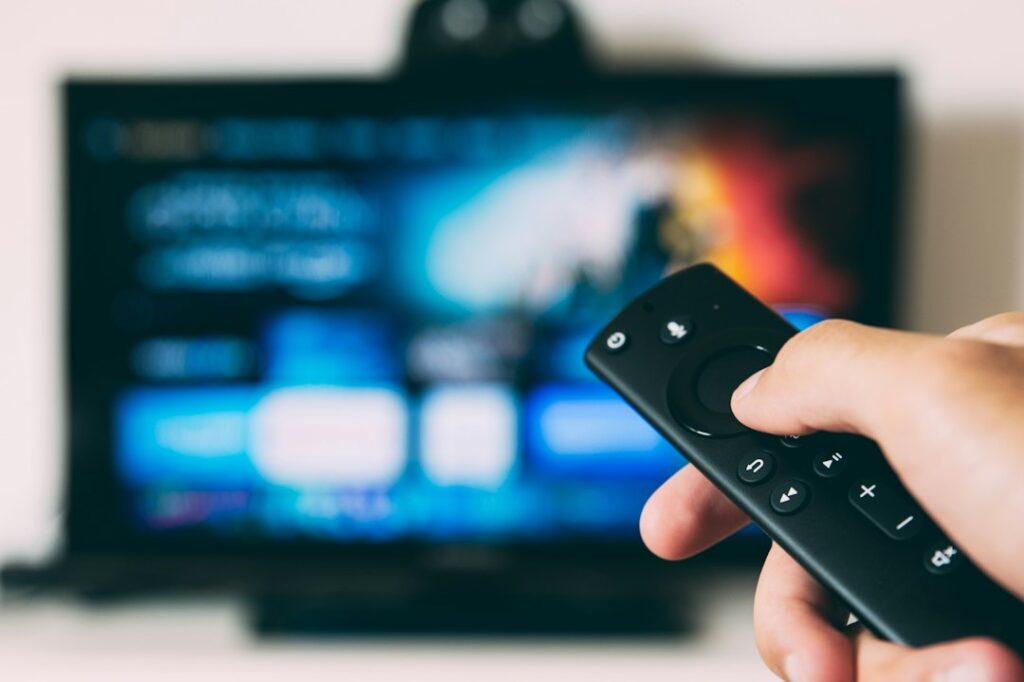
Clearing out old data fixes these slowdowns instantly. You don’t need any special tech skills for this job. Let’s look at how to wipe that junk clean.
Checking Your Remaining Storage Space
Before deleting anything, find out how full your drive actually is. Go to your device settings menu from the home screen. Click on the My Fire TV tab. Select About, then Storage. You’ll see a breakdown of your free space right there.
If you have less than one gigabyte left, your player will struggle. Streaming apps need breathing room to download buffer data. Take note of which app hogs the most room. You might be shocked to see how massive your main player has become.
Clearing App Data and Temporary Files
Head back to the main settings page. Choose Applications, then Manage Installed Applications. Scroll down until you find your specific streaming app. Click on it to open the app details menu.
You will see two separate buttons here. One says clear cache. The other says clear data. Always try clearing the cache first. This removes temporary junk files without touching your saved logins. If your app still lags, use the clear data option. Just remember that clearing data resets the app completely. You will need to type in your playlist details again afterward.
Removing Unused Apps to Free Up Space
Most people install dozens of apps and never use them again. Those dormant programs sit there eating valuable gigabytes. Go back to your installed applications list. Pick an app you haven’t opened in months.
Click Uninstall and confirm your choice. Deleting just two unused apps can double your available space. Your Firestick IPTV cache will build up much slower when the operating system has room to breathe. Keep only what you actually watch every week.
Restarting Your Device After Cleaning
Never skip this final step. Unplug your streaming stick from the wall socket for ten seconds. Plug it back in to force a complete reboot. This clears the active memory and stops background processes from hanging onto old paths.
Your menus will feel snappy again immediately. If you still run into stuttering problems during live broadcasts, check out our guide on how to fix Firestick buffering when live streams stutter to sort out your network connection next.
For more information, iptv.
Related reading
- Premier League Matchday Network Congestion: Why Your Live Stream Drops at Kick-Off
- What is IPTV UK? Understanding Internet Television Technology
Update: How to Test Your Broadband Speed for IPTV UK Streaming
Update: How to Adjust TiviMate Buffer Settings for Smooth Premier League Matches
The Three O’Clock Traffic Jam
Kick-off arrives across the UK. Millions of households tune into live football at the exact same minute. Suddenly, the high-definition feed stutters and drops to a blurry mess right as a striker bears down on goal. This frustrating slowdown usually stems from matchday network congestion hitting your local street cabinet or exchange.

It’s not just your house doing this. Entire streets stream the same fixture simultaneously. Local fibre cabinets strain under the sudden upload and download weight. When thousands of people in a single postcode fire up their legal streaming apps or television boxes at once, local capacity hits a wall.
How Local Infrastructure Handles the Surge
Most British homes rely on fibre-to-the-cabinet connections for internet access. The final stretch of copper cable from the green box outside your house to your living room has a finite bandwidth limit. Shared neighbourhood loops get stretched thin when heavy data demand spikes.
Broadcasters deliver feeds through content delivery networks spread across the country. Yet, the final bottleneck always sits between the local exchange and your Wi-Fi router. Before you try any technical fixes, running home broadband speed checks helps establish whether your line actually delivers what you pay for during peak hours.
Ofcom frequently monitors UK broadband performance during major sporting events. Their findings show that peak-time slowdowns affect cable and fibre networks differently depending on the provider. Virgin Media uses a coaxial hybrid network that pools local users together, whereas Openreach-based services on Sky or BT split loads slightly differently through direct fibre runs.
Spotting the Signs of ISP Traffic Management
Internet service providers employ various policies to keep traffic moving. Some older packages featured explicit traffic management during peak evening and weekend slots. Modern fibre deals rarely throttle video streams deliberately, but network strain still mimics deliberate slowdowns.
If your connection crawls only when the football is on, local node saturation is usually the culprit. Your neighbours are pulling heavy data too. The local routing path gets congested because the total demand exceeds physical cable capacity.
Practical Fixes for Your Home Setup
You cannot upgrade the street cabinet yourself. You can, however, optimize your home environment to fight matchday network congestion locally.
Wi-Fi interference ruins more streams than actual internet speed shortages. Microwaves, baby monitors, and thick interior walls disrupt wireless signals easily. Switch your streaming device to an ethernet cable if possible. Wired connections bypass wireless dropouts entirely.
If an ethernet cable isn’t an option, move your streaming box closer to the wireless router. Switch your connection to the 5GHz frequency band instead of 2.4GHz. The 5GHz band handles high-throughput video data much better, provided your device sits in the same room as the router.
Turning off background downloads on other household devices also frees up crucial bandwidth before the match starts. Simple steps like pausing console updates keep your stream running smoothly when local networks groan under heavy football traffic.
For more information, iptv.
Related reading
Update: How to Configure Smart TV IPTV Apps for UK Broadcasting
Update: How to Test Your Broadband Speed for IPTV UK Streaming
What is IPTV UK? Understanding Internet Television Technology
Switching on your television used to mean dealing with rooftop aerials or heavy satellite dishes. Today, IPTV UK setups bring channels straight through your broadband connection instead. Understanding how this technology works helps you make sense of modern digital broadcasting.

How Does IPTV UK Actually Work?
Traditional TV broadcasts send every channel simultaneously down a cable or through the air. Your telly tunes into one specific frequency and ignores the rest. Internet protocol television does things differently.
Instead of broadcasting everything at once, data travels as packet streams over your internet connection. When you pick a channel, your media player requests that specific stream from a server. Ofcom monitors these digital communications standards across the country to ensure fair access and clear guidelines for internet service providers.
What Types of Streams Are Available?
Not all internet television operates the same way. Live broadcasts mimic traditional television by sending real-time feeds of ongoing events. Catch-up services let you watch programmes that aired hours or days earlier. Video on demand works much like Netflix, where you pick a title and start it whenever you fancy.
Many viewers also utilise an IPTV playlist to organise their favourite live channels and media sources into one handy list. This keeps everything tidy across devices like Firesticks and smart televisions.
What Equipment Do You Need for IPTV UK?
Getting started requires three main components:
- A stable broadband connection with decent download speeds.
- A compatible playback device like a smart TV, streaming stick, or set-top box.
- A dedicated media player application to decode the incoming streams.
Wireless connections can sometimes struggle with high-definition live feeds if your Wi-Fi router sits far away. Plugging an ethernet cable straight into your streaming device usually solves most buffering headaches before they start.
Is IPTV UK Legal to Use?
The technology itself is entirely legal and powers legitimate services used by major broadcasters every single day. The BBC and ITV deliver their standard catch-up platforms using internet protocol streaming technology.
Legality depends entirely on who provides the content and whether they hold the proper broadcasting rights. Watching official apps from licensed networks remains completely lawful. Problems arise when unverified sources distribute copyrighted material without permission from the rights holders, which the UK Intellectual Property Office cracks down on regularly.
Why Are People Switching to IPTV Services?
Traditional satellite and cable packages often lock viewers into long contracts with costly hardware rentals. Internet-based setups offer more flexibility because you can run apps on existing hardware you already own. You do not need an engineer to drill holes in your wall or install a dish on your roof.
Flexibility remains a massive draw for modern households. You can take a portable streaming stick away on holiday and watch your usual setup wherever decent Wi-Fi is available.
For more information, iptv.
Learn more on Wikipedia: ITV (TV network).
Update: Firestick IPTV Cache Clearance
Update: How to Configure Smart TV IPTV Apps for UK Broadcasting
Samsung Tizen vs LG webOS for IPTV Apps
Buying a new television for your living room usually comes down to a choice between two massive display giants. Samsung relies on its Tizen operating system. LG builds its entire smart ecosystem around webOS. Both platforms host hundreds of streaming utilities, but they behave very differently when you load custom playlists.

Samsung Tizen runs on a streamlined Linux kernel designed to squeeze solid performance out of mid-range hardware. It boots up fast. Apps launch quickly from the bottom dock. Yet, Samsung changes its app store layout almost every year. Finding your favourite media player takes extra clicks after a software update.
The LG webOS Experience
LG takes a different route with webOS. The interface uses a full-screen layout that overlays whatever broadcast you are currently watching. Magic Remote pointer support makes typing long portal URLs or playlist passwords much easier than clicking an onscreen keyboard with a directional pad.
WebOS handles background memory well. You can jump out of your video player to check weather or input sources, then jump right back without the stream crashing. Older LG sets sometimes drop support for newer web codecs, though. Always check if your specific model year receives current software patches before downloading niche media utilities.
App Availability and Installation Hurdles
Finding stable IPTV apps in official regional app stores requires patience. Samsung’s store features established options like IBO Player and Net IPTV, but availability fluctuates depending on your registered UK account region. You might need to change your Samsung account location to download certain titles.
LG webOS faces similar hurdles. Developers constantly navigate shifting content policies from manufacturers. If an app disappears from the LG Content Store, you cannot easily sideload files via USB on modern webOS versions due to tight security restrictions. Samsung users face similar blocks, meaning you depend entirely on what sits inside the official storefront.
Performance and Daily Stability
Streaming high-bitrate live feeds demands robust hardware decoding. Samsung sets usually feature strong upscaling processors that handle heavy video streams cleanly. Still, cheaper Samsung models only pack a gigabyte of RAM. That limited memory leads to sudden app crashes when electronic programme guides pull large data sets.
LG’s higher-end OLED panels pair with powerful alpha-generation processors. They process complex streams without dropping frames. Audio sync stays tight even during chaotic weekend sports broadcasts. If you want an interface that rarely stutters during channel surfing, LG edges ahead on hardware grunt.
Which Platform Wins?
LG webOS wins this matchup for overall usability. The Magic Remote makes text entry vastly superior, and the interface feels more cohesive. Samsung Tizen remains a strong alternative if you already own a Galaxy phone or prefer a traditional grid layout. Stick with LG if smooth menu navigation and hassle-free remote control input matter most to your daily viewing habits.
For more information, iptv.
Learn more on Wikipedia: István P. Szabó.
Related reading
- Sky Sports App vs TNT Sports App: Which Premier League Stream Runs Smoother?
- Smart TV IPTV App Setup: Built-in Store vs USB Sideloading
Firestick IPTV Audio Delay Fixes: Syncing Sound on Live Streams
Sound trailing behind lip movements ruins a matchday broadcast faster than a blurry picture. When you notice a Firestick IPTV audio delay while watching live football, your streaming device’s processing power usually struggles to keep the video and audio packets aligned. Most people panic and reinstall everything. You don’t need to do that.

A few targeted tweaks inside your media player app fix this annoying lag permanently. Let’s look at the best ways to get your sound back on track.
Adjust Audio Offset in TiviMate
TiviMate gives you precise control over stream timing. Open your settings menu while watching a live channel and find the audio/video synchronization option. You can nudge the audio forward or backward by milliseconds until it matches the picture.
If you use this player regularly, you’ll love how simple it is. Save the setting globally for all channels if your specific provider always delivers slightly out-of-sync feeds. For more player comparisons, check out TiviMate vs IPTV Smarters Pro on Firestick: Which Player Wins? to see how other apps handle these tweaks.
Change Hardware Decoding Settings
Amazon’s hardware struggles with certain video codecs during peak hours. Head into your player’s advanced settings and locate hardware decoding. Switch it from software to hardware, or vice versa, depending on your current setup.
This single toggle forces your Fire TV Stick to process media streams differently. Sound sync often snaps right into place once the processor handles decoding more efficiently.
Clear App Cache and Force Stop
Streaming apps hoard temporary data over weeks of heavy use. Go to your Firestick settings, find applications, and choose your preferred media player. Clear the cache and force stop the app before relaunching.
Lingering cache files slow down system memory. A clean slate lets the software process audio feeds without stuttering.
Check HDMI Pass-Through on Your Soundbar
External audio setups introduce their own lag. If you route sound through a soundbar or AV receiver, check your television audio output settings. Change the digital audio format from Dolby Digital to PCM.
PCM reduces processing overhead on your sound system. Sound arrives at your ears instantly alongside the picture on screen.
For more information, iptv.
Related reading
- Firestick Remote Battery Drain During IPTV Sessions: How to Fix It
- Premier League Matchday Data Usage: How Much Broadband Do Live Streams Actually Eat?