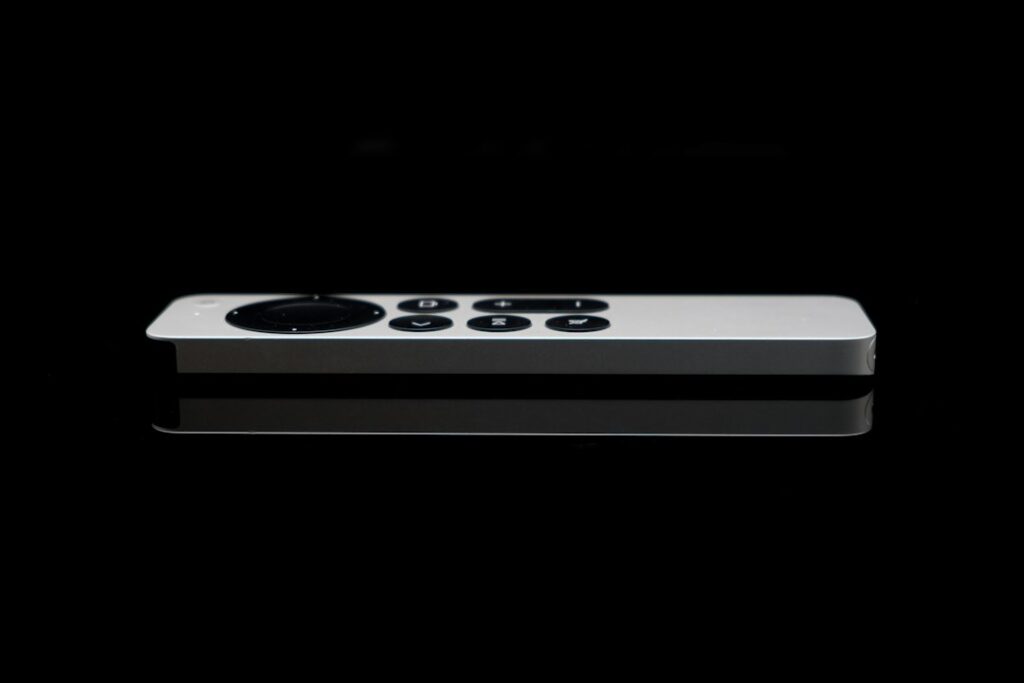
Your Amazon remote slips from the sofa, the app crashes, and all your custom channel groups vanish instantly. Rebuilding favourites from scratch takes hours. Doing a Firestick playlist backup prevents that headache entirely.
Streaming devices run low on memory often. Apps misbehave after automatic updates. Having a local copy of your setup saves you from repeating tedious manual entry. Let us look at how you can protect your configuration before things break.
Why Every UK Viewer Needs a Reliable Firestick Playlist Backup
Apps like TiviMate or IPTV Smarters Pro store data locally on the streaming stick. When storage fills up or an app cache corrupts, settings disappear. Firestick playlist backup routines take less than two minutes. They safeguard your custom logos, electronic programme guides, and hidden categories.
You might want to check Firestick storage management for IPTV users: how to free up space if your device runs slowly before you start exporting files. Freeing up physical memory helps the backup process finish without freezing.
Most UK households use multiple Fire devices around the house. Exporting your configuration lets you copy your setup to a second television instantly. You skip typing long server addresses with an on-screen remote. That convenience alone makes routine backups worth doing.
Exporting Settings: Creating Your Firestick Playlist Backup
Different player applications handle data exports in unique ways. TiviMate uses a built-in backup utility found within the general settings menu. Open your player, go to settings, and locate the backup option.
Select backup data and choose a destination folder. Your Firestick internal storage works fine for temporary files. Move the finished file to cloud storage or a computer for safe keeping. Cloud options like Google Drive or Dropbox require companion apps on your Fire TV stick to upload files directly.
If you use an app that lacks an automated export button, you rely on manual configuration notes. Jot down your server login details, port numbers, and login tokens. Keep those notes in a secure password manager rather than a loose scrap of paper.
Restoring Your Configuration After a Reset
Factory resets happen. Sometimes you need to wipe your streaming hardware to fix persistent performance drops. A proper Firestick playlist backup turns a painful two-hour restoration into a two-minute click.
Plug your USB drive in or download your backup file from cloud storage. Open your player application and navigate back to the settings panel. Choose the restore option instead of the backup one.
Point the application to your saved file. The app reads the configuration data, imports your channel groups, and restores your custom logos. Restart your Fire TV stick once the restoration finishes. Check your live feeds to confirm everything loaded correctly.
Common Pitfalls During the Export Process
Backups fail when users ignore file permissions. Amazon devices restrict direct access to system folders for security reasons. Always use the built-in export tool of your chosen player rather than a generic file explorer app.
Another frequent mistake involves outdated backup files. Your setup changes whenever you add new channel groups or update server paths. Make a fresh Firestick playlist backup every time you make major changes to your configuration.
Storage space matters too. If your streaming stick has less than one gigabyte of free space, exports might fail midway. Clear temporary cache files before running your next data export.
Automating Your Maintenance Routine
Manual backups require discipline. Set a calendar reminder on your phone every three months. Open your streaming app, run the export tool, and save the file somewhere safe.
Some advanced players include scheduled backup features. Point these automated tools to a shared network folder if your home network supports local storage. Your device handles the weekly routine quietly in the background.
Taking ten minutes today prevents hours of frustration tomorrow. Protect your custom setup before your hardware throws an unexpected error.
For more information, iptv.
Related reading
- Official Broadcasters vs IPTV Apps for Premier League Matchdays
- Firestick vs Android TV Boxes for IPTV UK: Hardware Showdown
Update: UK IPTV Regulation and Broadcasting Laws: What Viewers Need to Know
Update: Understanding IPTV Channels UK Lineups: How to Navigate Live TV and Catch-Up
Comparing Matchday Options in the UK
Watching top-flight football from your living room has changed a lot. Saturdays at 3 PM used to mean heading down to the local ground or waiting for Teletext updates. Now, every household faces a choice between official subscription packages and third-party IPTV apps. Choosing the right path impacts your picture quality, audio sync, and monthly outgoings.
Sky Sports and TNT Sports hold the lion’s share of broadcast rights in the UK. Amazon Prime adds extra fixture blocks during December. These official channels deliver high bitrates and reliable feeds. You pay a heavy subscription fee for that stability. Independent IPTV players offer a different route altogether. They pull numerous international feeds into a single interface. The price tag looks attractive. But the legal and technical realities require careful thought.
Cost Versus Reliability
Official packages are expensive. Bundling Sky, TNT, and streaming add-ons can easily cost over eighty pounds a month. Households feel that pinch during cost-of-living squeezes. IPTV setups often cost a fraction of that amount. Users save hundreds of pounds annually.
Savings come with distinct risks. Official broadcasters guarantee continuity. If a channel goes down, engineers fix it immediately. Independent streaming setups lack that corporate backing. A sudden server outage can ruin a crucial north London derby. You get what you pay for in terms of uptime.
Picture Quality and Latency
Nobody wants a blurry picture when a striker bears down on goal. Official apps push crisp 1080p pictures at fifty frames per second. Some fixtures even stream in 4K HDR. Audio tracks match the on-pitch action precisely.
IPTV streams vary wildly. Some providers offer pristine High Definition. Others compress feeds heavily to save bandwidth. You might notice blocky artifacts during fast-moving counterattacks. Latency also causes headaches. Official feeds lag slightly behind real life. Third-party apps often lag even further. Your neighbour might shout about a goal thirty seconds before it hits your screen.
Hardware Compatibility and Setup
Getting set up takes effort either way. Official apps work natively on modern Smart TVs, games consoles, and streaming sticks. You download the software from the official app store. Log in with your account details. You are ready to watch.
IPTV requires more technical know-how. You need a dedicated media player like TiviMate or IPTV Smarters Pro. You must configure playlists or login credentials manually. Hardware choice matters immensely here. A sluggish device ruins the experience. Check our guide on how to fix buffering on Firestick IPTV player if your hardware struggles with live feeds.
The Verdict
Official broadcasters win on reliability and peace of mind. They deliver legal, high-quality streams without sudden blackouts. IPTV apps win on flexibility and price. They group international sports channels into one dashboard.
Stick with official channels if you hate technical glitches and want absolute security. Choose third-party options only if you understand the risks and technical hurdles involved. Your budget dictates the final call.
For more information, iptv.
Related reading
- Firestick vs Android TV Boxes for IPTV UK: Hardware Showdown
- How to Delete IPTV Playlist on Smart TV
Update: Smart TV IPTV EPG Setup: Getting UK TV Guides Working Properly
Update: UK IPTV Regulation and Broadcasting Laws: What Viewers Need to Know
- Firestick vs Android TV Boxes for IPTV UK: Hardware Showdown
- Amazon Firestick: The Budget Choice for UK Viewers
- Performance and Storage Limits
- Dedicated Android TV Boxes: Power and Flexibility
- Ethernet Ports and Stability
- Comparing Remote Controls and Daily Usability
- App Compatibility and Ecosystems
- Final Verdict for UK Viewers
Firestick vs Android TV Boxes for IPTV UK: Hardware Showdown
Choosing the right hardware for IPTV UK streaming changes everything. You might stare at a blank screen on a rainy Tuesday evening because your device simply ran out of processing power. Two main contenders dominate British living rooms today. Amazon Firestick units sit plugged into thousands of televisions across the country. Dedicated Android TV boxes sit on media cabinets offering heavier specifications. Which path should you choose?

Hardware limitations frustrate many users. Streaming live television demands consistent processor power and steady memory allocation. A weak streaming stick stutters during peak hours. A robust box handles heavy media streams without breaking a sweat. Let us break down how both options handle British broadcasting demands.
Amazon Firestick: The Budget Choice for UK Viewers
Amazon hardware remains wildly popular in British households. The Fire TV Stick 4K and 4K Max models pack decent specifications into a pocket-sized dongle. They cost very little during regular retail sales. They plug directly into an HDMI port behind your television. Power comes through a standard USB cable.
Setup takes minutes. You log in with an Amazon account, download your preferred media player from the app store, and input your login details. Millions of people use this exact route for their daily entertainment. Portability is a massive bonus. You can pack a Firestick into your holiday bag and stream from a hotel room.
Performance and Storage Limits
Storage space remains a persistent headache on standard Firesticks. Operating systems take up a huge chunk of internal memory. You end up clearing caches constantly. If you want to run a detailed electronic programme guide with heavy caching, internal storage fills up fast. You can learn more about managing this space in our guide on Firestick storage management for IPTV users.
Processor throttling happens during long viewing sessions. A Firestick lacks active cooling fans. Warm air builds up inside the tiny plastic casing. Performance dips slightly when you watch high-bitrate live streams for hours. Most casual viewers won’t notice this stutter. Power users certainly will.
Dedicated Android TV Boxes: Power and Flexibility
Dedicated Android TV boxes take a completely different approach. Devices like the Formuler series or Nvidia Shield operate like mini-computers. They sit on your shelf with a proper power supply and multiple ports. They run full Android TV or certified operating systems designed specifically for large screens.
Processing power outclasses any streaming stick. Quad-core processors and generous RAM allocations make menu navigation lightning fast. Switching between live channels happens instantly. You don’t experience the sluggish lag that affects cheaper hardware when your playlist grows too large.
Ethernet Ports and Stability
Wi-Fi signals in British homes suffer from thick brick walls and local interference. Dedicated boxes solve this easily. Almost every proper Android box includes a physical Ethernet port. Plugging straight into your broadband router delivers maximum speed and rock-solid stability.
According to Ofcom broadband research, wired connections consistently outperform wireless setups during peak evening hours. Live sports streaming demands that reliability. A dropped packet on Wi-Fi ruins a crucial moment in a football match. Wired Ethernet virtually eliminates that random buffering.
Comparing Remote Controls and Daily Usability
Hardware quality extends beyond the black box itself. The remote control dictates your daily experience. Firesticks use minimalist remotes with very few buttons. Navigating long channel lists requires endless clicking of the directional pad.
Dedicated boxes often ship with feature-rich remotes. Some include numeric keypads. Others feature dedicated shortcut buttons for live TV apps. If you grew up using traditional television remotes, these physical buttons feel much more natural.
| Feature | Amazon Firestick | Android TV Box |
|---|---|---|
| Storage | Very limited (8GB to 16GB) | Expandable via USB / MicroSD |
| Connectivity | Wi-Fi only (requires adapter for Ethernet) | Built-in Gigabit Ethernet port |
| Cooling | Passive cooling | Advanced cooling / heatsink |
| Cost | Inexpensive | Mid-range to premium |
App Compatibility and Ecosystems
Both platforms run major media players like TiviMate and IPTV Smarters Pro. Software support remains strong across both devices. You won’t struggle to find a compatible application for either hardware type.
Side-loading applications feels easier on an Android TV box. File managers run smoothly. Transferring configuration files via USB thumb drives takes seconds. Firesticks require developer mode activation and third-party downloader tools just to install custom apps.
Final Verdict for UK Viewers
Choose an Amazon Firestick if you want a cheap, simple solution for a bedroom television. It handles standard viewing without fuss. It stays out of sight behind your screen.
Invest in a dedicated Android TV box if your main living room setup requires maximum performance. Hardwired Ethernet and superior processing power make a massive difference for heavy streaming. Your live broadcasts remain stable when your home network faces high traffic.
For more information, iptv.
Learn more on Wikipedia: ITV (TV network).
Related reading
Update: Firestick Playlist Backup and Restore: A Step-by-Step Guide for UK Users
Update: Smart TV IPTV EPG Setup: Getting UK TV Guides Working Properly
Why do you need to delete IPTV playlist files from your TV?
Old M3U links stack up over time. Your app slows down because it tries to load thousands of dead channels every time you open it. Clearing out junk frees up memory and stops your dashboard from freezing.

Most people just add new lists without removing the old ones. That causes major clutter. You end up scrolling past duplicate sports feeds and broken links just to find BBC One.
How to delete IPTV playlist data on Samsung and LG sets
You won’t find a universal button on your TV remote for this. Every app handles playlist storage differently. If you use a popular player like IPTV Smarters Pro, open the application settings first.
Look for a tab labelled ‘Playlist’ or ‘Users’. You’ll see a list of active profiles or loaded links. Select the one you want gone, then hit the trash can icon or press the red button on your remote.
Confirm the deletion prompt when it pops up. The app wipes the cache and reloads the home screen instantly. If the app keeps crashing before you reach settings, clear the entire app cache through your TV’s main operating system menu.
Sometimes a simple app restart isn’t enough. You might need to delete IPTV playlist credentials directly from the provider’s web portal if you used a MAC address activation method. Log into their management page, unlink your device ID, and force a fresh sync on your television.
Can you delete an IPTV playlist without losing your app settings?
Yes, most modern streaming tools let you wipe individual playlists while keeping your theme preferences and parental controls intact. You just target the specific M3U URL or Xtream Codes login instead of uninstalling the whole program.
If your player acts stubborn, a complete reinstall works wonders. Hold down the app icon on your home screen, choose ‘Remove’, and download it again from the official app store. That gives you a completely clean slate.
For more information, iptv.
Related reading
- How to Fix Firestick IPTV Buffering During Live Matches
- Why Saturday 3 PM Premier League Matches Still Won’t Stream on UK IPTV
Update: Official Broadcasters vs IPTV Apps for Premier League Matchdays
Update: Firestick Playlist Backup and Restore: A Step-by-Step Guide for UK Users
Why Does Your Firestick IPTV Buffering Happen on Matchdays?
Firestick IPTV buffering ruins a live goal faster than a VAR review. You stare at a spinning circle while your neighbours cheer next door. Network congestion causes most of these annoying pauses. Millions of UK households stream at the same time on Saturday afternoons.

Your internet service provider might also throttle live video traffic. Internet traffic peaks between 7 PM and 10 PM across BT, Virgin Media, and Sky networks. Streaming high-definition video demands a steady data flow. If your connection dips, the player pauses to catch up.
Clearing Cache and Background Apps
Low storage space chokes your streaming stick. Amazon’s Fire TV devices run on limited memory. Apps left running in the background steal valuable RAM. Force stop active apps before you launch your streaming software.
Go to your Firestick settings and find the applications menu. Select manage installed applications. Pick your preferred streaming player from the list. Tap clear cache to wipe out temporary files. Do not touch clear data unless you want to log in again and set up your entire playlist from scratch.
Adjusting Player Settings for Smoother Playback
Default player settings rarely suit live sports. Most apps try to load too much video data ahead of time. This aggressive caching causes sudden freezes when your Wi-Fi fluctuates.
Open your player preferences and look for buffer size options. Switch this setting from large or automatic to small. A smaller buffer forces the app to load smaller chunks of video instantly. You might notice a tiny drop in initial picture sharpness, but live streams will stay much more stable.
Hardware decoding is another vital setting. Enable hardware acceleration if your menus feel sluggish. This forces the Firestick processor to handle video rendering instead of leaving it to software.
Wi-Fi Bands and Ethernet Adapters
Wireless interference wrecks video feeds. Microwaves, thick walls, and Bluetooth devices disrupt 2.4GHz Wi-Fi signals. Switch your router to the 5GHz band if your Firestick sits in the same room. Better yet, ditch wireless entirely.
Amazon sells official Ethernet adapters for Fire TV devices. Plug a wired cable straight from your broadband router into the streaming stick. A wired connection wipes out packet loss completely. Your streaming speeds will match what you pay your ISP for.
For more information, iptv.
Related reading
- Why Saturday 3 PM Premier League Matches Still Won’t Stream on UK IPTV
- Broadband Connections and IPTV UK: 6 Factors Affecting Your Home Setup
Update: Firestick vs Android TV Boxes for IPTV UK: Hardware Showdown
Update: Official Broadcasters vs IPTV Apps for Premier League Matchdays
Why Saturday 3 PM Premier League Matches Still Won’t Stream on UK IPTV
Saturday afternoon feels sacred for British football fans. Millions tune in or head to the ground for the traditional three o’clock kick-offs. Yet, if you open a legal Premier League live stream in the UK, those games are missing.
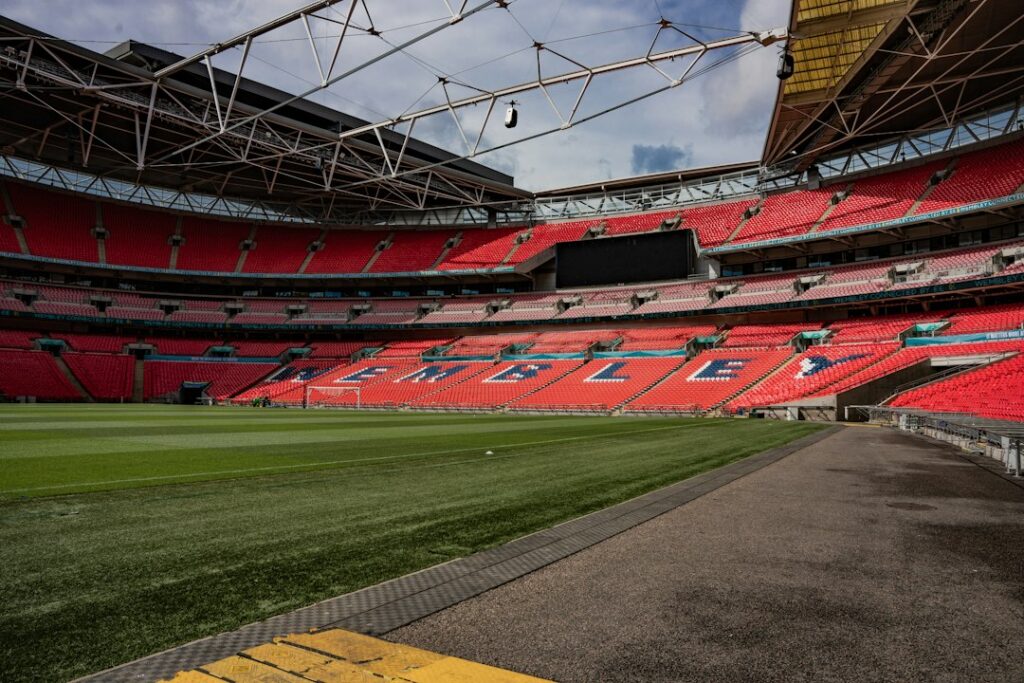
Broadcasters like Sky Sports and TNT Sports carry hundreds of fixtures each season. But they never show a Saturday three o’clock match. The blank screen frustrates supporters who expect modern television to offer every game. Understanding this gap requires looking back at a rule designed decades ago to protect stadium crowds.
The Origin of the Saturday Afternoon Blackout
The blackout rule dates back to the 1960s. Burnley chairman Bob Lord argued that televised matches would stop fans from paying at the gate. Lower league clubs rely heavily on matchday revenue. The Football Association agreed to protect attendances across the pyramid.
Television technology changed completely over the next sixty years. Satellites and broadband replaced terrestrial aerials. Still, the blackout survived every broadcasting rights auction. It remains embedded in domestic media contracts.
How Article 48 Protects Matchday Attendance
UEFA regulations allow member associations to block televised football during peak hours. In the UK, Article 48 of the UEFA statutes gives legal backing to this restriction. The Premier League applies this blackout window between 2:45 PM and 5:15 PM every Saturday.
No domestic channel can broadcast a match during these hours. This rule applies to traditional cable, satellite dishes, and any authorized online feed. If an app claims to show a 3 PM fixture legally to a UK IP address, it violates these core broadcasting agreements.
Will the Saturday Blackout Ever End?
Fans constantly debate whether modern viewing habits render the rule obsolete. Some argue that lower league attendances remain strong despite televised games. Others worry that smaller clubs would suffer without gate receipts.
The Premier League reviews its domestic broadcast strategy every few years. The current cycle maintains the blackout policy. Changing this rule requires consensus among clubs and approval from football authorities. For now, Saturday afternoons belong strictly to the stadiums.
For more information, iptv.
Related reading
- Broadband Connections and IPTV UK: 6 Factors Affecting Your Home Setup
- M3U URLs vs Xtream Codes API: Which IPTV Setup Method Suits UK Smart TVs?
Update: How to Delete IPTV Playlist on Smart TV
Update: Firestick vs Android TV Boxes for IPTV UK: Hardware Showdown
Getting a stable video stream over the internet requires more than just a standard broadband package. When you set up IPTV UK services in your living room, your home network faces unique demands that standard web browsing or casual video viewing simply do not generate. Live television streams send a constant, uninterrupted stream of packets to your device. If your connection stutters, your screen freezes right during a crucial moment.

1. Fibre to the Premises Versus Part-Fibre Connections
Your physical line type dictates your baseline performance. Many UK properties still rely on copper wires for the final leg from the street cabinet to the house. This older technology limits your maximum download rates and increases jitter. Full fibre connections, known as FTTP, bring pure glass cables straight inside your walls. They deliver symmetrical or near-symmetrical speeds with virtually zero line degradation.
Ofcom data shows that availability of full fibre continues to expand across British towns and cities. If you have the option to upgrade your broadband infrastructure, it makes a massive difference for live broadcasting. Copper lines suffer from signal loss over distance. A house situated far from its local green cabinet will struggle to maintain the stable throughput required for high-definition video feeds. Knowing how internet television technology functions helps clarify why pure fibre lines outperform traditional copper setups every single time.
2. Real-World Speeds Versus Advertised Package Rates
Internet service providers love marketing headline numbers. They sell you a fifty megabit or five hundred megabit package based on ideal laboratory conditions. Your actual living room experience often tells a different story. Background updates, household devices sharing the router, and distance from your wireless access point all chip away at your available bandwidth.
Live streams need consistent bandwidth rather than massive bursts of speed. A steady twenty megabits per second beats a spiky connection that bounces between five and one hundred megabits. Check your line performance during peak evening hours. That test reveals what your connection actually handles when your entire neighbourhood logs on at the same time.
3. Wi-Fi Interference and Cable Reliability for IPTV UK
Wireless signals hate solid walls, thick floors, and electronic appliances. Microwaves and baby monitors operate on similar frequencies to your home router. These everyday household items cause packet loss and temporary freezes on live feeds. Hardwiring your viewing device with an ethernet cable eliminates most of these wireless headaches.
Ethernet connections offer a direct physical link to your router. You get lower latency and zero radio interference. Many people commit basic errors when placing their streaming hardware near thick obstacles. Fixing these placement errors prevents frustrating stuttering issues during matchdays. For practical advice on avoiding common setup mistakes, read up on typical errors UK households make when configuring their viewing environments.
4. Understanding Peak Traffic Hours on UK Networks
Internet traffic follows predictable daily rhythms. Millions of people finish work, stream films, or play online games between seven and ten in the evening. This massive surge puts heavy pressure on local exchange nodes and backbone servers.
Some budget internet providers struggle to buy enough backhaul capacity from larger network operators. When evening congestion hits, their customers experience throttled speeds and buffering screens. Premium providers invest heavily in their network capacity. They keep data flowing smoothly even when the entire street goes online simultaneously. If your stream degrades every evening at eight o’clock, your provider’s network congestion is usually the main culprit.
5. Router Quality and Buffer Management
The plastic box supplied by your internet provider does a basic job. However, standard free routers often feature underpowered processors and outdated Wi-Fi chips. They choke when multiple devices demand attention at once.
Modern routers include Quality of Service settings. These controls let you prioritise video traffic over background downloads like game updates or cloud backups. Enabling QoS ensures your television gets first dibs on available bandwidth. Upgrading to a third-party mesh system also spreads coverage evenly across larger properties, eliminating dead zones where wireless drops completely.
6. Data Caps and Fair Usage Policies
Unlimited broadband feels standard nowadays, but some cheap plans still hide fair usage limits in the small print. Streaming high-definition or ultra-high-definition video consumes gigabytes of data in a matter of hours.
Running a continuous live feed for several hours every day adds up fast across a typical month. If your contract includes a strict monthly cap, you risk extra charges or speed throttling just when you need your connection most. Always check your provider’s terms before signing long-term agreements. True unlimited plans give you peace of mind to watch as much content as you want without checking meters.
For more information, iptv.
Learn more on Wikipedia: ITV (TV network).
Related reading
- M3U URLs vs Xtream Codes API: Which IPTV Setup Method Suits UK Smart TVs?
- Firestick IPTV Remote Lag Fixes
Update: How to Fix Firestick IPTV Buffering During Live Matches
Update: How to Delete IPTV Playlist on Smart TV
Choosing Your IPTV Connection Method
You bought a new Samsung or LG television. You installed your preferred media player from the app store. Now you need to connect your service, and a screen asks for your login details. You face a choice between entering a long web link or typing out three separate login fields. That choice dictates how well your live channels and guide load every evening.

Many UK viewers just grab the first link their provider sends them. But understanding how these connection types operate saves you from endless buffering screens during a crucial football match. Let us examine how M3U URLs and the Xtream Codes API stack up against each other on modern living room screens.
How M3U URLs Handle Your Channel Lists
An M3U file is essentially a plain text document. It lists every channel address, category name, and logo link in a specific format. When you paste an M3U URL into an application on your television, the software downloads this entire text file at once.
This method has been around for decades. It works on almost every media player ever made. If you switch apps often, you will find that M3U links offer universal compatibility. You just paste the web address, wait a few seconds, and your playlist populates.
Yet this approach has clear drawbacks for high-definition broadcasting. Because your TV downloads the full text file every time the app starts, startup times drag on if your playlist contains thousands of international channels and video-on-demand titles. If your provider updates a single channel address, your app might fail to load the stream until you force a full playlist refresh. Typing a massive URL using a standard TV remote feels like an endless chore. One tiny typo breaks the whole link.
Why the Xtream Codes API Speeds Up Setup
The Xtream Codes API takes a totally different route. Instead of downloading a massive text file, your app talks directly to your provider’s server using specific requests. You only enter three short pieces of information: the server portal URL, your username, and your password.
Typing these credentials with a remote takes seconds. You rarely make mistakes because the fields are short. Once logged in, your application requests data dynamically. When you click on the BBC News channel, your TV asks the server for just that specific stream address.
This request method reduces strain on your television’s memory. Older smart televisions often crash when handling massive M3U text files. Splitting the data load keeps your hardware running smoothly. Electronic Programme Guides also sync much faster because the app fetches guide data on demand rather than parsing a huge XML file all at once.
Comparing Daily Reliability in British Homes
Let us look at how these two formats behave during peak viewing hours across the UK. Broadband networks often face heavy congestion between eight and ten in the evening. Your chosen connection protocol matters greatly when traffic peaks.
M3U playlists rely heavily on local cache storage. If your TV runs low on internal memory, the app forgets where you left off. You might open your screen to find a completely blank channel list. Fixing it requires manual re-downloading of the entire file.
API connections maintain a persistent session with the host server. If a live stream drops momentarily due to a momentary broadband blip, the app attempts a quick reconnection using stored credentials without demanding a full playlist reload. For a deeper look at how data travels to your screen, read our guide on Internet television technology.
Which Option Wins Your Setup?
Both methods get your favorite channels onto your display. But they serve different types of users.
Choose an M3U link if you test many different free playlist sources or use legacy software that lacks modern login screens. It offers maximum flexibility across obscure devices.
Use the Xtream Codes API whenever your player supports it. It saves you from typing giant web addresses. It loads your EPG faster. It handles large channel selections without freezing your television. Most mainstream UK streaming setups run noticeably better with API logins.
Take ten minutes to check which format your current provider supports. Switching over to the API method might solve those random playlist loading errors you experience every weekend.
For more information, iptv.
Related reading
Update: Why Saturday 3 PM Premier League Matches Still Won't Stream on UK IPTV
Update: How to Fix Firestick IPTV Buffering During Live Matches
Firestick IPTV Remote Lag Fixes That Actually Work
Pressing volume up and watching nothing happen for five seconds drives anyone mad. When your Firestick IPTV remote lag starts acting up, navigation feels like wading through mud.

Most people blame the physical batteries first. They swap them out. Nothing changes. The real culprit usually hides inside the software layers.
Clearing App Cache and Background Processes
Your streaming stick only packs a tiny amount of memory. When IPTV apps run for hours, cache files pile up. That data weight slows down CPU responses.
Go to your Fire TV settings right now. Find your applications menu. Force stop the heavy streaming players you aren’t currently using. Clear cache files for each one individually.
Bluetooth Interference and Device Pairing
Your living room contains dozens of wireless signals. Wi-Fi routers, soundbars, and smart bulbs crowd the 2.4GHz spectrum. This invisible clutter delays signal transmission between your remote and the stick.
Unplug your Fire TV from the wall socket for one minute. Let the Bluetooth cache wipe clean. Move the streaming stick away from behind your television chassis if possible using an HDMI extender cable.
Remote Factory Reset and Firmware Updates
Sometimes the controller firmware gets corrupted. Press and hold specific button combinations to trigger a factory reset on your remote. Re-pair the device to your streaming stick afterward.
Check for system updates in your main settings panel. Amazon frequently patches Bluetooth driver bugs. Keeping your operating system current solves mysterious input delays permanently.
For more information, iptv.
Related reading
- TiviMate vs IPTV Smarters Pro: Which Player Wins for UK Matchdays?
- Smart TV Built-in Apps vs. Streaming Sticks: What Works Best for IPTV UK?
Update: Broadband Connections and IPTV UK: 6 Factors Affecting Your Home Setup
Update: Why Saturday 3 PM Premier League Matches Still Won't Stream on UK IPTV
Choosing Your Matchday App
Saturday afternoon arrives and millions of fans across the UK sit down to watch the 3 PM kick-offs. You load up your chosen player, but the feed stutters right as a striker bears down on goal. Choosing the right application for your streaming device makes all the difference when you want uninterrupted sports coverage.

Two major options dominate living rooms nationwide: TiviMate and IPTV Smarters Pro. Both apps handle live feeds differently. They offer distinct interface designs, varying resource demands, and unique feature sets that suit different types of viewers. Let’s look at how they stack up against each other for weekend football.
Interface and Usability
TiviMate feels like a traditional television guide. It mimics the familiar layout of a standard cable box or Sky Q menu. Navigating through hundreds of sports channels takes seconds using a standard remote control. The Electronic Programme Guide loads quickly, letting you jump straight into a live match without fuss.
IPTV Smarters Pro takes a more modern, dashboard-style approach. When you open the app, you see distinct tiles for live TV, movies, and catch-up content. It works brilliantly on touchscreens and mobile devices, but it also translates well to streaming sticks via remote navigation. Some users prefer this clean layout because it avoids clutter.
Performance and Resource Management
Hardware limitations matter when you stream live sports in high definition. TiviMate is built primarily for Android TV devices and Amazon Fire TV hardware. It runs light on system resources. Because of this lean design, it rarely crashes during peak matchday traffic. It handles buffer adjustments smoothly and keeps audio synced even when broadband speeds fluctuate.
IPTV Smarters Pro is available across a broader range of platforms, including iOS, Windows, and various smart TV operating systems. This wider compatibility means it carries a heavier codebase. On older streaming sticks, you might notice slightly slower menu transitions. However, on modern hardware, it performs reliably and handles multiple streams simultaneously if your subscription permits it.
Feature Comparison for Football Fans
TiviMate shines when you want advanced features like multiview. If your broadband connection is fast enough, you can watch two games at once on your screen. Custom groups, parental controls, and automatic playlist updates round out its toolkit. Most of these advanced options require the premium paid version, which runs via an annual fee or a lifetime purchase.
IPTV Smarters Pro offers a free tier with basic features, making it easy to test before committing. The paid version unlocks recording capabilities, external player support, and screen casting. While it lacks the fluid multiview implementation found in its rival, it covers all the essentials most casual viewers need.
Our Recommendation
If you use an Amazon Fire Stick or an Android TV box as your main living room setup, go with TiviMate. Its interface mimics a proper television experience, and its lightweight build prevents frustrating weekend lag. If you need an app that works across weird and wonderful devices like laptops, iPhones, and older smart TVs, IPTV Smarters Pro remains the safer bet.
For more information, iptv.
Related reading
- Smart TV Built-in Apps vs. Streaming Sticks: What Works Best for IPTV UK?
- Smart TV IPTV Setup Mistakes UK Households Keep Making
Update: M3U URLs vs Xtream Codes API: Which IPTV Setup Method Suits UK Smart TVs?
Update: Broadband Connections and IPTV UK: 6 Factors Affecting Your Home Setup