- The Neighbor's Cheer Problem
- Myth Versus Fact: What Actually Causes Streaming Lag?
- Myth: Upgrading to a gigabit fiber package cures all lag
- Myth: Wi-Fi is just as fast as an Ethernet cable for live sports
- Common Problems and Practical Solutions
- Problem: Buffering and Variable Bitrate Drops
- Problem: Outdated Device Cache
- Comparing Broadcast Technologies
- Pros and Cons of Low-Latency Streaming Tweaks
- Buying Checklist for Low-Latency Football Setups
- Legal and Licensing Note
- Frequently Asked Questions
- Why is my stream thirty seconds behind live TV?
- Does switching from Wi-Fi to Ethernet actually help?
- Can a VPN increase my streaming delay?
- Why do mobile data streams sometimes feel faster than home broadband?
- How do I know if my streaming device is causing lag?
The Neighbor’s Cheer Problem
You hear a cheer from next door. Then your screen shows the winger still running down the wing. Seconds later, the ball flies into the net. This annoying lag ruins the matchday atmosphere.
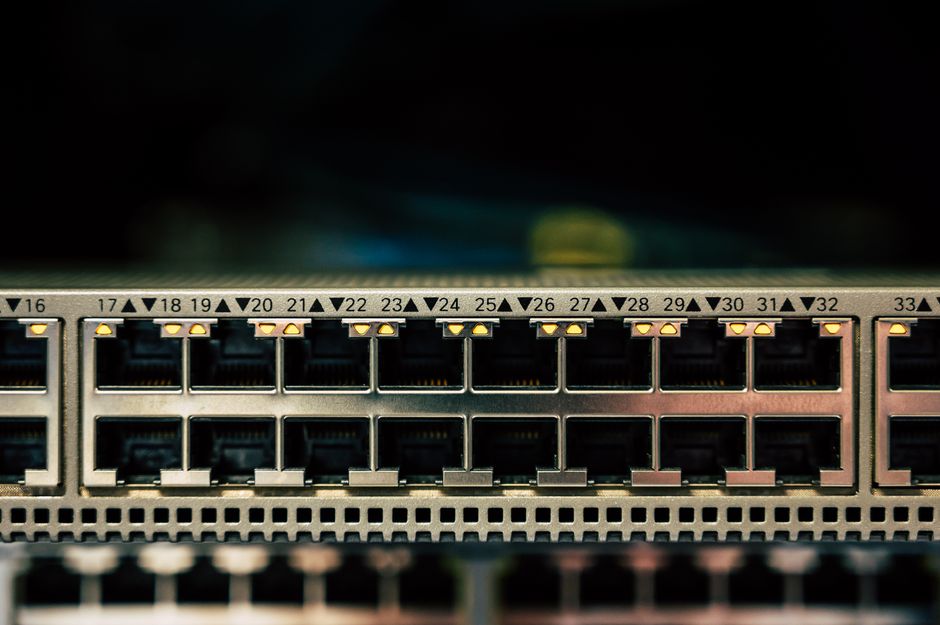
Every football fan streaming matches online deals with this frustrating delay. Broadcast latency happens because digital video takes time to encode, transport, and decode. You cannot eliminate every single second of lag entirely. But you can take concrete steps to reduce delay when watching live football online and get your stream closer to real-time action.
Myth Versus Fact: What Actually Causes Streaming Lag?
Plenty of myths float around fan forums and social media. Let us separate the facts from fiction so you stop wasting time on useless tweaks.
Myth: Upgrading to a gigabit fiber package cures all lag
Fact: Raw bandwidth rarely fixes stream latency. Once you have a stable connection above thirty megabits per second, extra speed does nothing to lower the delay. Packet routing, server distance, and encoder latency matter far more than raw download numbers.
Myth: Wi-Fi is just as fast as an Ethernet cable for live sports
Fact: Wi-Fi introduces tiny packets of interference and jitter. These micro-delays add up across a ninety-minute broadcast. Plugging your streaming box directly into the router cuts out local interference completely.
Common Problems and Practical Solutions
Let us look at what goes wrong during a busy Premier League Saturday and how you can fix it.
Problem: Buffering and Variable Bitrate Drops
When network congestion hits local cabinets, your streaming app automatically lowers video quality to keep the stream running. This encoder adjustment adds processing lag.
Solution: Check your home network before kick-off. If other household members stream 4K video or download massive files during the match, your stream suffers. For a deeper look at network congestion, read our guide on Premier League Matchday Network Congestion to see why connections stumble at whistle time.
Problem: Outdated Device Cache
Streaming devices collect temporary files over weeks of use. This clutter slows down video decoding pipelines.
Solution: Clear your background apps and restart your device before tuning into live sports TV UK fixtures. Fresh memory helps your hardware process incoming video frames faster.
Comparing Broadcast Technologies
Different delivery methods handle latency in distinct ways. Here is how standard options compare for speed and reliability.
| Delivery Method | Typical Latency | Reliability | Setup Complexity |
|---|---|---|---|
| Traditional Satellite (Sky/Freesat) | Lowest (approx. 5 seconds) | High | Requires dish installation |
| Official Broadcaster Apps (iPlayer, Sky Go) | Medium (15–30 seconds) | High | Very simple |
| Legal Sports IPTV UK Services | Variable (20–45 seconds) | Moderate to High | Requires app configuration |
Pros and Cons of Low-Latency Streaming Tweaks
Before you start changing settings, weigh the practical trade-offs involved in chasing a faster stream.
- Pro: Hearing goals at the same time as your neighbors or social media alerts.
- Pro: Fewer random stutter events during fast-moving counter-attacks.
- Con: Lower buffer sizes can occasionally lead to hard freezes if your internet dips momentarily.
- Con: Some hardware tweaks require technical patience and router login access.
Buying Checklist for Low-Latency Football Setups
If you want to upgrade your hardware specifically to reduce delay when watching live football online, keep these points in mind:
- Choose wired Gigabit Ethernet ports over Wi-Fi-only streaming sticks.
- Look for devices with robust processors that handle hardware video decoding efficiently.
- Verify that your chosen legal streaming provider supports direct HLS or DASH streaming profiles without heavy transcoding.
- Check device compatibility with modern video codecs to ensure smooth rendering.
Legal and Licensing Note
Always use fully licensed, authorized platforms to watch live football in the United Kingdom. Services like the BBC, ITVX, Sky Sports, and TNT Sports operate under strict broadcasting regulations. Avoid unauthorized M3U playlists or pirated streams, which violate copyright law and offer terrible reliability alongside massive security risks.
Frequently Asked Questions
Why is my stream thirty seconds behind live TV?
Online video requires packaging, encoding, and content delivery network caching. This pipeline naturally introduces a delay compared to traditional terrestrial or satellite broadcasts.
Does switching from Wi-Fi to Ethernet actually help?
Yes. Ethernet cables remove wireless packet loss and local interference, stabilizing your connection and preventing micro-stutters.
Can a VPN increase my streaming delay?
Routing your traffic through a virtual private network adds an extra physical hop. This extra distance almost always increases your overall latency.
Why do mobile data streams sometimes feel faster than home broadband?
Mobile networks often prioritize low-latency routing for video traffic, though this varies depending on your carrier and local mast congestion.
How do I know if my streaming device is causing lag?
If menus feel sluggish and the video stutters during high-motion scenes, your hardware might be struggling to decode the stream fast enough.
For more information, iptv.
Related reading
Update: Best IPTV Subscription with Catch-Up TV in the UK
Update: How to clear IPTV app cache on Android TV
- Before You Start Checklist
- Step-by-Step Guide to Updating Your Legal IPTV App
- Updating on Amazon Firestick
- Updating on Samsung and LG Smart TVs
- Android TV Boxes and Google TV
- Troubleshooting Common Update Roadblocks
- Common Mistakes to Avoid
- When to Contact Your Provider
- Safety and Legal Notes
- Frequently Asked Questions
- Will updating my app delete my playlist?
- Why is my app store saying update failed?
Updating your legal IPTV app doesn’t have to feel like a chore. If you’re using an authorised streaming service on your Firestick or smart TV in the UK, keeping software fresh ensures better stability and security.
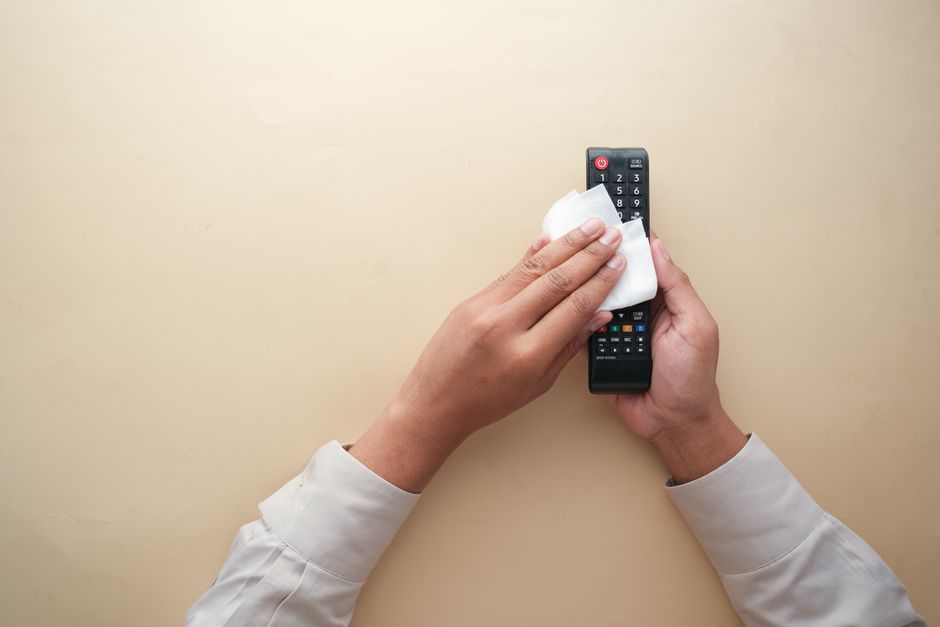
Quick answer: You can update most official applications straight through your device’s built-in app store, such as the Amazon Appstore, Google Play, or your TV manufacturer’s hub. Always stick to official channels to protect your hardware.
Before You Start Checklist
Check these few things before you touch any settings:
- Confirm your device connects to a stable home broadband network.
- Check that you know your provider account login details.
- Look at your remaining storage space in the device settings.
Step-by-Step Guide to Updating Your Legal IPTV App
Different hardware requires different paths. Here is how to handle the update process across the most common UK living room setups.
Updating on Amazon Firestick
Amazon devices handle most background updates automatically, but you can force a manual check very easily.
- Go to your Firestick home screen.
- Hold down the home button on your remote until the quick menu pops up.
- Select Apps to view your installed software library.
- Hover over your legal IPTV app and press the menu button (the three horizontal lines).
- Choose More Info. If an update is waiting, you’ll see an update button appear right there.
Updating on Samsung and LG Smart TVs
Smart TVs from brands like Samsung and LG use proprietary operating systems. They manage apps through their own integrated stores.
- Press the home button on your remote.
- Navigate to the Apps section.
- Click the settings icon, usually found in the top right corner.
- Look for the auto-update toggle, or select the specific application to check for manual patches.
Android TV Boxes and Google TV
If you’re using a standalone box running Google TV, the process mirrors mobile phones.
- Open the main app drawer and launch the Google Play Store.
- Click your profile icon in the top corner.
- Select Manage apps and games.
- Tap Update all, or find your specific streaming software in the list.
Troubleshooting Common Update Roadblocks
Sometimes things stall out. If your download freezes or fails, check your router placement and Wi-Fi signal strength first. Poor wireless range causes half of all failed downloads. Next, check your device storage. Low memory stops installations dead in their tracks. If your app keeps freezing after an update, clear the local cache through your system settings.
For more help with playback glitches, take a look at our guide on why IPTV keeps freezing on Firestick and safe fixes.
Common Mistakes to Avoid
Don’t download random installation files from strange websites. Always use verified app stores. Avoid disabling your device security settings just to force a software installation.
When to Contact Your Provider
If you’ve updated your software, cleared your cache, and restarted your router, but the service still won’t load, the issue might sit with the server availability rather than your hardware. Reach out to your official customer support team if your account status looks correct on their website but errors persist.
Safety and Legal Notes
Only use verified software distributed through legitimate app marketplaces. This guide assumes you are using authorised services complying with UK broadcasting regulations.
Frequently Asked Questions
Will updating my app delete my playlist?
Usually no. Most modern apps save your configuration settings in the cloud or local secure storage. Still, keep your login credentials handy just in case.
Why is my app store saying update failed?
This usually points to an unstable internet connection or a lack of free storage space on your device.
For more information, iptv.
Related reading
Update: Best IPTV device for 4K TV in the UK
Update: Best IPTV Subscription with Catch-Up TV in the UK
- What makes a good IPTV UK service for films and box sets?
- Can I get an IPTV trial UK before paying for a full pass?
- How does a UK IPTV subscription handle Video on Demand libraries?
- Which devices work best for streaming UK IPTV movie catalogues?
- Are free movie apps better than a paid UK IPTV service?
What makes a good IPTV UK service for films and box sets?
Finding a reliable IPTV UK provider for movie nights requires looking past basic channel lists. You need strong Video on Demand libraries. Many services bundle thousands of films alongside live broadcasts. But picture quality matters just as much as quantity. Look for providers offering stable HD and 4K streams. Buffering ruins a tense thriller faster than anything else. Check if the service supports catch-up TV too. You do not want to miss the latest Sunday night drama.
Audio formats deserve attention as well. Basic stereo sound feels flat during action sequences. Premium setups offer Dolby Atmos or 5.1 surround sound options. Make sure your playback hardware handles these audio profiles properly. A standard Fire Stick handles most streams easily. Yet, heavy VOD users might prefer a dedicated Android box for extra storage. You can read more about hardware choices in this Fire Stick and Android TV box comparison.
Can I get an IPTV trial UK before paying for a full pass?
Most reputable providers offer a short test period. Never skip this step. A test run lets you check server stability during peak evening hours. Networks get busy between seven and ten o’clock at night. If your stream drops then, the provider lacks enough bandwidth. Free trials usually last twenty-four or forty-eight hours. Use that window to test movie playback speed. Fast menu navigation makes browsing large libraries much easier.
Payment terms also deserve a close look during your test phase. Monthly plans offer more flexibility than annual commitments. If a service goes down permanently, you lose less money upfront. Some legal providers offer transparent monthly billing cycles. You can explore those options via our guide on best legal IPTV subscription UK monthly plans. Avoid lifetime deals entirely. IPTV infrastructure changes too quickly for permanent upfront fees to make sense.
How does a UK IPTV subscription handle Video on Demand libraries?
VOD catalogs operate differently from live television feeds. Instead of tuning into a scheduled broadcast, you pick content from a server directory. Good providers update these lists weekly. They add recent cinema releases and popular box sets regularly. Search functions must work fast. Scrolling through five thousand titles manually wastes precious viewing time.
Metadata quality varies wildly between providers. The best ones include clear synopses, cast lists, and genre tags. Poorly organized libraries feature mislabeled files and broken links. Ask your provider about their update schedule before buying. Reliable services maintain dedicated teams for fixing dead streams and replacing broken video files. If movies constantly fail to load, switch providers.
Which devices work best for streaming UK IPTV movie catalogues?
Hardware dictates your overall viewing experience. Amazon Fire devices dominate the market because they are cheap and portable. Yet, Wi-Fi interference ruins high-bitrate movie streams. A wired Ethernet connection fixes most stuttering issues. For details on optimizing your network setup, check this piece on wired versus wireless Fire Stick connections.
Smart TVs run native apps like IPTV Smarters or TiviMate. These apps organize movie posters nicely. They create a Netflix-style interface for your downloaded playlists. Apple TV units deliver great performance too, though player apps cost a few pounds to unlock. Pick a device that matches your technical comfort level. Complicated setups lead to endless troubleshooting instead of relaxing entertainment.
Are free movie apps better than a paid UK IPTV service?
Free streaming apps look tempting on paper. They cost nothing and require zero setup. But hidden costs exist. Most free apps rely on aggressive pop-up ads. Malware risks rise sharply when downloading unverified APK files from random forums. Paid services offer cleaner interfaces and fewer security headaches.
Ofcom and other regulatory bodies monitor digital broadcasting closely. Copyright laws apply strictly across digital platforms in the UK. Sticking to authorized apps keeps your home network secure. Free services often disappear overnight due to sudden domain seizures. Paid providers invest in stable server infrastructure instead of cutting corners.
For more information, iptv.
Learn more on Wikipedia: ITV (TV network).
Related reading
Update: How to Reduce Delay When Watching Live Football Online
Update: Best IPTV device for 4K TV in the UK
- Roku vs Firestick Operating Systems and App Stores
- Hardware Performance and Remote Controls
- Evaluating Roku vs Firestick IPTV Setup and Playback
- UK Device Comparison Table
- Pros and Cons
- Amazon Fire TV Stick
- Roku Streaming Stick
- Compatibility Notes
- Legal Advice and Broadcasting Rights
- Frequently Asked Questions
- Can I install custom media players on Roku?
- Does Firestick require a monthly fee?
- Which device has better Wi-Fi performance?
- Are UK catch-up apps available on both platforms?
- Can I use a VPN on these devices in the UK?
- Do I need a 4K TV to use these sticks?
- What internet speed do I need for smooth streaming?
Choosing between Roku vs Firestick changes how you watch live television on your living room screen. Internet protocol television, or IPTV, delivers television broadcasts directly through your broadband connection rather than traditional aerials or satellite dishes. If you are new to this technology, you can read more about the basics in What Is IPTV UK? A Complete Beginner’s Guide. But hardware matters just as much as the subscription itself. Amazon and Roku dominate the UK streaming market, yet they approach software and third-party media players differently. Let us look at what separates these popular devices.

Many British households struggle to pick the right gadget. You want smooth playback, a responsive remote, and access to your preferred service provider’s official applications. Let us break down how both ecosystems handle live broadcasting.
Roku vs Firestick Operating Systems and App Stores
Amazon builds its Fire TV devices on a customized version of Android, known as Fire OS. This choice gives users immense flexibility. You can sideload applications via developer options if your provider offers a direct APK file. The Amazon Appstore also hosts a wide range of official media players, electronic programme guide tools, and catch-up services commonly used in the UK, such as BBC iPlayer and ITVX.
Roku operates on its own proprietary Roku OS. It is stable, secure, and notoriously closed. You cannot sideload unauthorized apps or access hidden directories. Roku relies entirely on its official Channel Store. If an IPTV provider lacks an officially approved app inside the Roku store, you cannot install it directly. You must use screen mirroring from a phone or tablet instead, which often introduces lag and stuttering during live sports.
Hardware Performance and Remote Controls
Fire TV devices range from the budget-friendly Fire TV Stick Lite to the powerful Fire TV Cube. Most models handle 4K streaming, HDR10+, and Dolby Atmos audio smoothly. Navigation feels snappy on newer hardware, though budget sticks occasionally stutter when loading heavy media guides. Alexa integration comes built into the standard voice remote, letting you launch apps or search for programmes using spoken commands.
Roku devices follow a similar tiered structure, starting with the Roku Express and moving up to the Roku Streaming Stick 4K. Roku remotes are famously simple. They feature dedicated shortcut buttons for popular subscription services like Netflix and Disney+. However, basic Roku remotes lack hands-free voice control or advanced audio settings found on Amazon’s higher-end hardware. Ethernet adapters require separate purchases for both brands unless you buy the Fire TV Cube.
Evaluating Roku vs Firestick IPTV Setup and Playback
Getting started on a Fire TV Stick usually takes minutes. You log in with your Amazon account, search for your provider’s approved application, enter your credentials, and start watching. Because Fire OS supports a broader variety of media player architectures, buffering issues often come down to your broadband speed rather than platform limitations. Wi-Fi stability on Amazon sticks is generally solid, provided you use a 5GHz router band.
Roku setup is equally straightforward for mainstream apps, but deploying television streams presents hurdles. Because direct playlist loading is restricted on Roku OS, you will spend time configuring alternative casting methods or navigating limited third-party portal apps. If your provider does not have an official Roku channel, your viewing experience becomes frustrating very quickly.
UK Device Comparison Table
| Feature | Amazon Fire TV Stick 4K | Roku Streaming Stick 4K |
|---|---|---|
| Operating System | Fire OS (Android-based) | Roku OS (Proprietary) |
| App Sideloading | Supported (via developer mode) | Not supported |
| 4K & HDR Support | Yes (Dolby Vision, HDR10+) | Yes (Dolby Vision, HDR10+) |
| Voice Assistant | Alexa | Roku Voice / Siri / Google |
| Ethernet Option | Via official adapter | Via official adapter |
Pros and Cons
Amazon Fire TV Stick
- Pros: Excellent app availability, supports sideloading, snappy performance on 4K models, integrated Alexa voice search.
- Cons: User interface features heavy sponsored content, occasional software updates alter the home screen layout.
Roku Streaming Stick
- Pros: Clean and neutral user interface, simple remote control, reliable system stability with minimal crashes.
- Cons: Highly restrictive app store, lacks sideloading capabilities, poor native support for custom media portals.
Compatibility Notes
Never assume that every streaming gadget runs every broadcast app. Software availability changes as developers update their platforms. Always check your service provider’s official guidance and the device app store before purchasing hardware. Smart TVs from Samsung and LG run their own operating systems, which also have different limitations compared to dedicated streaming sticks.
Legal Advice and Broadcasting Rights
Internet television technology itself is completely legal. Broadcasters like the BBC and Sky use IPTV protocols every day to stream content to millions of homes. However, the legality of any specific service depends entirely on the provider holding valid distribution rights for the content they broadcast. Ofcom regulates UK communications, and accessing unauthorized streams violates copyright law. Always use officially licensed applications and verified commercial services.
Frequently Asked Questions
Can I install custom media players on Roku?
No. Roku OS is a closed system that does not allow users to install applications outside of the official Roku Channel Store.
Does Firestick require a monthly fee?
Amazon charges nothing to use the Firestick interface, though you need an active Amazon account and subscriptions to individual streaming apps.
Which device has better Wi-Fi performance?
Both devices feature capable wireless chips supporting dual-band Wi-Fi, but real-world performance depends heavily on your home broadband router proximity.
Are UK catch-up apps available on both platforms?
Yes. Mainstream British catch-up services like BBC iPlayer, ITVX, Channel 4, and My5 are fully supported on both Fire OS and Roku OS.
Can I use a VPN on these devices in the UK?
Fire TV sticks support native VPN applications downloaded directly from the Amazon Appstore. Roku devices do not support direct VPN installations, requiring router-level configuration instead.
Do I need a 4K TV to use these sticks?
No. Both 4K and standard HD streaming sticks work perfectly on older high-definition televisions by automatically downscaling the video output.
What internet speed do I need for smooth streaming?
Standard high-definition streams require around 5 to 10 Mbps, while 4K transmissions typically demand a stable connection of 25 Mbps or higher.
For more information, iptv.
Related reading
Update: How to update a legal IPTV app safely
Update: How to Reduce Delay When Watching Live Football Online
- The Truth About HD vs 4K Sports Streaming
- Myth vs Fact: Resolution and Reality
- The Technical Demands of Live Sports
- Pros and Cons of Higher Resolutions
- HD Sports Streaming
- 4K Sports Streaming
- Buying Checklist for UK Sports Fans
- Legal and Licensing Note
- Frequently Asked Questions
- Does 4K streaming use much more data?
- Will my old Fire Stick handle ultra-high-definition?
- Why does my high-definition stream look blocky?
- Is sports broadcasting in ultra-high-definition standard yet?
- Do I need a special HDMI cable?
- Can I watch live sports in high-definition on mobile data?
- What causes motion blur during fast football matches?
The Truth About HD vs 4K Sports Streaming
Your Saturday afternoon football match kicks off, but the ball blurs across the turf. You crank up your settings to maximum. Suddenly, the stream stalls and the dreaded loading wheel spins. Choosing between HD vs 4K sports streaming on your legal IPTV setup isn’t just about chasing the highest pixel count. It’s about matching your broadband speed to what your screen can actually handle.

Most fans assume ultra-high-definition is always the superior choice. That assumption causes endless buffering during crucial penalty shootouts. Let’s separate the marketing hype from the technical reality of live sports broadcasting in the UK.
Myth vs Fact: Resolution and Reality
Many viewers believe 4K means flawless clarity every single time. Broadcasters compress live feeds heavily to squeeze massive data rates across the internet. If your provider applies heavy compression, a standard high-definition stream often looks sharper and moves smoother than a muddy 4K feed.
Another common myth claims you need a massive internet pipe for basic high-definition. In truth, a stable connection of around 15 to 25 Mbps handles high-definition broadcasts comfortably. If you want to check your connection before matchday, read our guide on how to check your home broadband speed before streaming Premier League live streams.
The Technical Demands of Live Sports
Live football moves fast. Cameras pan quickly across crowded pitches. That motion requires serious data bandwidth to prevent pixelation.
- HD Streams: Typically require 10 to 20 Mbps. They offer great stability and rarely drop frames on standard fibre connections.
- 4K Feeds: Demand 30 to 50 Mbps or higher. They deliver four times the pixels, making player shirts and stadium grass crisp, but demand zero network congestion.
Before committing to ultra-high-definition packages, confirm what internet speed is suitable for IPTV in the UK so you don’t waste money on feeds your router drops.
Pros and Cons of Higher Resolutions
HD Sports Streaming
- Pros: Highly reliable, low bandwidth usage, compatible with almost any modern device, rarely buffers.
- Cons: Noticeable softness on screens larger than 55 inches.
4K Sports Streaming
- Pros: Stunning detail, vibrant colours, incredible depth on compatible televisions.
- Cons: Prone to stutters if broadband fluctuates, eats data caps quickly, requires expensive hardware.
Buying Checklist for UK Sports Fans
Don’t buy blind. Check these boxes before subscribing to any sports package:
- Test your actual wired or Wi-Fi download speed during peak evening hours.
- Verify your streaming device natively supports the video codec your provider uses.
- Check if simultaneous streams are allowed if other household members use the internet.
- Look for reliable customer support channels in case stream dropouts occur.
Legal and Licensing Note
Always use fully licensed platforms authorised by UK broadcasting authorities. Unlicensed sources often promise free ultra-high-definition feeds but violate copyright laws and compromise network security.
Frequently Asked Questions
Does 4K streaming use much more data?
Yes. A single hour of ultra-high-definition video consumes significantly more data than standard high-definition.
Will my old Fire Stick handle ultra-high-definition?
Older models struggle with heavy video decoding. You need a modern 4K-capable streaming stick or a direct smart TV app.
Why does my high-definition stream look blocky?
Low bitrates or network congestion usually cause blockiness, even when resolution settings are turned up.
Is sports broadcasting in ultra-high-definition standard yet?
Only select major fixtures air in true ultra-high-definition. Many matches still broadcast primarily in high-definition.
Do I need a special HDMI cable?
Yes. You need a high-speed HDMI cable rated for 4K pass-through to connect your streaming box to your television.
Can I watch live sports in high-definition on mobile data?
You can, but it burns through monthly mobile data allowances very quickly.
What causes motion blur during fast football matches?
Low frame rates or poor handling of rapid camera movements by the broadcast encoder cause motion blur.
For more information, iptv.
Related reading
Update: Best IPTV subscription for movies and entertainment
Update: How to update a legal IPTV app safely
- Before you start checklist
- Step-by-step troubleshooting guide
- Device-specific instructions for UK users
- Firestick and Android TV devices
- Samsung and LG Smart TVs
- Common mistakes to avoid
- When to contact your provider
- Safety and legal notes
- Frequently asked questions
- Why do subtitles appear out of sync?
- Can I download custom subtitle files?
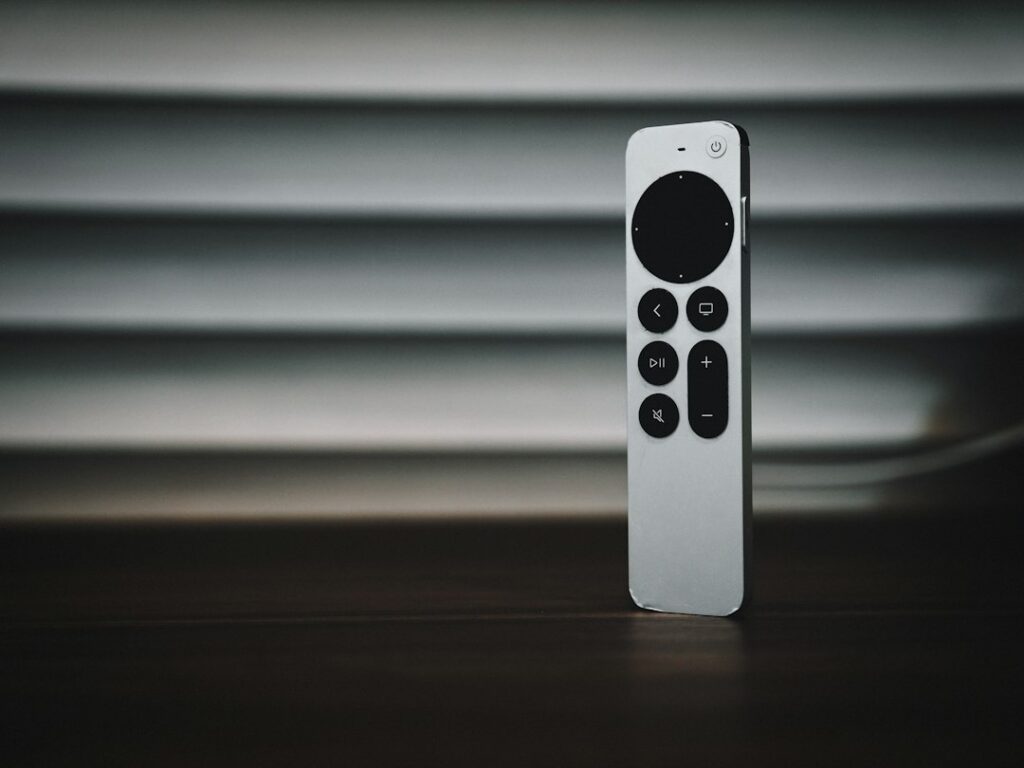
You settle down for a weekend movie on your legal streaming app, only to find the dialogue is impossible to understand and IPTV subtitles not working ruins the experience. Missing text on screen can be genuinely frustrating, especially when you are trying to follow fast-paced British drama or foreign language cinema. Fortunately, you can usually resolve these text display problems with a few simple adjustments on your streaming device.
Before you start checklist
Before you dive into complex settings menus, run through a quick mental check of your current setup. Confirm your subscription is fully active through your provider’s official portal. Make sure your internet connection is stable enough to load metadata alongside your video feed. Restarting your streaming player often clears out temporary glitches that cause text overlays to vanish.
Step-by-step troubleshooting guide
Follow these numbered steps in sequence to get your text display back on screen.
- Check player subtitle settings: Open your media player’s internal settings menu during playback. Look for the subtitle track selector and ensure it is switched from ‘off’ to your preferred language.
- Verify stream compatibility: Some live channels simply do not broadcast embedded text streams. Test a standard video-on-demand title to see if captions appear there instead.
- Update your application: Outdated software often contains bugs affecting text rendering. Head to your device app store and install the newest version available.
- Clear app cache: Corrupted temporary files can break overlay features. Go to your device settings, locate your streaming app storage, and clear the cache.
- Adjust encoding formats: If captions appear as strange symbols or blank boxes, change your character encoding setting to UTF-8.
Device-specific instructions for UK users
Different hardware handles text rendering in unique ways. Here is how to check your settings across popular platforms found in British living rooms.
Firestick and Android TV devices
Press the down button on your remote while playing content to bring up the player overlay. Select the speech bubble icon to verify your track selection. If you want a more robust media experience, you might want to review TiviMate vs IPTV Smarters Pro: Which Player Wins for UK Matchdays? to see how different apps manage auxiliary feeds.
Samsung and LG Smart TVs
Navigate to your television’s main accessibility menu via the remote control. Turn on primary accessibility features and confirm that subtitle preferences match your app settings. Built-in manufacturer software can sometimes override third-party application overlays.
Common mistakes to avoid
Many users assume their IPTV subtitles not working issue stems from a broken hardware box, but the culprit is usually a simple toggle switch. Do not perform a complete factory reset on your television until you have tested the captions on a secondary device like a smartphone or tablet.
When to contact your provider
If you have exhausted all local settings and tested multiple applications without success, the issue might sit with the source. Reach out to your official streaming provider’s support team to confirm whether they are broadcasting the necessary metadata streams for your chosen channel.
Safety and legal notes
Always ensure your streaming setup complies with UK broadcasting regulations. Only use authorised applications obtained directly from official app stores like Amazon or Google Play.
Frequently asked questions
Why do subtitles appear out of sync?
Timing delays usually happen when the text track does not match the specific video cut you are watching. Use your player’s subtitle delay adjustment tool to sync the text manually.
Can I download custom subtitle files?
Advanced media players allow you to load external files. Check your specific application manual for instructions on importing separate text documents.
For more information, iptv.
Related reading
Update: Roku vs Firestick for IPTV users in the UK
Update: Best IPTV subscription for movies and entertainment
- Choosing the Right Tools for Weekend Matchdays
- Frame Rates and Motion Handling for Fast Action
- Comparing Legal Sports IPTV UK Options
- Minimising Matchday Broadcast Delay
- Catch-Up TV and Multi-Screen Layouts
- Resolution Standards: HD versus 4K Realities
- Pros and Cons of Sports-Focused Streaming Apps
- Legal and Licensing Note
- Buying Checklist for Sports Fans
- Frequently Asked Questions
- Why does my live sports stream stutter on weekends?
- Do I need a special box for modern sports apps?
- How much internet speed do I need for HD sports?
- Can I watch matches abroad using my UK subscription?
- What causes the score to update on my phone before I see the goal?
- Are free sports apps safe to use?
Choosing the Right Tools for Weekend Matchdays
Watching a 3 PM Saturday Premier League blackout lift or tuning into an international rugby fixture requires specific technical capabilities. When you hunt for the understanding internet television technology basics, you quickly realise that standard video apps fall short. Live sport moves fast. It demands higher data rates and stable servers. If your screen freezes just as your striker rounds the keeper, the service fails its primary test.

Finding reliable services means looking beyond basic channel lists. You need specific tools built for high-speed motion and heavy server loads. Let us examine what actually matters when picking a platform for your living room.
Frame Rates and Motion Handling for Fast Action
Standard television usually runs at 25 or 30 frames per second. That looks fine for chat shows and sitcoms. Football is a different beast entirely. A fast-moving ball leaves a blurry trail at lower frame rates. You need 50 frames per second minimum for smooth motion.
Legal providers invest heavily in infrastructure to push higher refresh rates straight to your living room. When a camera pans quickly across a pitch, the grass shouldn’t smear into a green blur. Check if the app supports high frame rate streaming before you commit to any long-term plan. Smooth tracking keeps your eyes from straining during tense ninety-minute fixtures.
Comparing Legal Sports IPTV UK Options
Official broadcasters and authorised app providers structure their services differently. Let us break down how major legal options compare for sports fans:
- Official Broadcaster Apps (Sky Go, TNT Sports): Excellent stability, official broadcast rights, high monthly cost, device limits.
- Aggregator Live TV Apps (Horizon, Tivimate setups with legal EPG): Highly customisable, great interface, requires careful subscription management.
- Smart TV Native Apps: Convenient remote control use, zero extra hardware needed, occasional software updates can cause temporary bugs.
Minimising Matchday Broadcast Delay
Nobody wants to hear their neighbour cheer a goal thirty seconds before it hits their own screen. Broadcast delay plagues internet-delivered television. Traditional satellite broadcasts lag slightly behind live action, but internet protocols often add extra buffer time.
Top-tier legal platforms use content delivery networks to shrink that gap. They shorten chunk sizes in their video streams. You still get a tiny delay compared to sitting in the stadium, but the best systems keep it under ten seconds. That stops your phone notifications from ruining the surprise.
Catch-Up TV and Multi-Screen Layouts
Saturday afternoons present a frustrating dilemma. Three matches kick off at the same time. A robust platform solves this with multiple simultaneous viewing angles or picture-in-picture modes. You can track the main game while keeping an eye on scores elsewhere.
Catch-Up TV is another lifesaver. Maybe your train runs late on a Tuesday night. You miss the first half of the Champions League clash. A proper catch-up archive lets you rewind live broadcasts or jump straight to the start. You don’t have to wait for overnight replays anymore.
Resolution Standards: HD versus 4K Realities
Everyone wants ultra-high definition. Reality is a bit more complicated. Broadcasting a live football match in true 4K requires massive bandwidth. Many providers use upscaling instead of native 4K feeds.
Look for genuine 1080p feeds running at high bitrates rather than low-quality 4K labels that hide compression artifacts. Dark stadium shadows and floodlit pitches expose poor compression quickly. A sharp 1080p stream often beats a blocky, compressed 4K feed every single time.
Pros and Cons of Sports-Focused Streaming Apps
Evaluating these platforms honestly helps set proper expectations before matchday arrives.
- Pros: Access sports without bulky satellite dishes, switch between devices easily, enjoy modern menu layouts, utilise custom electronic programme guides.
- Cons: High bandwidth demands on home broadband, potential lag during peak global fixtures, subscription costs add up if you mix multiple sports packages.
Legal and Licensing Note
All viewing options discussed here apply strictly to licensed, authorised broadcast services operating within UK copyright laws. Unauthorised M3U playlists and pirated streams violate broadcasting regulations and risk security compromises. Stick to legitimate providers holding proper UK distribution rights.
Buying Checklist for Sports Fans
Run through this quick list before entering your payment details on any sports app:
- Confirm the app runs natively on your specific television operating system.
- Check if simultaneous streams cover your household devices.
- Verify the exact sports channel lineup rather than relying on vague marketing slogans.
- Test the customer support response time with a simple pre-sale query.
- Read cancellation terms carefully to avoid locked-in annual fees.
Frequently Asked Questions
Why does my live sports stream stutter on weekends?
Weekend congestion hits internet service providers hard. Too many users stream simultaneously. Upgrading your broadband package or using an ethernet cable instead of Wi-Fi usually fixes the stuttering.
Do I need a special box for modern sports apps?
Most modern smart televisions run dedicated apps natively. Streaming sticks like Amazon Fire TV or Apple TV also handle legal sports apps smoothly without extra equipment.
How much internet speed do I need for HD sports?
You need a stable connection of at least 15 to 25 megabits per second for reliable high-definition live streaming without sudden resolution drops.
Can I watch matches abroad using my UK subscription?
Geoblocking rules apply to most licensed UK sports apps. Streaming rights are restricted by territory, so your access outside the UK depends on the specific provider’s terms.
What causes the score to update on my phone before I see the goal?
Video encoding takes time. Data travels through multiple servers before reaching your screen. That processing delay creates a small gap between live reality and your display.
Are free sports apps safe to use?
Legitimate free apps rely on advertisements. Unofficial free apps often carry malware risks or pop-up scams. Stick to trusted paid platforms for secure viewing.
For more information, iptv.
Related reading
Update: HD vs 4K sports streaming on IPTV in the UK
Update: Roku vs Firestick for IPTV users in the UK
- Quick Answer
- Before You Start Checklist
- Decoding the Video Stream
- Device-Specific Fixes
- Firestick Steps
- Samsung and LG TV Steps
- Common Mistakes to Avoid
- When to Contact Your Provider
- Safety and Legal Notes
- Frequently Asked Questions
- Why do I hear sound but see a black screen?
- Can a bad HDMI cable cause this problem?
- Will reinstalling my app delete my playlist?
You turn on your Firestick or Smart TV to watch the evening news, you hear the presenter talking clearly, but your screen stays completely black. Experiencing IPTV audio but no picture can be frustrating, especially when you know the stream is running. This guide covers why this happens and how to fix it on UK devices.

Quick Answer
Most picture loss with working sound stems from a video decoder crash, a resolution mismatch between your streaming app and TV, or an unstable broadband connection dropping video packets while audio packets get through. Restarting your app, changing the hardware decoder setting in your player, or rebooting your router usually brings the video back.
Before You Start Checklist
- Check that your HDMI cable is plugged tightly into both your TV and streaming device.
- Note down whether this happens on every channel or just one specific live feed.
- Verify your broadband connection is working by loading a standard catch-up app like BBC iPlayer.
Decoding the Video Stream
Audio data takes up much less bandwidth than high-definition video. Your internet connection might drop enough speed that the video stream freezes or fails to render, while the lighter audio stream keeps playing. Alternatively, your streaming device might struggle to process the specific video codec your provider uses.
If you use an Android TV box or a Firestick, open your player settings and look for the hardware decoder option. Switching from hardware decoding to software decoding often forces the processor to render the picture properly. When testing your network limits, remember that understanding IPTV bitrates for UK sports helps clarify why heavy video feeds fail before audio does.
Device-Specific Fixes
Firestick Steps
Go to your Firestick settings, select Applications, and manage installed applications. Find your streaming app, clear its cache, and force stop it. Restart your Firestick by unplugging the power cord for ten seconds.
Samsung and LG TV Steps
Open the app store on your TV and check for pending updates. Smart TV operating systems like Tizen and webOS occasionally drop video support for older app versions. Reinstalling the app from scratch often resolves persistent display bugs.
Common Mistakes to Avoid
Do not perform a factory reset on your television straight away. That rarely fixes a stream-specific glitch and wastes your time reconfiguring accounts. Avoid ignoring app updates, because developers frequently patch video rendering bugs in newer releases.
When to Contact Your Provider
If you tried every troubleshooting step and audio still plays without video on multiple devices, the issue likely originates at the server end. Your provider might be broadcasting a misconfigured channel feed or experiencing transcoding errors. Reach out to their support desk and let them know a specific channel has sound but no visual output.
Safety and Legal Notes
This guide is for informational purposes only and helps you troubleshoot licensed streaming setups used across the UK. We do not promote accessing unauthorised broadcasts or bypassing official service restrictions. Always use legal, authorised applications available on official app stores.
Frequently Asked Questions
Why do I hear sound but see a black screen?
This usually happens because video data requires more processing power and bandwidth than audio data, causing the video decoder to fail while the audio keeps playing.
Can a bad HDMI cable cause this problem?
Yes. A faulty HDMI cable or a loose connection can drop the high-definition video signal while passing audio through.
Will reinstalling my app delete my playlist?
It might, depending on the app you use. Make sure you have your login details or playlist URL saved safely before deleting anything.
For more information, iptv.
Related reading
Update: How to fix IPTV subtitles not working
Update: HD vs 4K sports streaming on IPTV in the UK
- Myth: Any Smart TV App Handles an IPTV UK Playlist Smoothly
- Problem and Solution: Hardware Limits vs. Heavy Streams
- Fact: Finding a Stable IPTV Provider UK Without Setup Headaches
- Smart TV Optimisation Tips
- Frequently Asked Questions
- Do I need a special television for an IPTV subscription UK?
- Why does my stream buffer during live matches?
- Are free playlists safe to use on Smart TVs?
Myth: Any Smart TV App Handles an IPTV UK Playlist Smoothly
Many viewers assume their Samsung or LG television will run every streaming app without a hitch. That is rarely true. Modern sets run various operating systems like Tizen or webOS. Each platform handles memory differently. A heavy IPTV UK playlist often chokes built-in processors. You experience freezing, lagging, or sudden crashes right in the middle of a live broadcast.

The reality is simple. Smart TV hardware lacks the raw power found in dedicated streaming boxes. Apps downloaded directly from official app stores must stay lightweight to prevent system crashes. If you want a trouble-free setup, your choice of app matters just as much as your choice of provider. Check out our guide on how to add an IPTV playlist to Smart TV to get your channels loaded properly without overloading the system memory.
Problem and Solution: Hardware Limits vs. Heavy Streams
Performance issues frustrate many households across the country. High-definition feeds demand steady processing power. When your television struggles, picture quality drops. Audio drifts out of sync. Ofcom reports that broadband speeds keep rising across British homes, yet old television sets still bottleneck the final output.
The solution starts with app selection. Avoid bloated third-party players with excessive visual effects. Choose streamlined applications like IBO Player, IPTV Smarters Pro, or Nanomid Player. These tools use minimal resources. They parse large channel lists efficiently. Your television stays responsive. You avoid the headache of constant reboots.
Fact: Finding a Stable IPTV Provider UK Without Setup Headaches
Countless online forums claim that finding a good UK IPTV subscription is a lottery. It doesn’t have to be. Stable services focus on server uptime rather than packing thousands of dead links into a playlist. Reliability beats bloated channel counts every single time.
Before committing to a long-term plan, always test the service. A proper IPTV trial UK lets you check peak-time performance. Networks often slow down during evening prime time when internet traffic spikes. Testing during these busy windows reveals true server stability. If a service provider refuses a test period, walk away.
Smart TV Optimisation Tips
Wi-Fi interference ruins countless viewing sessions. Thick walls and competing household devices degrade wireless signals rapidly. Connect your television directly via an Ethernet cable whenever possible. Wired connections eliminate packet loss.
Cache management also plays a huge role in daily performance. Streaming apps store temporary data that accumulates over time. Clear the app cache weekly. This simple habit keeps response times snappy and prevents unexpected dropouts.
Frequently Asked Questions
Do I need a special television for an IPTV subscription UK?
No. Most modern smart sets made within the last five years work fine. You just need enough storage space to install a compatible media player from your app store.
Why does my stream buffer during live matches?
Server congestion or slow home internet usually causes buffering. Check your connection speed first. If your broadband is fast, the issue likely stems from overcrowded provider servers during major televised events.
Are free playlists safe to use on Smart TVs?
Free public playlists rarely deliver stable streams. They often carry malware risks or vanish without warning. Paid, reputable services maintain dedicated infrastructure for consistent playback.
For more information, iptv.
Learn more on Wikipedia: ITV (TV network).
Related reading
Update: Best IPTV features for live sports streaming
Update: How to fix IPTV subtitles not working
- Direct Answer
- Choosing Your First Hardware
- Device Comparison Table
- Top Hardware Picks for New Users
- Amazon Fire TV Stick
- Google TV Devices
- Apple TV 4K
- Roku Players
- Pros and Cons of Popular Options
- Getting Started With Your Hardware
- Understanding Compatibility
- Staying Legal in the UK
- Frequently Asked Questions
- Do I need a 4K TV for IPTV?
- Can I use my smartphone instead?
- Are monthly subscription fees required for these devices?
- Is a wired Ethernet connection necessary?
- How do I update my apps?
- Can I set parental controls?
Direct Answer
Finding the right streaming device for IPTV beginners depends on app support and ease of use. Amazon Fire TV Stick and Google TV devices offer the friendliest setup for legal IPTV apps in the UK.
Choosing Your First Hardware
Jumping into internet television in the UK can feel confusing. Hundreds of gadgets sit on retail shelves. You want something simple that just works out of the box.
IPTV is simply a method for delivering television channels over your broadband connection instead of via a traditional aerial or satellite dish. Legality relies entirely on whether the service provider holds the correct distribution rights for what they broadcast. Ofcom regulates UK broadcasting standards, and major networks like the BBC provide their official apps across most modern hardware.
Before you buy, let us look at what makes a good dedicated set-top box or media stick for newcomers. You need clear app store access, reliable Wi-Fi, and a responsive remote control.
Device Comparison Table
| Device | Operating System | App Store | 4K Support |
|---|---|---|---|
| Amazon Fire TV Stick 4K | Fire OS (Android based) | Amazon Appstore | Yes |
| Google TV Streamer | Google TV | Google Play Store | Yes |
| Apple TV 4K | tvOS | Apple App Store | Yes |
| Roku Express 4K | Roku OS | Roku Channel Store | Yes |
Top Hardware Picks for New Users
Hardware choices vary wildly in price and capability. Here is how the main contenders stack up for a beginner setting up an IPTV service in the UK.
Amazon Fire TV Stick
Amazon dominates living rooms across the UK. The Fire TV Stick plugs straight into your HDMI port. It runs on Fire OS, which is a modified version of Android.
This means sideloading or downloading official media players is straightforward. The remote includes Alexa voice control. You can search for shows using spoken commands. Prices hover around thirty to sixty pounds depending on sales and whether you choose standard HD or 4K specifications as of 2025.
Google TV Devices
Google TV offers a very clean interface. Devices like the Chromecast with Google TV or newer Google TV boxes give you direct access to the Google Play Store.
App availability is massive here. You will find most legal IPTV player applications listed officially. Setup takes minutes using the Google Home app on your smartphone.
Apple TV 4K
Apple makes premium hardware. It costs considerably more than an Amazon stick, often exceeding one hundred and forty pounds. Performance is lightning fast. The processor handles heavy streams without stuttering. Privacy controls are strict. If you already use an iPhone, integration takes seconds.
Roku Players
Roku boxes are simple. The interface is clutter-free. However, Roku uses a closed operating system. Finding specialized media player apps can prove difficult compared to Android-based hardware.
Pros and Cons of Popular Options
Every piece of tech has downsides. Weighing these points helps you avoid buyer’s remorse.
- Fire TV Stick: Pros include low cost and huge app choice. Cons include annoying ads on the home screen.
- Google TV: Pros include a clean layout and official app variety. Cons include occasional software bloatware on budget boxes.
- Apple TV: Pros include zero lag and top-tier build quality. Cons include high hardware costs.
Getting Started With Your Hardware
Plug the device into a wall socket and your TV’s HDMI port. Connect to your home Wi-Fi network. Log in with your user account credentials.
Next, visit the built-in app store. Search for your legal IPTV provider’s official application. Never download modified APK files from random websites. Always stick to official stores to keep your personal data secure.
Understanding Compatibility
Never assume a device runs every single app. Software availability changes often. Check your chosen provider’s official guidelines before buying any hardware.
Storage space also matters. Cheap sticks often have only eight gigabytes of internal memory. That fills up quickly once you install a few media apps and cache television guides.
Staying Legal in the UK
Broadcasting rules in the UK are strict. Always use authorized services that pay licensing fees for content distribution. Avoid unverified playlist sellers offering cheap sports packages. These services violate copyright law and often disappear overnight.
Frequently Asked Questions
Do I need a 4K TV for IPTV?
No. Standard HD streams look fine on most screens. 4K hardware simply offers future-proofing.
Can I use my smartphone instead?
Yes. Android phones and iPhones run many official streaming apps. You can also cast content to your television screen.
Are monthly subscription fees required for these devices?
No. The hardware is a one-time purchase. You only pay for your broadband and any legal content subscriptions you choose to add.
Is a wired Ethernet connection necessary?
Wi-Fi works well for most homes. Ethernet cables offer better stability if your router sits far away from the television.
How do I update my apps?
Most devices update applications automatically in the background. You can also check manually through the device app store settings.
Can I set parental controls?
Yes. Every major operating system includes options to lock adult content or restrict app downloads using a PIN code.
For more information, iptv.