Why Your Streaming Stick Controller Dies So Fast
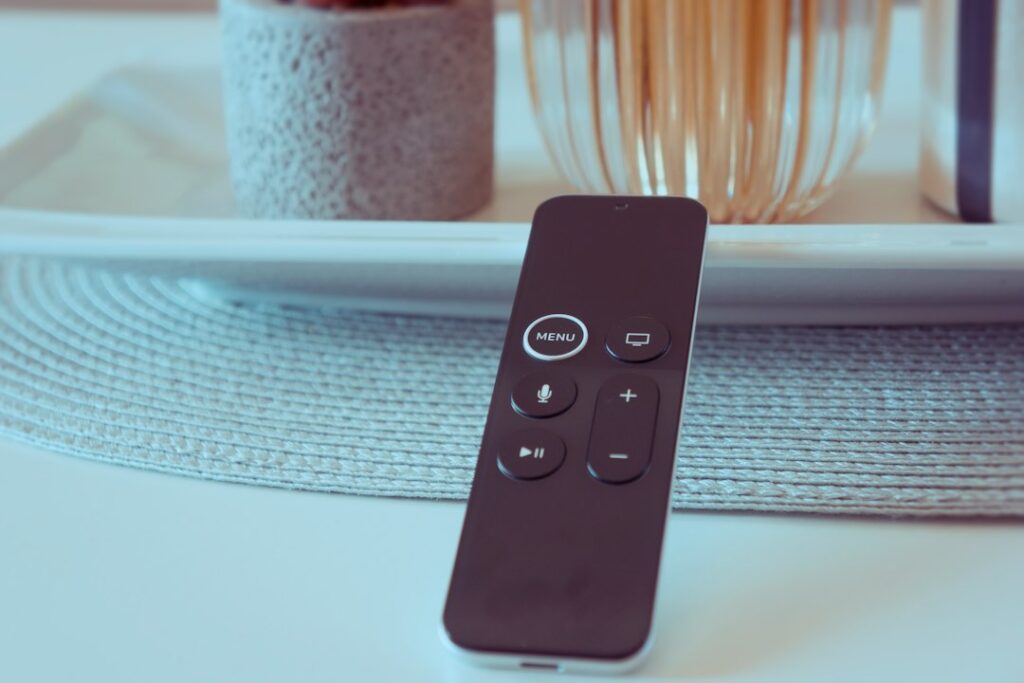
You settle down for an evening of live television, but twenty minutes in, a low power warning flashes on screen. That tiny plastic clicker has chewed through another pair of AAA cells. IPTV apps demand constant input from users. You scroll through massive channel lists, jump across genres, and open program guides every few minutes. That relentless button bashing keeps the Bluetooth radio awake constantly. Instead of sleeping between commands, the remote stays paired and active throughout your viewing session. Standard alkaline cells simply cannot cope with this heavy load.
Switching to Better Power Sources
Stop buying cheap multi-pack batteries from discount shops. They leak acid inside the casing and die quickly under heavy wireless loads. Invest in quality low-discharge rechargeable cells instead. Panasonic Eneloop or IKEA LADDA batteries hold their charge much better over time. They output a steady 1.2 volts reliably. Standard alkalines start at 1.5 volts but drop fast. That voltage drop confuses the internal power management chip inside the controller. The device thinks the power is gone when there is still plenty of life left in a rechargeable cell.
You also need to check the battery contacts inside the compartment. A thin layer of white crust can build up over time. Grab a cotton bud dipped in a tiny drop of isopropyl alcohol and scrub those metal springs gently. Dirt creates resistance. Resistance wastes electrical current as heat. Clean terminals ensure every last milligram of juice flows into the circuit board where it belongs.
Minimising Bluetooth Interference and Wake Lockups
Wireless congestion causes your controller to work harder than necessary. Wi-Fi routers sitting right next to the television interfere with the 2.4GHz Bluetooth band. When packet loss happens, the controller resends signals repeatedly. That background retry loop drains the cells in hours. Move your router slightly further away if possible. Unplugging other nearby wireless gadgets helps too.
Sometimes a button gets physically stuck under the rubber membrane. If a directional pad gets wedged at an angle, the remote transmits a continuous stream of hold commands. The host device stays awake, and the batteries cook. Take the back cover off and press every button firmly to free any jammed components. You can read more about keeping your system running smoothly by checking this guide on Firestick storage management for IPTV users.
Adjusting Your Viewing Habits
Stop leaving your media player running overnight. Even when the screen goes black, background apps keep pulling data and holding active connections. Turn the device off completely using the power menu when you finish watching. If you want a temporary fix while waiting for new cells to arrive, pull the batteries out completely during long movie marathons. You can use your smartphone app as a temporary backup controller via Wi-Fi. That gives your physical clicker a rest and saves power for when you actually need it.
For more information, iptv.
Related reading
- Premier League Matchday Data Usage: How Much Broadband Do Live Streams Actually Eat?
- Understanding IPTV UK: Frequently Asked Questions Answered
Setting up your television channels on a Fire TV Stick takes time. You arrange your favourites, sort sports channels into order, and fix the electronic programme guide. Then disaster strikes. Your app clears its cache or resets unexpectedly. Suddenly, all your hard work vanishes. Running a regular IPTV playlist backup saves you from starting over completely.

Most streaming apps store configuration files directly in device memory. When storage fills up or apps update, these local files sometimes corrupt. That is why smart viewers export their settings to cloud storage or local folders. You don’t need advanced technical skills to protect your custom channel arrangements.
Why You Need an IPTV Playlist Backup
Losing hours of customisation frustrates anyone who just wants to sit down and watch television. Channel lists from providers often contain thousands of entries. Finding your preferred sports feeds or news stations takes real effort the first time. If you use external players like TiviMate or IPTV Smarters, they usually offer export features hidden away in the settings menu.
Device failures happen without warning. Fire sticks occasionally run out of internal storage space. When this occurs, the operating system might purge app data automatically. Having a saved file stored safely on an external drive or cloud storage platform means you can restore your setup in under two minutes.
Steps to Create Your Firestick Configuration Export
Let us walk through saving your configuration file properly. Grab your remote and turn on your television. Open your preferred media player application.
First, navigate to the main settings panel of your app. Look for an option labelled ‘Backup’, ‘Export’, or ‘Data Management’. Do not touch your login credentials yet. The export tool packages your login details alongside your custom channel ordering, favourites, and parental control pins.
Second, select the destination folder for your export file. Many apps let you save directly to internal storage. A better choice involves pointing the app to a connected USB drive if you use an OTG cable, or sending the file to a personal cloud storage account via a companion file manager app.
Third, confirm the export. The app will generate a small file containing your encrypted configuration data. Make sure you note down the date in the file name if the app lets you rename it. This helps you identify the newest version later.
Restoring Your Channels After a Reset
Rebuilding your setup takes seconds once your file exists. Reinstall your app after a factory reset or app crash. Instead of entering your portal URL and MAC address manually, look for the restore option.
Point the application toward your saved file. The software reads the data structure instantly. Your channel groups reappear in their correct order. Favourites populate back onto your home screen. You avoid scrolling through thousands of unwanted international feeds just to find a single match.
If you watch live sports frequently, you might want to review how to fix Firestick buffering to ensure your playback remains smooth after restoring your settings. Network stability matters just as much as a clean app configuration.
Automating Your Maintenance Routine
Manual exports are easy to forget. Try setting a reminder on your phone every month. Exporting your configuration takes less than a minute. Treat it like backing up photos on your smartphone.
Keep multiple versions if you change your channel sorting often. Sometimes an update breaks a specific app version, forcing you to downgrade. Having an older configuration file ensures compatibility until developers patch known bugs.
Store your exported files securely. While playlist URLs themselves aren’t deeply sensitive personal data, keeping your media setups organised prevents digital clutter. A clean digital workspace keeps your streaming hardware running at peak performance.
For more information, iptv.
Related reading
- Smart TV IPTV Playlist Loading Issues and How to Resolve Them
- How to Pick a Legal UK IPTV Provider for Saturday 3PM Football
- Why Does IPTV Playlist Loading Fail on Smart TVs?
- How Do I Fix IPTV Playlist Loading Errors on Samsung and LG Models?
- Fixing IPTV Playlist Loading Errors on Samsung and LG Models
- Does My Broadband Speed Cause Playlist Stalling?
- How Often Should I Refresh My Channel Lists?
- Are ISP Blocks Affecting My Connection?
Why Does IPTV Playlist Loading Fail on Smart TVs?
You boot up your living room screen, open your preferred streaming app, and nothing happens. The loading circle spins endlessly. IPTV playlist loading issues frustrate many UK viewers trying to watch live television feeds through modern displays. Most problems stem from simple network hiccups or expired server addresses. Sometimes, the issue sits with your chosen app failing to fetch data packets from the remote source.

Smart TVs run operating systems like Tizen on Samsung units or webOS on LG displays. These platforms handle memory differently than dedicated streaming boxes. If your television lacks sufficient RAM, fetching large M3U links or Xtream Codes API details takes longer. The app might time out before the full channel list downloads. You need to identify where the bottleneck occurs.
How Do I Fix IPTV Playlist Loading Errors on Samsung and LG Models?
Start by checking your M3U URL for typos. A single misplaced character stops the parser dead in its tracks. Copy the link from your provider’s portal again. Paste it carefully into the app settings. Avoid typing long strings manually using a standard TV remote because mistakes happen easily.
Next, clear the application cache. Navigate to your TV settings, find the installed apps menu, and locate your streaming software. Clear the cached data files. This forces the application to fetch a fresh copy of your channel lineup directly from the server rather than reading corrupted local files. Restart the television completely after clearing this data.
Fixing IPTV Playlist Loading Errors on Samsung and LG Models
If clearing cache fails, delete the playlist entirely from the app interface. Re-add the portal URL from scratch. Many applications struggle to update existing playlists when providers change their backend server domains. A clean re-installation of the app itself works wonders when software glitches prevent proper data retrieval.
Does My Broadband Speed Cause Playlist Stalling?
People often blame their internet service provider when channels refuse to populate. Poor Wi-Fi signals drop packet counts during transmission. Your TV needs a stable connection to download hefty Electronic Programme Guide data alongside your channel lists. If your broadband dips below standard speeds, playlist requests time out.
Try connecting an ethernet cable directly to the back of your television. Wireless interference from neighbouring routers causes massive packet loss in busy urban areas across London and Manchester. A wired link guarantees steady data flow. Check your home broadband speed before running large playlist updates to rule out local network throttling.
How Often Should I Refresh My Channel Lists?
Providers update their stream links frequently. Old URLs expire without warning. If your IPTV playlist loading halts every few days, manual updates fix the problem. Set your app to refresh channel lists upon startup. This ensures you always grab active streams instead of dead links.
Don’t set automatic background updates too frequently if your TV has limited processing power. Background tasks drain system resources. Manual refreshing keeps your television running smoothly without hogging memory while you watch live programmes.
Are ISP Blocks Affecting My Connection?
Major UK internet providers like BT, Sky, and Virgin Media routinely block domains associated with unofficial streaming portals. If your app connects on a mobile hotspot but fails on home Wi-Fi, your ISP is likely interfering with the traffic. Check your network configuration or speak with your provider if you suspect interference with legal streaming traffic.
Some users turn to virtual private networks to bypass local network restrictions. Install a compatible VPN app directly onto your Smart TV if your operating system supports it. This encrypts your data packets and stops local network blocks from breaking your connection routines.
For more information, iptv.
Related reading
Why Does Your Firestick Start Buffering During Live Events?
Few things ruin a Saturday afternoon football match quite like the picture freezing on a spinning wheel. Firestick buffering usually happens when your internet connection drops below the speed required for high-definition video, or when your device lacks enough free memory to process the live feed smoothly.

Most UK broadband providers throttle peak-time traffic slightly if your household has multiple devices running at once. Your Firestick sits at the end of that chain. If someone else streams 4K video upstairs, your live stream downstairs suffers. Before changing any app settings, run a quick speed check using your remote browser to see what you are actually pulling from the router.
How to Clear Cache and Free Up RAM
Apps hold onto temporary files that clog up memory over time. When your player runs low on working space, playback stutters. Go to your Fire TV settings, select applications, and manage installed applications. Find your preferred streaming app and clear its cache.
Do not clear data unless you have your login details handy, because that option wipes your saved playlists completely. Many users find that a simple restart clears out stubborn background processes. Unplug your streaming stick from the wall socket for ten seconds, then plug it back in. This forces the hardware to dump its temporary memory.
If you run low on storage overall, check out Firestick Storage Management for IPTV Users: How to Free Up Space to remove unwanted apps and free up vital system resources.
Wi-Fi Frequency Bands and Router Placement
Your router transmits on two different frequencies. The 2.4GHz band travels further through walls, but it picks up interference from household appliances and neighbours’ networks easily. The 5GHz band offers much faster speeds, but its range is shorter.
Move your Wi-Fi router into the same room as your television if possible. If a wall blocks the signal, switch your Fire TV connection from the congested 2.4GHz channel to the 5GHz frequency in your network settings. You will notice an immediate drop in packet loss during peak evening hours.
Adjusting Video Decoder Settings in Your Player App
Most dedicated streaming players let you change how video data gets processed. Hardware decoding shifts the heavy lifting to your Firestick’s built-in graphics chip. Software decoding forces the main processor to handle the load instead.
If you experience constant stuttering, open your player settings and toggle the hardware acceleration option. Sometimes switching from an older protocol to a modern stream handler fixes sync issues between audio and video tracks. Test these tweaks during a quiet morning broadcast rather than right before kickoff.
For more information, iptv.
Related reading
- How to Organise Your IPTV Channels on a Smart TV
- How to Clean Firestick Cache for Better IPTV Streaming
Why Stored App Data Slows Down Your Fire TV Stick
Every single time you open a media player on your Amazon device, it saves temporary files in the background. Over weeks of daily use, these hidden fragments pile up and swallow valuable storage. Your streaming gadget starts stuttering because it lacks the breathing room to process live feeds. If your sports broadcast freezes constantly, you don’t always need a faster broadband package. You just need to spring-clean your operating system.
Finding the Hidden App Menu
Amazon hides the deep storage settings inside a couple of menu layers. Grab your remote and hit the home button to reach the main dashboard. Scroll right past your app shortcuts and click the gear icon for settings. Choose applications from the tile grid, then select manage installed applications. You will see a complete list of every tool downloaded to your hardware. This takes under ten seconds once you know the exact path.
How to Clear Data Without Losing Your Setup
Click on your preferred media player from the long list of installed software. You will spot two distinct buttons labelled clear cache and clear data. Do not touch clear data unless you want to wipe your username, password, and custom channel playlists completely. Hit clear cache instead. That single action instantly deletes the junk files without erasing your saved configurations. Your login credentials stay safe while your software gets a fresh start.
Deleting Heavy Apps You Never Use
Most UK households have a dozen pre-installed tools hogging internal memory. Check your storage meter inside the my fire tv menu. You will likely find less than one gigabyte of free space left. Uninstalling bloatware gives your primary streaming tool the RAM it desperately craves. Pick three unused apps, hit the menu button on your remote, and select uninstall. Your device will feel noticeably sharper right away.
Keeping your hardware tidy takes less than two minutes a month. Run through these settings whenever your live streams start lagging or crashing unexpectedly. A lean operating system delivers a much smoother picture on match days.
For more information, iptv.
Related reading
- How to Check Your Home Broadband Speed Before Streaming Premier League Live Streams
- Firestick IPTV Setup Myths: Separating Fact from Fiction for UK Users
Why Firestick storage management matters for live TV apps
Your Amazon streaming stick doesn’t have endless internal memory. Most older models ship with just 8GB of storage. Operating system files and pre-installed apps take up a big chunk right out of the box. That leaves very little room for your own downloads. When you use live TV applications daily, cache files pile up quickly. EPG data and stream logs eat away at your remaining megabytes. Proper Firestick storage management keeps your hardware responsive and stops random crashes mid-stream.
Many UK viewers notice their device slowing down after a few months of heavy use. Menus stutter. Apps take ages to launch. Sometimes, the Fire TV interface throws up annoying low memory warnings. You don’t need to buy a brand new streaming stick just yet. You just need to clean house. Let’s look at six practical steps to reclaim your device space.
1. Check your current storage usage
Before deleting anything, find out what is actually clogging your system. Grab your remote and head to the main settings gear icon on the far right of the home screen. Click on My Fire TV, then select About, and finally choose Storage. This screen shows your available space in megabytes or gigabytes.
Take a good look at the breakdown. You might find that sideloaded media players or massive catch-up databases are hogging most of the room. Knowing your exact numbers helps you target the biggest culprits first. Don’t guess what’s taking up space. Check the facts directly from the system menu.
2. Clear app caches instead of clearing data
Every application stores temporary files to help load menus faster. Over time, these caches balloon into massive digital dustbins. Clearing them is safe and straightforward. Go back to Settings, open Applications, and choose Manage Installed Applications.
Scroll down your list of installed software. Click on your preferred media player and select Clear Cache. Do this for other heavy apps like web browsers or catch-up services too. Avoid clicking clear data unless you want to wipe your login credentials and custom playlists. Clearing the cache just deletes temporary junk without touching your personal settings.
3. Uninstall forgotten apps and games
We all download random tools or games to test them out, and then we forget they exist. Those unused files sit quietly in the background and drain resources. Look through your installed applications list with a critical eye. If you haven’t opened a utility or game in the last month, get rid of it.
Highlight the unwanted item in your settings menu and click Uninstall. Confirm the choice. Every single app you remove gives you breathing room. This habit is a core part of effective Firestick storage management that many users ignore until their device grinds to a halt.
4. Move bulky files off the internal drive
Amazon devices have limited space, but you have workarounds. If you use external storage adapters with an OTG cable, you can offload certain files. While most live TV apps run best from internal memory, clearing out downloaded media files makes a huge difference.
Delete old video recordings or downloaded package files from your downloads folder. Many users sideload apps using direct download tools and forget to delete the installation files afterward. Those installation files linger in your storage long after you finish setting up your software. Purge them immediately.
5. Reset problematic apps completely
Sometimes an application gets bloated beyond simple cache cleaning. Corrupted databases or stuck background processes can ruin performance. When an app refuses to run smoothly, a complete reset works wonders.
Go into your application settings and clear both data and cache. You will need to sign back in and set up your preferences again. Think of it as a fresh start for that specific software. It clears out months of digital debris in one swift move.
6. Keep your system software updated
Amazon regularly pushes out updates that improve memory handling and overall system efficiency. Ignoring these updates leaves your device running older, less optimized code. Check for system patches manually by heading to your settings menu, selecting My Fire TV, and choosing About.
Click for updates and let the device install whatever it finds. A lean operating system manages hardware resources better. Combined with good storage habits, system updates keep your setup running without frustrating lag spikes.
For more information, iptv.
Related reading
- How to Set Up a Football Streaming Player on Firestick
- IPTV Playlist Explained: What Beginners Need to Know
Dealing with IPTV Buffering on Firestick
Few things frustrate a viewer faster than a frozen screen right during a crucial match. If you experience IPTV buffering on Firestick devices across the UK, you know how annoying it gets. Your broadband might test at high speeds, yet your streams still stutter. Hardware limitations and network congestion usually cause these playback issues.

Fixing these annoying pauses requires a systematic approach. You won’t need any technical magic. Just follow these concrete steps to clear up your connection.
Restart and Clear Cache on Your Fire Stick
Amazon devices run background processes that consume precious system memory. Over time, apps accumulate cached data that slows down performance. Start by restarting your Fire TV Stick completely. Unplug the power cable from the wall socket. Wait about ten seconds. Plug it back in to give the operating system a clean slate.
Next, head into your device settings. Select applications, manage installed applications, and find your preferred media player. Clear the cache from this menu. Do not clear the data unless you want to log back in and re-enter all your playlist details. Clearing cache removes temporary files clogging up your player.
Switch to a Wired Ethernet Connection
Wi-Fi interference ruins many streaming setups in British homes. Thick walls, microwave ovens, and neighbour’s routers clog up the 2.4GHz and 5GHz bands. A wired connection beats wireless stability every single time. Grab an Ethernet adapter for your Fire TV Stick. Plug an Ethernet cable straight from your internet router into the adapter.
You will notice an instant drop in packet loss. Ping times improve significantly. If running a physical cable across your living room proves impossible, try moving your router closer. Alternatively, switch your Firestick to the 5GHz Wi-Fi band instead of 2.4GHz if your router supports dual-band broadcasting.
Adjust Buffer Settings Within Your Media Player
Most advanced streaming apps let you manually tweak buffer sizes. Default settings often play it too safe. They download very little data ahead of time. Open your player’s settings menu. Look for playback or advanced settings. Increase the cache size if your device has enough internal storage left. A larger buffer gives your app room to breathe when internet speeds dip briefly.
Some players offer hardware acceleration toggles. Turning this feature on forces your Firestick’s graphics chip to share the decoding workload. If videos stutter heavily with hardware acceleration enabled, switch it off. Different apps handle video codecs differently depending on the specific Firestick model you own.
Change Your DNS Provider
Internet service providers in the UK sometimes route video traffic inefficiently. Your default DNS translates web addresses slowly. Changing to a public DNS provider speeds up connection handshakes. You can configure DNS settings directly in your home router. This change benefits every connected device in your household instantly.
Popular alternatives include Cloudflare or Google DNS. Enter their primary and secondary addresses into your router’s network settings page. Save your changes and reboot your network gear. This simple tweak often reduces latency when connecting to streaming servers.
Monitor Your Broadband Speed During Peak Hours
Network throttling happens across various British networks during peak evening hours. Run a speed test on your Firestick when buffering spikes. If your download speed drops dramatically between 7 PM and 10 PM, your internet provider might be managing traffic. Using a wired connection helps bypass local wireless congestion, but ISP-level throttling requires different workarounds.
Keep your streaming apps updated to the latest versions. Developers regularly patch memory leaks that cause performance degradation over hours of continuous playback. Taking these maintenance steps keeps your streams smooth all evening long.
For more information, iptv.