- Before You Start Checklist
- Quick Answer: Which Hardware Wins for Stability?
- Step-by-Step Fixes for Samsung TV IPTV Apps
- Troubleshooting Firestick Streaming Errors
- Common Mistakes to Avoid
- When to Contact Your Provider
- Safety and Legal Notes
- Frequently Asked Questions
- Why does my stream buffer only during evening peak hours?
- Should I use Wi-Fi or an Ethernet cable?
- Can a full device memory cause freezing?
You sit down on the sofa, grab your remote, and press play on your favourite live broadcast, only for the picture to lock solid. Dealing with freezing streams on Samsung TV IPTV apps or an Amazon Firestick ruins your evening instantly. Every second counts when you are waiting for a weekend football match to resume. Different hardware handles broadband data in unique ways. Firesticks use portable Android-based software, while modern Samsung screens run the Tizen operating system. Each platform demands specific troubleshooting steps when things go wrong.

Before you start poking around your home network, run a quick baseline check. Grab your phone and see if regular web pages load fast on Wi-Fi. If your broadband crawls across all devices, your router or Internet Service Provider needs attention. If only your television suffers from constant stuttering, the bottleneck lives right inside your streaming hardware.
Before You Start Checklist
Tick off these basic items before changing advanced router settings:
- Your television or streaming stick has a working internet connection.
- You know your account username and password.
- The official app store on your device is accessible.
- You can reach your broadband router without moving heavy furniture.
Quick Answer: Which Hardware Wins for Stability?
External streaming sticks like the Firestick generally handle live broadcast data better than built-in television software. Firesticks feature dedicated processors built solely for media playback. Samsung televisions rely on internal chips that also power smart menus and picture processing. Still, both platforms suffer from occasional network hiccups.
Step-by-Step Fixes for Samsung TV IPTV Apps
Samsung sets use the Tizen operating system. If your live feed keeps dropping out, follow this sequence to clear the blockage.
- Press the home button on your Samsung remote and navigate to Apps.
- Select the settings gear icon in the top right corner.
- Find your streaming application in the list and choose Reinstall.
- Unplug your television from the wall socket for sixty seconds.
- Power the set back on and test your connection again.
Troubleshooting Firestick Streaming Errors
Amazon devices manage application cache differently. If your Firestick feed turns grey or stutters continuously, clear out temporary files. Go to Settings, choose Applications, and select Manage Installed Applications. Pick your streaming app, clear the cache, and restart the stick. Avoid clearing data unless you want to re-enter your login details from scratch.
Common Mistakes to Avoid
Panic leads to poor decisions. Do not perform a factory reset on your television until you try simpler fixes. Avoid downloading unverified files from random websites onto your Firestick. Never ignore app update prompts. Developers patch memory leaks regularly, so running old software guarantees ongoing playback crashes.
When to Contact Your Provider
Sometimes the issue sits outside your living room. If your broadband speed exceeds fifty megabits per second, your device storage is clear, and every other app works fine, the broadcast source might be struggling. Reach out to your subscription provider to check for server maintenance or regional outages.
Safety and Legal Notes
Always use official application stores supplied by your hardware manufacturer. Never attempt to bypass geographical restrictions or download hacked player software. Stick to legal channels approved by UK regulators like Ofcom.
Frequently Asked Questions
Why does my stream buffer only during evening peak hours?
Local broadband congestion slows down neighbourhood connections between seven and ten at night. Your ISP might manage traffic during these busy windows.
Should I use Wi-Fi or an Ethernet cable?
Wired Ethernet always wins for live television. Wi-Fi suffers from interference caused by walls, baby monitors, and thick plaster.
Can a full device memory cause freezing?
Yes. Low storage space stops apps from caching temporary video data smoothly.
For more information, iptv.
Related reading
- Understanding How IPTV UK Services Deliver Television Over Broadband
- Legal IPTV Devices UK Compared: Fire Stick, Apple TV and Android TV
- Quick Answer: Fixing Firestick IPTV Network Errors
- Before You Start Checklist
- Step-by-Step Firestick IPTV Network Troubleshooting
- 1. Restart Your Firestick Properly
- 2. Check Your Wi-Fi Frequency Band
- 3. Clear App Cache and Data
- 4. Update Your Fire OS Software
- Understanding Local Network Congestion and Bandwidth Management
- Common Mistakes to Avoid
- When to Contact Your Provider
- Safety and Legal Notes
- Frequently Asked Questions
- Why does my Firestick keep dropping my Wi-Fi connection?
- Will a VPN fix my network errors?
- How do I know if my internet speed is fast enough?
Quick Answer: Fixing Firestick IPTV Network Errors
Network errors on your Amazon streaming stick usually happen because of a temporary drop in your Wi-Fi signal, an overloaded router, or a temporary server glitch from your legal broadcast provider. Restarting both your Firestick and your broadband router solves most connection issues within a couple of minutes.
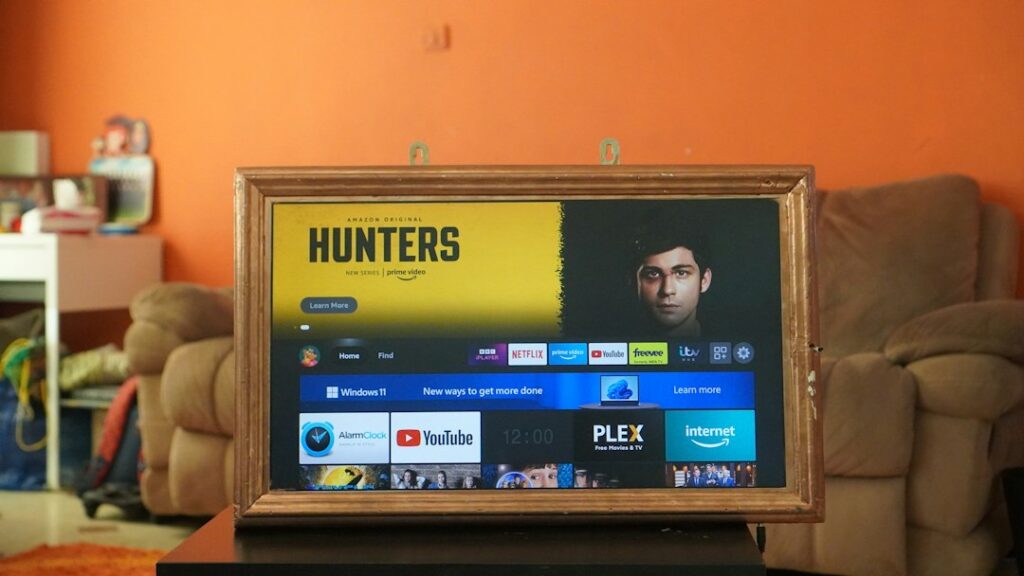
When these frustrating interruptions occur right in the middle of a live broadcast or your favorite television program, it can completely ruin your viewing experience. Understanding the root causes—ranging from local wireless congestion to temporary bottlenecks in your internet service provider’s routing—allows you to apply targeted fixes rather than guessing blindly. By systematically evaluating your hardware, local network environment, and application settings, you can restore a stable, buffer-free connection and ensure your legal streaming setup performs at its absolute best.
Before You Start Checklist
Before you dive into complex troubleshooting, check these basics first:
- Your Amazon Firestick is plugged directly into a wall socket rather than a USB port on the back of your television.
- Other devices in your house load websites quickly over the same Wi-Fi network.
- Your subscription is active and you aren’t missing any official account renewals.
- You are using an approved, legal IPTV app downloaded directly from the official Amazon Appstore.
Taking a moment to verify these foundational elements saves considerable time and prevents unnecessary frustration. For instance, many users overlook their power supply; powering a Firestick via a television USB port often delivers insufficient electrical current, leading to unstable Wi-Fi chips, sudden reboots, and persistent network drops. Ensuring a stable wall power connection eliminates this hidden hardware bottleneck instantly.
Step-by-Step Firestick IPTV Network Troubleshooting
Work through these numbered steps in order when your device refuses to load your legal channels.
1. Restart Your Firestick Properly
Don’t just turn your TV off. Go to your Firestick Settings, select My Fire TV, and choose Restart. This clears temporary memory glitches that block your streaming apps from reaching the internet.
Furthermore, taking your broadband router offline for roughly sixty seconds alongside your Firestick can clear corrupted local IP address leases and force a fresh handshake with your Internet Service Provider. This simple hardware power cycle resolves a vast majority of stubborn connection loops without requiring any advanced technical configuration.
2. Check Your Wi-Fi Frequency Band
Most modern UK routers broadcast on both 2.4GHz and 5GHz bands. If your Firestick sits on the crowded 2.4GHz band, thick walls or household appliances can ruin your connection. Switch your Firestick to the 5GHz Wi-Fi network for faster speeds and less interference.
The 2.4GHz frequency band is notoriously crowded, sharing airspace with Bluetooth devices, microwave ovens, baby monitors, and neighboring wireless networks. The 5GHz band, while offering a shorter physical range and less penetration through solid masonry, provides significantly higher data throughput and experiences vastly less interference, making it the superior choice for high-definition and live media streaming.
3. Clear App Cache and Data
Go to Settings, then Applications, and Manage Installed Applications. Find your official streaming app and clear its cache. If errors persist, clear the app data, but remember you’ll need to log back in with your official account details.
Over time, accumulated temporary files, broken stream manifests, and fragmented data packets can clog an application’s internal storage directory. Routine maintenance, such as purging unnecessary cache files, keeps the app running lean and responsive, directly reducing the likelihood of unexpected network timeouts or freezing during playback.
4. Update Your Fire OS Software
Outdated system software causes endless connection loops. Go to Settings > My Fire TV > About > Check for Updates. Install any pending updates and let your device reboot.
Amazon frequently rolls out critical security patches, network stack optimizations, and driver updates for the internal Wi-Fi components of its streaming hardware. Running an outdated operating system version can lead to compatibility issues with modern content delivery networks and official streaming application protocols.
Understanding Local Network Congestion and Bandwidth Management
Even if your broadband package boasts impressive headline speeds, heavy concurrent usage by other devices in your household can starve your Firestick of the consistent bandwidth required for smooth live streaming. If someone else in the house is downloading large video game files, backing up massive photo libraries to cloud storage, or streaming 4K video on another screen, your streaming application may experience sudden packet loss and trigger network error messages.
To mitigate this, consider connecting your router closer to your television setup, or if your specific Firestick model permits, invest in an official Amazon Ethernet adapter to establish a rock-solid wired connection. A physical Ethernet cable entirely bypasses wireless interference, walls, and local radio frequency congestion, delivering maximum possible stability for uninterrupted live television viewing.
Common Mistakes to Avoid
Don’t factory reset your entire Firestick straight away. That wipes all your downloaded apps and wastes unnecessary time. Avoid using unofficial side-loaded apps or modified APK files that break every time Amazon updates its operating system. Stick to official software available in the UK app store. For more tips on managing your apps, take a look at our guide on how to clean firestick cache for better IPTV streaming.
Another frequent error is ignoring router firmware updates. Just as your Firestick requires operating system patches, your home broadband router benefits immensely from periodic software maintenance managed through its administrative web portal. Keeping your entire local digital ecosystem updated ensures seamless communication between your streaming stick, home network hardware, and external broadcast servers.
When to Contact Your Provider
If your broadband speed test shows over 30 Mbps, your Wi-Fi signal is strong, and other apps like BBC iPlayer work fine, but your legal IPTV app still throws connection errors, the issue is likely on the broadcaster’s end. Reach out to your provider’s customer support team to check if they are experiencing server downtime or scheduled maintenance.
Sometimes, unexpected routing issues or upstream transit failures between your internet service provider and the official broadcast content delivery network can prevent data packets from reaching your device efficiently. Customer support agents can verify whether their streaming nodes are fully operational or if an alternative server address should be utilized.
Safety and Legal Notes
Always use official, licensed streaming applications and legal broadcast subscriptions in the UK. This guide does not support bypassing geoblocks, using unauthorized streaming links, or accessing pirated content. Respect copyright laws and enjoy your television legally.
Maintaining compliance with UK broadcasting standards ensures that you receive high-quality, reliable streams without the legal and security risks associated with shady, unofficial third-party services. Official platforms invest heavily in robust server infrastructure, guaranteeing optimal uptime and professional customer support when technical hitches arise.
Frequently Asked Questions
Why does my Firestick keep dropping my Wi-Fi connection?
Interference from nearby routers, thick Victorian walls, or a weak power supply often causes sudden drops. Move your router closer or use an Ethernet adapter.
Will a VPN fix my network errors?
Legal streaming services in the UK generally do not require a VPN to function correctly on home broadband connections. Network errors usually point to local Wi-Fi or app issues rather than geographic restrictions.
How do I know if my internet speed is fast enough?
Open a web browser or download a speed test app on your Firestick. You need a stable connection of at least 15 to 25 Mbps for reliable high-definition streaming.
For more information, iptv.
Related reading
- Clearing Up Common Misconceptions About Setting Up and Using IPTV UK Services
- Legal IPTV Devices UK: Hardware Comparison and Official Apps
Update: Legal IPTV Devices UK Compared: Fire Stick, Apple TV and Android TV
Update: Understanding How IPTV UK Services Deliver Television Over Broadband
- The Short Answer
- Before You Start Checklist
- Myth vs Fact: What Actually Causes Freezing?
- Internet Speed and Wi-Fi Signal Problems
- App Updates and Device Storage
- Hardware Overheating and Thermal Throttling
- DNS Issues and Server Availability
- Audio Problems and Subtitle Mismatches
- Common Mistakes to Avoid
- When to Contact Your Provider
- Safety and Legal Notes
- Frequently Asked Questions
- Why does my stream buffer only during evening peak hours?
- How often should I clear my app cache?
- Can a VPN cause connection errors?
When your screen freezes right during a crucial football match, frustration peaks fast. Dealing with unexpected playback errors or stuttering streams ruins your evening. Fortunately, most common issues with legal streaming apps stem from local network snags or simple software caches rather than major hardware failures.

If you need a refresher before diving into fixes, you can review standard Smart TV setup steps to ensure your app configuration is correct. This guide breaks down exactly what goes wrong and how to fix it on UK devices like Amazon Firestick, Samsung, LG, and Android TV.
Understanding these technical nuances empowers you to troubleshoot independently rather than waiting hours for support lines to open. Whether you are catching Premier League fixtures or international tournaments, a methodical approach ensures uninterrupted viewing.
The Short Answer
Most streaming hiccups clear up with a simple router restart, a cleared app cache, or an internet speed check. If your connection meets minimum broadband speeds of 15 Mbps for HD or 30 Mbps for 4K, local device settings usually cause the glitch.
Before You Start Checklist
- Check your physical Ethernet cables or Wi-Fi band (use 5GHz instead of 2.4GHz).
- Verify your subscription account is active and paid up.
- Note the exact error code or symptom you see.
- Check if your streaming device has enough free storage space.
Myth vs Fact: What Actually Causes Freezing?
Many viewers assume their broadband provider throttles all live video streams deliberately. That myth causes endless confusion. In reality, local Wi-Fi interference from household appliances or a jammed router cache triggers most buffering events. Your ISP rarely targets legitimate app traffic specifically.
Internet Speed and Wi-Fi Signal Problems
Slow loading wheels usually point to network bottlenecks. Run a speed test directly on your streaming box. If your numbers fall below your provider’s recommended minimum, look at your physical setup.
Move your Wi-Fi router away from thick walls, microwaves, and cordless phones. Better yet, plug your Firestick or Android box directly into the router using an Ethernet adapter if wireless congestion plagues your living room.
App Updates and Device Storage
Smart TVs run on tight internal memory budgets. When your television runs low on storage, background apps crash constantly.
- Samsung TV: Go to Apps, select Settings in the top right, and check available storage. Delete unused apps to free up space.
- LG TV: Open the LG Content Store, check your installed apps list, and remove heavy applications you never open.
- Firestick: Go to Settings, Applications, and Manage Installed Applications. Clear caches for your streaming app regularly.
Hardware Overheating and Thermal Throttling
Streaming high-definition video for hours pushes compact devices like the Amazon Firestick or Roku sticks to their thermal limits. When a streaming stick gets too hot—especially if it is plugged directly into the back of a wall-mounted TV where heat gets trapped—the processor automatically slows itself down to cool off. This thermal throttling directly causes sudden frame drops and frustrating freezes during critical moments of a broadcast. To combat this, always use the short HDMI extender cable that came packaged with your streaming device. This simple accessory distances the stick from the television’s hot chassis and improves airflow. Additionally, avoid powering your streaming device via the TV’s lower-amperage USB port; instead, plug the power adapter directly into a proper wall outlet to ensure stable voltage delivery.
DNS Issues and Server Availability
Sometimes the issue sits entirely outside your house. Official broadcaster servers or independent provider links experience temporary outages during massive live events.
If a channel refuses to load, switch from your internet provider’s default DNS to a public DNS alternative like Cloudflare (1.1.1.1) or Google (8.8.4.1) inside your network settings. If the whole service drops, check your provider’s status page.
Audio Problems and Subtitle Mismatches
Lip sync errors and missing subtitles drive viewers mad. These glitches happen when the audio codec fails to match your television’s sound output settings.
Open your streaming app audio settings. Switch the audio track from Dolby Digital Plus to standard Stereo or PCM. This simple toggle fixes most echo and timing issues instantly on modern soundbars and TV speakers.
Common Mistakes to Avoid
Panicking and factory resetting your entire television ranks as the top mistake people make. That step wipes all your passwords and saved settings without fixing a simple app glitch. Another common error involves ignoring app updates. Running an outdated version of an app on your Firestick guarantees compatibility clashes.
When to Contact Your Provider
Reach out to customer support if your login credentials fail repeatedly despite multiple password resets. Contact them also when specific channels show a permanent black screen while other streams work fine. Providers can check if their source feeds need a backend reboot.
Safety and Legal Notes
Always use official, licensed applications downloaded directly from certified app stores like Amazon Appstore, Google Play, or your TV manufacturer’s native store. Never install unverified files from unknown sources or use modified applications that claim to bypass standard subscription rules. Keeping your software official protects your personal data and ensures stable performance.
Frequently Asked Questions
Why does my stream buffer only during evening peak hours?
Local neighborhood network congestion slows down internet speeds between 7 PM and 10 PM. Switching to a 5GHz Wi-Fi channel helps avoid interference from nearby routers.
How often should I clear my app cache?
Clear your app cache once every two weeks if you stream daily. This prevents temporary junk data from clogging your device memory.
Can a VPN cause connection errors?
Yes. Using a virtual private network often routes your traffic through distant servers, increasing latency and causing stuttering during live sports matches.
For more information, iptv.
Related reading
- A Practical Step-by-Step Guide to Setting Up Legal IPTV Services on Your UK Television
- EE TV vs Sky Stream: Choosing Legal Sports IPTV UK Packages
Update: How Broadband Speeds Impact Your IPTV UK Experience
Update: UK IPTV Subtitles Guide: Fixing Language and Text Errors on Firestick and Smart TVs
When your UK IPTV freezing mid-match ruins Saturday afternoon football, you need a quick fix rather than endless guesswork. Official streaming apps and licensed independent services alike can stutter when your home network, device memory, or app software hits a snag. Let’s look at how to sort out these annoying interruptions so your screen stays clear.
Before you start poking around your router or digging through settings menus, run a quick check on a few basics. Is your broadband subscription delivering the speeds you pay for? Are other devices in the house downloading heavy files at the same time? Sometimes the problem is simply local network congestion rather than a failing broadcast stream.
Before You Start Checklist
- Check your current broadband download speed using a wired connection or a phone near the router.
- Note down whether the UK IPTV freezing happens on every channel or just one specific feed.
- Locate the power cables for your TV, router, and streaming stick for a hard reboot.
- Check if your TV’s operating system has a pending software update waiting to install.
- Verify whether other streaming platforms like Netflix or BBC iPlayer experience similar stutters, which helps isolate if the issue is global to your internet connection or specific to your IPTV setup.
Step-by-Step Troubleshooting Guide
Follow these steps in order to diagnose and resolve playback drops on your living room display.
- Reboot your home network: Unplug both your broadband router and your television or Firestick. Wait sixty seconds before plugging the router back in, then power up your streaming device once the internet connection returns. This clears temporary IP conflicts and gives your ISP a fresh handshake.
- Clear app cache and storage: Head to your device settings menu. Find your licensed IPTV player app, clear its temporary cache files, and delete any leftover data if the app continues to lag. Over time, corrupted cache files build up and choke the application’s performance.
- Test your connection speed: Buffering usually points to bandwidth drops. If you need help with this, read our step-by-step guide to testing internet speed for UK IPTV to see if your line meets requirements.
- Switch to a 5GHz Wi-Fi band: Older 2.4GHz wireless bands suffer from heavy interference in British homes due to microwave ovens, Bluetooth devices, and thick Victorian walls. Move your streaming hardware to the faster 5GHz frequency if your router supports dual-band connections.
- Update or reinstall your player application: Outdated software often causes memory leaks and playback crashes. Grab the newest version directly from your device’s official app store.
Device-Specific Steps for Samsung and LG TVs
Smart TVs running Tizen (Samsung) or webOS (LG) manage memory differently than dedicated streaming sticks. If you use a Samsung set, hold down the power button on your remote until the TV completely restarts with the brand logo. For LG owners, clear your browser history and cache within the TV settings, as webOS relies heavily on built-in web engines to render application interfaces.
Furthermore, many modern smart TVs have aggressive energy-saving features that throttle processor performance or put background network adapters to sleep. Disabling these eco-modes in your TV’s general settings menu can drastically reduce micro-stutters during fast-moving sports broadcasts.
Understanding Hardware Limitations and Buffer Allocation
Many users overlook the physical hardware running their IPTV player. Inexpensive streaming dongles often feature minimal RAM—sometimes as little as 1GB or 2GB. When running resource-heavy IPTV applications that decode high-bitrate live video streams, these devices quickly run out of memory. This forces the system to dump cache data continuously, resulting in choppy playback or sudden app crashes. Upgrading to a dedicated streaming box with a more robust processor and ample RAM can permanently eliminate hardware-induced stuttering.
Additionally, pay attention to video player buffer settings within your app. Increasing the hardware acceleration or buffer size parameters—if your application allows advanced configuration—can give your device a larger safety net when minor internet fluctuations occur, preventing sudden drops in video quality.
Common Mistakes to Avoid
Don’t jump straight to factory resetting your entire television when a simple app restart will do. Avoid using cheap, unpowered HDMI extension cables that can degrade signal integrity. Never ignore firmware updates, because manufacturers patch critical network bugs in almost every monthly release. Another common pitfall is placing your Wi-Fi router inside a closed media cabinet or behind large metal appliances; always keep your router out in the open, elevated, and centrally located in your home for optimal signal propagation.
When to Contact Your Provider
If you’ve restarted your router, cleared your app cache, and verified your internet speed is running well above twenty megabits per second, the fault might sit with the broadcaster. When UK IPTV freezing affects only a single channel while other feeds play smoothly, the source stream itself is likely experiencing an outage at the provider’s end. Document the exact times the freezing occurs and which specific channels are affected before reaching out to customer support so they can investigate the feed on their servers.
Frequently Asked Questions
Why does my stream buffer only during evening peak hours?
Local broadband traffic across your neighbourhood surges between 7 PM and 10 PM. This congestion can throttle your available bandwidth.
Will a VPN fix my buffering issues?
Usually, a VPN makes buffering worse because it adds an extra routing step and encrypts your data, slowing down connection speeds.
How much internet speed do I need for HD streaming?
A stable connection of at least 15 to 25 Mbps easily handles high-definition live video feeds without stuttering.
Can changing my DNS servers improve IPTV performance?
Switching to a faster public DNS provider like Cloudflare (1.1.1.1) or Google (8.8.8.8) can sometimes speed up initial stream connection times and domain resolution, though it won’t magically increase raw bandwidth if your ISP line is saturated.
For more information, iptv.
Related reading
- Official Broadcasters vs. Independent IPTV Services: A UK Comparison
- Choosing Legal IPTV Streaming Devices in the UK: Hardware Compared
Update: A Practical Step-by-Step Guide to Setting Up Legal IPTV Services on Your UK Television
Update: UK IPTV Troubleshooting Guide: Fixing Smart TV and Firestick Streaming Errors
- Before You Start Checklist
- Step-by-Step Firestick IPTV Connection Troubleshooting
- 1. Test Your Internet Speed
- 2. Restart Your Router and Firestick
- 3. Switch Your Wi-Fi Frequency Band
- 4. Clear App Cache and Check Storage
- 5. Update Your DNS Settings
- Advanced Network Optimisation for Seamless Streaming
- Common Mistakes to Avoid
- When to Contact Your Provider
- Frequently Asked Questions
- Why does my Firestick keep dropping the Wi-Fi connection?
- How do I know if my internet speed is the real problem?
- Does clearing the app cache delete my subscription login?
- Safety and Legal Notes
You sit down to watch a Saturday afternoon match, but your Firestick throws a frustrating network error on the screen. Dealing with a dropped stream ruins your viewing experience instantly. Let’s fix those annoying connection glitches properly.

Internet speed drops, faulty Wi-Fi signals, and temporary router issues usually cause these streaming failures. Your device hardware or app software might also need a quick reset. We will walk through the exact steps to diagnose and solve these common problems on your Amazon streaming stick.
Before You Start Checklist
Always verify a few basics before diving into complex network settings. Quick checks often save you twenty minutes of pointless menu clicking.
- Confirm your broadband connection works on another device like a phone or laptop.
- Check if your legal provider has reported any scheduled server maintenance.
- Ensure your Amazon Firestick is plugged directly into a reliable wall socket rather than a weak USB port on your television.
- Make sure your Fire OS software is fully up to date.
Step-by-Step Firestick IPTV Connection Troubleshooting
Work through these troubleshooting stages in order. Each step addresses a common root cause for UK streaming hiccups.
1. Test Your Internet Speed
A sluggish connection starves your media player of essential bandwidth. Run a proper diagnostic check to see your actual download rates. For a detailed walkthrough on checking your home speeds, read this step-by-step guide to testing internet speed for UK IPTV. You need a stable connection of at least 15 to 25 Mbps for smooth high-definition streams.
2. Restart Your Router and Firestick
Clear out temporary network cache by giving your hardware a fresh boot. Unplug your BT, Sky, or Virgin Media router from the wall outlet. Wait thirty seconds before plugging it back in. Next, unplug your Firestick power cable, wait ten seconds, and reconnect it. This simple power cycle fixes most stubborn IP address conflicts.
3. Switch Your Wi-Fi Frequency Band
Most modern UK routers broadcast on both 2.4 GHz and 5 GHz frequencies. The 2.4 GHz band covers greater distances but suffers from heavy interference from microwaves and neighbour networks. Move your Firestick connection to the 5 GHz band if your router sits close to the television. If your router sits in another room, stick to 2.4 GHz for a more stable signal path.
4. Clear App Cache and Check Storage
Low device storage makes streaming apps freeze or crash unexpectedly. Go to your Firestick Settings, select Applications, and find Installed Applications. Choose your streaming app and click Clear Cache. Never clear app data unless you have your login details written down, as data deletion removes your saved playlists.
5. Update Your DNS Settings
Internet Service Providers sometimes route traffic inefficiently. You can manually adjust your network settings on the Firestick to use alternative public DNS servers. Go to My Fire TV, select About, and check your network status to see your current IP allocation. Reconfigure your Wi-Fi settings to input custom DNS values if your provider permits it.
Advanced Network Optimisation for Seamless Streaming
If basic troubleshooting resolves your immediate problem but you still experience occasional buffering during peak evening hours, your home network may require deeper optimisation. Network congestion frequently occurs between 7 PM and 10 PM when households across your neighbourhood stream high-definition content simultaneously. To combat this, consider implementing Quality of Service (QoS) settings within your home router’s admin panel. QoS allows you to prioritise media streaming traffic from your Amazon Firestick over background activities like large file downloads or cloud backups on other household computers. Furthermore, if your television sits far from your wireless access point and you continuously experience packet loss, utilizing an official Ethernet adapter for your Firestick can provide a rock-solid, interference-free wired connection that completely eliminates wireless dropouts. Taking these extra structural steps guarantees a much more reliable day-to-day media consumption experience without unexpected interruptions during crucial moments of your live broadcasts.
Common Mistakes to Avoid
Many users worsen their technical issues by rushing through fixes. Avoid these common pitfalls:
- Ignoring background downloads that hog your home bandwidth.
- Using unverified third-party VPN apps that bottleneck your legal streaming speeds.
- Failing to restart devices after changing network settings.
- Blaming your broadband provider before testing the physical ethernet or Wi-Fi link.
When to Contact Your Provider
Sometimes the issue sits entirely outside your living room. Reach out to your subscription support team if every other device in your house browses the web normally while your Firestick still fails to load playlists. If you experience persistent error codes despite passing speed tests, your provider’s streaming servers might be experiencing an outage.
Frequently Asked Questions
Why does my Firestick keep dropping the Wi-Fi connection?
Interference from thick walls or competing household devices often causes dropped signals. Moving your router closer or switching bands usually solves this.
How do I know if my internet speed is the real problem?
Run an on-screen speed test app directly through your Firestick app store to measure your real-time download performance.
Does clearing the app cache delete my subscription login?
No, clearing the cache only removes temporary junk files. Clearing app data will wipe your login credentials.
Safety and Legal Notes
This technical guide is for informational purposes only and is designed for legal, authorised streaming services used in the United Kingdom. We do not endorse bypassing geographic blocks or accessing pirated content. All trademarks and brand names mentioned belong to their respective owners.
For more information, iptv.
Related reading
- 7 Things to Check Before Choosing an IPTV UK Subscription
- UK IPTV Hardware Guide: Choosing the Right Streaming Device
Update: Choosing Legal IPTV Streaming Devices in the UK: Hardware Compared
Update: Official Broadcasters vs. Independent IPTV Services: A UK Comparison
- Why does my IPTV app suddenly close itself on my Samsung or LG TV?
- What should I check before messing with my TV settings?
- How do I clear cache and update my streaming app on Firestick, Android TV, and webOS?
- For Amazon Firestick and Fire TV Cube
- For Samsung Smart TVs
- For LG Smart TVs (webOS)
- What are the common mistakes people make when fixing app crashes?
- When is the app crash actually my provider's fault?
- Is updating and running official streaming apps safe and legal in the UK?
- Frequently Asked Questions
- Why does my app crash only on live channels and not on catch-up TV?
- Will factory resetting my smart TV stop app crashes permanently?
- How often should I clear my app cache?
Few things frustrate a viewer quite like a live football match cutting to a black screen just as a penalty is taken. If you are dealing with smart tv iptv app crashing issues right in the middle of your favourite programme, you are definitely not alone. Apps close unexpectedly for a few very specific reasons, ranging from cluttered memory to outdated software.

Here is the short answer. Most sudden app closures happen because your streaming device runs out of temporary memory, or the application version installed on your television is outdated. Clearing your cache, restarting your device, and checking for app updates usually fixes the problem in under five minutes.
Why does my IPTV app suddenly close itself on my Samsung or LG TV?
Modern televisions are basically computers with big screens. They run complex operating systems like Samsung’s Tizen or LG’s webOS. These platforms manage dozens of background processes at once. When you open a heavy media player, the TV’s processor has to juggle live video decoding, electronic program guides, and system updates.
If your television’s internal storage gets too full, background tasks fight for RAM. Your TV will often force-close the heaviest app to save itself from freezing entirely. Older television models feel this strain even faster because manufacturers pack newer software updates onto older hardware components. Your internet connection rarely causes a sudden app crash on its own. A bad internet connection usually causes buffering, whereas a complete crash points straight to device memory or software bugs.
What should I check before messing with my TV settings?
Before you start digging through advanced menu options, run through a quick physical and digital checklist. Rushing into factory resets wastes time and rarely fixes simple app glitches.
- Check your device storage. Most smart TVs only have a few gigabytes of total storage space. If you have less than 15% free space, apps will struggle to run.
- Verify your internet stability. A quick restart of your home broadband router clears out routing errors that might corrupt data packets during live streams.
- Look at your subscription status. Sometimes an expired account or authentication failure causes the application to drop out unexpectedly.
- Ensure your physical connections are secure. Loose HDMI cables can sometimes trigger HDCP handshaking errors that force apps to close.
How do I clear cache and update my streaming app on Firestick, Android TV, and webOS?
Different devices handle software management in entirely different ways. Follow the steps below tailored specifically to the hardware sitting in your living room.
For Amazon Firestick and Fire TV Cube
- From your main Fire TV home screen, click the gear icon to open Settings.
- Select Applications, then choose Manage Installed Applications.
- Find your preferred legal streaming or playlist application in the list and click it.
- Select Clear Cache first. Do not click clear data unless you have your login details backed up.
- Return to the main menu and check the Amazon Appstore for any pending software updates.
For Samsung Smart TVs
- Press the Home button on your remote control.
- Navigate to Apps, then select the Settings gear icon in the top right corner.
- Highlight the crashing app and press down on your remote touchpad or directional pad.
- Select Reinstall or Check for Updates from the sub-menu.
- Unplug your Samsung television from the wall socket for 60 seconds to completely flush the RAM, then plug it back in.
For LG Smart TVs (webOS)
- Press the Home button to bring up the launcher bar.
- Open the LG Content Store or your installed apps list.
- If the app behaves poorly, delete it completely by holding down the select button and choosing delete.
- Re-download the application from the official store to ensure you have the cleanest possible installation.
What are the common mistakes people make when fixing app crashes?
Panic leads to poor troubleshooting choices. Many users immediately uninstall their entire playlist configuration without backing up their details, which locks them out of their service until technical support replies.
Another frequent mistake involves ignoring device firmware updates while constantly reinstalling the media player. Your TV’s core operating system must remain fully updated to communicate properly with modern streaming protocols. Neglecting updates creates software conflicts that guarantee your smart tv iptv app crashing cycle will just repeat tomorrow.
People also tend to download unofficial utility apps promising to speed up their hardware. These tools often run heavy background monitoring tasks that consume even more memory, making crashes worse instead of better.
When is the app crash actually my provider’s fault?
Hardware troubleshooting has limits. If your app shuts down at the exact same minute every single evening, your device is probably not the culprit.
Server overload happens when thousands of households tune into a major live sporting event at once. If the broadcasting servers cannot handle the incoming traffic requests, client applications will frequently time out and crash. If you have already cleared your cache, updated your software, and restarted your router, the issue almost certainly sits with the service provider’s infrastructure. Read our guide on Smart TV IPTV EPG Setup: Getting UK TV Guides Working Properly to see if schedule data sync failures are dragging down your system performance.
Is updating and running official streaming apps safe and legal in the UK?
Using legitimate media players downloaded straight from official marketplaces like the Google Play Store, Amazon Appstore, or Samsung Apps is entirely safe and lawful. The software itself is just a digital container, much like a web browser designed to display video content.
You must always ensure you use authorized services that comply with UK broadcasting regulations. Downloading modified application files from unverified third-party websites exposes your home network to security risks and malware.
Frequently Asked Questions
Why does my app crash only on live channels and not on catch-up TV?
Live streams require continuous data decoding and real-time buffer management. If your Wi-Fi signal drops for even a fraction of a second during a live broadcast, the app may crash due to a stream decoding failure. Catch-up files download sequentially, making them much more forgiving.
Will factory resetting my smart TV stop app crashes permanently?
A factory reset wipes out corrupt system files and frees up maximum storage space. It provides a clean slate, but it will not stop apps from crashing if your broadband connection struggles or if the app itself has a persistent software bug.
How often should I clear my app cache?
You only need to clear your cache when you notice sluggish performance or sudden closures. Doing it once a month is plenty for most streaming setups.
For more information, iptv.
Related reading
- How to Test an IPTV Service Before Committing Long Term in the UK
- UK Legal IPTV Device Setup and Comparison Guide
Update: UK IPTV Hardware Guide: Choosing the Right Streaming Device
Update: 7 Things to Check Before Choosing an IPTV UK Subscription
- Before You Start Checklist
- 1. Internet Speed and Bandwidth Limits
- 2. Wi-Fi Signal and Router Placement
- 3. App Updates and Device Storage
- 4. DNS Issues and Server Availability
- 5. Fixing Subtitle and Audio Sync Problems
- Understanding Content Delivery Networks (CDNs)
- Common Mistakes to Avoid
- When to Contact Your Provider
- Frequently Asked Questions
- Why does my stream buffer only during evening peak hours?
- Does a VPN stop IPTV buffering UK streams?
- How often should I clear my app cache?
When your live football stream freezes right before a penalty, you need a quick fix. Dealing with constant stuttering ruins match day. Let us look at why your legal IPTV buffering UK stream keeps stopping and how you can actually fix it.
Before You Start Checklist
Take a few minutes to check the basics before changing any settings. Most streaming glitches come from simple network hiccups.
- Check your broadband speed using a reliable online tester.
- Restart your streaming device by unplugging it for thirty seconds.
- Reboot your Wi-Fi router to clear temporary memory blocks.
- Verify your subscription status is active with your provider.
1. Internet Speed and Bandwidth Limits
High-definition streams demand steady download speeds. Standard high definition needs around 10 Mbps, while 4K content requires 25 Mbps or more. If other household members are downloading large files or gaming, your stream will suffer. Move bandwidth-heavy tasks to off-peak hours when possible.
Beyond raw download speeds, packet loss and jitter play a massive role in live streaming stability. You might have a 100 Mbps connection on paper, but if your line suffers from high jitter—meaning packets of data arrive inconsistently—your video player will constantly stall as it waits to reassemble the video feed. Running a diagnostic test that measures latency and packet loss can reveal hidden bottlenecks that a simple speed test misses.
2. Wi-Fi Signal and Router Placement
Walls and electrical appliances weaken wireless signals across your home. Place your router out in the open rather than hiding it inside a TV cabinet. If your Firestick sits behind a large television screen, use a cheap HDMI extender cable. This trick pulls the device away from metal components that block signals. Alternatively, switch to an Ethernet cable for a rock-solid wired connection.
Furthermore, consider the frequency band your devices are using. Modern dual-band routers broadcast on both 2.4 GHz and 5 GHz frequencies. While the 2.4 GHz band penetrates walls better, it is heavily congested with Bluetooth devices, microwaves, and neighbouring Wi-Fi networks. Switching your streaming device to the 5 GHz band provides a wider, faster lane with significantly less interference, provided your router is reasonably close by.
3. App Updates and Device Storage
Outdated software causes endless playback errors. Check your app store for the newest version of your player. Firesticks run out of internal storage quickly. Delete unused apps to free up memory so your media player runs smoothly. If you need hardware advice, read our guide on UK streaming device comparison for legal IPTV apps.
Cache accumulation is another silent performance killer. Many users do not realise that streaming applications store temporary chunks of video data locally to ensure smooth playback. Over weeks of heavy viewing, these cache files bloat, consuming precious RAM and storage space. Routinely heading into your device settings to clear the cache of your specific IPTV player can instantly restore snappy navigation and stop random mid-match crashes.
4. DNS Issues and Server Availability
Sometimes the problem is not on your end. Broadcasters and service providers experience heavy traffic surges during major sporting events. If your IPTV buffering UK issue persists across multiple channels, the remote server might be overloaded. Changing your router DNS settings to a public provider like Cloudflare or Google can also speed up domain resolution.
Internet Service Providers (ISPs) often use sluggish default DNS servers that translate web addresses slowly. By manually configuring your network to use Cloudflare (1.1.1.1) or Google (8.8.8.8), your device establishes connections to streaming endpoints much faster. This reduction in initial handshake time can make a noticeable difference when tuning into fast-paced live broadcasts where quick channel switching is necessary.
5. Fixing Subtitle and Audio Sync Problems
Audio lagging behind video makes programmes unwatchable. Open your player settings and look for audio delay options. Adjusting the milliseconds forward or backward usually fixes the mismatch instantly. For subtitle issues, turn them off and back on again within the player menu.
Hardware decoding mismatches are frequently the root cause of persistent audio-visual desynchronisation. Inside your IPTV player’s advanced settings, you will usually find toggles for hardware acceleration (HW decoding) versus software decoding (SW decoding). If your streaming box struggles to process the video stream codec efficiently, switching this setting forces the CPU or GPU to handle the workload differently, often curing persistent lip-sync drifts.
Understanding Content Delivery Networks (CDNs)
To truly grasp why streams stutter, it helps to understand how video reaches your living room. Legal IPTV providers distribute their feeds through massive global networks known as Content Delivery Networks. These CDNs cache video streams across servers placed physically closer to end-users.
When a major Premier League match kicks off, millions of requests slam into the nearest local CDN node. If that specific server node reaches maximum capacity, data packets queue up, causing the spinning loading wheel on your screen. While you cannot control CDN infrastructure, choosing a reputable provider that invests in robust, multi-path server architecture drastically reduces your exposure to these regional traffic jams.
Common Mistakes to Avoid
Do not install random unofficial APK files downloaded from sketchy forums. These files compromise device security and often make performance worse. Avoid factory resetting your entire television before testing your network connection first.
Another frequent error is running too many background processes. Many streaming devices keep apps running in active memory long after you have pressed the home button. Closing background tasks completely before launching your live sports application ensures your device dedicates 100% of its processing power to rendering high-framerate video.
When to Contact Your Provider
Hardware tweaks and router reboots will not solve everything. Reach out to your service provider if specific channels fail while others work fine. They can check if their gateway servers need a reset.
When contacting support, be prepared to provide specific diagnostic details. Note the exact time the freezing occurred, the specific channel name or event, your general location, and whether you were connected via Wi-Fi or Ethernet. This precise information allows their technical team to check specific ingest servers and resolve the issue much faster.
Frequently Asked Questions
Why does my stream buffer only during evening peak hours?
Local internet congestion slows down connections between 7 PM and 10 PM across many UK neighbourhoods.
Does a VPN stop IPTV buffering UK streams?
Usually, a VPN adds extra routing hops and makes buffering worse unless your broadband provider throttles video traffic.
How often should I clear my app cache?
Clear the cache every couple of weeks to keep your streaming device responsive.
For more information, iptv.
Related reading
- A Step-by-Step Guide to Setting Up and Using an IPTV Service in the UK
- UK Streaming Device Comparison for Legal IPTV Apps
Update: UK Legal IPTV Device Guide: Hardware Comparison for Official Apps
Update: How to Fix IPTV Sound Delays on Firestick and Smart TVs
- The Quick Fix Checklist Before You Start
- Clearing Cache and Managing Device Storage
- Wi-Fi Signal Strength and Router Placement
- Understanding IPTV Protocols and Buffer Settings
- Common Mistakes That Make Firestick Buffering Worse
- Step-by-Step Troubleshooting for Persistent Freezing
- When to Contact Your Provider
- Frequently Asked Questions
- Why does my Firestick only buffer during evening peak hours?
- Does a VPN cause Firestick buffering?
- How much free storage does a Firestick need for good performance?
When your screen suddenly freezes right before a penalty kick, the frustration is real. Firestick buffering ruins live UK IPTV streams more than almost any other technical glitch. You don’t have to live with a stuttering picture every weekend. Let’s fix the root causes so you can watch your favourite programmes without constant interruptions.

The Quick Fix Checklist Before You Start
Before you dive into deep troubleshooting, try these quick steps. They solve about half of all streaming headaches in under two minutes.
- Restart your Amazon Fire TV Stick by pulling the power plug for ten seconds.
- Reboot your home broadband router to clear out stale local network data.
- Check your current internet speed for IPTV to make sure your connection meets minimum requirements.
- Ensure your official TV app is updated to the latest available version from the Amazon Appstore.
Clearing Cache and Managing Device Storage
Your streaming device stores temporary data to speed things up, but too much clutter actually slows everything down. A full storage drive forces the processor to work harder than necessary, leaving fewer system resources available to decode heavy video streams in real time. Over months of regular use, apps accumulate gigabytes of junk data that quietly drain your device’s processing capacity.
To clear cache on your Firestick, head to Settings on your home screen. Select Applications, then choose Managed Installed Applications. Find your streaming app in the list and click Clear Cache. Do not touch Clear Data unless you want to log back in completely. For more detailed storage tricks, read our guide on Firestick storage management for IPTV users.
It is also worth checking your device’s overall storage health regularly. If you notice that your Firestick only has a few hundred megabytes remaining, it is time to perform a thorough clean-up. Uninstalling games, unused utility applications, and old sideloaded APKs will instantly restore smooth navigation and reduce unexpected app crashes during high-definition broadcasts.
Wi-Fi Signal Strength and Router Placement
Wireless interference is the silent enemy of high-definition broadcasting. Thick walls, household appliances like microwaves, and competing smart home gadgets easily weaken your Wi-Fi signal. If your Firestick sits behind a large TV screen or inside a media cabinet, it struggles to maintain a stable connection, leading to frequent resolution drops and annoying loading circles.
Move your Wi-Fi router into the same room if possible to ensure an unobstructed line of sight. Alternatively, connect your Firestick to an Ethernet adapter using a wired cable for ultimate stability. Wired connections eliminate wireless dropouts entirely and protect your stream from local electromagnetic interference. If running a physical cable across your living room is impossible, consider investing in a high-quality mesh Wi-Fi system to blanket your home in seamless, high-speed wireless coverage.
Understanding IPTV Protocols and Buffer Settings
Behind the scenes, your media player application relies on specific streaming protocols to fetch video packets from remote servers. Understanding how these protocols handle data transmission can help you fine-tune your app settings for better playback consistency.
Most IPTV apps let you choose between HLS (HTTP Live Streaming) and MPEG-TS formats. HLS is generally more resilient against fluctuating internet speeds because it breaks video down into small file chunks, whereas MPEG-TS offers lower latency for live events. Furthermore, adjusting your player’s internal cache size—often found within advanced settings—can make a massive difference. Setting the cache to “Extra Large” allows your Firestick to pre-load more video data ahead of time, effectively ironing out brief internet speed dips before they translate into visible freezes on your screen.
Common Mistakes That Make Firestick Buffering Worse
People often make simple errors that actually make streaming performance worse. Avoid these common pitfalls:
- Leaving heavy background apps open while trying to watch live TV, which consumes vital RAM.
- Using cheap HDMI extension cables or unpowered USB ports that fail to supply steady power to the Firestick.
- Ignoring router firmware updates provided by your broadband supplier like BT, Sky, or Virgin Media, which often contain critical performance patches.
- Running resource-heavy automated cloud backups or system scans on other connected devices while attempting to stream live sports in 1080p or 4K.
Step-by-Step Troubleshooting for Persistent Freezing
If simple restarts don’t work, follow this numbered sequence to diagnose the issue properly.
- Test your broadband speed using an on-screen browser to confirm you have at least 15 Mbps for HD streams.
- Switch your Wi-Fi band from the crowded 2.4 GHz frequency to the faster 5 GHz channel on your router for reduced latency.
- Uninstall unused apps to free up internal flash memory and give your operating system room to breathe.
- Check if the issue happens on multiple channels or just one specific feed to isolate whether it is a local device problem or a source issue.
When to Contact Your Provider
Sometimes the problem has nothing to do with your living room setup. If your internet speed is fast, your device is completely clear of cache, and you are connected via a stable 5 GHz or wired network, the issue might be on the broadcaster’s end. Server congestion during popular live sporting events often causes widespread slowdowns across entire user bases. Contact your official service provider support team if specific channel streams fail consistently while your connection remains strong and other applications work without any hitch.
Frequently Asked Questions
Why does my Firestick only buffer during evening peak hours?
Local neighborhood internet traffic surges between 7 PM and 11 PM as everyone streams video and browses online. Your broadband provider might experience temporary bandwidth throttling or local infrastructure congestion during these busy windows.
Does a VPN cause Firestick buffering?
Yes, routing your traffic through distant virtual servers adds latency, increases packet travel distance, and introduces encryption overhead. This extra step frequently leads to stuttering video playback unless you choose a nearby, high-speed server.
How much free storage does a Firestick need for good performance?
Keep at least 1 GB of internal storage completely free so the operating system has room to write temporary cache files, download background updates, and process video streams smoothly without choking.
For more information, iptv.
Related reading
- Understanding How UK IPTV Broadcasters Deliver High-Definition Streams
- Legal IPTV UK Device Comparison: Streaming Hardware Features
Update: Legal IPTV Devices UK: Official Hardware Buying Guide
Update: Myths and Facts About IPTV UK: What You Need to Know
- Before You Start Checklist
- Firestick Versus Smart TV Native Apps
- Step-by-Step Legal IPTV Troubleshooting UK Guide
- Common Mistakes to Avoid
- When to Contact Your Provider
- Safety and Legal Notes
- Frequently Asked Questions
- Why does my live stream keep freezing?
- Can I use the same subscription on multiple TVs?
When you sit down to watch live television in the UK, your streaming app should just work. Setting up a licensed broadcast service on modern hardware isn’t always straightforward though. You might face sudden freezing, audio delays, or stubborn login failures on your living room display.

This guide compares Amazon Firestick devices against built-in Smart TV operating systems. We will weigh up performance, storage limitations, and app compatibility to help you choose the best route for legal IPTV troubleshooting UK scenarios.
Quick answer: Firesticks generally offer a smoother setup and faster app updates than most built-in Samsung or LG television software. Dedicated streaming sticks handle memory management much better when running heavy media players.
Before You Start Checklist
Check these basics before you touch any advanced settings:
- Your broadband router is plugged in and working properly.
- You know your exact account login details.
- The official streaming app is downloaded from the official app store.
- Your television or streaming stick has enough free storage space.
Firestick Versus Smart TV Native Apps
Amazon hardware runs on Fire OS, which is a customized version of Android. This means app developers update their software frequently. You get regular security patches and fast menu navigation.
Smart TVs from brands like Samsung or LG use proprietary systems like Tizen or webOS. These platforms work well for mainstream catch-up services. They often struggle with third-party media players or custom playlists because manufacturers drop software updates after a few years.
If you experience remote control unresponsiveness on your streaming stick, check out these Firestick remote lag fixes to keep your interface snappy.
Step-by-Step Legal IPTV Troubleshooting UK Guide
Fixing playback issues requires a logical approach. Work through these numbered steps carefully.
- Test your connection speed. Open a browser or speed test app on your device to ensure you meet the minimum broadband requirements for high-definition streaming.
- Check Wi-Fi signal strength. Move your router closer to the television if you notice constant buffering. Thick walls block wireless signals easily.
- Power cycle your router. Unplug the power cable from your broadband router for thirty seconds, then plug it back in. This clears temporary memory leaks.
- Update your streaming application. Go to the device app store and install any pending updates for your media player.
- Clear device storage. Delete unused apps and clear cached data to free up RAM on your streaming hardware.
- Check DNS settings. Switch your network settings to use public DNS servers if domain resolution fails.
- Verify account status. Log into your provider dashboard via a phone or laptop to confirm your subscription remains active.
- Test server availability. Try streaming a different channel or on-demand title to see if the problem affects the entire network.
- Fix audio sync issues. Adjust the audio delay setting in your media player menu if dialogue doesn’t match the picture.
- Resolve login errors. Double-check your username and password, ensuring no accidental spaces are added at the end.
Common Mistakes to Avoid
Many viewers make simple errors when fixing streaming glitches. Do not factory reset your television before trying a simple reboot. Avoid downloading unknown APK files from sketchy websites. Stick strictly to official app stores like Amazon Appstore, Google Play, or the Samsung Smart Hub to protect your data.
When to Contact Your Provider
Some problems sit outside your control. Contact your broadcaster support team if specific channels refuse to load while your internet speed is completely fine. They can check server outages on their end.
Safety and Legal Notes
Always use licensed, authorized broadcasting services. This article focuses on legitimate streaming setups and does not support copyright infringement or unauthorized content access. British broadcasting laws apply to all digital media consumption.
Frequently Asked Questions
Why does my live stream keep freezing?
Freezing usually happens due to wireless interference or slow broadband speeds. Try connecting your device via an Ethernet cable for a stable connection.
Can I use the same subscription on multiple TVs?
This depends entirely on your provider’s terms and conditions. Most licensed services limit simultaneous streams per account.
For more information, iptv.
Related reading
- How to Check Your Connection Speed for Smooth UK IPTV Streaming
- Legal IPTV UK Device Comparison Guide
Update: Legal IPTV UK Device Comparison: Streaming Hardware Features
Update: Understanding How UK IPTV Broadcasters Deliver High-Definition Streams
- Before You Start Checklist
- Step 1: Check Your Internet Speed and Wi-Fi Signal
- Switching Your Wi-Fi Band
- Step 2: Clear App Cache and Free Up Storage
- Step 3: Restart Your Router and Fire Stick
- Common Mistakes to Avoid
- When to Contact Your Provider
- Safety and Legal Notes
- Frequently Asked Questions
- Why does my stream only buffer during peak evening hours?
- Does a VPN help stop playback stutter?
- How often should I restart my streaming device?
When your live football match freezes right before a penalty, it’s intensely frustrating. Dealing with UK IPTV buffering ruins your evening and makes reliable streaming feel impossible. Fortunately, you can fix most playback stalls at home without calling an engineer. Here is your quick answer: clear your app cache, restart your router, and check your Wi-Fi band.

Before you dive into troubleshooting, let’s look at what you need.
Before You Start Checklist
- Your Amazon Fire TV Stick remote control
- Access to your broadband router power socket
- A smartphone to test your internet speed
- Five minutes of uninterrupted time
Step 1: Check Your Internet Speed and Wi-Fi Signal
Slow broadband is the number one cause of playback stutter. You need at least 15 Mbps for standard high-definition streams and 30 Mbps for live 4K channels. Run a speed test on a phone sitting right next to your television. If the numbers look low, your Wi-Fi signal might be weak. Thick brick walls in older British homes often block wireless signals entirely.
Switching Your Wi-Fi Band
Most modern routers broadcast two different frequencies. The 2.4 GHz band covers a wide area, but it gets crowded with interference from neighbors. The 5 GHz band offers much faster speeds over shorter distances. Move your Firestick to the 5 GHz network if your router sits in the same room. This simple switch solves half of all network-related playback drops immediately.
Step 2: Clear App Cache and Free Up Storage
Streaming apps collect temporary files every single day. When these files pile up, your device slows to a crawl. If you’ve ever dealt with Firestick IPTV Cache Clearance issues, you know how crucial regular maintenance is. Go to your Firestick settings, select applications, manage installed applications, and find your media player. Tap clear cache, but avoid clearing data unless you want to log in all over again.
Step 3: Restart Your Router and Fire Stick
Electronic devices get overwhelmed when they run continuously for weeks. Unplug your broadband router from the wall outlet. Wait thirty full seconds before plugging it back in. Do the exact same thing with your Firestick by pulling its power cable from the back of the television. This clears the temporary memory and forces both devices to find a fresh, clean connection to your internet provider.
Common Mistakes to Avoid
Don’t jump straight to buying a brand-new router when a simple restart fixes the problem. Avoid hiding your Firestick behind a large metal television screen because metal blocks wireless waves completely. Never ignore app updates either, because outdated software often contains memory leaks that worsen playback performance.
When to Contact Your Provider
Sometimes the issue has nothing to do with your home setup. If you’ve restarted your router, cleared your app cache, and tested your speed, but every single channel still drops out, the problem lies elsewhere. Contact your official streaming provider to ask if they are experiencing server downtime or network maintenance in your region.
Safety and Legal Notes
Always use official, licensed streaming applications and authorized hardware sold through mainstream UK retailers like Argos or Amazon UK. Never attempt to bypass geo-restrictions or access unofficial third-party playlists that infringe on copyright laws. Keep your device firmware updated to maintain proper cybersecurity standards.
Frequently Asked Questions
Why does my stream only buffer during peak evening hours?
Local neighborhood broadband traffic peaks between 7 PM and 10 PM. If your internet provider uses an oversubscribed cabinet, your speeds will drop when everyone else streams movies at the same time.
Does a VPN help stop playback stutter?
Using a virtual private network usually adds extra routing steps that slow down your connection further. It rarely fixes stuttering unless your internet provider actively throttles streaming traffic.
How often should I restart my streaming device?
Restarting your Firestick once a week keeps the operating system snappy and prevents background memory bugs from ruining your viewing experience.
For more information, iptv.
Related reading
Update: Choosing the Right Streaming Hardware for Legal IPTV in the UK: A Practical Buyer's Guide