- Why Does IPTV Playlist Loading Fail on Smart TVs?
- How Do I Fix IPTV Playlist Loading Errors on Samsung and LG Models?
- Fixing IPTV Playlist Loading Errors on Samsung and LG Models
- Does My Broadband Speed Cause Playlist Stalling?
- How Often Should I Refresh My Channel Lists?
- Are ISP Blocks Affecting My Connection?
Why Does IPTV Playlist Loading Fail on Smart TVs?
You boot up your living room screen, open your preferred streaming app, and nothing happens. The loading circle spins endlessly. IPTV playlist loading issues frustrate many UK viewers trying to watch live television feeds through modern displays. Most problems stem from simple network hiccups or expired server addresses. Sometimes, the issue sits with your chosen app failing to fetch data packets from the remote source.

Smart TVs run operating systems like Tizen on Samsung units or webOS on LG displays. These platforms handle memory differently than dedicated streaming boxes. If your television lacks sufficient RAM, fetching large M3U links or Xtream Codes API details takes longer. The app might time out before the full channel list downloads. You need to identify where the bottleneck occurs.
How Do I Fix IPTV Playlist Loading Errors on Samsung and LG Models?
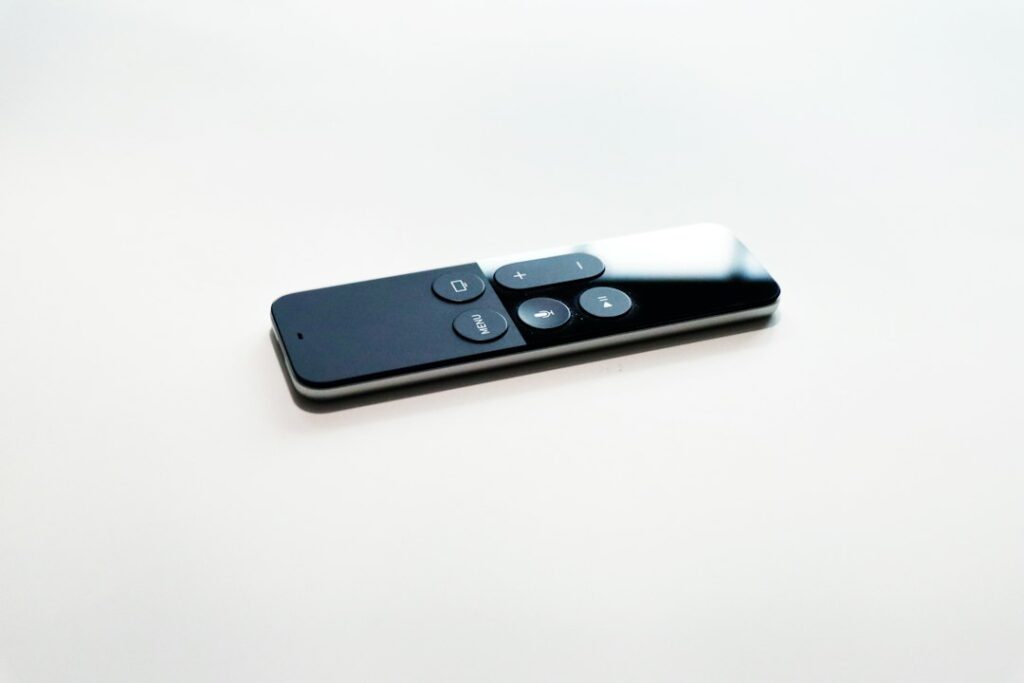
Start by checking your M3U URL for typos. A single misplaced character stops the parser dead in its tracks. Copy the link from your provider’s portal again. Paste it carefully into the app settings. Avoid typing long strings manually using a standard TV remote because mistakes happen easily.
Next, clear the application cache. Navigate to your TV settings, find the installed apps menu, and locate your streaming software. Clear the cached data files. This forces the application to fetch a fresh copy of your channel lineup directly from the server rather than reading corrupted local files. Restart the television completely after clearing this data.
Fixing IPTV Playlist Loading Errors on Samsung and LG Models
If clearing cache fails, delete the playlist entirely from the app interface. Re-add the portal URL from scratch. Many applications struggle to update existing playlists when providers change their backend server domains. A clean re-installation of the app itself works wonders when software glitches prevent proper data retrieval.
Does My Broadband Speed Cause Playlist Stalling?
People often blame their internet service provider when channels refuse to populate. Poor Wi-Fi signals drop packet counts during transmission. Your TV needs a stable connection to download hefty Electronic Programme Guide data alongside your channel lists. If your broadband dips below standard speeds, playlist requests time out.
Try connecting an ethernet cable directly to the back of your television. Wireless interference from neighbouring routers causes massive packet loss in busy urban areas across London and Manchester. A wired link guarantees steady data flow. Check your home broadband speed before running large playlist updates to rule out local network throttling.
How Often Should I Refresh My Channel Lists?
Providers update their stream links frequently. Old URLs expire without warning. If your IPTV playlist loading halts every few days, manual updates fix the problem. Set your app to refresh channel lists upon startup. This ensures you always grab active streams instead of dead links.
Don’t set automatic background updates too frequently if your TV has limited processing power. Background tasks drain system resources. Manual refreshing keeps your television running smoothly without hogging memory while you watch live programmes.
Are ISP Blocks Affecting My Connection?
Major UK internet providers like BT, Sky, and Virgin Media routinely block domains associated with unofficial streaming portals. If your app connects on a mobile hotspot but fails on home Wi-Fi, your ISP is likely interfering with the traffic. Check your network configuration or speak with your provider if you suspect interference with legal streaming traffic.
Some users turn to virtual private networks to bypass local network restrictions. Install a compatible VPN app directly onto your Smart TV if your operating system supports it. This encrypts your data packets and stops local network blocks from breaking your connection routines.
For more information, iptv.
Related reading
- ISP-Bundled Television vs Independent IPTV UK Services: A Straightforward Comparison
- The Appeal of Provider-Bundled Packages
- Hardware Freedom and Flexibility with Independent IPTV UK Setups
- Software and App Management
- Cost Breakdown and Contract Commitments
- Channel Variety and International Content
- Making the Right Choice for Your Household
ISP-Bundled Television vs Independent IPTV UK Services: A Straightforward Comparison
Choosing how to watch television at home used to be simple. You picked an aerial installer or a satellite dish, plugged the box into your wall, and settled on a long-term contract. Today, modern broadband lines deliver most of our daily viewing. If you live in the UK, you have likely weighed up traditional provider bundles against independent IPTV UK options. Both approaches stream live channels and on-demand catalogues directly through your home router. Still, they handle hardware, pricing, and channel selection in very different ways.

Traditional providers like Sky, Virgin Media, and BT bundle television channels straight into your broadband bill. They send out branded set-top boxes, lock you into fixed-term agreements, and manage the entire ecosystem from end to end. Alternatively, independent streaming configurations rely on open hardware. You might use a smart television, a Firestick, or another media player. Data from Ofcom regularly highlights how streaming consumption continues to climb across British households. Households want flexibility. Let us break down how these two viewing models compare when you put them side by side.
The Appeal of Provider-Bundled Packages
Convenience drives the popularity of ISP-bundled television. You deal with one bill, one customer service line, and zero setup guesswork. The hardware arrives pre-configured. You plug it into your HDMI port, connect to your Wi-Fi, and the electronic programme guide populates automatically. These systems integrate catch-up apps seamlessly alongside traditional linear broadcasts.
Support is another major selling point. If your box stops working or your channels disappear, a phone call gets a replacement dispatched or a technician sent to your house. You pay a premium for that peace of mind. Contracts often stretch across 18 or 24 months. Price hikes arrive annually. If your viewing habits change halfway through that agreement, breaking it incurs hefty termination fees.
Hardware Freedom and Flexibility with Independent IPTV UK Setups
Independent streaming takes a completely different path. You own the hardware. Whether you prefer an Apple TV, an Android box, or a standard smart display, you install your own applications. This hardware independence means you can pack your streaming stick into a suitcase and take it on holiday anywhere in the UK, provided you have a decent internet connection.
Customisation sets this approach apart. You choose your preferred media player interface, arrange your channel lists manually, and avoid the bloatware often forced onto proprietary boxes. Of course, this freedom demands a bit more technical patience. When an app updates or settings reset, you troubleshoot the issue yourself rather than calling a helpdesk.
Software and App Management
Running independent streams requires compatible software. Many users rely on applications downloaded directly from official app stores. Getting everything configured correctly takes a few minutes. If you are setting up a new screen for the first time, read a proper guide on installing IPTV on smart televisions to avoid common mistakes.
Once running, these apps handle live streams, electronic guides, and catch-up feeds efficiently. You avoid paying monthly equipment rental fees for hardware you never truly own. Traditional providers often charge extra for multi-room boxes. Independent setups let you install your chosen app across multiple screens in your house without paying an extra subscription fee per room.
Cost Breakdown and Contract Commitments
Money usually dictates the final verdict. Bundled TV packages often look attractive during promotional signup windows. Once those introductory discounts expire, monthly outlays spike significantly. When you bundle broadband, landline, and television together, your monthly bill can easily surpass eighty pounds.
Independent options decouple your internet from your television service. You buy your broadband from whichever network offers the best speeds and prices on your street. Then, you choose your entertainment provider separately. This modular approach stops you from paying for live sports channels you never watch just because they came bundled in a higher-tier package.
Channel Variety and International Content
Traditional broadcasters in the UK offer robust lineups of domestic free-to-air channels alongside premium sports and cinema add-ons. They excel at local programming, regional news, and high-budget British dramas. Their rights agreements strictly govern what airs and when.
Independent IPTV UK services often cast a much wider net. They frequently include international feeds, niche documentary channels, and regional sports networks from around the globe. For expats living in Britain or fans of foreign sports leagues, this expansive variety makes independent platforms far more appealing than standard domestic packages.
Making the Right Choice for Your Household
Deciding between these two pathways depends entirely on what you value most. Choose a traditional ISP bundle if you want a zero-hassle setup, single-bill convenience, and dedicated customer support agents who can fix hardware faults quickly. It suits families who prefer a traditional remote control and do not want to tinker with settings.
Choose an independent setup if you want complete control over your hardware, lower long-term costs, and freedom from long-term contracts. Just be prepared to handle minor troubleshooting tasks on your own when updates roll out.
For more information, iptv.
Learn more on Wikipedia: ITV (TV network).
Related reading
- How to Schedule Your Weekend for Premier League Live Matches
- 4 Things to Know About IPTV Streaming Protocols and Codecs in the UK
Why Does Your Firestick Start Buffering During Live Events?
Few things ruin a Saturday afternoon football match quite like the picture freezing on a spinning wheel. Firestick buffering usually happens when your internet connection drops below the speed required for high-definition video, or when your device lacks enough free memory to process the live feed smoothly.

Most UK broadband providers throttle peak-time traffic slightly if your household has multiple devices running at once. Your Firestick sits at the end of that chain. If someone else streams 4K video upstairs, your live stream downstairs suffers. Before changing any app settings, run a quick speed check using your remote browser to see what you are actually pulling from the router.
How to Clear Cache and Free Up RAM
Apps hold onto temporary files that clog up memory over time. When your player runs low on working space, playback stutters. Go to your Fire TV settings, select applications, and manage installed applications. Find your preferred streaming app and clear its cache.
Do not clear data unless you have your login details handy, because that option wipes your saved playlists completely. Many users find that a simple restart clears out stubborn background processes. Unplug your streaming stick from the wall socket for ten seconds, then plug it back in. This forces the hardware to dump its temporary memory.
If you run low on storage overall, check out Firestick Storage Management for IPTV Users: How to Free Up Space to remove unwanted apps and free up vital system resources.
Wi-Fi Frequency Bands and Router Placement
Your router transmits on two different frequencies. The 2.4GHz band travels further through walls, but it picks up interference from household appliances and neighbours’ networks easily. The 5GHz band offers much faster speeds, but its range is shorter.
Move your Wi-Fi router into the same room as your television if possible. If a wall blocks the signal, switch your Fire TV connection from the congested 2.4GHz channel to the 5GHz frequency in your network settings. You will notice an immediate drop in packet loss during peak evening hours.
Adjusting Video Decoder Settings in Your Player App
Most dedicated streaming players let you change how video data gets processed. Hardware decoding shifts the heavy lifting to your Firestick’s built-in graphics chip. Software decoding forces the main processor to handle the load instead.
If you experience constant stuttering, open your player settings and toggle the hardware acceleration option. Sometimes switching from an older protocol to a modern stream handler fixes sync issues between audio and video tracks. Test these tweaks during a quiet morning broadcast rather than right before kickoff.
For more information, iptv.
Related reading
- How to Organise Your IPTV Channels on a Smart TV
- How to Clean Firestick Cache for Better IPTV Streaming
- Premier League streaming questions answered for UK fans
- Why can't I watch every 3 PM Saturday match live in the UK?
- Which official UK broadcasters hold the rights?
- How do I fix buffering during high-traffic matches?
- Can I use my subscription abroad?
- What internet speed do I need for smooth HD football?
- Are unofficial streaming links legal?
- Which devices work best for matchday viewing?
Premier League streaming questions answered for UK fans
Watching every Saturday afternoon fixture used to mean parking in front of a standard television. Things changed. Fans now want matches on phones, tablets, and living room displays. If you watch Premier League streaming content across the UK, you likely have questions about apps, rights, and hardware. Let’s break down the most common queries without the corporate jargon.

Why can’t I watch every 3 PM Saturday match live in the UK?
The 3 PM blackout rule remains a hot topic. It protects lower-league attendances across England. Broadcasters cannot show these matches live on television or through digital feeds inside the UK. You have to wait for highlights or catch the goals on Match of the Day later that evening. It frustrates supporters who pay for multiple subscriptions. Still, the rule isn’t shifting anytime soon.
Which official UK broadcasters hold the rights?
Sky Sports, TNT Sports, and Amazon Prime Video split the package. Sky takes the lion’s share of matches. TNT grabs the lunchtime slots and select midweek games. Amazon broadcasts specific festive rounds and bank holiday blocks. BBC holds highlights rights. You need active subscriptions to all three main services if you want every single televised game involving your club.
How do I fix buffering during high-traffic matches?
Nothing ruins a Merseyside derby faster than a spinning loading wheel. Server loads peak when millions tune in at the same exact minute. First, check your physical connection. Ethernet cables always beat Wi-Fi for stability. If your hardware struggles with high-definition video feeds, you might need to speed up slow IPTV apps on your smart TV by clearing cached data and closing background processes. A quick reboot of your home router often clears stubborn packet loss too.
Can I use my subscription abroad?
Most UK broadcast apps use strict geo-blocking. Sky Go and Discovery+ check your IP address. If you cross the Channel for a weekend break, the app usually blocks playback. Broadcasters license content strictly by territory. Always check terms before travelling.
What internet speed do I need for smooth HD football?
Standard definition requires very little bandwidth. HD feeds demand at least 15 megabits per second. 4K broadcasts need double that amount, ideally 30 megabits or higher. Run a speed test on your streaming device before kickoff. Low speeds lead to dropped frames during fast counterattacks.
Are unofficial streaming links legal?
The Premier League fights unauthorized broadcasts aggressively. Using modified apps or free online feeds to bypass subscription paywalls violates UK copyright law. Rights holders work closely with internet service providers to block illegal servers in real time. Stick to authorized channels to avoid sudden stream drops or legal complications.
Which devices work best for matchday viewing?
Dedicated streaming sticks handle video decoding efficiently. Smart TVs sometimes run sluggish menus because their internal processors lack power. External boxes offer smoother navigation. Pick hardware that receives regular software updates from the manufacturer.
For more information, iptv.
Related reading
- How to Speed Up Slow IPTV Apps on Your Smart TV
- Firestick Storage Management for IPTV Users: How to Free Up Space
Why Does Your TV Brand Matter for Streaming?
Finding a reliable Smart TV IPTV player starts with the operating system running your screen. Not every television handles external media lists the same way. Samsung relies on Tizen. LG uses webOS. Sony and Philips run Google TV. These software differences change which apps you can download straight from the store.
Which Operating System Runs IPTV Apps Best?
Google TV takes the crown for raw flexibility. You can grab popular media software like TiviMate or IPTV Smarters directly without jumping through hoops. Samsung and LG require specific developer accounts or region changes for certain tools. If you want a straightforward setup, Android-powered sets win every single time.
Many UK viewers skip the native television software entirely. They plug in an external streaming stick because the hardware runs smoother. Still, built-in options save you an extra remote control.
Can You Install Playlists on Samsung and LG Screens?
Yes, but the method depends entirely on the model year. Newer screens feature robust application markets where basic media players live. If your older Samsung won’t list the app you need, sideloading via USB remains an option, though it requires patience.
LG’s webOS is snappy. It launches media lists quickly, but the app selection feels tighter than Google’s ecosystem. For those setting up a custom stream feed, checking app compatibility before buying a new screen is a smart move. You can learn more about formatting your content feeds by reading our guide on how to add an IPTV playlist to Smart TV.
How Does Hardware Performance Affect Playback?
Cheap television processors struggle with high-bitrate video. When you stream live sports, lag ruins the experience. High-end processors decode heavy streams smoothly. If your screen feels sluggish, an external box fixes the bottleneck instantly.
For more information, iptv.
Related reading
Dealing with IPTV Buffering on Firestick
Few things frustrate a viewer faster than a frozen screen right during a crucial match. If you experience IPTV buffering on Firestick devices across the UK, you know how annoying it gets. Your broadband might test at high speeds, yet your streams still stutter. Hardware limitations and network congestion usually cause these playback issues.

Fixing these annoying pauses requires a systematic approach. You won’t need any technical magic. Just follow these concrete steps to clear up your connection.
Restart and Clear Cache on Your Fire Stick
Amazon devices run background processes that consume precious system memory. Over time, apps accumulate cached data that slows down performance. Start by restarting your Fire TV Stick completely. Unplug the power cable from the wall socket. Wait about ten seconds. Plug it back in to give the operating system a clean slate.
Next, head into your device settings. Select applications, manage installed applications, and find your preferred media player. Clear the cache from this menu. Do not clear the data unless you want to log back in and re-enter all your playlist details. Clearing cache removes temporary files clogging up your player.
Switch to a Wired Ethernet Connection
Wi-Fi interference ruins many streaming setups in British homes. Thick walls, microwave ovens, and neighbour’s routers clog up the 2.4GHz and 5GHz bands. A wired connection beats wireless stability every single time. Grab an Ethernet adapter for your Fire TV Stick. Plug an Ethernet cable straight from your internet router into the adapter.
You will notice an instant drop in packet loss. Ping times improve significantly. If running a physical cable across your living room proves impossible, try moving your router closer. Alternatively, switch your Firestick to the 5GHz Wi-Fi band instead of 2.4GHz if your router supports dual-band broadcasting.
Adjust Buffer Settings Within Your Media Player
Most advanced streaming apps let you manually tweak buffer sizes. Default settings often play it too safe. They download very little data ahead of time. Open your player’s settings menu. Look for playback or advanced settings. Increase the cache size if your device has enough internal storage left. A larger buffer gives your app room to breathe when internet speeds dip briefly.
Some players offer hardware acceleration toggles. Turning this feature on forces your Firestick’s graphics chip to share the decoding workload. If videos stutter heavily with hardware acceleration enabled, switch it off. Different apps handle video codecs differently depending on the specific Firestick model you own.
Change Your DNS Provider
Internet service providers in the UK sometimes route video traffic inefficiently. Your default DNS translates web addresses slowly. Changing to a public DNS provider speeds up connection handshakes. You can configure DNS settings directly in your home router. This change benefits every connected device in your household instantly.
Popular alternatives include Cloudflare or Google DNS. Enter their primary and secondary addresses into your router’s network settings page. Save your changes and reboot your network gear. This simple tweak often reduces latency when connecting to streaming servers.
Monitor Your Broadband Speed During Peak Hours
Network throttling happens across various British networks during peak evening hours. Run a speed test on your Firestick when buffering spikes. If your download speed drops dramatically between 7 PM and 10 PM, your internet provider might be managing traffic. Using a wired connection helps bypass local wireless congestion, but ISP-level throttling requires different workarounds.
Keep your streaming apps updated to the latest versions. Developers regularly patch memory leaks that cause performance degradation over hours of continuous playback. Taking these maintenance steps keeps your streams smooth all evening long.
For more information, iptv.