- Navigating the Market for an IPTV Service in the UK
- Myth: All Providers Offer the Same Channel Lineups and Quality
- Fact: Device Compatibility Varies Wildly
- Myth: A Free Trial Guarantees a Stable Long-Term Service
- Problem and Solution: Beating the Evening Buffering Blues
- Fact: Understanding Your Playlist Format Matters
- Myth: Customer Support Is Always Available 24/7
- Summary Checklist for UK Buyers
Navigating the Market for an IPTV Service in the UK
Finding a reliable IPTV service in the UK often feels like wading through a swamp of overblown claims and confusing technical jargon. If you are new to internet-based broadcasting, you might wonder why so many providers promise the earth yet deliver constant pixelation and missing channels. Choosing the right provider takes more than just clicking the first search result on Google.

Many buyers rush into a subscription without checking compatibility, connection stability, or customer support quality. Regulatory bodies like Ofcom monitor broadcasting standards, but the open nature of internet protocol television means that private subscriptions operate under entirely different commercial rules than traditional cable or satellite packages. Let us strip away the marketing fluff and look at the real myths and facts surrounding how to select a proper provider.
Myth: All Providers Offer the Same Channel Lineups and Quality
A common misconception is that every provider pulls feeds from the exact same source, meaning your viewing experience will be identical no matter who you pay. This is entirely false. Broadcasters source their streams differently, use varying compression ratios, and maintain distinct server infrastructures across Europe and the UK.
Some sellers cram too many users onto a single server to maximise profits, leading to disastrous peak-time buffering during big weekend football matches. Others invest heavily in dedicated Content Delivery Networks to ensure smooth 1080p and 4K playback. When evaluating a potential subscription, always check what format their electronic programme guide uses. A well-maintained programme guide makes a massive difference to your daily viewing habits because it stops you from blindly flicking through dead links.
Fact: Device Compatibility Varies Wildly
You cannot assume that a streaming package will run smoothly on every piece of hardware in your living room. A service that works brilliantly on an Android set-top box might struggle on an older Smart TV due to memory limitations or outdated firmware.
Before committing your cash, check if your preferred hardware is properly supported. If you plan to watch on a Samsung or LG display, you should read our guide on Smart TV player compatibility to see which interface handles streams best. Firesticks remain popular across British households because sideloading apps is straightforward, but even then, processor speeds matter immensely.
Myth: A Free Trial Guarantees a Stable Long-Term Service
Sellers love offering twenty-four-hour trials to hook new customers. While a trial is useful for testing stream speeds on your specific broadband connection, it does not prove long-term reliability.
Many fly-by-night operations maintain pristine servers during the trial window, only to oversell capacity once you pay for a six-month or twelve-month plan. Treat a short test run as a basic sanity check rather than proof of quality. Always test your connection during peak evening hours when local broadband traffic spikes across your neighbourhood.
Problem and Solution: Beating the Evening Buffering Blues
The most common complaint from British viewers is that streams freeze right when a crucial match reaches its climax. Internet Service Providers in the UK often apply traffic management policies during peak hours, which can throttle unknown streaming protocols.
If you experience lag, the issue might not lie with your provider at all. Sometimes your local app cache needs clearing, or your Wi-Fi channel is congested. You can troubleshoot these hiccups by following practical steps outlined in our guide on resolving Firestick streaming lag. Upgrading to a wired Ethernet connection often solves bandwidth drops instantly.
Fact: Understanding Your Playlist Format Matters
When you subscribe, your provider will usually deliver an M3U link or Xstream API login credentials. Understanding how these configuration files work helps you troubleshoot missing categories or authentication errors without panicking.
A standard playlist acts as a digital directory pointing your media player toward live streams and video-on-demand libraries. If you want a deeper breakdown of how these files function behind the scenes, take a look at our beginner breakdown of playlist structures. Knowing the basics stops you from constantly messaging support desks for trivial setup issues.
Myth: Customer Support Is Always Available 24/7
Many online adverts boast round-the-clock assistance, but the reality can be quite different. When a major server goes down on a Sunday afternoon, automated chat bots or unresponsive Telegram channels are common frustrations.
Reliable providers usually maintain an active ticket system or a dedicated community forum where users report outages transparently. Look for services with established reputations rather than anonymous social media accounts that vanish overnight, taking your subscription fee with them.
Summary Checklist for UK Buyers
Before you spend any money on an IPTV UK subscription, run through this quick mental checklist:
- Test the service during peak evening hours, not mid-morning on a Tuesday.
- Ensure your streaming hardware has enough RAM to handle modern media players.
- Check whether your chosen provider supplies a reliable, updated guide format.
- Avoid long-term multi-year contracts from unknown sellers.
- Verify that your home broadband speed exceeds standard high-definition streaming requirements.
Taking a cautious, informed approach saves you money and spares you endless frustration. Do your research, test before you buy, and keep your expectations realistic.
For more information, iptv.
Learn more on Wikipedia: ITV (TV network).
Related reading
- TiviMate vs IPTV Smarters Pro on Firestick: Which Player Wins?
- How to Set Up EPG on Firestick IPTV Player: 6 Essential Steps
- Diagnosing Why Slow IPTV Apps Ruin Your Viewing
- Diagnosing Network Versus Hardware Bottlenecks
- Checking Storage Limits
- Fixing Slow IPTV Apps Through Cache Management
- Clearing Cache on Android TV and Google TV Sets
- Managing Memory on Samsung and LG Screens
- Streamlining Your Playlist and EPG Settings
- Optimising Your Local Network for Better Streaming
Diagnosing Why Slow IPTV Apps Ruin Your Viewing
Your screen freezes mid-match. The audio drops out completely. Dealing with slow IPTV apps turns a relaxing Friday night film into an exercise in pure frustration.

Most modern televisions run lightweight operating systems. They lack the hefty processors found in dedicated streaming boxes. When you load massive broadcast lists into a built-in media player, memory fills up fast. Performance crawls to a halt. You do not need to replace your hardware yet. You just need to clean house.
Diagnosing Network Versus Hardware Bottlenecks
Before you blame the software, check your physical setup. Wi-Fi interference wrecks video streams. Brick walls block signals across UK living rooms. Run a quick speed test directly through your TV browser. You want at least twenty megabits per second for stable high-definition feeds. If your broadband checks out, the bottleneck lives inside the television itself. Low RAM causes stuttering playback every single time.
Checking Storage Limits
Open your TV settings menu. Look at device storage. Most smart sets ship with surprisingly small internal drives. If your storage sits at ninety percent capacity, performance plummets. Delete unused streaming services and games immediately. Free up breathing room for your media player.
Fixing Slow IPTV Apps Through Cache Management
Cached data builds up over weeks of daily use. Thumbnail images, past broadcast logs, and temporary playlist files choke your system memory. Clearing this junk fixes most lag issues instantly.
Clearing Cache on Android TV and Google TV Sets
Sony, Philips, and TCL televisions use the Android environment. This makes maintenance straightforward.
- Press the home button on your remote.
- Open the main settings gear icon.
- Select Apps from the list.
- Find your preferred media player in the installed list.
- Click Clear Cache, then confirm.
- Restart the television completely by unplugging it for ten seconds.
Managing Memory on Samsung and LG Screens
Proprietary operating systems like Tizen and webOS handle memory differently. They lack a direct cache-clearing button for third-party tools. You have to use alternative methods.
Hold down the power button on your remote until the brand logo appears. This forces a cold boot. It clears temporary RAM better than standard standby mode. If lag persists, uninstall the media tool entirely. Reinstall it fresh from the official app store. This wipes corrupted temporary files in one sweep. Before diving into complex reinstalls, make sure you followed the initial proper configuration steps to guarantee your playlist links match your TV architecture.
Streamlining Your Playlist and EPG Settings
A bloated electronic programme guide kills performance. Loading ten thousand channels with seven days of metadata overwhelms weak TV processors. Prune your active playlists ruthlessly.
Hide foreign categories you never watch. Disable automatic background EPG updates if your player supports manual refreshing. Fetch guide data only when you actually sit down to watch television. This stops background processes from stealing CPU cycles while you view live broadcasts.
Optimising Your Local Network for Better Streaming
Wi-Fi congestion happens in every neighbourhood. Switch your television to a wired Ethernet connection if possible. Cables eliminate wireless dropouts entirely.
If cables are impossible, move your router closer to the screen. Switch your router frequency band from five gigahertz to two gigahertz if walls block the signal path. The lower frequency penetrates solid barriers much better over distance.
For more information, iptv.
Related reading
- Firestick Storage Management for IPTV Users: How to Free Up Space
- How to Set Up a Football Streaming Player on Firestick
Why Does Your TV Brand Matter for Streaming?
Finding a reliable Smart TV IPTV player starts with the operating system running your screen. Not every television handles external media lists the same way. Samsung relies on Tizen. LG uses webOS. Sony and Philips run Google TV. These software differences change which apps you can download straight from the store.
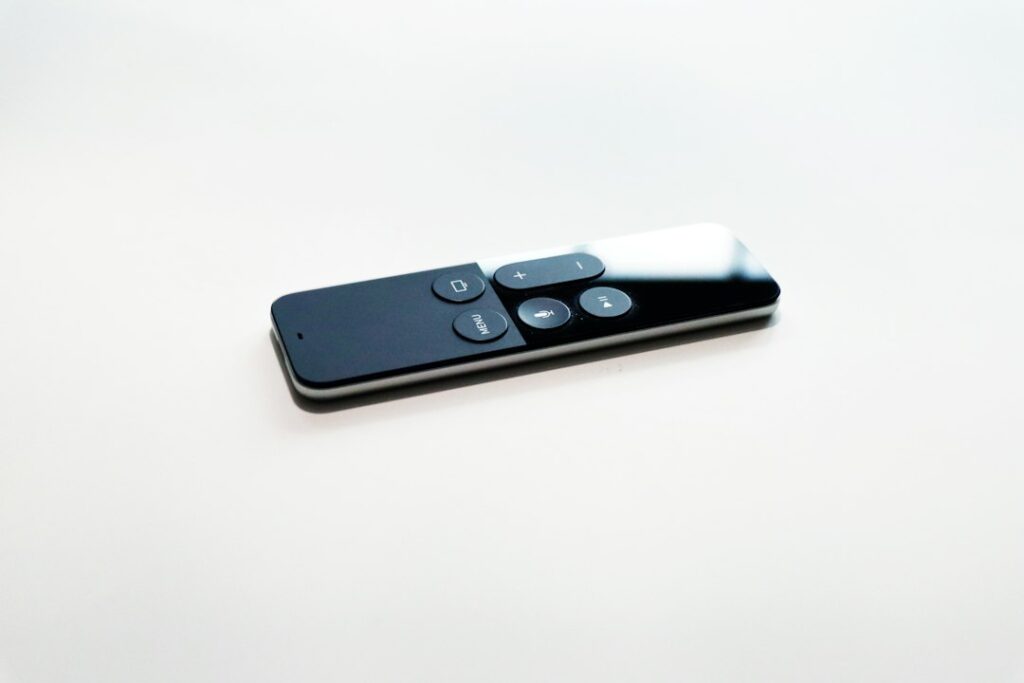
Which Operating System Runs IPTV Apps Best?
Google TV takes the crown for raw flexibility. You can grab popular media software like TiviMate or IPTV Smarters directly without jumping through hoops. Samsung and LG require specific developer accounts or region changes for certain tools. If you want a straightforward setup, Android-powered sets win every single time.
Many UK viewers skip the native television software entirely. They plug in an external streaming stick because the hardware runs smoother. Still, built-in options save you an extra remote control.
Can You Install Playlists on Samsung and LG Screens?
Yes, but the method depends entirely on the model year. Newer screens feature robust application markets where basic media players live. If your older Samsung won’t list the app you need, sideloading via USB remains an option, though it requires patience.
LG’s webOS is snappy. It launches media lists quickly, but the app selection feels tighter than Google’s ecosystem. For those setting up a custom stream feed, checking app compatibility before buying a new screen is a smart move. You can learn more about formatting your content feeds by reading our guide on how to add an IPTV playlist to Smart TV.
How Does Hardware Performance Affect Playback?
Cheap television processors struggle with high-bitrate video. When you stream live sports, lag ruins the experience. High-end processors decode heavy streams smoothly. If your screen feels sluggish, an external box fixes the bottleneck instantly.
For more information, iptv.
Related reading
Catching every match means dealing with a massive choice of software. If you want to watch football without staring at a blank loading screen, picking the right tools matters. Choosing reliable Premier League streaming apps shapes your entire weekend viewing experience. Let us break down how these applications and media players actually handle live UK broadcasts.
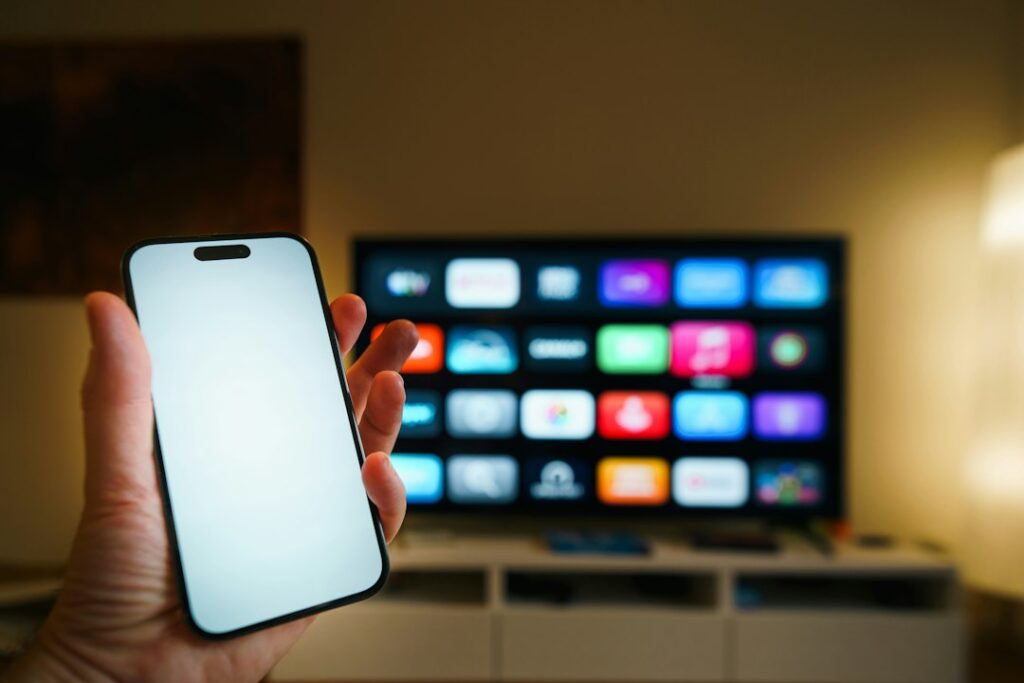
Which Premier League streaming apps dominate the UK market?
Rights for UK matches are split across several official broadcasters. Sky Sports uses its dedicated mobile and smart TV application. TNT Sports broadcasts through the Discovery Plus platform. Amazon Prime Video holds rights for specific fixture blocks each season. BBC Sport shows highlights rather than live games, but their iPlayer app sets the technical standard for smooth video delivery.
Official apps handle heavy traffic differently. Sky scales up server capacity during high-profile derbies like Arsenal versus Tottenham. TNT handles heavy loads through established infrastructure inherited from BT. Each app compresses feeds to save bandwidth while keeping the ball visible against green grass.
Third-party media players operate on a different logic. Software like VLC, TiviMate, or IPTV Smarters doesn’t host content. They act as windows. You plug a playlist link or portal address into the player, and it decodes the video stream. Official apps keep everything inside a closed garden. Third-party players give you total control over aspect ratios, audio tracks, and buffer sizes.
How do media players process live video feeds?
Live video requires intense decoding power. Your device receives compressed data packets over your broadband connection. The player software unpacks these packets instantly. If your processor lags behind, frames drop. That creates the dreaded stuttering effect during a fast counter-attack.
Hardware acceleration plays a huge role here. Modern Fire Sticks and Apple TV boxes have dedicated chips for video decoding. Software players delegate the heavy lifting to these chips. When you use an older phone or a cheap generic Android box, the processor struggles. It attempts software decoding instead. That generates heat and ruins your picture quality.
Adaptive bitrate streaming is another crucial technology. Official apps drop your resolution automatically if your Wi-Fi dips. You might go from 1080p to 720p for a few seconds. Custom IPTV players often let you lock the resolution manually. Locking the stream stops annoying quality shifts, but it causes freezing if your internet speed drops too low.
What hardware pairs best with Premier League streaming apps?
Not all gadgets run football apps equally well. Amazon Fire TV sticks dominate UK living rooms because they are cheap and support almost every app. Apple TV offers a much faster interface and handles high framerates smoothly. Google Chromecast brings the flexibility of Android TV to standard sets.
Smart TV operating systems vary wildly in performance. Samsung uses Tizen. LG relies on WebOS. Sony and Philips build their sets on Google TV. Google-powered televisions usually handle third-party media players best because the Google Play Store allows direct sideloading of APK files. Proprietary systems like Samsung’s Tizen limit you strictly to their official app store.
If you prefer watching on mobile devices, iOS and Android handle official broadcaster streams without breaking a sweat. Tablets offer a great second-screen experience. Just remember that mobile networks handle data throttling during peak evening kick-offs. A solid fibre broadband connection beats 5G mobile data every time for stability.
Why do streams buffer during big matches?
Millions of fans logging on simultaneously creates immense strain. Content Delivery Networks (CDNs) distribute this traffic across regional servers. If a regional server gets overwhelmed, your stream stalls.
Your home network causes issues too. Wi-Fi interference from neighbours ruins data packets. Microwaves and thick brick walls block signals easily. Connecting an Ethernet cable directly to your streaming box solves most home network hiccups.
Internet Service Providers in the UK also manage traffic during busy periods. Some broadband packages throttle heavy data users. Checking your line speed with a wired connection reveals if your ISP is the bottleneck. For a deeper dive into hardware configuration, check out this Smart TV setup guide for UK viewers.
Are third-party media players legal to use?
Media players themselves are completely legal software tools. VLC is a standard media tool used worldwide for playing personal video files. IPTV Smarters is simply a video player interface available on official app stores.
Legality depends entirely on what you feed into those players. Using an authorized service provider via their dedicated app keeps you on the right side of the law. Copyright holders and regulatory bodies like Ofcom monitor unauthorized broadcasting closely.
Stick to official subscriptions for peace of mind. They guarantee stable feeds, expert punditry, and high-definition video without sudden takedowns mid-match. Understanding how these apps function helps you build a reliable home setup for the entire football season.
For more information, iptv.
Related reading
Getting Started with IPTV Smart TV Apps
Setting up your IPTV Smart TV configuration doesn’t have to ruin your weekend. Modern flat-screen displays running webOS or Tizen make downloading media players simple. You just open the built-in app store on your remote. Search for a reliable application. Install it directly onto your internal memory. No extra hardware boxes cluttering your TV stand.

You’ll need a working internet connection first. Fibre broadband in the UK easily handles high-definition streams. Plug an Ethernet cable straight into the back of your panel if Wi-Fi drops packets. Wired connections stop buffering mid-match.
Choosing Your Media Player
Picking the right software matters. Samsung and LG app stores hold a few solid choices. IPTV Smarters Pro remains popular because the layout stays clean. IBO Player and Net IPTV also work well on newer hardware. Each app asks for your M3U playlist link or Xtream Codes API login. Type those details in carefully. One missed character breaks the feed.
Some free apps display annoying ads across the screen. Premium players charge a small one-time activation fee per device. Pay the few pounds directly on their official website. Your viewing experience improves instantly without random pop-ups.
Loading Playlists and EPG Data
Once your app opens, you add your provider details. Grab your M3U URL from your service dashboard. Paste it into the playlist section of the app. Give the playlist a recognisable name. Hit save and let the system load your channels.
TV guides need a separate Electronic Programme Guide link. Paste the XMLTV URL into the EPG slot. Channels populate with names and schedules. If your guide stays blank, clear the app cache and restart the TV. For more tips on this process, check out our guide on how to set up EPG on Firestick IPTV player for compatible layout methods.
Fixing Common Streaming Glitches
Streams freeze sometimes. Network congestion causes most playback failures during peak evening hours in the UK. Restart your home router first. Unplug it for thirty seconds. Plug it back in and wait for the lights to stabilise.
Changing the stream format inside your player settings helps too. Switch from HLS to MPEG-TS if channels drop out constantly. Keep your TV firmware updated. Manufacturers patch memory leaks regularly.
For more information, iptv.