- How Broadband Speeds Impact Your IPTV UK Experience
- Understanding UK Broadband Infrastructure and Performance
- Fibre vs Copper: What Actually Matters for Your Setup
- Realistic Bandwidth Requirements for HD and 4K Streams
- Wi-Fi Interference and Ethernet Connections
- Managing Peak Traffic Hours on British Networks
- Practical Steps to Diagnose and Fix Speed Bottlenecks
How Broadband Speeds Impact Your IPTV UK Experience
Getting a smooth picture on your television screen depends heavily on your home internet connection. When you stream live television channels across the internet, data packets travel constantly from the source to your living room. If your broadband line drops packets or lacks sufficient capacity, your video freezes. Anyone setting up an IPTV UK system at home needs to understand how local infrastructure influences everyday viewing quality.

Many households assume any standard broadband package handles live video streams without issue. That is rarely true during busy evening hours. Internet service providers across Britain manage network traffic differently, and local exchange congestion plays a massive role in how well your chosen IPTV UK setup performs when the evening football match kicks off.
Understanding UK Broadband Infrastructure and Performance
Most British homes now have access to fibre-to-the-cabinet or full-fibre connections. According to recent reports from Ofcom, average residential connection speeds continue to rise year on year. Yet, headline speeds advertised by providers rarely reflect live performance during peak usage times. Your actual download rate depends on the physical cable length running from your local street cabinet right into your living room wall socket.
Older copper telephone lines suffer from signal degradation over distance. If you live a mile away from your local exchange, your actual throughput might drop significantly below what you pay for. Live video streaming requires a steady, uninterrupted flow of data. Sudden drops in speed cause your player app to pause and buffer while it tries to catch up with the live feed.
Fibre vs Copper: What Actually Matters for Your Setup
Full-fibre connections deliver symmetrical or near-symmetrical performance with minimal jitter. Jitter measures the variance in packet arrival time. High jitter ruins live video streams even if your raw download speed looks impressive on paper. When you use an IPTV service UK provider, low latency matters just as much as raw speed because live broadcasts leave very little room for delayed data packets.
Copper-based connections often experience interference from household appliances or nearby electrical wiring. This interference creates micro-drops in your connection. You might not notice a micro-drop while browsing web pages or checking emails, but your IPTV UK app will register the interruption instantly, leading to stuttering playback or sudden error messages.
Realistic Bandwidth Requirements for HD and 4K Streams
Standard-definition video needs very little bandwidth. Hardly anyone watches standard definition today, though. Most modern broadcasts arrive in high definition or ultra-high definition. A standard high-definition stream requires roughly five to eight megabits per second of dedicated throughput. If you stream in 4K, that requirement jumps to twenty-five megabits per second or more.
Problems start when multiple devices share your home network at the same time. If someone else in the house downloads a large game update while you watch a live broadcast, your available bandwidth shrinks. To avoid conflicts, check your current bandwidth limits before committing to any long-term IPTV subscription UK package.
You can test your line using independent speed testing tools. Run tests at different times of day to spot patterns. If your speed plummets every evening between seven and ten o’clock, your local cabinet is likely oversubscribed. No streaming app can fix a bottleneck happening at the street level.
Wi-Fi Interference and Ethernet Connections
Wireless signals degrade rapidly when passing through thick brick walls or internal doors. Many British homes feature solid Victorian or Edwardian masonry that blocks Wi-Fi signals very effectively. If your router sits downstairs in the hallway and your television sits upstairs in the back bedroom, your wireless connection will struggle.
Whenever possible, plug your streaming hardware directly into your router using an Ethernet cable. A wired connection eliminates wireless interference entirely. It provides the stable foundation that live streaming demands. If running a physical cable across your living room floor is out of the question, consider powerline adapters that send network data through your home electrical wiring instead.
For detailed guidance on getting your hardware ready, take a look at this practical step-by-step guide to setting up legal IPTV services on your UK television. Proper hardware placement makes a huge difference in signal stability.
Managing Peak Traffic Hours on British Networks
Evening viewing hours put massive strain on telecommunications networks across the country. Major sporting events or popular drama finales push millions of households online simultaneously. Traffic management policies implemented by internet service providers can sometimes throttle specific protocols during these high-demand windows.
If you experience buffering exclusively on weekend afternoons or weekday evenings, network congestion is the most likely culprit. Some households switch to alternative DNS servers or upgrade their broadband tiers to bypass local bottlenecks. Others simply schedule their viewing around off-peak hours when network traffic flows freely.
Before you blame your software or your playlist loader—and if you have ever struggled with that, read our guide on smart TV IPTV playlist loading issues and how to resolve them—always verify your baseline internet speed. A quick router reboot clears out temporary memory leaks and often restores your full connection speed in seconds.
Practical Steps to Diagnose and Fix Speed Bottlenecks
When your IPTV stream stutters, identifying the exact point of failure saves you from buying unnecessary hardware upgrades or switching providers prematurely. Start by connecting a laptop directly to your main router via an Ethernet cable and running a reputable throughput test to check your baseline delivery. If the wired test reveals full speeds while your smart television over Wi-Fi continues to lag, your wireless environment is clearly the primary source of disruption. Relocating your wireless router away from thick walls, large metal appliances, and crowded electronic hubs often yields an immediate improvement in signal propagation. Additionally, consider checking for background applications or smart home devices consuming bandwidth without your active knowledge, as modern connected households frequently run dozens of background background sync processes simultaneously.
For more information, iptv.
Learn more on Wikipedia: ITV (TV network).
Related reading
- UK Legal IPTV Streaming Devices: The Hardware Comparison Myth-Buster
- UK IPTV Troubleshooting Guide: Fixing Smart TV and Firestick Streaming Errors
Update: Choosing Legal Sports IPTV UK Packages for Saturday 3PM Kick-Offs
Update: Legal IPTV Devices UK: Hardware Comparison and Official Apps
How to Check Your Connection Speed for Smooth UK IPTV Streaming
Nobody likes a frozen screen during a crucial moment in the match. If you rely on IPTV UK services for your daily viewing, your broadband speed determines whether you get crystal-clear HD or endless buffering wheels.

Most households across the UK assume fibre broadband automatically guarantees flawless performance. That’s not always true. Wi-Fi interference, peak evening congestion, and background downloads all take their toll. Let’s look at how to test your setup properly.
1. Run a Real-World Speed Test
Don’t just trust your provider’s headline figures. Open a browser or a diagnostic app on the exact device you use for streaming. Run a connection test while sitting in your living room. You want to see consistent download rates, low latency, and minimal jitter. If your ping spikes above 30 milliseconds, live streams might stutter.
2. Match Your Speed to Your Resolution
Different video formats demand different bandwidth allocations. Standard definition uses very little data. High definition requires a stable connection of around 10 megabits per second. If you stream in ultra-high definition, you’ll want at least 25 to 30 megabits per second spare capacity. Keep in mind that sharing your Wi-Fi with other household members splits that total bandwidth instantly.
For further advice on hardware performance, have a look at this guide on resolving IPTV buffering on smart televisions to see how device processing power affects playback quality alongside raw internet speed.
3. Test During Peak Evening Hours
Broadband speeds often dip between 7 PM and 10 PM. This happens because local street cabinets handle heavy demand from your neighbours. Test your connection during this window rather than mid-morning. If your speed drops by half during the evening, your provider’s local network might be oversubscribed.
4. Switch to Wired Ethernet Where Possible
Wi-Fi convenience comes with a cost. Walls, furniture, and interference from neighbouring routers disrupt wireless signals. Plugging an Ethernet cable directly from your router into your streaming box delivers a rock-solid data flow. This simple fix solves most sudden dropouts for anyone using an IPTV service UK package on a daily basis.
Troubleshooting Common Speed Bottlenecks
- Restart both your router and your streaming box to clear temporary memory leaks.
- Disconnect idle phones and tablets that consume background data updates.
- Check with Ofcom guidelines if your broadband falls far below the minimum guaranteed speed stated in your contract.
For more information, iptv.
Learn more on Wikipedia: ITV (TV network).
Related reading
Update: How to Stream Live UK Football Legally Using Official Apps and Services
Update: Legal IPTV UK Device Comparison: Streaming Hardware Features
- How to Test Your Broadband Speed for IPTV UK Streaming
- Why Internet Speed Matters for IPTV UK
- Step One: Choose the Right Speed Test Tool
- Step Two: Test via Wi-Fi vs Ethernet Connection
- Step Three: Run Diagnostics at Peak Evening Hours
- Step Four: Interpreting Results and Fixing Bottlenecks
- When to Contact Your Internet Provider
How to Test Your Broadband Speed for IPTV UK Streaming
Getting your home network ready for high-definition video requires more than just plugging in a router and hoping for the best. If you use an IPTV UK setup, sudden drops in picture quality or unexpected freezing usually point straight back to your internet connection. Ofcom regularly publishes reports on average UK broadband speeds, but your actual line speed right at the device matters much more than headline advertising claims.

You might think your fibre package handles everything effortlessly. Reality often looks different when multiple household devices compete for bandwidth during peak evening hours. Let us walk through a practical, step-by-step method to test your connection properly so your live streams run smoothly from start to finish.
Why Internet Speed Matters for IPTV UK
High-definition television feeds demand a steady, uninterrupted flow of data. Unlike downloading a file where a temporary dip goes unnoticed, real-time video streams drop frames immediately when bandwidth dips below required thresholds. Standard definition needs very little bandwidth, but modern 1080p and 4K feeds put a heavy strain on domestic routers.
A stable connection prevents frustrating stuttering mid-match or during your favourite drama series. When you evaluate your setup, look past simple download numbers. Packet loss, latency, and jitter play massive roles in how well your IPTV service performs day-to-day. If your ping spikes unpredictably, even a gigabit line will struggle to deliver a glitch-free picture.
Step One: Choose the Right Speed Test Tool
Running a quick browser check on your phone gives you a rough baseline, but it doesn’t reflect what your actual streaming hardware experiences. Firesticks, Apple TVs, and smart TVs process data differently than a modern smartphone connected to a nearby Wi-Fi node.
Download a dedicated network testing app directly on your streaming device if possible. Many app stores feature standard diagnostic tools that measure raw throughput, latency, and server response times accurately. Run the test three times in a row. Take the average of those results rather than relying on a single outlier score.
- Check both download and upload speeds, focusing heavily on download stability.
- Note your ping time; anything consistently under 30 milliseconds is ideal for live video.
- Watch for jitter measurements exceeding 10 milliseconds, as high jitter causes noticeable micro-freezes.
Step Two: Test via Wi-Fi vs Ethernet Connection
Wireless interference ruins countless streaming sessions across British homes. Thick Victorian brick walls, microwave ovens, and neighbouring router channels battle constantly for airtime in densely populated areas. Before blaming your broadband provider, isolate how your device connects to the internet.
Plug an Ethernet cable directly from your router into your streaming box or smart TV if your hardware permits it. Run your speed test again. You will often see a dramatic jump in speed and a drastic drop in latency. If your wired test shows brilliant results while your wireless test fails miserably, you have found your bottleneck. If you want to dive deeper into resolving playback hiccups, our guide on how to fix buffering on Firestick IPTV player offers specific troubleshooting steps for wireless devices.
Step Three: Run Diagnostics at Peak Evening Hours
Testing your line at two o’clock on a Tuesday afternoon gives you a false sense of security. Neighbourhood network congestion peaks between seven and ten o’clock in the evening when everyone streams box sets and plays online games simultaneously. Cable networks and copper-based fibre-to-the-cabinet setups suffer most during these busy periods.
Schedule your speed checks during peak evening viewing windows to see how your connection truly performs under pressure. If your daytime speed sits comfortably at 70 Mbps but plummets to 12 Mbps on a Wednesday night, your local street cabinet or exchange is likely oversubscribed. When evaluating your options before committing to a new provider, learning how to choose a UK IPTV service also involves understanding your broadband capabilities during these exact peak hours.
Step Four: Interpreting Results and Fixing Bottlenecks
Once you gather your data, compare those figures against your broadcaster’s minimum requirements. A standard high-definition stream typically requires around 10 to 15 Mbps of dedicated bandwidth. Ultra-HD or 4K feeds demand at least 25 to 30 Mbps of consistent throughput.
If your numbers fall short, try restarting both your modem and your router to clear the cache and negotiate a fresh connection with your internet service provider. Move wireless routers away from thick obstructions, metal shelving, and cordless phone bases. Changing your Wi-Fi frequency band from the crowded 2.4 GHz spectrum to the faster 5 GHz channel often solves persistent speed drops instantly.
When to Contact Your Internet Provider
Sometimes local hardware isn’t the root cause of your bandwidth woes. If you pay for a superfast full-fibre package but tests consistently reveal speeds far below your guaranteed minimum entry level, log a fault with your provider. Ask them to run a line test from their end to check for internal faults, damaged street wiring, or faulty exchange equipment. Keep a written record of your test results over a few consecutive evenings so you have concrete evidence when you speak to customer support.
For more information, iptv.
Learn more on Wikipedia: ITV (TV network).
Related reading
Update: Smart TV IPTV Setup Mistakes UK Households Keep Making
Update: Smart TV Built-in Apps vs. Streaming Sticks: What Works Best for IPTV UK?
Saturday afternoon matches bring excitement, tension, and millions of viewers onto British telecom networks. If your connection drops right as a striker hits the back of the net, the culprit is usually your home broadband rather than the broadcaster. Running a Premier League live stream requires stable download speeds and low latency to avoid frustrating pixelation or sudden freezes.
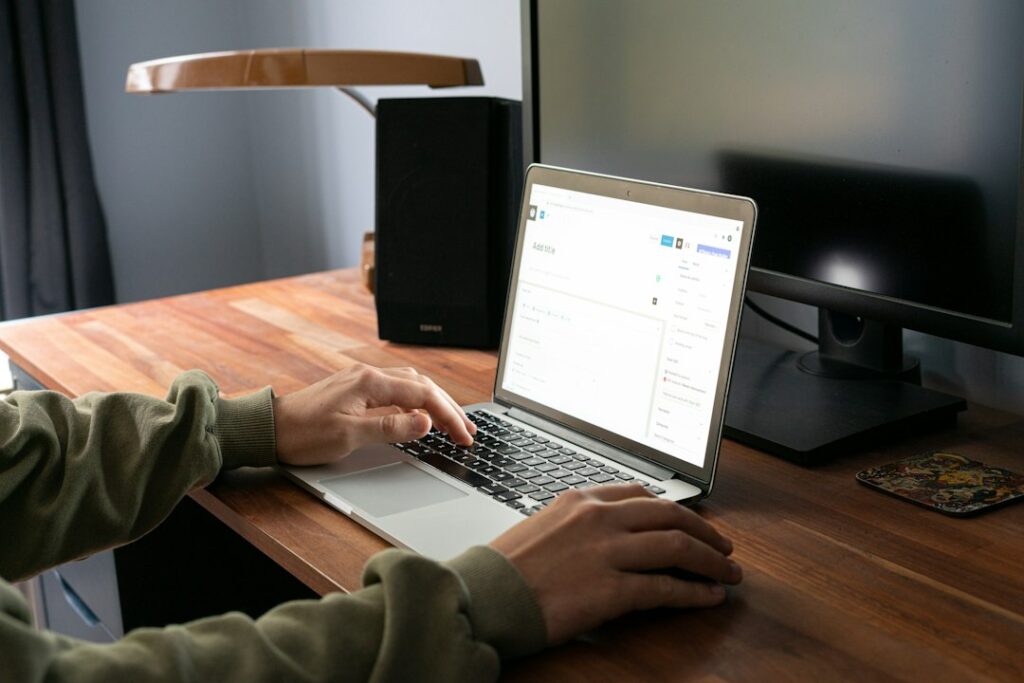
Why Match Day Bandwidth Drops
Evening kick-offs and weekend fixtures coincide with peak internet usage across the UK. Your neighbours are streaming movies, gaming, or browsing, which puts heavy strain on local cabinet capacity. Cable and fiber networks handle this traffic differently. Older copper-based connections struggle more than full-fiber lines when entire neighbourhoods log on at once.
Running a Reliable Speed Test
Open a trusted diagnostic tool through your web browser or a dedicated app. Turn off background downloads, pause console updates, and disconnect heavy users like tablets before testing. You need to look at three main metrics: download speed, upload speed, and ping. Download speed matters most for high-definition video feeds. A baseline of at least 15 megabits per second handles standard HD streams comfortably, while 4K broadcasts demand upwards of 30 megabits per second.
Upgrading Your Wi-Fi Setup
Distance from your router ruins many streaming sessions. Thick walls, household appliances, and competing wireless channels degrade your signal strength significantly. Move your streaming device closer to the hub if possible. Switch from the crowded 2.4 gigahertz frequency band to the 5 gigahertz channel. Better yet, plug an ethernet cable straight into the back of your television or streaming box for a rock-solid connection that never drops packets.
Troubleshooting Network Congestion
Restart your router ten minutes before kick-off to clear cached data and assign a fresh IP address. If other household members stream heavy content simultaneously, enable Quality of Service settings in your router admin panel to prioritise your video traffic. Contact your internet service provider if your actual speeds fall far below what you pay for during peak hours.
For more information, iptv.
Related reading
- Firestick IPTV Setup Myths: Separating Fact from Fiction for UK Users
- Premier League Streaming FAQs for UK Viewers
Finding a reliable IPTV UK service often feels like navigating a minefield of flashy promises and unverified claims. Many households across the country are moving away from traditional terrestrial aerials and satellite dishes in favour of internet-delivered television. But before you pay for a full subscription, running proper checks on connection stability and performance prevents wasted money. Let us walk through a practical, systematic approach to testing a provider without falling into common traps.

Assessing Your Broadband Speed for IPTV UK Streaming
Your internet connection forms the absolute foundation of your viewing experience. You cannot judge a provider fairly if your own broadband cannot handle high-bitrate video streams. Ofcom publishes regular reports on average UK connection speeds, noting that fibre packages routinely deliver substantial download bandwidth. However, peak evening congestion can still ruin a live broadcast.
Before testing any service, run a wired speed test directly from your streaming device if possible. Wi-Fi interference from thick brick walls or household appliances often ruins performance. For high-definition streams, a stable connection of at least 15 megabits per second is normally necessary. Ultra HD or 4K streams demand significantly more headroom, often pushing past 30 megabits per second.
If your broadband fluctuates wildly during peak hours between 7 pm and 10 pm, no streaming app can magically fix the resulting stutter. Sort your local network bottlenecks first. For more foundational information on how these systems operate, take a look at this complete beginner’s guide before purchasing anything.
Evaluating Trial Periods and Channel Stability
Most reputable digital media companies offer a short trial period. These trials let you examine the infrastructure before you commit your hard-earned cash to a long-term contract. Be cautious of services demanding payment upfront without offering any sample access.
During your test window, monitor several key factors:
- Channel load times during peak viewing hours.
- Audio and video synchronisation during fast-moving sports broadcasts.
- The responsiveness of the electronic programme guide.
- Stream persistence over a continuous two-hour viewing session.
If a feed freezes every ten minutes during a popular weekend football match, the underlying server capacity is inadequate. A solid provider maintains redundant servers to handle heavy user loads smoothly.
Checking Consumer Protections and Advertising Standards
The digital marketplace features many unregulated sellers making exaggerated claims about channel counts and uptime guarantees. The Advertising Standards Authority actively handles complaints regarding misleading subscription claims in the broadcasting sector. If a deal sounds too good to be true, it usually is.
Always check payment methods carefully. Avoid services that only accept untraceable digital currencies or gift cards. Legitimate businesses typically offer standard merchant checkout options backed by buyer protection laws. If a dispute arises, having a clear paper trail through a major credit card or regulated payment processor gives you a route to resolution under UK consumer regulations.
Furthermore, ensure you understand what content formats the provider supports. If you are examining how service playlists are structured, read up on the fundamentals of IPTV playlists to see how channels are organised on your chosen player.
Final Practical Steps Before Buying an IPTV Subscription
Take your time during the evaluation phase. Never rush into an annual plan right away, even if the monthly discount looks attractive. Month-to-month flexibility allows you to walk away if service quality drops after the initial honeymoon period.
Keep your hardware updated too. Clear out cached data on your streaming stick or smart television regularly to ensure the software runs at peak efficiency. A clean cache often solves minor stuttering issues that have nothing to do with your remote provider at all.
For more information, iptv.
Learn more on Wikipedia: ITV (TV network).
Related reading
- Smart IPTV App vs External Streaming Device: Which Wins for UK Living Rooms?
- How to Choose an IPTV Service in the UK