- Spotting IPTV Scams: How to Buy Legal Sports IPTV UK Safely
- The Red Flags of Dodgy IPTV Sellers
- Comparing Legal and Unlicensed Providers
- Why Legal Sports IPTV UK Matters for Your Security
- Pros and Cons of Buying Official Streaming Subscriptions
- Pros
- Cons
- Your Buying Checklist
- Frequently Asked Questions
- Are cheap IPTV subscriptions legal in the UK?
- What payment methods do safe providers use?
- Can I get all Premier League matches from one provider?
- Why do dodgy IPTV streams buffer so much?
- Is it safe to download custom APK files for sports streaming?
- How can I check if a sports streaming site is legitimate?
- What should I do if I get scammed by a fake IPTV seller?
- Final Thoughts on Choosing Legal Services
Spotting IPTV Scams: How to Buy Legal Sports IPTV UK Safely
Buying a streaming package shouldn’t feel like a trip through a minefield. Yet, the internet overflows with dodgy operators selling cheap subscriptions for legal sports IPTV UK fixtures. If a deal looks too good to be true, it almost certainly is. You need to know what to watch out for before handing over your credit card details.
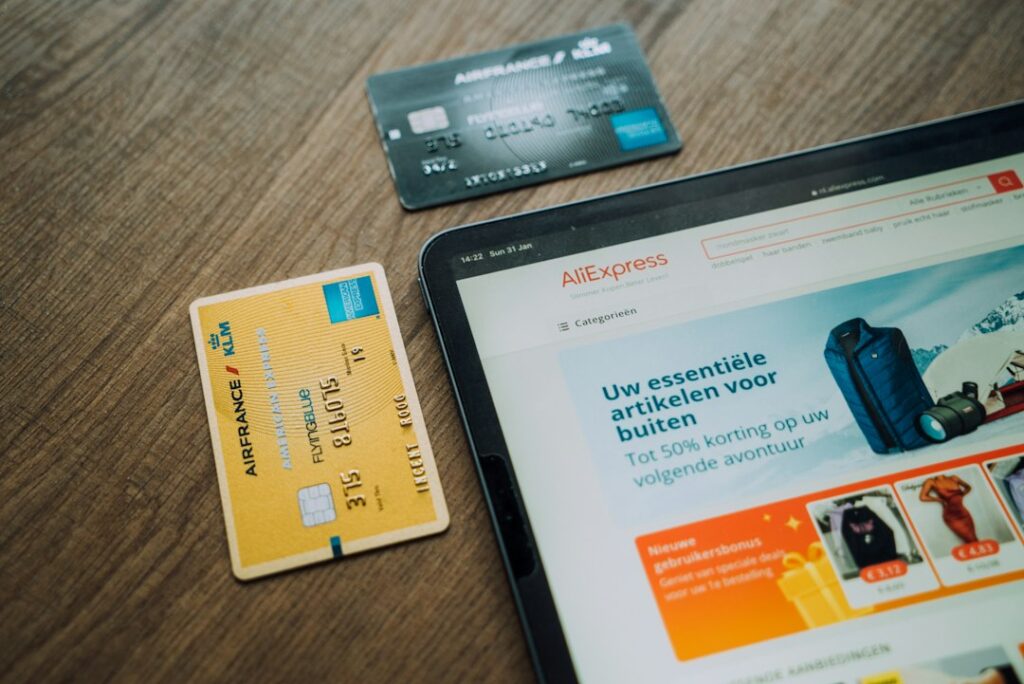
Too many fans lose money to rogue websites that disappear overnight. Let’s look at the red flags that separate legitimate providers from absolute con artists.
The Red Flags of Dodgy IPTV Sellers
Fraudulent websites often use aggressive marketing tactics to rush you into a purchase. They promise every single match from every league for a tenner a year. Real broadcasters pay billions for these rights, so nobody can legally offer that pricing structure. If a seller accepts only cryptocurrency or bank transfers, run away. Legitimate businesses take standard credit cards and PayPal because they offer buyer protection.
Another dead giveaway is the complete lack of a physical UK address or customer support phone number. Check the terms and conditions page. If it reads like a generic template with missing company details, you’re dealing with an amateur setup or worse.
Comparing Legal and Unlicensed Providers
Understanding the difference helps protect your bank account and your devices from malware.
| Feature | Licensed Providers | Unlicensed Sellers |
|---|---|---|
| Payment Methods | Cards, PayPal, Direct Debit | Crypto, Gift Cards, Wire Transfers |
| Customer Support | Dedicated UK help desks | Anonymous Telegram or WhatsApp |
| App Availability | Official app stores | Sideloaded APK files |
Why Legal Sports IPTV UK Matters for Your Security
Handing your personal data to an unverified website creates massive security risks. Shady operators often harvest payment details and passwords to sell on underground forums. Official platforms use secure payment gateways that comply with UK banking regulations. You also get consumer rights under the Consumer Rights Act if things go wrong.
When you subscribe to legitimate services, you support the sports ecosystem. Broadcasters reinvest revenue back into clubs and grassroots football. Buying from dodgy sources undermines that entire financial model.
Pros and Cons of Buying Official Streaming Subscriptions
Pros
- Reliable HD and 4K streams during high-traffic matches
- Consumer protection and straightforward refund policies
- Official apps available directly on smart TVs and streaming sticks
- No sudden blackouts or server crashes mid-game
Cons
- Higher cost compared to cheap online promises
- Multiple subscriptions needed to watch every televised competition
- Geo-restrictions apply when travelling outside the country
Your Buying Checklist
Follow these steps before committing to any live sports TV UK package:
- Verify the company registration details on Companies House.
- Check independent review sites like Trustpilot for real customer feedback.
- Confirm the app is downloadable from the official Apple App Store or Google Play Store.
- Read the cancellation policy carefully to avoid rolling contract traps.
Frequently Asked Questions
Are cheap IPTV subscriptions legal in the UK?
No. If a service offers premium sports channels for a fraction of the normal cost without holding broadcasting rights, it is illegal.
What payment methods do safe providers use?
Trusted companies accept major credit cards, debit cards, and regulated payment processors like PayPal.
Can I get all Premier League matches from one provider?
No single UK broadcaster holds the rights to every single match. Rights are split between Sky Sports, TNT Sports, and Amazon Prime Video.
Why do dodgy IPTV streams buffer so much?
Unlicensed services rely on unstable, overloaded servers that cannot handle high volumes of traffic during big derby matches.
Is it safe to download custom APK files for sports streaming?
Sideloading unknown apps from random websites exposes your device to malware and security vulnerabilities.
How can I check if a sports streaming site is legitimate?
Look for clear company information, transparent pricing in GBP, secure checkout pages, and official app store listings.
What should I do if I get scammed by a fake IPTV seller?
Contact your bank immediately to report fraudulent charges and request a chargeback if you paid by card.
Final Thoughts on Choosing Legal Services
Protecting your personal data and your wallet is far more important than saving a few pounds on a dodgy football stream. Stick to official providers, check company credentials, and enjoy your weekend matches without the constant worry of sudden interruptions.
For more information, iptv.
Related reading
- How to Fix UK IPTV Audio Delay on Firestick and Smart TVs
- Choosing the Right Streaming Hardware for Legal IPTV in the UK: A Practical Buyer’s Guide
Update: How to Check Your Connection Speed for Smooth UK IPTV Streaming
Update: Comparing Firestick and Smart TV Apps for Legal IPTV Setup and Troubleshooting
- Before You Start Checklist
- Step-by-Step IPTV Audio Delay Troubleshooting
- 1. Adjust Audio Delay Settings Inside Your App
- 2. Change the Audio Decoder Type
- 3. Check Sound Bar and Bluetooth Latency
- 4. Clear App Cache and Storage
- Common Mistakes to Avoid
- When to Contact Your Provider
- Frequently Asked Questions
- Why does the sound drift only on live sports?
- Does Wi-Fi band make a difference?
- Can a software update fix it?
When your lip sync is off by half a second, watching live broadcasting on your UK IPTV app turns frustrating fast. You see the football boot hit the ball, but the thud echoes a moment later. It ruins the immersion of any match or drama.
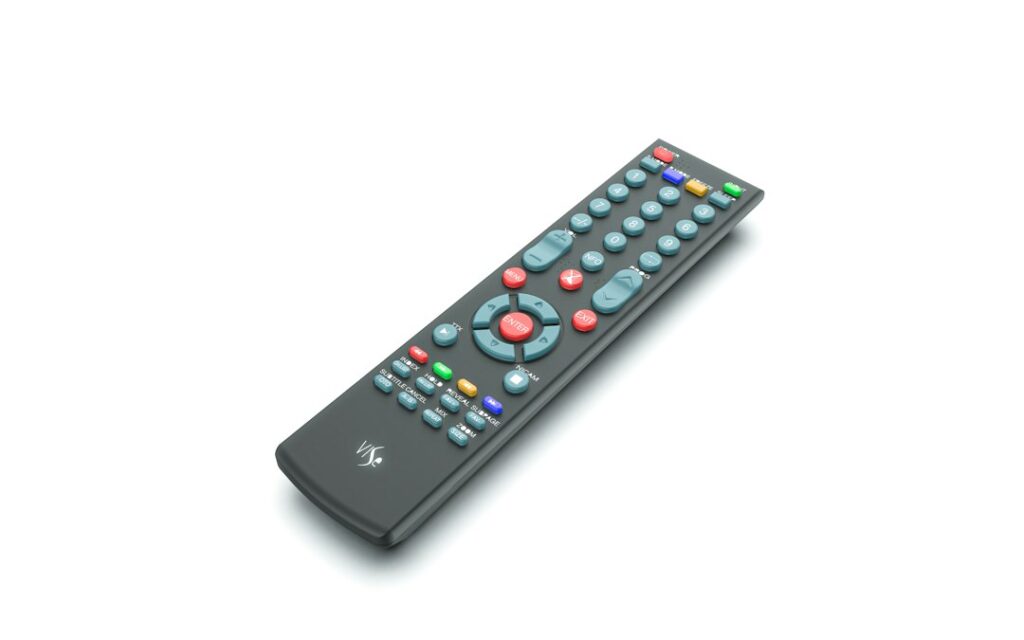
Audio sync issues usually stem from app decoding mismatches, heavy Wi-Fi interference, or hardware buffer strain on streaming devices like Amazon Fire TV sticks or modern Smart TVs. Fortunately, you can fix most sync glitches yourself without calling out an engineer.
Before You Start Checklist
Run through these quick baseline checks before diving into advanced settings:
- Restart your Firestick or Smart TV completely by unplugging it for 30 seconds.
- Check that your broadband speed comfortably handles live high-definition feeds.
- Make sure your official IPTV player app is running the newest available version.
Step-by-Step IPTV Audio Delay Troubleshooting
Work through these structured steps to line up your sound and picture.
1. Adjust Audio Delay Settings Inside Your App
Most professional IPTV applications include built-in audio offset controls. Open your player’s settings menu while a stream plays. Look for audio delay or lip sync adjustment. Nudge the milliseconds up or down until the speech matches the actors’ mouths.
2. Change the Audio Decoder Type
Hardware decoding sometimes clashes with specific broadcast codecs. Switch your app setting from hardware decoding to software decoding. This forces your Firestick processor to handle the audio stream differently, which often clears up stuttering and delay.
3. Check Sound Bar and Bluetooth Latency
External wireless speakers introduce natural audio lag. Connect your Firestick or TV straight to a wired sound system if possible. If you must use Bluetooth headphones, look for low-latency modes in your TV settings.
4. Clear App Cache and Storage
Stuffed device memory slows down media processing. If you are using a Firestick, go to your device settings, select applications, and clear the cache for your IPTV app. For a deeper clean, read our guide on Firestick storage management for IPTV users to free up vital system resources.
Common Mistakes to Avoid
Don’t jump straight to factory resetting your entire television. Many users waste hours reinstalling apps when a simple hardware restart or audio offset tweak would fix the problem in seconds. Also, avoid changing random router settings unless your entire home network is dropping packets.
When to Contact Your Provider
If you have tested multiple channels and every single feed suffers from the exact same audio drift, the issue likely sits with the provider’s source stream encoding. Reach out to your service desk if local fixes fail across all devices.
Frequently Asked Questions
Why does the sound drift only on live sports?
Live feeds require real-time transcoding. Heavy network traffic can cause audio packets to lag behind video frames during peak viewing hours.
Does Wi-Fi band make a difference?
Yes. Switch your streaming hardware to a 5GHz Wi-Fi band or use an Ethernet adapter to cut down packet delay.
Can a software update fix it?
App developers regularly patch sync bugs. Always keep your software updated to the latest release.
For more information, iptv.
Related reading
- Choosing the Right Streaming Hardware for Legal IPTV in the UK: A Practical Buyer’s Guide
- Understanding How IPTV UK Services Handle Live Broadcasting Rights
Update: Legal IPTV UK Device Comparison Guide
Update: How to Check Your Connection Speed for Smooth UK IPTV Streaming
- Short Direct Answer
- How Internet Television Works on Modern UK Hardware
- Comparing Popular Streaming Hardware Options
- Performance Factors: Processing Power and Storage
- Connectivity: Wi-Fi Standards and Wired Ethernet
- Remote Controls, Voice Assistants, and Usability
- Setup, Security, and Parental Controls
- Pros and Cons of Certified Streaming Hardware
- Setup Guidance and Compatibility Notes
- Frequently Asked Questions
- Can I use my old television with these devices?
- Do I need a TV licence to watch live streaming apps in the UK?
- Why does my live stream buffer during peak evening hours?
- Are generic Android boxes legal to use?
- How do I update my streaming device software?
- Can I travel with my streaming stick within the UK?
- What internet speed do I need for smooth streaming?
Finding reliable legal IPTV devices UK households can depend on starts with understanding how modern television delivery works. Television signals travel straight through your broadband connection rather than traditional aerials or satellite dishes. This technology powers everything from BBC iPlayer to specialized sports streaming apps. You need the right box or stick plugged into your television to run these applications smoothly.

Hardware choices matter immensely. A sluggish processor leads to frustrating freezes during live broadcasts. Poor Wi-Fi chips cause endless buffering wheels. Buying dedicated streaming equipment ensures your television responds instantly and displays high-definition feeds without hiccups.
Short Direct Answer
Legal IPTV devices in the UK are certified streaming hardware—such as Amazon Fire TV Sticks, Google TV streamers, and Apple TVs—that run officially licensed broadcasting apps from the official app stores to deliver television over the internet securely and reliably.
How Internet Television Works on Modern UK Hardware
Broadband networks handle data packets constantly. When you open a licensed streaming application, it requests live video streams from official servers. Your hardware decodes these packets into moving pictures and sound on your screen.
IPTV is simply the delivery method. Legality depends entirely on who owns the broadcast rights. Licensed providers pay millions for official distribution permissions. Using authorized hardware guarantees access to legitimate services regulated by Ofcom standards.
Many viewers transition away from traditional cable because internet-based delivery offers flexibility. You can move compact streaming sticks between rooms or take them on holiday. Still, your home internet speed dictates your overall experience. Most UK providers recommend at least 15 Mbps for stable high-definition feeds and 30 Mbps for 4K broadcasts.
Comparing Popular Streaming Hardware Options
Different operating systems change how you interact with your television. Amazon Fire TV runs on a customized Android base. Google TV offers a clean interface focused on content recommendations. Apple TV relies on tvOS, providing a private environment for iOS users.
App availability varies significantly between platforms. Mainstream broadcasters support almost every major ecosystem. However, niche official providers might build apps for Android TV before developing versions for smaller platforms. Always check official app stores before making a purchase.
Let’s look at how the top hardware choices stack up across key performance indicators.
| Device | Operating System | 4K / HDR Support | Ethernet Option | Typical UK Price |
|---|---|---|---|---|
| Amazon Fire TV Stick 4K | Fire OS (Android) | Yes (Dolby Vision, HDR10+) | Requires adapter | £60 |
| Google TV Streamer | Google TV | Yes (Dolby Vision, HDR10) | Built-in port | £99 |
| Apple TV 4K | tvOS | Yes (Dolby Vision, HDR10+) | Built-in port (top tier) | £149 |
| Roku Streaming Stick 4K | Roku OS | Yes (Dolby Vision, HDR10+) | Not available | £50 |
If you want to explore more economical hardware choices, you can read our guide on budget streaming hardware options for everyday viewing.
Performance Factors: Processing Power and Storage
Cheap hardware often frustrates users within months. Low random access memory causes apps to crash when switching channels rapidly. Storage space dictates how many applications you can install simultaneously.
High-end boxes like the Apple TV 4K pack powerful processors. Menus glide past instantly. Live sports feeds load in seconds. Cheaper sticks handle basic streaming fine, but they struggle if you hoard dozens of apps.
Storage capacity ranges from 8GB on budget sticks up to 128GB on premium Apple models. If you only watch live television, 8GB is plenty. Gamers or heavy app users should invest in expanded local storage.
Connectivity: Wi-Fi Standards and Wired Ethernet
Wireless signals degrade through thick walls. Modern Wi-Fi 6 routers improve wireless streaming dramatically. Yet, nothing beats a physical copper cable for live sports broadcasts.
Some devices include built-in Ethernet ports. Others require separate network adapters. If your router sits far away from your television, a robust Wi-Fi mesh network keeps your legal IPTV devices UK setup running without sudden drops in resolution.
Remote Controls, Voice Assistants, and Usability
You use the remote control daily. Button layout matters. Backlit remotes help during dark movie nights.
Voice control integration lets you search across apps effortlessly. Amazon uses Alexa. Google relies on its own Assistant. Apple integrates Siri. Pressing a button and speaking a channel name saves endless typing on onscreen keyboards.
Setup, Security, and Parental Controls
Unboxing modern streaming gear takes minutes. Plug the hardware into an HDMI port. Connect power. Follow the onscreen prompts to log into your Wi-Fi and user accounts.
Parental controls protect younger family members from adult content. Official platforms let you lock applications behind PIN codes easily. Security updates arrive automatically on certified hardware, keeping your home network safe from vulnerabilities.
Pros and Cons of Certified Streaming Hardware
Every platform compromises somewhere. Weighing these points helps you pick wisely.
- Pros: Full access to official app stores, regular security patches, high-res 4K HDR playback, reliable customer support, and standard UK warranties.
- Cons: Higher upfront cost than unverified generic boxes, occasional interface ads on budget sticks, and restrictive ecosystems on proprietary hardware.
Setup Guidance and Compatibility Notes
Always download applications directly from official stores. Do not sideload unknown software files found on forums. Ensure your television’s HDMI port supports HDCP 2.2 if you want to watch 4K content.
Remember that no single box runs every proprietary app universally. Check provider compatibility lists before committing your money.
Frequently Asked Questions
Can I use my old television with these devices?
Yes. Most modern streaming sticks plug into standard HDMI ports. If your television lacks HDMI, you’ll need an active HDMI-to-AV converter box.
Do I need a TV licence to watch live streaming apps in the UK?
Yes. Any live television broadcast viewed online via services like BBC iPlayer requires a valid UK TV licence.
Why does my live stream buffer during peak evening hours?
Local internet congestion causes slowdowns. Upgrading your broadband package or switching to a wired Ethernet connection usually fixes this issue.
Are generic Android boxes legal to use?
The hardware itself is legal. However, unbranded boxes preloaded with modified software often violate copyright laws. Stick to certified brands.
How do I update my streaming device software?
Go to your device settings menu, locate the system update tab, and check for available downloads manually. Most devices update automatically overnight.
Can I travel with my streaming stick within the UK?
Yes. You can plug your portable streaming stick into any hotel or holiday home television with Wi-Fi access.
What internet speed do I need for smooth streaming?
Aim for at least 15 Mbps for HD streams and 30 Mbps for 4K sports broadcasts to avoid stuttering.
For more information, iptv.
Related reading
- Understanding How IPTV UK Services Handle Live Broadcasting Rights
- How to Check Legal Sports IPTV UK Packages Before Buying
Update: Spotting IPTV Scams: How to Buy Legal Sports IPTV UK Safely
Update: Legal IPTV UK Device Comparison Guide
Understanding How IPTV UK Services Handle Live Broadcasting Rights
Finding a reliable IPTV UK service means looking beyond simple channel lists and understanding how content distribution actually works. Streaming television over broadband has changed how households watch live events, but the underlying legal frameworks governing what broadcasters can show remain strict. Ofcom regulates electronic communications and broadcasting standards across the country, ensuring that licensed providers adhere to strict statutory rules.

Many consumers confuse the delivery method with the content license itself. Television over internet protocol is simply a method of transporting video data packets across a network connection, much like loading a video on YouTube or streaming a film on Netflix. Problems arise when distributors lack the necessary agreements to retransmit copyrighted television signals to the public.
The Difference Between Technology and Content Rights
Internet Protocol Television is a neutral technology. It transforms traditional broadcast signals into digital data sent over your router. Broadcasters like the BBC use this exact technology to power BBC iPlayer, delivering live feeds straight to your living room legally.
When you choose an IPTV service UK providers offer, checking the provenance of their channel packages matters immensely. Legitimate platforms secure explicit retransmission consent from rights holders. Unlicensed operations often redistribute feeds without permission, which violates intellectual property statutes enforced by the UK Intellectual Property Office.
Why Licensing Matters for Live Sports
Live football remains the primary driver behind subscription demand in Britain. Premier League matches involve complex global media rights sold at immense costs to entities like Sky Sports, TNT Sports, and Amazon Prime Video.
If an independent provider offers these exact sports channels at a fraction of the official subscription cost, it usually indicates a lack of proper licensing. The Premier League actively works alongside the UK government and internet service providers to block unauthorized streams at the network level.
Regulatory Bodies and Consumer Protection
Consumer rights in Britain are protected by legislation enforced via the Competition and Markets Authority. When you purchase any digital subscription, you expect reliable uptime and clear terms of service. Unlicensed providers rarely offer consumer guarantees or recourse if their streams vanish overnight.
For more details on official broadcast regulations, you can consult Ofcom regarding how television standards are maintained across different distribution platforms. Furthermore, understanding what a standard IPTV trial UK providers offer can help you test technical compatibility without committing long-term funds to an unverified platform.
Spotting Authorized Versus Unauthorized Packages
Distinguishing between legal platforms and rogue operators usually comes down to a few clear indicators. Official apps are readily available on mainstream app stores like Google Play, Apple App Store, or manufacturer stores for Samsung and LG televisions. They require standard account registration, clear billing methods, and transparent company information.
Conversely, operations relying on sideloaded APK files, cryptocurrency payments, or vague web forms often operate outside the legal framework. Staying informed helps you enjoy your favourite programmes while supporting the creators and broadcasters who produce the content.
For more information, iptv.
Learn more on Wikipedia: ITV (TV network).
Related reading
- How to Check Legal Sports IPTV UK Packages Before Buying
- How to Fix UK IPTV Buffering and Freezing on Firestick
Update: How to Fix UK IPTV Audio Delay on Firestick and Smart TVs
Update: Spotting IPTV Scams: How to Buy Legal Sports IPTV UK Safely
- Step 1: Audit Official Broadcaster Rights for Your Teams
- Step 2: Verify Hardware and App Compatibility
- Step 3: Assess Resolution, Bitrate, and Latency
- Step 4: Review Contract Terms and Multi-Screen Rules
- Comparing Licensed UK Sports Packages
- Pros and Cons of Licensed UK Sports Packages
- Legal and Licensing Notes for UK Viewers
- Buying Checklist for Sports Streaming
- Frequently Asked Questions
- Can I watch every Premier League match with one legal subscription?
- Why does my live stream lag behind live radio commentary?
- Do I need a TV Licence to watch sports streaming apps in the UK?
- Can I use my subscription abroad?
- What internet speed do I need for HD football streaming?
- Are monthly passes better than annual contracts?
- What should I do if my stream buffers during a big match?
Finding reliable ways to watch live football in the UK gets tricky when you want to stay strictly on the right side of the law. Choosing legal sports IPTV UK services means sorting through official broadcasters, app availability, and broadcast rights before spending your money. Official platforms secure proper licensing from leagues and federations, ensuring your stream won’t vanish mid-match.

Step 1: Audit Official Broadcaster Rights for Your Teams
Start your search by checking which networks hold the actual broadcast rights for the competitions you care about. In the UK, rights are split between companies like Sky Sports, TNT Sports, and the BBC. You cannot expect any single provider to carry every single fixture due to these fragmented broadcasting contracts.
Make a list of the matches you watch every weekend. If you follow Premier League Saturday 3 PM kick-offs, remember that domestic broadcast restrictions mean these games never air live on UK television. Licensed services respect this blackout rule. Be skeptical of any third-party seller claiming to bypass it.
Look at European competitions next. UEFA Champions League and Europa League matches sit exclusively with specific rights holders. Verify that your chosen package includes the exact channels broadcasting your club’s European campaign. Don’t rely on vague marketing terms. Read the channel list carefully.
Step 2: Verify Hardware and App Compatibility
Your streaming setup dictates how well your chosen subscription will perform on match day. Most official sports apps run smoothly on Amazon Fire TV Sticks, Apple TV boxes, and modern smart TVs running Android TV or webOS.
Check if the provider offers a dedicated app in your device’s official app store. Sideloading unofficial apps introduces security risks and often violates terms of service. If you prefer managing multiple subscriptions under one interface, you might want to look at how ISP-bundled television vs independent IPTV UK services stack up for user experience and device integration.
Test the interface responsiveness during peak evening hours if you take advantage of a free trial. Slow menu navigation ruins the experience when you are trying to switch matches at half-time.
Step 3: Assess Resolution, Bitrate, and Latency
Picture quality matters enormously for fast-moving sports like football. High-definition feeds should maintain a stable bitrate to prevent motion blur around the ball. Ask providers if they broadcast in native 1080p at 50 frames per second, which is the UK broadcast standard for smooth motion.
Latency is another major factor for live sports fans. IPTV feeds naturally lag behind traditional terrestrial aerial or satellite broadcasts by anywhere from 15 seconds to a full minute. If your neighbours shout before your screen shows the goal, your stream suffers from high latency.
Check your broadband speed before committing to a high-definition or 4K package. A stable connection of at least 25 Mbps handles high-bitrate sports streams without choking.
Step 4: Review Contract Terms and Multi-Screen Rules
Read the small print on subscription lengths. Monthly rolling contracts offer flexibility if a provider drops your preferred channel. Annual plans save money, but lock you in if broadcast rights change mid-season.
Simultaneous stream limits also matter for households with multiple sports fans. Standard tiers usually permit one active stream, while premium packages allow two or three devices at once. Confirm these rules before signing up, especially if family members watch different games simultaneously.
Comparing Licensed UK Sports Packages
Different providers cater to different viewing habits. Here is how official options compare across key features:
| Provider Type | Typical Cost (GBP) | Match Coverage | Max Resolution |
|---|---|---|---|
| Traditional Pay-TV Networks | £25 – £70 / month | Extensive Premier League & European matches | 4K HDR |
| Standalone Streaming Passes | £15 – £35 / month | Flexible match selections, weekend bundles | 1080p HD |
| Broadcaster Free Apps | Free (with TV Licence) | Highlights, selected cups, international games | 1080p HD |
Pros and Cons of Licensed UK Sports Packages
Weighing the advantages and drawbacks helps set realistic expectations for your viewing setup.
- Pros: Consistent uptime during high-profile matches, official support channels, high-definition and 4K stability, zero risk of sudden service takedowns, and legal compliance under UK broadcasting laws.
- Cons: Fragmented rights mean subscribing to multiple services to watch everything, higher overall monthly costs compared to unofficial alternatives, and strict device limits on basic plans.
Legal and Licensing Notes for UK Viewers
Streaming copyright enforcement has intensified across the UK. Trading standards and internet service providers actively block unauthorised servers on match days. Using licensed services protects your home network from security vulnerabilities associated with unverified apps and malware-infected installation files.
Buying Checklist for Sports Streaming
Run through this quick list before entering your payment details:
- Confirm the provider holds official broadcast rights for your specific league.
- Check app store availability for your primary streaming device.
- Verify simultaneous stream limits for your household size.
- Test your broadband speed against the provider’s minimum requirements.
- Read cancellation terms and avoid long-term contracts without testing first.
Frequently Asked Questions
Can I watch every Premier League match with one legal subscription?
No. UK broadcast rights are split between different networks, and Saturday 3 PM matches are blocked from domestic broadcast entirely.
Why does my live stream lag behind live radio commentary?
IPTV and streaming apps require buffering time to encode and transmit video data, causing a natural delay of several seconds.
Do I need a TV Licence to watch sports streaming apps in the UK?
You need a valid UK TV Licence if you watch live broadcasts on any channel or service, or if you use BBC iPlayer.
Can I use my subscription abroad?
Most UK-licensed sports apps restrict playback outside the UK due to strict geographical licensing agreements.
What internet speed do I need for HD football streaming?
Aim for a stable connection of at least 15 to 25 Mbps to ensure smooth 1080p playback without stuttering.
Are monthly passes better than annual contracts?
Monthly passes offer flexibility during the football off-season, while annual plans usually offer a cheaper monthly average.
What should I do if my stream buffers during a big match?
Restart your router, switch from Wi-Fi to an ethernet cable if possible, and close background apps on your streaming device.
Choosing the right setup comes down to your budget and the matches you care about most. Take time to check channel lists and app compatibility before paying for any service.
For more information, iptv.
Related reading
Update: Choosing the Right Streaming Hardware for Legal IPTV in the UK: A Practical Buyer's Guide
Update: How to Fix UK IPTV Audio Delay on Firestick and Smart TVs
- Before You Start Checklist
- Step 1: Check Your Internet Speed and Wi-Fi Signal
- Switching Your Wi-Fi Band
- Step 2: Clear App Cache and Free Up Storage
- Step 3: Restart Your Router and Fire Stick
- Common Mistakes to Avoid
- When to Contact Your Provider
- Safety and Legal Notes
- Frequently Asked Questions
- Why does my stream only buffer during peak evening hours?
- Does a VPN help stop playback stutter?
- How often should I restart my streaming device?
When your live football match freezes right before a penalty, it’s intensely frustrating. Dealing with UK IPTV buffering ruins your evening and makes reliable streaming feel impossible. Fortunately, you can fix most playback stalls at home without calling an engineer. Here is your quick answer: clear your app cache, restart your router, and check your Wi-Fi band.

Before you dive into troubleshooting, let’s look at what you need.
Before You Start Checklist
- Your Amazon Fire TV Stick remote control
- Access to your broadband router power socket
- A smartphone to test your internet speed
- Five minutes of uninterrupted time
Step 1: Check Your Internet Speed and Wi-Fi Signal
Slow broadband is the number one cause of playback stutter. You need at least 15 Mbps for standard high-definition streams and 30 Mbps for live 4K channels. Run a speed test on a phone sitting right next to your television. If the numbers look low, your Wi-Fi signal might be weak. Thick brick walls in older British homes often block wireless signals entirely.
Switching Your Wi-Fi Band
Most modern routers broadcast two different frequencies. The 2.4 GHz band covers a wide area, but it gets crowded with interference from neighbors. The 5 GHz band offers much faster speeds over shorter distances. Move your Firestick to the 5 GHz network if your router sits in the same room. This simple switch solves half of all network-related playback drops immediately.
Step 2: Clear App Cache and Free Up Storage
Streaming apps collect temporary files every single day. When these files pile up, your device slows to a crawl. If you’ve ever dealt with Firestick IPTV Cache Clearance issues, you know how crucial regular maintenance is. Go to your Firestick settings, select applications, manage installed applications, and find your media player. Tap clear cache, but avoid clearing data unless you want to log in all over again.
Step 3: Restart Your Router and Fire Stick
Electronic devices get overwhelmed when they run continuously for weeks. Unplug your broadband router from the wall outlet. Wait thirty full seconds before plugging it back in. Do the exact same thing with your Firestick by pulling its power cable from the back of the television. This clears the temporary memory and forces both devices to find a fresh, clean connection to your internet provider.
Common Mistakes to Avoid
Don’t jump straight to buying a brand-new router when a simple restart fixes the problem. Avoid hiding your Firestick behind a large metal television screen because metal blocks wireless waves completely. Never ignore app updates either, because outdated software often contains memory leaks that worsen playback performance.
When to Contact Your Provider
Sometimes the issue has nothing to do with your home setup. If you’ve restarted your router, cleared your app cache, and tested your speed, but every single channel still drops out, the problem lies elsewhere. Contact your official streaming provider to ask if they are experiencing server downtime or network maintenance in your region.
Safety and Legal Notes
Always use official, licensed streaming applications and authorized hardware sold through mainstream UK retailers like Argos or Amazon UK. Never attempt to bypass geo-restrictions or access unofficial third-party playlists that infringe on copyright laws. Keep your device firmware updated to maintain proper cybersecurity standards.
Frequently Asked Questions
Why does my stream only buffer during peak evening hours?
Local neighborhood broadband traffic peaks between 7 PM and 10 PM. If your internet provider uses an oversubscribed cabinet, your speeds will drop when everyone else streams movies at the same time.
Does a VPN help stop playback stutter?
Using a virtual private network usually adds extra routing steps that slow down your connection further. It rarely fixes stuttering unless your internet provider actively throttles streaming traffic.
How often should I restart my streaming device?
Restarting your Firestick once a week keeps the operating system snappy and prevents background memory bugs from ruining your viewing experience.
For more information, iptv.
Related reading
Update: Choosing the Right Streaming Hardware for Legal IPTV in the UK: A Practical Buyer's Guide
What to Check During an IPTV Trial UK
Testing a new streaming setup before you spend your hard-earned cash just makes sense. If you are exploring an IPTV trial UK, you want to know what actually matters during those initial 24 or 48 hours. Many providers offer short test periods. Most people just click around aimlessly. That wastes valuable testing time. You need a proper checklist to see if the service actually fits your broadband speed and daily viewing habits.

Before jumping straight into a long-term commitment, take a step back. Understand the underlying technology first by reading our guide on Understanding IPTV UK: A Complete Guide to Internet Television Technology. Once you grasp the basics, you can put any provider through their paces properly.
1. Evaluate Peak Time Stream Stability
Friday night football arrives. Everyone logs on at once. Your stream starts buffering. That is the exact nightmare scenario you want to avoid. A short test window lets you check performance when neighbourhood networks face heavy traffic.
Log in between 7 PM and 10 PM. Watch a live broadcast or a popular programme. Does the picture stutter? Does the audio fall out of sync? If a provider drops frames during peak hours on a free test, paid packages rarely perform any better. Internet speeds fluctuate across different ISPs like BT, Virgin Media, or Sky. Local network congestion plays a massive role here. For a deeper look at how your home broadband impacts playback quality, check out our advice on Broadband Connections and IPTV UK: 6 Factors Affecting Your Home Setup.
2. Check App Compatibility and EPG Speed
Software makes or breaks your viewing setup. Some providers force you into proprietary apps. Others let you use third-party media players. Firesticks, Smart TVs, and Android boxes handle video decoding differently.
During your IPTV trial UK period, test the Electronic Programme Guide (EPG). Does it load instantly? Do channel logos appear right away? Scroll up and down rapidly through the listings. Sluggish menu navigation drives you mad after a few days of normal use. If you prefer using advanced media players on your Amazon device, you might want to compare popular options using our review on TiviMate vs IBO Player: Choosing the Best IPTV App for Your UK Firestick. A responsive interface saves you time every single evening.
3. Verify Channel Lineups and Catch-Up Reliability
Marketing pages often promise thousands of channels. Reality frequently tells a different story. Many listed feeds might stay offline permanently. Links break. Streams go dead without warning.
Open the live TV categories during your test. Click through standard entertainment channels, news broadcasts, and regional UK feeds. Do they actually load? Check if catch-up features work properly. Some services promise a multi-day playback buffer for missed shows. Test that feature immediately. If the replay fails to load, or audio tracks are missing, flag that issue before parting with your money.
Remember that broadcasting standards and licensing regulations apply differently across various platforms. You can check official broadcasting rules and consumer rights through organisations like Ofcom to understand how media delivery standards operate in the UK.
4. Assess Customer Support Responsiveness
Things break. Servers go down. When an unexpected error occurs, you need help fast. Most people forget to test customer service until a problem ruins their evening viewing.
Send a test message through the provider’s support portal or Telegram channel during your trial. Ask a basic technical question. See how long they take to reply. Automated bot replies offer zero comfort when your screen goes black five minutes before kick-off. Real humans who respond within a reasonable window indicate a well-run operation.
5. Scrutinise Billing Terms and Renewal Policies
A trial should never trap you. Shadier operators sneak auto-renewal terms into checkout forms. Always read the small print before entering payment details for an IPTV trial UK.
Look for transparent pricing structures. Do they accept secure payment methods? Avoid services demanding cryptocurrency or obscure payment vouchers for standard subscriptions. Reputable companies offer clear cancellation pathways. If a provider makes it impossible to find their terms of service, walk away immediately. Consumer protection guidance from bodies like the Competition and Markets Authority highlights why transparent contract terms matter for digital subscriptions.
Take your time during the evaluation phase. Rushing into a yearly subscription usually leads to frustration. Use every hour of your test window wisely. Check the peak speeds, test the app interface, and verify that the channels you actually watch work without a hitch.
For more information, iptv.
Related reading
- Choosing Official IPTV Hardware in the UK
- Evaluating Legal Sports IPTV UK Packages for Live Football
Update: How to Check Legal Sports IPTV UK Packages Before Buying
Update: Understanding How IPTV UK Services Handle Live Broadcasting Rights
- Navigating IPTV Hardware Choices in British Living Rooms
- Amazon Fire TV Stick and Fire TV Cube
- Apple TV 4K and Google TV Hardware
- Smart TV Platforms: Samsung and LG
- Comparing Technical Specifications
- Pros and Cons of Dedicated Streaming Boxes
- Setting Up Your Hardware for Optimal Performance
- Understanding Licensing and Legal Realities
- Frequently Asked Questions
- Can I use any IPTV app on an Apple TV?
- Do Fire TV Sticks support 4K streaming?
- Is an Ethernet connection necessary for live streaming?
- Why do some apps disappear from my Smart TV app store?
- Are IPTV services legal in the UK?
- How much storage do I need on a streaming device?
- Can I use voice control with legal streaming apps?
- Do these devices come with a UK warranty?
Navigating IPTV Hardware Choices in British Living Rooms
Getting your digital television setup right starts with the physical hardware sitting under your television. When shopping for IPTV devices UK options, you aren’t just picking a black box that plugs into the wall. You are choosing the operating system, the remote control layout, and the app ecosystem that will manage your daily viewing. Internet Protocol Television technology delivers live broadcasts and on-demand video packets directly through your broadband router, meaning your hardware needs enough processing power to decode these streams without stuttering. Whether you prefer the compact design of a streaming stick or the robust connectivity of a dedicated box, matching your hardware to official, licensed provider applications makes all the difference.

Amazon Fire TV Stick and Fire TV Cube
Amazon’s hardware range dominates living rooms across the country. The standard Fire TV Stick Lite, regular 4K, and high-end Fire TV Cube run on Fire OS, a heavily modified fork of Android. This means sideloading is restricted, but the official Amazon Appstore hosts major legal broadcast apps like BBC iPlayer, ITVX, Channel 4, and My5. Performance varies noticeably across the lineup. The basic sticks handle standard definition and basic HD fine, while the 4K Max models add Wi-Fi 6 support and faster processors. Voice control via Alexa works reliably for finding shows. Storage remains tight on cheaper models, though you can manage space by following guides like how to clean firestick cache.
Apple TV 4K and Google TV Hardware
Apple TV 4K offers a premium user experience with zero intrusive advertising on its home screen. tvOS runs exceptionally fast, powered by robust mobile processors that handle heavy video decoding effortlessly. Ethernet ports come built into the higher-tier storage models, giving you a rock-solid wired connection for buffer-free live streams. Meanwhile, Google TV hardware, including the Google TV Streamer and Chromecast devices, brings a clean interface heavily integrated with your Google account. Voice search pulls results across dozens of official apps simultaneously. Both ecosystems prioritise privacy and secure app sandboxing, ensuring your personal data stays protected while you watch.
Smart TV Platforms: Samsung and LG
Many households skip external boxes entirely and use the built-in operating systems on modern televisions. Samsung relies on Tizen OS, while LG uses webOS. Both platforms support official catch-up and subscription apps natively. However, app availability for smaller or niche legal streaming providers can be limited compared to Android-based competitors. Processing power inside televisions also tends to lag behind dedicated streaming media players, which can lead to sluggish menu navigation. If you notice your TV struggling with heavy video feeds, checking for storage bloat or reading up on smart TV IPTV setup mistakes UK households keep making can help you avoid common performance bottlenecks.
Comparing Technical Specifications
Hardware capabilities dictate your viewing experience. Here is a breakdown of how popular platforms stack up against each other:
| Device Family | Operating System | 4K / HDR Support | Wired Ethernet | Storage Capacity |
|---|---|---|---|---|
| Amazon Fire TV 4K Max | Fire OS (Android) | Yes (Dolby Vision, HDR10+) | Optional adapter | 16 GB |
| Apple TV 4K | tvOS | Yes (Dolby Vision, HDR10+) | Yes (128GB model only) | 64 GB / 128 GB |
| Google TV Streamer | Android TV | Yes (Dolby Vision, HDR10+) | Yes | 32 GB |
| Samsung Tizen TV | Tizen | Yes (HDR10+) | Yes | Varies by model |
Pros and Cons of Dedicated Streaming Boxes
Dedicated boxes offer distinct advantages over built-in television apps. They usually receive software updates for longer periods, and replacing a faulty streaming stick costs a fraction of buying a new television. Performance is snappier, and remote controls feel more responsive. On the downside, adding another device to your setup means dealing with extra power cables and HDMI ports. You also have to juggle multiple remotes unless you program HDMI-CEC to control everything through a single handset.
Setting Up Your Hardware for Optimal Performance
Unboxing your new device is only the first step. Plug your streaming player directly into a spare HDMI port on your television or soundbar. Connect to your home Wi-Fi network using the 5GHz band for faster data rates, or plug an Ethernet cable straight into your router if available. Log into your primary app store account using your credentials. Download only the official applications provided by your licensed service provider. Avoid downloading unverified APK files or modified software from random web sources. Once installed, log in with your official account details and test a live broadcast stream to confirm audio and video sync properly.
Understanding Licensing and Legal Realities
Internet television technology itself is completely legal. Broadcasters, traditional television networks, and digital subscription platforms use it every day to beam content to homes across the UK. Legality depends entirely on who owns the broadcast rights and whether your provider holds a valid licence to distribute those channels. Ofcom regulates broadcasting standards in the UK, while intellectual property laws protect copyrighted material. Always verify that your chosen provider operates legally. You can learn more about checking provider credentials by reading how to verify licensing for legal sports IPTV UK providers before signing up for any long-term digital package.
Frequently Asked Questions
Can I use any IPTV app on an Apple TV?
No. Apple TV only supports applications officially approved and listed on the tvOS App Store. Check the app store before buying hardware.
Do Fire TV Sticks support 4K streaming?
Selected models do. The standard Fire TV Stick Lite and regular HD models max out at 1080p, while the Fire TV 4K and 4K Max handle ultra-high definition.
Is an Ethernet connection necessary for live streaming?
It isn’t mandatory, but a wired Ethernet connection provides a more stable data transfer rate than Wi-Fi, reducing potential stream drops.
Why do some apps disappear from my Smart TV app store?
Manufacturers periodically drop software support for older television models, meaning newer app versions might no longer install on legacy hardware.
Are IPTV services legal in the UK?
Yes, provided the service provider holds the correct legal distribution rights and broadcasting licenses for the channels they offer.
How much storage do I need on a streaming device?
A minimum of 8GB to 16GB is recommended if you plan to install multiple media applications and catch-up players alongside your primary viewing apps.
Can I use voice control with legal streaming apps?
Most modern devices support voice commands through built-in assistants like Alexa, Siri, or Google Assistant, depending on your hardware platform.
Do these devices come with a UK warranty?
Hardware purchased officially through UK high street retailers or authorised online stores includes standard consumer statutory warranty protections.
For more information, iptv.
Related reading
- Evaluating Legal Sports IPTV UK Packages for Live Football
- Resolving IPTV Login Errors on UK Smart TVs and Firestick
Update: How to Fix UK IPTV Buffering and Freezing on Firestick
Update: How to Check Legal Sports IPTV UK Packages Before Buying
- What to Look for in Legal Sports IPTV UK Subscriptions
- Channel Lineup Realities
- HD and 4K Broadcast Standards
- Comparing Official Provider Options
- The Pros and Cons of Authorised Streaming Packages
- The Advantages
- The Drawbacks
- Understanding UK Broadcasting Rights and Licensing
- Your Matchday Buying Checklist
- Frequently Asked Questions
- Can I watch every Premier League match with one subscription?
- Why do some Saturday 3 PM games not show on UK TV?
- What internet speed do I need for 4K sports streaming?
- Are monthly passes better than annual contracts?
- Can I share my official sports login with friends?
- Do I need a TV licence to watch live sports apps?
Watching live football on your living room telly shouldn’t feel like hard work. Finding legitimate, authorized streaming options for your weekends has changed a lot recently. If you want to stream matches without dodgy links or sudden dropouts, you need to know how official subscription packages actually work. Choosing proper broadcast tiers means you get reliable streams, clear pictures, and zero nasty surprises from your internet provider.

Broadcasters hold strict rights to Premier League, Champions League, and EFL matches across England and Scotland. Navigating these rights means looking closely at what each official platform offers. Let’s break down how to pick the right setup for your Saturday afternoon routine.
What to Look for in Legal Sports IPTV UK Subscriptions
Buying an official sports package requires checking several moving parts before you hand over any cash. Not all apps or set-top boxes deliver the same experience. You want a setup that handles peak matchday traffic smoothly without choking your broadband connection.
Device compatibility sits at the top of most fan priority lists. You might watch games on a Fire TV Stick downstairs, but what about your phone on the train or a tablet in the kitchen? Check if your provider supports multiple screens at once. You also need to look at contract lengths. Monthly rolling deals give you freedom during the off-season. Annual passes save money if you watch sport year-round.
Channel Lineup Realities
Every provider claims they have the best sports coverage. Don’t take marketing claims at face value. Sky Sports, TNT Sports, and Premier Sports divide the UK football calendar between them. Make sure your chosen package actually carries the specific channels broadcasting your team’s fixtures. A cheap bundle missing Saturday 3 PM matches or European nights isn’t much use to a die-hard supporter.
Catch-up TV features matter just as much as live broadcasts. Life gets busy, and kick-off times don’t always suit your schedule. Having a reliable replay archive lets you watch full matches later that evening without spoiling the score on social media.
HD and 4K Broadcast Standards
Picture quality ruins a game faster than a dodgy referee decision. Many official platforms stream in standard high definition at 50 frames per second. That higher frame rate stops the ball from blurring when it flies across the pitch. True 4K broadcasts require serious broadband speeds. Make sure your home internet can handle high bitrates before paying extra for ultra-high-definition tiers.
Comparing Official Provider Options
The market features several distinct ways to access live sport digitally. Some fans prefer standalone streaming apps. Others rely on traditional cable or satellite boxes delivered over broadband lines. Understanding these differences helps you avoid buying hardware that doesn’t fit your daily habits.
If you plan to use third-party hardware like a dedicated media player, hardware choice is critical. You can read more about choosing compatible hardware in our guide on best IPTV devices for UK users.
| Service Type | Typical Cost (Monthly) | Max Resolution | Contract Terms |
|---|---|---|---|
| Direct Streaming App | £20 – £35 | 1080p (Select 4K) | Monthly rolling |
| Broadcaster Broadband Bundle | £40 – £80+ | 4K HDR | 12 to 24 months |
| Now-Style Pass | £26 – £35 | 720p / 1080p add-on | Flexible monthly |
The Pros and Cons of Authorised Streaming Packages
Official services come with clear benefits and a few frustrating limits. Knowing both sides keeps your expectations realistic.
The Advantages
- Guaranteed stream stability during massive derby matches.
- Legal peace of mind with zero risk of sudden service takedowns.
- Proper customer support teams you can contact when things go wrong.
- Official studio analysis, punditry, and pre-match build-up shows.
The Drawbacks
- Subscribing to multiple networks gets expensive very quickly.
- Broadcasting blackout rules still restrict certain 3 PM Saturday matches.
- Long-term contracts can lock you in when your team hits bad form.
Understanding UK Broadcasting Rights and Licensing
UK media laws strictly govern how sports content reaches your screen. Broadcasters pay billions for exclusive transmission rights. Because of these rules, any service offering live Premier League matches without proper authorization operates outside the law. Legal sports IPTV UK providers work directly with rights holders to distribute feeds legally. Sticking to licensed providers protects you from scams, malicious malware hidden in dodgy apps, and sudden legal crackdowns on pirate streaming rings.
Your Matchday Buying Checklist
Before you spend any money on a sports package, run through this quick list:
- Test your broadband speed to ensure it hits at least 25 Mbps for HD streams.
- Check which broadcaster holds the rights to your specific club’s upcoming games.
- Verify if the app works on your specific TV, phone, or streaming stick.
- Look for hidden cancellation fees if you choose a rolling monthly pass.
- Confirm simultaneous stream limits if multiple people watch different games at home.
Frequently Asked Questions
Can I watch every Premier League match with one subscription?
No single provider holds the rights to every single match. Rights are split between Sky Sports, TNT Sports, and Amazon Prime Video. You need subscriptions to multiple platforms to cover every fixture.
Why do some Saturday 3 PM games not show on UK TV?
The traditional 3 PM blackout rule prevents any live football from being broadcast on television in the UK during Saturday afternoon hours. This rule aims to protect attendance figures for lower league and non-league clubs.
What internet speed do I need for 4K sports streaming?
You need a stable broadband connection of at least 30 to 40 Mbps. Anything lower will cause the stream to drop down to standard definition to prevent buffering.
Are monthly passes better than annual contracts?
Monthly passes suit fans who want to pause their subscription during the summer break. Annual contracts offer better monthly value if you watch sport all year round.
Can I share my official sports login with friends?
Most official apps limit simultaneous streams to one or two devices. Sharing your login details outside your household often violates the terms of service and can get your account blocked.
Do I need a TV licence to watch live sports apps?
Yes. If you watch live television broadcasts through any streaming app or website on any device in the UK, you legally require a valid TV licence.
For more information, iptv.
Related reading
- Resolving IPTV Login Errors on UK Smart TVs and Firestick
- Choosing Between Direct-to-Consumer Apps and IPTV Services in the UK
Update: What to Check During an IPTV Trial UK
Update: How to Fix UK IPTV Buffering and Freezing on Firestick
- Common Myths About IPTV Login Errors
- Before You Start Checklist
- Step-by-Step Troubleshooting for IPTV Login Errors
- 1. Double-Check Your Credentials
- 2. Clear the App Cache on Firestick
- 3. Verify Portal URLs on Samsung and LG TVs
- 4. Power Cycle Your Home Router
- Common Mistakes to Avoid
- When to Contact Your Provider
- Safety and Legal Notes
- Frequently Asked Questions
- Why does my app say authorization failed after working fine yesterday?
- Can my broadband provider block my login attempts?
- How often should I update my streaming apps?
Staring at a blank screen or a sudden authentication failure message when you just want to watch live television is intensely frustrating. If you are dealing with persistent IPTV login errors on your UK home setup, you don’t need to panic or reset your entire streaming device right away. Most connection rejections trace back to simple typos in your login credentials, expired portal URLs, or temporary app glitches on popular hardware like Samsung TVs, LG webOS displays, or Amazon Firesticks.

Quick answer: Fixing authentication failures usually takes less than five minutes. Check your username, password, and portal address carefully, clear your app cache, or restart your broadband router to clear local network blocks.
Common Myths About IPTV Login Errors
Many users assume that a sudden sign-in failure means their television has broken or their internet speed is too slow. That is rarely true. Let’s look at what is actually happening behind the scenes.
Myth one: Your TV brand blocks streaming apps automatically. Fact: Major manufacturers like Samsung and LG allow authorized media players in their official app stores. If an app refuses your credentials, the issue lies with the specific data packet being sent to the remote server, not your television hardware.
Myth two: Changing your Wi-Fi password fixes authorization problems. Fact: If your device connects to the internet and loads web pages, your Wi-Fi is fine. Authentication failures happen at the application layer, long after your local network connection succeeds.
Myth three: Reinstalling the app fixes every bug. Fact: While a fresh install clears corrupt cache files, it won’t correct a mistyped server URL or an expired subscription status. You must verify your account details first.
Before You Start Checklist
Before you start poking around your settings menu, grab your subscription confirmation email or details sheet. You need exact information to match what is typed on your screen. Check these items off your list:
- Your exact username, keeping letter case in mind.
- Your current password without accidental trailing spaces.
- The correct portal URL or Xtream Codes API server address.
- A stable broadband connection confirmed by browsing a web page.
Step-by-Step Troubleshooting for IPTV Login Errors
Different devices handle apps in unique ways. Follow the specific steps below based on what hardware sits in your living room.
1. Double-Check Your Credentials
Typos cause most Smart TV IPTV playlist loading issues and direct sign-in failures. Grab your TV remote and retype your username and password slowly. On-screen keyboards make mistakes easy to miss. Look closely at capital letters and numbers like zero versus the letter O.
2. Clear the App Cache on Firestick
Amazon Fire TV devices hold onto old temporary data that can block new sessions. Go to your Firestick settings menu. Select applications, then manage installed applications. Find your chosen media player app, click clear cache, and try signing in again. Do not clear data unless you have your setup details saved elsewhere, because that wipes your configuration entirely.
3. Verify Portal URLs on Samsung and LG TVs
Smart TVs running Tizen or webOS require exact server addresses. A missing forward slash or an outdated domain extension breaks the handshake instantly. Open your app settings, check the portal link structure, and update any HTTP links to HTTPS if your provider requires secure connections.
4. Power Cycle Your Home Router
Sometimes your internet service provider assigns an IP address that triggers temporary security blocks on streaming servers. Unplug your broadband router from the wall socket. Wait thirty seconds. Plug it back in and let the connection re-establish completely before launching your TV app.
Common Mistakes to Avoid
People often make simple errors when trying to fix authentication issues in a hurry. Avoid these common traps:
- Copying and pasting long portal links using a phone app without checking for trailing spaces.
- Ignoring app update notifications until the old software version loses connection compatibility.
- Assuming a blank screen means a login failure when the server is simply busy or undergoing routine maintenance.
- Attempting multiple rapid login tries, which can trigger automated security lockouts on the host server.
When to Contact Your Provider
If you have verified every character of your password, cleared your app cache, and restarted your router, the problem might be outside your control. Sometimes server availability drops due to high traffic loads or backend updates.
Contact your provider support team if:
- Your service expiration date has passed and needs renewal.
- The server address changed and you didn’t receive the new URL.
- Your account is locked due to too many failed login attempts.
Be specific when you message support. Tell them your device model, the exact error code on your screen, and the troubleshooting steps you already tried. This saves valuable time.
Safety and Legal Notes
Always use official apps downloaded directly from approved device stores like the Amazon Appstore, Samsung Apps, or LG Content Store. Never download unknown installation files from random websites or use modified software versions. Keeping your streaming setup legal and secure protects your personal data from malicious actors.
Frequently Asked Questions
Why does my app say authorization failed after working fine yesterday?
This usually happens because the subscription expired, the server address updated, or a temporary network glitch interrupted the server handshake.
Can my broadband provider block my login attempts?
UK internet service providers sometimes restrict specific external traffic ports. If your connection fails across multiple devices, your network setup might need a quick review.
How often should I update my streaming apps?
Check for updates once a month. Developers release patches regularly to fix bugs and improve login stability.
For more information, iptv.
Related reading
- Choosing Between Direct-to-Consumer Apps and IPTV Services in the UK
- Best IPTV Devices UK: Hardware Breakdown