Catching every match means dealing with a massive choice of software. If you want to watch football without staring at a blank loading screen, picking the right tools matters. Choosing reliable Premier League streaming apps shapes your entire weekend viewing experience. Let us break down how these applications and media players actually handle live UK broadcasts.
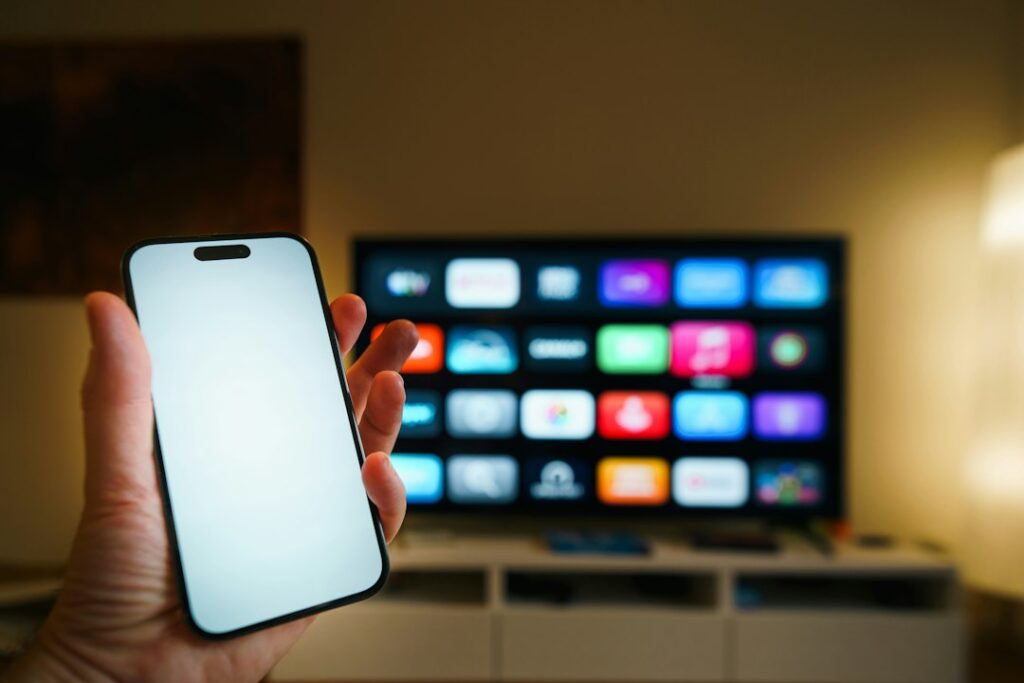
Which Premier League streaming apps dominate the UK market?
Rights for UK matches are split across several official broadcasters. Sky Sports uses its dedicated mobile and smart TV application. TNT Sports broadcasts through the Discovery Plus platform. Amazon Prime Video holds rights for specific fixture blocks each season. BBC Sport shows highlights rather than live games, but their iPlayer app sets the technical standard for smooth video delivery.
Official apps handle heavy traffic differently. Sky scales up server capacity during high-profile derbies like Arsenal versus Tottenham. TNT handles heavy loads through established infrastructure inherited from BT. Each app compresses feeds to save bandwidth while keeping the ball visible against green grass.
Third-party media players operate on a different logic. Software like VLC, TiviMate, or IPTV Smarters doesn’t host content. They act as windows. You plug a playlist link or portal address into the player, and it decodes the video stream. Official apps keep everything inside a closed garden. Third-party players give you total control over aspect ratios, audio tracks, and buffer sizes.
How do media players process live video feeds?
Live video requires intense decoding power. Your device receives compressed data packets over your broadband connection. The player software unpacks these packets instantly. If your processor lags behind, frames drop. That creates the dreaded stuttering effect during a fast counter-attack.
Hardware acceleration plays a huge role here. Modern Fire Sticks and Apple TV boxes have dedicated chips for video decoding. Software players delegate the heavy lifting to these chips. When you use an older phone or a cheap generic Android box, the processor struggles. It attempts software decoding instead. That generates heat and ruins your picture quality.
Adaptive bitrate streaming is another crucial technology. Official apps drop your resolution automatically if your Wi-Fi dips. You might go from 1080p to 720p for a few seconds. Custom IPTV players often let you lock the resolution manually. Locking the stream stops annoying quality shifts, but it causes freezing if your internet speed drops too low.
What hardware pairs best with Premier League streaming apps?
Not all gadgets run football apps equally well. Amazon Fire TV sticks dominate UK living rooms because they are cheap and support almost every app. Apple TV offers a much faster interface and handles high framerates smoothly. Google Chromecast brings the flexibility of Android TV to standard sets.
Smart TV operating systems vary wildly in performance. Samsung uses Tizen. LG relies on WebOS. Sony and Philips build their sets on Google TV. Google-powered televisions usually handle third-party media players best because the Google Play Store allows direct sideloading of APK files. Proprietary systems like Samsung’s Tizen limit you strictly to their official app store.
If you prefer watching on mobile devices, iOS and Android handle official broadcaster streams without breaking a sweat. Tablets offer a great second-screen experience. Just remember that mobile networks handle data throttling during peak evening kick-offs. A solid fibre broadband connection beats 5G mobile data every time for stability.
Why do streams buffer during big matches?
Millions of fans logging on simultaneously creates immense strain. Content Delivery Networks (CDNs) distribute this traffic across regional servers. If a regional server gets overwhelmed, your stream stalls.
Your home network causes issues too. Wi-Fi interference from neighbours ruins data packets. Microwaves and thick brick walls block signals easily. Connecting an Ethernet cable directly to your streaming box solves most home network hiccups.
Internet Service Providers in the UK also manage traffic during busy periods. Some broadband packages throttle heavy data users. Checking your line speed with a wired connection reveals if your ISP is the bottleneck. For a deeper dive into hardware configuration, check out this Smart TV setup guide for UK viewers.
Are third-party media players legal to use?
Media players themselves are completely legal software tools. VLC is a standard media tool used worldwide for playing personal video files. IPTV Smarters is simply a video player interface available on official app stores.
Legality depends entirely on what you feed into those players. Using an authorized service provider via their dedicated app keeps you on the right side of the law. Copyright holders and regulatory bodies like Ofcom monitor unauthorized broadcasting closely.
Stick to official subscriptions for peace of mind. They guarantee stable feeds, expert punditry, and high-definition video without sudden takedowns mid-match. Understanding how these apps function helps you build a reliable home setup for the entire football season.
For more information, iptv.
Related reading
Switching from a traditional satellite box to streaming changes how you browse television schedules. If you use IPTV UK setups, you might notice that channels appear as plain text links until an Electronic Programme Guide steps in to organise everything.

What actually is an EPG on IPTV UK services?
An EPG acts as a digital TV listings magazine. It takes raw data and turns it into a grid on your screen. You see current shows, upcoming movies, and broadcasting times without guessing what is on.
Old-school television networks broadcast this schedule data directly over the airwaves or cables. Modern streaming relies on internet-delivered XMLTV or JTV files instead. These files map out every single channel ID so your media player knows what label matches which stream.
How does an EPG work behind the scenes?
Your streaming player does not magically know what is airing on BBC One right now. It relies on a separate link provided by your supplier. This URL points to a text file that updates constantly.
When you open your app, the software downloads this schedule file in the background. It matches the channel numbers in your playlist with the station IDs listed in the guide data. Time zones matter here. If your server runs on Eastern European Time, your UK schedule might look two hours off until you adjust the time offset in your player settings.
Most popular apps update this information every few hours. Some update automatically upon startup. If your guide looks empty, the software simply has not fetched the latest file yet.
Why does my IPTV UK program guide fail to load?
Broken guides frustrate many viewers. Usually, a missing guide stems from a dead XMLTV link. Providers change their URLs often. When they do, your app loses its connection to the schedule data.
Another common culprit is a mismatch in channel IDs. If your provider changes a station name from ‘BBC One HD’ to ‘BBC One FHD’, the old guide link will not recognise the new ID. You have to manually re-sync or update your playlist.
Internet blocks can also interfere. Major broadband providers regulated by Ofcom sometimes block specific domain addresses associated with streaming lists and guide servers. If your ISP restricts the guide URL, your screen stays blank.
If you run into trouble on Amazon devices, our Firestick EPG setup guide walks through fixing common loading errors step by step.
Can you use a custom EPG source?
Yes. Many advanced streaming applications let you paste your own guide links. You are not forced to use the default one supplied with your package.
Some enthusiasts pull free open-source XMLTV files from independent databases. This workaround helps when a provider has poor internal scheduling data or missing channel logos. You just copy the custom URL, paste it into your player settings alongside your main subscription link, and force a manual refresh.
How to fix lagging or slow guide loading times
A massive guide file slows down cheap streaming hardware. Some lists contain thousands of international channels with seven days of detailed descriptions.
Older TV boxes run out of memory trying to cache all that text. To speed things up, hide unwanted international channels. Limiting your active playlist to UK-only stations shrinks the guide file size drastically. Your app will open faster, and the grid will populate without freezing your device.
For more information, iptv.
Learn more on Wikipedia: ITV (TV network).
Related reading
Getting Started with IPTV Smart TV Apps
Setting up your IPTV Smart TV configuration doesn’t have to ruin your weekend. Modern flat-screen displays running webOS or Tizen make downloading media players simple. You just open the built-in app store on your remote. Search for a reliable application. Install it directly onto your internal memory. No extra hardware boxes cluttering your TV stand.

You’ll need a working internet connection first. Fibre broadband in the UK easily handles high-definition streams. Plug an Ethernet cable straight into the back of your panel if Wi-Fi drops packets. Wired connections stop buffering mid-match.
Choosing Your Media Player
Picking the right software matters. Samsung and LG app stores hold a few solid choices. IPTV Smarters Pro remains popular because the layout stays clean. IBO Player and Net IPTV also work well on newer hardware. Each app asks for your M3U playlist link or Xtream Codes API login. Type those details in carefully. One missed character breaks the feed.
Some free apps display annoying ads across the screen. Premium players charge a small one-time activation fee per device. Pay the few pounds directly on their official website. Your viewing experience improves instantly without random pop-ups.
Loading Playlists and EPG Data
Once your app opens, you add your provider details. Grab your M3U URL from your service dashboard. Paste it into the playlist section of the app. Give the playlist a recognisable name. Hit save and let the system load your channels.
TV guides need a separate Electronic Programme Guide link. Paste the XMLTV URL into the EPG slot. Channels populate with names and schedules. If your guide stays blank, clear the app cache and restart the TV. For more tips on this process, check out our guide on how to set up EPG on Firestick IPTV player for compatible layout methods.
Fixing Common Streaming Glitches
Streams freeze sometimes. Network congestion causes most playback failures during peak evening hours in the UK. Restart your home router first. Unplug it for thirty seconds. Plug it back in and wait for the lights to stabilise.
Changing the stream format inside your player settings helps too. Switch from HLS to MPEG-TS if channels drop out constantly. Keep your TV firmware updated. Manufacturers patch memory leaks regularly.
For more information, iptv.
Related reading
Choosing the right app changes everything when you set up your Amazon Fire TV Stick for streaming. You plug the device in, connect to Wi-Fi, and stare at a blank dashboard. Two names dominate every forum discussion: TiviMate and IPTV Smarters Pro. Both apps handle your legally sourced playlists, but they approach the job in very different ways. Let’s break down how TiviMate vs IPTV Smarters Pro actually perform on everyday Firestick hardware.

Interface Design: TiviMate vs IPTV Smarters Pro
First impressions matter. Smarters goes for a modern, dashboard-heavy look. Big tiles greet you on the home screen. Live TV, movies, and catch-up sit neatly in separate blocks. It feels familiar if you use mainstream streaming apps like Netflix or Prime Video.
TiviMate takes another route entirely. It mimics a traditional set-top box. The guide pops up over the bottom of your screen without stopping the current broadcast. Changing channels feels snappy. It uses remote shortcuts effectively. If you want a cable-like feel in your front room, TiviMate wins this round easily.
EPG Performance and Guide Loading
An electronic programme guide makes or breaks your viewing experience. Nobody wants to stare at empty schedule slots. Smarters handles data downloads reliably, though larger playlists can slow things down on older Firestick models. You might notice a brief pause when refreshing schedules.
TiviMate handles massive guide files with impressive speed. Customisation options let you tweak time offsets and group logos effortlessly. If you want a deep dive into setting up your schedules properly, check out this guide on how to set up EPG on Firestick IPTV Player. It saves you plenty of trial and error once your playlist is loaded.
Multi-Screen and Catch-Up Capabilities
Watching two matches at once is a popular weekend hobby. Smarters includes a built-in multi-screen view on its dashboard. You can split your display into two or four squares. Performance depends heavily on your Firestick processor. Standard sticks might stutter with multiple live streams running simultaneously.
TiviMate handles multi-view brilliantly on supported devices. You can jump between screens quickly or pin audio to one specific window. Catch-up playback also feels more integrated on TiviMate. You simply scroll backward in the guide to grab missed broadcasts, provided your service supports archive features.
Pricing and Free Tiers
Cost often decides things for budget-conscious viewers. Smarters offers a very generous free version. Basic features work out of the box without paying a penny. You see occasional ads or face minor limits unless you upgrade to the unlocked version via a small one-off fee or subscription.
TiviMate offers a free tier too, but it feels restrictive. The premium version requires a yearly fee or a lifetime licence. You can tie that licence to multiple devices through their companion app. While it costs more, serious users generally agree the extra polish justifies the price tag.
Hardware Performance on Firestick
Amazon’s hardware varies wildly between generations. A basic Firestick Lite struggles with bloated interfaces. Smarters uses slightly more system resources during menu navigation. Animations look slick, but quick button presses can occasionally cause lag on older sticks.
TiviMate was built with resource efficiency in mind. It runs smoothly even on older streaming sticks. Channel zapping takes milliseconds. Memory usage stays low, meaning fewer crashes during long viewing sessions.
The Final Verdict
Both apps do a fantastic job. They serve different types of viewers. Smarters suits casual users who want a colourful, straightforward layout with zero upfront costs. It works well for occasional viewing and simple playlist management.
TiviMate takes the crown for power users. The polished interface, lightning-fast channel switching, and superior guide handling make it worth every penny of the subscription cost. Install TiviMate if you watch live television daily and demand a responsive setup on your Firestick.
For more information, iptv.
Related reading
- How to Set Up EPG on Firestick IPTV Player: 6 Essential Steps
- How to Add an IPTV Playlist to Smart TV
- 1. Get your XMLTV URL ready before tweaking your settings
- 2. Choose an IPTV player that handles IPTV EPG and guide data properly
- 3. Configure the EPG source in your player's settings menu
- 4. Fix incorrect time shifts for UK British Summer Time (BST)
- 5. Map unmatched channels manually to fill missing blank spots
- 6. Set up automatic daily background updates to prevent blank grids
1. Get your XMLTV URL ready before tweaking your settings
You turn on your Amazon Fire TV Stick, load your favourite streaming app, and open the guide. Blank boxes everywhere. No programme titles, no broadcast times, and no descriptions for upcoming shows. That frustrating empty grid happens when your app lacks a valid electronic programme guide source.

Setting up an EPG on Firestick apps starts with a simple web address. This link usually ends in .xml or .xml.gz. Providers call this an XMLTV URL. It acts as a live digital directory for your channels.
Grab the exact link provided by your service. Type it out into a notes app on your phone first. Typing long web addresses using an Amazon Fire TV remote is tedious. Using the Fire TV app on your phone lets you copy and paste the link in seconds. That simple trick saves you ten minutes of frustrating remote typing.
2. Choose an IPTV player that handles IPTV EPG and guide data properly
Not all player applications process channel data at the same speed. Popular players like IPTV Smarters Pro, Tivimate, and Perfect Player handle guide sources differently. Tivimate remains a favourite for UK users because it updates programme lists in the background without freezing your screen.
If you need to install or configure your playlist from scratch first, check out our guide on adding playlists to smart TV players. The underlying process works similarly across streaming gear.
When selecting your player application on Amazon’s Appstore or via Downloader, make sure it explicitly supports external XMLTV links. Cheap or unupdated software often fails to parse large guide files. That leads to crashes whenever you load your channel list.
3. Configure the EPG source in your player’s settings menu
Once your chosen app is running, head into its internal settings menu. You will usually find a dedicated tab named ‘EPG’, ‘TV Guide’, or ‘Playlist Sources’.
Here is how to add the source in most standard players:
- Select ‘Add EPG Source’ or ‘Add TV Guide’.
- Choose ‘URL’ as your source type rather than uploading a local file.
- Paste or carefully type your XMLTV web address into the text field.
- Assign a simple name to the source, like ‘UK Guide’.
- Save the entry and trigger an immediate manual update.
If you are using Xtream Codes API credentials (a server address, username, and password), the app often pulls the guide automatically. But manual XMLTV overrides are still useful if your provider’s default guide displays incorrect show times or missing entries.
4. Fix incorrect time shifts for UK British Summer Time (BST)
Is your guide showing the news two hours late? That is a classic time zone mismatch. XMLTV feeds are usually generated using Coordinated Universal Time (UTC) or standard server time. When daylight saving time changes in the UK, your programme listings can easily slip out of sync.
Most quality players include an ‘EPG Time Shift’ feature inside the guide settings. If programmes appear an hour earlier than they actually broadcast, set the time shift offset to +1 hour. If they appear late, set it to -1 hour. Save the change and reload the guide data. The schedules will snap straight into line with current UK broadcast times on channels like BBC One and ITV1.
5. Map unmatched channels manually to fill missing blank spots
Sometimes your app downloads thousands of listings, but specific regional channels remain completely blank. This happens when the channel ID inside your playlist does not match the channel ID inside the XMLTV file. The app gets confused and leaves the row empty.
You can fix this without reinstalling anything. Long-press the select button on your remote while highlighted on the blank channel. Choose ‘Assign EPG’ or ‘Edit Channel’. A search menu will pop up. Type the channel’s actual name—for example, ‘Sky Sports Main Event’—and select the corresponding listing from the master EPG database. The channel row will populate with full programme info instantly.
6. Set up automatic daily background updates to prevent blank grids
Guide data expires constantly. Most XMLTV sources only store schedule data for 3 to 7 days in advance to keep file sizes manageable. If your app does not refresh its cached data regularly, your guide will revert to blank boxes by the end of the week.
Head back into your player’s guide settings and turn on automatic updates. Select ‘Update on app startup’ or set an automatic daily refresh interval (such as every 24 hours at 4:00 AM). Also, consider clearing your app cache once a month. Firestick devices have limited onboard storage. Clearing old guide caches keeps your device running fast without sacrificing your live channel listings.
For more information, iptv.
Related reading
- What is an IPTV playlist and how does it work on a Smart TV?
- What are the best IPTV player apps for LG, Samsung, and Android Smart TVs?
- LG webOS and Samsung Tizen OS
- Android TV and Google TV
- How to add an IPTV playlist to Smart TV using M3U URLs?
- Method 1: Using external web portals (IBO Player, Smart IPTV)
- Method 2: Direct entry on Android TV apps (IPTV Smarters, TiviMate)
- How do you set up Xtream Codes API on your Smart TV?
- How do you load an Electronic Programme Guide (EPG) into your IPTV player?
- Why is my IPTV playlist not loading on my Smart TV and how do I fix it?
- 1. Check for typos in the URL string
- 2. Address UK Broadband Provider Filtering
- 3. Change your Smart TV DNS settings
- 4. Clear app cache or reinstall
- Is adding an IPTV playlist legal in the UK?
- Final checks for a reliable Smart TV setup
You have bought a brand-new television, downloaded a player app from the store, and now you need to load your channels. Getting television channels to play through an internet connection requires a specific configuration file or web link. Knowing how to add IPTV playlist to Smart TV screen setups can seem confusing at first glance, but the manual configuration takes only a few minutes once you understand the basic mechanics.

Smart TVs from brands like Samsung, LG, Sony, and Hisense do not usually come with built-in playback software for custom network streams. Instead, you use third-party media applications. These apps act as empty shells until you feed them a digital channel roster for IPTV on Smart TV for IPTV on Smart TV. Understanding how IPTV technology functions helps you make sense of why these files are structured the way they are.
What is an IPTV playlist and how does it work on a Smart TV?
An IPTV playlist is essentially a plain text file or network link that lists live television stream addresses alongside metadata. The standard file format is M3U or M3U8. Inside this file, every channel entry contains distinct lines of code. One line dictates the channel name, logo image URL, and group category. The very next line provides the exact direct stream URL where the video feed lives on the host server.
When you input this playlist into your television application, the software parses the text file. It sorts the raw web links into a clean, searchable electronic channel grid. Instead of typing complex website links with your remote control, you simply select “BBC One” or “Sky Sports” from an onscreen menu. The app reads the hidden link behind that title and opens the video stream instantly.
Playlists usually arrive in two distinct formats from legitimate service providers:
- M3U URL: A web link ending in .m3u or .m3u8 that downloads the latest channel data automatically every time you open the app.
- Xtream Codes API: A login method requiring a server URL, a username, and a password, which fetches playlists and catch-up content dynamically.
Using a dynamic M3U web link is always preferable to uploading a static file saved on a USB drive. Broadcasters frequently alter server port numbers and stream paths. A live web link refreshes your channel list dynamically without requiring manual re-installation every few weeks.
What are the best IPTV player apps for LG, Samsung, and Android Smart TVs?
The application you choose depends directly on your television’s operating system. Samsung uses Tizen OS, LG relies on webOS, and brands like Sony, Philips, and TCL use Google TV or Android TV. Hisense models often run VIDAA OS. Each ecosystem offers different software choices in its official app store.
LG webOS and Samsung Tizen OS
Proprietary TV platforms do not allow deep file system access, so you rely on lightweight dashboard apps that connect to web management portals:
- IBO Player: A fast, modern application available on both LG and Samsung stores. It requires a small one-time activation fee after a seven-day trial, but it offers excellent menu navigation and fluid video rendering.
- Smart IPTV (SIPTV): One of the oldest applications on Tizen and webOS. It costs around five Euros for a permanent license per device MAC address. The interface is basic, but it is reliable on older TV hardware.
- Nanomid Player: Known for fast channel switching speeds and security features. It works well on newer Samsung and LG displays.
- SS IPTV: A completely free app on various regional stores that allows direct playlist importing without requiring paid license activations.
Android TV and Google TV
If your television runs Google’s operating system, you have access to powerful apps that offer advanced playback features:
- TiviMate: Widely regarded as the premier player interface for Android TV. It offers multi-screen viewing, fast guide loading, and full layout customization.
- IPTV Smarters Pro: A popular, user-friendly option that neatly separates Live TV, Movies, and Series into dedicated dashboard categories.
- GSE Smart IPTV: A versatile application that supports a vast range of stream formats and external subtitle files.
How to add an IPTV playlist to Smart TV using M3U URLs?
The precise step-by-step process varies depending on the app you install, but most Smart TV applications use an external web portal to save you from typing long web links using a TV remote. Here is how to complete the process on common platforms.
Method 1: Using external web portals (IBO Player, Smart IPTV)
Apps like IBO Player or Smart IPTV rely on your phone or laptop browser for configuration. Follow this breakdown:
First, open the application on your television screen. The app screen will show two distinct identifiers: a MAC Address (formatted like AA:BB:CC:11:22:33) and a Device Key or PIN code.
Second, grab your phone, tablet, or laptop computer. Open your web browser and navigate to the application’s official management website (such as iboplayer.com/manage or siptv.app/mylist).
Third, type your television’s MAC address and Device Key into the portal login fields. This pairs your browser session directly to your Smart TV app.
Fourth, locate the field labeled Playlist URL or M3U Link. Copy the long playlist link provided by your service provider and paste it into this box. Give the playlist a recognizable label, like “Home TV”.
Fifth, click the Save or Send button on the website. Return to your television, close the player app, and re-open it. Your entire channel list will download and populate your screen.
Method 2: Direct entry on Android TV apps (IPTV Smarters, TiviMate)
If you run an Android-based TV, you can type details directly into the app user interface. When learning setting up IPTV on your Smart TV with these applications, follow these direct steps:
1. Launch IPTV Smarters Pro or TiviMate from your TV home screen.
2. Select Add Player or Add Playlist.
3. Choose Load Your Playlist or File/URL.
4. Enter any name you like in the first box.
5. Carefully type your M3U URL into the second line using your remote keyboard, or use the mobile remote app on your smartphone to copy and paste the text.
6. Select Add User or Save to initiate the channel import.
How do you set up Xtream Codes API on your Smart TV?
Xtream Codes API is a superior alternative to plain M3U links. Instead of downloading one massive, heavy text file containing tens of thousands of streams, the API breaks data down into clear queries. This makes your Smart TV run faster, reduces app memory load, and organizes video-on-demand content effectively.
To add an IPTV playlist to Smart TV hardware using the Xtream Codes method, follow these precise steps inside apps like IPTV Smarters or TiviMate:
Open your application and select the option titled Login with Xtream Codes API. You will see four empty text boxes on your screen:
- Playlist Name: Enter any descriptive title you choose.
- Username: Type the account username given by your service host.
- Password: Type your account password.
- Server URL / Port: Type the host address, including the protocol and port number (for example,
http://provider-address.com:8080).
Select Add User. The application will contact the server, verify your login credentials, and create separate categories for Live Channels, Movies, and Catch-up TV. This setup process is much easier than typing an endless M3U link on a TV remote control.
How do you load an Electronic Programme Guide (EPG) into your IPTV player?
A channel list shows you what stations exist, but an Electronic Programme Guide (EPG) tells you what programmes are actually airing right now and what comes on next. Without an EPG, your Smart TV interface looks empty and uninformative.
Most dynamic M3U links and Xtream Codes logins import EPG data automatically. However, if your TV app displays channel names without any schedule information, you must attach the EPG link manually.
An EPG link usually ends with an .xml or .xml.gz file extension. Here is how you attach it:
Open your app settings menu on your Smart TV and locate the EPG Sources or TV Guide tab. Select Add EPG Source. Paste your XML web address into the link field. Save the setting and trigger a manual EPG update.
Loading full TV guide data takes anywhere from thirty seconds to three minutes depending on your internet connection speed and your Smart TV processor capability. Once completed, your channel bar will display current program titles, start times, channel logos, and detailed episode descriptions.
Why is my IPTV playlist not loading on my Smart TV and how do I fix it?
Setting up your system does not always go smoothly on the first try. If your television screen displays error messages like “Playlist Load Failed,” “Check URL,” or remains stuck on a black buffering screen, work through these practical troubleshooting solutions.
1. Check for typos in the URL string
A single wrong character, missing colon, or misplaced slash breaks the link entirely. M3U links are case-sensitive. Capital letters must match your subscription details exactly. If typing with a TV remote is tedious, plug a standard USB computer keyboard directly into the back of your Smart TV to type long addresses cleanly.
2. Address UK Broadband Provider Filtering
Major Internet Service Providers in the UK—including BT, Virgin Media, Sky, TalkTalk, and EE—utilize default web security tools like BT Web Protect or Sky Broadband Shield. These automated filter systems frequently intercept and block non-standard media streams. If your playlist works fine on your mobile phone via 4G data but fails on home Wi-Fi, log into your ISP customer account page and disable these security shields, or adjust your settings.
3. Change your Smart TV DNS settings
Your television uses default DNS servers provided by your broadband supplier to locate web addresses. These servers can sometimes resolve media streaming domains slowly or block them completely. Changing your DNS servers directly on your Smart TV often solves connectivity issues:
Go to your TV’s Network Settings, select IP Settings, and switch DNS configuration from Automatic to Manual. Enter primary DNS 8.8.8.8 and secondary DNS 8.8.4.4 (Google’s public DNS), or use 1.1.1.1 (Cloudflare). Save the settings and restart your TV.
4. Clear app cache or reinstall
Smart TVs have limited internal memory compared to smartphones. Over time, cached network data accumulates and prevents app memory from loading heavy playlist links. Go to your TV’s main Settings menu, find the Applications tab, select your player app, choose Clear Cache, and restart the device. Refer to a comprehensive beginner’s guide to UK IPTV if performance issues persist across multiple applications.
Is adding an IPTV playlist legal in the UK?
The act of downloading a media player application and adding an IPTV playlist to Smart TV software is entirely legal under United Kingdom law. The software players available in official TV app stores are simply open media playback utilities, much like a web browser or a third-party video player on a laptop.
Legality depends entirely on the origin of the content links you feed into the application. If your playlist contains streams from legitimate, licensed UK broadcasters or open-access free-to-air channels, you are operating entirely within UK law.
However, using playlists supplied by unauthorized third-party providers to access premium sports packages, pay-per-view events, or subscription movie channels without paying the official rights holders breaches UK copyright laws. UK media regulator Ofcom and organizations like the Federation Against Copyright Theft (FACT) work actively alongside UK internet service providers to block illegal distribution networks across domestic broadband networks.
Always ensure your channel sources come from authorized rights holders to ensure uninterrupted viewing and full compliance with UK law.
Final checks for a reliable Smart TV setup
Once your channels load successfully, take a minute to tweak a few final settings on your TV. Connect your Smart TV using a direct Ethernet cable rather than Wi-Fi whenever possible. Wired connections eliminate wireless interference, drastically reduce video buffering, and provide a stable stream rate for high-definition and 4K broadcasts.
Additionally, check your player app playback settings. Set the hardware decoder to “HW” or “Native” mode for optimal performance. This forces your TV’s internal graphics processing unit to handle video decoding directly, keeping channel switching fast and keeping your TV interface responsive.
For more information, iptv.
Related reading
- How to Watch Premier League Matches in the UK
- How Does IPTV Work? Everything UK Viewers Need to Know
- 1. Football Broadcasting Rights Are Split Across Multiple Networks
- 2. Official Premier League IPTV Streaming in the UK Works Differently Than Cable
- 3. The 3pm Saturday Blackout Is Still Strictly Enforced
- 4. Internet Speeds and Stability Dictate Picture Quality
- 5. Hardware Selection Shapes the Viewing Experience
- 6. Unofficial Premier League IPTV Streams Carry Significant Risks
- 7. Stream Latency Means Your Phone Might Spoil Goals
- Selecting the Right Setup for Your Home
Watching top-flight football in Britain has changed dramatically over the last few years. Satellite dishes and traditional cable boxes are no longer the default choice for domestic supporters. Instead, modern internet protocol television delivers high-definition matches directly over your fibre broadband. If you are exploring Premier League IPTV options in the UK, navigating the rights landscape, tech requirements, and legal rules can feel confusing. Here are seven crucial facts every UK viewer needs to understand before tuning in.

1. Football Broadcasting Rights Are Split Across Multiple Networks
No single provider holds the rights to show all 380 Premier League matches live in the United Kingdom. That reality surprises many foreign fans, but domestic rights are explicitly divided by regulator Ofcom and the league itself to encourage market competition.
Sky Sports holds the largest package of matches, usually broadcasting Friday night, Saturday evening, Sunday afternoon, and Monday night games. TNT Sports (formerly BT Sport) typically covers the Saturday early kickoff slot alongside selected midweek rounds. Amazon Prime Video secures specific holiday packages, including the Boxing Day fixtures. Because rights are split this way, official streaming options require separate subscriptions or a combined package from a major platform like NOW or Virgin Media.
2. Official Premier League IPTV Streaming in the UK Works Differently Than Cable
Traditional television broadcasts signals over coaxial cables or satellite signals pointed at distant orbiters. IPTV delivers video data packets across your home internet connection using standard web protocols. If you want to understand the underlying tech, read our guide on what is IPTV in the UK for a clear breakdown.
When you watch live football via Sky Go, NOW, or TNT Sports on a Smart TV, you are using legitimate IPTV infrastructure. The feed is converted into digital chunks, routed through secure content delivery networks, and reconstructed on your screen within milliseconds. This setup gives you flexibility. You can start watching a match on your living room television, pause it, and continue on a tablet in another room without missing a tackle.
3. The 3pm Saturday Blackout Is Still Strictly Enforced
If you expect to stream every single match live on a Saturday afternoon, you will run into a long-standing British tradition. Article 48 of the UEFA statutes permits national associations to block live televised football during a specific window to protect stadium attendance at lower-league grounds.
In England, no channel or legitimate streaming app can broadcast live football between 2:45 pm and 5:15 pm on Saturdays. That applies regardless of whether the service runs over cable, satellite, or internet streaming. Matches played during this window are covered via audio commentary or live goal updates on services like the BBC, but the full televised picture is withheld until highlights air later that evening.
4. Internet Speeds and Stability Dictate Picture Quality
Streaming live sports puts higher demands on your home broadband connection than playing static movie files on Netflix. Football involves fast movement, panning camera angles, and bright green pitches that showcase compression flaws quickly if bandwidth drops.
- Standard HD (1080p at 50fps): Requires a stable minimum download speed of 12 Mbps.
- Ultra HD / 4K (2160p with HDR): Demands at least 25 Mbps to 35 Mbps of sustained bandwidth.
- Ethernet Connection: Plugging an Ethernet cable directly into your streaming stick or TV prevents Wi-Fi interference.
Frame rate matters immensely for sports. Standard video runs at 25 or 30 frames per second, which causes noticeable motion blur when a goalkeeper kicks the ball downfield. High-quality Premier League IPTV broadcasts output at 50 frames per second, ensuring smooth motion during rapid counter-attacks.
5. Hardware Selection Shapes the Viewing Experience
Not all streaming hardware handles live sports equally well. Modern Smart TVs from brands like LG, Samsung, and Sony come with built-in app stores that support official channels out of the box. However, onboard TV processors can slow down over time as app updates demand more memory.
Dedicated streaming hardware like the Amazon Fire TV Stick 4K, Apple TV 4K, or Roku Streaming Stick often delivers snappier navigation and faster channel switching. Apple TV 4K, in particular, handles high frame rate video processing exceptionally well, making match graphics look crisp. If you are using a new television, take a look at our walkthrough on how to watch Premier League matches in the UK to configure your hardware correctly.
6. Unofficial Premier League IPTV Streams Carry Significant Risks
Search online and you will inevitably encounter unauthorized sellers offering thousands of global channels for a fraction of official subscription prices. While low prices look tempting, using these unofficial platforms comes with steep drawbacks for consumers.
Law enforcement agencies, including the Police Intellectual Property Crime Unit (PIPCU), actively target illegal operations across the UK. Copyright owners regularly obtain court orders forcing major UK internet service providers (ISPs) like BT, Virgin, EE, and Sky to block unauthorized video servers mid-match. That means streams frequently drop out right as a penalty is taken. Furthermore, illicit platforms often expose users to malware, data harvesting, and financial fraud through insecure payment portals.
7. Stream Latency Means Your Phone Might Spoil Goals
Have you ever heard your neighbours cheer a goal five seconds before it happened on your television screen? That delay is called latency, and it is an inherent characteristic of internet streaming.
Satellite and digital terrestrial broadcasts (Freeview) have very low latency, usually around 3 to 5 seconds behind real time. Streaming platforms must buffer data to ensure smooth playback, creating a delay ranging from 15 to 45 seconds depending on your connection and app setup. If you keep phone alerts enabled from betting or sports news apps during a match, turn off push notifications to avoid learning about a goal before you actually see it land in the net.
Selecting the Right Setup for Your Home
Getting the best matchday experience comes down to honest evaluation of your household internet setup. Check your line speed using an online test during peak evening hours rather than quiet mornings. If your router sits far from your main television, invest in a powerline adapter or mesh Wi-Fi node to maintain a reliable stream. Sticking to accredited platforms ensures reliable 50fps video quality without unexpected blackouts or safety concerns when kick-off arrives.
For more information, iptv.
Learn more on Wikipedia: Premier League International Cup.
Related reading
- What Is IPTV UK? A Complete Beginner’s Guide
- 8 Key Considerations When Selecting a Legal IPTV UK Provider
Navigating UK Football Broadcast Rights
Buying a ticket to every single English top-flight fixture is practically impossible for most fans. Between high ticket prices and sold-out stadiums, millions rely on broadcast television and live streams to follow their teams. If you want to watch Premier League matches in the UK, you quickly discover that no single broadcaster holds the rights to show every game.

The current domestic television deal splits the 380 annual league matches across three primary broadcasters: Sky Sports, TNT Sports, and Amazon Prime Video. Sky holds the lion’s share, showing well over 100 live matches per season, including the flagship Sunday afternoon fixtures and Friday evening kick-offs. TNT Sports covers the majority of Saturday lunchtime games, alongside midweek rounds. Amazon Prime Video typically retains two full fixture rounds, usually covering early December games and the Boxing Day schedule.
This fragmented system stems from legal broadcasting regulations designed to encourage competition and protect stadium attendance. As a result, supporters who want complete coverage must navigate multiple subscription services, satellite packages, and digital streaming apps.
The 3pm Saturday Blackout Rule Explained
One unique aspect of watching football in Britain is the traditional 3pm blackout rule. Article 48 of the UEFA statutes permits national associations to block live football transmissions during a designated two-and-a-half-hour window on Saturday afternoons.
In England, this restriction applies between 2:45pm and 5:15pm every Saturday during the domestic season. The rationale behind the rule is straightforward: it protects attendance figures at lower-league grounds across the Football League and non-league system. If fans could watch top-tier games on television at 3pm, local clubs like Leyton Orient, Rochdale, or Altrincham might suffer significant drops in gate revenue.
Because of this policy, no broadcast service—whether traditional satellite, cable, or online internet protocol television—can legally show 3pm Saturday Premier League games within the United Kingdom. Games scheduled for this time slot are only broadcast live to international territories.
Official TV Packages and Subscription Costs
Putting together a viewing setup to cover every televised match requires carefully selecting subscriptions. A basic Sky Sports package via traditional dish or their Now streaming service forms the foundation of most fans’ viewing setups. Adding TNT Sports (formerly BT Sport) increases your monthly outlay, while Amazon Prime requires an annual or monthly membership.
For internet-based viewers, understanding how digital television networks deliver feeds over household broadband is essential. Sky offers its service without a satellite dish via Stream or Glass, while TNT Sports streams through the discovery+ platform. Combined, full coverage across all legitimate platforms can easily exceed £70 to £90 per month, depending on ongoing contracts and special introductory offers.
Hardware and Broadband Requirements for High-Quality Football Streams
Fast sports action places specific technical demands on your home internet connection and viewing hardware. Unlike movies or drama series, live football involves fast-moving objects, rapid camera panning, and high frame rates.
To stream live matches in Standard High Definition (1080p), you need a stable broadband connection with a minimum download speed of 15 to 20 Mbps. If you plan to stream in 4K Ultra HD with High Dynamic Range (HDR), your network must maintain at least 30 to 40 Mbps consistently.
Recommended Setup Checklist
- Broadband Speed: Minimum 25 Mbps download for reliable HD, 50+ Mbps for 4K.
- Connection Type: An Ethernet cable directly from router to device works better than Wi-Fi.
- Display Hardware: A Smart TV, Fire TV Stick 4K, Apple TV 4K, or Nvidia Shield.
- Display Settings: Enable ‘Game Mode’ or set motion smoothing manually to reduce motion blur during long passes.
If you prefer using television smart apps, setting up modern streaming applications on a television screen takes only a few minutes through built-in app stores. Using a direct wired Ethernet connection rather than Wi-Fi prevents latency spikes, buffering wheels, and mid-match resolution drops.
Legal and Safe Viewing Options for British Football Fans
With subscription costs rising, many supporters search online for alternative ways to watch Premier League matches in the UK. However, using unauthorized streams, illegal set-top boxes, or unlicensed internet feeds carries substantial risks. Public authorities like Ofcom and the Police Intellectual Property Crime Unit actively target illegal stream distributors and service providers across the country.
Illegal feeds frequently suffer from heavy server congestion during high-profile matches like the North London or Manchester derbies. Users routinely experience severe video delay, sudden stream outages, and aggressive pop-up advertisements containing dangerous malware. Unofficial services also lack viewer data protection, exposing personal banking details to untrusted operators.
Sticking to official, licensed platforms ensures consistent 50fps picture quality, surround sound audio, professional commentary, and total peace of mind. By comparing rolling monthly passes against long-term 18-month contracts, fans can often find discounts that keep legal access affordable without compromising on security or stream stability.
For more information, iptv.
Related reading
- How Does IPTV Work? Everything UK Viewers Need to Know
- Premier League Streaming in the UK: Complete Guide
- How Does IPTV Work? Everything UK Viewers Need to Know
- The Technical Core: Packets and Protocols
- Content Architecture: How Data Travels from Source to Screen
- Bandwidth Requirements for UK Homes
- Hardware Setup Options
- Distinguishing Legal Platforms from Infringing Services
- Future Infrastructure Changes
How Does IPTV Work? Everything UK Viewers Need to Know
You turn on your television, open an app, and select a broadcast stream. Within two seconds, crisp high-definition video fills your screen without a satellite dish or aerial in sight. That process relies on Internet Protocol Television, commonly known as IPTV.

Instead of receiving broadcast signals through traditional radio waves or underground coaxial cables, video data arrives in small digital packets over your ordinary broadband line in the UK. Understanding the mechanics behind this technology helps you fix buffering issues, select proper hardware, and choose legitimate providers.
The Technical Core: Packets and Protocols
Traditional television broadcasts every channel simultaneously. Your aerial receives signals for BBC One, ITV1, and Channel 4 all at once, while your tuner filters out the channels you are not watching. This approach wastes massive amounts of bandwidth because nobody watches twenty channels at the same time.
IPTV works differently. It uses a point-to-point architecture. When you select a stream, a direct request goes to the provider’s server. That server sends back a dedicated stream of data packets encoded specifically for your receiver. If you switch channels, the old server connection closes and a new stream starts immediately.
Three primary protocols handle this data transmission across the internet:
- IGMP (Internet Group Management Protocol): Manages live TV feeds by distributing a single stream to multiple domestic subscribers without overloading backend infrastructure.
- RTSP (Real-Time Streaming Protocol): Controls video playback for on-demand media, allowing you to pause, rewind, and fast-forward content.
- HTTP Live Streaming (HLS): Breaks video feeds into brief HTTP-based file chunks. Most modern web-based video platforms use this protocol because it adapts dynamically to changing internet speeds.
Content Architecture: How Data Travels from Source to Screen
To deliver a reliable stream, providers process media through three separate stages before it reaches your living room.
1. Ingestion and Encoding
Live satellite or terrestrial feeds undergo digital conversion. Raw video files are far too large for domestic internet connections, so encoders compress the signal using formats like H.264 (AVC) or H.265 (HEVC). H.265 offers superior compression, delivering full 4K resolution at much lower data rates than older formats.
2. Middleware Management
Middleware acts as the operational bridge between user devices and backend databases. It processes your subscription logins, loads electronic programme guides (EPGs), and handles digital rights management (DRM) checks to ensure authorization before releasing content keys.
3. Content Delivery Networks (CDNs)
Sending thousands of direct streams from a single central server in London across the entire country would trigger severe network congestion. Providers rely on edge servers deployed across regional data centres. A subscriber in Glasgow fetches video data from a local Scottish edge server rather than routing back to a central hub, drastically reducing latency and playback delays.
Bandwidth Requirements for UK Homes
Broadband quality directly dictates stream performance. According to research published by Ofcom, superfast broadband coverage now reaches the vast majority of UK households, making internet television practical for millions. However, network stability matters far more than maximum download speeds.
Here is what standard video formats require for reliable playback:
| Resolution | Minimum Recommended Bandwidth | Ideal Download Speed |
|---|---|---|
| Standard Definition (SD) | 3 Mbps | 5 Mbps |
| High Definition (HD – 1080p) | 10 Mbps | 15 Mbps |
| Ultra HD (4K HDR) | 25 Mbps | 50+ Mbps |
Local home network traffic also impacts performance. If family members stream movies or download large updates on other devices, your connection headroom shrinks rapidly. Connection drops often stem from poor home Wi-Fi coverage rather than external broadband capacity. Plugging your media streaming device directly into your router via an Ethernet cable yields immediate latency improvements.
Hardware Setup Options
Modern viewers use a wide range of devices to access internet television. Dedicated set-top boxes, such as those supplied by BT TV or Virgin Media, utilize private managed networks to guarantee signal priority over standard internet traffic. Unmanaged setups run over open internet connections via downloadable apps installed on consumer hardware.
If you are setting up standard consumer hardware, configuring compatible applications takes only a few minutes. You can read our detailed guide on how to set up IPTV on your Smart TV in the UK for step-by-step instructions across major television platforms.
Distinguishing Legal Platforms from Infringing Services
The underlying delivery technology is entirely neutral. The legal status of any specific IPTV UK platform depends exclusively on content licensing rights.
Legitimate services operate legally because they license broadcast rights from copyright holders. Major domestic examples include:
- BBC iPlayer & ITVX: Free-to-air platforms supported by public funding and commercial advertising.
- NOW (Sky): Subscription-based contract-free streaming of live premium entertainment and sports channels.
- TNT Sports & Discovery+: Premium sports broadcast networks delivered via internet protocols.
Under the Copyright, Designs and Patents Act 1988, broadcasting copyrighted material without authorization constitutes intellectual property infringement. Guidance issued by the Intellectual Property Office clarifies that accessing illicit streams carrying premium channels or live premier division football for a small fee without explicit rightsholder authorization exposes users to legal, privacy, and security risks.
Unauthorized services often operate without security oversight. They present genuine malware risks, credit card fraud threats, and unstable service quality because regulatory authorities regularly block illicit servers at the ISP level.
Future Infrastructure Changes
The UK viewing landscape is shifting toward an internet-first future. The national copper telephone line network is being retired, and full-fibre connection deployments are expanding across the country. Major broadcasters are increasingly shifting resources away from traditional linear infrastructure toward unified IP-based delivery systems.
Understanding how data flows through internet protocols empowers you to build a reliable, high-performance home viewing setup using legitimate entertainment platforms.
For more information, iptv.
Learn more on Wikipedia: ITV (TV network).
Related reading
- Premier League Streaming in the UK: Complete Guide
- 6 Crucial Factors for Watching Premier League Football via IPTV UK Services legally
- Navigating UK Football Broadcasts
- The 3pm Saturday Blackout Rule
- Official Broadcasters for Premier League Streaming in the UK
- Optimising Internet Speeds and Streaming Quality
- Hardware Choices for Football Fans
- Setting Up Smart TVs for Live Football
- Legal IPTV and Streaming Applications in the UK
- Managing Subscription Costs Effectively
- Future Trends in UK Football Streaming
Navigating UK Football Broadcasts
Watching Premier League streaming content in the UK requires understanding a complex broadcast market. British football fans face a fragmented system where live coverage split across multiple subscription platforms. Unlike international viewers who often get access to every fixture through a single overseas provider, supporters inside the UK must manage several services to catch all televised matches. Getting your setup right ensures you never miss a kickoff while keeping your home entertainment network fast and reliable.

The domestic television rights for English top-flight football are divided into distinct packages. For years, Sky Sports and TNT Sports (formerly BT Sport) have held the primary broadcasting allocations. Amazon Prime Video also holds specific fixture rounds, particularly over the busy winter festive schedule. Knowing which provider holds the rights to specific match slots helps you plan your subscriptions effectively and avoid paying for channels you do not watch.
The 3pm Saturday Blackout Rule
A unique aspect of British football broadcasting is the traditional 3pm Saturday blackout. Article 48 of the UEFA Statutes allows national associations to block live broadcasts during a specific window. In England, no football match can be broadcast live on television or through digital streams between 2:45pm and 5:15pm on a Saturday. This rule aims to protect stadium attendance figures across the Football League and lower grassroots divisions.
Because of this restriction, 3pm Saturday fixtures are never legally shown live on British television. Supporters looking to follow matches in this time window must listen to radio commentary on BBC Radio 5 Live or TalkSPORT, or wait for evening highlights on Match of the Day. For live televised fixtures, games are shifted to Friday evenings, Saturday early and late slots, Sundays, and Monday nights.
Official Broadcasters for Premier League Streaming in the UK
Sky Sports remains the dominant rights holder in the UK. They show the majority of televised fixtures, including major Sunday afternoon games and Friday or Monday night matches. Subscribers can access these games through traditional satellite setups or stream them digitally via the NOW platform. NOW offers flexible day or monthly sports memberships, making it popular for viewers who prefer not to sign long-term TV contracts.
TNT Sports broadcasts the regular Saturday lunchtime kickoff slot alongside mid-week fixture lists and European club competitions. You can stream TNT Sports through the Discovery+ app, which replaced the old BT Sport digital player. Combining these services allows fans to follow almost every legally televised match throughout the ten-month season.
Amazon Prime Video covers specific mid-week rounds and the full schedule of Boxing Day fixtures. If you already hold an Amazon Prime subscription, these games come included at no extra cost. When selecting your subscriptions, review the key considerations when selecting a legal IPTV UK provider to ensure your chosen platform supports the official apps you need.
Optimising Internet Speeds and Streaming Quality
Live sports streaming demands consistent bandwidth and low latency. Unlike pre-recorded movies that can buffer ahead, live football feeds depend on real-time data delivery. A sudden drop in internet speed causes resolution downgrades, freezing, or annoying playback delay. To enjoy crisp 1080p High Definition or 4K Ultra HD coverage, your internet connection must meet stable speed targets.
- Standard HD Streaming: Requires a minimum continuous speed of 10 Mbps per device.
- 4K Ultra HD Streaming: Demands at least 25 Mbps to 30 Mbps of dedicated download bandwidth.
- Frame Rate Requirements: Live sports require 50 frames per second (fps) for smooth ball movement and action.
Using a direct Ethernet cable connection from your router to your smart TV or streaming box provides much better stability than Wi-Fi. Wi-Fi signals suffer from wall interference and channel congestion, especially in densely populated areas. If running a network cable is impractical, consider using powerline adapters or a modern Wi-Fi 6 mesh router setup.
Hardware Choices for Football Fans
Modern smart TVs usually feature built-in app stores that host Sky Go, NOW, Discovery+, and Amazon Prime Video. However, television processors can become sluggish over time as app software updates demand more system memory. Dedicated streaming hardware often delivers faster app loading and superior picture processing for sports feeds.
Popular connected devices include the Amazon Fire TV Stick 4K, Apple TV 4K, and Google TV devices. Apple TV 4K is particularly well-regarded for its fast interface and excellent frame rate matching. Matching the output frame rate to the broadcast source prevents screen jitter during fast panning shots across the pitch. You can read more about network protocols and performance in our guide on IPTV UK services and streaming technology.
Setting Up Smart TVs for Live Football
Getting your living room display ready for matchday involves more than just launching an app. Motion processing settings on modern TVs can introduce unwanted visual artifacts or excessive display lag during fast sports broadcasts. Taking time to adjust your display parameters ensures the action looks sharp and motion stays clean.
First, disable aggressive motion smoothing features, often named Motionflow, TruMotion, or Auto Motion Plus in your TV settings menu. While these features attempt to make low-frame-rate content smoother, they can create a halo effect around the moving football. Set motion controls to a low or custom setting, or switch your TV picture preset to ‘Direct’ or ‘Standard’.
Second, ensure your streaming device matches the visual output of the app feed. Most UK sports streams broadcast at 50Hz. If your streaming stick is locked to a 60Hz output designed for North American content, you will experience micro-stutter every second. Enable automatic frame rate matching in your streaming box settings. For step-by-step installation instructions on popular displays, check out our guide on how to set up IPTV on your Smart TV in the UK.
Legal IPTV and Streaming Applications in the UK
Internet Protocol Television simply refers to delivering television content over internet networks rather than traditional satellite or terrestrial aerials. Official apps like NOW, Discovery+, and BBC iPlayer are standard, legal forms of IPTV operating in Great Britain. They deliver high-quality feeds with reliable servers and official support.
Viewers must avoid illegal streaming portals that offer unauthorized access to Premier League feeds. Unofficial streams are frequently taken down by law enforcement and internet service providers during major fixtures, leading to sudden blank screens mid-match. Furthermore, illicit services carry significant cybersecurity risks, including malware exposure and personal financial data theft. Review the factors for watching Premier League football via IPTV UK services legally to stay safe online.
Managing Subscription Costs Effectively
Subscribing to every official broadcaster can become expensive over a full season. Fortunately, flexible contract structures let supporters manage their spending without missing key fixtures. Instead of locking into twelve-month contracts across every service, consider rolling monthly memberships.
Map out your club’s fixture list a month in advance. If your team has several televised matches on TNT Sports in October, activate a month pass for Discovery+. If they are mostly featured on Sky Sports the following month, switch your focus to a NOW membership. Taking advantage of promotional bundles through your mobile network or broadband provider can also yield substantial annual savings on Premier League streaming passes.
Future Trends in UK Football Streaming
Broadcasting technology continues to evolve rapidly. The shift from linear television channels to web-based streams allows platforms to experiment with interactive features. Broadcasters are testing multi-camera options, real-time statistical overlays, and instant tactical replays within their apps.
Higher dynamic range formats like Dolby Vision and HDR10+ are also becoming standard for major games. These standards deliver realistic stadium lighting, deeper shadows, and vivid pitch greens. As broadband infrastructure improves across the UK with full-fibre rollouts, 4K Ultra HD streams at 50fps will become the standard expectation for football supporters everywhere.
For more information, iptv.
Related reading
- 6 Crucial Factors for Watching Premier League Football via IPTV UK Services legally
- How to Set Up IPTV on Your Smart TV in the UK