Living Room Hardware Choices
You bought a shiny new television. The screen looks crisp. Now you need to decide how to run your streaming software. Many owners just download a Smart IPTV app directly from the manufacturer store and call it a day. Others plug a dedicated media stick into the back HDMI port. Each route changes how your daily viewing feels.
Built-in software wins on minimalism. You keep one remote on the coffee table. You skip extra power cables dangling behind the unit. Brands like Samsung and LG run proprietary operating systems with huge app libraries. Yet, manufacturer software often feels sluggish over time.
Hardware Performance and Speed
Smart televisions usually feature modest internal processors. Manufacturers cut costs on chipsets to keep screen prices low. When you launch a heavy media player, the CPU struggles. Menus stutter. Channel guides load slowly.
External hardware like Amazon Fire sticks or Android boxes carry dedicated processing power. They handle heavy video codecs much better. You get quicker channel switching. The electronic programme guide glides smoothly instead of freezing halfway through a sports broadcast.
Storage Limitations on Televisions
Internal memory on modern screens fills up fast. Manufacturers install just a few gigabytes of storage for user apps. Cache files from video streams clog that space within months. You end up constantly clearing cache or uninstalling tools just to keep the system running.
External dongles offer more breathing room. They also let you manage storage easily. You can even check Firestick storage management tips if your media player starts running low on capacity.
Remote Control Ergonomics
The standard remote that comes with your television rarely suits media playback well. Directional pads feel mushy. Dedicated shortcut buttons take you to subscription services you might not use. Number pads have vanished from modern clickers entirely.
Using a dedicated media player often gives you better remote options. Third-party alternatives like TiviMate map navigation buttons naturally. You can jump through channel lists with single thumb presses.
App Compatibility and Updates
App availability varies wildly by platform. LG uses webOS. Samsung relies on Tizen. Neither platform supports every third-party media player you might want to install. You often rely on web-based players or sideloading workarounds that break during routine firmware updates.
Android TV and Fire OS dominate the media player market. Developers focus their energy on these platforms first. Your chosen Smart IPTV app receives updates much faster on an external stick than on a three-year-old television model.
Audio and Video Standards
Modern home audio setups demand proper passthrough. Connecting your television directly to a soundbar or AV receiver complicates things. Built-in software can struggle with Dolby Atmos or DTS audio formats when routing streams through HDMI ARC.
External players plug straight into your sound system or receiver first. They decode audio locally before passing clean video to the display. You get fewer sync issues and better surround sound performance.
Making the Final Choice
If you only watch casual television once a week, built-in software does the job. You avoid clutter. You save a socket on the wall.
Heavy daily viewers should always pick an external device. The snappy menus, wider software choices, and superior update lifecycles justify the extra remote. Do yourself a favour and plug a dedicated stick into that HDMI port.
For more information, iptv.
Related reading
- How to Choose an IPTV Service in the UK
- TiviMate vs IPTV Smarters Pro on Firestick: Which Player Wins?
- Introduction
- Myth 1: You Need an Expensive Device for Firestick IPTV Setup
- The Reality of Fire TV Hardware Limitations
- Myth 2: Complex Coding is Required During Firestick IPTV Setup
- Sideloading Apps and Entering URLs Safely
- Myth 3: Every Media Player Works Identically on Fire TV
- Choosing the Right App Configuration
- Myth 4: Internet Speeds Alone Determine Streaming Quality
- Wi-Fi Interference and Local Network Bottlenecks
- Problem and Solution: Fixing Common Configuration Errors
- Problem: EPG Data Fails to Load
- Problem: Audio and Video Fall Out of Sync
- Problem: App Crashes on Startup
- Final Thoughts on Device Optimisation
Introduction
Getting your streaming device ready for television broadcasts involves a lot of conflicting advice online. If you are attempting a new Firestick IPTV setup today, you will likely encounter forums full of outdated tips and exaggerated claims. People often repeat shortcuts that simply do not work. Others warn about dangers that do not exist. UK viewers deserve clear facts instead of guesswork. Let us separate the myths from reality so you can configure your hardware properly.
Myth 1: You Need an Expensive Device for Firestick IPTV Setup
Many online guides insist that basic streaming sticks lack the power for modern broadcast apps. They claim you must buy high-end media boxes costing over one hundred pounds to watch live television smoothly. This is completely false. Amazon’s standard streaming sticks handle media playlists easily. They process high-definition feeds without breaking a sweat.
Hardware specifications matter, of course. Older generations with minimal storage can struggle if you load them down with heavy applications. A standard Fire TV Stick 4K handles everyday media feeds just fine. You do not need professional-grade equipment for a standard home entertainment setup. RAM and processor speed are important, but Amazon’s mid-range hardware hits the sweet spot for most households across the UK.
The Reality of Fire TV Hardware Limitations
Storage space remains a genuine bottleneck on these devices. You only get a few gigabytes of usable internal memory after system updates. Streaming apps cache temporary files constantly. If your device starts freezing, look at your storage menu rather than blaming the hardware tier. Clear your app cache regularly. This simple habit keeps your system running fast.
Myth 2: Complex Coding is Required During Firestick IPTV Setup
A widespread rumor suggests that configuring media applications requires advanced technical skills or writing custom code. People assume you need a background in software development just to input a playlist address. Thankfully, this is entirely untrue. Modern applications rely on simple graphical interfaces. You point and click.
Most configuration steps involve downloading an official application from the Amazon Appstore or sideloading a trusted player using a short downloader code. Once the app opens, you enter your login credentials or playlist URL using the remote control. The software does the heavy lifting behind the scenes. You never have to touch a command line or edit system files.
Sideloading Apps and Entering URLs Safely
Entering long web addresses with an onscreen keyboard is tedious. Thankfully, modern remote apps on your smartphone make typing much easier. You can paste long playlist links directly into the streaming app without hunting for individual letters with the physical remote. Always double-check your URLs for typos. A single missing character will stop your playlist from loading entirely.
Myth 3: Every Media Player Works Identically on Fire TV
Beginners often assume all streaming applications perform the same way. They think changing apps makes zero difference to picture quality or channel switching speeds. In reality, the player you choose defines your entire viewing experience. Some apps handle electronic program guides brilliantly. Others struggle with audio synchronization.
For instance, heavy apps might look flashy with animations, but they can drain your device’s memory quickly. Lightweight players switch channels instantly. If you want a deep dive into comparing the top options available, check out this guide on TiviMate vs IPTV Smarters Pro on Firestick to see how different interfaces handle daily viewing.
Choosing the Right App Configuration
Hardware decoders on your Fire TV stick need proper configuration inside your chosen app. Software decoding often causes stuttering on high-bitrate live feeds. Switch your player settings to hardware acceleration if your live streams stutter or drop frames. This tells the processor to share the workload with the graphics chip.
Myth 4: Internet Speeds Alone Determine Streaming Quality
People love quoting their broadband provider’s top download speed. They assume having a fast fibre connection guarantees buffer-free television. Unfortunately, raw speed is only part of the puzzle. Packet loss, local network congestion, and Wi-Fi interference ruin streams even on gigabit connections.
Your Firestick connects to your router wirelessly in most cases. Microwaves, thick walls, and competing devices on the 2.4GHz band create massive interference. A slow connection on a crowded Wi-Fi channel drops video quality instantly, regardless of what your broadband bill says. Moving to a 5GHz band usually solves these sudden drops.
Wi-Fi Interference and Local Network Bottlenecks
If your router sits behind a TV cabinet, your streaming signal suffers. Physical obstructions block radio waves. Use an Ethernet adapter if your Wi-Fi proves unreliable. Wired connections eliminate wireless jitter entirely. Your live streams will remain stable even when other household members use heavy bandwidth elsewhere in the house.
Problem and Solution: Fixing Common Configuration Errors
Even with careful preparation, things occasionally go wrong during installation. Let us look at common roadblocks and how to fix them quickly without losing your patience.
Problem: EPG Data Fails to Load
Your channels play fine, but the TV guide remains completely blank. This usually happens because the electronic program guide XML link is broken or expired. Check the URL in your player settings. Sometimes, the source server updates its address without warning. Re-entering the correct guide link restores your schedule instantly.
Problem: Audio and Video Fall Out of Sync
Characters speak, but their lips move a second later. This frustrating delay breaks your viewing experience. Most good media players include an audio offset setting in their advanced preferences. Adjust the milliseconds forward or backward until the sound matches the picture. Restarting the application usually locks the sync back into place permanently.
Problem: App Crashes on Startup
An application closes itself the moment you open it. Corrupted cache files are usually to blame. Go to your Fire TV settings, find your applications list, and clear the data for that specific player. You will need to log back in, but the application will launch normally again.
Final Thoughts on Device Optimisation
Setting up your streaming stick does not need to feel like a chore. Ignore the myths about expensive hardware and impossible coding tasks. Keep your apps updated, manage your storage space, and secure a clean network connection. Your television streams will reward you with stable, high-definition performance every single evening.
For more information, iptv.
Related reading
- Premier League streaming questions answered for UK fans
- Why can't I watch every 3 PM Saturday match live in the UK?
- Which official UK broadcasters hold the rights?
- How do I fix buffering during high-traffic matches?
- Can I use my subscription abroad?
- What internet speed do I need for smooth HD football?
- Are unofficial streaming links legal?
- Which devices work best for matchday viewing?
Premier League streaming questions answered for UK fans
Watching every Saturday afternoon fixture used to mean parking in front of a standard television. Things changed. Fans now want matches on phones, tablets, and living room displays. If you watch Premier League streaming content across the UK, you likely have questions about apps, rights, and hardware. Let’s break down the most common queries without the corporate jargon.

Why can’t I watch every 3 PM Saturday match live in the UK?
The 3 PM blackout rule remains a hot topic. It protects lower-league attendances across England. Broadcasters cannot show these matches live on television or through digital feeds inside the UK. You have to wait for highlights or catch the goals on Match of the Day later that evening. It frustrates supporters who pay for multiple subscriptions. Still, the rule isn’t shifting anytime soon.
Which official UK broadcasters hold the rights?
Sky Sports, TNT Sports, and Amazon Prime Video split the package. Sky takes the lion’s share of matches. TNT grabs the lunchtime slots and select midweek games. Amazon broadcasts specific festive rounds and bank holiday blocks. BBC holds highlights rights. You need active subscriptions to all three main services if you want every single televised game involving your club.
How do I fix buffering during high-traffic matches?
Nothing ruins a Merseyside derby faster than a spinning loading wheel. Server loads peak when millions tune in at the same exact minute. First, check your physical connection. Ethernet cables always beat Wi-Fi for stability. If your hardware struggles with high-definition video feeds, you might need to speed up slow IPTV apps on your smart TV by clearing cached data and closing background processes. A quick reboot of your home router often clears stubborn packet loss too.
Can I use my subscription abroad?
Most UK broadcast apps use strict geo-blocking. Sky Go and Discovery+ check your IP address. If you cross the Channel for a weekend break, the app usually blocks playback. Broadcasters license content strictly by territory. Always check terms before travelling.
What internet speed do I need for smooth HD football?
Standard definition requires very little bandwidth. HD feeds demand at least 15 megabits per second. 4K broadcasts need double that amount, ideally 30 megabits or higher. Run a speed test on your streaming device before kickoff. Low speeds lead to dropped frames during fast counterattacks.
Are unofficial streaming links legal?
The Premier League fights unauthorized broadcasts aggressively. Using modified apps or free online feeds to bypass subscription paywalls violates UK copyright law. Rights holders work closely with internet service providers to block illegal servers in real time. Stick to authorized channels to avoid sudden stream drops or legal complications.
Which devices work best for matchday viewing?
Dedicated streaming sticks handle video decoding efficiently. Smart TVs sometimes run sluggish menus because their internal processors lack power. External boxes offer smoother navigation. Pick hardware that receives regular software updates from the manufacturer.
For more information, iptv.
Related reading
- How to Speed Up Slow IPTV Apps on Your Smart TV
- Firestick Storage Management for IPTV Users: How to Free Up Space
- Navigating the Market for an IPTV Service in the UK
- Myth: All Providers Offer the Same Channel Lineups and Quality
- Fact: Device Compatibility Varies Wildly
- Myth: A Free Trial Guarantees a Stable Long-Term Service
- Problem and Solution: Beating the Evening Buffering Blues
- Fact: Understanding Your Playlist Format Matters
- Myth: Customer Support Is Always Available 24/7
- Summary Checklist for UK Buyers
Navigating the Market for an IPTV Service in the UK
Finding a reliable IPTV service in the UK often feels like wading through a swamp of overblown claims and confusing technical jargon. If you are new to internet-based broadcasting, you might wonder why so many providers promise the earth yet deliver constant pixelation and missing channels. Choosing the right provider takes more than just clicking the first search result on Google.

Many buyers rush into a subscription without checking compatibility, connection stability, or customer support quality. Regulatory bodies like Ofcom monitor broadcasting standards, but the open nature of internet protocol television means that private subscriptions operate under entirely different commercial rules than traditional cable or satellite packages. Let us strip away the marketing fluff and look at the real myths and facts surrounding how to select a proper provider.
Myth: All Providers Offer the Same Channel Lineups and Quality
A common misconception is that every provider pulls feeds from the exact same source, meaning your viewing experience will be identical no matter who you pay. This is entirely false. Broadcasters source their streams differently, use varying compression ratios, and maintain distinct server infrastructures across Europe and the UK.
Some sellers cram too many users onto a single server to maximise profits, leading to disastrous peak-time buffering during big weekend football matches. Others invest heavily in dedicated Content Delivery Networks to ensure smooth 1080p and 4K playback. When evaluating a potential subscription, always check what format their electronic programme guide uses. A well-maintained programme guide makes a massive difference to your daily viewing habits because it stops you from blindly flicking through dead links.
Fact: Device Compatibility Varies Wildly
You cannot assume that a streaming package will run smoothly on every piece of hardware in your living room. A service that works brilliantly on an Android set-top box might struggle on an older Smart TV due to memory limitations or outdated firmware.
Before committing your cash, check if your preferred hardware is properly supported. If you plan to watch on a Samsung or LG display, you should read our guide on Smart TV player compatibility to see which interface handles streams best. Firesticks remain popular across British households because sideloading apps is straightforward, but even then, processor speeds matter immensely.
Myth: A Free Trial Guarantees a Stable Long-Term Service
Sellers love offering twenty-four-hour trials to hook new customers. While a trial is useful for testing stream speeds on your specific broadband connection, it does not prove long-term reliability.
Many fly-by-night operations maintain pristine servers during the trial window, only to oversell capacity once you pay for a six-month or twelve-month plan. Treat a short test run as a basic sanity check rather than proof of quality. Always test your connection during peak evening hours when local broadband traffic spikes across your neighbourhood.
Problem and Solution: Beating the Evening Buffering Blues
The most common complaint from British viewers is that streams freeze right when a crucial match reaches its climax. Internet Service Providers in the UK often apply traffic management policies during peak hours, which can throttle unknown streaming protocols.
If you experience lag, the issue might not lie with your provider at all. Sometimes your local app cache needs clearing, or your Wi-Fi channel is congested. You can troubleshoot these hiccups by following practical steps outlined in our guide on resolving Firestick streaming lag. Upgrading to a wired Ethernet connection often solves bandwidth drops instantly.
Fact: Understanding Your Playlist Format Matters
When you subscribe, your provider will usually deliver an M3U link or Xstream API login credentials. Understanding how these configuration files work helps you troubleshoot missing categories or authentication errors without panicking.
A standard playlist acts as a digital directory pointing your media player toward live streams and video-on-demand libraries. If you want a deeper breakdown of how these files function behind the scenes, take a look at our beginner breakdown of playlist structures. Knowing the basics stops you from constantly messaging support desks for trivial setup issues.
Myth: Customer Support Is Always Available 24/7
Many online adverts boast round-the-clock assistance, but the reality can be quite different. When a major server goes down on a Sunday afternoon, automated chat bots or unresponsive Telegram channels are common frustrations.
Reliable providers usually maintain an active ticket system or a dedicated community forum where users report outages transparently. Look for services with established reputations rather than anonymous social media accounts that vanish overnight, taking your subscription fee with them.
Summary Checklist for UK Buyers
Before you spend any money on an IPTV UK subscription, run through this quick mental checklist:
- Test the service during peak evening hours, not mid-morning on a Tuesday.
- Ensure your streaming hardware has enough RAM to handle modern media players.
- Check whether your chosen provider supplies a reliable, updated guide format.
- Avoid long-term multi-year contracts from unknown sellers.
- Verify that your home broadband speed exceeds standard high-definition streaming requirements.
Taking a cautious, informed approach saves you money and spares you endless frustration. Do your research, test before you buy, and keep your expectations realistic.
For more information, iptv.
Learn more on Wikipedia: ITV (TV network).
Related reading
- TiviMate vs IPTV Smarters Pro on Firestick: Which Player Wins?
- How to Set Up EPG on Firestick IPTV Player: 6 Essential Steps
- Diagnosing Why Slow IPTV Apps Ruin Your Viewing
- Diagnosing Network Versus Hardware Bottlenecks
- Checking Storage Limits
- Fixing Slow IPTV Apps Through Cache Management
- Clearing Cache on Android TV and Google TV Sets
- Managing Memory on Samsung and LG Screens
- Streamlining Your Playlist and EPG Settings
- Optimising Your Local Network for Better Streaming
Diagnosing Why Slow IPTV Apps Ruin Your Viewing
Your screen freezes mid-match. The audio drops out completely. Dealing with slow IPTV apps turns a relaxing Friday night film into an exercise in pure frustration.

Most modern televisions run lightweight operating systems. They lack the hefty processors found in dedicated streaming boxes. When you load massive broadcast lists into a built-in media player, memory fills up fast. Performance crawls to a halt. You do not need to replace your hardware yet. You just need to clean house.
Diagnosing Network Versus Hardware Bottlenecks
Before you blame the software, check your physical setup. Wi-Fi interference wrecks video streams. Brick walls block signals across UK living rooms. Run a quick speed test directly through your TV browser. You want at least twenty megabits per second for stable high-definition feeds. If your broadband checks out, the bottleneck lives inside the television itself. Low RAM causes stuttering playback every single time.
Checking Storage Limits
Open your TV settings menu. Look at device storage. Most smart sets ship with surprisingly small internal drives. If your storage sits at ninety percent capacity, performance plummets. Delete unused streaming services and games immediately. Free up breathing room for your media player.
Fixing Slow IPTV Apps Through Cache Management
Cached data builds up over weeks of daily use. Thumbnail images, past broadcast logs, and temporary playlist files choke your system memory. Clearing this junk fixes most lag issues instantly.
Clearing Cache on Android TV and Google TV Sets
Sony, Philips, and TCL televisions use the Android environment. This makes maintenance straightforward.
- Press the home button on your remote.
- Open the main settings gear icon.
- Select Apps from the list.
- Find your preferred media player in the installed list.
- Click Clear Cache, then confirm.
- Restart the television completely by unplugging it for ten seconds.
Managing Memory on Samsung and LG Screens
Proprietary operating systems like Tizen and webOS handle memory differently. They lack a direct cache-clearing button for third-party tools. You have to use alternative methods.
Hold down the power button on your remote until the brand logo appears. This forces a cold boot. It clears temporary RAM better than standard standby mode. If lag persists, uninstall the media tool entirely. Reinstall it fresh from the official app store. This wipes corrupted temporary files in one sweep. Before diving into complex reinstalls, make sure you followed the initial proper configuration steps to guarantee your playlist links match your TV architecture.
Streamlining Your Playlist and EPG Settings
A bloated electronic programme guide kills performance. Loading ten thousand channels with seven days of metadata overwhelms weak TV processors. Prune your active playlists ruthlessly.
Hide foreign categories you never watch. Disable automatic background EPG updates if your player supports manual refreshing. Fetch guide data only when you actually sit down to watch television. This stops background processes from stealing CPU cycles while you view live broadcasts.
Optimising Your Local Network for Better Streaming
Wi-Fi congestion happens in every neighbourhood. Switch your television to a wired Ethernet connection if possible. Cables eliminate wireless dropouts entirely.
If cables are impossible, move your router closer to the screen. Switch your router frequency band from five gigahertz to two gigahertz if walls block the signal path. The lower frequency penetrates solid barriers much better over distance.
For more information, iptv.
Related reading
- Firestick Storage Management for IPTV Users: How to Free Up Space
- How to Set Up a Football Streaming Player on Firestick
Why Firestick storage management matters for live TV apps
Your Amazon streaming stick doesn’t have endless internal memory. Most older models ship with just 8GB of storage. Operating system files and pre-installed apps take up a big chunk right out of the box. That leaves very little room for your own downloads. When you use live TV applications daily, cache files pile up quickly. EPG data and stream logs eat away at your remaining megabytes. Proper Firestick storage management keeps your hardware responsive and stops random crashes mid-stream.
Many UK viewers notice their device slowing down after a few months of heavy use. Menus stutter. Apps take ages to launch. Sometimes, the Fire TV interface throws up annoying low memory warnings. You don’t need to buy a brand new streaming stick just yet. You just need to clean house. Let’s look at six practical steps to reclaim your device space.
1. Check your current storage usage
Before deleting anything, find out what is actually clogging your system. Grab your remote and head to the main settings gear icon on the far right of the home screen. Click on My Fire TV, then select About, and finally choose Storage. This screen shows your available space in megabytes or gigabytes.
Take a good look at the breakdown. You might find that sideloaded media players or massive catch-up databases are hogging most of the room. Knowing your exact numbers helps you target the biggest culprits first. Don’t guess what’s taking up space. Check the facts directly from the system menu.
2. Clear app caches instead of clearing data
Every application stores temporary files to help load menus faster. Over time, these caches balloon into massive digital dustbins. Clearing them is safe and straightforward. Go back to Settings, open Applications, and choose Manage Installed Applications.
Scroll down your list of installed software. Click on your preferred media player and select Clear Cache. Do this for other heavy apps like web browsers or catch-up services too. Avoid clicking clear data unless you want to wipe your login credentials and custom playlists. Clearing the cache just deletes temporary junk without touching your personal settings.
3. Uninstall forgotten apps and games
We all download random tools or games to test them out, and then we forget they exist. Those unused files sit quietly in the background and drain resources. Look through your installed applications list with a critical eye. If you haven’t opened a utility or game in the last month, get rid of it.
Highlight the unwanted item in your settings menu and click Uninstall. Confirm the choice. Every single app you remove gives you breathing room. This habit is a core part of effective Firestick storage management that many users ignore until their device grinds to a halt.
4. Move bulky files off the internal drive
Amazon devices have limited space, but you have workarounds. If you use external storage adapters with an OTG cable, you can offload certain files. While most live TV apps run best from internal memory, clearing out downloaded media files makes a huge difference.
Delete old video recordings or downloaded package files from your downloads folder. Many users sideload apps using direct download tools and forget to delete the installation files afterward. Those installation files linger in your storage long after you finish setting up your software. Purge them immediately.
5. Reset problematic apps completely
Sometimes an application gets bloated beyond simple cache cleaning. Corrupted databases or stuck background processes can ruin performance. When an app refuses to run smoothly, a complete reset works wonders.
Go into your application settings and clear both data and cache. You will need to sign back in and set up your preferences again. Think of it as a fresh start for that specific software. It clears out months of digital debris in one swift move.
6. Keep your system software updated
Amazon regularly pushes out updates that improve memory handling and overall system efficiency. Ignoring these updates leaves your device running older, less optimized code. Check for system patches manually by heading to your settings menu, selecting My Fire TV, and choosing About.
Click for updates and let the device install whatever it finds. A lean operating system manages hardware resources better. Combined with good storage habits, system updates keep your setup running without frustrating lag spikes.
For more information, iptv.
Related reading
- How to Set Up a Football Streaming Player on Firestick
- IPTV Playlist Explained: What Beginners Need to Know
- Can I install a football streaming player directly on an Amazon Firestick?
- Which football streaming player app works best for matchday viewing?
- How do I sideload an IPTV app if it's not in the Amazon Appstore?
- What playlist details do I need to enter into the app?
- Why is my live stream buffering on my Fire Stick during peak kickoff times?
Can I install a football streaming player directly on an Amazon Firestick?
Yes, you can easily download apps straight to your Amazon device. Your Fire Stick runs a modified version of Android. That means it supports a wide variety of third-party applications alongside mainstream media tools. When you want to watch weekend fixtures, a dedicated football streaming player makes managing your service simple. You plug the stick into your TV’s HDMI port, connect to your home Wi-Fi, and visit the app store.

Amazon limits some types of apps in official regional stores. You might need to change a few settings first. Don’t worry, the process takes less than five minutes. Many UK viewers prefer using hardware keys because they fit neatly behind the television set. They consume very little power and offer responsive remote controls. You don’t need an expensive smart TV to get a crisp high-definition picture.
Finding the right software matters just as much as having fast broadband. If your device lacks memory, apps crash during high-traffic matches. Older Fire Stick models might struggle with modern high-framerate video feeds. Upgrading to a 4K Max model solves most hardware bottlenecks. You get a faster processor and smoother playback during tense penalty shootouts.
Which football streaming player app works best for matchday viewing?
Several reliable applications dominate the UK market for managing custom media playlists. IPTV Smarters Pro remains a popular choice because its interface resembles standard cable boxes. You can view electronic programme guides without squinting at tiny text. TiviMate offers another stellar option with advanced features like multi-screen viewing. You can watch two matches at once if kickoffs overlap on a busy Saturday afternoon.
Choosing the right tool depends on your personal preference. Some users prefer minimalist designs that load instantly. Others want extensive customisation options for audio tracks and subtitles. Before you commit to one application, consider how often you watch matches. If you only tune in for big derby games, a basic interface works fine. For die-hard fans tracking multiple leagues, a feature-rich app pays off.
Many providers outline their preferred software in their welcome emails. Following their recommendations usually prevents compatibility headaches later. Some apps charge a small one-time fee to unlock premium features like recording or catch-up TV. That small investment often improves your overall viewing experience significantly. You can read more about broad technical setups in our guide on Premier League IPTV fundamentals.
How do I sideload an IPTV app if it’s not in the Amazon Appstore?
Sometimes your chosen app isn’t listed in the official Amazon marketplace. You must install it manually using a technique called sideloading. First, go to your Fire Stick settings menu. Click on My Fire TV, then Developer Options. If you don’t see developer options, click About, then click your device name seven times until a small toast message appears. Enable Apps from Unknown Sources.
Next, download the Downloader app from the official Amazon store. Open Downloader and enter the direct web address or short code for your chosen media player. The tool downloads the installation package directly to your local storage. Click install once the download finishes. You can delete the installation file immediately to save precious storage space.
This method sounds complicated, but it takes only a couple of minutes. Always download apps from trusted official developer websites. Shady third-party app stores often bundle unwanted adware into legitimate software packages. Keep your software updated to patch security vulnerabilities. A clean device runs cooler and drops fewer frames during live sports broadcasts.
What playlist details do I need to enter into the app?
Your subscription provider sends you specific connection credentials after you purchase a plan. You generally receive either an M3U playlist URL or Xtream Codes API details. Xtream Codes login requires three simple pieces of information. You type in your username, your password, and the server address provided by your service vendor.
M3U links look like long website URLs ending with .m3u or include custom tokens. Typing these long strings using the Fire Stick remote feels frustrating. Use the Amazon Fire TV mobile app on your smartphone as a keyboard. You can copy and paste the long web address directly into the television screen. This trick saves you from typos and endless remote clicking.
Double-check every single character before you hit connect. A single misplaced letter stops the app from downloading your channel list. If the connection fails, verify that your subscription hasn’t expired. Vendors sometimes update server domains without warning. Check your customer portal if channels suddenly disappear on match day.
Why is my live stream buffering on my Fire Stick during peak kickoff times?
Buffering ruins the excitement of a last-minute winner. Your internet service provider might throttle connection speeds during peak evening hours. UK broadband networks experience massive traffic spikes when millions stream popular fixtures simultaneously. Running a quick speed test on your device reveals your actual download rate. You need at least twenty megabits per second for stable high-definition sports viewing.
Wi-Fi interference causes frequent stuttering too. Microwaves, thick walls, and nearby routers disrupt wireless signals easily. Move your Fire Stick away from metal objects and power cords. Better yet, buy an official Ethernet adapter for your Amazon device. A wired ethernet connection eliminates wireless drops entirely. Your video stream stays rock solid even when household internet traffic peaks.
Clearing app cache helps free up device memory. Go to your Fire Stick settings, select Applications, and manage installed items. Choose your streaming app and clear its cache files. Restarting your home router weekly also clears stuck data packets. Simple maintenance keeps your hardware performing at its absolute best throughout the football season.
For more information, iptv.
Related reading
- IPTV Playlist Explained: What Beginners Need to Know
- Which Smart TV Brand Has the Best Built-in IPTV Player Support?
What Is an IPTV Playlist?
An IPTV playlist is simply a digital file containing links to television channels and video streams. Instead of using a traditional satellite dish or aerial, your media player reads this list to stream live broadcasts over the internet. These files usually end with extensions like .m3u or .m3u8. When you open one in a compatible app, it populates your screen with channel names, groups, and logos.

Think of it as a modern, digital version of a printed TV guide. Except, instead of just showing you what is on, clicking a channel name fetches the live video feed directly from a remote server. For anyone exploring IPTV UK options, understanding how these lists function is the first step toward getting set up properly.
How M3U Files and URLs Actually Work
Under the hood, a playlist is just plain text. You can open an M3U file in Notepad on your computer and see lines of web addresses alongside metadata like channel titles. Each entry points to a specific stream. If the server goes offline or changes its address, that particular channel stops working.
Most providers give you two choices when loading your channels into a player. You can download the physical file or use an Xtream Codes API login. The second option usually updates your channel lineup automatically. If you want to dive deeper into configuring your hardware, take a look at our guide on setting up an EPG on Firestick to get your on-screen TV guide working alongside your new playlist.
Common Formats You Will Encounter
Not all files are created equal. You will run into a few distinct formats while setting up your devices:
- M3U: The standard format containing direct web links to video streams. Supported by almost every media player on the market.
- M3U_PLUS: An extended version that often includes extra data like channel logos, groups, and programme ID numbers for your electronic guide.
- JSON: Used less often for direct viewing, but common in custom apps and API integrations for fetching channel data dynamically.
Getting the right format matters because a basic M3U file might leave you with a blank screen where channel icons should be. Always check what your chosen app prefers before importing your data.
Where Do Electronic Programme Guides Fit In?
A playlist only gives you the video feeds. To see what is currently broadcasting and what comes next, you need an Electronic Programme Guide, commonly known as an EPG. The playlist file often includes a line pointing toward an XMLTV file. Your media player downloads this XML file in the background to build the grid schedule.
Without a working EPG link, your interface will just display generic channel names with no schedule data. Matching your channel IDs correctly is essential if you want a smooth viewing experience. For more details on sorting your schedule view, read our breakdown on what an IPTV EPG is and how it works.
Important Safety and Legal Guidelines
Before loading any downloaded file into your media player, it pays to understand the regulatory landscape. Not all content distribution is authorised. Regulatory bodies like Ofcom monitor broadcasting standards across the country, while copyright enforcement falls under guidelines from the Intellectual Property Office.
Always make sure you source your content through official, authorised channels. Using unauthorised streaming links can expose you to security risks and breaches of copyright law. Sticking to legitimate services ensures better stream stability, higher resolution, and full compliance with UK regulations.
For more information, iptv.
Learn more on Wikipedia: ITV (TV network).
Related reading
- Which Smart TV Brand Has the Best Built-in IPTV Player Support?
- How to Fix Buffering on Firestick IPTV Player
Why Does Your TV Brand Matter for Streaming?
Finding a reliable Smart TV IPTV player starts with the operating system running your screen. Not every television handles external media lists the same way. Samsung relies on Tizen. LG uses webOS. Sony and Philips run Google TV. These software differences change which apps you can download straight from the store.
Which Operating System Runs IPTV Apps Best?
Google TV takes the crown for raw flexibility. You can grab popular media software like TiviMate or IPTV Smarters directly without jumping through hoops. Samsung and LG require specific developer accounts or region changes for certain tools. If you want a straightforward setup, Android-powered sets win every single time.
Many UK viewers skip the native television software entirely. They plug in an external streaming stick because the hardware runs smoother. Still, built-in options save you an extra remote control.
Can You Install Playlists on Samsung and LG Screens?
Yes, but the method depends entirely on the model year. Newer screens feature robust application markets where basic media players live. If your older Samsung won’t list the app you need, sideloading via USB remains an option, though it requires patience.
LG’s webOS is snappy. It launches media lists quickly, but the app selection feels tighter than Google’s ecosystem. For those setting up a custom stream feed, checking app compatibility before buying a new screen is a smart move. You can learn more about formatting your content feeds by reading our guide on how to add an IPTV playlist to Smart TV.
How Does Hardware Performance Affect Playback?
Cheap television processors struggle with high-bitrate video. When you stream live sports, lag ruins the experience. High-end processors decode heavy streams smoothly. If your screen feels sluggish, an external box fixes the bottleneck instantly.
For more information, iptv.
Related reading
Dealing with IPTV Buffering on Firestick
Few things frustrate a viewer faster than a frozen screen right during a crucial match. If you experience IPTV buffering on Firestick devices across the UK, you know how annoying it gets. Your broadband might test at high speeds, yet your streams still stutter. Hardware limitations and network congestion usually cause these playback issues.
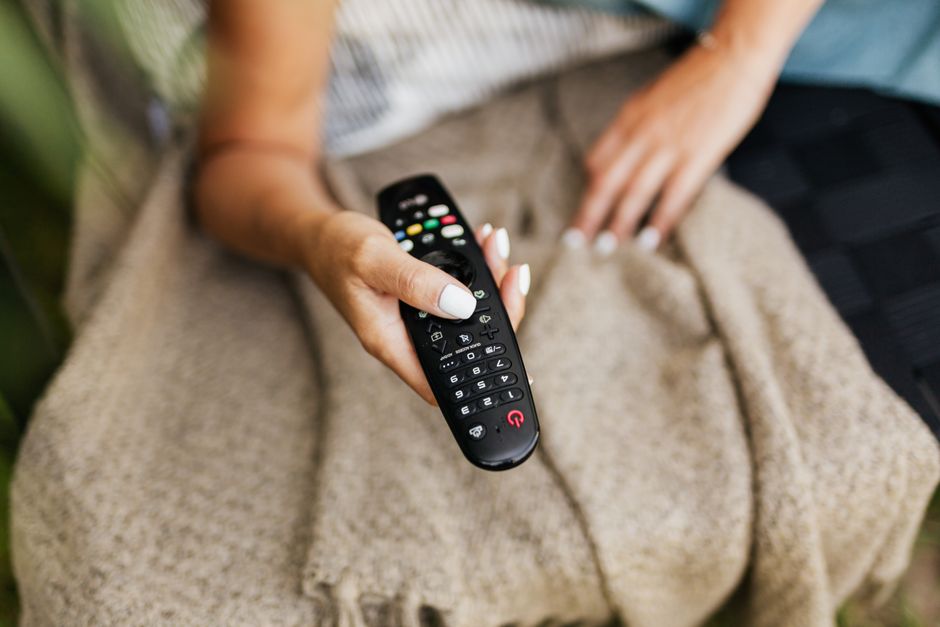
Fixing these annoying pauses requires a systematic approach. You won’t need any technical magic. Just follow these concrete steps to clear up your connection.
Restart and Clear Cache on Your Fire Stick
Amazon devices run background processes that consume precious system memory. Over time, apps accumulate cached data that slows down performance. Start by restarting your Fire TV Stick completely. Unplug the power cable from the wall socket. Wait about ten seconds. Plug it back in to give the operating system a clean slate.
Next, head into your device settings. Select applications, manage installed applications, and find your preferred media player. Clear the cache from this menu. Do not clear the data unless you want to log back in and re-enter all your playlist details. Clearing cache removes temporary files clogging up your player.
Switch to a Wired Ethernet Connection
Wi-Fi interference ruins many streaming setups in British homes. Thick walls, microwave ovens, and neighbour’s routers clog up the 2.4GHz and 5GHz bands. A wired connection beats wireless stability every single time. Grab an Ethernet adapter for your Fire TV Stick. Plug an Ethernet cable straight from your internet router into the adapter.
You will notice an instant drop in packet loss. Ping times improve significantly. If running a physical cable across your living room proves impossible, try moving your router closer. Alternatively, switch your Firestick to the 5GHz Wi-Fi band instead of 2.4GHz if your router supports dual-band broadcasting.
Adjust Buffer Settings Within Your Media Player
Most advanced streaming apps let you manually tweak buffer sizes. Default settings often play it too safe. They download very little data ahead of time. Open your player’s settings menu. Look for playback or advanced settings. Increase the cache size if your device has enough internal storage left. A larger buffer gives your app room to breathe when internet speeds dip briefly.
Some players offer hardware acceleration toggles. Turning this feature on forces your Firestick’s graphics chip to share the decoding workload. If videos stutter heavily with hardware acceleration enabled, switch it off. Different apps handle video codecs differently depending on the specific Firestick model you own.
Change Your DNS Provider
Internet service providers in the UK sometimes route video traffic inefficiently. Your default DNS translates web addresses slowly. Changing to a public DNS provider speeds up connection handshakes. You can configure DNS settings directly in your home router. This change benefits every connected device in your household instantly.
Popular alternatives include Cloudflare or Google DNS. Enter their primary and secondary addresses into your router’s network settings page. Save your changes and reboot your network gear. This simple tweak often reduces latency when connecting to streaming servers.
Monitor Your Broadband Speed During Peak Hours
Network throttling happens across various British networks during peak evening hours. Run a speed test on your Firestick when buffering spikes. If your download speed drops dramatically between 7 PM and 10 PM, your internet provider might be managing traffic. Using a wired connection helps bypass local wireless congestion, but ISP-level throttling requires different workarounds.
Keep your streaming apps updated to the latest versions. Developers regularly patch memory leaks that cause performance degradation over hours of continuous playback. Taking these maintenance steps keeps your streams smooth all evening long.
For more information, iptv.