Saturday afternoon matches rarely air on British television. The traditional three o’clock blackout protects matchday attendances across the football pyramid. Finding a legal UK IPTV broadcast for these games requires careful navigation of official rights holders like Sky Sports, TNT Sports, and Amazon Prime Video. Many fans hunt for alternate feeds without realising the legal pitfalls.

Official Broadcasters and Your Living Room Setup
Domestic rights are split across several major networks. You need a legitimate subscription with authorised providers to watch legally. Sky Sports holds the lion’s share of fixtures. TNT Sports broadcasts Tuesday and weekend lunchtime games. Amazon shows specific round-robin blocks in December and spring.
Streaming these legally means using official apps on your smart TV, games console, or streaming stick. Hardware matters because processing power affects your frame rate during fast-moving counter-attacks. If you want to test an IPTV provider safely in the UK, always verify they hold proper commercial or domestic broadcasting licences rather than reselling unauthorised streams.
Why Saturday Three O’Clock Games Are Missing
Uefa Article 48 blocks live broadcasts of 3pm Saturday fixtures in the UK. Broadcasters cannot show them domestically. Any service claiming to offer every single match live from every stadium is operating outside broadcasting regulations. Legitimate services will only show televised selections chosen for broadcast.
Match schedulers pick games weeks in advance. Broadcasters test studio feeds and check audio channels before kickoff. Unauthorised vendors bypass these checks entirely. They pull signals from foreign channels that do not respect local broadcasting agreements.
Checking Provider Credentials Before Paying
Scam services pop up regularly on social media during peak matchdays. They promise thousands of channels for a tiny monthly fee. Real providers charge standard market rates reflecting the massive cost of sports rights. Check company registration numbers on the official government registry. Look for proper customer support channels with actual UK telephone numbers or email addresses.
Avoid lifetime subscriptions completely. Businesses operating legally rarely offer lifetime deals for perishable live sports content. If a company folds tomorrow, your money disappears with them. Monthly rolling contracts give you control and protect your bank account from sudden disappearances.
Hardware Compatibility and App Stability
Running a legal app requires decent hardware. Older streaming sticks choke on high bitrate 1080p feeds. Check your device storage and clear temporary files regularly. A smooth matchday experience relies on solid Wi-Fi or, better yet, a direct Ethernet cable plugged straight into your router.
For more information, iptv.
Related reading
- ISP-Bundled Television vs Independent IPTV UK Services: A Straightforward Comparison
- The Appeal of Provider-Bundled Packages
- Hardware Freedom and Flexibility with Independent IPTV UK Setups
- Software and App Management
- Cost Breakdown and Contract Commitments
- Channel Variety and International Content
- Making the Right Choice for Your Household
ISP-Bundled Television vs Independent IPTV UK Services: A Straightforward Comparison
Choosing how to watch television at home used to be simple. You picked an aerial installer or a satellite dish, plugged the box into your wall, and settled on a long-term contract. Today, modern broadband lines deliver most of our daily viewing. If you live in the UK, you have likely weighed up traditional provider bundles against independent IPTV UK options. Both approaches stream live channels and on-demand catalogues directly through your home router. Still, they handle hardware, pricing, and channel selection in very different ways.

Traditional providers like Sky, Virgin Media, and BT bundle television channels straight into your broadband bill. They send out branded set-top boxes, lock you into fixed-term agreements, and manage the entire ecosystem from end to end. Alternatively, independent streaming configurations rely on open hardware. You might use a smart television, a Firestick, or another media player. Data from Ofcom regularly highlights how streaming consumption continues to climb across British households. Households want flexibility. Let us break down how these two viewing models compare when you put them side by side.
The Appeal of Provider-Bundled Packages
Convenience drives the popularity of ISP-bundled television. You deal with one bill, one customer service line, and zero setup guesswork. The hardware arrives pre-configured. You plug it into your HDMI port, connect to your Wi-Fi, and the electronic programme guide populates automatically. These systems integrate catch-up apps seamlessly alongside traditional linear broadcasts.
Support is another major selling point. If your box stops working or your channels disappear, a phone call gets a replacement dispatched or a technician sent to your house. You pay a premium for that peace of mind. Contracts often stretch across 18 or 24 months. Price hikes arrive annually. If your viewing habits change halfway through that agreement, breaking it incurs hefty termination fees.
Hardware Freedom and Flexibility with Independent IPTV UK Setups
Independent streaming takes a completely different path. You own the hardware. Whether you prefer an Apple TV, an Android box, or a standard smart display, you install your own applications. This hardware independence means you can pack your streaming stick into a suitcase and take it on holiday anywhere in the UK, provided you have a decent internet connection.
Customisation sets this approach apart. You choose your preferred media player interface, arrange your channel lists manually, and avoid the bloatware often forced onto proprietary boxes. Of course, this freedom demands a bit more technical patience. When an app updates or settings reset, you troubleshoot the issue yourself rather than calling a helpdesk.
Software and App Management
Running independent streams requires compatible software. Many users rely on applications downloaded directly from official app stores. Getting everything configured correctly takes a few minutes. If you are setting up a new screen for the first time, read a proper guide on installing IPTV on smart televisions to avoid common mistakes.
Once running, these apps handle live streams, electronic guides, and catch-up feeds efficiently. You avoid paying monthly equipment rental fees for hardware you never truly own. Traditional providers often charge extra for multi-room boxes. Independent setups let you install your chosen app across multiple screens in your house without paying an extra subscription fee per room.
Cost Breakdown and Contract Commitments
Money usually dictates the final verdict. Bundled TV packages often look attractive during promotional signup windows. Once those introductory discounts expire, monthly outlays spike significantly. When you bundle broadband, landline, and television together, your monthly bill can easily surpass eighty pounds.
Independent options decouple your internet from your television service. You buy your broadband from whichever network offers the best speeds and prices on your street. Then, you choose your entertainment provider separately. This modular approach stops you from paying for live sports channels you never watch just because they came bundled in a higher-tier package.
Channel Variety and International Content
Traditional broadcasters in the UK offer robust lineups of domestic free-to-air channels alongside premium sports and cinema add-ons. They excel at local programming, regional news, and high-budget British dramas. Their rights agreements strictly govern what airs and when.
Independent IPTV UK services often cast a much wider net. They frequently include international feeds, niche documentary channels, and regional sports networks from around the globe. For expats living in Britain or fans of foreign sports leagues, this expansive variety makes independent platforms far more appealing than standard domestic packages.
Making the Right Choice for Your Household
Deciding between these two pathways depends entirely on what you value most. Choose a traditional ISP bundle if you want a zero-hassle setup, single-bill convenience, and dedicated customer support agents who can fix hardware faults quickly. It suits families who prefer a traditional remote control and do not want to tinker with settings.
Choose an independent setup if you want complete control over your hardware, lower long-term costs, and freedom from long-term contracts. Just be prepared to handle minor troubleshooting tasks on your own when updates roll out.
For more information, iptv.
Learn more on Wikipedia: ITV (TV network).
Related reading
- How to Schedule Your Weekend for Premier League Live Matches
- 4 Things to Know About IPTV Streaming Protocols and Codecs in the UK
Smart TV IPTV App Setup
Getting live streams running directly on your living room display requires the right application and a clear configuration process. Many modern screens running webOS or Tizen offer built-in app stores where you can download media portals without needing an external box.
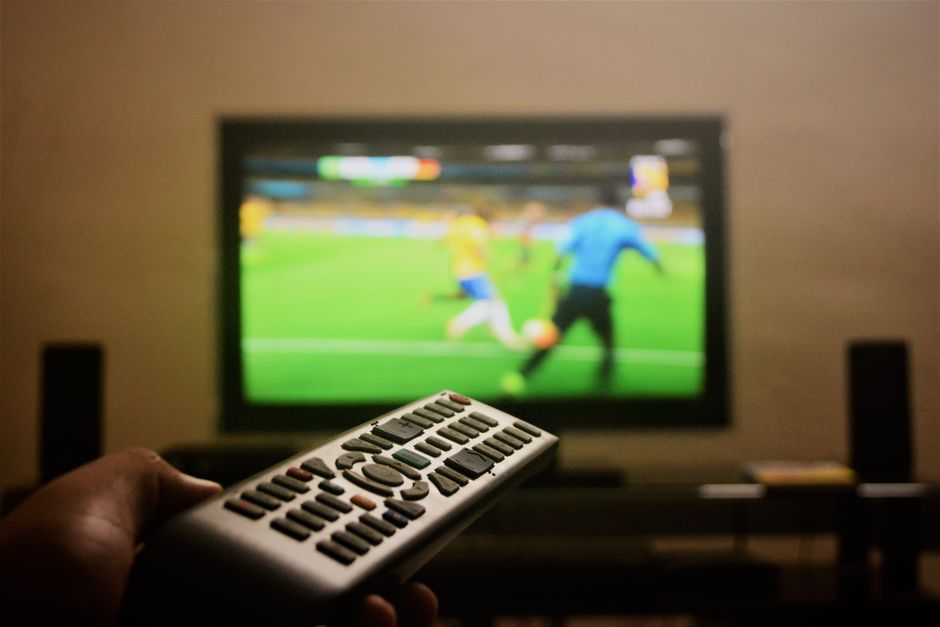
Choosing Your Player for Smart TV IPTV App Setup
Finding a reliable media player shapes your entire viewing experience. Brands like Samsung and LG feature proprietary stores holding apps capable of parsing remote m3u playlists. You want software that loads guide data quickly and handles high-bitrate video feeds smoothly.
Some applications use a MAC address activation method, requiring you to register your television’s hardware ID on a developer portal. Others accept direct playlist URLs or login credentials supplied by your provider. Pick the method that matches your technical comfort level.
Downloading and Installing the Software
Open your television’s app marketplace using your remote. Type your chosen media player name into the search bar. Hit the download button and wait for the installation banner to pop up on your screen.
Launch the app immediately after installation finishes. Take note of any unique device identifiers displayed on the splash screen. You will likely need these numbers if your provider asks for device registration before syncing your channel lineup.
Configuring Playlists and Channels
Inputting your stream details forms the core of any Smart TV IPTV app setup. Grab your remote and type the playlist URL carefully. A single typo causes connection failures.
Once the system accepts your URL, the software starts downloading channel groups and category folders. This process takes anywhere from a few seconds to a couple of minutes depending on playlist size. Do not turn off the television while channels sync.
Setting Up the Electronic Programme Guide
An empty channel list frustrates any viewer. Link your XMLTV guide URL in the settings menu to populate schedules. Correct time zone adjustments ensure matches and shows display at actual broadcast times across UK regions.
Optimising Playback Performance
Wi-Fi interference ruins high-definition sports streams. Connect your display using an Ethernet cable if your router sits nearby. If you must use wireless, switch your router to the 5GHz band to dodge congestion from household devices.
Clear the application cache every few weeks if menus feel sluggish. This simple habit keeps video loading fast and stops random freezing during peak evening hours.
For more information, iptv.
Related reading
- How to Fix Firestick Buffering When Watching Live TV Streams
- How to Organise Your IPTV Channels on a Smart TV
Why Does Your Firestick Start Buffering During Live Events?
Few things ruin a Saturday afternoon football match quite like the picture freezing on a spinning wheel. Firestick buffering usually happens when your internet connection drops below the speed required for high-definition video, or when your device lacks enough free memory to process the live feed smoothly.

Most UK broadband providers throttle peak-time traffic slightly if your household has multiple devices running at once. Your Firestick sits at the end of that chain. If someone else streams 4K video upstairs, your live stream downstairs suffers. Before changing any app settings, run a quick speed check using your remote browser to see what you are actually pulling from the router.
How to Clear Cache and Free Up RAM
Apps hold onto temporary files that clog up memory over time. When your player runs low on working space, playback stutters. Go to your Fire TV settings, select applications, and manage installed applications. Find your preferred streaming app and clear its cache.
Do not clear data unless you have your login details handy, because that option wipes your saved playlists completely. Many users find that a simple restart clears out stubborn background processes. Unplug your streaming stick from the wall socket for ten seconds, then plug it back in. This forces the hardware to dump its temporary memory.
If you run low on storage overall, check out Firestick Storage Management for IPTV Users: How to Free Up Space to remove unwanted apps and free up vital system resources.
Wi-Fi Frequency Bands and Router Placement
Your router transmits on two different frequencies. The 2.4GHz band travels further through walls, but it picks up interference from household appliances and neighbours’ networks easily. The 5GHz band offers much faster speeds, but its range is shorter.
Move your Wi-Fi router into the same room as your television if possible. If a wall blocks the signal, switch your Fire TV connection from the congested 2.4GHz channel to the 5GHz frequency in your network settings. You will notice an immediate drop in packet loss during peak evening hours.
Adjusting Video Decoder Settings in Your Player App
Most dedicated streaming players let you change how video data gets processed. Hardware decoding shifts the heavy lifting to your Firestick’s built-in graphics chip. Software decoding forces the main processor to handle the load instead.
If you experience constant stuttering, open your player settings and toggle the hardware acceleration option. Sometimes switching from an older protocol to a modern stream handler fixes sync issues between audio and video tracks. Test these tweaks during a quiet morning broadcast rather than right before kickoff.
For more information, iptv.
Related reading
- How to Organise Your IPTV Channels on a Smart TV
- How to Clean Firestick Cache for Better IPTV Streaming
Mastering the UK Football Calendar
Saturday afternoon at three o’clock hits differently when you have a weekend packed with football. Kick-offs clash, screens multiply, and tea gets cold. You need a proper routine if you want to catch every crucial moment of the Premier League live matches without driving your household mad.

Television rights in the UK split fixtures across various broadcasters. Sky Sports, TNT Sports, and Amazon Prime all take a slice of the action. Keeping track of who shows what means checking schedules well before the weekend whistle blows. Stop scrambling through apps at five past two.
Mapping Out Kick-Off Slots
Saturday lunchtimes usually kick off at half past twelve. That gives you just enough time to grab a pie before settling down. Traditional 3 PM blackout rules mean domestic fans cannot watch those matches live on TV. You have to wait for the highlights on Match of the Day later that evening.
Sunday brings another flurry of activity, typically featuring two main afternoon slots. Sometimes a Monday night fixture rounds out the gameweek. If you want to follow multiple games at once, setting up a second screen or tracking live scores alongside your main stream keeps you informed.
Optimising Your Viewing Setup
Check your home broadband speed before Saturday rolls around. High-definition streams demand steady bandwidth. When everyone in the street jumps online at the same time, network congestion happens. If you want to know more about keeping your connection stable, read this guide on how to choose an IPTV service in the UK for better reliability.
Clear your living room space ahead of time. Nobody wants to hunt for a lost remote while VAR checks a penalty. Keep your devices updated and plugged in. A flat battery during extra time ruins the whole afternoon.
Managing Your Time Between Matchdays
Football weekends drain your energy if you stare at a glass panel for eight hours straight. Step away during half-time. Make a brew, stretch your legs, and let your eyes rest from the fast-paced motion on screen.
Post-match analysis often runs for an hour after the final whistle. Decide early whether you want to watch the punditry or switch off immediately. Planning your evening around the football makes the whole weekend much more enjoyable.
For more information, iptv.
Related reading
- 4 Things to Know About IPTV Streaming Protocols and Codecs in the UK
- How to Test an IPTV Provider Safely in the UK
Decoding the Tech Behind IPTV UK Streams
Finding a reliable IPTV UK setup involves much more than simply picking a media player and plugging it into your router. Underneath the interface, complex video codecs and transport protocols work together to deliver live broadcasts directly to your living room screen. Regulators like Ofcom monitor how broadcasting standards evolve across the nation, but understanding the actual file formats helps you troubleshoot buffering issues effectively.

Let us look at four core technical elements every enthusiast should grasp before configuring a new device.
1. The Role of H.264 and H.265 Codecs
Video compression dictates how much data travels across your broadband line every second. Most traditional broadcasts rely on H.264, also known as AVC. It works reliably across older hardware without demanding heavy processor power.
Newer feeds often utilise H.265, or HEVC. This format shrinks file sizes significantly while keeping picture quality crisp. Your playback device must support hardware decoding for HEVC, otherwise your processor will overheat trying to keep up. If you are exploring broader configuration steps, reading up on how playlists function can clarify how these streams map out your channel guides.
2. Transport Protocols: HLS vs. MPEG-TS
How data packets arrive at your screen matters just as much as how they are compressed. HTTP Live Streaming (HLS) breaks video files into tiny chunks. It adapts well to fluctuating Wi-Fi speeds.
MPEG-TS streams deliver continuous data packets in real time. Traditional linear television relies heavily on this format because it reduces latency during live events. However, MPEG-TS requires a stable connection. Packet loss causes immediate stuttering or complete freezing on your screen.
3. Audio Formats and Multi-Channel Sound
Video quality gets most of the attention, but audio codecs deserve equal consideration. AAC remains the industry standard for stereo sound across most IPTV UK transmissions. It offers clear dialogue without hogging bandwidth.
Surround sound setups require Dolby Digital pass-through support within your chosen media player. Check your TV or soundbar audio settings if dialogue sounds muffled during sports broadcasts. Minor tweaks here prevent frustrating sync issues between speech and movement.
4. Frame Rates and Motion Handling
Smooth motion depends entirely on frame rates matching the original broadcast source. Standard UK television broadcasts typically run at 50 frames per second to match our electrical grid frequency. Many internet streams arrive at 60 frames per second instead.
This mismatch causes subtle stuttering known as judder. Modern smart displays include motion processing settings to smooth out these differences, but disabling aggressive smoothing often yields a more natural viewing experience.
Technical specifications change rapidly as broadband speeds increase nationwide. Staying informed keeps your hardware running smoothly without unnecessary upgrades.
For more information, iptv.
Learn more on Wikipedia: ITV (TV network).
Related reading
- How to Test an IPTV Provider Safely in the UK
- Smart IPTV App vs External Streaming Device: Which Wins for UK Living Rooms?
- Sorting Your IPTV Channels on a Modern Smart TV
- Prerequisites Before You Start Reorganising
- Why Built-in TV Editors Fall Short
- Step 1: Download or Export Your Current Playlist
- Step 2: Hide Unwanted International and Duplicate Streams
- Step 3: Create Custom Groups for UK Viewing
- Step 4: Reorder Your Favourite Stations to the Top
- Step 5: Import the Cleaned Playlist Back to Your Smart TV
Sorting Your IPTV Channels on a Modern Smart TV
Scrolling through thousands of IPTV channels just to find BBC One or Sky Sports gets exhausting fast. Most default provider playlists dump hundreds of international feeds, duplicate sports links, and obscure local stations into one endless, chaotic list. You don’t need to put up with that messy layout. Taking control of your channel lineup takes less than fifteen minutes when you use the right tools.

Prerequisites Before You Start Reorganising
Grab your TV remote and make sure your chosen streaming app is fully updated. If you are using a dedicated application on your LG or Samsung screen, you’ll find that managing large playlists directly on the TV screen is painfully slow. Instead, most power users prefer handling bulk channel edits through a computer or tablet browser using their provider’s web portal or a third-party playlist editor.
Why Built-in TV Editors Fall Short
Smart TV remote controls lack the precision of a mouse and keyboard. Dragging a sports channel from position 1,420 up to position two using a plastic clicker will test your patience. Look for a web-based M3U editor tool or check if your playlist provider offers a custom dashboard. These platforms let you select multiple checkboxes and shift whole categories at once.
Step 1: Download or Export Your Current Playlist
Log into your provider account or open your IPTV app settings. Export your current M3U link or file to your local computer. Save a backup copy immediately because making mistakes during bulk edits happens to everyone. Open the downloaded file in a basic text editor like Notepad on Windows or TextEdit on Mac if you plan to make manual tweaks, though visual playlist editors make life much easier.
Step 2: Hide Unwanted International and Duplicate Streams
Your playlist likely contains foreign news stations you’ll never watch and five different mirror links for the exact same football match. Delete these or toggle them off. Stripping out the clutter shrinks your playlist size, which makes your TV load the channel guide much faster. If you want to keep things running even smoother, you can read our guide on EPG setup to ensure your remaining guide data matches up cleanly.
Step 3: Create Custom Groups for UK Viewing
Group your remaining IPTV channels into logical folders that match your nightly habits. Set up distinct categories such as Entertainment, Documentaries, News, and Live Sport. Putting all your frequently watched channels into a single custom folder saves you from endless scrolling. Name these groups clearly so family members can find their favourite programmes without asking for help.
Step 4: Reorder Your Favourite Stations to the Top
Move your most-watched channels to the very top of your custom groups. Put BBC One, ITV1, and Channel 4 at positions one through five. Do the same for your primary sports feeds. When you open your app tomorrow evening, your go-to broadcasts will sit right at your fingertips.
Step 5: Import the Cleaned Playlist Back to Your Smart TV
Save your edited playlist file or refresh your M3U URL within your Smart TV app settings. Clear the app cache so it doesn’t pull old cached data from memory. Restart your TV completely to force a fresh sync of both the channel list and the programme guide.
For more information, iptv.
Learn more on Wikipedia: ITV Channel Television.
Related reading
- How to Clean Firestick Cache for Better IPTV Streaming
- How to Check Your Home Broadband Speed Before Streaming Premier League Live Streams
Why Stored App Data Slows Down Your Fire TV Stick
Every single time you open a media player on your Amazon device, it saves temporary files in the background. Over weeks of daily use, these hidden fragments pile up and swallow valuable storage. Your streaming gadget starts stuttering because it lacks the breathing room to process live feeds. If your sports broadcast freezes constantly, you don’t always need a faster broadband package. You just need to spring-clean your operating system.
Finding the Hidden App Menu
Amazon hides the deep storage settings inside a couple of menu layers. Grab your remote and hit the home button to reach the main dashboard. Scroll right past your app shortcuts and click the gear icon for settings. Choose applications from the tile grid, then select manage installed applications. You will see a complete list of every tool downloaded to your hardware. This takes under ten seconds once you know the exact path.
How to Clear Data Without Losing Your Setup
Click on your preferred media player from the long list of installed software. You will spot two distinct buttons labelled clear cache and clear data. Do not touch clear data unless you want to wipe your username, password, and custom channel playlists completely. Hit clear cache instead. That single action instantly deletes the junk files without erasing your saved configurations. Your login credentials stay safe while your software gets a fresh start.
Deleting Heavy Apps You Never Use
Most UK households have a dozen pre-installed tools hogging internal memory. Check your storage meter inside the my fire tv menu. You will likely find less than one gigabyte of free space left. Uninstalling bloatware gives your primary streaming tool the RAM it desperately craves. Pick three unused apps, hit the menu button on your remote, and select uninstall. Your device will feel noticeably sharper right away.
Keeping your hardware tidy takes less than two minutes a month. Run through these settings whenever your live streams start lagging or crashing unexpectedly. A lean operating system delivers a much smoother picture on match days.
For more information, iptv.
Related reading
- How to Check Your Home Broadband Speed Before Streaming Premier League Live Streams
- Firestick IPTV Setup Myths: Separating Fact from Fiction for UK Users
Saturday afternoon matches bring excitement, tension, and millions of viewers onto British telecom networks. If your connection drops right as a striker hits the back of the net, the culprit is usually your home broadband rather than the broadcaster. Running a Premier League live stream requires stable download speeds and low latency to avoid frustrating pixelation or sudden freezes.
Why Match Day Bandwidth Drops
Evening kick-offs and weekend fixtures coincide with peak internet usage across the UK. Your neighbours are streaming movies, gaming, or browsing, which puts heavy strain on local cabinet capacity. Cable and fiber networks handle this traffic differently. Older copper-based connections struggle more than full-fiber lines when entire neighbourhoods log on at once.
Running a Reliable Speed Test
Open a trusted diagnostic tool through your web browser or a dedicated app. Turn off background downloads, pause console updates, and disconnect heavy users like tablets before testing. You need to look at three main metrics: download speed, upload speed, and ping. Download speed matters most for high-definition video feeds. A baseline of at least 15 megabits per second handles standard HD streams comfortably, while 4K broadcasts demand upwards of 30 megabits per second.
Upgrading Your Wi-Fi Setup
Distance from your router ruins many streaming sessions. Thick walls, household appliances, and competing wireless channels degrade your signal strength significantly. Move your streaming device closer to the hub if possible. Switch from the crowded 2.4 gigahertz frequency band to the 5 gigahertz channel. Better yet, plug an ethernet cable straight into the back of your television or streaming box for a rock-solid connection that never drops packets.
Troubleshooting Network Congestion
Restart your router ten minutes before kick-off to clear cached data and assign a fresh IP address. If other household members stream heavy content simultaneously, enable Quality of Service settings in your router admin panel to prioritise your video traffic. Contact your internet service provider if your actual speeds fall far below what you pay for during peak hours.
For more information, iptv.
Related reading
- Firestick IPTV Setup Myths: Separating Fact from Fiction for UK Users
- Premier League Streaming FAQs for UK Viewers
Finding a reliable IPTV UK service often feels like navigating a minefield of flashy promises and unverified claims. Many households across the country are moving away from traditional terrestrial aerials and satellite dishes in favour of internet-delivered television. But before you pay for a full subscription, running proper checks on connection stability and performance prevents wasted money. Let us walk through a practical, systematic approach to testing a provider without falling into common traps.

Assessing Your Broadband Speed for IPTV UK Streaming
Your internet connection forms the absolute foundation of your viewing experience. You cannot judge a provider fairly if your own broadband cannot handle high-bitrate video streams. Ofcom publishes regular reports on average UK connection speeds, noting that fibre packages routinely deliver substantial download bandwidth. However, peak evening congestion can still ruin a live broadcast.
Before testing any service, run a wired speed test directly from your streaming device if possible. Wi-Fi interference from thick brick walls or household appliances often ruins performance. For high-definition streams, a stable connection of at least 15 megabits per second is normally necessary. Ultra HD or 4K streams demand significantly more headroom, often pushing past 30 megabits per second.
If your broadband fluctuates wildly during peak hours between 7 pm and 10 pm, no streaming app can magically fix the resulting stutter. Sort your local network bottlenecks first. For more foundational information on how these systems operate, take a look at this complete beginner’s guide before purchasing anything.
Evaluating Trial Periods and Channel Stability
Most reputable digital media companies offer a short trial period. These trials let you examine the infrastructure before you commit your hard-earned cash to a long-term contract. Be cautious of services demanding payment upfront without offering any sample access.
During your test window, monitor several key factors:
- Channel load times during peak viewing hours.
- Audio and video synchronisation during fast-moving sports broadcasts.
- The responsiveness of the electronic programme guide.
- Stream persistence over a continuous two-hour viewing session.
If a feed freezes every ten minutes during a popular weekend football match, the underlying server capacity is inadequate. A solid provider maintains redundant servers to handle heavy user loads smoothly.
Checking Consumer Protections and Advertising Standards
The digital marketplace features many unregulated sellers making exaggerated claims about channel counts and uptime guarantees. The Advertising Standards Authority actively handles complaints regarding misleading subscription claims in the broadcasting sector. If a deal sounds too good to be true, it usually is.
Always check payment methods carefully. Avoid services that only accept untraceable digital currencies or gift cards. Legitimate businesses typically offer standard merchant checkout options backed by buyer protection laws. If a dispute arises, having a clear paper trail through a major credit card or regulated payment processor gives you a route to resolution under UK consumer regulations.
Furthermore, ensure you understand what content formats the provider supports. If you are examining how service playlists are structured, read up on the fundamentals of IPTV playlists to see how channels are organised on your chosen player.
Final Practical Steps Before Buying an IPTV Subscription
Take your time during the evaluation phase. Never rush into an annual plan right away, even if the monthly discount looks attractive. Month-to-month flexibility allows you to walk away if service quality drops after the initial honeymoon period.
Keep your hardware updated too. Clear out cached data on your streaming stick or smart television regularly to ensure the software runs at peak efficiency. A clean cache often solves minor stuttering issues that have nothing to do with your remote provider at all.
For more information, iptv.
Learn more on Wikipedia: ITV (TV network).
Related reading
- Smart IPTV App vs External Streaming Device: Which Wins for UK Living Rooms?
- How to Choose an IPTV Service in the UK