Why Does Your Smart TV Run Out of Space So Fast?
You download a couple of media players, stream a few matches, and suddenly an error pops up. Running low on smart tv storage happens quicker than most people expect. Modern living room screens run feature-heavy operating systems like Android TV, webOS, or Tizen. These platforms eat up gigabytes of internal memory right out of the box.

Most budget and mid-range televisions ship with only 8GB of total storage. The system software takes up half of that capacity before you even touch the remote. Add a few live streaming apps, catch-up services, and local media caches, and you hit a wall.
Checking Your Actual Available Memory
Don’t guess how much room you have left. Dig into the settings menu to see the real numbers. On most Android-powered sets, head over to device preferences and storage. You might find you only have a few hundred megabytes left.
When storage drops below five percent, streaming performance tanks. Apps start stuttering during live broadcasts. Caching data fails because there’s simply nowhere to write the temporary files. You need to clear out the digital clutter.
Deleting Unused Apps and Dead Weight
Be ruthless with your app drawer. Do you really need that obscure fitness app from two years ago? Uninstall every single utility or game you haven’t opened in months.
On Samsung and LG models, highlight the unwanted icon, press the down arrow on your remote, and select delete. Android users can manage apps through the main settings panel. Removing three or four forgotten applications instantly frees up enough breathing room for your primary media player.
Clearing Cache Files Without Losing Settings
Every time you watch a live broadcast, your player builds up temporary data. Over months, this cache swells to massive proportions. You don’t need to reinstall the entire application to fix this.
Go to your applications list, click on your main streaming player, and hit clear cache. This wipes out temporary junk files without touching your playlist URLs or login credentials. If you want a deeper dive into this maintenance routine, check out our guide on Firestick IPTV Cache Clearance for similar storage-saving tricks.
Moving Data to External USB Drives
Internal flash chips on televisions wear out quickly if written to constantly. If your TV has a spare USB port, plug in a formatted thumb drive or external hard drive. Android sets let you adopt external storage to expand the main memory pool.
Format the drive through the television settings menu first. Keep in mind that older USB 2.0 ports might bottleneck transfer speeds. Stick to USB 3.0 ports if your hardware supports them.
Limiting Automatic Background Updates
Smart televisions love downloading background data. App stores update software silently while you sleep. This background activity fills up your remaining sectors unexpectedly.
Turn off automatic app updates in your store settings. Update your apps manually once a month instead. You keep complete control over when data gets written to your device.
For more information, iptv.
Related reading
Update: Smart TV Apps vs Streaming Sticks for Premier League Live Streams
Update: Firestick Black Screen Errors During Live IPTV Playback: Myths and Fixes
Stuttering live streams usually ruin a weekend football match. When your device slows to a crawl, you need to clean Firestick cache files immediately. Bloated temporary data fills up the tiny internal storage very quickly. Fire OS drops frames and stutters when storage hits critical levels. Fixing this takes less than two minutes of your time.

Accessing Your Fire TV Stick Settings
Grab your remote control. Press the home button to reach the main menu. Scroll all the way across the top bar to reach the gear icon. Click it to open the settings panel. You’ll see several tiles covering network, display, and applications. Select the Applications tile to proceed.
Locating Installed Applications
Inside the application menu, select the option marked Manage Installed Applications. Your Firestick lists every single app currently downloaded to the device. Scroll down the list until you find your preferred media player or streaming app. Big apps collect gigabytes of junk data over just a few weeks of heavy use.
How to Clean Firestick Cache Safely
Click on the chosen app name to open its specific management screen. You will see options to force stop, uninstall, and clear data alongside our target. Select Clear Cache. Never click Clear Data unless you want to wipe your login credentials and custom settings completely. Cache files only hold temporary scraps that the app rebuilds automatically later.
Checking Available Storage Space
Go back to the main settings menu and click My Fire TV. Select About, then Storage. Watch the free space number jump up instantly. Keeping a gigabyte of breathing room stops apps from crashing during peak viewing hours. If your broadband connection is solid, clearing this junk prevents most mysterious playback drops.
Troubleshooting Persistent Storage Warnings
Sometimes clearing temporary files isn’t enough. If your device keeps warning you about low memory, you must remove unused apps entirely. Go back to your application list and delete anything you haven’t opened in months. Streaming hardware runs best when it isn’t weighed down by dead weight. Restart your Firestick after wiping out unwanted software to let the system breathe.
For more information, iptv.
Related reading
- How Premier League Broadcasters Deliver Live Football Across the UK
- Evaluating an IPTV Trial UK: Myths, Facts, and What to Test
Update: IPTV UK Setup Realities: Dispelling Common Technical Myths
Update: Smart TV Apps vs Streaming Sticks for Premier League Live Streams
The Complex Web of UK Football Rights
Watching a Saturday afternoon match from your living room sofa feels simple. You turn on the telly, pick a channel, and watch the whistle blow. Behind that picture sits a massive logistical operation. Broadcasters spend billions securing rights from football executives in London. Sky Sports and TNT Sports control the lion’s share of these packages. Amazon Prime also grabs a slice during peak festive periods. Every single fixture requires coordination between stadiums, production trucks, and transmission hubs.

Getting that signal from an Anfield or Emirates touchline into your home relies on fibre optic cables and satellite uplinks. Production crews capture every angle with dozens of high-definition cameras. They mix audio from pitch-side microphones with live commentary tracks. That live feed heads straight to broadcast centres in West London or Salford. From there, the data splits into traditional cable feeds and internet streams.
Traditional Cable Versus Internet Delivery
For decades, coaxial cables and satellite dishes ruled British living rooms. Sky customers know the familiar hum of a satellite box mounted on the exterior wall. Terrestrial signals still reach millions of homes via Freeview antennas. These traditional methods offer incredible stability. Rain fade occasionally disrupts a satellite dish during winter storms, but overall bandwidth remains constant.
Internet delivery changes how fans watch the game. Smart TVs and streaming sticks pull data packets through your broadband router. If your internet speed drops, the video resolution scales down to prevent freezing. Fiber optic connections handle this heavy data load much better than older copper lines. Gigabit packages make buffering a rare annoyance rather than a matchday constant.
Understanding Official Streaming Apps
Official platforms like NOW TV or Discovery+ use adaptive bitrate streaming. Your device talks to remote servers constantly during the match. When network congestion spikes on your street, the stream automatically lowers its frame rate or resolution. That clever trick keeps the picture moving. If you want to know more about getting these apps running on modern displays, check out this guide on how to set up IPTV on your Smart TV in the UK for general software configuration tips.
Audio sync issues occasionally plague internet streams. The pictures might arrive a few seconds behind the live radio commentary. Broadcasters constantly tweak their compression codecs to shrink this delay. They want digital delivery to match the speed of traditional aerial broadcasts. That goal gets closer every season as server infrastructure improves across the country.
The Technical Challenges of Peak Matchdays
Millions of concurrent viewers log on for a marquee Sunday clash between Liverpool and Manchester United. Server loads skyrocket within a five-minute window before kick-off. Engineers monitor traffic dashboards closely to prevent outages. Content delivery networks distribute the video load across multiple regional data centres. This decentralised approach stops a single server crash from ruining a title decider.
Internet Service Providers also manage local traffic peaks. They prioritise streaming packets over background downloads when matches air. Home setups play a massive role in picture quality too. Wi-Fi interference from neighbour networks can ruin an otherwise stable connection. Running an ethernet cable straight from your router to your streaming device eliminates most wireless drops.
The Future of Matchday Transmission
Ultra-high-definition feeds demand massive bandwidth allocations. Broadcasters are slowly rolling out 4K HDR options for select fixtures. These sharp images reveal every blade of grass and sweat droplet on a player’s face. Higher frame rates make fast-moving balls look crisp instead of blurry. As home broadband speeds climb higher year after year, high-definition internet delivery becomes the default standard for British football fans.
For more information, iptv.
Related reading
- Evaluating an IPTV Trial UK: Myths, Facts, and What to Test
- Smart TV IPTV App Storage: Storage Myths and Real Memory Fixes
Update: How to Free Up Storage on Smart TVs for IPTV Apps
Update: IPTV UK Setup Realities: Dispelling Common Technical Myths
- Myth 1: A Twenty-Four Hour Test Proves Overall Reliability
- The Reality of Peak Time Strain
- Myth 2: Every Channel in the Lineup Works Flawlessly
- Focusing on Core UK Channels
- Myth 3: Setup Is Identical Across All Devices
- Hardware Limitations and App Performance
- Problem and Solution: Spotting Hidden Buffering Triggers
- Isolate Your Home Network
- Making Your Final Decision After the Test
- Sources & References
Choosing an IPTV trial UK option sounds straightforward enough. You grab a short-term test, load up your app, and see if the live feeds hold up on a rainy Tuesday evening. Yet, many users run into unexpected snags because they test the wrong things or fall for common marketing myths.

Internet Protocol Television delivers live broadcasts and on-demand video over broadband rather than traditional satellite dishes or aerials. When you look at an IPTV provider UK market filled with competing choices, a short test period acts as your primary window to check real-world performance. Let’s break down the major myths surrounding short-term access and look at practical ways to evaluate an IPTV subscription UK trial.
Myth 1: A Twenty-Four Hour Test Proves Overall Reliability
Many providers offer brief twenty-four-hour tests. Some users think this window tells them everything about stability. It rarely does. A quiet Tuesday afternoon test tells you nothing about how a service handles peak demand when millions tune in for a major weekend fixture.
The Reality of Peak Time Strain
Server loads shift dramatically throughout the week. Networks face severe congestion between 7 PM and 10 PM. If you only test a service during off-peak hours, you miss the exact moments when infrastructure quality matters most. Always run your test during live weekend sport or prime evening television slots. That is when weak servers reveal themselves through stuttering frames or sudden disconnects.
Ofcom regularly reports on UK broadband usage spikes during major broadcast events, showing how home networks and distribution servers handle heavy concurrent loads. Understanding these traffic patterns helps you judge whether a service manages bandwidth effectively.
Myth 2: Every Channel in the Lineup Works Flawlessly
A massive channel list looks impressive on paper. Advertisements often boast thousands of global streams, including obscure local networks from around the world. Reality paints a different picture during a trial.
Focusing on Core UK Channels
You probably only watch a fraction of those global feeds. Instead of scrolling through thousands of international options, check the specific IPTV channels UK viewers rely on daily. Test the main BBC networks, ITV, Channel 4, and major sports packages. Do the electronic programme guides load quickly? Does catch-up content actually play without throwing error codes?
If local regional variations fail to load or feature mismatched audio, note those issues during your test. A cluttered lineup filled with dead links is a clear warning sign of poor maintenance.
Myth 3: Setup Is Identical Across All Devices
Some people assume that if an app works seamlessly on a phone, it will perform the exact same way on a living room streaming stick. Hardware differences matter significantly.
Hardware Limitations and App Performance
Processing power and available memory vary wildly between devices. A Firestick handles video codecs differently than a high-end Smart TV operating system or an Android TV box. Test the service on the exact screen and hardware you plan to use long-term. If you use a compatible media player, check how quickly playlists update and whether custom electronic programme guide configurations stick after a reboot.
Memory constraints often cause crashes on budget hardware. Pushing a device beyond its storage limits during a trial period will quickly expose hardware bottlenecks.
Problem and Solution: Spotting Hidden Buffering Triggers
Buffering remains the single biggest frustration for viewers. People often blame the provider instantly when a stream freezes. Sometimes the issue lies closer to home.
Isolate Your Home Network
Run a speed test on your broadband connection before blaming the stream. UK fiber lines usually deliver stable speeds, but Wi-Fi interference can ruin a live broadcast. Move your streaming device closer to the router or switch to a wired Ethernet connection if possible. If the stream still staggers after you optimize your local hardware, the issue sits squarely with the provider’s server capacity.
Transparent communication is another vital factor during any evaluation period. Check if the provider offers clear support channels or setup guides. Vague instructions often lead to configuration mistakes that ruin the viewing experience.
Making Your Final Decision After the Test
A trial period exists to protect your investment and test technical compatibility. Do not rush the process. Check the streaming quality during peak hours, verify your core local channels, and test the app on your primary television hardware. Taking these steps ensures you pick a reliable service that matches your daily viewing habits without unpleasant surprises later.
Sources & References
- Ofcom Communications Market Report – Official regulator data on UK broadband performance and viewing habits.
- GOV.UK Consumer Protection Guidance – Official guidelines on digital service contracts and consumer rights.
For more information, iptv.
Related reading
- Smart TV IPTV App Storage: Storage Myths and Real Memory Fixes
- Wired vs Wireless Firestick Connections: Which Setup Wins for UK IPTV?
Update: How to Clean Firestick Cache
Update: How to Free Up Storage on Smart TVs for IPTV Apps
The Storage Warning Pop-Up
Your screen suddenly goes black right before kickoff because a notification box pops up. Smart TV IPTV app storage capacity has hit its absolute limit. Most UK living rooms rely on modern flatscreens running proprietary operating systems. These sets rarely come equipped with generous internal flash memory. Manufacturers pack them with streaming app icons you will probably never open.
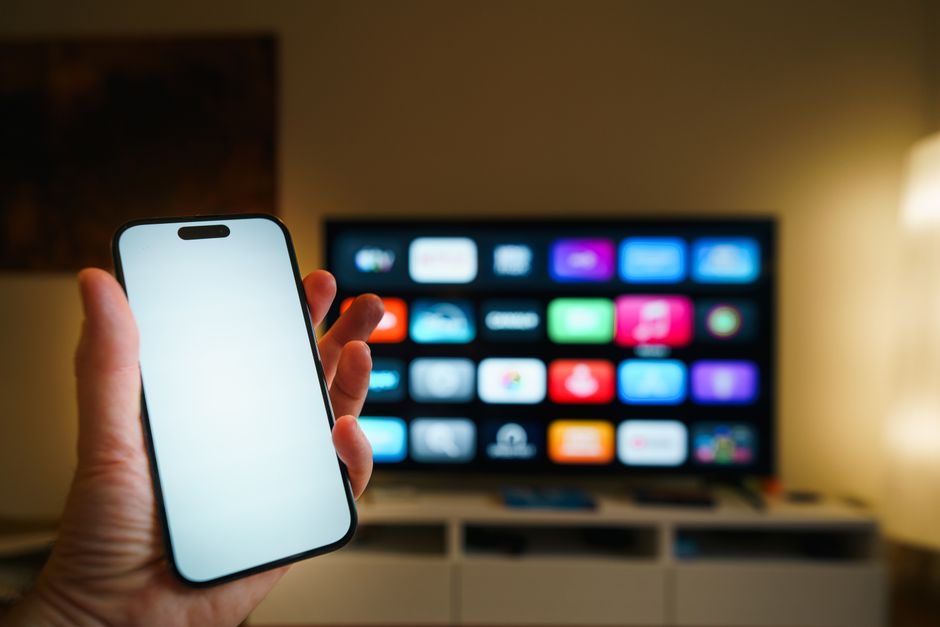
People assume modern televisions handle heavy media loads effortlessly. That belief causes endless frustration. Let us separate marketing myths from technical reality.
Myth One: Massive Internal Storage Improves Streaming Quality
Many buyers think a television advertised with plenty of onboard capacity runs live streams better. That assumption is completely wrong. Video streams depend almost entirely on your broadband speed and processor capability. Flash storage only holds application code and temporary cache files.
Having sixteen gigabytes of space doesn’t make a budget processor decode high bitrate video streams any faster. Smart TV IPTV app storage needs are actually quite modest. Most media players take up less than fifty megabytes of raw installation space. The trouble begins when EPG data and video buffers start accumulating unchecked.
Myth Two: Clearing App Caches Deletes Your Setup
A common fear keeps viewers from touching their settings menu. People worry that clearing temporary files will wipe out custom portal URLs or login credentials. That rarely happens on modern platforms like LG webOS or Samsung Tizen.
Clearing temporary cache data simply deletes downloaded thumbnails, past program guides, and stream fragments. Your login tokens usually stay safe in secure persistent storage partitions. If you do face sudden playlist loading failures after clearing data, check out our guide on playlist loading problems to get your channels back quickly.
The Real Problem: Bloatware and Tiny Partitions
Television manufacturers pre-install dozens of regional catch-up services. You cannot delete most of these native applications. They sit permanently in the root partition. This leaves regular users with a tiny fraction of advertised capacity for independent media apps.
When Smart TV IPTV app storage fills up completely, your television starts dropping frames. Background processes get killed by the operating system to claw back random access memory. Live feeds freeze or crash entirely during peak evening viewing hours.
Practical Solutions to Free Up Space
Stop ignoring background app updates. Turn off auto-updates for apps you never use. This prevents background downloads from eating your remaining megabytes.
Next, dive into the application manager inside your settings menu. Force close background tasks that refuse to sleep. Clear cache data for your preferred media player every couple of weeks. This simple habit keeps your menu navigation snappy and responsive.
If your television keeps complaining about low capacity, plug in a dedicated USB drive for extended application support where the operating system allows it. Older models lack this feature. On those sets, removing unused optional apps remains your only real choice.
Managing Electronic Program Guides
EPG data consumes surprising amounts of local memory. Downloading seven days of schedules for thousands of channels chokes small storage chips. Limit your guide updates to specific bouquets you actually watch. This cuts down memory usage instantly.
Keep your software updated too. Manufacturers occasionally release patches that optimise internal memory allocation. Check your system settings manually if automatic updates fail to trigger.
For more information, iptv.
Related reading
- Wired vs Wireless Firestick Connections: Which Setup Wins for UK IPTV?
- Sky Sports vs TNT Sports: Premier League TV Packages Compared
Update: How Premier League Broadcasters Deliver Live Football Across the UK
Update: How to Clean Firestick Cache
Your live TV stream freezes right as the ball hits the back of the net. Frustration sets in immediately. Most people blame their provider straight away. Often, the real culprit is your living room network setup. When looking at a wired vs wireless firestick configuration, small technical differences change your entire viewing experience.

Setting Up a Wired vs Wireless Firestick Connection
Amazon ships every Fire TV Stick with built-in wireless hardware. You plug it in, type your Wi-Fi password, and watch. Simple. Out of the box, wireless wins on convenience. Cables stay hidden. Setup takes two minutes. But Wi-Fi in British homes faces heavy interference from thick brick walls, microwave ovens, and neighbour networks sharing the same airspace.
Ethernet requires extra gear. Fire sticks lack built-in LAN ports. You need an official Ethernet adapter or a compatible micro-USB hub with power pass-through. Plug an Ethernet cable straight from your BT, Sky, or Virgin Media router into the adapter. Your streaming stick now talks directly to your broadband box without airwaves getting in the way.
Wi-Fi Performance Realities in British Homes
Modern Wi-Fi routers use dual-band or tri-band frequencies. The five gigahertz band offers fast speeds over short distances. Walk behind a wall or a piece of furniture, and that signal drops fast. The older two-point-four gigahertz band punches through walls better. It also suffers from massive congestion because smart doorbells, baby monitors, and phones crowd that same frequency.
Live television demands steady packet delivery. Wi-Fi sends data in bursts through the air. Packets get lost when interference spikes. Your player compensates by buffering. Ethernet eliminates that invisible air struggle entirely. Before changing hardware, run a quick broadband speed test to see what your line actually delivers.
The Ethernet Adapter Option for Fire TV Sticks
Adding a cable to a wireless streaming device sounds counterintuitive. It works surprisingly well. You remove the power cable, plug it into the USB port on the Ethernet adapter, run the network cable to your router, and connect the adapter’s micro-USB lead into your Fire stick.
Power delivery matters here. Cheap third-party adapters sometimes starve the stick of juice, causing random reboots. Buy a reliable unit that supports full power pass-through. Once connected, your Fire stick detects the wired network automatically. You won’t see a Wi-Fi icon in the corner anymore. You will see a small ethernet symbol, signalling a direct link.
Buffering and Stability During Peak Viewing Hours
Evening viewing brings heavy strain to local internet exchanges across the UK. Neighbourhood bandwidth usage peaks between seven and ten at night. Wireless networks inside houses take an extra hit during these hours as families stream multiple devices at once.
Packet loss ruins live feeds faster than slow download speeds. A wireless connection might register fifty megabits per second, yet still stutter during a live football match because micro-drops disrupt the continuous stream. A wired connection keeps packet loss near zero. Latency drops significantly too. Your channels change faster. Streams load quicker when you click them.
Older Fire TV Stick models benefit the most from a wired upgrade. Their internal Wi-Fi chips are weaker than those found in modern 4K Max models. Giving an older stick a direct line bypasses aging wireless receivers completely, breathing new life into hardware you might otherwise replace.
Final Verdict: Which Connection Wins for Your Living Room?
Choosing a wired vs wireless firestick setup comes down to your router location and your tolerance for buffering. If your router sits right next to your television, running a short cable takes five minutes and solves half your streaming headaches.
Wireless still works fine if your broadband router is in the same room with clear line-of-sight. Modern Wi-Fi handles high-definition streams easily under ideal conditions. But for zero compromise on live matchdays, a wired ethernet adapter wins every time. Buy a cheap adapter, plug it in, and enjoy uninterrupted streams.
For more information, iptv.
Related reading
- Sky Sports vs TNT Sports: Premier League TV Packages Compared
- Understanding IPTV Channels UK Lineups: How to Navigate Live TV and Catch-Up
Update: Evaluating an IPTV Trial UK: Myths, Facts, and What to Test
Update: How Premier League Broadcasters Deliver Live Football Across the UK
Choosing Your Football Setup
Watching every single televised match in Britain requires juggling multiple subscriptions. Die-hard fans know the pain of paying two major broadcasters just to follow one club through a single season. Premier League TV packages dictate how much money leaves your bank account every month and which fixtures you actually get to see.

Sky Sports holds the lions share of domestic broadcast rights, showing the bulk of weekend fixtures alongside Friday and Monday night games. TNT Sports grabs the early Saturday lunch slot and select midweek rounds. BT originally launched the channel to rival Sky, and Warner Bros. Discovery now runs the show under the TNT banner.
Cost and Contract Comparison
Sky traditionally locks customers into 18-month agreements. You can bundle their sports channels with broadband or pay for a standalone streaming pass via NOW. Prices jump after introductory deals expire, so you have to watch your renewal dates closely.
TNT Sports keeps things slightly simpler through platform tie-ins. EE, BT, and Virgin Media customers can bolt the channels onto their existing bills. Discovery+ handles the digital streaming side now. Monthly rolling options cost more than annual commitments, but they offer flexibility if you only want football during the winter months.
Match Selection and Quality
Sky covers around 128 matches per season under current arrangements. Their production value remains exceptionally high, featuring Gary Neville and Jamie Carragher in the studio every weekend. TNT Sports shows 52 matches annually, focusing heavily on top-tier showdowns and European nights.
Both broadcasters push 4K HDR feeds through their dedicated boxes and apps. You need a fast fibre connection to avoid pixelation during high-speed counter-attacks. Internet bandwidth bottlenecks can ruin a crucial penalty decision if your router struggles with peak evening traffic.
Our Recommendation
If you support a top-six club playing in Europe, you realistically need both providers to catch every match. Casual fans on a strict budget should grab a flexible monthly pass for the specific month their team plays key rivals. Don’t sign long-term contracts unless you watch sport every single day of the week.
For more information, iptv.
Related reading
- Understanding IPTV Channels UK Lineups: How to Navigate Live TV and Catch-Up
- UK IPTV Regulation and Broadcasting Laws: What Viewers Need to Know
Update: Smart TV IPTV App Storage: Storage Myths and Real Memory Fixes
Update: Evaluating an IPTV Trial UK: Myths, Facts, and What to Test
- Introduction to UK Streaming Lineups
- Step 1: Assess Your Household Viewing Habits
- Step 2: Examine the Electronic Programme Guide (EPG) Structure
- Step 3: Check Catch-Up and Archive Availability
- Step 4: Evaluate Resolution and Audio Quality Standards
- Step 5: Test the Service Using a Short Trial Period
- Common Organisation Pitfalls to Avoid
- Final Practical Tips for Daily Use
Introduction to UK Streaming Lineups
Finding the right mix of entertainment, news, and sports on modern streaming platforms can feel overwhelming. Many households in Britain now rely on internet-based delivery rather than traditional aerials or satellite dishes. When you start exploring different packages, understanding how IPTV channels UK networks organise their schedules makes a massive difference to your daily viewing habits.

Broadcasting standards in the UK are monitored closely by bodies like Ofcom, ensuring viewers know what to expect from licensed media delivery. Yet, internet television operates slightly differently from standard Freeview or cable setups. You need a clear method to evaluate what you actually get before committing any money.
This guide walks you through a practical, five-step sequence to examine, sort, and manage your broadcast lists effectively. Let us dive right into the process.
Step 1: Assess Your Household Viewing Habits
Before looking at massive lists containing thousands of global feeds, pause for a moment. What do people in your home actually watch every week? Listing your priorities saves you from paying for endless content you will never touch.
Start by writing down your core viewing preferences:
- Local and national news bulletins from public service broadcasters.
- Weekend football fixtures and other televised sports.
- Documentaries, drama series, and children’s programming.
- Regional programming specific to England, Scotland, Wales, or Northern Ireland.
Many providers pack their services with international feeds from every corner of the globe. If you only watch British television, those extra options just clutter your interface. Filter out the noise early.
Step 2: Examine the Electronic Programme Guide (EPG) Structure
A messy channel list ruins your evening. You want something that mirrors the familiar layout of traditional TV guides. Look at how the EPG is categorized.
Good services group programmes logically. Entertainment should sit next to entertainment, sports near sports, and news at the top. If regional BBC or ITV feeds are scattered randomly across a five-thousand-item list, finding your local evening news becomes an annoying chore.
XMLTV data links power these on-screen guides. Ask potential providers how often their guide updates. Outdated scheduling data leads to blank spaces or incorrect programme titles on your screen. When you are adding your playlist to a Smart TV, checking the EPG source right away prevents future headaches.
Step 3: Check Catch-Up and Archive Availability
Live broadcasting remains popular, but modern viewers expect flexibility. Life gets busy. You miss things.
Catch-up features allow you to watch shows that aired hours or even days earlier. This is often referred to as catch-up TV or time-shifting. When reviewing a service, check how far back the archive goes. Some platforms store shows for twenty-four hours. Others keep a rolling week of past broadcasts.
Keep in mind that archives require reliable server performance from your provider. If the server struggles during peak evening hours, those catch-up streams will buffer constantly. Test the archive function during prime time to see how it handles demand.
Step 4: Evaluate Resolution and Audio Quality Standards
Not all streams look the same. A channel labeled as high definition can vary wildly in bitrate and compression quality.
Check the frame rates for fast-moving content like live sports. Standard television broadcasts usually run at 50 frames per second in the UK to ensure smooth motion. Poorly configured internet streams often drop to 25 frames per second, causing a stuttering effect during football matches or action scenes.
Audio formats matter too. Stereo sound is standard, but many major broadcasters now deliver surround sound for films and high-profile sporting events. Match your hardware capabilities to what the stream actually delivers.
Step 5: Test the Service Using a Short Trial Period
Never buy a long-term subscription upfront. Reputable providers often offer a short testing window. Use this time wisely.
Set up the playlist on your primary viewing device. Do not just test it at midday on a quiet Tuesday. Check the performance on a Saturday afternoon when network traffic peaks across the country. Notice how long channels take to load. Do streams crash unexpectedly? Does the audio sync properly with the video?
If a provider refuses to offer any trial option, treat that as a warning sign. Testing protects your hard-earned money.
Common Organisation Pitfalls to Avoid
Many viewers make simple mistakes when setting up their channel lists. Avoiding these traps keeps your setup clean and functional.
First, avoid keeping every single country enabled if you only watch British media. Most media players let you hide specific groups or create custom favourites folders. Use this feature.
Second, do not ignore updates. Playlist URLs and server addresses change periodically. If your guide stops working suddenly, check for an updated playlist link from your provider rather than deleting your entire app setup.
Third, remember that hardware limitations play a big role. Older streaming sticks might struggle to process massive channel groups with thousands of active streams. Keep your loaded lists lean to improve device performance.
Final Practical Tips for Daily Use
Managing your television setup gets easier with a few good habits. Back up your working playlist settings whenever you make major adjustments. Keep your app software updated to the latest version released by the developer. By focusing on quality over sheer quantity, you will enjoy a much smoother viewing experience every single day.
For more information, iptv.
Related reading
- UK IPTV Regulation and Broadcasting Laws: What Viewers Need to Know
- Smart TV IPTV EPG Setup: Getting UK TV Guides Working Properly
Update: Wired vs Wireless Firestick Connections: Which Setup Wins for UK IPTV?
Update: Smart TV IPTV App Storage: Storage Myths and Real Memory Fixes
- Introduction to Broadcasting Standards for IPTV UK
- 1. The Role of Ofcom in Modern Television
- 2. Licensing and Content Distribution Rules
- 3. TV Licensing Requirements for Internet Viewing
- 4. Understanding Copyright and Intellectual Property
- 5. Consumer Rights and Standards for IPTV Providers
- Frequently Asked Questions
- Is using IPTV legal in the UK?
- Do I need a TV licence for internet streaming?
- How can I check if a provider is legitimate?
Introduction to Broadcasting Standards for IPTV UK
Television delivery has changed dramatically over the last decade. Traditional aerials and satellite dishes now share living rooms with broadband routers and streaming apps. If you watch television via an internet connection, understanding how the law applies to your setup matters. Regulatory bodies such as Ofcom oversee broadcasting standards across the nation. But how do these rules affect everyday viewers using an IPTV UK service?

1. The Role of Ofcom in Modern Television
Ofcom acts as the official communications regulator in the UK. They set rules for television broadcasts, radio, and telecommunications. Traditional broadcasters must hold specific licences to transmit content. These licences ensure adherence to content standards, scheduling codes, and advertising limits. Internet-delivered video behaves differently from standard terrestrial television. Catch-up services and on-demand platforms face a slightly different regulatory framework compared to live linear broadcasts.
2. Licensing and Content Distribution Rules
Every legitimate broadcaster requires authorisation to transmit copyrighted material to the public. Intellectual property laws strictly protect films, live sports, and television series. When looking at any IPTV service UK providers offer, content rights remain central. A proper provider secures legal distribution agreements with copyright holders before offering channels to subscribers. Without these agreements, transmitting protected content breaches UK intellectual property legislation.
3. TV Licensing Requirements for Internet Viewing
The rules around the UK TV licence can confuse households that rely solely on broadband streaming. According to TV Licensing, anyone watching live television broadcasts on any device must hold a valid licence. This requirement applies whether you use a standard aerial, a cable box, or an IPTV subscription UK households rely on for live channels. Watching BBC iPlayer also requires a licence, even for on-demand content. However, watching purely on-demand services like Netflix or Amazon Prime Video without live elements generally does not require one.
4. Understanding Copyright and Intellectual Property
Copyright law protects the creative work behind every television show and sports match. The UK Intellectual Property Office oversees these legal protections. Unauthorised retransmission of protected broadcasts creates significant commercial and legal issues. Rights holders invest heavily in exclusive broadcasting contracts, such as Premier League football matches or major film releases. When unauthorized streams distribute these events, it undermines the official broadcasting ecosystem regulated under UK law.
5. Consumer Rights and Standards for IPTV Providers
Consumers purchasing digital services in the UK enjoy protection under consumer law. The Competition and Markets Authority ensures fair trading practices. Legitimate commercial providers must offer clear pricing, transparent terms of service, and accessible customer support. If a service misrepresents its channel lineup or fails to deliver promised quality, buyers have statutory rights. Unregulated vendors rarely offer these consumer protections, leaving buyers with little recourse if services fail.
Frequently Asked Questions
Is using IPTV legal in the UK?
The technology itself is entirely legal. Delivering television over internet protocols powers legitimate services like BBC iPlayer, ITVX, and Sky Glass. Legality depends entirely on whether the provider holds the correct licences and rights to distribute specific channels.
Do I need a TV licence for internet streaming?
Yes, if you watch live television broadcasts as they are being shown on TV, or if you use BBC iPlayer. This applies regardless of whether the signal arrives via an aerial, satellite, or broadband internet connection.
How can I check if a provider is legitimate?
Check for clear company details, transparent terms, and official licensing information. Legitimate providers operate openly and comply with UK advertising standards overseen by the ASA.
For more information, iptv.
Learn more on Wikipedia: ITV (TV network).
Related reading
- Smart TV IPTV EPG Setup: Getting UK TV Guides Working Properly
- Firestick Playlist Backup and Restore: A Step-by-Step Guide for UK Users
Update: Sky Sports vs TNT Sports: Premier League TV Packages Compared
Update: Wired vs Wireless Firestick Connections: Which Setup Wins for UK IPTV?
A blank television schedule frustrates anyone trying to catch the evening news or a weekend match. When your channel list loads fine, but the programme guide stays empty, the issue usually points straight back to your IPTV EPG setup. Most modern Samsung and LG screens run applications that pull guide data from external XMLTV links provided by your subscription source. If that data link drops, or the time zone shifts incorrectly, your entire guide falls apart.

Getting past these hurdles doesn’t require an engineering degree. You just need to understand how electronic programme guides pull their data and where things typically break down on living room displays.
Understanding How IPTV EPG Setup Actually Works
Before fixing broken schedules, let’s look at the mechanics behind the curtain. A TV guide isn’t built into your smart television hardware. It relies on a remote XML file that updates continuously. When you configure how does IPTV work behind the scenes, you’ll notice that playlists and guides travel through separate channels. Your playlist handles video stream links, while your guide fetches text-based scheduling information.
Your smart TV app reads both files simultaneously. It matches channel IDs from your playlist with corresponding channel IDs inside the XML guide file. If a single character differs between those internal IDs, the match fails. The channel plays fine, but the title box stays blank.
1. Sourcing the Correct XMLTV URL
Your provider should supply a dedicated URL specifically for guide data. This link usually ends in .xml or .xml.gz. Never paste your main playlist link into the EPG URL field within your app settings. That mistake creates immediate parsing errors because the app expects schedule data, not a list of stream links.
Check your provider portal if your guide is completely blank. Copy the exact XMLTV link fresh. Even a single missed letter from manual typing breaks the download process entirely.
2. Managing Time Zone Offsets for UK Broadcasting
Clocks change twice a year across the United Kingdom. Many third-party guide servers operate on Coordinated Universal Time or foreign time zones. If your programmes appear an hour early or an hour late, your time offset needs manual adjustment inside the app settings.
Most decent smart TV applications feature a time shift modifier measured in hours. Set this to zero during Greenwich Mean Time periods, then adjust accordingly when British Summer Time begins. Ignoring this step ruins catch-up viewing and recording schedules.
3. Clearing Corrupted App Caches
Smart televisions often run on tight memory budgets. When an XML guide file grows too large, the application cache locks up. The app stops downloading fresh schedule data because temporary storage is full.
Navigate to your TV application settings and locate the storage or cache management menu. Clear the EPG cache manually. Force a complete data reload afterward. You will usually see a progress bar crawl across the screen as fresh schedule data downloads from the server.
4. Manual Channel ID Mapping
Sometimes automated matching misses a few regional channels. BBC One or ITV variants often get mismatched because providers label them differently across various regions. You might need to map channels by hand.
Open the channel editor inside your application. Select a blank channel, look for its equivalent in the XML list, and bind them together manually. It takes ten minutes of patience, but it stops missing schedules on your favourite UK channels permanently.
Troubleshooting Your IPTV EPG Setup
When schedules refuse to load despite correct links, the bottleneck usually lies in your broadband connection or the remote server status. Large XML files can exceed twenty megabytes. Slow router speeds or aggressive home firewall settings sometimes block these bulky text downloads entirely.
Test your link in a standard web browser on your phone or computer first. If the browser downloads a massive text file filled with programme titles, your link works fine. The issue then rests squarely on your television app’s ability to process that specific file size.
Advanced Tips for IPTV EPG Setup Success
Heavy XML files strain older smart television processors. If your app crashes whenever the guide updates, look for an option to reduce the update frequency. Instead of refreshing every time you open the app, set it to update once daily during early morning hours.
Consider using compressed GZ links instead of raw XML links. They download faster and consume far less temporary memory on your television. Keep your application updated to the latest software release, because developers frequently patch guide-parsing bugs in newer builds.
For more information, iptv.
Related reading
- Firestick Playlist Backup and Restore: A Step-by-Step Guide for UK Users
- Official Broadcasters vs IPTV Apps for Premier League Matchdays
Update: Understanding IPTV Channels UK Lineups: How to Navigate Live TV and Catch-Up
Update: Sky Sports vs TNT Sports: Premier League TV Packages Compared