From Stadium Pitch to Your Living Room Screen
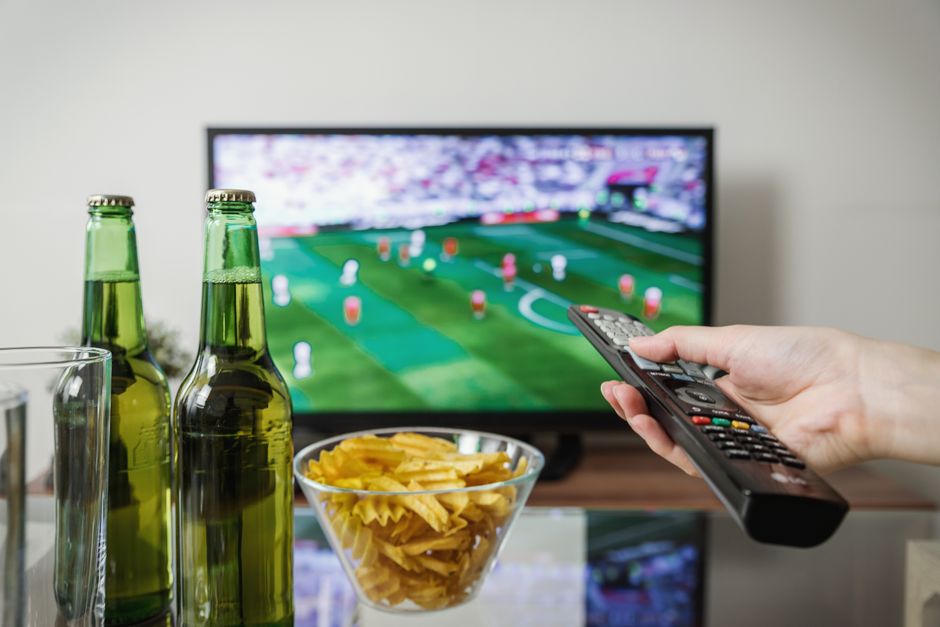
Saturday afternoon arrives. Millions of fans across Britain sit down to watch a Premier League live stream on their chosen device. Behind that smooth high-definition broadcast sits a massive technical operation spanning dozens of countries.

Cameras track every kick from multiple angles at grounds like the Emirates or Anfield. That raw video feed does not just magically appear on your Smart TV. It travels through high-capacity fibre optic cables, satellite uplinks, and complex contribution networks before reaching production hubs.
The Role of Content Delivery Networks
Broadcasters rely heavily on Content Delivery Networks to push massive video files out to millions of concurrent viewers without crashing. Instead of every single user downloading data straight from one single server, traffic gets distributed across edge servers situated close to major UK population centres like London, Manchester, and Glasgow.
When you fire up your app for a weekend fixture, you connect to a local node. That setup cuts down latency and prevents buffering spikes when a late penalty goes in.
Encoding and Bitrates Explained
Raw camera footage is far too heavy for standard home broadband connections. Engineers compress the video using modern codecs like H.264 or HEVC before it ever touches the internet. Variable bitrates adjust picture quality on the fly based on your current connection speed.
If someone starts downloading a large file on your home Wi-Fi network mid-match, the stream automatically dials down the resolution for a few seconds to keep things from freezing entirely. You might notice a slight drop in crispness, but the game keeps playing.
Official Rights Holders and UK Delivery
Sky Sports, TNT Sports, and Amazon Prime Video split the official domestic package in the UK. Each broadcaster builds its own delivery architecture, mixing traditional cable feeds with dedicated app-based streaming platforms.
If you want a deeper look at how official matchday setups work, check out our guide on how to pick a legal UK IPTV provider for Saturday 3PM football. Understanding these official pipelines helps you separate licensed distribution from unofficial sources.
Future Trends in Matchday Streaming
Ultra-high-definition broadcasts and high frame rate feeds are becoming standard practice for marquee fixtures. Delivering 50 frames per second requires double the bandwidth of traditional standard feeds, but the result removes motion blur when the ball travels fast across the pitch.
As fibre rollouts reach more rural parts of the UK, buffering issues will drop even further. The technology behind your weekend football fix continues to evolve every single season.
For more information, iptv.
Related reading
- Understanding IPTV UK: A Complete Guide to Internet Television Technology
- How to Organise Custom Channel Groups in Smart TV IPTV Apps
Update: Choosing the Right Smart TV IPTV Players for Your Living Room Setup
Update: Decoding Bitrates: What Your IPTV UK Setup Really Needs for Live Sports
Understanding IPTV UK: A Complete Guide to Internet Television Technology
Switching from traditional aerials and satellite dishes to broadband-delivered television has changed how millions watch programmes across the country. If you are looking into IPTV UK setups, you might wonder how streaming video over an internet connection actually works and what you need to get started.

What is IPTV UK Technology?
Internet Protocol Television delivers television programming and video content using internet packets instead of traditional terrestrial or satellite signals. When you watch a broadcast through an IPTV service UK setup, your broadband router handles data streams rather than an antenna on your roof. Major broadcasters like the BBC and ITV use internet delivery methods heavily alongside traditional broadcasts.
Unlike standard web video, dedicated streaming setups use managed networks or direct broadband connections to maintain picture quality. Ofcom monitors broadcasting standards across all delivery methods in the country, ensuring services meet regulatory expectations regardless of whether they arrive via fibre cables or radio waves.
How Does an IPTV Subscription UK Work?
An IPTV subscription UK typically connects your streaming device to a media server via specific protocols. Two common methods include M3U playlist links and XC API portals, which load channel lists and Electronic Programme Guides directly onto your media player. Choosing the right connection method depends on your preferred hardware.
If you want to know more about compatible hardware, take a look at this Firestick remote battery drain guide for tips on keeping your streaming setup running smoothly.
Key Features of Modern Streaming Setups
- Electronic Programme Guides showing what is on now and next
- Catch-up and on-demand video libraries
- High-definition and 4K stream resolution options
- Compatibility with multiple devices including smart televisions and streaming sticks
Legal Framework and Regulation
The technology itself is entirely legal and forms the backbone of modern catch-up services and streaming apps. However, the legal status depends heavily on who distributes the content and whether they hold the correct broadcasting rights. The UK Intellectual Property Office oversees copyright laws protecting television programmes, films, and sporting events.
Using authorised apps from licensed broadcasters guarantees compliance with UK copyright law. Consumers should always check that any service they use operates with proper licensing permissions from copyright holders.
Frequently Asked Questions
Do I need a TV licence for IPTV services?
According to TV Licensing guidelines, you need a valid TV licence if you watch or record live television programmes on any channel or service, or if you use BBC iPlayer. This rule applies regardless of whether you receive broadcasts via an aerial, satellite dish, or broadband connection.
What broadband speed do I need for streaming?
Most high-definition streams require a stable broadband connection of at least 15 to 25 Mbps. If you plan to watch 4K content or run multiple streams in the same household, higher fibre speeds prevent buffering and dropouts during peak evening viewing hours.
For more information, iptv.
Learn more on Wikipedia: ITV (TV network).
Related reading
- How to Organise Custom Channel Groups in Smart TV IPTV Apps
- Firestick Remote Battery Drain: Real Fixes for UK Streaming Setups
Update: Firestick Remote Battery Drain: Troubleshooting Tips
Update: Choosing the Right Smart TV IPTV Players for Your Living Room Setup
- Getting Started with Smart TV Playlist Configuration
- Exporting and Preparing Your Source File
- Connecting and Importing to Your Television App
- Building Custom Favourite Lists on the Fly
- Hiding Unwanted Categories and Adult Streams
- Sorting Channels Alphabetically or by Custom Numbers
- Backing Up Your Custom Configuration
Getting Started with Smart TV Playlist Configuration
Finding a single news channel or sports feed buried inside a massive list of thousands of streams feels frustrating. You sit on the sofa with your remote, scrolling endlessly through disorganised categories because your Smart TV playlist configuration imports everything in a random sequence. Sorting that chaos takes less time than you think. Most modern media players installed on modern living room displays let you build custom groups, hide dead links, and rename categories directly on the device. Let us walk through the exact steps required to turn your messy channel guide into a streamlined viewing setup.

Exporting and Preparing Your Source File
Before you start moving individual streams around inside your television app, you need a stable base file. Most people rely on M3U text files or provider portal details. Grab your current playlist from your provider dashboard using a laptop or a tablet. Working on a big screen with a standard TV remote makes editing text painful. Open your playlist file in a basic text editor like Notepad on Windows or TextEdit on Mac. You will see lines starting with #EXTINF followed by stream addresses. Do not delete those crucial tags. Look for group tags inside the text. Providers usually label these using group-title markers. Editing these labels on your computer first saves hours of clicking later.
Clean out categories you never watch before importing the file back into your television application. If you only watch UK entertainment and sports, delete international children’s channels or foreign radio stations. Smaller files load faster. They also consume less temporary memory on your screen’s internal storage. Once you finish trimming the fat, save the file with a clear date in the filename. Upload this cleaned version to your provider portal or keep it ready for direct URL entry.
Connecting and Importing to Your Television App
Launch your chosen media player on your screen. Common applications include IPTV Smarters Pro, TiviMate, or Net IPTV, depending on your operating system like Tizen or webOS. Delete any old, bloated playlists currently sitting in the app storage. Fresh imports prevent duplicate channel errors. Enter your refreshed playlist details carefully. If your app supports XC API logins, use that method because it usually pulls channel logos and TV guides much faster than raw M3U links. Watch the progress bar crawl across the display. Once the sync finishes, you will see your freshly edited categories sitting in the main menu.
If your guide data looks empty after the import, check your EPG source settings. You can read more about keeping your schedule accurate in our guide on what is an IPTV EPG and how does it work. A proper guide makes your custom groups much easier to navigate once you start watching live broadcasts.
Building Custom Favourite Lists on the Fly
Computer editing works great for massive overhauls, but daily tweaks happen right on your sofa. Every decent media player includes a favourite function. Press the info button on your remote while watching a match or a film. Look for a heart icon or a star symbol. Click it. The app instantly adds that specific stream to a dedicated favourites folder. You no longer need to hunt through sports categories every Saturday afternoon.
Some applications allow multiple favourite folders. Create one for morning news and another for weekend football. Rename these folders using the on-screen keyboard if the default naming scheme feels confusing. Keep your primary favourite list under ten channels. That restriction forces you to keep only what you genuinely watch. Your remote battery will thank you for the reduced button clicking.
Hiding Unwanted Categories and Adult Streams
Clutter ruins the viewing experience on living room displays. Families share televisions, so hiding inappropriate or useless categories remains a top priority for most households. Open your app settings menu. Navigate to the channel management or playlist editor section. You will see a giant list of every single category imported from your source. Uncheck the boxes next to categories you want to hide.
Hidden channels disappear from the main guide immediately. They still exist in the background data, but nobody scrolling through the normal menu will see them. Some advanced players require a PIN code to access hidden categories. Set up a parental PIN if you have children using the screen. Test the hidden filter by returning to the main live television view. Scroll up and down. Those unwanted categories should be completely gone.
Sorting Channels Alphabetically or by Custom Numbers
Default provider sorting often groups channels by region codes or internal database IDs rather than logic. BBC One might sit at position one hundred, while BBC Two sits at four hundred. That layout drives people mad. Fix it by changing the sort order inside your application preferences. Look for a sorting toggle in the channel settings menu. Switch it from default to alphabetical.
Alphabetical sorting places BBC One, BBC Two, and Channel 4 right next to each other. Manual custom numbering offers an even better alternative if your app supports it. Assign custom channel numbers starting from one. Put your main daily viewing channels at the very top of the list. Punching in channel numbers on your numeric keypad beats scrolling through thousands of entries every single time.
Backing Up Your Custom Configuration
You spent an hour sorting categories, renaming streams, and hiding junk. Do not lose that work if your television updates its firmware or the app crashes. Look for a backup or export feature inside the app settings. Most robust players let you save a local backup file to a USB stick plugged into the back of your screen. Do this immediately after finishing your setup.
Save the backup file securely. If you ever need to reinstall the app due to storage errors—which you can read about in our guide on smart tv iptv playlist loading issues and how to resolve them—you can restore your exact custom layout in seconds. Regular backups save you from repeating tedious manual sorting sessions.
For more information, iptv.
Related reading
- Firestick Remote Battery Drain: Real Fixes for UK Streaming Setups
- Premier League Broadcasting Rights in the UK: How Matches Reach Your Living Room
Update: How Broadcasters Deliver Premier League Live Streams to UK Living Rooms
Update: Firestick Remote Battery Drain: Troubleshooting Tips
Why Your Streaming Stick Eats Through Alkaline Cells
You dropped fresh batteries into your Amazon handset last Tuesday, and now the low power warning flashes on your screen again. This frustrating ritual happens to thousands of living rooms across the UK every month. Most people blame poor manufacturing, but the actual cause usually comes down to constant Bluetooth pairing loops, stuck buttons, or background software conflicts. Your streaming device relies on a wireless connection that never truly sleeps unless you force it to.

Identifying the Main Power Drains
Voice recognition eats power faster than almost any other function. Every time you press that microphone button, the internal chip draws a heavy load of current to transmit audio data to your living room hub. If your handset drops its connection constantly, it screams into the dark repeatedly, draining voltage within days. Physical damage plays a part too. A sticky button caused by spilled tea or sticky fingers holds down a circuit board contact indefinitely, keeping the unit awake while tucked between sofa cushions.
Practical Steps to Make AAA Cells Last Longer
Stop buying cheap bulk packs from bargain stores. They lack the consistent voltage output required by modern radio-frequency hardware. Grab a proper set of rechargeable nickel-metal hydride cells instead, or stick to name-brand alkaline alternatives that handle high-drain devices better. Pull the rear cover off and check for corrosion on the metal springs. A quick wipe with a cotton bud dipped in isopropyl alcohol clears away grime that creates miniature electrical shorts.
Next, grab your streaming stick and reboot the entire system from the main settings menu. This forces the Bluetooth stack to clear its cache and establish a fresh, clean handshake with your peripheral. If your streaming interface feels sluggish or unresponsive, clearing out old junk files helps too. Similar to how you would clean Firestick cache to speed up live video playback, resetting your hardware peripherals keeps background chatter to a minimum.
Resetting and Re-Pairing Your Handset
Unpairing your handset breaks any bad communication loops causing continuous power draw. Hold down the Home button for ten full seconds until the amber LED indicator flashes rapidly. Remove the rear battery compartment cover, pop the cells out for thirty seconds, and put them back in. Follow the on-screen prompts to pair the hardware fresh. This simple routine cures most sudden energy drain issues without buying replacement parts.
Sometimes the physical hardware is simply past saving. Heavy drops onto wooden floors weaken internal solder joints, creating resistance that generates heat and burns through stored electrical current rapidly. If your unit feels warm to the touch even when sitting idle on the coffee table, the internal circuit board has likely suffered permanent damage. Replacement remotes cost relatively little and save you endless morning frustration.
For more information, iptv.
Related reading
- Premier League Broadcasting Rights in the UK: How Matches Reach Your Living Room
- M3U Playlist Links vs. XC API Portals: Which Connection Method is Better for IPTV UK?
Update: Understanding IPTV UK: A Complete Guide to Internet Television Technology
Update: How Broadcasters Deliver Premier League Live Streams to UK Living Rooms
How Premier League Broadcasting Rights Work in the UK
Saturday afternoon blackouts baffle international fans. Yet, this rule remains a staple of domestic football culture. Broadcasters buy specific packages to show matches live across television and digital platforms. The current cycle features matches split between Sky Sports, TNT Sports, and Amazon Prime Video. Each company bids massive sums for exclusive windows. Fans often need multiple subscriptions to catch every game their team plays.

The system protects lower-league attendances. When no top-flight matches air at three o’clock on Saturday, supporters head down to local grounds. Football governance bodies designed this blackout decades ago. It still shapes every broadcast schedule today. Premier League IPTV: What UK Viewers Need to Know covers how fans manage these multi-platform demands using modern media players.
The Current Media Partners and Package Splits
Sky Sports holds the lion’s share of matches. They broadcast Friday night slots, weekend afternoon fixtures, and Monday night football. Their studio pundits dominate Monday night discussions.
TNT Sports steps in with early Saturday kick-offs. They inherited the old BT Sport schedule. Their coverage often pairs with European competition broadcasts.
Amazon Prime Video takes select midweek rounds and festive fixture blocks. These matches stream exclusively through their online platform rather than traditional cable channels. Managing these shifts requires stable broadband speeds and compatible hardware. How Does IPTV Work? Everything UK Viewers Need to Know explains the underlying tech moving these high-definition feeds to living room displays.
The Upcoming Rights Cycle and What Changes for Viewers
New cycles bring fresh competition. Recent auctions secured agreements extending coverage further into the decade. More matches will air live than ever before. Every single weekend fixture outside the Saturday blackout window will find a home on television screens.
Production quality climbs with every new deal. Ultra-high-definition cameras line every stadium roof. Spider cams swoop above the penalty box. Audio engineers capture boot leather striking leather with crystal clarity.
Why Broadcasters Pay Billions for Football Content
Subscribers drive the business model. Live football keeps traditional pay-TV relevant in an era dominated by on-demand movie apps. Advertisers pay top pound for commercial breaks during high-stakes derbies. The financial trickle-down funds youth academies and lower-tier clubs across England.
Even so, rising costs frustrate ordinary supporters. Splitting games across three distinct providers creates heavy monthly bills. Households must weigh the price of multiple sports packages against their entertainment budgets.
For more information, iptv.
Related reading
- M3U Playlist Links vs. XC API Portals: Which Connection Method is Better for IPTV UK?
- How to Set Up IPTV Smarters on Samsung and LG Smart TVs
Update: How to Organise Custom Channel Groups in Smart TV IPTV Apps
Update: Understanding IPTV UK: A Complete Guide to Internet Television Technology
- Comparing Connection Methods for IPTV UK
- Understanding How M3U Playlist URLs Work
- The Good and Bad of Static Playlists
- What is an XC API Portal and Why Do Apps Use It?
- Speed, EPG Sync, and XC Advantages
- Everyday Performance on UK Broadband Networks
- Security, Privacy, and Ease of Setup
- The Final Verdict: Which Method Should You Choose?
Comparing Connection Methods for IPTV UK
Setting up your media player on a streaming device often brings up a choice you might not expect. You have to pick how your app talks to your provider’s server. Two main formats dominate the market. You either paste a long M3U playlist link or type in XC API details. Both methods get your channels working, but they handle data very differently behind the scenes.

Many people setting up services for understanding internet television technology overlook this choice entirely. They just use whatever option their provider sends first. That mistake can lead to slow loading times, missing TV guides, and endless frustration when live sports kick off.
Understanding How M3U Playlist URLs Work
The M3U format has been around for decades. It started out as a simple plain-text file used for audio playlists on computers. Over time, it evolved to handle video streams and entire channel line-ups. When you use an M3U link, your media player downloads a static text file every single time you open the app or refresh your channels.
This file contains a massive list of web addresses. Each address points to a specific live stream or video-on-demand asset. Your player reads this list top to bottom. It maps out the channels, categories, and logos based purely on the text inside that file. Because it is essentially a big text document, it can be heavy. A massive channel list with thousands of items can take a noticeable chunk of time to download and parse.
The Good and Bad of Static Playlists
Simplicity is the biggest strength of the M3U format. Almost every media player on the market supports it. You don’t need a username, password, and server URL broken into separate boxes. You just paste one long web link into the app. If you switch apps, you can move that link over in seconds.
However, problems pop up quickly. Because the file is downloaded statically, any change your provider makes requires a full playlist refresh. If a channel link breaks or the provider updates their stream addresses, your player keeps trying the old, dead links until you force a manual update. On slower devices, processing a massive text file freezes the user interface entirely.
What is an XC API Portal and Why Do Apps Use It?
Xtream Codes API changed how modern media players interact with subscription servers. Instead of downloading a massive text file of links, an XC API login connects your app directly to the provider’s server database. You enter three pieces of information: a server URL, a username, and a password.
Once connected, your app asks the server for only the information it needs at that exact moment. When you click on the sports category, the app fetches just the sports channels. When you scroll down to a movie folder, it pulls the video-on-demand library on demand. This client-server dialogue keeps local memory usage low and makes the overall experience feel snappy.
Speed, EPG Sync, and XC Advantages
The electronic programme guide is where XC connections truly shine. Downloading a 7-day TV guide through a static M3U link often overwhelms budget streaming sticks. The file size balloons, and the guide fails to load completely.
XC portals handle EPG data much better. The app requests guide data in smaller chunks, or the server compresses it efficiently before sending it over. Channels load faster because the player isn’t parsing thousands of lines of text locally. Authentication is also more secure. Your credentials are sent securely to the server rather than exposing a direct download link in plain text.
Everyday Performance on UK Broadband Networks
How well these connection methods perform depends heavily on your home internet setup. Fibre broadband speeds across the UK vary wildly depending on your location and whether you use FTTC or full fibre FTTH. A poor connection exposes the flaws in heavy M3U playlists instantly.
If your broadband drops packets or suffers from temporary congestion, a static M3U playlist often fails to recover gracefully. The app might get stuck in an endless buffering loop because the local playlist cache becomes desynchronised with the live server state. XC API portals handle minor network hiccups better. They allow the player to request a quick stream reconnect without forcing the app to reload the entire channel directory from scratch.
For a deeper look at how home network speeds impact your viewing, check out our guide on broadband connections and IPTV UK factors. Network jitter and Wi-Fi interference amplify small delays, making efficient data handling essential.
Security, Privacy, and Ease of Setup
Setting up your player for the first time highlights clear differences in user experience. Typing a 150-character M3U URL using a small streaming remote is genuinely painful. One typo breaks the link, and you have to start over. XC API details are usually much shorter. Entering a server address, a short username, and a password takes half the time.
Security is another factor worth considering. An M3U link is essentially a public web address containing your unique subscription token. If someone gets hold of that link, they can use your stream on their own device. XC API logins require both a username and password to authenticate against the server API. While not bulletproof, it adds a layer of separation compared to a raw URL.
The Final Verdict: Which Method Should You Choose?
Use an XC API login whenever your chosen media player supports it. It loads faster, manages your electronic programme guide with fewer errors, and reduces strain on your streaming hardware. Save M3U playlist links strictly as a fallback option for older apps or niche hardware that lacks proper API login fields.
Most modern players built for UK viewers support both formats out of the box. Sticking with API portals gives you a cleaner, faster, and more reliable daily experience.
For more information, iptv.
Learn more on Wikipedia: ITV (TV network).
Related reading
- How to Set Up IPTV Smarters on Samsung and LG Smart TVs
- Firestick Black Screen Errors During Live IPTV Playback: Myths and Fixes
Update: Firestick Remote Battery Drain: Real Fixes for UK Streaming Setups
Update: How to Organise Custom Channel Groups in Smart TV IPTV Apps
Getting IPTV Smarters working directly on your modern Samsung or LG living room display saves you from cluttering shelves with extra streaming boxes. You don’t need a degree in network engineering to pull this off, but you do need patience while punching in long playlist URLs using a standard TV remote. Let’s walk through the actual setup process from scratch.
Checking App Store Availability on Tizen and webOS
Samsung runs Tizen OS while LG relies on webOS. Open up your TV’s native app store first. Search for the app using the on-screen keyboard. Sometimes regional app store restrictions mean the app hides under a slightly different developer name or requires changing your account region. If the app isn’t listed directly in your store, you’ll need to look at alternative playlist players supported by your TV’s operating system.
Installing and Launching the App
Highlight the application tile once you find it. Hit download or install. Give it a minute to finish downloading onto your internal storage. Launch the app straight away. You’ll see a privacy policy agreement screen pop up. Accept the terms to reach the main login dashboard. Take a breath because typing long details with a physical remote gets tedious fast.
Logging In with Your Playlist Details
You have a few choices for connecting your provider details. Most people use Xtream Codes API login because it requires fewer characters than a raw M3U link. Enter your username, password, and the server URL provided by your service. Double-check every single character. Typos cause immediate connection failures. Hit the add user button once everything looks correct.
Loading Channels and Setting Up the EPG
The app will start downloading channel lists and electronic programme guide data. This initial sync takes anywhere from thirty seconds to a few minutes depending on your internet speed and the size of the playlist. Once the interface populates, check your TV guide layout. You can also explore common mistakes households make during setup if channels fail to appear properly.
Tweaking Stream Settings for UK Broadband
Head straight into the app settings menu. Change the stream format from HLS to MPEGTS if you notice stuttering during live broadcasts. Set your preferred video decoder to hardware acceleration to take pressure off your TV’s processor. Save your changes and test a few live streams to make sure audio syncs up with the picture.
For more information, iptv.
Related reading
- Firestick Black Screen Errors During Live IPTV Playback: Myths and Fixes
- Smart TV Apps vs Streaming Sticks for Premier League Live Streams
Update: Premier League Broadcasting Rights in the UK: How Matches Reach Your Living Room
Update: Firestick Remote Battery Drain: Real Fixes for UK Streaming Setups
- The Sudden Drop to Darkness
- Myth One: A Black Display Means Your Fire Stick is Broken
- How to Solve Handshake Drops
- Myth Two: Reinstalling Your IPTV Player Fixes Every Video Crash
- Adjusting Display and Decoding Settings
- Power Delivery and Thermal Throttling Realities
- Network Interference Versus Display Freezes
- Preventing Future Display Failures
The Sudden Drop to Darkness
Your screen goes entirely dark right in the middle of a live broadcast. No error code pops up. Your remote clicks away, but nothing changes on the display. This frustrating experience happens to many UK streamers using Amazon streaming sticks. You might immediately panic and think your hardware is dead.

That assumption is rarely true. Most blank display issues stem from simple handshake glitches or incorrect video settings. Let us separate the myths from reality so you can get your picture back.
Myth One: A Black Display Means Your Fire Stick is Broken
People frequently throw away perfectly good streaming hardware because they assume a blank monitor signals total failure. They plug in a brand-new device only to face the exact same issue ten minutes later. The problem rarely lies in a dead processor.
Instead, your television and your streaming stick are failing to talk to each other properly. This communication breakdown is known in the AV world as an HDMI handshake failure. When your television changes its refresh rate or resolution to match a live video stream, the digital handshake can drop. Your stick is still running fine in the background. The signal just fails to render on your panel.
How to Solve Handshake Drops
Unplug the HDMI cable from both the back of your television and the wall power adapter. Wait thirty seconds. Plug the power back in first, then reconnect the HDMI lead. This forces both devices to renegotiate their connection from scratch. If your television has multiple HDMI ports, switch to a different slot. Some older ports struggle with modern HDCP copyright protection handshakes required by live streams.
Myth Two: Reinstalling Your IPTV Player Fixes Every Video Crash
Many online forums suggest deleting your streaming app and downloading it again whenever a display glitch occurs. Users spend hours logging back into playlists and rearranging channels for no reason. Reinstallation rarely fixes a hardware-level rendering fault.
The root cause often hides inside your device display settings rather than your application. Automatic resolution detection frequently selects a frame rate your TV struggles to process during high-bitrate live sports feeds. When the stream switches from studio chatter to fast-moving pitch action, the mismatch causes a complete video freeze.
Adjusting Display and Decoding Settings
Go into your Fire TV settings menu and select Display & Sounds. Choose Display, then look at your Video Resolution settings. Instead of leaving it on Auto, lock it down to match your television panel’s native 1080p or 4K specification. Next, dive into your IPTV player application settings. Switch your hardware decoding preference from software to hardware, or vice versa. This forces your device to process video feeds using a different internal chip pathway, bypassing the glitch that caused the sudden drop to darkness.
Power Delivery and Thermal Throttling Realities
A surprising number of blank display issues trace back to insufficient electrical current. Plugging your streaming stick directly into a USB port on the back of your television is convenient. Unfortunately, many older TV USB ports only supply half an amp of power. Streaming high-definition live feeds demands a steady electrical flow. When the processor draws extra power to decode a heavy stream, voltage drops. The device crashes temporarily to protect itself.
Always use the wall plug adapter and the heavy-duty USB cable that came inside your box. If you noticed your device getting unusually hot before the display cut out, thermal throttling might be at play. Streaming sticks lack internal cooling fans. Tucking them tightly behind a wall-mounted TV traps heat. Use the rigid HDMI extender cable included in your original packaging. This moves the streaming stick away from the hot back panel of your television, keeping temperatures stable during long viewing sessions.
Network Interference Versus Display Freezes
Sometimes a frozen video frame tricks your brain into thinking you are looking at a display error. When your internet connection stutters badly, the video buffer empties completely. Some older media players fail to display a loading circle when this happens. They simply hold the last rendered frame or go dark until data flows again. If you want to dive deeper into connection stability, read our guide on how to fix Firestick buffering when watching live stream broadcasts. Checking your local network router helps rule out broadband dropouts before you start fiddling with display cables again.
Preventing Future Display Failures
Hardware glitches rarely fix themselves permanently without a proper adjustment. Keep your operating system updated through the main settings menu. Amazon frequently patches HDMI compatibility bugs in monthly firmware updates. Check your cables every few months to ensure dust hasn’t settled inside the port. Small maintenance steps prevent annoying interruptions on match day.
For more information, iptv.
Related reading
- Smart TV Apps vs Streaming Sticks for Premier League Live Streams
- IPTV UK Setup Realities: Dispelling Common Technical Myths
Update: M3U Playlist Links vs. XC API Portals: Which Connection Method is Better for IPTV UK?
Update: Premier League Broadcasting Rights in the UK: How Matches Reach Your Living Room
Choosing the Right Hardware for Matchday
Saturday afternoon arrives and millions of fans across the country sit down to watch a Premier League live stream. Getting the best picture quality without annoying buffering often comes down to the box or TV you use. Built-in apps on modern screens seem convenient at first glance. Dedicated streaming sticks offer another path entirely. Both approaches handle sports broadcasts differently, and matching your setup to your broadband speed matters more than you might think.

Smart TV App Performance
Modern televisions run complex operating systems like webOS, Tizen, or Google TV. You don’t need an extra remote or a dangling wire behind the cabinet because everything lives inside the panel. Yet, built-in processors often struggle when handling high framerate sports feeds. Manufacturers rarely install powerful chips in standard domestic displays. You might notice stuttering during fast camera pans across a muddy pitch.
Memory limits also cause frustration on smart sets. Operating systems background-download updates while you watch, eating up available RAM. When the system runs out of room, apps crash right in the middle of a penalty shootout. Updating software takes patience too. TV manufacturers drop support for older models surprisingly fast, leaving you with outdated app versions within a few years of purchase.
Streaming Stick Advantages
Plug-in devices like Fire TV sticks, Roku boxes, or Google TV dongles shift the heavy lifting away from your display panel. These dedicated gadgets pack surprisingly punchy processors into small plastic casings. They focus solely on video decoding and network management. That single-minded focus yields smoother playback during busy weekend fixtures when millions of users hit the servers at once.
Portability is another massive win for sticks. You can unplug the device and take it on holiday or down to the local pub if you fancy watching an away match elsewhere. Upgrading costs very little compared to buying a brand-new television every time software standards change. You simply swap the old dongle for a fresh model every few years.
Wi-Fi Reliability and Data Handling
Network stability dictates whether your Premier League live stream stays crisp or drops to a blurry mess. Smart TVs often feature older Wi-Fi receiver chips tucked away inside thick plastic and metal chassis. Signal interference from household appliances wreaks havoc on these internal antennas. Streaming sticks sit out in the open, dangling from an HDMI port or sitting on a shelf, which usually grants them a cleaner line of sight to your router.
If you have a 4K display, your broadband connection takes a proper workout on matchdays. Ethernet ports on modern TVs sometimes cap out at slower speeds than a proper USB adapter on a dedicated stick. For a deeper look at network loads, check out this guide on Premier League matchday data usage to see how much bandwidth your setup consumes.
The Verdict on Matchday Hardware
Dedicated streaming sticks win this matchup comfortably. They offer superior processing power, receive software updates for longer periods, and handle Wi-Fi connections far better than most built-in television software. Save your smart TV’s processor for casual viewing and plug a proper streaming device into the back if you want reliable, high-framerate football without the headache.
For more information, iptv.
Related reading
- IPTV UK Setup Realities: Dispelling Common Technical Myths
- How to Free Up Storage on Smart TVs for IPTV Apps
Update: How to Set Up IPTV Smarters on Samsung and LG Smart TVs
Update: M3U Playlist Links vs. XC API Portals: Which Connection Method is Better for IPTV UK?
IPTV UK Setup Realities: Dispelling Common Technical Myths
Getting your home entertainment system ready for IPTV UK streams often brings a wave of conflicting advice. Every online forum claims a different fix for stuttering video feeds. Most of that advice misses the mark entirely. Real network performance comes down to physics and local infrastructure rather than secret configuration tricks.

Many households jump straight into changing router settings without checking basic connection paths. Ofcom reports that average broadband speeds across Britain keep rising, yet individual home setups frequently bottleneck data flow. Let us look at what actually causes stream failures and how to fix them.
The Speed Fallacy Behind IPTV UK Streams
A common belief says you need a gigabit connection to watch live television over internet protocols. That idea is simply false. Most high-definition feeds require only a fraction of that bandwidth. Standard high-definition streams consume around five to eight megabits per second. Ultra high-definition channels demand roughly twenty megabits.
If your fibre connection delivers thirty megabits, raw speed isn’t your issue. Packet loss causes the freezing you see on screen. Wi-Fi congestion ruins more viewing sessions than slow broadband packages ever will. Microwave ovens, thick Victorian brick walls, and competing devices on the same frequency band wreak havoc on wireless packets. Moving to an Ethernet cable solves these dropouts instantly.
Hardware Bottlenecks Hiding in Plain Sight
People often blame their service provider when the actual culprit sits quietly plugged into the back of the television. Streaming hardware works hard during live broadcasts. Devices heat up. Cache fills past capacity. Older streaming sticks lack the processing power needed for modern video codecs.
If you want to understand the foundational technology powering these setups, read this beginner’s guide to IPTV. It breaks down how data travels from source to screen. Beyond basic understanding, physical maintenance matters. Clearing temporary files keeps memory free. Restarting your streaming hardware clears out stuck background processes that starve video decoders of vital RAM.
Decoding the Realities of IPTV Channels UK Lineups
Another persistent myth involves channel organization and electronic programme guide loading times. Users often assume missing channel logos or blank schedules stem from network drops. Usually, the electronic programme guide server simply times out because too many clients pull data simultaneously.
Caching limits on smaller streaming boxes cause guide data to vanish overnight. Apps need regular manual updates to keep schedule tables accurate. Checking your local storage space prevents these frustrating sync failures.
Practical Steps for Stable Viewing
Fixing stubborn streaming glitches requires a systematic approach. Start by unplugging both your router and your streaming box for sixty seconds. This clears temporary IP lease issues and cools down overworked processors. Next, check your app settings. Lowering the buffer size stops memory overflow on budget hardware.
Avoid running heavy downloads on other household devices while watching live matches. Network traffic prioritization on modern routers helps maintain a steady stream. Take control of your home network environment today to enjoy uninterrupted viewing.
For more information, iptv.
Learn more on Wikipedia: ITV (TV network).
Related reading
Update: Firestick Black Screen Errors During Live IPTV Playback: Myths and Fixes
Update: How to Set Up IPTV Smarters on Samsung and LG Smart TVs