- Before You Start Checklist
- Step-by-Step Troubleshooting for IPTV Sound Delay
- Common Setup Mistakes UK Households Keep Making
- Understanding the Technical Root Causes of Latency
- Device-Specific Fixes
- Advanced Network Tweaks for Flawless Streaming
- When to Contact Your Provider
- Frequently Asked Questions
- Why does the sound delay get worse over time?
- Can an HDMI cable cause audio sync problems?
- Should I use hardware or software decoding?
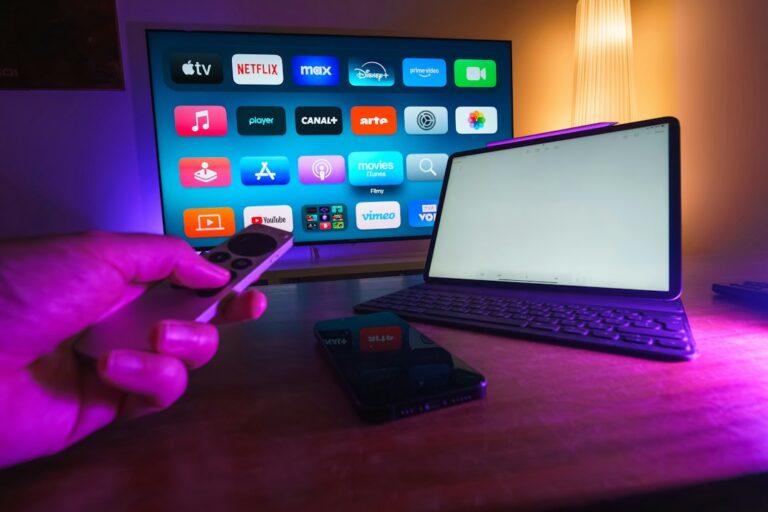
A live football match kicks off on your screen, but the roar of the crowd echoes a second after the ball hits the back of the net. Dealing with an annoying IPTV sound delay ruins the match day vibe in any UK living room. It usually happens when the video stream processes faster than the audio track. You don’t need to live with out-of-sync television programmes because a few quick adjustments can fix it.

Short answer: Check your app’s audio decoder settings first, then restart your streaming device and home router to clear temporary processing lags.
Before You Start Checklist
Before you dive into complex fixes, run through this quick checklist to rule out basic setup issues:
- Note whether the sync problem happens on every channel or just one specific feed.
- Check if you are using an external soundbar or AV receiver.
- Ensure your streaming app is updated to the latest version available in the app store.
Step-by-Step Troubleshooting for IPTV Sound Delay
Follow these numbered steps to track down the root cause of the audio mismatch and get your programmes back in sync.
- Change the hardware decoder settings: Open your IPTV app’s settings menu. Look for playback or video decoding options. Switch between software decoding and hardware decoding to see if the processor handles audio synchronization better.
- Adjust audio offset within the player: Many advanced media players let you manually delay or advance the audio track by milliseconds. Tweak this setting until the lip movements match the spoken words on screen.
- Power cycle your streaming device: Unplug your Amazon Fire TV Stick or disconnect your smart television from the wall socket. Wait sixty seconds before plugging it back in to clear out cache memory.
- Check your audio output format: If you use a soundbar, change the TV audio output setting from Dolby Digital or Bitstream to PCM. Uncompressed PCM formats often solve stuttering and lip-sync issues instantly.
- Test your internet speed: A struggling broadband connection drops packets, which forces players to delay audio tracks. Check what internet speed is suitable for IPTV in the UK to make sure your provider delivers enough bandwidth.
Common Setup Mistakes UK Households Keep Making
Many viewers accidentally worsen their IPTV sound delay by chaining too many Bluetooth accessories together. Routing audio from a smart TV to a wireless speaker via Bluetooth introduces a natural latency. Plugging a Firestick directly into an older AV receiver can also mess up HDMI handshake signals. Try connecting your streaming stick straight into an HDMI port on the back of the television instead. Another frequent error is ignoring router placement; tucking your Wi-Fi hub behind a thick television unit or inside a metal media cabinet severely degrades wireless signal integrity, causing packet loss that immediately triggers audio desynchronization.
Understanding the Technical Root Causes of Latency
To truly conquer audio delay, it helps to understand why it happens behind the scenes. IPTV relies on complex protocols like HLS, DASH, or traditional M3U playlists to stream compressed video and audio packets over the internet. Your streaming device receives these packets, decodes them using either hardware or software codecs, and renders them onto your display. When your broadband jitter spikes, or when your device’s CPU becomes overwhelmed by heavy background tasks, the video decoder might skip frames to catch up while the audio decoder keeps processing sequentially. This creates a widening gap between what you see and what you hear. Furthermore, high-definition and 4K streams demand substantial processing power; if your streaming hardware is a few years old, its thermal throttling mechanisms will reduce clock speeds, compounding the processing lag and making audio drift progressively worse over the course of a multi-hour broadcast.
Device-Specific Fixes
Different operating systems handle media playback in unique ways. Here is how to handle audio adjustments across popular UK hardware:
- Amazon Firestick: Go to Fire TV settings, select Display & Sounds, choose Audio, and change surround sound options to PCM or Stereo.
- Samsung and LG Smart TVs: Head to the main sound settings menu, open Expert Settings, and adjust the Digital Audio Delay slider until the audio lines up.
- Android TV: Look for developer options or sound settings to toggle match frame rate and surround sound pass-through off.
Advanced Network Tweaks for Flawless Streaming
If basic troubleshooting does not completely resolve your persistent lip-sync errors, your local home network might be suffering from hidden congestion or interference. Modern UK households often have dozens of devices connected simultaneously—smart bulbs, tablets, security cameras, and gaming consoles—all competing for limited wireless bandwidth. To give your IPTV box the absolute priority it needs, log into your broadband router’s administrative dashboard and enable Quality of Service (QoS) rules, prioritizing your streaming hardware’s MAC address above all else. Additionally, if your router supports dual-band or tri-band frequencies, permanently migrate your IPTV streaming device onto the less congested 5GHz wireless band, or better yet, bypass Wi-Fi entirely by running a direct Ethernet cable from your router straight into a compatible streaming box or smart TV adapter. Eliminating wireless packet jitter is one of the most reliable ways to ensure your audio tracks remain permanently locked in perfect harmony with the video stream.
When to Contact Your Provider
Sometimes the glitch isn’t on your end. If the audio sync issue affects only a single channel and persists across multiple devices in your house, the feed itself has a faulty stream encoding. Reach out to your subscription provider to report the bad source link.
Frequently Asked Questions
Why does the sound delay get worse over time?
Memory leaks inside cheap streaming hardware cause processing lag to build up slowly during long viewing sessions. A quick device reboot clears this out.
Can an HDMI cable cause audio sync problems?
Yes. Faulty or damaged HDMI cables struggle to transmit high-bitrate audio and video signals simultaneously, leading to noticeable delays.
Should I use hardware or software decoding?
Hardware decoding is usually best for modern devices, but switching to software decoding helps older players process troublesome streams more stably.
For more information, iptv.
Related reading
- UK Legal IPTV Device Guide: Hardware Comparison for Official Apps
- 5 Key Things to Consider When Buying Legal Sports IPTV UK Packages
Update: Choosing Legal IPTV Hardware: A Comprehensive UK Streaming Device Comparison
Update: How to Test an IPTV Trial in the UK Safely and Effectively