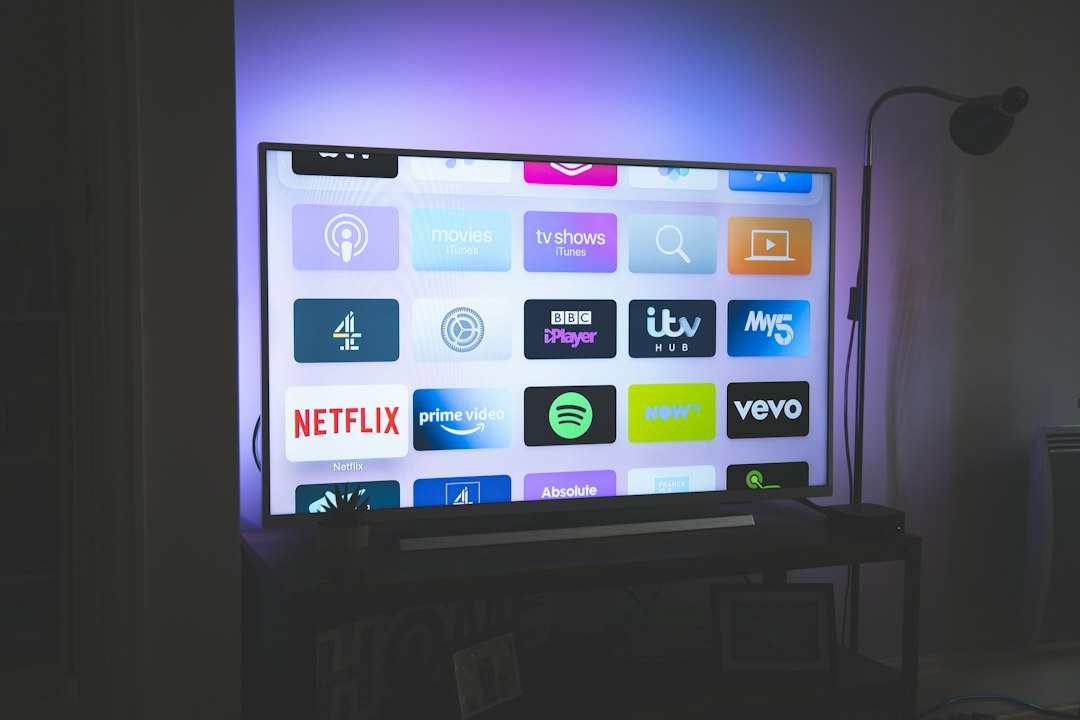
- Choosing Hardware for Legal IPTV in the United Kingdom
- Amazon Fire TV Stick and Fire TV Cube
- Apple TV 4K
- Google TV Streamer and Chromecast Devices
- Roku Streaming Players
- Smart TVs: Samsung and LG
- Smartphones, Tablets, and Mobile Casting
- Hardware Feature Comparison
- Pros and Cons of Dedicated Streaming Hardware
- Step-by-Step Setup Guide
Choosing Hardware for Legal IPTV in the United Kingdom
Getting your television setup right for legal IPTV UK viewing takes a bit of planning. You aren’t just buying a box. You are picking a platform that handles apps, video decoding, and network traffic. IPTV delivers television over the internet instead of traditional aerials or cables. However, the legality of any service depends entirely on whether the provider holds the correct broadcasting rights for the UK market. Different gadgets handle official apps in different ways. Some run Android TV, others use proprietary systems, and a few rely on mobile operating systems mirrored to a big screen.
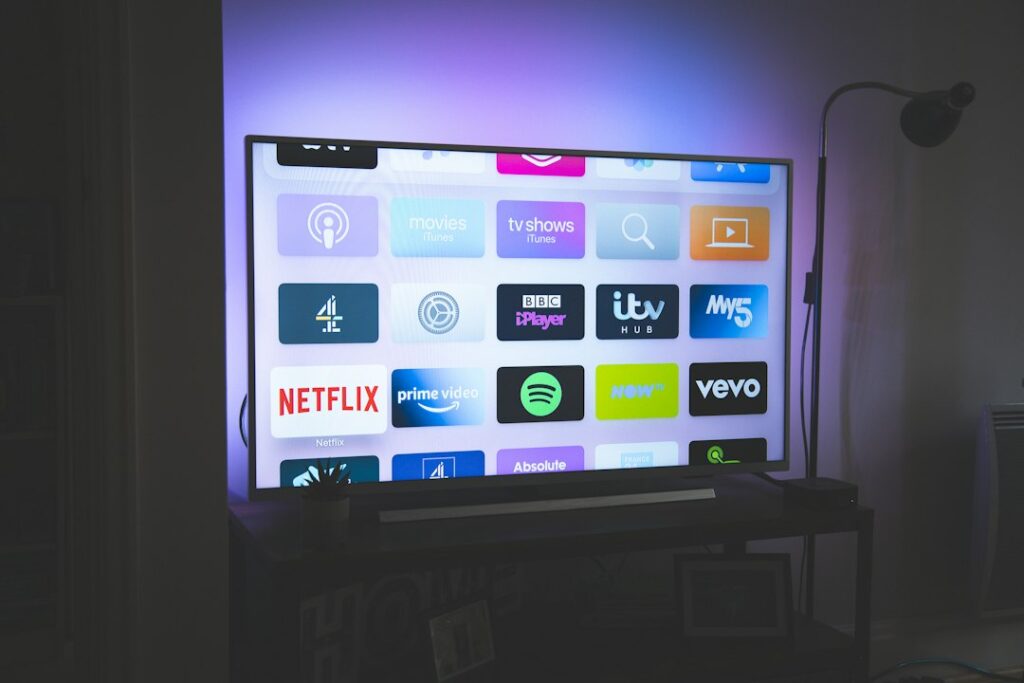
Hardware choices range from small HDMI sticks tucked behind the television to powerful set-top boxes with dedicated Ethernet ports. You need to weigh up app availability, processor speed, and video formats. Let’s look at how the main streaming devices stack up against each other.
Amazon Fire TV Stick and Fire TV Cube
Amazon’s hardware range dominates living rooms across the UK. The Fire TV Stick 4K and the more powerful Fire TV Cube run Fire OS, which is built on top of Android. This means they support most official streaming apps directly from the Amazon Appstore. You get robust 4K and HDR support, including Dolby Vision on higher-end models.
Performance is snappy on current-generation devices. Menus load quickly, and switching between live feeds and on-demand content rarely stutters. Wi-Fi performance is generally solid, though the Fire TV Cube includes a physical Ethernet port out of the box. Fire sticks require an adapter for wired internet. Remote controls feature integrated Alexa voice buttons, making searches simple. Parental controls are comprehensive, allowing you to lock app purchases and restrict content ratings easily.
Apple TV 4K
If you live inside the Apple ecosystem, the Apple TV 4K offers arguably the smoothest user experience available. It runs tvOS, giving you access to the App Store where many official broadcasting apps live. The hardware inside uses mobile-grade chips that tear through video decoding without breaking a sweat.
Picture quality and HDR handling are top-tier. You get both gigabit Ethernet and fast Wi-Fi on every modern unit. The Siri Remote is responsive, though some users find its touch surface overly sensitive. Privacy features on tvOS outpace most competitors. Storage is generous, starting at 64GB, which leaves plenty of room for caching live streams. Setup is effortless if you own an iPhone. You just hold it near the box to transfer your Wi-Fi credentials and Apple ID.
Google TV Streamer and Chromecast Devices
Google TV has largely replaced older Chromecast hardware, offering a proper interface with a remote control. It runs official Android TV, meaning compatibility with official legal IPTV UK apps is very high. You can download major broadcaster apps straight from the Google Play Store.
Performance varies depending on the specific model tier. The newest Google TV Streamer handles heavy multitasking smoothly. Storage and memory are adequate for most users. You get robust voice control via Google Assistant built into the remote. Ethernet ports are included on dedicated set-top boxes, while cheaper dongles rely entirely on Wi-Fi. Parental controls use Google Family Link, giving you remote management capabilities from your phone.
Roku Streaming Players
Roku devices run the Roku OS platform. They are famous for a neutral, ad-supported interface that doesn’t push one streaming service over another. App availability through the Roku Channel Store is massive for standard catch-up services, but specialized or niche streaming applications might have limited support compared to Android-based competitors.
Performance on Roku sticks is dependable for standard HD and 4K streaming. However, advanced video codecs or complex app layouts can occasionally stretch the lower-end processors. Remotes are simple and uncluttered. Most models rely on Wi-Fi connectivity, with wired connections restricted to higher-end ultra units. Setup takes minutes, and parental control PINs protect mature content across all installed channels.
Smart TVs: Samsung and LG
Built-in smart TV platforms mean you don’t need a separate streaming box. Samsung uses Tizen OS, while LG relies on webOS. Both operating systems host official apps from major UK broadcasters. The main advantage is simplicity. You use a single remote and eliminate extra clutter.
Performance depends on the processor inside your specific television model. High-end panels feature powerful chips that navigate menus instantly, while budget models can feel sluggish. Wi-Fi modules are built in, and both brands include physical Ethernet ports. Voice control works via Bixby or Alexa on Samsung, and ThinQ AI on LG. Setup happens during your initial television configuration. Parental controls let you restrict specific apps or broadcast channels with a PIN code.
Smartphones, Tablets, and Mobile Casting
Phones and tablets running iOS or Android act as portable screens for your entertainment. You can install official broadcaster apps directly from the Apple App Store or Google Play. Many users cast these streams to larger televisions using AirPlay or Google Cast.
Processing power on modern phones is exceptional, outperforming many dedicated streaming boxes. App availability is unmatched. However, mobile devices lack Ethernet ports and rely completely on Wi-Fi or mobile data. Remote control doesn’t apply here, as you use touchscreen gestures. Privacy settings on mobile operating systems give you granular control over app permissions. Setup involves logging into your app store account and downloading the software you need.
Hardware Feature Comparison
| Device Family | Operating System | Ethernet Support | 4K/HDR Support | Setup Ease |
|---|---|---|---|---|
| Amazon Fire TV | Fire OS (Android) | Adapter required (Cube has built-in) | Yes (Most models) | Very Easy |
| Apple TV 4K | tvOS | Built-in (Gigabit) | Yes (Dolby Vision/HDR10+) | Effortless (with iPhone) |
| Google TV | Android TV | Model dependent | Yes | Very Easy |
| Roku Players | Roku OS | Model dependent (Ultra only) | Yes | Simple |
| Samsung / LG TVs | Tizen / webOS | Built-in | Yes (On supported panels) | Integrated |
| Phones & Tablets | iOS / Android | No (Wireless only) | Yes (Screen dependent) | Straightforward |
Pros and Cons of Dedicated Streaming Hardware
Using a dedicated box like an Apple TV or Fire Cube isolates your streaming apps from your television’s native operating system. This often results in faster updates and longer software support lifecycles. Smart TV interfaces can slow down after a few years as manufacturers drop support for older chips. Dedicated boxes are also easy to replace if processing standards change.
On the downside, external hardware requires an extra HDMI port, a separate power socket, and another remote control to manage. If you want to keep your living room wire-free, a smart TV running native apps is cleaner. If you want maximum performance and guaranteed app compatibility for legal IPTV UK services, a dedicated media player usually wins.
Step-by-Step Setup Guide
Getting your chosen device running takes just a few moments if you follow a logical sequence. How to set up legal IPTV on Firestick in the UK covers foundational platform configuration if you chose Amazon hardware. For general setups, use these steps:
- Plug your streaming device into a spare HDMI port on your television or AV receiver.
- Connect the power cable to a wall socket using the supplied mains adapter.
- Switch your television input source to match the correct HDMI port.
- Follow the on-screen prompts to connect your device to your home Wi-Fi network or plug in an Ethernet cable.
- Sign in to your device account, such as your Amazon, Google, or Apple ID.
- Open the built-in app store, search for your provider’s official streaming application, and download it.
- Log in using your official subscriber credentials provided by your licensed service operator.
Always verify app compatibility before purchasing hardware. Subscription services update their software requirements regularly, and older boxes occasionally lose support for new security protocols.
For more information, iptv.
Related reading
- Spotting IPTV Scams: How to Buy Legal Sports IPTV UK Safely
- How to Fix UK IPTV Audio Delay on Firestick and Smart TVs
Update: Comparing Firestick and Smart TV Apps for Legal IPTV Setup and Troubleshooting
Update: How to Stream Live UK Football Legally Using Official Apps and Services