Stuttering live streams usually ruin a weekend football match. When your device slows to a crawl, you need to clean Firestick cache files immediately. Bloated temporary data fills up the tiny internal storage very quickly. Fire OS drops frames and stutters when storage hits critical levels. Fixing this takes less than two minutes of your time.
Accessing Your Fire TV Stick Settings
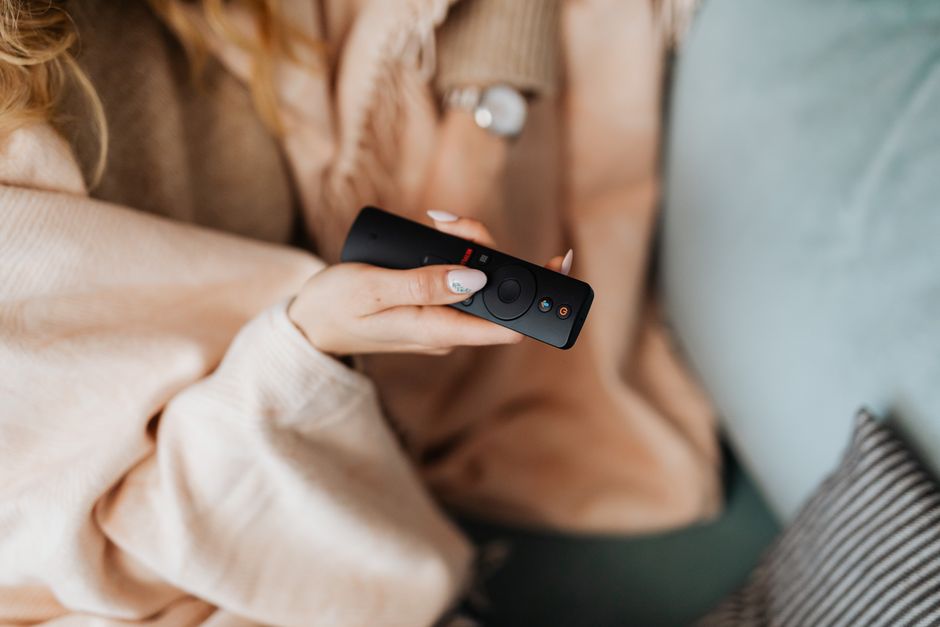
Grab your remote control. Press the home button to reach the main menu. Scroll all the way across the top bar to reach the gear icon. Click it to open the settings panel. You’ll see several tiles covering network, display, and applications. Select the Applications tile to proceed.
Locating Installed Applications
Inside the application menu, select the option marked Manage Installed Applications. Your Firestick lists every single app currently downloaded to the device. Scroll down the list until you find your preferred media player or streaming app. Big apps collect gigabytes of junk data over just a few weeks of heavy use.
How to Clean Firestick Cache Safely
Click on the chosen app name to open its specific management screen. You will see options to force stop, uninstall, and clear data alongside our target. Select Clear Cache. Never click Clear Data unless you want to wipe your login credentials and custom settings completely. Cache files only hold temporary scraps that the app rebuilds automatically later.
Checking Available Storage Space
Go back to the main settings menu and click My Fire TV. Select About, then Storage. Watch the free space number jump up instantly. Keeping a gigabyte of breathing room stops apps from crashing during peak viewing hours. If your broadband connection is solid, clearing this junk prevents most mysterious playback drops.
Troubleshooting Persistent Storage Warnings
Sometimes clearing temporary files isn’t enough. If your device keeps warning you about low memory, you must remove unused apps entirely. Go back to your application list and delete anything you haven’t opened in months. Streaming hardware runs best when it isn’t weighed down by dead weight. Restart your Firestick after wiping out unwanted software to let the system breathe.
For more information, iptv.
Related reading
- How Premier League Broadcasters Deliver Live Football Across the UK
- Evaluating an IPTV Trial UK: Myths, Facts, and What to Test
Update: IPTV UK Setup Realities: Dispelling Common Technical Myths
Update: Smart TV Apps vs Streaming Sticks for Premier League Live Streams