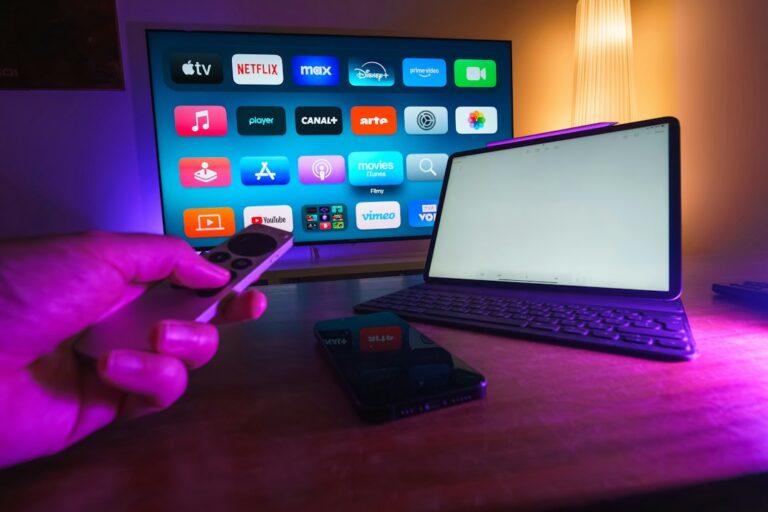
Saturday afternoon matches bring excitement, tension, and millions of viewers onto British telecom networks. If your connection drops right as a striker hits the back of the net, the culprit is usually your home broadband rather than the broadcaster. Running a Premier League live stream requires stable download speeds and low latency to avoid frustrating pixelation or sudden freezes.
Why Match Day Bandwidth Drops
Evening kick-offs and weekend fixtures coincide with peak internet usage across the UK. Your neighbours are streaming movies, gaming, or browsing, which puts heavy strain on local cabinet capacity. Cable and fiber networks handle this traffic differently. Older copper-based connections struggle more than full-fiber lines when entire neighbourhoods log on at once.
Running a Reliable Speed Test
Open a trusted diagnostic tool through your web browser or a dedicated app. Turn off background downloads, pause console updates, and disconnect heavy users like tablets before testing. You need to look at three main metrics: download speed, upload speed, and ping. Download speed matters most for high-definition video feeds. A baseline of at least 15 megabits per second handles standard HD streams comfortably, while 4K broadcasts demand upwards of 30 megabits per second.
Upgrading Your Wi-Fi Setup
Distance from your router ruins many streaming sessions. Thick walls, household appliances, and competing wireless channels degrade your signal strength significantly. Move your streaming device closer to the hub if possible. Switch from the crowded 2.4 gigahertz frequency band to the 5 gigahertz channel. Better yet, plug an ethernet cable straight into the back of your television or streaming box for a rock-solid connection that never drops packets.
Troubleshooting Network Congestion
Restart your router ten minutes before kick-off to clear cached data and assign a fresh IP address. If other household members stream heavy content simultaneously, enable Quality of Service settings in your router admin panel to prioritise your video traffic. Contact your internet service provider if your actual speeds fall far below what you pay for during peak hours.
For more information, iptv.
Related reading
- Firestick IPTV Setup Myths: Separating Fact from Fiction for UK Users
- Premier League Streaming FAQs for UK Viewers